
How NTFS Compression Saves Disk Space Transparently
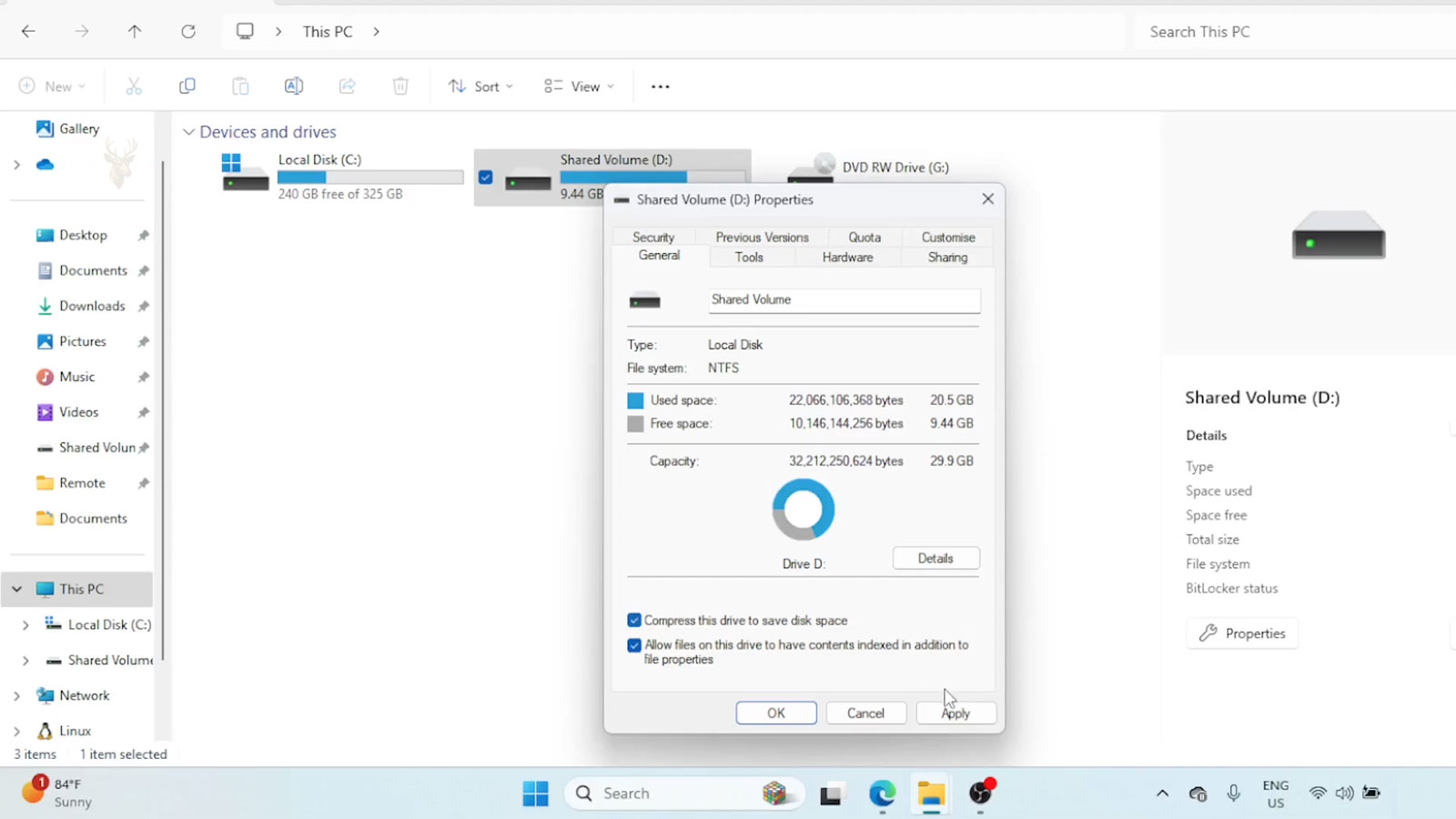
Most computer users are familiar with compressing files into ZIP archives before sending them by email or storing them for later use. Windows also includes another type of compression that works very differently. Known as NTFS compression, this feature allows files and folders to occupy less storage while remaining available for everyday use without requiring manual extraction.
Unlike archive compression, NTFS compression operates directly within the file system. Windows automatically compresses eligible data when it is written to the drive and decompresses it when the information is read. For most applications, this process happens in the background without requiring any special action from the user.
This transparent behavior makes NTFS compression particularly useful when conserving disk space on drives that are beginning to fill up. However, because every compressed file must also be decompressed when accessed, the feature introduces a balance between storage savings and processor activity.
How NTFS Compression Differs From ZIP Archives
Although both techniques reduce the amount of storage required, they are designed for different purposes. ZIP archives package one or more files into a separate compressed container, while NTFS compression leaves files in their original locations and allows Windows to manage the compression automatically.
| Feature | NTFS Compression | ZIP Archive |
|---|---|---|
| Location | Original folder remains unchanged. | Files are stored inside a separate archive. |
| Opening Files | Applications access them normally. | Extraction is often required before editing. |
| Purpose | Save storage during everyday use. | Package and transfer files efficiently. |
| Managed By | Windows file system. | Archive software or File Explorer. |
Because NTFS compression is integrated into the file system itself, many users are unaware that certain folders or files are compressed until they notice the visual indicators provided by Windows.
How Windows Handles Compressed Files
When an application requests a compressed file, Windows reads the compressed data from the storage device, expands it in memory, and supplies the original information to the application. Likewise, when the file is saved, Windows compresses the updated data before writing it back to the drive.
Since these operations occur automatically, most software cannot distinguish between compressed and uncompressed files stored on an NTFS volume. The application simply works with the original data while Windows performs the necessary compression and decompression behind the scenes.
- Files remain in their normal folders.
- Programs open compressed files without manual extraction.
- Windows compresses and decompresses data automatically.
- Users generally interact with files exactly as they would with uncompressed data.
- No separate archive needs to be created or maintained.
NTFS compression changes how data is stored on the drive, not how users normally access their files.
When Compression Provides the Greatest Benefit
Not every file compresses equally well. Documents, spreadsheets, log files, source code, and many text-based formats often contain repeated patterns that allow Windows to reduce their size significantly. By contrast, photographs, videos, music files, and many modern application installers are frequently already compressed and therefore offer relatively little additional space savings.
This is why enabling NTFS compression on an entire drive does not guarantee a dramatic increase in available storage. The results depend largely on the types of files stored on that drive.
Files That Benefit Most From NTFS Compression
NTFS compression is most effective on files that contain repeated patterns or large amounts of plain data. Text documents, spreadsheets, log files, source code, and many database exports often become noticeably smaller because their contents include information that the compression algorithm can represent more efficiently.
On the other hand, files that already use their own compression methods generally show little improvement. Images, music, videos, and many software installers are already optimized for storage efficiency, leaving relatively little redundant data for NTFS compression to remove.
| Often Compresses Well | Usually Shows Little Improvement |
|---|---|
| Text documents | JPEG photographs |
| Office files | MP3 audio files |
| Log files | MP4 video files |
| Source code | ZIP archives |
| Database exports | Many software installation packages |
For this reason, the amount of storage recovered varies greatly from one computer to another. Two systems with identical drive capacities may experience completely different results depending on the types of files they store.
Processor Activity During Compression
Unlike ZIP archives that are compressed once and then stored, NTFS compression performs its work continuously as files are accessed. Every time a compressed file is opened, Windows expands the data in memory before delivering it to the application. When the file is saved, Windows compresses the updated information again before writing it to the drive.
On modern computers equipped with multi-core processors, this additional work is often modest for everyday office documents and similar workloads. However, systems that frequently process very large files or perform intensive storage operations may experience a measurable increase in processor utilization.
NTFS compression trades a portion of processor time for reduced disk usage. Whether that tradeoff is worthwhile depends on both the computer’s hardware and the types of files being stored.
Compression Applied to Files or Entire Folders
Windows allows NTFS compression to be enabled for individual files or for entire folders. When applied to a folder, newly created files inside that folder typically inherit the same compression setting unless it is changed later. This simplifies management by allowing related files to follow a consistent storage policy.
- Compress a single file when only one item needs additional space savings.
- Compress an entire folder to apply the setting consistently to related files.
- Inheritance helps new files follow the folder’s existing configuration.
- Compression can later be removed without deleting the stored information.
Because Windows manages the compression automatically, users normally continue opening, editing, and saving files exactly as they did before the setting was enabled.
Recognizing Compressed Files in Windows
File Explorer provides visual indicators that identify compressed items. Depending on the Windows version and configuration, compressed files or folders may appear with blue filenames or display compression attributes within their properties. These indicators help distinguish compressed data from ordinary files without affecting how they are used.
The Properties dialog also reports whether compression is enabled, allowing users to review or modify the setting without needing specialized utilities.
- Right-click the file or folder.
- Select Properties.
- Choose Advanced.
- Review whether NTFS compression is enabled.
- Apply or remove the setting if appropriate.
Situations Where Compression May Be Less Appropriate
Although NTFS compression is useful in many situations, it is not always the best solution for recovering storage space. Computers that already have ample free capacity may gain little practical benefit, while workloads involving large multimedia files or constant high-speed disk activity may see only limited storage savings.
Evaluating the types of files stored on the drive is generally more informative than simply enabling compression everywhere. Selecting folders that contain highly compressible information often produces better overall results than applying the feature indiscriminately across an entire storage volume.
NTFS Compression Does Not Replace Storage Cleanup
NTFS compression can reduce the space used by certain files, but it does not address the reason a drive became full. Temporary files, outdated downloads, abandoned software installers, duplicate documents, and old application data may still occupy substantial storage even after compression is enabled.
For that reason, compression works best as one part of a broader storage maintenance plan. Removing unnecessary data first often produces more meaningful results than compressing files that no longer need to remain on the computer.
- Review temporary files and application caches.
- Remove software that is no longer used.
- Check the Downloads folder for outdated installers and duplicate files.
- Move large archives or media collections to appropriate storage.
- Confirm that important data is backed up before deleting anything.
After unnecessary files have been removed, NTFS compression may help extend the remaining capacity by reducing the size of suitable documents and folders.
Moving Compressed Files Between Drives
The compressed state of a file depends partly on the destination where it is copied or moved. When compressed files remain on the same NTFS volume, they may keep or inherit compression settings according to the folder involved. Moving them to another drive can produce different results because the destination file system and folder attributes determine how the data will be stored.
| Destination | Likely Result |
|---|---|
| Compressed folder on the same NTFS drive | The file commonly remains compressed. |
| Uncompressed folder on another NTFS drive | The destination folder’s settings may determine the result. |
| FAT32 or exFAT drive | NTFS compression is not retained because the file system does not support it. |
| ZIP archive | The file becomes part of a separate archive compression process. |
This distinction matters when files are transferred to USB drives, external storage, network locations, or another computer. A file that was compressed on the original NTFS volume may occupy its full logical size after being copied elsewhere.
Compression and File Encryption
NTFS compression and NTFS encryption are separate features, and Windows does not normally apply both to the same file at the same time. Compression focuses on reducing storage usage, while encryption focuses on restricting access to the information.
When a user enables one feature on a file already using the other, Windows may require the existing setting to be removed before the new one can be applied. This prevents the file system from attempting to manage two incompatible storage transformations simultaneously.
Compression is intended to save space. Encryption is intended to protect access. They solve different problems and should not be treated as interchangeable.
Backup Considerations for Compressed Data
Compressing a file does not create another copy of it. If the storage device fails, the file is deleted, or the file system becomes corrupted, NTFS compression offers no protection against data loss. Important files still require a separate backup stored on another device or service.
Backup software may handle compressed files in different ways. Some programs preserve the original NTFS attributes, while others read the files in their decompressed form and then apply their own compression inside the backup set. The visible result may be similar, but the underlying storage method can differ.
- Verify that important compressed folders are included in regular backups.
- Keep at least one backup on a separate physical device or remote service.
- Test that files can be restored and opened correctly.
- Do not rely on reduced file size as evidence that the data is protected.
Deciding Whether NTFS Compression Is Worth Using
The decision to enable NTFS compression should be based on the condition of the drive, the types of files involved, and the way the computer is used. A folder containing years of text documents may provide worthwhile savings with little noticeable effect on performance. A folder filled with video files may consume additional processor time while recovering almost no space.
Compression may be practical when replacing or expanding the drive is not immediately possible, but it should not become a substitute for maintaining reasonable free space. Drives that remain nearly full can still experience update failures, reduced working space, and difficulty creating temporary files even when some data has been compressed.
Using Compression With a Clear Purpose
NTFS compression gives Windows a way to reduce the physical storage used by files without placing them inside separate archives. The files remain accessible to ordinary applications, while the operating system handles compression and decompression automatically in the background.
The greatest benefit comes from applying the feature selectively to data that compresses well. Documents, logs, and other text-heavy files may provide meaningful savings, while photographs, audio, video, and existing archives usually offer little improvement. Used carefully alongside storage cleanup and reliable backups, NTFS compression can help manage limited disk capacity without changing the normal way files are opened and edited.











