
Desktop.ini Files Behind Folder Appearance and Behavior
Most Windows users eventually enable the option to display hidden files while troubleshooting a problem or searching for information. Shortly afterward, they often notice small files named Desktop.ini appearing inside folders throughout the computer. Because these files are normally hidden, their sudden appearance sometimes raises concerns that something has gone wrong or that unwanted software has modified the system.
In reality, Desktop.ini files are a normal part of Windows. They allow individual folders to store their own display settings without changing the actual contents of the folder. Instead of affecting the documents, photographs, or other files stored inside, Desktop.ini tells Windows Explorer how that particular folder should appear or behave when it is displayed.
Although these files are usually very small, they play an important role in the operating system’s ability to customize folders independently. Understanding what they do can help distinguish ordinary Windows behavior from situations that truly require troubleshooting.
Why Windows Creates Desktop.ini Files
Windows does not treat every folder exactly the same. Some folders display specialized icons, others show customized names, and certain system folders present unique layouts or templates depending on their purpose. Rather than storing those settings in one large database, Windows can save them inside the folder itself by using a Desktop.ini file.
This approach allows the folder to retain many of its display characteristics even if it is moved to another location on the same Windows installation. Explorer simply reads the configuration information whenever the folder is opened.
- Custom folder icons.
- Localized folder names displayed in different languages.
- Folder information tips.
- Explorer view preferences for certain system folders.
- Special attributes recognized by Windows Explorer.
Why They Suddenly Become Visible
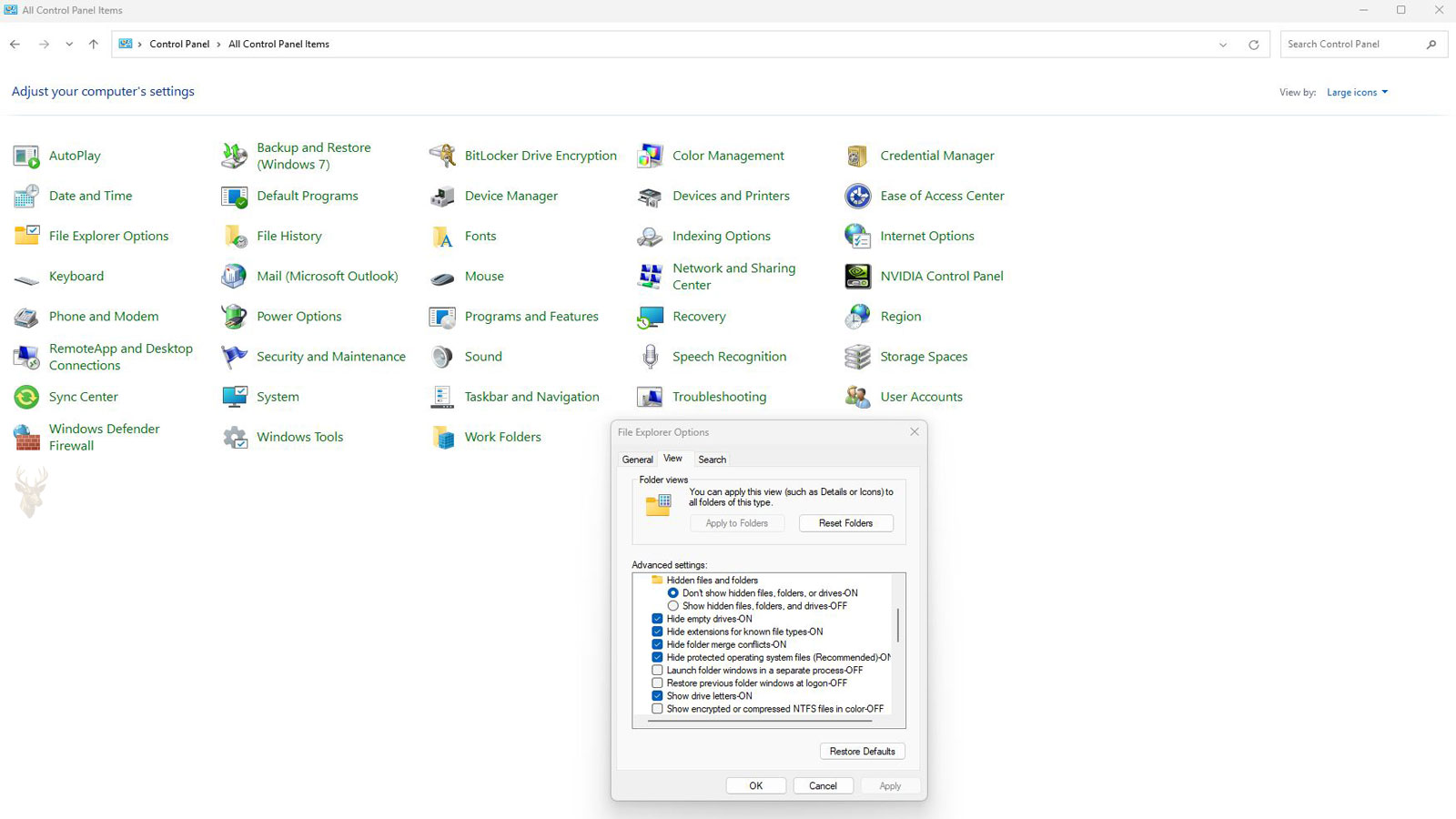
Many users first encounter Desktop.ini files after changing Folder Options to display hidden items or protected operating system files. Since Windows normally conceals these files, enabling additional visibility settings causes them to appear throughout the file system all at once.
Simply seeing Desktop.ini files does not indicate corruption, malware, or a problem with Windows. In most cases, it only means that hidden operating system files are now being displayed.
This often leads people to believe hundreds of new files have suddenly been created overnight, when in reality they have existed for years and were simply hidden from normal view.
What Information Can Be Stored Inside
Desktop.ini files contain configuration entries rather than personal documents. Depending on the folder, the information may instruct Windows to load a particular icon, assign a localized display name, or apply other Explorer-specific settings. The exact contents vary because not every folder requires the same level of customization.
| Configuration | Purpose |
|---|---|
| Folder Icon | Displays a custom icon instead of the default folder image. |
| Localized Name | Allows Windows to display translated folder names. |
| Folder Attributes | Stores Explorer-specific behavior for certain folders. |
| Information Tips | Provides descriptive text for supported folders. |
Because these files contain configuration data instead of user documents, they are usually only a few bytes or a few kilobytes in size.
Folder Attributes Required for Customization
A Desktop.ini file does not automatically control every ordinary folder simply because it is present. Windows Explorer generally expects the folder to have certain attributes before it treats the file as a source of customization instructions. This distinction explains why copying a Desktop.ini file into a random folder may appear to do nothing.
System and read-only attributes can signal that Windows should examine the folder for additional configuration information. The read-only attribute on a folder does not behave exactly like the same attribute on a document. For folders, it may be used by Explorer as part of the customization process rather than as a strict protection against changes.
- The folder receives the appropriate Windows attribute.
- A Desktop.ini file is placed inside the folder.
- The file contains valid configuration entries.
- Windows Explorer reads those entries when displaying the folder.
If one part of that sequence is missing, the folder may continue using its normal icon and behavior even though the Desktop.ini file itself is visible.
The Difference Between a Hidden File and a Protected System File
Windows separates ordinary hidden items from protected operating system files. Desktop.ini commonly carries both hidden and system attributes, which is why selecting Hidden items in File Explorer may not always reveal every copy. A separate Folder Options setting controls whether protected operating system files remain concealed.
| Visibility Setting | What It Usually Reveals | Practical Effect |
|---|---|---|
| Hidden items disabled | Only normally visible files | Desktop.ini remains out of view. |
| Hidden items enabled | Regular files marked as hidden | Some hidden content becomes visible. |
| Protected system files displayed | Files carrying operating system protection attributes | Additional Desktop.ini files may appear. |
The warning shown before protected files are displayed exists because these locations may also contain startup, recovery, and system configuration files whose removal can interfere with normal operation. Desktop.ini is usually harmless to view, but the same setting exposes much more than folder customization files.
What Happens After Desktop.ini Is Deleted
Deleting a Desktop.ini file normally does not erase the documents stored in the folder. It removes or disrupts the instructions Windows uses for that folder’s customized appearance. The resulting change may be subtle, immediate, delayed, or invisible depending on what the file controlled.
- A custom icon may return to the standard yellow folder icon.
- A translated display name may revert to its underlying folder name.
- An information tip may disappear.
- A system folder may lose part of its intended presentation.
- Windows or an application may create the file again later.
Reappearance is especially common in folders managed by Windows, cloud synchronization software, media applications, or programs that assign their own icons. The new file is not necessarily the deleted copy being restored from the Recycle Bin. The program may simply be generating fresh configuration data because the folder still requires it.
Removing a configuration file without removing the feature that creates it often results in the file returning the next time Windows or the related application updates the folder.
Why Multiple Copies May Appear on the Desktop
The Windows desktop is not always represented by one physical folder. It may combine items from the current user’s Desktop folder with shortcuts or files stored in the Public Desktop folder. File Explorer presents both locations as one familiar workspace even though they exist separately on the drive.
When protected system files are made visible, more than one Desktop.ini file may therefore appear on the desktop. Each copy can belong to a different underlying folder. Their similar names do not mean Windows accidentally duplicated one file in the same location.
This merged presentation also explains why some desktop icons are available to every account while others appear only for one user. Windows combines the contents for convenience, but their configuration and storage locations remain separate behind the scenes.
Desktop.ini Files Copied to External Storage
Desktop.ini files sometimes travel with folders copied to USB drives, external hard drives, network shares, or cloud storage. This can surprise users who open the same folder on another computer and suddenly notice a system file that was invisible on the original machine.
Whether the customization still works depends on the instructions inside the file and the availability of any referenced resources. A folder icon stored elsewhere on the original computer, for example, cannot be displayed on another computer if that icon file was not copied with the folder.
- Relative references may continue working when all required files move together.
- Absolute paths may point to locations that do not exist on another computer.
- Non-Windows devices may ignore Desktop.ini completely.
- Cloud services may synchronize the file even though it has no useful effect online.
- Different visibility settings can make the file appear on one computer but remain hidden on another.
The presence of Desktop.ini on removable media is therefore not automatically suspicious. It often reflects an ordinary folder that was customized before being copied.
Can Desktop.ini Files Contain Malware?
Because Desktop.ini files are ordinary text-based configuration files, they are not designed to execute programs or install software on their own. Their purpose is to provide Windows Explorer with folder-specific settings, such as custom icons and display names. Simply having a Desktop.ini file inside a folder does not mean the computer has been infected.
Confusion sometimes arises because malicious software may create hidden files that imitate legitimate Windows files by using similar names. This is one reason it is important to look at the complete file name and extension rather than assuming every hidden file serves the same purpose.
A genuine Desktop.ini file is generally small, stored inside folders, and contains configuration entries that Windows Explorer can interpret. If a file uses a misleading name, appears in an unusual location, or behaves differently than expected, further investigation may be appropriate.
Viewing the Contents of a Desktop.ini File
Since Desktop.ini is a text file, it can usually be opened with applications such as Notepad. The information inside typically consists of short configuration entries rather than executable code. Depending on the folder, the contents may reference an icon resource, a localized folder name, or other Explorer settings.
Most users never need to modify these entries manually. Editing them incorrectly may simply prevent a folder from displaying its intended appearance until Windows recreates the file or the settings are restored.
| Question | Answer |
|---|---|
| Can it be opened? | Yes. It is normally a plain text configuration file. |
| Does it contain personal documents? | No. It stores folder configuration information. |
| Is it normally safe to leave it alone? | Yes. Windows manages these files automatically. |
| Will deleting it erase folder contents? | No. It affects customization rather than stored documents. |
Situations That Commonly Lead to Questions About Desktop.ini
Most questions about Desktop.ini arise after a change in Windows rather than because the file itself has changed. The file has often been present for a long time, but a recent adjustment makes it visible or draws attention to it.
- Hidden files were enabled while troubleshooting.
- Protected operating system files were made visible.
- A folder was copied from another computer.
- A USB flash drive was connected after being used elsewhere.
- A custom folder icon suddenly disappeared.
- A system folder appears different after Windows settings were modified.
Recognizing these situations helps explain why Desktop.ini often seems to appear unexpectedly even though it has existed all along.
Looking Beyond Hidden Files
Desktop.ini files are a normal part of Windows folder management. Rather than storing user data, they hold configuration information that allows individual folders to display customized icons, localized names, and other Explorer-specific settings. Since these files remain hidden under normal conditions, many users only discover them after changing File Explorer’s visibility options.
Understanding their purpose makes it easier to distinguish ordinary Windows behavior from genuine system problems. While they may appear mysterious at first, Desktop.ini files are simply one of many small configuration components that help Windows present folders consistently throughout the operating system. Knowing what they do and just as importantly, what they do not do can prevent unnecessary concern when hidden files become visible during routine maintenance or troubleshooting.











