
Startup Patterns That Help Windows Load Software Efficiently
When Windows starts an application, it may need to retrieve program files, supporting libraries, configuration data, and other resources from several storage locations. Repeating this process without any record of previous activity could make frequently used programs take longer to open.
Windows Prefetch helps reduce some of that delay by observing which files are commonly accessed during application startup. It stores information about those loading patterns so Windows can prepare for similar activity the next time the program runs.
Prefetch does not store a complete copy of the application or eliminate the need to read its files. Instead, it gives Windows a useful reference that can improve the order and efficiency of future loading operations.
Prefetch Learns From Previous Application Launches
The first time an application starts, Windows observes which files and system components are accessed during the early part of the launch. That information can then be written into a Prefetch file associated with the program.
During later launches, Windows can use the recorded pattern to anticipate which resources are likely to be needed again.
Prefetch records loading behavior so Windows can prepare for repeated application activity.
Each Prefetch File Is Associated With a Program
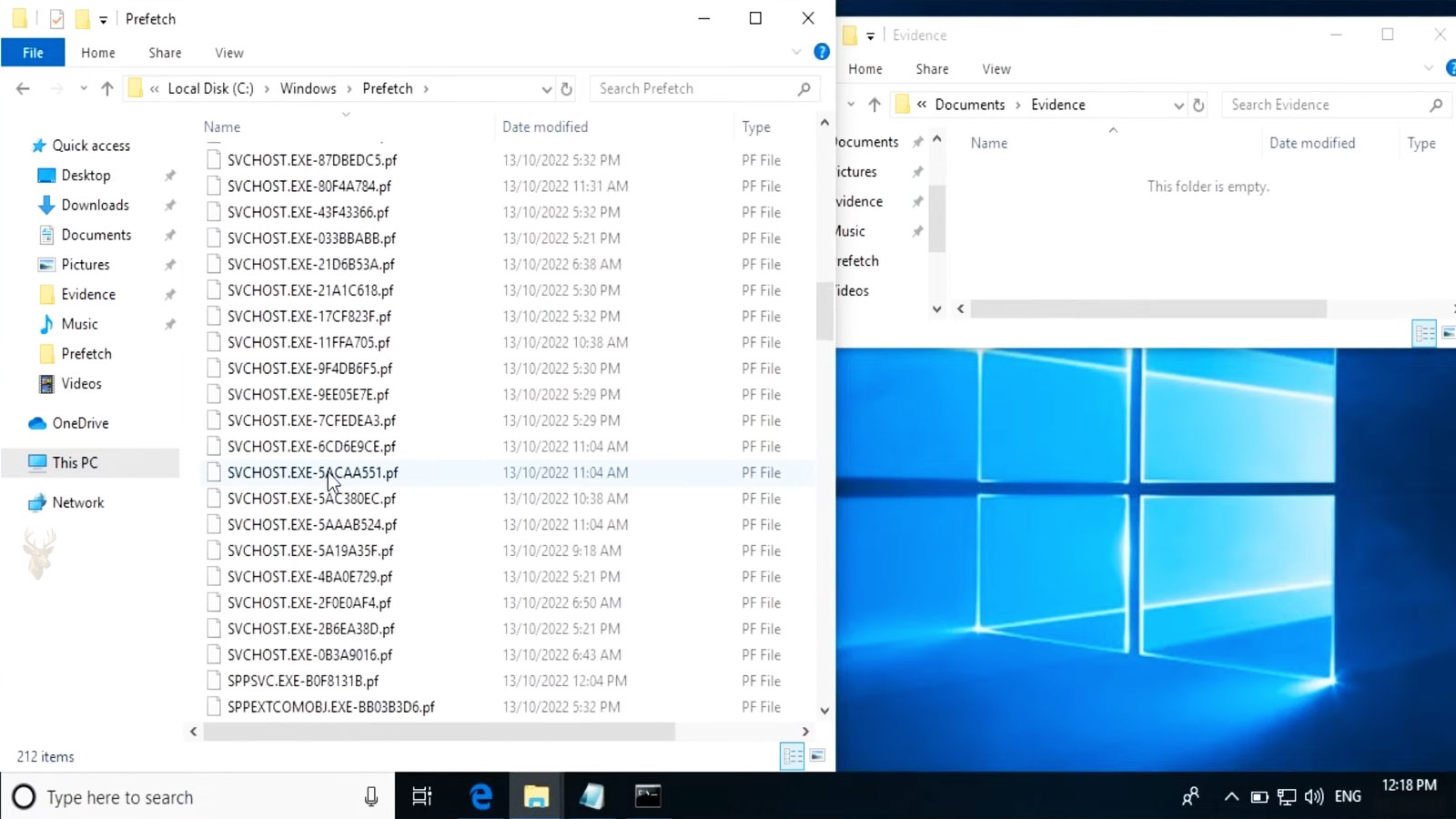
Windows creates Prefetch files with names based partly on the executable associated with the recorded activity. These files use the .pf extension and are stored inside a protected Windows system folder.
The file does not contain the complete executable or a backup of the program. It stores information that helps Windows understand how the application loaded during previous sessions.
| Prefetch Element | Purpose |
|---|---|
| Executable reference | Identifies the program associated with the record. |
| Accessed resources | Tracks files used during application startup. |
| Loading pattern | Helps Windows anticipate future access. |
| Launch information | Records details related to previous executions. |
| .pf file | Stores the collected Prefetch data. |
Windows Also Studies the Boot Process
Prefetch technology is not limited to ordinary applications. Windows also monitors files and components used while the operating system starts, allowing it to organize future boot-related access more efficiently.
This information works with other Windows performance features that attempt to reduce delays during startup and application loading.
- Records frequently accessed startup resources.
- Observes application-loading behavior.
- Helps Windows anticipate future file access.
- Supports both program launches and system startup.
- Updates as usage patterns change.
Prefetch Is Not the Same as a Temporary File Cache
Prefetch files are sometimes mistaken for ordinary temporary files because they are generated automatically and can accumulate over time. However, their purpose is different from browser caches, installer leftovers, and temporary working documents.
A typical cache may store reusable copies of data, while Prefetch primarily records information about how files were accessed during startup.
| Feature | Primary Function |
|---|---|
| Windows Prefetch | Records application and startup access patterns. |
| Browser cache | Stores website resources for reuse. |
| Temporary folder | Holds short-term application working files. |
| Page file | Provides disk-backed virtual memory. |
| Recycle Bin | Temporarily retains deleted files. |
Usage Patterns Can Change Over Time
A computer may initially be used for a small group of programs and later take on different tasks. Windows can update Prefetch information as applications are opened, updated, replaced, or used less frequently.
This allows the recorded information to reflect normal changes in how the computer is used rather than remaining permanently tied to its earliest software configuration.
Prefetch data is designed to adapt as application usage changes.
Older Records May Remain After Software Is Removed
Uninstalling an application does not always remove every Prefetch file associated with it. A small record may remain even though the main program is no longer installed.
These leftover files are normally small and do not indicate that the removed application is still running. Windows manages the Prefetch folder and can replace or discard records according to its own maintenance behavior.
- A Prefetch record is not the installed application.
- Old records may remain after software removal.
- The files usually occupy limited storage space.
- Windows manages the folder automatically.
- Manual deletion is rarely necessary.
Faster Storage Does Not Make Prefetch Meaningless
Solid-state drives retrieve data much faster than traditional mechanical hard drives, reducing the delay caused by files stored in different physical locations. Even so, Windows can still benefit from knowing which resources an application is likely to request during startup.
The performance improvement may be less noticeable on a fast SSD, but Prefetch remains part of the broader system Windows uses to manage application loading.
A Record of How Programs Begin
Windows Prefetch studies the files and components used during application launches and system startup. By retaining those access patterns, Windows can prepare for repeated activity instead of treating every launch as an entirely unfamiliar process.
In the next part, we’ll examine the Prefetch folder, how records are named, what happens when the folder is cleared, and why deleting Prefetch files usually does not provide a lasting performance improvement.
The Prefetch Folder Is Managed by Windows
Prefetch records are stored in a protected folder inside the Windows installation directory. The folder is intended for operating system use, and Windows manages its contents automatically as applications are opened and startup patterns change.
Users may see multiple files with the .pf extension inside this location. Each file usually corresponds to a specific executable or Windows startup activity.
The Prefetch folder is a working system location, not a collection of files that requires routine manual cleaning.
Prefetch Filenames Contain More Than the Program Name
A Prefetch filename commonly begins with the name of the executable associated with the record. Windows then adds identifying information that helps distinguish one launch path or program configuration from another.
This means two files related to the same executable name may not necessarily represent identical activity. Different installation paths or launch conditions can produce separate records.
| Filename Element | What It Indicates |
|---|---|
| Executable name | The program associated with the record. |
| Identifying value | Helps distinguish separate program locations or launch paths. |
| .pf extension | Identifies the file as a Prefetch record. |
| Modified date | May reflect recent updates to the recorded activity. |
| File size | Varies according to the information Windows recorded. |
Windows Limits the Number of Stored Records
The Prefetch folder is not designed to grow without limit. Windows maintains a controlled collection of records and may remove older entries as newer application activity is observed.
This automatic management reduces the need for users to delete files simply because the folder contains many items.
- New application launches can create new records.
- Existing records may be updated after later launches.
- Older entries can eventually be removed by Windows.
- The folder does not normally expand indefinitely.
- Manual cleanup is not part of regular maintenance.
Clearing Prefetch Removes Learned Loading Information
Deleting Prefetch files does not remove installed applications, personal documents, or Windows system files. It removes the loading records Windows created from previous activity.
After the folder is cleared, Windows must observe application launches again and rebuild the missing records. Programs may temporarily open more slowly while this information is recreated.
Deleting Prefetch data does not speed up Windows permanently; it forces the operating system to relearn information it already had.
The First Launch After Deletion May Be Slower
When an application starts without an existing Prefetch record, Windows must process its file access normally while collecting new information. The first few launches may therefore take longer than they did before the records were removed.
As the application continues to run, Windows can create a replacement Prefetch file and begin using the new loading pattern during later sessions.
| Condition | Likely Result |
|---|---|
| Existing Prefetch record | Windows can use previously observed loading information. |
| Record was deleted | Windows must rebuild the loading pattern. |
| Application was updated | The existing record may be revised or replaced. |
| Program path changed | A separate Prefetch record may be created. |
| Application is no longer used | The old record may eventually be removed. |
Cleaning Utilities May Misrepresent Prefetch Files
Some cleanup utilities classify Prefetch records as unnecessary files because they are generated automatically and can be recreated. While that description is technically true, it does not mean deleting them improves performance.
The files exist because Windows uses them to support faster and more predictable loading. Removing them repeatedly can interfere with that purpose without creating a meaningful amount of additional storage space.
- Prefetch records are usually small.
- They are created for a functional reason.
- Windows can manage them without third-party tools.
- Repeated deletion provides little storage benefit.
- Performance may temporarily decline after cleanup.
Prefetch Does Not Cause Every Slow Startup
When a program opens slowly, users sometimes assume that its Prefetch file is damaged. In most cases, application delays are more likely to involve storage performance, insufficient memory, excessive background activity, software updates, antivirus scanning, or damaged program files.
Deleting Prefetch data may appear to change the behavior temporarily, but it does not repair the underlying cause of most startup problems.
| Slow-Loading Symptom | Possible Cause |
|---|---|
| Every application opens slowly. | Storage trouble, low memory, or heavy background activity. |
| Only one program is affected. | Application corruption, update problems, or damaged settings. |
| Startup becomes slower over time. | Additional startup software or system maintenance activity. |
| Delays occur after an update. | Program rebuilding, indexing, or compatibility changes. |
| Drive remains constantly active. | Paging, scanning, updates, or storage failure. |
Damaged Records Are Usually Recreated Automatically
If an individual Prefetch record becomes unreadable or no longer matches the current application configuration, Windows can normally replace it during later activity. This self-rebuilding behavior is one reason manual intervention is rarely needed.
A technician may inspect or remove a specific record during targeted troubleshooting, but clearing the entire folder should not be treated as a general repair for unrelated performance problems.
Targeted troubleshooting is different from routinely deleting every Prefetch file on the computer.
Application Updates Can Change the Recorded Pattern
Software updates may replace executables, add supporting files, or change the sequence in which components are loaded. Windows can revise the related Prefetch information as the updated application is launched.
This adaptation allows the record to remain useful even when the program no longer loads exactly as it did before the update.
- The application is installed or updated.
- Windows observes the files used during launch.
- A new or revised Prefetch record is created.
- Later launches use the updated loading information.
- The record continues changing as program behavior changes.
Prefetch Records Can Also Assist Technical Investigations
Because Prefetch files can indicate that a particular executable has run on a computer, they may be useful during technical troubleshooting or forensic examination. Their names and metadata can provide clues about previous program activity.
However, a Prefetch record does not explain everything the application did, who intentionally launched it, or whether it completed successfully. It should be interpreted together with other system evidence.
| Prefetch Information | What It May Suggest |
|---|---|
| Executable name | A program associated with that name was launched. |
| Recorded path information | Files or locations used during startup. |
| Timestamp data | Approximate periods of Prefetch activity. |
| Missing record | Does not prove that a program never ran. |
| Existing record | Does not prove what the user did inside the program. |
Windows Rebuilds What Manual Cleaning Removes
The Prefetch folder contains records that Windows creates from observed startup and application-loading activity. These files are updated, replaced, and eventually removed as the computer’s usage patterns change.
In the final part, we’ll look at common Prefetch myths, situations where targeted deletion may be appropriate, how SSDs influence its usefulness, and the maintenance practices that preserve reliable application startup.
Prefetch Is Often Blamed for Problems It Does Not Cause
Because Prefetch files are generated automatically and stored inside a system folder, they are sometimes treated as clutter. In reality, their presence usually indicates that Windows is performing a normal optimization task.
A large number of Prefetch records does not automatically mean that the computer is overloaded, infected, or poorly maintained. Windows expects this folder to contain files created from ordinary application and startup activity.
Prefetch files are usually evidence of normal Windows activity, not a maintenance problem by themselves.
Deleting the Folder Does Not Repair a Slow Computer
Clearing Prefetch is sometimes recommended as a universal solution for slow performance. This advice overlooks the fact that the files are designed to help Windows load commonly used resources more efficiently.
If the computer is slow because of a failing storage device, insufficient memory, excessive startup software, thermal throttling, or damaged system files, removing Prefetch records will not correct the underlying condition.
| Common Claim | More Accurate Explanation |
|---|---|
| Prefetch files always slow Windows down. | They are created to support more efficient loading. |
| The folder must be cleaned regularly. | Windows manages it automatically. |
| Deleting every file improves boot speed. | Windows must rebuild the deleted information. |
| Old records indicate active software. | Some records may remain after a program is removed. |
| A missing record proves a program never ran. | Records can be deleted, replaced, or not created. |
Targeted Removal May Occasionally Support Troubleshooting
Although routine clearing is unnecessary, a technician may remove one specific Prefetch record when investigating an application that consistently behaves incorrectly during startup. This allows Windows to create a new record based on the program’s current loading behavior.
That action should be limited to a clearly identified application and followed by testing. Deleting the entire folder introduces more changes than are usually needed.
- Identify the exact application involved.
- Confirm that the program itself is installed correctly.
- Remove only the related record when justified.
- Launch the application again to rebuild the data.
- Continue troubleshooting if the original symptom remains.
An SSD Changes the Size of the Benefit
Mechanical hard drives experience delays when the read head must move between different physical locations. Prefetch can reduce some of that inefficiency by helping Windows organize expected file access.
Solid-state drives have much lower access times, so the improvement may be less noticeable. However, Windows can still benefit from knowing which files and components are likely to be requested during an application launch.
| Storage Type | Prefetch Consideration |
|---|---|
| Mechanical hard drive | File access order can have a greater effect on loading time. |
| SATA SSD | Fast access reduces delays but does not eliminate all loading work. |
| NVMe SSD | Very low latency makes the benefit less visible. |
| Failing drive | Prefetch cannot compensate for read errors or hardware instability. |
| Nearly full drive | General storage pressure may affect performance independently. |
Prefetch Cannot Compensate for Damaged Program Files
A Prefetch record only describes how resources were accessed. It does not repair missing libraries, corrupted executables, broken registry entries, or damaged user settings.
If one application opens slowly, crashes during startup, or displays repeated errors, repairing or reinstalling that program may be more appropriate than changing Prefetch data.
Loading information can improve access efficiency, but it cannot restore files that are missing or damaged.
Other Windows Activity Can Delay Application Launches
An application may appear slow even when its Prefetch information is functioning normally. Antivirus scans, software updates, search indexing, cloud synchronization, and heavy memory usage can all compete for system resources during startup.
Observing processor, memory, and storage activity can help determine whether the delay is caused by broader system demand rather than the application’s loading record.
- Windows Update may be installing or preparing changes.
- Security software may be scanning newly opened files.
- Cloud services may be synchronizing large folders.
- Low memory may force Windows to use the page file heavily.
- Search indexing may increase storage activity.
Disabling Prefetch Should Not Be Routine Maintenance
Windows is designed to manage Prefetch without regular user intervention. Disabling the feature through unsupported tweaks or registry changes may reduce the operating system’s ability to optimize loading behavior.
Such changes are sometimes promoted as performance improvements, but their effect varies by system and may produce slower application launches instead.
| Maintenance Action | Recommended Approach |
|---|---|
| Routine folder clearing | Allow Windows to manage the records. |
| Disabling Prefetch | Avoid unless required for a specific technical reason. |
| Removing one record | Use only during targeted troubleshooting. |
| Investigating slow startup | Check overall system activity and storage health. |
| Using cleanup software | Review what the utility intends to remove. |
Storage Health Matters More Than Prefetch Cleanup
When applications take much longer to open than they did previously, the condition of the storage device deserves attention. Slow reads, repeated retries, file system errors, and hardware degradation can affect every stage of program loading.
Prefetch may help Windows request files efficiently, but it cannot make an unstable drive respond normally.
- Compare loading times across several applications.
- Check whether storage activity remains unusually high.
- Review available free space.
- Inspect drive health and system error records.
- Back up important data if storage trouble is suspected.
Recent Changes Can Explain Temporary Delays
Application updates, Windows upgrades, driver installations, and major configuration changes can temporarily alter normal loading behavior. Windows may need time to rebuild Prefetch records and perform other background optimization tasks.
A short period of slower startup after a major update does not necessarily indicate a permanent problem. The system should be evaluated over several normal restarts and application launches before unnecessary changes are made.
Temporary rebuilding after an update should not be mistaken for a reason to repeatedly clear Prefetch data.
Reliable Maintenance Focuses on the Actual Bottleneck
Good computer maintenance does not depend on deleting every automatically generated file. It depends on identifying which component is limiting performance and addressing that condition directly.
When Windows is slow, storage health, memory pressure, startup applications, thermal conditions, malware, and system corruption usually deserve more attention than the normal contents of the Prefetch folder.
A Windows Feature Best Left to Automatic Management
Windows Prefetch records the files and components used during application launches and system startup. These records allow the operating system to recognize repeated loading patterns and prepare for future activity more efficiently.
Clearing the folder removes learned information without repairing the most common causes of poor performance. Except during limited and targeted troubleshooting, allowing Windows to create, update, and retire Prefetch records automatically is the most reliable approach.











