
Convenient References to Files Opened During Recent Work
Windows records references to certain files, folders, and applications that have been opened recently. These references can appear in File Explorer, application Jump Lists, the Start menu, and other parts of the operating system designed to help users return to frequently accessed content.
The feature can save time when someone needs to reopen a document used earlier in the day or return to a folder involved in an ongoing project. Instead of navigating through several drives and directories, the recent item can provide a direct path back to the original location.
Recent Items are often mistaken for duplicate files or a permanent record of everything performed on the computer. In most cases, they are small references that point toward the original content rather than additional copies of that content.
A Recent Item Is Usually a Shortcut
When Windows adds a document to a recent list, it generally creates or updates a shortcut containing information about the original file. The shortcut allows Windows to locate the item again without storing a separate working copy of the document.
This distinction is important because the recent entry depends on the original file remaining available. If the document is moved, renamed, deleted, or stored on a disconnected device, the shortcut may no longer open it.
A recent item provides a path back to a file; it does not normally preserve the file itself.
Recent Activity Can Appear in Several Places
Windows does not present all recent activity through one single screen. Different interfaces may show recently opened files, frequently visited folders, or application-specific records depending on how the item was accessed.
| Location | What It May Display |
|---|---|
| File Explorer Home | Recently opened files and frequently used folders. |
| Application Jump List | Files recently opened with a specific program. |
| Start menu recommendations | Recently used applications or documents. |
| Taskbar application menu | Pinned and recently accessed files. |
| Recent Items folder | Shortcut records created from earlier activity. |
Jump Lists Are Organized by Application
A Jump List is associated with a particular program. Right-clicking a supported application on the taskbar or Start menu may display files previously opened with that program, along with pinned items and program-specific commands.
For example, a word processor may show recently edited documents while an image editor displays recently opened pictures. Each program can maintain a different list based on its own activity and Windows integration.
- Recent documents can appear under the program used to open them.
- Pinned items can remain after older recent entries disappear.
- Some applications maintain their own additional history.
- Not every program supports the same Jump List features.
- Private or portable applications may record little or no activity.
Pinned Files Are Different From Recent Files
A recent file appears because it was opened or used during earlier activity. A pinned file remains in the list because the user deliberately selected it for continued access.
Windows may eventually replace older recent entries as new files are opened, but pinned items are generally preserved until they are manually unpinned or their original locations become unavailable.
| Entry Type | Normal Behavior |
|---|---|
| Recent file | Added automatically after the file is opened. |
| Pinned file | Kept in the list by user selection. |
| Frequent folder | Appears after repeated access. |
| Program command | Provides an action defined by the application. |
| Broken shortcut | Points to a file or location that can no longer be reached. |
Opening a File Can Update Several Records
When a document is opened, Windows and the application involved may each update different types of history. File Explorer may record the item as recent, the application may add it to a Jump List, and the program itself may maintain a separate list inside its File menu.
These records can overlap, but they are not necessarily identical. Clearing one history location may leave entries visible elsewhere because another component maintains its own information.
Recent file history can exist in more than one place, and each list may be managed separately.
The Original File Determines Whether the Entry Still Works
A recent item can open successfully only while Windows can reach the original file. If the document was stored on an external drive, network share, removable device, or cloud folder, that location must still be available.
The recent entry may remain visible even when its destination is temporarily disconnected. Attempting to open it can then produce an unavailable-location message or a request to reconnect the missing storage device.
- A disconnected external drive can break the shortcut temporarily.
- A renamed folder can invalidate the recorded path.
- Changed network permissions can prevent access.
- A deleted file cannot be restored from its recent entry.
- An online-only cloud file may require an internet connection.
Recent Lists Are Not a Complete Activity Log
Although recent records can indicate that certain files were accessed, they should not be treated as a complete history of everything performed on the computer. Entries can be cleared, replaced, disabled, or omitted depending on the application and Windows settings.
Some programs do not create standard recent-item records, and files opened through scripts, command-line tools, or specialized applications may not appear in the locations a user expects.
| Observation | What It Does Not Prove |
|---|---|
| A file appears in a recent list. | It does not prove who intentionally opened it. |
| A file is absent from the list. | It does not prove the file was never accessed. |
| A shortcut remains visible. | It does not mean the original file still exists. |
| The modified date is recent. | It does not always identify the exact user action. |
| The history was cleared. | It does not remove the original documents. |
Removing an Entry Does Not Normally Delete the Document
When an item is removed from a recent list, Windows usually deletes only the shortcut or history reference. The original document remains stored in its actual folder unless the user separately deletes it from that location.
This allows users to clean up recent lists without affecting their working files. However, choosing Delete while browsing the original folder is different from choosing Remove from this list in a recent-items interface.
Removing a history reference and deleting the original file are two separate actions.
Recent Lists Have Practical Limits
Windows does not preserve an unlimited number of recent references in every interface. As additional files are opened, older entries may be removed from view to make space for newer activity.
The exact behavior can differ according to Windows version, application support, privacy settings, and whether particular items have been pinned.
- A file or folder is opened.
- Windows or the application records a reference.
- The entry appears in an appropriate recent list.
- Newer activity gradually replaces older unpinned entries.
- Pinned entries remain available until they are removed.
Quick Access Without Creating Additional Copies
Windows Recent Items and Jump Lists reduce the time required to return to previously used files and folders. They accomplish this by storing references to existing content rather than duplicating every document that appears in the history.
In the next part, we’ll examine where recent-item records are stored, how privacy settings affect them, and why entries sometimes remain visible after the original file has been moved or deleted.
Recent-Item Records Are Stored Separately From the Original Files
Windows stores recent-item information in locations associated with the user’s profile. These records are separate from the folders that contain the original documents, pictures, spreadsheets, or other files.
Because the history record and the original file are stored independently, one can remain after the other changes. A shortcut may still appear after a document is deleted, while a document may continue to exist after its recent entry is removed.
The history entry and the file it references are connected by a path, but they are not the same item.
File Explorer Home Combines Different Types of Activity
The Home area in File Explorer can display recently opened files along with folders that Windows considers frequently used. These two groups are based on different activity patterns.
A file may appear because it was opened recently, while a folder may appear because it has been visited many times. Windows uses these records to provide faster navigation without changing the folder structure itself.
| Displayed Item | Reason It May Appear |
|---|---|
| Recent document | The file was opened during recent activity. |
| Frequent folder | The location has been visited repeatedly. |
| Pinned folder | The user selected it for permanent quick access. |
| Pinned file | The item was retained in an application Jump List. |
| Unavailable item | The stored path no longer reaches the original location. |
Privacy Settings Control Whether New Activity Appears
Windows includes privacy options that determine whether recently opened items and frequently used locations appear in certain interfaces. Disabling these options can stop new entries from being displayed, although existing application history may still remain elsewhere.
The exact controls can differ between Windows versions, but they generally affect recommendations, File Explorer history, Start menu content, or Jump Lists.
- Recent files can be hidden from File Explorer Home.
- Frequently used folders can be removed from view.
- Start menu recommendations can be limited.
- Jump List history can be disabled.
- Individual applications may still maintain separate records.
Clearing File Explorer History Removes Navigation References
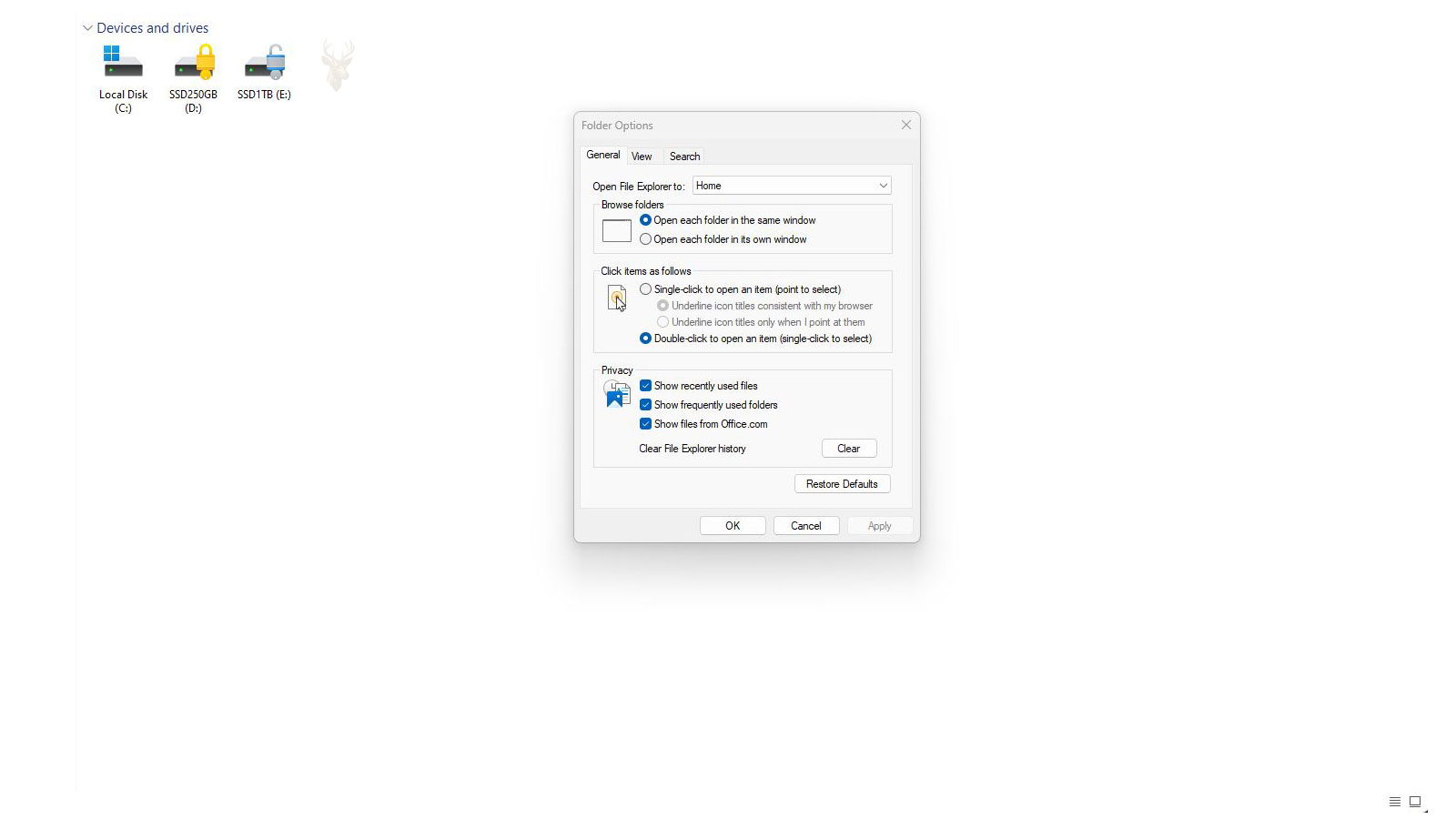
File Explorer includes an option for clearing its recent and frequent activity records. Using that option removes the shortcuts and usage references displayed through File Explorer, but it does not delete the original files or folders.
After the history is cleared, Windows begins building new entries as files are opened and folders are visited again, provided the related privacy settings remain enabled.
Clearing File Explorer history resets the convenience list, not the underlying storage.
Application History May Survive a File Explorer Reset
Clearing File Explorer history does not necessarily remove every recent file reference from the computer. Applications such as word processors, image editors, media players, and PDF readers may maintain their own recent-document lists.
This is why a document may disappear from File Explorer Home while continuing to appear inside an application’s File menu or taskbar Jump List.
| History Location | How It Is Usually Managed |
|---|---|
| File Explorer Home | Controlled through File Explorer privacy settings. |
| Taskbar Jump List | Managed by Windows and the related application. |
| Application File menu | Controlled inside the program. |
| Start menu recommendations | Controlled through Windows personalization settings. |
| Cloud application history | May be connected to the user’s online account. |
Broken Entries Commonly Follow Moved or Renamed Files
A recent entry stores information about where the original file was located. If the file is moved or renamed after the reference is created, the stored path may no longer match the current location.
Opening the recent entry can then produce an error even though the file still exists somewhere else on the computer. Searching by filename or checking the destination folder may reveal that the content was reorganized rather than deleted.
- The file was moved into another folder.
- The parent folder was renamed.
- The drive letter changed.
- A network share received a different path.
- A cloud folder was relocated or disconnected.
External Drives Can Leave Temporary Broken References
Files opened from USB flash drives, external hard drives, memory cards, and other removable storage can appear in recent lists. Once the device is disconnected, Windows can no longer reach the original path.
The shortcut may work again when the same device is reconnected, especially if Windows assigns it the same drive letter. A different drive letter can prevent the stored path from matching even though the file is still present.
| External Storage Condition | Likely Result |
|---|---|
| Device is connected with the same drive letter. | The recent entry may open normally. |
| Device is disconnected. | The file cannot be reached. |
| Drive letter changes. | The stored shortcut may fail. |
| File is moved on the device. | The original reference becomes outdated. |
| Device is damaged. | The entry remains, but the data may be inaccessible. |
Network Files Depend on Connection and Permission
Recent references to network files work only while the computer can reach the shared location and the user has permission to open it. A change in network access can make the entry appear broken even when the file remains on the server.
Stored credentials, VPN availability, office network connections, share names, and security permissions can all determine whether the recent entry continues to function.
A recent network file is only as accessible as the connection and permissions behind its original path.
Cloud Files May Appear Before Their Content Is Available
Files stored through OneDrive or another synchronization service can appear in recent lists even when their content is not currently stored on the computer. An online-only file may require an internet connection before it can open.
If synchronization is paused, the account is signed out, or the cloud path changes, the recent reference may fail or open an outdated local version.
- Online-only files require cloud access.
- Locally available files can open without a connection.
- Synchronization delays may affect the visible version.
- Account changes can disconnect the original path.
- Deleted cloud files may leave recent references behind.
Duplicate Names Can Make Recent Lists Confusing
Two files with the same name can appear nearly identical in a recent list even when they are stored in different folders. This is common with documents such as invoices, reports, templates, and downloaded attachments.
Checking the full path before editing or deleting the item helps prevent changes to the wrong copy.
| Visible Similarity | Possible Difference |
|---|---|
| Same filename | Different storage folders. |
| Same file type | Different document versions. |
| Same modification date | Separate copied files. |
| Same application icon | Different original paths. |
| Similar recent position | Different opening times or programs. |
Recent History Can Reveal Sensitive Filenames
Recent-item lists can expose document names and folder locations to anyone using the same Windows account. Even when the file itself requires additional access, its name may reveal information about personal records, business projects, financial documents, or private correspondence.
Shared computers should use separate user accounts so that one person’s recent activity does not routinely appear to another user.
- Use a separate Windows account for each person.
- Lock the computer when leaving it unattended.
- Remove sensitive items from visible recent lists.
- Review application-specific history when necessary.
- Avoid relying on history clearing as the only privacy control.
Clearing History Does Not Remove Every Trace of File Activity
Removing recent references improves privacy in the visible interfaces where they appeared, but it does not erase every record associated with the original file. Applications, cloud services, backups, system logs, and file metadata may retain other information.
For this reason, clearing Recent Items should be understood as interface cleanup rather than a complete method of removing activity history from a computer.
History References Change as Files and Locations Change
Recent-file features depend on stored paths, Windows privacy settings, application behavior, and continued access to the original location. Entries can stop working when files are moved, drives are disconnected, cloud accounts change, or network permissions are modified.
In the final part, we’ll examine how recent history affects troubleshooting and privacy, when clearing it is useful, and why a missing entry cannot confirm that a file was never opened.
Recent History Can Help Explain Missing-File Reports
When a user cannot locate a document, a recent-file entry may provide a useful clue about its former name, application, or storage location. The reference can sometimes reveal whether the file was opened from a local folder, external drive, network share, or cloud-synchronized location.
However, the presence of a recent entry does not guarantee that the original file is still available. It may only preserve an outdated path to an item that has since been moved, renamed, or deleted.
A recent-file reference can guide a search, but it cannot replace the missing document.
A Broken Entry Can Reveal the Previous Location
Even when a recent item no longer opens, its stored path may identify where the file was previously located. This can help narrow a search to a specific folder, drive letter, server share, or synchronized directory.
If the path points to an unavailable device or network resource, restoring access to that location may allow the entry to work again.
| Stored Path Clue | Possible Interpretation |
|---|---|
| Local user folder | The file may have been moved within the computer. |
| External drive letter | The original storage device may be disconnected. |
| Network share | The server, share name, or permissions may have changed. |
| OneDrive folder | The file may depend on synchronization or account access. |
| Temporary folder | The file may have been created or opened from a short-lived location. |
Recent Entries Do Not Confirm That a File Was Saved
An application may create a recent reference after a file is opened, imported, previewed, or temporarily accessed. That entry does not always prove that the user saved a permanent copy in the location they expected.
This distinction matters when someone remembers working on a document but cannot find the final version. The recent list may point to an earlier copy, downloaded attachment, temporary location, or source file rather than the completed document.
- The file may have been opened without being edited.
- An attachment may have been viewed from a temporary folder.
- A document may have been saved under a different name.
- The final version may exist in another location.
- The application may have closed before changes were saved.
A Missing Entry Does Not Prove a File Was Never Opened
Recent-file history is incomplete by design. Older entries can be replaced, privacy settings can disable recording, applications can maintain separate histories, and users can remove individual items.
For these reasons, the absence of a file from a recent list should not be treated as proof that the document was never accessed.
Recent-file lists are convenience features, not complete forensic records.
Application Behavior Changes What Gets Recorded
Not every program reports recent activity to Windows in the same way. Some applications integrate closely with Jump Lists and File Explorer, while others store their history only inside the program or do not preserve it at all.
Portable applications, command-line tools, privacy-focused software, and specialized business programs may produce different records from standard desktop applications.
| Application Behavior | Possible History Result |
|---|---|
| Full Windows integration | Entries may appear in Jump Lists and File Explorer. |
| Internal history only | Recent files appear only inside the application. |
| Portable application | Little or no Windows history may be created. |
| Privacy mode | Recent activity may be limited or omitted. |
| Cloud-based application | History may be connected to an online account. |
Clearing Recent History Can Resolve Display Problems
Recent lists can occasionally display duplicate entries, outdated paths, unavailable files, or items that no longer belong to the user’s current workflow. Clearing the affected history can remove these stale references and allow Windows to rebuild the list from new activity.
This can improve the usefulness of File Explorer Home or application Jump Lists, but it does not repair the original files or locations represented by broken entries.
- Confirm that the original files are stored safely.
- Clear the affected recent or frequent history.
- Restart the related application when necessary.
- Open current files and folders normally.
- Verify that new entries appear correctly.
Repeated Broken Entries May Point to a Larger Access Problem
If recent files repeatedly become unavailable, the cause may involve more than outdated shortcuts. External drives may be receiving inconsistent drive letters, network shares may be disconnecting, or cloud folders may be changing location after account or synchronization problems.
Investigating the storage path can reveal whether the same underlying access problem is affecting multiple recent entries.
| Repeated Symptom | Possible Cause |
|---|---|
| External files repeatedly fail | Drive-letter changes or unstable connections. |
| Office files become unavailable | Network, VPN, credential, or permission problems. |
| Cloud documents stop opening | Synchronization or account access failure. |
| Local files disappear from history | Privacy settings or automatic list replacement. |
| Only one application loses history | Program-specific settings or profile corruption. |
Recent Lists Can Expose Information on Shared Accounts
When several people use the same Windows account, each person may see filenames, folders, and application history created by the others. This can reveal sensitive information even when the underlying document is no longer accessible.
Separate user accounts provide better privacy because each profile maintains its own recent-item records, application settings, and personal folders.
Shared access to one Windows profile also means shared visibility into much of that profile’s recent activity.
Private Browsing Does Not Control Every Recent-File Record
Private or incognito browsing is designed mainly to limit browser history, cookies, and local browsing data. It does not automatically prevent downloaded or opened files from appearing in Windows recent lists or application history.
A downloaded document may still appear in File Explorer, a PDF reader, an office application, or another program used to open it.
- Browser privacy mode does not erase downloaded files.
- Opened documents may appear in application history.
- File Explorer may record recently accessed downloads.
- Cloud services may preserve account-based activity.
- Manual cleanup may be required on a shared computer.
Pinned Items Require Separate Attention
Clearing ordinary recent history may not remove files or folders that have been pinned. Pinned entries are designed to remain available and may need to be unpinned individually.
A pinned shortcut can also become outdated if its original file moves, leaving a permanent-looking entry that no longer opens.
| Entry Condition | Appropriate Action |
|---|---|
| Recent item no longer needed | Remove it from the list. |
| Pinned item no longer needed | Unpin it manually. |
| Broken pinned shortcut | Locate the file and create a new reference. |
| Original file deleted | Remove the unusable entry. |
| Frequently used folder appears incorrectly | Clear or reset File Explorer history. |
Profile Problems Can Affect Recent-Item Behavior
If recent lists stop updating, disappear after every restart, or display corrupted entries, the Windows user profile may not be saving the related settings correctly. Permissions, damaged profile data, cleanup software, or synchronization problems can interfere with history records.
Testing another Windows account can help determine whether the problem affects the entire computer or only one user profile.
- Confirm that recent-item settings are enabled.
- Open several files and check whether new entries appear.
- Restart Windows and review the list again.
- Test the same behavior in another user account.
- Investigate profile permissions or corruption if the issue is isolated.
Cleanup Utilities Can Remove History Automatically
Some maintenance and privacy utilities delete recent-file records during scheduled cleanup. Users may then believe Windows has stopped recording activity when the entries are actually being removed by another program.
Reviewing cleanup settings can help determine whether File Explorer history, Jump Lists, application records, or temporary shortcuts are being erased automatically.
History that repeatedly disappears may be functioning normally and then being cleared by a maintenance tool.
Recent History Is Useful When Its Limits Are Understood
Recent-file features are most useful as navigation aids. They help users return to documents, folders, and applications without manually retracing every storage path.
They become misleading only when treated as backups, permanent records, or proof of everything that occurred on the computer.
Convenient History With Important Limitations
Recent File History in Windows records references to recently accessed content so users can return to familiar files and locations more quickly. These entries depend on the original paths and can stop working when files are moved, devices are disconnected, permissions change, or cloud access is interrupted.
Clearing recent history can remove stale references and improve privacy, but it does not delete the original files or erase every record of activity. Treating recent lists as temporary navigation tools rather than complete logs provides a more accurate understanding of what they can and cannot reveal.











