
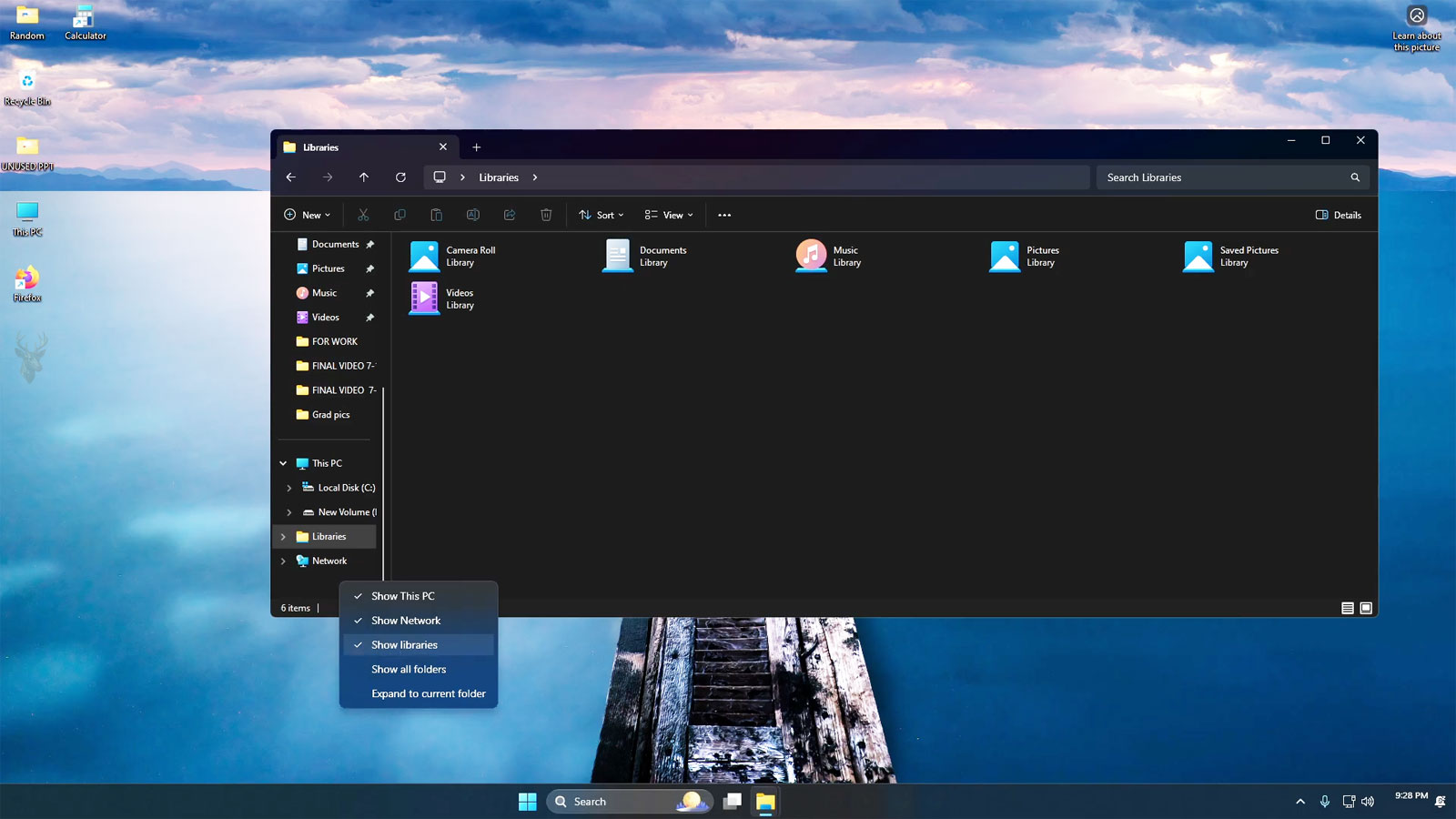
A Single View That Can Combine Files From Multiple Locations
Windows includes a feature called Libraries that allows File Explorer to display files from multiple folders in one convenient location. Instead of requiring documents, pictures, or videos to exist inside a single physical folder, a library can present content gathered from several different places.
This approach makes file organization more flexible because users can keep files where they make the most sense while still viewing them together through a single library.
Although Libraries have existed for many versions of Windows, they are often misunderstood. Some users believe that a library stores copies of files, while others mistake it for an ordinary folder. In reality, a library acts more like an organized collection of references.
A Library Does Not Store the Files It Displays
One of the most important characteristics of a Windows library is that it normally does not contain the files themselves. Instead, it points to one or more folders that already exist elsewhere on the computer or on supported network locations.
When a file appears inside a library, it usually remains stored in its original folder. The library simply provides another way to view and organize that content.
A Windows library is a collection of locations rather than a separate storage location.
Several Standard Libraries Come With Windows
Windows creates several common libraries that help organize everyday content. These are designed to collect files that belong to similar categories, even when they originate from different folders.
| Library | Typical Content |
|---|---|
| Documents | Word processing files, PDFs, spreadsheets, and other documents. |
| Pictures | Photographs and image files. |
| Music | Audio files and music collections. |
| Videos | Video recordings and movie files. |
| Camera Roll (where available) | Images and videos captured by connected devices. |
One Library Can Include Multiple Folders
A library is not limited to one folder. Multiple locations can contribute content to the same library, allowing files from different drives or folders to appear together without changing where they are physically stored.
This is particularly useful when users separate work files, personal documents, archived material, or project folders while still wanting a single place to browse related content.
- Folders on the system drive.
- Folders stored on another internal drive.
- Selected supported network locations.
- Folders created for specific projects.
- Additional user-created storage locations.
Viewing a Library Does Not Duplicate Storage
Because a library references existing folders instead of creating duplicate files, it generally does not consume significant additional storage space. The same file can appear through a library while continuing to exist only once on the storage device.
This allows Windows to present a more organized view without increasing the amount of disk space required.
| Feature | Behavior |
|---|---|
| Library | Displays files from one or more existing folders. |
| Folder | Physically stores files. |
| Shortcut | Points to a specific file or folder. |
| Drive | Provides physical or logical storage space. |
| Search results | Temporarily display matching files. |
Libraries Make Related Content Easier to Browse
Rather than opening several different folders individually, users can browse a library that combines related material into one location. This can simplify navigation, especially when files are spread across multiple project directories or storage devices.
Libraries also support the familiar sorting, grouping, filtering, and searching features available throughout File Explorer.
Libraries improve organization without changing where files actually reside.
Changes Made Through a Library Affect the Original File
Opening, renaming, editing, or deleting a file from within a library affects the original file because the library is displaying the actual item rather than a copy.
Understanding this distinction helps prevent accidental changes that users might mistakenly believe affect only the library view.
- Editing changes the original document.
- Renaming updates the actual file.
- Deleting removes the original item.
- Moving changes the file’s physical location.
- Viewing does not create duplicate copies.
Organized Views Without Rearranging Storage
Windows Libraries provide a practical way to organize files that are already stored in different locations. By presenting multiple folders through one unified view, they simplify navigation while allowing each file to remain in its original location.
In the next part, we’ll examine how folders are added to libraries, how the default save location works, and why libraries are different from ordinary shortcuts.
Adding Folders Expands What a Library Can Display
Each Windows library can include one or more folders. When a new folder is added, its contents become part of the library view while remaining in their original storage location. Windows simply includes that folder when displaying the combined collection.
This makes it possible to organize documents from different drives, project folders, or supported network locations without moving files into a single directory.
Adding a folder to a library changes how files are viewed, not where they are stored.
One Folder Can Belong to Multiple Libraries
A single folder is not limited to one library. Windows allows the same folder to appear in multiple libraries when it is useful for different organizational purposes.
For example, a folder containing marketing images might appear in both a Pictures library and a project-specific library without creating duplicate copies of the files.
| Folder Relationship | Result |
|---|---|
| One folder in one library | Appears in a single organized view. |
| One folder in multiple libraries | Visible through several library collections. |
| Multiple folders in one library | Combined into one browsing location. |
| Folder removed from a library | Only the library reference is removed. |
| Folder deleted | Files are removed regardless of library membership. |
The Default Save Location Determines Where New Files Go
Although a library may display files from several folders, Windows normally designates one location as the default save folder. When an application saves a new file through the library, Windows typically stores it in that designated location unless another folder is selected.
This prevents Windows from having to decide automatically among several possible destinations every time a new document is created.
- Each library can have a preferred save location.
- New files normally go to that designated folder.
- Existing files remain where they were originally stored.
- The save location can be changed when needed.
- Applications may allow a different destination to be selected.
Libraries Are Different From Ordinary Shortcuts
Although both libraries and shortcuts help users reach files more easily, they work differently. A shortcut points to one specific file or folder, while a library combines multiple folders into a single browsing interface.
This distinction allows libraries to function as organizational tools instead of simple navigation links.
| Feature | Primary Purpose |
|---|---|
| Library | Combines multiple folders into one view. |
| Shortcut | Opens one specific file or folder. |
| Folder | Physically stores files. |
| Search Results | Display files matching search criteria. |
| Quick Access | Provides convenient access to frequently used locations. |
Libraries Continue Working When Files Are Moved Within Included Folders
If files are reorganized inside folders that already belong to a library, Windows continues displaying them because the folder itself remains part of the library. Only removing the folder from the library or moving files outside the included locations changes what appears.
This behavior allows users to reorganize projects without constantly rebuilding their library structure.
Libraries follow included folders, allowing their contents to change naturally over time.
Searching a Library Can Span Several Locations
One advantage of libraries is that a single search can examine every included folder. Instead of searching several locations individually, File Explorer can present matching results from the entire library.
This can save time when files related to one project are distributed across multiple directories.
- Searches include all folders assigned to the library.
- Results appear in one combined list.
- Sorting options remain available.
- Filters can still be applied.
- Original storage locations remain unchanged.
Unavailable Folders Affect What the Library Can Display
If a folder included in a library becomes unavailable because a removable drive is disconnected or a network location cannot be reached, Windows cannot display files from that location until access is restored.
The remaining folders within the library continue functioning normally, allowing users to access whatever content is still available.
| Folder Status | Library Behavior |
|---|---|
| Available | Files appear normally. |
| Disconnected network folder | That location cannot be displayed. |
| Removed external drive | Its files temporarily disappear from the library. |
| Folder restored | Its contents become visible again. |
| Folder removed from the library | Only that location disappears from the collection. |
Libraries Can Support Personal and Business Organization
Libraries are useful for organizing information that naturally belongs together even when it is stored in different places. Home users may combine personal documents from several drives, while businesses may group project folders without changing established storage structures.
Because the original folders remain intact, existing backup routines and file-sharing arrangements usually continue working without modification.
- Select the library to organize.
- Add the folders that belong in the collection.
- Choose the preferred default save location.
- Browse or search the combined contents.
- Modify the included folders as organizational needs change.
Libraries Simplify Navigation Rather Than Storage
The primary purpose of a Windows library is to simplify how files are viewed and accessed. It provides a unified interface for related content without changing the physical organization of the storage device.
Understanding this distinction helps prevent confusion when files appear together inside a library while remaining stored in completely different folders.
Flexible Organization Without Moving Files
Windows Libraries make it possible to collect related folders into one convenient view while preserving the original storage locations. They simplify browsing, searching, and file management without duplicating data or requiring major changes to an existing folder structure.
In the final part, we’ll examine how libraries interact with indexing, backup software, OneDrive, and common situations where libraries are mistaken for actual folders.
Libraries Depend on Windows Search Indexing
Windows Libraries work closely with the search index to provide fast searching, grouping, and sorting across several included folders. When a location is indexed, Windows can retrieve filenames, properties, and other searchable details more efficiently.
If one of the folders in a library is not indexed, searching that location may be slower or less complete. The library itself can still display the files, but some advanced organization features may not work as smoothly.
A library can combine folders without indexing, but indexing improves how quickly Windows can search and organize the combined content.
Search Results Can Hide the Original Folder Structure
When files from several locations appear together in one library, the original folder structure may be less obvious. A user may see two documents with similar names without immediately recognizing that they are stored on different drives or inside different project folders.
Reviewing file properties or displaying the folder path can help identify the actual location before editing, moving, or deleting an item.
| Library View | Underlying Reality |
|---|---|
| Files appear together. | They may be stored in separate folders. |
| Items share one library name. | They may exist on different drives. |
| Search results look identical. | Each file may have a different path. |
| A file is renamed in the library. | The original file is renamed. |
| A file is deleted in the library. | The original item is deleted. |
Libraries Do Not Replace a Backup System
Because a library displays existing files instead of creating copies, it does not protect those files from deletion, hardware failure, ransomware, or accidental overwriting. Organizing several folders into one library does not create a second version of the data.
Backup software must still be configured to include the actual folders where the files are stored. Selecting only the visible library name may not always guarantee that every underlying location is protected.
- Confirm the physical folders included in each library.
- Verify that every storage location is part of the backup plan.
- Check external drives separately.
- Review network folders for independent protection.
- Test recovery from the actual backup destination.
Backup Software May Interpret Libraries Differently
Some backup programs understand Windows Libraries and automatically follow the folders they contain. Others treat a library as a virtual location and require the underlying folders to be selected manually.
This difference can lead users to believe that everything inside a library is protected when only the default folder has actually been included.
| Backup Behavior | Possible Result |
|---|---|
| Follows every included folder. | The complete library content may be protected. |
| Backs up only the default location. | Files from other folders may be missed. |
| Ignores unavailable network paths. | Remote files may not be copied. |
| External drive is disconnected. | Its files cannot be included during that backup. |
| Folder membership changes. | The backup configuration may need review. |
OneDrive Can Change Where Familiar Folders Are Stored
When OneDrive folder backup is enabled, familiar locations such as Documents, Pictures, or Desktop may be redirected into the user’s OneDrive folder. A Windows library can continue displaying these files even though their physical storage path has changed.
This can create confusion when users expect a file to be stored only on the local drive. The library may look unchanged while the actual folder is now synchronized with cloud storage.
A library can preserve a familiar view even after OneDrive changes the underlying folder location.
Cloud Status Affects Whether Files Are Fully Available
Files displayed through a library may include OneDrive items that are stored locally, available online only, or waiting to synchronize. The library can show all of these items together, but their availability depends on the current cloud status.
An online-only file may require an internet connection before it can be opened. A synchronization error may also cause the file shown in the library to differ from the version available on another device.
- Locally available files can open without internet access.
- Online-only files may need to be downloaded first.
- Pending synchronization can delay updates.
- Account sign-in problems may interrupt access.
- Low local storage can affect offline availability.
Network Locations Have Additional Limitations
Libraries can include certain network locations, but their reliability depends on the connection, permissions, indexing support, and availability of the remote computer or server. A disconnected network location may temporarily disappear from the library view.
Search performance may also be different from local folders, especially when the remote location is not indexed or the connection is slow.
| Network Condition | Effect on the Library |
|---|---|
| Server is available. | Files appear normally. |
| Connection is slow. | Browsing and search may be delayed. |
| Permissions change. | Some files may become inaccessible. |
| Network path changes. | The library reference may stop working. |
| Remote system is offline. | That location becomes unavailable. |
Removing a Library Does Not Usually Delete Its Files
Deleting a library normally removes only the organized view and its references to included folders. The actual folders and files remain in their original storage locations.
This is different from deleting a file while browsing inside the library, which removes the actual item. The distinction between deleting the library itself and deleting content displayed inside it is important.
Removing the container is not the same as removing the files shown through that container.
Default Libraries Can Be Restored
If a standard Windows library is removed, it can usually be restored without recovering any files. Windows recreates the library structure and reconnects it to the normal default folders.
Custom folder memberships may need to be added again because restoring the default library does not necessarily reproduce every previous customization.
- Restore the default library structure.
- Confirm that the standard folder is included.
- Add any additional custom locations.
- Set the preferred save location.
- Verify search and sorting behavior.
Broken Libraries Often Point to Missing Locations
When a library opens with missing content or an unavailable-location message, the problem may involve a folder that was moved, renamed, deleted, disconnected, or made inaccessible by permission changes.
Repairing the library usually requires identifying the affected location rather than rebuilding every folder on the computer.
| Symptom | Possible Cause |
|---|---|
| Some files are missing. | One included folder is unavailable. |
| Library opens slowly. | A network or external location is delayed. |
| New files save to the wrong folder. | The default save location changed. |
| Search results are incomplete. | An included location is not indexed. |
| Access is denied. | Folder permissions no longer allow entry. |
Checking the Original Path Prevents Mistakes
Before moving, deleting, or backing up files from a library, it is useful to confirm their actual locations. This is especially important when several drives, OneDrive folders, or network shares contribute content to the same view.
Understanding the real path makes it easier to determine whether a file is local, synchronized, removable, shared, or stored elsewhere on the network.
- Review the file properties.
- Display the folder path in File Explorer.
- Check whether the drive is local or removable.
- Confirm cloud synchronization status.
- Verify network permissions before making changes.
Useful Organization Built on Existing Storage
Windows Libraries provide a unified way to browse files from several folders without relocating or duplicating them. Their usefulness comes from organizing existing storage rather than replacing it.
Because the files remain in their original locations, indexing, backups, OneDrive synchronization, network availability, and folder permissions still determine how reliably the content can be searched and accessed. Treating a library as an organized view instead of a physical folder helps prevent confusion and supports safer file management.











