
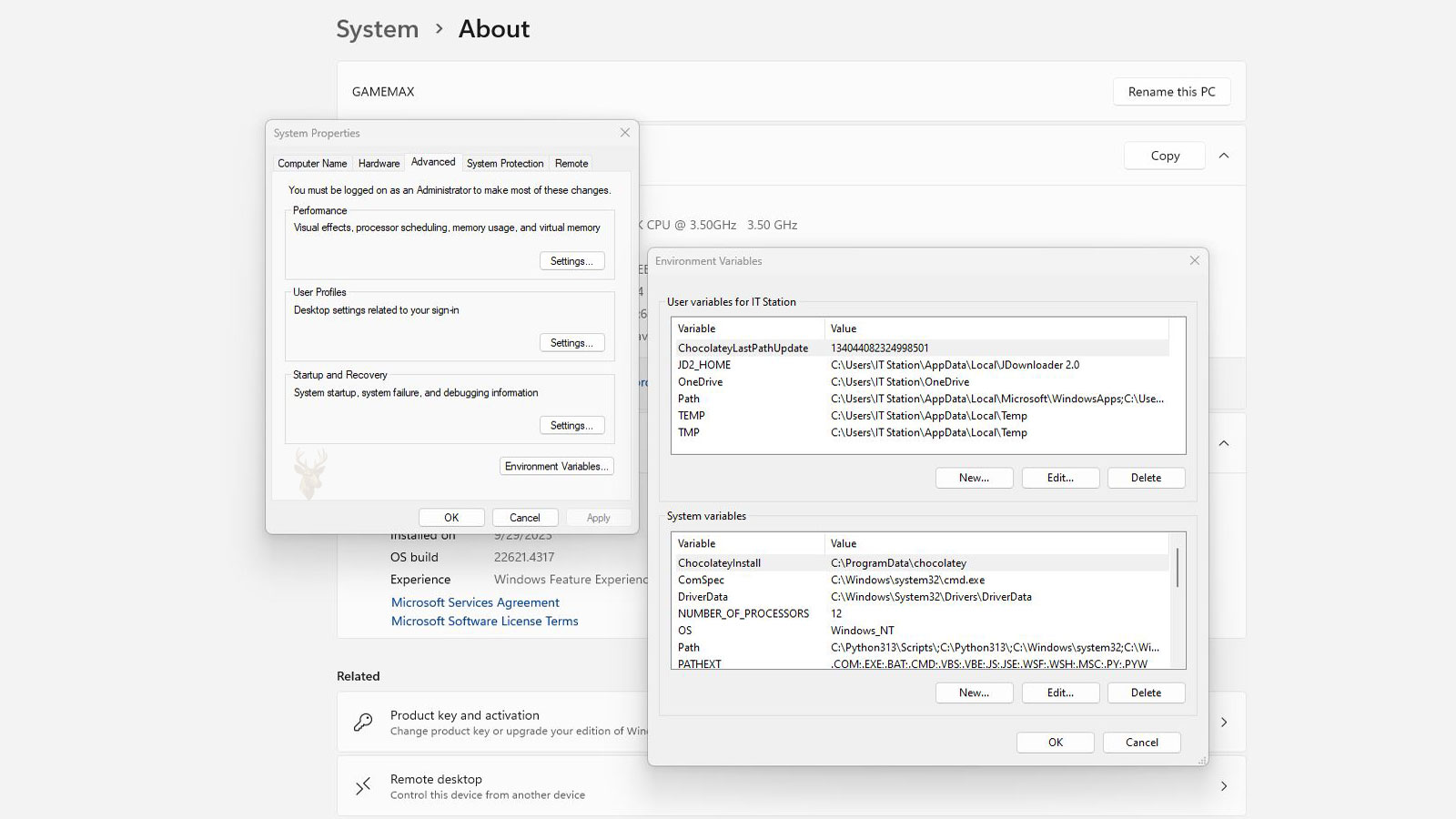
Small Values That Help Windows Find Important Resources
Windows contains hundreds of settings that allow applications and the operating system to locate folders, identify user-specific locations, and access important resources without relying on fixed paths. Many of these settings are stored as environment variables, which act as named values that Windows can substitute whenever they are needed.
Instead of requiring every application to know the exact location of a user’s Desktop, temporary folder, or system files, Windows provides environment variables that automatically point to the correct location. This allows software to work correctly even when folder locations differ from one computer to another.
Although most users rarely notice them, environment variables play an important role during software installation, system startup, scripting, command-line operations, and everyday application behavior.
A Variable Represents Information That Can Change
An environment variable stores information under a recognizable name instead of requiring programs to remember a specific value. When Windows encounters the variable, it replaces the variable name with its current value before continuing the requested operation.
This approach allows software to remain flexible because the actual folder or location can vary between users, Windows versions, or system configurations.
Environment variables allow programs to reference locations by name instead of by permanently fixed paths.
Some Variables Belong to Windows While Others Belong to the User
Windows maintains both system-wide variables and user-specific variables. System variables apply to every user account on the computer, while user variables contain information that is unique to the currently signed-in account.
This separation allows different users on the same computer to have personalized folders and settings without affecting one another.
| Variable Type | Typical Purpose |
|---|---|
| System variable | Available to every user account. |
| User variable | Applies only to one user profile. |
| Temporary variable | Exists only during the current session. |
| Application variable | Created for a specific program when needed. |
| Script variable | Used while a script is running. |
Programs Depend on Environment Variables Every Day
Many Windows applications retrieve environment variables automatically instead of searching the computer for important folders. This simplifies software development and allows applications to adapt to different installations without requiring manual configuration.
Common examples include locating temporary storage, user documents, application data folders, and executable search paths.
- Locate user-specific folders.
- Find temporary storage locations.
- Help applications locate executable files.
- Support scripts and automation.
- Allow software to adapt to different Windows installations.
Changing a Variable Can Affect Multiple Applications
Because many programs reference the same environment variables, modifying one of these values can influence more than a single application. Some changes are harmless, while others may prevent software from locating files, starting correctly, or accessing required resources.
For this reason, administrators normally review the purpose of a variable before changing it and document important modifications whenever possible.
Named Values Simplify Windows Configuration
Environment variables provide Windows with a flexible method for identifying important folders, resources, and configuration values without relying on permanently fixed locations. This design allows the operating system and installed applications to adapt automatically to different users and computer configurations.
In the next part, we’ll examine several of the most common environment variables, explain how Windows uses them, and discuss why certain variables—such as PATH and TEMP—are especially important during everyday operation.
Common Variables Point to Important Windows Locations
Windows includes several environment variables that identify commonly used folders and system locations. These variables allow applications and commands to access the correct destination without requiring the complete path to be entered manually.
The value of a variable can differ between computers or user accounts, but its name remains consistent. This makes the variable useful across many different Windows installations.
| Variable | Typical Purpose |
|---|---|
| %USERPROFILE% | Points to the current user’s profile folder. |
| %TEMP% | Identifies a folder used for temporary files. |
| %WINDIR% | Points to the main Windows installation folder. |
| %SYSTEMROOT% | Identifies the Windows system root directory. |
| %APPDATA% | Points to user-specific roaming application data. |
The User Profile Variable Changes With the Account
The %USERPROFILE% variable normally points to the profile folder of the person currently signed in. That folder may contain the user’s Desktop, Documents, Downloads, Pictures, and other personal locations.
Because the value changes automatically between accounts, applications can locate the correct profile without knowing the user’s name in advance.
A user-specific variable allows the same application to work correctly for several accounts on one computer.
Temporary Files Rely on the TEMP Variable
Programs often need a temporary location while installing software, opening compressed files, processing documents, or completing background operations. The %TEMP% variable tells applications where those temporary files should be stored.
If the assigned temporary folder becomes unavailable, excessively full, or damaged, software installation and application startup can fail in unexpected ways.
- Software installers extract working files into temporary folders.
- Applications may store incomplete processing data there.
- Browsers and document programs can create short-lived files.
- Windows maintenance tasks may use temporary storage.
- Old files can remain after an interrupted process.
PATH Helps Windows Locate Executable Programs
The PATH environment variable contains a list of folders that Windows searches when a command or application requests an executable file without providing its complete location.
For example, a command entered into Command Prompt may run successfully from almost any folder because Windows searches the directories listed in PATH until the matching executable is found.
| PATH Situation | Possible Result |
|---|---|
| Required folder is listed. | The command can run without a full path. |
| Required folder is missing. | Windows may report that the command is not recognized. |
| Incorrect folder is added. | Windows searches an unnecessary location. |
| Duplicate entries exist. | The variable becomes harder to maintain. |
| Wrong executable appears first. | A different program version may run. |
PATH Order Can Change Which Program Runs
Windows searches the folders listed in PATH in sequence. If two folders contain executable files with the same name, the earlier location may be selected first.
This can create confusion when several versions of a development tool, scripting language, or utility are installed on the same computer. A command may launch an older version even though a newer version is also present.
The PATH variable does more than list folders; its order can determine which executable Windows selects.
Application Data Variables Separate Different Storage Purposes
Windows uses application data variables to help programs store settings separately from documents and system files. Some application data follows the user between compatible network environments, while other data remains specific to one computer.
This separation helps applications preserve preferences without placing configuration files directly in the main program folder.
- %APPDATA% usually points to roaming application data.
- %LOCALAPPDATA% normally contains computer-specific user data.
- Programs may create their own subfolders inside these locations.
- Removing application data can reset preferences or erase saved settings.
- Damaged application data may cause a program to behave incorrectly.
Variables Can Be Used in File Explorer
Environment variables are not limited to scripts or command-line tools. Many variables can be entered directly into the File Explorer address bar to open the location they represent.
This provides a convenient way to reach folders whose exact paths may differ between user accounts or Windows installations.
| Entered Value | Typical Destination |
|---|---|
| %USERPROFILE% | Current user profile. |
| %TEMP% | Current temporary folder. |
| %APPDATA% | Roaming application data. |
| %LOCALAPPDATA% | Local application data. |
| %WINDIR% | Windows installation directory. |
Some Changes Require a New Session
Applications often read environment variables when they start. If a variable is changed while a program is already open, that program may continue using the previous value until it is closed and restarted.
In some cases, signing out of Windows or restarting the computer may be necessary before every process recognizes the updated configuration.
- Modify the required variable carefully.
- Save the updated configuration.
- Close applications that depend on the variable.
- Reopen the affected software.
- Restart Windows if the previous value remains active.
Incorrect Values Can Produce Unrelated-Looking Errors
A damaged environment variable may prevent a program from finding a folder, executable, or configuration file. The resulting error may appear to be an application failure even though the underlying problem is an incorrect path.
Installation errors, unrecognized commands, missing temporary files, and programs that open with default settings can all be related to environment variable problems.
Windows Reuses These Values Across the System
Environment variables allow Windows and installed applications to reuse consistent names for locations that may differ between accounts and computers. Variables such as USERPROFILE, TEMP, APPDATA, and PATH support everyday operations without requiring fixed folder addresses.
In the final part, we’ll examine how variables are edited, the risks of changing system values, common PATH problems, and safe practices for troubleshooting environment-related errors.
Environment Variables Can Be Edited Through System Properties
Windows provides an Environment Variables window where administrators can review and modify both user-level and system-level values. This interface separates variables according to their scope and displays the name and current value of each entry.
User variables normally affect only the signed-in account, while system variables may influence every user and many background services. Changes to system variables should therefore be made more cautiously.
A system-wide variable can affect applications, services, installers, and every user account on the computer.
Removing a Variable Can Break More Than One Program
Some environment variables are created by Windows, while others are added by software installers, development tools, hardware utilities, and business applications. Removing an unfamiliar entry without identifying its purpose may prevent one or more programs from working correctly.
Even variables that appear unused may still be referenced by scheduled tasks, scripts, command-line tools, or services that do not run constantly.
| Change | Possible Effect |
|---|---|
| Deleting a user variable | May affect only one account. |
| Deleting a system variable | May affect all users and services. |
| Changing a folder path | Programs may stop locating required files. |
| Adding an incorrect PATH entry | Commands may fail or launch the wrong executable. |
| Changing TEMP | Installers and applications may lose temporary storage access. |
PATH Problems Often Appear as Unrecognized Commands
When a command-line program is installed correctly but Windows reports that its command is not recognized, the PATH variable is one of the first areas to inspect. The executable may exist on the computer while its folder is missing from the search list.
This situation is common with programming languages, diagnostic utilities, database tools, and other software designed to run from Command Prompt or PowerShell.
- The application is installed but its command cannot be found.
- Only the full executable path works.
- An older program version launches unexpectedly.
- A command works in one terminal window but not another.
- The problem begins after software modifies PATH.
Duplicate PATH Entries Create Confusion
Software installers sometimes add the same folder to PATH more than once. Duplicate entries may not immediately prevent Windows from working, but they make the variable harder to review and can complicate troubleshooting.
A poorly maintained PATH variable may also contain folders from applications that were removed long ago. These obsolete entries cause Windows to search locations that no longer exist.
A longer PATH variable is not automatically better; every entry should have a valid purpose.
The Order of Entries Deserves Careful Review
When multiple folders contain programs with identical filenames, Windows may select the first matching executable it finds. Reordering PATH entries can therefore change which program version runs, even when no software has been installed or removed.
This is especially important on computers used for development, where several versions of the same compiler, scripting language, or command-line utility may be present.
| PATH Condition | Likely Result |
|---|---|
| Correct folder appears first. | The intended executable runs. |
| Older version appears first. | An outdated executable may launch. |
| Folder is missing. | The command may not be recognized. |
| Invalid location remains listed. | Windows searches a nonexistent folder. |
| Several duplicates exist. | Troubleshooting becomes more difficult. |
Temporary Folder Errors Can Affect Installations
If TEMP or TMP points to a folder that does not exist, lacks sufficient free space, or cannot be accessed by the current account, software installers may stop before completing. Applications may also fail to create working files or save temporary changes.
The error message may mention extraction, file creation, insufficient permissions, or an unavailable location without directly identifying the environment variable responsible.
- Confirm that the assigned temporary folder exists.
- Check that the user account can write to it.
- Verify that sufficient storage space is available.
- Remove abandoned temporary files when appropriate.
- Restart the affected installer or application.
New Processes Inherit the Current Environment
When an application starts, it receives a copy of the environment available at that time. If a variable is changed afterward, the application may continue using the old value because its existing process does not automatically refresh every system setting.
This explains why a newly opened Command Prompt may recognize an updated PATH entry while an older Command Prompt window does not.
Closing and reopening an application creates a new process that can read the updated environment.
Scripts Can Create Variables for Temporary Use
Batch files, PowerShell scripts, installers, and application launchers can create environment variables that exist only while a specific process or session is active. These temporary values allow scripts to store locations, options, and other information without permanently changing Windows.
Once the process ends, temporary variables normally disappear unless the script was specifically designed to save them as user or system variables.
| Variable Scope | Duration |
|---|---|
| Process variable | Exists while one application or script is running. |
| Session variable | May remain until the terminal or user session closes. |
| User variable | Remains available to one account. |
| System variable | Remains available throughout Windows. |
| Installer-created variable | Depends on how the software configured it. |
Backing Up Existing Values Simplifies Recovery
Before editing an important environment variable, recording its original value provides a straightforward way to reverse the change. This is particularly important for long PATH entries, where recreating the previous sequence from memory may be difficult.
A screenshot, exported configuration, or carefully copied text record can help restore the system if an application stops working after the modification.
- Record the original variable name and value.
- Change only the entry related to the current task.
- Avoid deleting unfamiliar system variables.
- Restart the affected application before testing.
- Restore the original value if new problems appear.
Environment Variable Problems Require Targeted Troubleshooting
Resetting every variable is rarely an appropriate response to an application or command-line error. Troubleshooting should begin by identifying which location or executable the affected software is attempting to use.
Comparing the current value with application documentation, another working computer, or a known default configuration is safer than making broad changes without confirming the cause.
Flexible References Support Everyday Windows Operation
Windows environment variables provide reusable references to folders, executable search locations, user profiles, temporary storage, and application data. They allow programs to work across different computers without requiring every path to remain identical.
Because these values are shared across many parts of the operating system, careless changes can produce installation failures, missing commands, incorrect program versions, and other errors that appear unrelated. Careful documentation, limited modifications, and targeted testing help preserve a reliable Windows configuration.











