
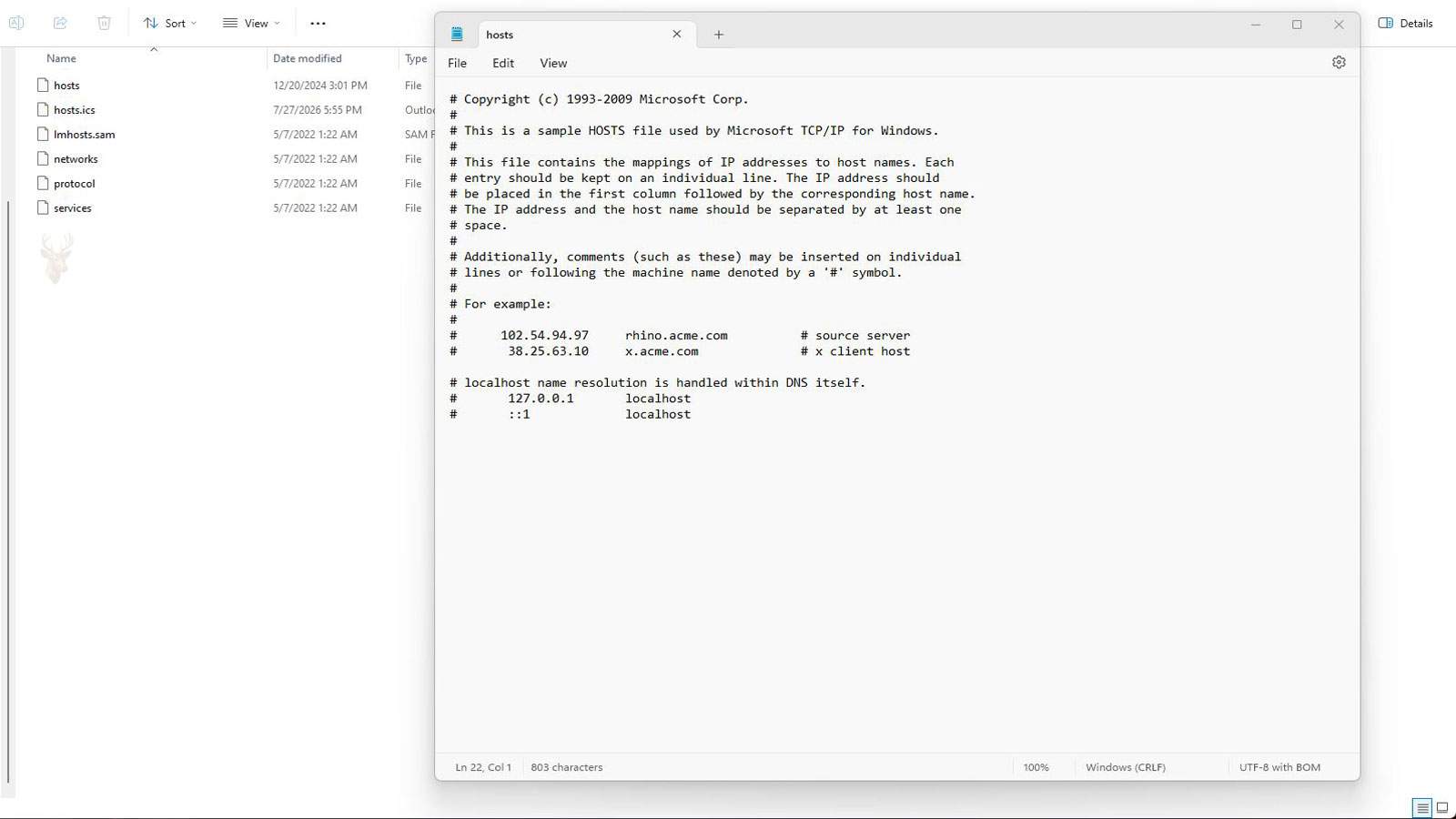
A Small File That Influences Network Connections
Whenever a web browser or application connects to a server using a name such as example.com, Windows must determine the corresponding IP address before the connection can begin. In most situations, this information is obtained through the Domain Name System (DNS). However, Windows checks one local file before contacting a DNS server. That file is known as the Hosts file.
Although it contains only plain text, the Hosts file can override normal DNS lookups for specific names. Because of this behavior, it has long been used by administrators, developers, and technicians for testing, troubleshooting, and temporary network changes.
Most home users never need to edit the Hosts file, yet it remains an important part of Windows networking and continues to be supported in modern versions of the operating system.
Windows Checks the Hosts File Before DNS
When an application requests a hostname, Windows first examines the local Hosts file to determine whether a matching entry already exists. If a matching record is found, Windows immediately uses the specified IP address instead of requesting information from a DNS server.
Only when no matching entry exists does Windows continue with its normal DNS resolution process.
A matching Hosts file entry takes priority over a standard DNS lookup.
Each Entry Maps a Name to an IP Address
The Hosts file consists of simple text entries that associate an IP address with one or more hostnames. Unlike a DNS server, it contains no complex database, automatic updates, or network communication.
Every entry applies only to the local computer where the file is stored.
| Component | Purpose |
|---|---|
| IP address | Identifies the destination system. |
| Hostname | The name Windows will match. |
| Comment line | Documents the purpose of an entry. |
| Blank line | Improves readability. |
| Local file | Affects only the current computer. |
The Hosts File Predates Modern DNS
Before DNS became the global system for translating names into IP addresses, computers often relied on locally maintained Hosts files. As networks grew larger, manually maintaining these files became impractical, leading to the widespread adoption of DNS.
Even though DNS now handles nearly all public name resolution, Windows continues to support the Hosts file for compatibility and specialized administrative tasks.
- Works independently of internet connectivity.
- Overrides DNS for matching entries.
- Uses simple plain-text formatting.
- Applies only to one computer.
- Requires administrative permission to modify.
Developers Frequently Use It During Testing
Software developers often redirect a familiar website name to a local web server while testing new applications. This allows programs to behave as though they are communicating with a production server while actually using a development environment.
Once testing is complete, the temporary Hosts file entries are usually removed so normal DNS resolution resumes.
Network Troubleshooting Sometimes Begins Here
Unexpected website behavior can occasionally be traced to outdated or incorrect Hosts file entries. A hostname that appears to resolve incorrectly on only one computer may indicate that the local Hosts file is overriding the expected DNS response.
Because the file affects only one system, comparing behavior with another computer on the same network often helps identify this type of issue.
| Situation | Possible Hosts File Role |
|---|---|
| Only one PC reaches the wrong server. | A local entry may be overriding DNS. |
| Website testing | Temporary redirection to a development server. |
| Internal company server | Manual hostname mapping. |
| Application testing | Local resolution without changing DNS. |
| Name resolution problems | One of the first items administrators verify. |
A Local Override for Name Resolution
The Windows Hosts file provides a simple method for manually controlling how specific hostnames are resolved on a single computer. Although modern networks rely primarily on DNS, this small text file continues to play an important role in testing, troubleshooting, and specialized administrative tasks.
In the next part, we’ll examine where the Hosts file is stored, how Windows processes its entries, common troubleshooting scenarios, and the security considerations involved when local name resolution overrides DNS.
Where Windows Stores the Hosts File
On modern Windows systems, the Hosts file is stored inside the operating system directory rather than within a user’s personal files. Because it is considered a protected system file, administrative privileges are required before changes can be saved.
Although the file has no filename extension, Windows still recognizes it as a plain text configuration file. It can be viewed with a text editor, but modifications should be made carefully because a single incorrect entry can affect network communication.
The Hosts file is a local system configuration file, not a downloaded list from the internet.
Entries Are Processed From Top to Bottom
Windows reads the Hosts file sequentially. Each line is evaluated independently, allowing the operating system to compare the requested hostname against the entries contained in the file.
For clarity and easier maintenance, administrators normally avoid duplicate or conflicting records. Well-organized files are easier to troubleshoot and reduce the likelihood of unexpected name resolution behavior.
| Entry Element | Purpose |
|---|---|
| IP address | Destination assigned to the hostname. |
| Hostname | Name Windows attempts to resolve. |
| Comment | Explains why an entry exists. |
| Blank line | Separates groups for readability. |
| Sequential order | Keeps the file organized for maintenance. |
Comments Help Document Configuration Changes
Lines that begin with a comment character are ignored during name resolution. They allow administrators to explain why a particular entry was added, identify temporary testing changes, or document when modifications were made.
Good documentation becomes especially valuable when multiple administrators maintain the same computer over an extended period.
- Describe the purpose of each custom entry.
- Record temporary testing changes.
- Separate unrelated groups of entries.
- Remove obsolete comments during cleanup.
- Keep documentation concise and accurate.
Incorrect Entries Can Redirect Traffic
If a hostname is associated with the wrong IP address, Windows will continue using that incorrect destination until the Hosts file is corrected or the entry is removed. Because the Hosts file is checked before DNS, the incorrect mapping takes precedence over the information provided by a network DNS server.
This behavior often explains why one computer experiences a problem while every other device on the same network reaches the correct destination.
An outdated Hosts file entry can affect only one computer while every other device functions normally.
Malware Has Historically Modified the Hosts File
Some forms of malware have attempted to alter the Hosts file to redirect users away from legitimate websites or prevent access to security-related services. Although modern security software offers much better protection than in the past, technicians still inspect the Hosts file during certain malware investigations.
Unexpected entries pointing well-known websites to unfamiliar IP addresses may indicate unauthorized changes that deserve further investigation.
| Observed Behavior | Possible Explanation |
|---|---|
| Only one PC reaches the wrong website. | Incorrect local Hosts entry. |
| Security websites cannot be reached. | Hosts file modification or other malware activity. |
| Application connects to the wrong server. | Outdated testing configuration. |
| Name resolution differs from other computers. | Local override instead of DNS. |
| Unexpected IP address appears. | Configuration should be reviewed. |
Changes May Not Take Effect Immediately
After editing the Hosts file, Windows or an application may continue using previously resolved information for a short period. Cached name resolution data can temporarily delay the appearance of the new configuration.
Depending on the situation, restarting the affected application or refreshing the DNS cache may be necessary before the updated entries are used consistently.
- Save the modified Hosts file.
- Verify that administrative permissions allowed the change.
- Close and reopen the affected application.
- Refresh cached name resolution if necessary.
- Test whether the expected destination is now reached.
Simple Changes Can Have Significant Effects
Despite its small size, the Windows Hosts file has the ability to override normal DNS resolution for selected hostnames. This makes it valuable for testing and troubleshooting, while also making careful management important whenever entries are added or modified.
In the final part, we’ll look at practical uses for the Hosts file, situations where it should not be modified, and the best practices for maintaining reliable local name resolution.
Blocking Unwanted Connections Is One Common Use
One practical use of the Hosts file is preventing a computer from connecting to specific hostnames. By directing a hostname to an address that does not provide the intended service, Windows never attempts to contact the actual destination.
This technique has been used for software testing, development environments, and temporary troubleshooting. While it can also be used to block certain websites, modern content filtering and network security solutions are generally more appropriate for long-term management.
The Hosts file changes name resolution only on the computer where it exists.
The Hosts File Does Not Replace DNS
Although the Hosts file can override individual hostname lookups, it is not intended to replace DNS. DNS automatically manages thousands or even millions of records across networks, while the Hosts file requires every entry to be maintained manually.
As networks grow larger, centralized DNS administration becomes far more efficient than maintaining separate Hosts files on individual computers.
| Feature | Hosts File | DNS |
|---|---|---|
| Scope | Single computer. | Entire network or internet. |
| Administration | Manual editing. | Centralized management. |
| Automatic updates | No. | Yes. |
| Typical use | Testing and troubleshooting. | Normal hostname resolution. |
| Scalability | Limited. | Designed for large environments. |
Large Hosts Files Can Slow Name Resolution
Years ago, some software distributed extremely large Hosts files containing thousands of entries intended to block advertising or malicious websites. While functional, oversized files could increase lookup time on some systems and make maintenance more difficult.
Modern security software and browser protections have largely replaced this approach for everyday use.
- Keep only entries that are currently needed.
- Remove outdated testing records.
- Document temporary changes with comments.
- Avoid duplicate hostname entries.
- Review the file periodically for accuracy.
Localhost Is One of the Most Familiar Entries
Most Windows installations include an entry for localhost, which refers to the computer itself rather than another device on the network. Many applications rely on this standard mapping during installation, testing, or internal communication.
Because localhost is widely used by Windows and many software products, changing or removing its standard entry can lead to unexpected application behavior.
Localhost refers back to the same computer, allowing software to communicate with local services without using an external network.
Administrative Access Helps Protect the File
Windows protects the Hosts file by requiring administrative privileges before it can be modified. This safeguard reduces the chance that ordinary applications or standard user accounts can silently alter local name resolution.
Even with this protection, administrators should periodically review unexpected changes whenever unusual network behavior is reported.
| Best Practice | Reason |
|---|---|
| Keep the file organized. | Simplifies troubleshooting. |
| Document custom entries. | Explains future changes. |
| Remove obsolete records. | Prevents incorrect redirection. |
| Review unexpected modifications. | Helps detect unauthorized changes. |
| Use DNS whenever practical. | Provides centralized management. |
Editing Should Be Done With Care
Because every matching entry overrides normal DNS resolution, even a single typing mistake can redirect traffic to the wrong destination or prevent access to a legitimate service. Changes should therefore be intentional, documented, and verified after they are made.
Keeping unnecessary entries out of the file makes future troubleshooting easier and reduces confusion when diagnosing network problems.
- Edit the file only when there is a clear purpose.
- Use administrative privileges when making changes.
- Document temporary entries with comments.
- Verify that the intended hostname resolves correctly.
- Remove temporary entries after testing is complete.
A Simple File That Still Serves an Important Purpose
The Windows Hosts file remains a useful component of the operating system despite the widespread use of DNS. Its ability to locally override hostname resolution makes it valuable for software development, troubleshooting, testing, and certain administrative tasks.
When used carefully and maintained properly, the Hosts file provides a straightforward way to control how a single Windows computer resolves selected hostnames without affecting any other device on the network.











