
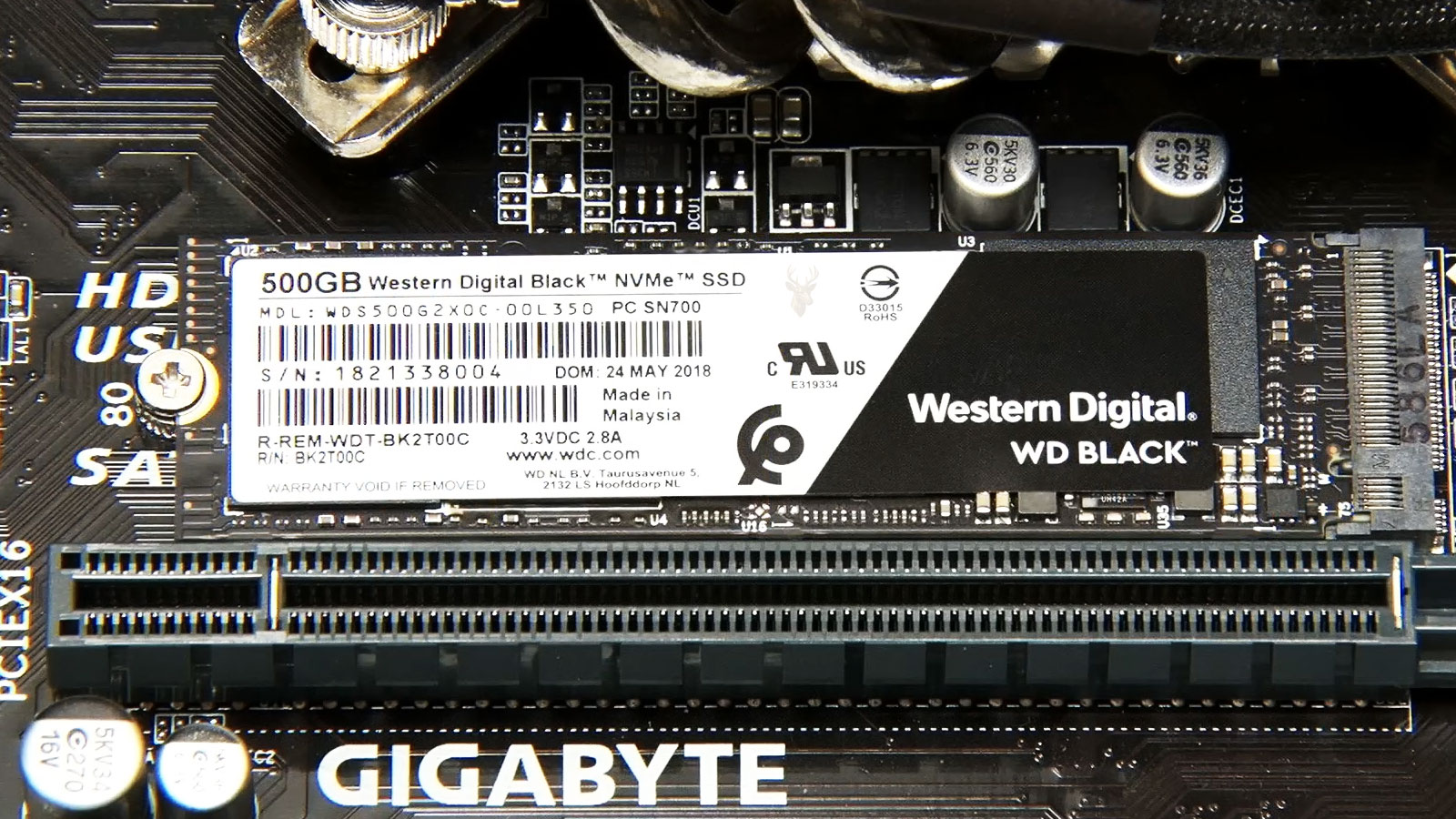
How File Fragmentation Develops Over Time
Every file stored on a computer occupies physical or logical space on a storage device. When a new file is saved, Windows attempts to place its contents together in one continuous area whenever possible. As files grow, shrink, are deleted, or are replaced, the available free space becomes scattered throughout the drive. Over time, new files may need to be written into multiple separate locations instead of one uninterrupted block.
This process is known as file fragmentation. It occurs naturally as computers are used and is one of the reasons storage performance has historically changed over the life of a system.
Although fragmentation once had a significant impact on traditional hard drives, modern solid-state drives behave very differently. Understanding those differences helps explain why Windows manages each storage technology in its own way.
A File Does Not Always Occupy One Continuous Location
When enough contiguous free space is unavailable, Windows divides the file into multiple fragments that fit wherever free space exists. The operating system keeps track of every fragment so the file still opens normally from the user’s perspective.
Most people never notice that a document, photograph, or video may actually be stored in dozens or even hundreds of separate pieces across the drive.
Fragmentation changes where a file is stored, not what the file contains.
Traditional Hard Drives Are Most Affected
A mechanical hard drive stores data on spinning magnetic platters that are read by moving heads. When a fragmented file is opened, those heads may need to travel to multiple physical locations before the entire file has been read.
Additional movement increases access time, especially when many fragmented files are opened throughout the day.
| Storage Device | Effect of Fragmentation |
|---|---|
| Traditional hard drive (HDD) | Can increase seek time and reduce performance. |
| Solid-state drive (SSD) | Has little effect on normal read performance. |
| External HDD | Can experience similar fragmentation effects as internal HDDs. |
| External SSD | Generally experiences minimal performance impact. |
Solid-State Drives Access Data Differently
Unlike mechanical drives, SSDs contain no moving read heads. They access flash memory electronically, allowing data to be retrieved from different locations with nearly identical access times.
As a result, fragmentation has far less influence on everyday performance than it did during the era when nearly every computer relied on traditional hard drives.
- No moving read heads.
- Very low access latency.
- Random reads remain fast.
- Fragmentation produces much smaller performance changes.
- Windows optimizes SSDs differently than HDDs.
Deleting Files Creates Empty Spaces
Whenever files are deleted, empty areas remain on the storage device until new data is written. Over months or years of normal use, these free spaces become scattered across the drive as files of different sizes are created and removed.
New files often occupy several of these available spaces, gradually increasing fragmentation without any visible warning.
Large Files Tend to Fragment More Easily
Videos, virtual machines, large databases, and game files frequently occupy far more storage than ordinary documents. Finding one continuous area large enough for these files becomes increasingly difficult as available space becomes scattered.
Consequently, larger files often become fragmented into numerous sections during normal computer use.
| File Type | Likelihood of Fragmentation |
|---|---|
| Small documents | Usually low. |
| Photos | Moderate. |
| Videos | Higher. |
| Virtual machine disks | High. |
| Large game files | High. |
Windows Always Knows Where the Pieces Are
Even when a file has been divided into many fragments, Windows records the location of every piece within the file system. Applications continue opening files normally because the operating system automatically assembles the complete file during the read process.
For this reason, fragmented files rarely produce error messages. The primary concern has traditionally been performance rather than data integrity.
A fragmented file remains complete as long as Windows can locate each of its stored fragments.
Free Space Can Become Fragmented Too
Not only can files become fragmented, but the available free space on a drive can also become divided into numerous small regions. As this happens, Windows has fewer opportunities to place newly created files into one continuous area.
The condition of free space often influences how quickly new fragmentation develops over time.
- Files are created.
- Some files are deleted.
- Small free spaces appear throughout the drive.
- New files occupy multiple available spaces.
- Fragmentation gradually increases.
Modern Storage Requires a Different Perspective
File fragmentation still exists, but its importance depends greatly on the type of storage device installed in the computer. While mechanical hard drives can experience noticeable slowdowns as fragmentation increases, solid-state drives are affected much less because they retrieve data without mechanical movement.
In the next part, we’ll examine how Windows automatically optimizes different storage devices, why SSDs should not be treated like traditional hard drives, and the common misconceptions surrounding modern disk optimization.
Windows Optimizes HDDs and SSDs Differently
Modern versions of Windows automatically identify the type of storage device installed in a computer and apply maintenance appropriate for that technology. Traditional hard drives and solid-state drives receive different optimization methods because they operate in fundamentally different ways.
This automatic detection prevents unnecessary maintenance while helping each storage device maintain reliable long-term performance.
The best optimization method depends on how the storage device physically stores and retrieves data.
Defragmentation Still Benefits Mechanical Hard Drives
On a traditional hard drive, defragmentation reorganizes fragmented files so their data is stored in larger continuous regions. This reduces the amount of movement required by the drive’s read/write heads, allowing files to be accessed more efficiently.
The improvement is often most noticeable on older computers that store large files or have experienced years of regular use.
| Hard Drive Activity | Potential Benefit |
|---|---|
| Opening large files | Reduced seek time. |
| Loading applications | More efficient file access. |
| Reading multimedia files | Less head movement. |
| General file access | Improved storage organization. |
| Long-term maintenance | Gradual reduction in fragmentation. |
Solid-State Drives Require a Different Approach
Because SSDs access memory electronically rather than mechanically, moving file fragments closer together produces little improvement in everyday performance. Instead of traditional defragmentation, Windows performs maintenance that better supports flash-memory technology.
This allows SSDs to remain efficient without unnecessarily relocating large amounts of data.
- Random access remains extremely fast.
- Mechanical seek time does not exist.
- Windows uses SSD-aware optimization methods.
- Flash memory is managed differently than magnetic storage.
- Routine maintenance continues automatically.
The Optimize Drives Tool Handles Both Technologies
Windows includes the Optimize Drives utility, which examines each storage device and performs maintenance appropriate for its type. Users see a single maintenance interface, while Windows chooses the underlying optimization process automatically.
This reduces confusion by eliminating the need for users to decide which maintenance routine should be performed.
Free Space Organization Also Influences Performance
Maintaining organized free space helps Windows place new files more efficiently. On hard drives, large continuous areas of available space reduce the likelihood that newly created files will immediately become fragmented.
As computers fill with data, the number of available continuous regions naturally becomes smaller, increasing the chances that future files will be divided into multiple fragments.
| Drive Condition | Expected Effect |
|---|---|
| Large contiguous free space | New files are more likely to remain together. |
| Scattered free space | Fragmentation develops more quickly. |
| Nearly full drive | Less flexibility for new file placement. |
| Regular maintenance | Improves long-term organization. |
| Balanced storage usage | Reduces excessive fragmentation. |
Nearly Full Drives Create Additional Challenges
Regardless of storage technology, a drive with very little free space becomes more difficult for Windows to manage efficiently. Limited available space reduces flexibility when creating, expanding, or reorganizing files.
Keeping reasonable free space available benefits both traditional hard drives and solid-state drives, even though the reasons differ.
A storage device performs best when Windows has sufficient free space to manage files effectively.
Frequent File Changes Increase Fragmentation
Computers that constantly create, modify, download, edit, and delete files naturally experience more fragmentation than systems whose contents rarely change. Media editing, software development, virtual machines, and large game installations are common examples.
The greater the volume of file activity, the more opportunities Windows has to distribute data across available storage locations.
- New files are written.
- Existing files increase in size.
- Older files are removed.
- Available storage becomes more scattered.
- Future files occupy multiple free regions.
Optimization Is Not the Same as Repair
Drive optimization improves the organization of stored data, but it does not repair failing hardware, recover damaged files, or correct physical defects within a storage device. If a hard drive is developing bad sectors or an SSD is experiencing hardware failure, optimization cannot resolve those problems.
Separating maintenance from hardware repair helps establish realistic expectations about what optimization can accomplish.
- Optimization improves storage organization.
- It does not repair hardware failures.
- It cannot recover deleted files.
- It does not replace backups.
- It should be viewed as preventive maintenance.
Modern Windows Performs Much of the Work Automatically
Most users no longer need to manually schedule drive optimization as they once did. Windows routinely performs maintenance in the background when system conditions permit, reducing the need for frequent user intervention.
This automated approach allows storage devices to remain organized while minimizing interruptions to everyday computer use.
Modern Storage Maintenance Is More Intelligent Than Before
Today’s versions of Windows recognize that hard drives and solid-state drives require different maintenance strategies. Rather than applying one method to every storage device, the operating system selects optimization techniques that match the underlying technology.
In the final part, we’ll explore common myths about fragmentation, situations where optimization can still improve performance, and practical guidelines for maintaining both HDDs and SSDs over the long term.
Fragmentation Is No Longer the Universal Performance Problem It Once Was
During the era when most computers relied on mechanical hard drives, fragmentation was commonly blamed for slow startup times, delayed application loading, and sluggish file access. That concern was often justified because scattered data required additional physical movement inside the drive.
Modern computers increasingly use solid-state storage, where physical seek time is no longer a factor. Fragmentation still exists at the file-system level, but its effect depends heavily on the storage technology involved.
Fragmentation matters most when the storage device must physically move to reach each part of a file.
An SSD Does Not Need Files Arranged in Physical Order
A solid-state drive can retrieve data from different memory locations without moving mechanical components. Whether a file occupies one continuous region or many separate locations usually makes little practical difference to everyday read performance.
This is why manually defragmenting an SSD does not provide the same benefit that it may provide on a traditional hard drive.
| Storage Characteristic | Mechanical Hard Drive | Solid-State Drive |
|---|---|---|
| Moving components | Yes. | No. |
| Seek time | Changes with data location. | Extremely low across memory locations. |
| Effect of fragmented files | Can reduce performance. | Usually minimal. |
| Primary optimization method | Defragmentation. | SSD-aware maintenance and TRIM. |
| Manual defragmentation benefit | Can be useful in some cases. | Generally unnecessary. |
Windows May Occasionally Consolidate SSD Data
The statement that Windows never defragments an SSD is too absolute. Modern Windows maintenance may occasionally consolidate certain file-system structures or fragmented files when the operating system determines that doing so is appropriate.
This limited activity is different from repeatedly running a full traditional defragmentation process. Windows manages the drive according to its detected capabilities and current condition.
- Windows identifies the storage device type.
- Routine optimization is scheduled automatically.
- SSD maintenance is not identical to HDD defragmentation.
- Limited consolidation may occur when necessary.
- Manual intervention is rarely required.
TRIM Serves a Different Purpose
TRIM allows Windows to inform an SSD that certain storage blocks no longer contain active file data. The drive can then prepare those blocks for future writes through its own internal management processes.
TRIM does not rearrange file fragments into continuous physical locations. Its purpose is to help the SSD manage unused flash-memory areas efficiently.
Defragmentation reorganizes stored files, while TRIM identifies flash-memory blocks that are no longer needed.
Manual Optimization Is Rarely a First Troubleshooting Step
When a modern computer becomes slow, fragmentation is only one of many possible causes and is often not the most likely explanation. Limited memory, excessive background software, overheating, storage failure, malware, damaged Windows files, or insufficient free space may have a much greater effect.
Running drive optimization without checking the broader system can create the impression that maintenance has been performed while leaving the actual problem unresolved.
| Performance Symptom | Possible Cause Beyond Fragmentation |
|---|---|
| Slow startup | Too many startup programs or storage failure. |
| Applications freeze | Low memory, software conflicts, or drive errors. |
| Files open slowly | Failing storage, cloud delays, or antivirus scanning. |
| Computer slows under load | Thermal throttling or insufficient hardware resources. |
| Drive remains constantly active | Background indexing, updates, paging, or hardware trouble. |
Third-Party Defragmentation Utilities Are Usually Unnecessary
Modern Windows already includes scheduled storage optimization that recognizes both HDDs and SSDs. Additional utilities may duplicate this work, apply aggressive settings, run more frequently than necessary, or present ordinary fragmentation as a serious problem.
Using the built-in Windows maintenance system is generally the safer approach unless a specialized environment has a documented reason to use another tool.
- Windows already includes automatic optimization.
- Drive type is detected by the operating system.
- Extra utilities may provide little practical benefit.
- Aggressive schedules can create unnecessary drive activity.
- Optimization software cannot repair failing hardware.
A Severely Fragmented HDD May Still Improve After Optimization
Mechanical drives remain common in older desktops, external storage devices, backup systems, and computers designed around high-capacity magnetic storage. If one of these drives contains heavily fragmented data, optimization may reduce seek activity and improve access to frequently used files.
The amount of improvement varies according to drive speed, file layout, free space, workload, and the overall condition of the hardware.
Optimization Should Not Be Run on an Unstable Drive
Defragmentation performs extensive reading and writing while reorganizing data. If a mechanical hard drive is making unusual noises, disappearing from Windows, reporting health warnings, or producing file errors, placing it under additional workload may worsen the situation.
Important data should be protected before intensive maintenance is attempted on any drive suspected of failing.
A drive showing signs of failure needs evaluation and data protection, not an intensive defragmentation session.
Keeping Free Space Available Is More Important Than Chasing a Perfect Score
Users sometimes focus on reducing the reported fragmentation percentage to zero. In practice, maintaining sufficient free space and allowing Windows to complete scheduled maintenance are usually more useful than repeatedly running optimization until every fragment has been consolidated.
Some files cannot be moved while Windows is operating, and a small amount of fragmentation may remain without causing a noticeable problem.
- Keep adequate free space available.
- Allow Windows scheduled optimization to remain enabled.
- Use the computer normally while maintenance runs automatically.
- Investigate hardware health when performance changes suddenly.
- Avoid repeated manual optimization without a specific reason.
External Drives Need the Same Technology-Based Approach
An external drive may contain either a mechanical hard disk or solid-state storage, so the correct maintenance method depends on what is inside the enclosure. A USB connection does not change the underlying behavior of the storage technology.
Mechanical external drives may benefit from occasional optimization when used for frequently changing files. External SSDs generally require the same cautious, SSD-aware maintenance approach as internal solid-state drives.
| Drive Situation | Recommended Approach |
|---|---|
| Healthy internal HDD | Allow scheduled Windows defragmentation. |
| Healthy internal SSD | Allow Windows to perform SSD-aware optimization. |
| Frequently used external HDD | Optimize when appropriate and sufficient free space is available. |
| External SSD | Avoid unnecessary manual defragmentation. |
| Drive showing failure symptoms | Protect data and diagnose the hardware first. |
Storage Type Determines Whether Fragmentation Matters
File fragmentation remains a normal part of storing and modifying data, but it no longer has the same importance on every computer. Mechanical hard drives can still lose efficiency when files become widely scattered, while solid-state drives retrieve fragmented data with very little additional delay.
Modern Windows handles these differences automatically by applying maintenance appropriate for each storage technology. Keeping adequate free space available, allowing scheduled optimization to run, and checking drive health when performance changes are more effective than relying on repeated manual defragmentation.











