
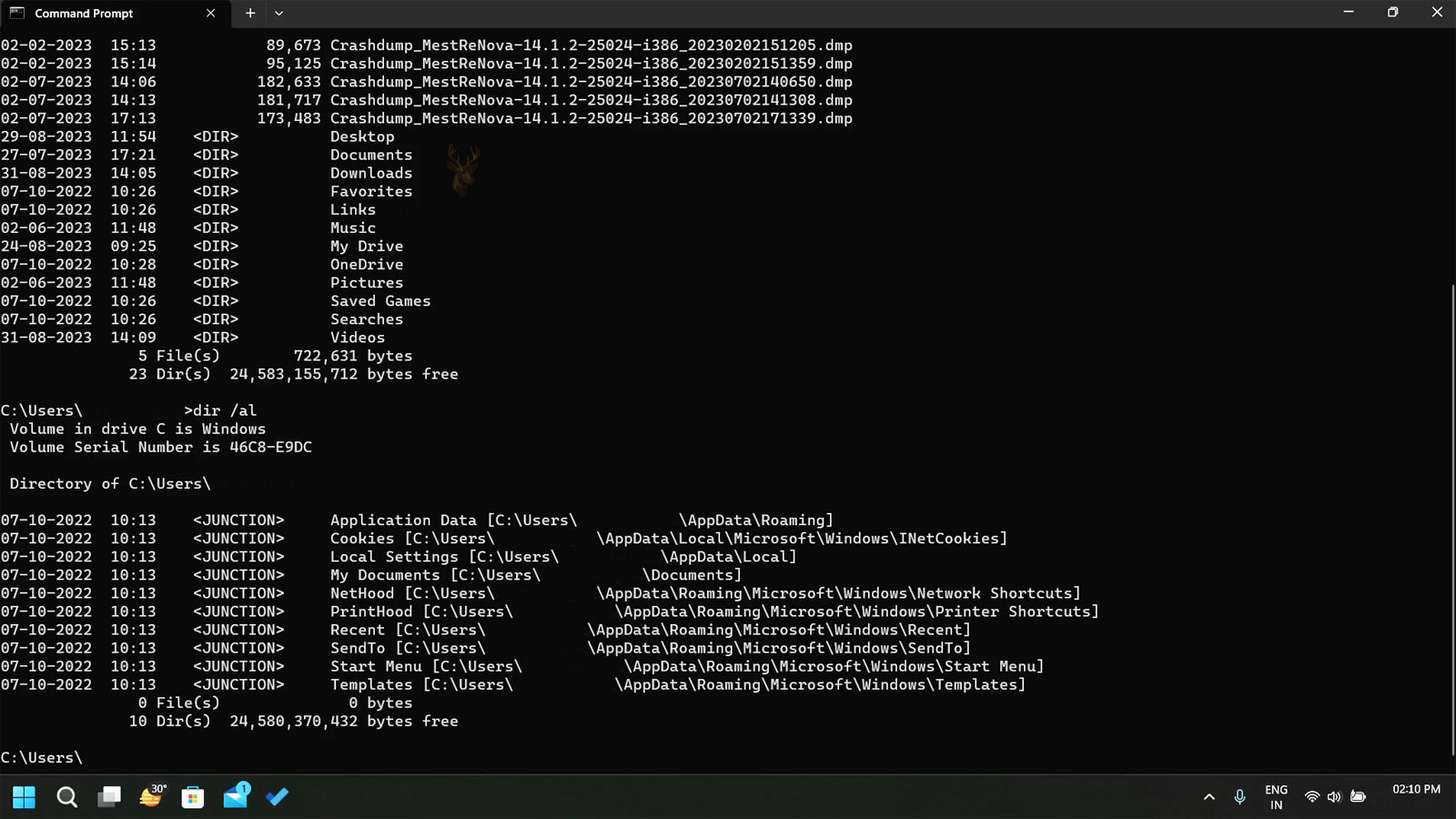
One Folder Can Lead to Another Location
Windows normally stores every folder within a specific location on a storage drive. Applications expect files to remain inside those folders, and users typically organize information by moving directories from one place to another. NTFS provides another option through junction points, which allow one folder path to redirect access to another directory.
Instead of copying files or creating duplicate folders, a junction point allows Windows to continue using a familiar directory while the actual contents reside elsewhere on the same computer.
This capability has existed in NTFS for many years and is used by Windows itself as well as certain software installations and administrative tasks.
A Junction Redirects Folder Access
A junction point is a special directory entry that redirects access to another folder. When Windows reaches the junction, it automatically continues into the destination directory, making the transition appear almost seamless to many applications.
The original folder contents are not duplicated. Windows simply follows the redirection whenever that directory is accessed.
A junction point redirects an entire folder path instead of creating another copy of the folder.
The Target Folder Stores the Actual Data
Although users browse the junction as if it were an ordinary folder, the files physically remain inside the destination directory. Changes made through the junction immediately affect the original location because both paths reach the same files.
This behavior helps conserve storage space while maintaining compatibility with applications that expect a specific folder structure.
| Action | Result |
|---|---|
| Open the junction | Windows redirects to the target folder. |
| Create a new file | The file is stored in the destination folder. |
| Edit an existing file | The original file is updated. |
| View folder contents | Displays the destination directory. |
| Browse with File Explorer | The redirection usually appears transparent. |
Junctions Are Different From Symbolic Links
Although junction points and symbolic links both redirect Windows to another location, they are not identical features. Junctions are designed specifically for directories, while symbolic links can redirect either files or folders.
The two technologies also differ in how they store path information and how some software interprets them during copying, backups, and system maintenance.
- Junctions redirect folders only.
- Symbolic links can reference files or folders.
- Both operate at the file system level.
- Both avoid unnecessary file duplication.
- Applications may handle them differently.
Junctions Normally Remain on Local NTFS Volumes
NTFS junction points are generally intended to redirect folders located on local NTFS storage. Unlike symbolic links, they are not typically used to reference network locations or remote storage.
This design makes junctions particularly useful for reorganizing local storage while maintaining compatibility with existing software.
| Destination | Suitable for a Junction? |
|---|---|
| Another folder on the same NTFS volume | Yes. |
| Another local NTFS volume | Commonly supported. |
| Network location | Generally not intended. |
| Individual file | No. |
| Cloud storage path | Depends on how the storage is presented. |
Many Users Never Realize a Junction Exists
Because File Explorer often treats junction points much like ordinary folders, users may never notice that a redirection is taking place. Opening the junction simply displays the files stored in the destination directory.
This transparency helps preserve application compatibility while allowing administrators to reorganize storage behind the scenes.
To most applications, a properly functioning junction appears to be an ordinary folder.
Windows Uses Junctions Internally
Certain Windows components rely on junction points to maintain compatibility with older software and historical folder structures. Some legacy paths continue functioning because junctions quietly redirect applications toward their modern locations.
This allows Windows to evolve its directory organization while reducing compatibility problems for programs written years earlier.
- An application accesses a familiar folder.
- Windows encounters a junction point.
- The operating system redirects to another directory.
- The application continues reading or writing files.
- The user often remains unaware that a redirect occurred.
Folder Redirection Without Duplicate Data
Junction points provide an efficient way to redirect entire folders while keeping only one physical copy of the data. Their transparent behavior makes them valuable for Windows compatibility, software organization, and storage management.
In the next part, we’ll examine how junction points behave during moves, copies, backups, deletions, and troubleshooting, along with the common situations that cause redirected folders to become unavailable.
Moving a Junction Does Not Move the Target Folder
A junction point and the folder it references are separate objects within the NTFS file system. Moving the junction changes only the location of the redirect, while the actual folder and its contents remain in their original destination.
Applications that access the moved junction continue reaching the same folder, provided the destination path remains valid.
A junction can be relocated without relocating the files it redirects to.
Moving the Destination Can Break the Junction
If the target folder is renamed, moved, or deleted, the junction may no longer lead to a valid location. The junction itself still exists, but Windows cannot complete the redirection because the stored destination is no longer available.
Restoring the folder to its original location or recreating the junction with the correct destination usually resolves the problem.
| Action | Typical Result |
|---|---|
| Move the junction | The redirect continues working. |
| Move the destination folder | The junction may stop functioning. |
| Rename the destination | The stored path may no longer match. |
| Restore the original folder | The junction often works again. |
| Delete the destination | The junction becomes unusable. |
Deleting the Junction Usually Does Not Delete the Files
Removing the junction itself normally deletes only the redirect. The destination folder and its contents remain intact because they are stored elsewhere on the drive.
However, opening the junction and deleting files from within it removes the actual files stored in the destination directory, since Windows is operating inside the redirected folder.
- Deleting the junction removes the redirect.
- The destination folder usually remains unchanged.
- Deleting files through the junction affects the real folder.
- Folder contents are not duplicated.
- Care should be taken before performing large deletions.
Copy Operations May Follow the Junction
Different file-copy utilities handle junction points differently. Some preserve the junction as a redirect, while others follow the junction and copy every file contained in the destination folder.
This difference can significantly affect the amount of storage required and the time needed to complete large copy operations.
| Copy Method | Possible Outcome |
|---|---|
| Copy the junction itself | The redirect is preserved. |
| Follow the junction | The destination files are copied. |
| Backup software | Behavior depends on the application. |
| Disk imaging | Often preserves NTFS structures. |
| Cloud synchronization | May not preserve the junction. |
Backup Programs Must Recognize Junction Points
Backup software that understands NTFS junctions can avoid repeatedly copying the same data. Programs that simply follow every folder they encounter may process redirected directories multiple times, increasing storage usage and backup duration.
Modern enterprise backup applications generally include safeguards that recognize common NTFS redirection features.
Recognizing junction points helps backup software avoid storing the same information more than once.
Recursive Folder Loops Can Cause Problems
If junctions are configured incorrectly, one redirected folder can eventually lead back to a directory that has already been visited. Software that does not detect this situation may repeatedly scan the same folders or continue following the loop indefinitely.
Many modern utilities include protections that identify recursive directory structures before excessive processing occurs.
- A scan begins in Folder A.
- Folder A contains a junction.
- The junction redirects to Folder B.
- Folder B eventually points back toward Folder A.
- Loop detection prevents repeated scanning.
Disk Usage Can Be Misleading
When storage analysis software counts every accessible folder without recognizing junctions, the same files may appear to occupy more space than they actually do. The reported totals can therefore exceed the amount of physical storage consumed.
Disk analysis utilities designed for NTFS usually recognize junction points and avoid counting redirected folders multiple times.
| Utility | Possible Behavior |
|---|---|
| Basic folder size calculation | May count redirected data twice. |
| NTFS-aware analyzer | Usually recognizes junctions. |
| Backup software | Depends on configuration. |
| Search indexing | May process redirected folders. |
| Security scanning | May inspect both paths. |
Older Software May Depend on Junctions
Some legacy Windows applications continue working because junction points redirect outdated folder paths toward their current locations. Without these redirects, programs written for older Windows versions might fail to locate files they expect.
Junction points therefore play an important compatibility role even when users are unaware they exist.
- Supports legacy application compatibility.
- Maintains older folder structures.
- Allows gradual operating system changes.
- Reduces application reconfiguration.
- Helps preserve expected directory layouts.
Permissions Still Apply to the Destination
Although users access the destination through a junction, Windows still evaluates permissions assigned to the actual folder. Having permission to browse the junction does not automatically grant access to the redirected directory.
If security settings deny access to the destination, Windows may display an access error even though the junction itself appears normal.
Troubleshooting Starts With Identifying the Redirect
When files seem to disappear, appear in unexpected locations, or consume unusual amounts of storage, determining whether a junction point is involved can quickly narrow the investigation. Confirming the actual storage location often explains behavior that initially appears inconsistent.
Understanding both the visible path and the redirected destination provides a more accurate picture of how Windows is organizing the data.
Understanding Redirected Folders Helps Avoid Confusion
Junction points make it possible to reorganize folders without duplicating their contents, but they also introduce behavior that differs from ordinary directories. Moves, copies, backups, permissions, and storage analysis can all produce unexpected results when folder redirection is involved.
In the final part, we’ll examine practical uses for junction points, how they compare with symbolic links and hard links, common administrative practices, and why they remain an important feature of the NTFS file system.
Junction Points Help Preserve Application Compatibility
Software is sometimes written with the expectation that important folders will always exist at specific locations. If those folders are moved during a Windows upgrade or storage reorganization, older applications may fail unless an alternate path is provided.
Junction points allow Windows to maintain familiar directory structures while directing applications to the new locations. This helps preserve compatibility without requiring changes to the software itself.
Many compatibility improvements happen behind the scenes because Windows quietly redirects older folder paths through junction points.
Large Folders Can Be Relocated Without Reconfiguring Software
As storage requirements increase, administrators may move large application folders to another NTFS volume while leaving a junction at the original location. Applications continue accessing the expected directory without knowing that the physical files have been relocated.
This approach can simplify storage upgrades and reduce the need to reinstall or reconfigure software after moving data.
| Administrative Goal | Benefit of a Junction Point |
|---|---|
| Expand available storage | Move folders without changing application paths. |
| Upgrade to a larger drive | Preserve existing directory structure. |
| Reorganize user data | Maintain familiar folder locations. |
| Reduce duplicate data | Keep only one physical copy of files. |
| Support legacy software | Continue using historical directory names. |
Junctions Are Not a Replacement for Backups
Although junction points provide convenient folder redirection, they do not create additional copies of the data. If the destination folder becomes damaged or is accidentally deleted, the junction cannot restore the missing information.
Reliable backups remain essential because the redirected folder and the junction both depend on the same underlying files.
- A junction does not duplicate files.
- Deleting the destination removes the actual data.
- Hardware failures affect the destination folder.
- Backups should protect the physical storage location.
- Multiple paths do not provide redundancy.
System Utilities May Display Junction Information
Some Windows administrative tools identify junction points separately from ordinary directories. Storage analyzers, command-line utilities, and diagnostic applications may indicate that a folder is actually a junction rather than a standard directory.
Recognizing these indicators helps administrators understand the true organization of the file system during maintenance and troubleshooting.
Comparing Common NTFS Redirection Methods
| Feature | Junction Point | Symbolic Link | Hard Link | Shortcut |
|---|---|---|---|---|
| Works with folders | Yes. | Yes. | No. | Yes. |
| Works with files | No. | Yes. | Yes. | Yes. |
| Functions at the file-system level | Yes. | Yes. | Yes. | No. |
| Commonly used for compatibility | Yes. | Sometimes. | No. | No. |
| Appears transparent to many applications | Yes. | Yes. | Yes. | No. |
Careful Planning Prevents Future Problems
Junction points work best when their destinations remain stable. Frequent folder renaming, moving storage devices between computers, or changing drive layouts without updating the redirects can create broken paths that are difficult to diagnose later.
Maintaining clear documentation of redirected folders becomes increasingly valuable as systems grow more complex.
A well-planned folder structure is easier to maintain than a collection of undocumented redirects.
Security Still Depends on the Destination Folder
Junction points do not bypass NTFS security. Access permissions continue to be evaluated against the destination directory, meaning users can only read or modify files if they already have permission to do so.
Because of this behavior, creating a junction does not automatically expose protected information to unauthorized users.
- NTFS permissions remain in effect.
- Users still require access to the destination.
- Security inheritance continues normally.
- Administrative rights may be required for certain maintenance tasks.
- Junctions do not replace security controls.
Most Home Users Encounter Junctions Without Realizing It
Windows includes junction points as part of its own directory structure, so many users interact with them without ever noticing. Everyday activities such as opening folders, saving documents, or installing applications often involve redirects operating quietly in the background.
Understanding that these redirects exist can make storage organization and troubleshooting much easier when unexpected folder behavior appears.
Diagnosing Junction Problems Usually Follows the Same Process
When a redirected folder stops working, verifying both the junction and its destination typically identifies the cause. Most problems result from moved folders, deleted destinations, changed drive letters, or permission changes rather than failures of the junction itself.
- Confirm that the folder is a junction point.
- Locate the destination directory.
- Verify that the destination still exists.
- Check permissions and drive availability.
- Recreate the junction if the original path has changed permanently.
Reliable Folder Redirection Within NTFS
NTFS junction points provide a dependable way to redirect folders while maintaining a single physical copy of the underlying data. They help Windows preserve compatibility, simplify storage organization, and allow applications to continue using familiar directory paths even after folders have been relocated.
Although they are largely invisible during everyday computer use, junction points remain an important component of the NTFS file system. Understanding how they interact with backups, permissions, software installations, and storage management makes it easier to troubleshoot redirected folders and maintain reliable Windows systems over time.











