
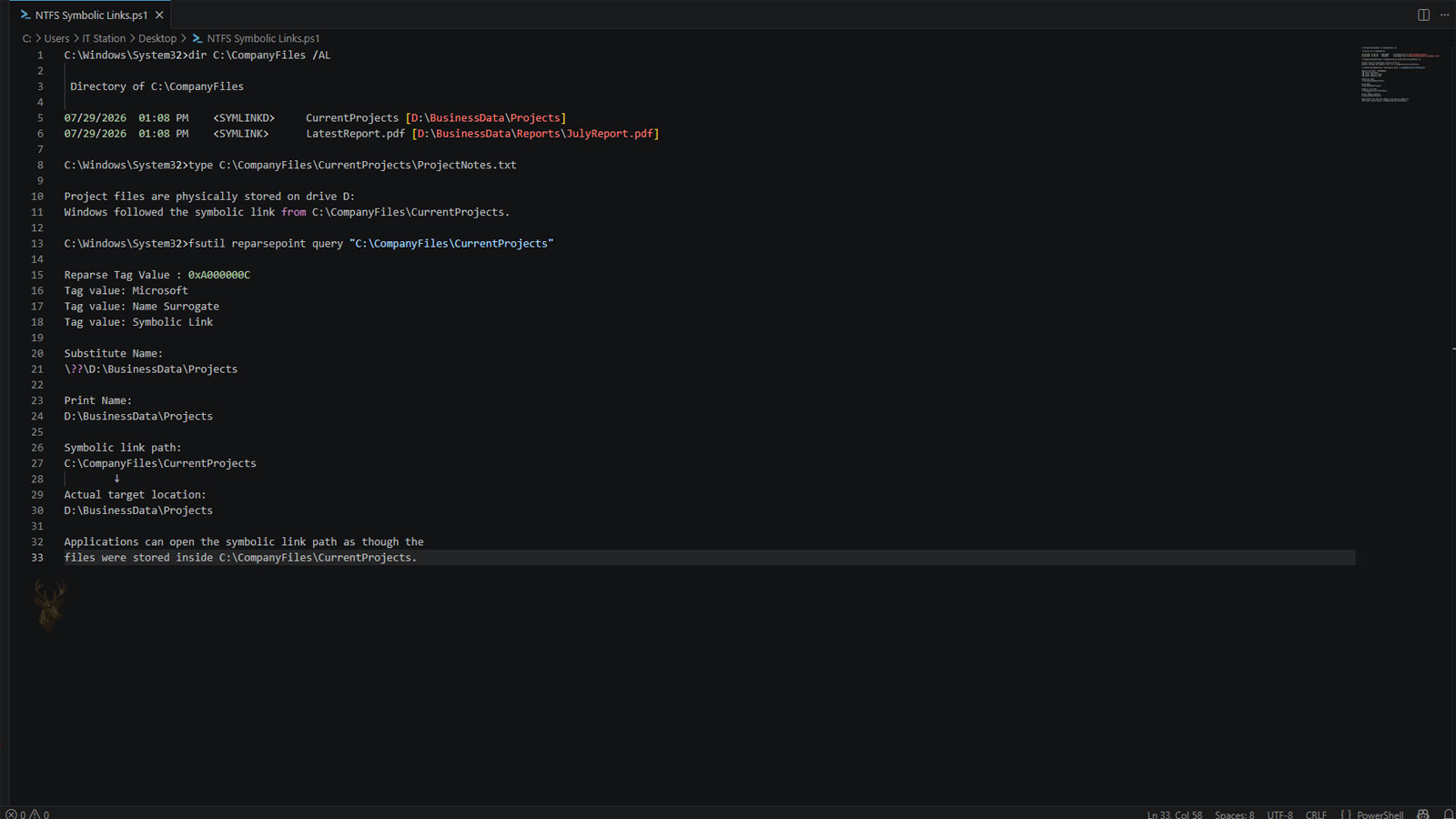
A Symbolic Link Redirects Windows to Another Location
Windows normally accesses a file or folder through its actual storage path. A document might reside inside a user folder, while an application may depend on files stored within a program directory. NTFS symbolic links provide another way to reach those locations without moving or duplicating the original information.
A symbolic link is a special file system object that redirects Windows to a different file or folder. Applications can open the link as though the target were located at the link’s position, while the actual data remains somewhere else.
This feature can simplify storage organization, software development, system administration, and specialized troubleshooting. It can also create confusion when the destination changes or becomes unavailable.
The Link Contains a Path Instead of the File Data
A symbolic link does not contain the contents of the file or folder it opens. Instead, it stores a reference to the target’s path. When Windows or an application accesses the link, the operating system follows that reference to the destination.
This differs from copying a file, which creates a separate set of data that can later be changed independently.
A symbolic link acts as a redirect, allowing one path to lead Windows to another location.
Files and Folders Can Both Have Symbolic Links
Windows supports symbolic links that point to individual files as well as links that redirect entire folder paths. A file link may open a document stored elsewhere, while a directory link can make the contents of another folder appear inside the link’s location.
The link must be created for the correct target type. A symbolic link intended for a folder is handled differently from one intended for a file.
| Link Type | Target | Typical Use |
|---|---|---|
| File symbolic link | Individual file | Provides another path to one file. |
| Directory symbolic link | Folder | Redirects access to another directory. |
| Hard link | File on the same NTFS volume | Creates another name for the same file record. |
| Junction | Directory | Redirects one folder path to another. |
| Windows shortcut | File, folder, or application | Provides a user-facing pointer opened through the shell. |
Symbolic Links Differ From Ordinary Shortcuts
A Windows shortcut is a separate file, commonly identified by the .lnk extension. It stores information about another item and is generally interpreted by File Explorer or the Windows shell.
A symbolic link operates at the file system level. Programs can often follow it without knowing that a redirection occurred, which makes the linked path behave more like the target itself.
- A shortcut is opened as a separate shell object.
- A symbolic link is followed by the file system.
- Shortcuts commonly appear with their own icon indicators.
- Symbolic links can work with applications that expect ordinary paths.
- Deleting either type of link does not normally delete the target.
The Target Can Reside on Another Volume
Unlike an NTFS hard link, a symbolic link can refer to a target located on another drive. It may also reference certain network paths, depending on how the link and the computer’s security settings are configured.
This flexibility makes symbolic links useful when data must remain in one location while software expects to find it somewhere else.
| Target Location | Symbolic Link Support |
|---|---|
| Same folder | Yes. |
| Different folder on the same volume | Yes. |
| Another local volume | Yes. |
| Compatible network path | Possible, depending on configuration. |
| Missing or disconnected destination | The link remains, but the target cannot be opened. |
Relative Paths Can Keep Links Flexible
A symbolic link can use an absolute path that identifies the target’s complete location, or it can use a relative path based on the link’s own position. Each method behaves differently when folders are moved.
An absolute path continues pointing to the specified location even if the symbolic link itself is moved. A relative path may remain useful when the link and target are moved together while preserving their relationship.
The path stored inside a symbolic link determines whether it survives changes to the surrounding folder structure.
A Missing Target Leaves a Broken Link
If the destination file is renamed, moved, deleted, or placed on a disconnected drive, the symbolic link may no longer lead anywhere. The link itself can remain visible even though Windows cannot locate its target.
This condition is commonly described as a broken or dangling symbolic link. Restoring the original path or replacing the link with an updated reference can make it functional again.
- An application accesses the symbolic link.
- Windows reads the target path stored in the link.
- The operating system attempts to locate the destination.
- The target opens when the path remains valid.
- An error appears when the destination cannot be found.
Deleting the Link Usually Leaves the Target Intact
A symbolic link is separate from the item it references. Removing the link normally deletes only the redirection object, leaving the original file or folder unchanged at its actual location.
Users should still confirm which item is selected before deleting anything because accessing a folder through a symbolic link can make the target’s contents appear to be stored beneath the linked path.
Flexible Paths Require a Reliable Destination
Symbolic links give Windows another way to reach files and folders without creating duplicate data. Their usefulness depends on the stored path continuing to lead to a valid destination.
In the next part, we’ll examine how symbolic links behave during moves, copies, backups, software installations, and storage changes, along with the common situations that cause linked paths to stop working.
Moving the Link Does Not Move the Target
A symbolic link and its destination are separate file system objects. Moving the link to another folder changes only the location of the redirection itself. The original file or folder remains where it was stored.
Whether the moved link continues working depends on the type of path stored inside it. An absolute path usually continues pointing to the same destination, while a relative path may fail if the relationship between the link and target changes.
Relocating a symbolic link changes where the redirect begins, not where the target is stored.
Moving the Target Can Break the Connection
If the destination file or folder is moved, the symbolic link may continue searching the original path. Unless the link uses a relative path that remains valid after the move, Windows will no longer be able to locate the target.
This is one of the most common reasons symbolic links stop working. The link remains present, but opening it produces an error because the stored destination no longer exists.
| Change | Likely Result |
|---|---|
| Move an absolute symbolic link | It usually continues reaching the same target. |
| Move a relative symbolic link | It may fail if its relationship to the target changes. |
| Move the target | The link may become broken. |
| Rename the target | The stored path may no longer match. |
| Restore the original path | The symbolic link can begin working again. |
Copying a Symbolic Link Can Produce Different Results
File-copy tools do not always handle symbolic links the same way. One utility may copy the link itself, while another may follow the link and copy the destination’s contents instead.
This difference becomes important during migrations, backups, and folder reorganizations because the copied result may not preserve the original redirection structure.
- The symbolic link itself may be copied.
- The destination file may be copied instead.
- A linked folder may be expanded into ordinary copied contents.
- The target path may become invalid at the destination.
- File-copy options can determine the final behavior.
Copying the Target Creates Independent Data
When a program follows a symbolic link and copies the destination, the copied item becomes independent from the original. Future changes to the source are not automatically reflected in the copy.
The resulting file or folder may look identical, but it no longer functions as a redirection unless a new symbolic link is created at the destination.
| Copy Result | What Is Preserved? |
|---|---|
| Copy the link object | The stored target path. |
| Follow the link and copy the file | The destination’s contents. |
| Follow the link and copy the folder | An independent directory tree. |
| Copy to unsupported storage | The link may become a regular file or fail to copy. |
| Create a new symbolic link | A new redirection relationship. |
Backups May Preserve or Replace the Link
Backup programs can treat symbolic links in several ways. A link-aware backup may record the symbolic link as a special object and restore its target path later. Other software may follow the link and back up the destination as ordinary data.
Following linked folders without proper controls can also cause the same data to be backed up more than once when several paths lead to one destination.
A backup can preserve the redirect, preserve the destination, or save both, depending on how it handles symbolic links.
Circular Paths Can Confuse Software
Symbolic links can be arranged in ways that lead software back toward a folder it has already visited. For example, a link inside one directory may point to a parent folder or to another location that eventually redirects back to the starting point.
Modern backup, indexing, and scanning tools often detect these loops, but poorly configured utilities may repeatedly follow the same paths or produce excessive processing.
- A program begins scanning a folder.
- It encounters a symbolic link to another directory.
- The destination contains a path leading back to the first folder.
- The program revisits information it already processed.
- Loop detection prevents continuous repetition.
Search Indexing May Follow Linked Locations
Search and indexing services can encounter the same files through both their original paths and symbolic links. Depending on the indexing software, this may produce duplicate-looking search results or cause the same information to be processed more than once.
Some services recognize that the paths lead to the same location, while others treat every accessible path as a separate entry.
| Software Activity | Possible Effect |
|---|---|
| Search indexing | The same target may appear under multiple paths. |
| Antivirus scanning | Linked contents may be scanned more than once. |
| Backup processing | Duplicate backup data may be created. |
| Disk usage analysis | Folder totals may appear misleading. |
| File synchronization | Link handling may vary between services. |
Software Can Use Symbolic Links to Reach Relocated Data
Some applications expect files to remain in a specific directory. A symbolic link can make a relocated folder appear at the original path, allowing the program to continue finding its data without changing its internal configuration.
This can be useful when large files need to be moved to another drive, but the application’s required path cannot be changed easily.
- Application data can remain accessible from an expected path.
- Large folders can be stored on another volume.
- Development projects can share common directories.
- Administrative scripts can use consistent paths.
- Legacy software can reach relocated files.
A Disconnected Drive Makes the Link Unavailable
When a symbolic link points to another local drive, the destination depends on that volume remaining connected and using the expected drive letter or path. Removing the drive or changing its assigned letter can leave the symbolic link unable to locate the target.
The link may begin working again when the correct drive returns, provided the original folder structure has not changed.
Network Targets Depend on Connectivity and Permissions
A symbolic link that redirects to a network location also depends on the remote system being reachable. Network outages, changed share names, unavailable servers, and permission restrictions can all make the destination inaccessible.
Because the failure appears at the linked path, users may initially assume the local folder is damaged even though the actual problem is with the remote destination.
| Network Condition | Effect on the Link |
|---|---|
| Remote computer is online | The link may open normally. |
| Network share is renamed | The stored path becomes invalid. |
| User lacks permission | Access is denied through the link. |
| Network connection is unavailable | The target cannot be reached. |
| Original share is restored | The link may function again. |
Deleting Through a Linked Folder Requires Care
Deleting the symbolic link itself normally leaves the destination intact. However, opening a linked folder and deleting items inside it removes the actual contents from the target location because Windows is operating within the redirected directory.
This distinction is important during cleanup. Removing the redirect and removing files reached through the redirect are two very different actions.
Deleting a symbolic link removes the path. Deleting items through that path removes real data from the destination.
Permissions Are Evaluated Along the Path
A user may have permission to see the symbolic link but still lack access to its destination. Windows evaluates the security settings that apply to the target file or folder after following the redirection.
As a result, a visible link can produce an Access Denied message even though its own directory appears accessible.
- The user must be able to access the link’s location.
- The destination must still exist.
- The user also needs permission to open the target.
- Network targets may require separate credentials.
- Security software may restrict certain redirections.
Repairing a Broken Link Requires Checking the Stored Path
When a symbolic link stops working, the first step is to determine where it is trying to lead. The target may have been moved, renamed, disconnected, or restricted by permissions.
Once the cause is identified, the original location can be restored or the symbolic link can be recreated with the correct destination.
- Identify the symbolic link producing the error.
- Inspect the destination path stored in the link.
- Confirm that the target still exists.
- Check drive, network, and permission availability.
- Recreate the link when the original path is no longer appropriate.
The Redirect Is Only as Reliable as Its Path
Symbolic links can preserve expected folder structures, redirect applications to relocated data, and provide flexible access across drives and compatible network locations. Their behavior during copies, moves, backups, and scans depends on whether software preserves the link or follows it to the destination.
In the final part, we’ll examine practical uses, security considerations, creation requirements, common troubleshooting mistakes, and the differences between symbolic links, junctions, hard links, and shortcuts.
Software Developers Frequently Use Symbolic Links
Development environments often rely on symbolic links to organize source code, shared libraries, configuration files, and testing resources. Rather than maintaining several copies of identical files, developers can redirect projects to a common location that remains easier to maintain.
This approach helps reduce duplicate data while allowing multiple projects to reference the same resources during development and testing.
One symbolic link can allow multiple applications to reach the same data without storing duplicate copies.
Storage Reorganization Becomes Easier
When a storage drive begins running out of available space, administrators may move large folders to another volume while leaving a symbolic link behind at the original location. Programs continue using the familiar path even though the actual files now reside elsewhere.
This technique can postpone the need for application reconfiguration while making better use of available storage capacity.
| Situation | Benefit of a Symbolic Link |
|---|---|
| Moving large application data | Software continues using the expected folder. |
| Expanding storage | Files can reside on a larger drive. |
| Development projects | Shared resources remain centralized. |
| Testing environments | Multiple projects access the same files. |
| Administrative maintenance | Reduces the need for duplicate folders. |
Symbolic Links Can Complicate Troubleshooting
When files appear to exist in one folder but are actually stored somewhere else, troubleshooting can become more difficult. A user may inspect the visible directory without realizing that the real data resides on another drive or network location.
Understanding whether a folder is genuine or redirected often helps explain why storage usage, permissions, or backup results differ from expectations.
- Files may physically reside elsewhere.
- Storage usage may appear confusing.
- Permissions may originate from another location.
- Backups may behave differently than expected.
- Error messages may refer to the destination rather than the visible folder.
Security Software May Examine Both the Link and the Target
Antivirus and endpoint security software often recognize symbolic links during routine scans. Depending on the product, the scanner may inspect the link itself, the destination, or both before determining whether any action is necessary.
This helps ensure that malware cannot simply hide behind redirected paths, although scanning behavior varies between security products.
Applications May Not Always Support Redirected Paths
Most modern Windows applications work correctly with symbolic links, but older software or specialized utilities may assume files always exist in their physical locations. These programs may ignore redirected paths or produce unexpected errors when symbolic links are involved.
Compatibility testing is therefore recommended whenever symbolic links become part of an application’s workflow.
| Application Behavior | Possible Outcome |
|---|---|
| Fully supports symbolic links | Operates normally. |
| Assumes physical paths only | May fail to locate data. |
| Performs custom file validation | May reject redirected locations. |
| Uses standard Windows APIs | Usually follows symbolic links correctly. |
| Legacy software | Compatibility should be verified. |
Creating Symbolic Links Usually Requires Appropriate Permissions
Creating symbolic links is generally controlled by Windows security policies. Depending on the Windows version and system configuration, administrative privileges or developer-specific settings may be required before new symbolic links can be created.
This restriction helps prevent unauthorized software from silently redirecting important files or folders without the user’s knowledge.
Windows controls who can create symbolic links because redirected paths can significantly affect how applications locate data.
Cloud Synchronization Services May Handle Links Differently
Cloud storage providers do not all treat symbolic links the same way. Some synchronize the link itself, others upload the linked contents, and some ignore certain link types altogether.
Understanding how a synchronization service handles symbolic links helps avoid missing files or unexpectedly duplicated data after synchronization completes.
- The symbolic link may be synchronized.
- The destination contents may be uploaded instead.
- Unsupported links may be skipped.
- Different operating systems may interpret links differently.
- Storage usage can vary depending on synchronization behavior.
Comparing Common Windows Linking Methods
| Feature | Shortcut | Hard Link | Symbolic Link | Junction |
|---|---|---|---|---|
| Works with files | Yes. | Yes. | Yes. | No. |
| Works with folders | Yes. | No. | Yes. | Yes. |
| Crosses volumes | Yes. | No. | Yes. | Limited. |
| Uses file-system redirection | No. | No. | Yes. | Yes. |
| Appears transparent to many applications | No. | Yes. | Yes. | Generally yes. |
Most Home Users Rarely Need to Create Symbolic Links
Although symbolic links are powerful, they are primarily intended for specialized administrative, development, and storage-management tasks. Most home users can organize files successfully using ordinary folders, libraries, and shortcuts without introducing additional complexity.
For users who understand how symbolic links behave, however, they provide an efficient way to reorganize storage while maintaining familiar file paths.
Troubleshooting Often Begins by Confirming the Real Location
When unexpected file access problems occur, one of the first questions is whether the visible path is actually the physical location of the data. Identifying symbolic links early in the troubleshooting process can prevent unnecessary repairs and reveal that the actual issue exists somewhere else.
Checking both the link and its destination provides a clearer understanding of how Windows is locating the requested files.
- Determine whether the folder or file is a symbolic link.
- Identify the stored destination path.
- Verify that the destination still exists.
- Confirm permissions for both locations.
- Test access directly at the destination before recreating the link.
Conclusion
NTFS symbolic links provide a flexible method for redirecting Windows and compatible applications to files and folders stored elsewhere. Unlike ordinary shortcuts, they operate at the file system level, allowing many programs to access redirected locations as though they were the original paths.
Understanding how symbolic links behave during file transfers, backups, synchronization, permission checks, and troubleshooting makes them easier to manage safely. While most Windows users never need to create them manually, symbolic links remain an important feature for software development, system administration, storage organization, and advanced troubleshooting when used with a clear understanding of their behavior.











