
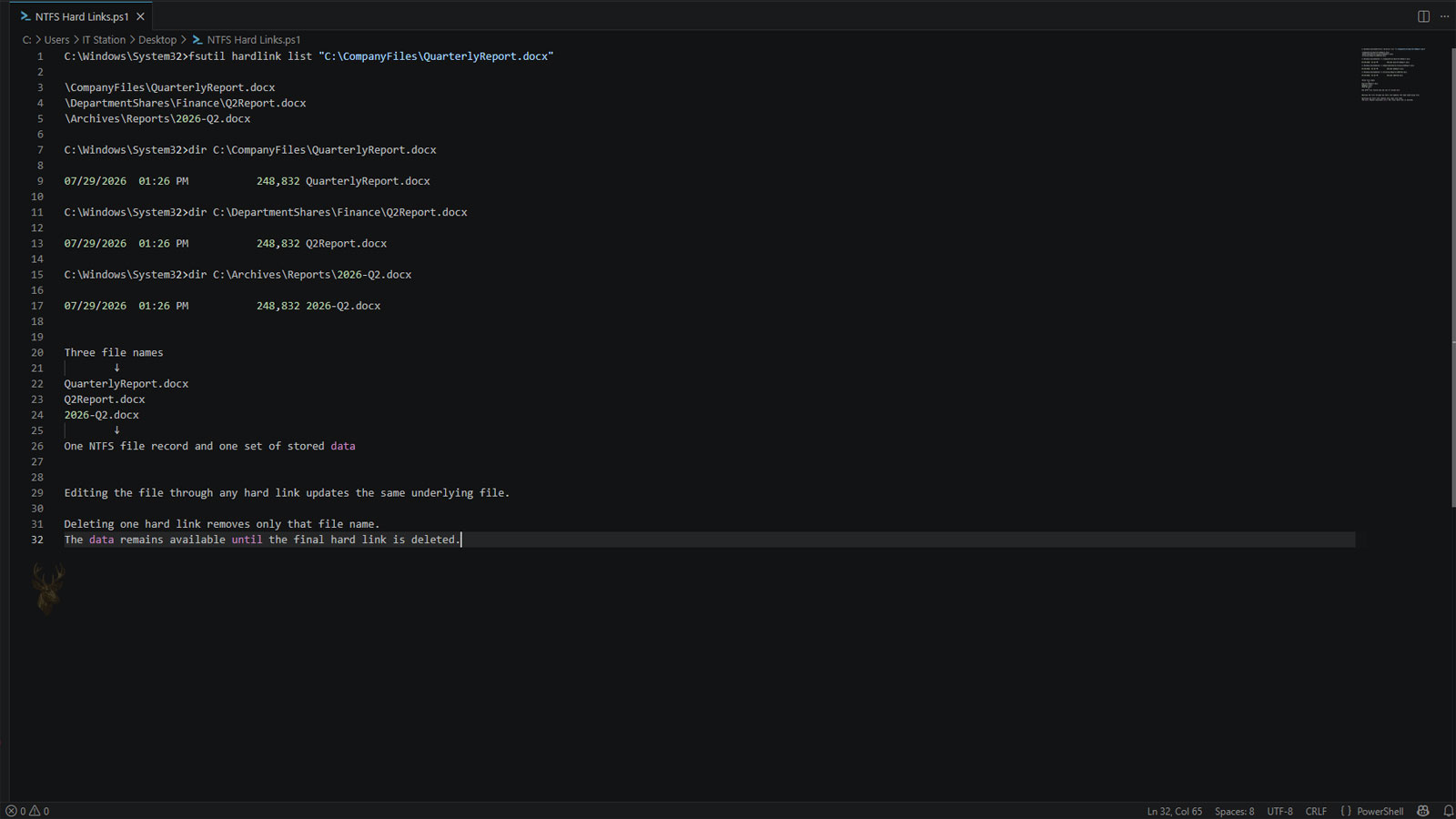
One File Can Have More Than One Name
Most people assume that every file stored on a Windows computer has exactly one name and one location. While this is generally true during everyday use, the NTFS file system also supports a feature known as a hard link, which allows multiple directory entries to point to the same physical file.
Instead of creating duplicate copies of the data, NTFS simply creates another reference to the existing file. Regardless of which filename is opened, Windows accesses the same underlying contents.
This capability is built directly into NTFS and is used by Windows itself as well as certain software installations and maintenance processes.
A Hard Link Is Not a Duplicate File
Unlike copying a document, creating a hard link does not generate another version of the file. There is still only one collection of data stored on the drive. The additional filename simply provides another way to reach that same information.
Because all hard links reference the same file, changes made through one name immediately appear when the file is opened through any of its other names.
With a hard link, multiple filenames point to one file instead of creating multiple copies of the same data.
NTFS Tracks the File Rather Than the Filename
Internally, NTFS manages files using records stored in the Master File Table rather than relying solely on visible filenames. A hard link creates another directory entry that references the same MFT record, allowing several names to identify one physical file.
This design lets Windows organize files efficiently without unnecessarily duplicating stored data.
| Operation | Result |
|---|---|
| Copy a file | A second independent file is created. |
| Create a hard link | A second filename points to the original file. |
| Edit either hard link | Both names display the updated contents. |
| Rename one hard link | Only that directory entry changes. |
| Read the file | Windows accesses the same stored data. |
Why Windows Supports Hard Links
Hard links help eliminate unnecessary duplication when multiple directory entries need access to the same information. Certain Windows components and software installers use this feature to simplify file management while reducing storage requirements.
Although many users never intentionally create hard links, they may already exist on a computer as part of normal operating system functions.
- Reduces unnecessary duplicate storage.
- Allows multiple directory entries for one file.
- Keeps all references synchronized automatically.
- Supports efficient software management.
- Operates entirely within the NTFS file system.
Deleting One Name Does Not Always Delete the File
Because multiple hard links can reference the same file, removing one filename does not necessarily erase the stored data. The file remains available as long as at least one valid hard link continues pointing to it.
Only after the final hard link is removed does NTFS release the storage space occupied by the file.
Hard Links Work Only Within the Same NTFS Volume
A hard link cannot point to a file located on another drive or another file system. Every hard link associated with a file must remain on the same NTFS volume because all references rely on the same Master File Table record.
This limitation distinguishes hard links from other Windows linking methods that can reference files stored elsewhere.
| Requirement | Supported? |
|---|---|
| Same NTFS volume | Yes. |
| Different NTFS volumes | No. |
| FAT32 destination | No. |
| exFAT destination | No. |
| Network share | Not as a true NTFS hard link. |
Multiple Names, One Physical File
Hard links demonstrate that filenames are simply references managed by the NTFS file system rather than the file itself. In the next part, we’ll explore how hard links behave when files are renamed, moved, copied, backed up, or deleted, and how they differ from Windows shortcuts and symbolic links.
Renaming One Hard Link Does Not Affect the Others
Each hard link has its own directory entry even though every entry references the same file. Renaming one of these entries changes only that particular filename, while the remaining hard links continue using their existing names.
The underlying data remains unchanged because the file itself has not been duplicated or recreated. Windows simply updates the directory entry that was renamed.
Changing a hard link’s name affects only that directory entry—not the shared file it references.
Editing the File Updates Every Hard Link
Because every hard link references the same physical file, any modification immediately becomes visible regardless of which filename is used to open it. Saving changes through one hard link updates the single shared copy stored on the drive.
This behavior differs from ordinary file copies, where each copy can be edited independently after duplication.
| Action | Result |
|---|---|
| Edit through Link A | Changes appear through Link B. |
| Edit through Link B | Changes appear through Link A. |
| Save the document | The single shared file is updated. |
| View either filename | Both display identical contents. |
| Create a regular copy | A separate independent file is created. |
Moving Hard Links Within the Same Volume
A hard link can be moved to another folder on the same NTFS volume without affecting the underlying file. Windows updates the directory structure while preserving the reference to the existing MFT record.
Other hard links continue functioning normally because they still reference the same stored data.
- The file contents remain unchanged.
- Other hard links continue working normally.
- No duplicate file is created.
- The MFT record remains the same.
- Only the directory location changes.
Copying a Hard Link Creates an Independent File
When a hard-linked file is copied using normal file-copy operations, Windows creates a completely new file rather than another hard link. The copied file receives its own Master File Table record and occupies additional storage space.
After the copy is complete, edits made to the original file no longer affect the copied version, and vice versa.
| Operation | Storage Used | Future Changes Shared? |
|---|---|---|
| Create hard link | No additional file data. | Yes. |
| Copy the file | Additional storage required. | No. |
| Move within NTFS volume | No additional storage. | Yes. |
| Rename a hard link | No additional storage. | Yes. |
| Delete one hard link | Storage unchanged while others remain. | Yes. |
Deleting One Hard Link Leaves the File Intact
Removing one hard link deletes only that directory entry. As long as another hard link continues referencing the file, Windows keeps the file and its contents available.
This reference-counting mechanism helps NTFS determine precisely when storage space can safely be released.
The Last Remaining Hard Link Controls File Removal
NTFS tracks how many hard links point to each file. When the final hard link is deleted, the operating system recognizes that no directory entries remain and releases the file’s storage for future use.
Until that final reference disappears, the file continues to exist even if several other hard links have already been removed.
- Create a file.
- Add one or more hard links.
- Delete one hard link.
- Remaining hard links continue accessing the file.
- Deleting the final hard link removes the file from the volume.
Hard Links Are Different From Windows Shortcuts
A Windows shortcut is simply a small file that points to another file or folder. If the original file is removed, the shortcut becomes unusable because its destination no longer exists.
A hard link behaves differently because it is another legitimate directory entry for the same file rather than a separate pointer file.
A shortcut points to a file. A hard link is another name for the same file.
Hard Links Also Differ From Symbolic Links
Windows also supports symbolic links, which work differently from hard links. A symbolic link references a path that can point to another folder, another drive, or even another volume, while a hard link directly references the existing file on the same NTFS volume.
Although both features provide alternate ways to access files, they rely on different mechanisms and serve different purposes.
| Feature | Hard Link | Symbolic Link |
|---|---|---|
| References | Same file record. | File path. |
| Works across volumes | No. | Yes. |
| Requires NTFS | Yes. | Typically yes. |
| Survives original deletion | Yes, until the final link is removed. | No. |
| Uses additional file data | No. | Stores a separate link object. |
Backup Programs May Treat Hard Links Differently
Some backup applications recognize hard links and preserve their relationships during backup and restoration. Others copy every directory entry as a separate file, increasing storage usage and removing the original hard-link structure.
The exact behavior depends on how the backup software interprets NTFS features during the copy process.
Multiple References Require Careful File Management
Hard links provide a powerful way for NTFS to reference one file through multiple directory entries without wasting storage space. In the final part, we’ll examine practical uses for hard links, their limitations, troubleshooting considerations, and why most Windows users rarely need to create them manually.
Windows Uses Hard Links Behind the Scenes
Hard links are not limited to files created manually by administrators. Windows can use them internally when several locations need access to the same stored data without maintaining unnecessary duplicate copies.
This allows the operating system to organize components efficiently while preserving the appearance of separate files in different folders.
Some files that appear to be separate may actually be multiple NTFS references to one set of stored contents.
Software Installations Can Benefit From Shared References
Software developers and system administrators may use hard links when identical content needs to appear in more than one directory. Instead of storing several independent copies, the installation can create additional references to the same file.
This approach reduces storage use and ensures that every hard-linked name continues presenting the same contents.
| Possible Use | Benefit |
|---|---|
| Operating system components | Reduces unnecessary duplication. |
| Software installations | Provides access from multiple directories. |
| Development environments | Keeps shared files synchronized. |
| Administrative workflows | Creates alternate references without copying data. |
| Storage optimization | Conserves space on the NTFS volume. |
Hard Links Can Make Storage Usage Confusing
Because several filenames can reference one physical file, adding together the displayed sizes of every directory entry may produce a misleading total. The same stored data can appear under multiple names even though it occupies space only once.
Some disk-usage tools recognize hard links and avoid counting the shared data repeatedly. Simpler tools may report each directory entry as though it were an independent file.
- Several filenames may show the same file size.
- The data occupies storage only once.
- Directory totals may appear larger than actual disk use.
- Different utilities may calculate usage differently.
- NTFS-aware tools can identify shared file references.
File Permissions Apply to the Shared File
Hard links reference one underlying file record, so many properties belong to the shared file rather than to each visible filename independently. Changes to the file’s contents or security information can therefore affect access through every hard link.
The directory containing each hard link still has its own permissions, which may determine whether a user can see, rename, or remove that particular entry.
| Property | Typical Behavior |
|---|---|
| File contents | Shared through every hard link. |
| File permissions | Associated with the underlying file. |
| Filename | Unique to each directory entry. |
| Folder location | Can differ between hard links. |
| Directory permissions | May affect access to an individual link. |
File Attributes Remain Connected to the Same Record
Attributes such as Read-only, Hidden, and certain timestamps are stored with the underlying NTFS file record. Changing these properties through one hard link can therefore influence how the file appears or behaves through its other names.
This shared behavior is another indication that hard links are not separate copies, even when they appear in different folders.
Applications May Replace a File Instead of Modifying It
Not every program saves changes directly into an existing file. Some applications create a temporary file, write the updated contents into it, delete the original entry, and then rename the replacement.
When this occurs, the newly saved file may receive a different MFT record. Other hard links can continue referencing the earlier file rather than the replacement, causing the linked names to stop sharing identical contents.
A save operation that replaces the original file can break the relationship users expect between hard-linked names.
The Program’s Saving Method Determines the Result
Whether hard links remain synchronized after editing depends on how the application writes the changes. Programs that modify the original file preserve the relationship. Programs that replace the file can leave the remaining hard links connected to the previous record.
| Saving Method | Effect on Hard Links |
|---|---|
| Modify the existing file | All hard links continue showing the changes. |
| Replace the file with a new copy | The edited name may reference a new record. |
| Rename the existing entry | The hard-link relationship remains intact. |
| Create a separate copy | The copy becomes independent. |
| Restore from backup | The original link structure may or may not return. |
Hard Links Cannot Reference Folders
Windows restricts ordinary NTFS hard links to files. Allowing unrestricted hard links to directories could create circular paths, make folder navigation unreliable, and interfere with the file system’s ability to determine where directory structures begin and end.
Other linking technologies, such as junctions and symbolic links, are used when an alternate path to a folder is required.
- Hard links are intended for files.
- Directory hard links are restricted.
- Junctions can redirect folder paths.
- Symbolic links can reference files or folders.
- Each link type behaves differently during deletion and transfer.
Transferring Files Can Remove the Hard-Link Relationship
When hard-linked files are copied to another drive, uploaded to cloud storage, included in an archive, or transferred through a network service, they may become independent files at the destination.
The visible contents remain the same, but the destination may no longer preserve the information showing that multiple names once referenced a single NTFS record.
| Transfer Method | Likely Result |
|---|---|
| NTFS-aware backup | May preserve the hard-link relationship. |
| Ordinary file copy | Usually creates independent files. |
| Cloud synchronization | Commonly stores separate copies. |
| Compressed archive | Depends on the archive format and utility. |
| Copy to a non-NTFS drive | The NTFS link structure is lost. |
Restoring a Backup May Require Additional Storage
If backup software saves each hard link as an independent file, restoring the data can require more space than the original NTFS volume used. Every restored filename receives its own stored copy instead of sharing one set of contents.
This does not usually damage the files, but it changes their internal relationship and can increase storage consumption considerably when large files have many hard links.
Troubleshooting Requires Identifying Every Reference
When a hard-linked file behaves unexpectedly, examining only one filename may not reveal the complete situation. A technician may need to determine whether additional directory entries reference the same file before deleting, replacing, or restoring it.
This is particularly important when software depends on a specific link structure or when disk-usage reports do not match the visible files.
- Identify the file producing the unexpected behavior.
- Determine whether it has additional hard links.
- Review the locations of every known reference.
- Check how the application saves or replaces the file.
- Preserve the relationship before making major changes.
Most Users Do Not Need to Create Hard Links Manually
Hard links are useful in specialized administrative, development, and software-management situations, but they are rarely necessary for ordinary document organization. Standard folders, copies, shortcuts, and synchronization tools are easier to understand and manage for everyday use.
Creating hard links without recognizing their shared behavior can lead to unexpected edits, confusing storage totals, or accidental assumptions about which files are independent.
A Specialized Feature for Efficient File References
NTFS hard links allow several filenames and folder locations to reference one physical file. They reduce unnecessary duplication, keep shared contents synchronized, and support specialized functions used by Windows, software installers, developers, and system administrators.
Their behavior also requires careful interpretation. Deleting one link does not remove the file while other references remain, normal copying usually creates an independent file, and certain applications can break the relationship by replacing the original record during a save operation. Understanding these differences makes it easier to interpret storage use, backups, file changes, and unexpected behavior on NTFS volumes.











