
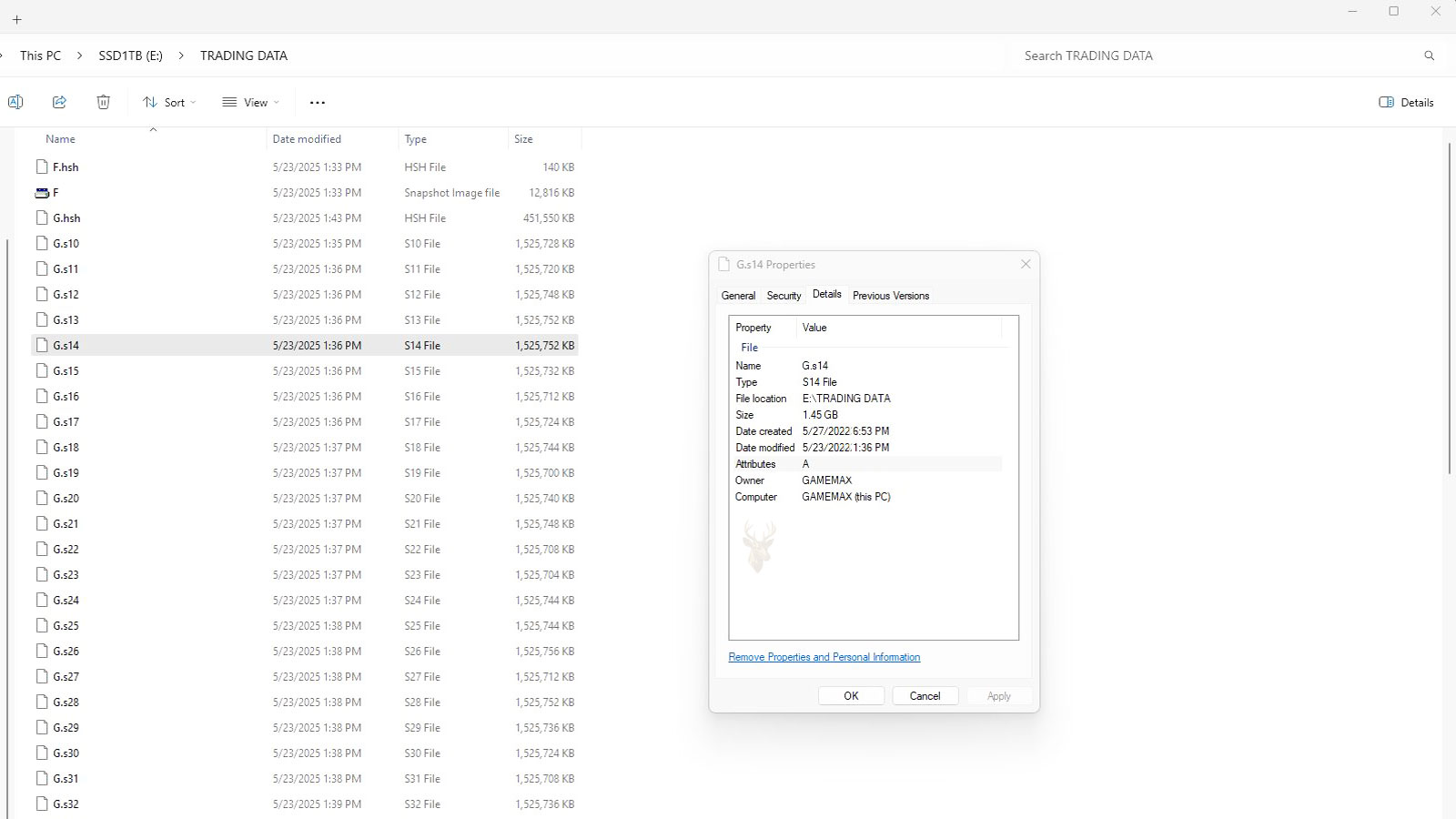
Files Contain More Information Than Their Visible Content
When people think about a document, they usually focus on the text, spreadsheet, photograph, or presentation they can see. However, every file also contains additional information that describes the document itself. This information is known as metadata.
Windows and many applications rely on metadata to identify files, organize search results, display useful details, and determine how documents should be handled. Although this information is usually hidden during everyday use, it plays an important role in managing large collections of files.
Metadata does not normally replace the contents of a document. Instead, it provides descriptive information that helps software understand what the file is, when it was created, and how it should appear to users.
What Is File Metadata?
Metadata is information stored alongside a file rather than inside its visible content. Some metadata is created automatically by the operating system, while other details are added by the application that creates or edits the document.
Examples include creation dates, modification dates, file size, author information, document title, keywords, camera settings for photographs, and many other descriptive properties.
Metadata describes a file without being part of the document’s visible contents.
Common Types of Metadata
| Metadata Field | Purpose |
|---|---|
| File name | Provides the primary identifier shown to users. |
| Creation date | Shows when the file was originally created. |
| Modification date | Indicates when the contents were last changed. |
| File size | Reports the amount of storage occupied. |
| Author | Identifies the creator when supported. |
| Title | Provides a descriptive document name. |
Some Metadata Is Created Automatically
Windows automatically records certain information whenever a file is created or modified. Applications may also save additional properties without requiring any action from the user.
Because much of this information is generated automatically, users may not realize how much descriptive data accompanies a document throughout its lifetime.
- Creation date and time.
- Last modification date.
- File size.
- Storage location.
- Associated file type.
Applications Can Store Additional Information
Many programs record information that extends beyond the operating system’s basic file properties. Office documents may include authors, revision numbers, company names, comments, or document titles, while photographs often contain camera settings, image dimensions, and capture dates.
The exact metadata available depends on the file format and the application that created or modified it.
Metadata Helps Windows Organize Files
File Explorer uses metadata to sort, group, filter, and search documents. Instead of relying only on filenames, Windows can organize files by modification date, size, author, document type, rating, or other available properties.
This allows large collections of documents to be managed much more efficiently than simple alphabetical listings.
| Task | Metadata Used |
|---|---|
| Sort by newest files | Modification date. |
| Find large files | File size. |
| Group similar documents | File type. |
| Search by author | Author property. |
| Display document details | Stored file properties. |
Metadata Is Useful but Often Overlooked
Most computer users interact with metadata every day without realizing it. File searches, document sorting, previews, and property displays all depend on information stored alongside the document itself. In the next part, we’ll examine how metadata changes over time, how it affects file management, and why certain document properties may remain even after the visible contents have been edited.
Document Properties Can Change Without Altering Visible Content
A document may appear exactly the same when opened even though some of its stored properties have changed. Saving, copying, renaming, downloading, or moving the file can update dates, ownership information, application details, and other metadata without changing the text or images inside it.
This explains why two visually identical copies may display different creation dates, authors, locations, or revision information when their properties are compared.
| Action | Property That May Change |
|---|---|
| Editing and saving | Modification date and revision information. |
| Copying to another drive | Creation date and storage location. |
| Renaming | Displayed file name. |
| Downloading | Creation date and source-related information. |
| Opening in another application | Program-specific properties. |
Creation Dates Do Not Always Show the Original Age
The creation date shown by Windows can be misunderstood. When a document is copied to another storage device or restored from a backup, Windows may assign a new creation date even though the contents are much older.
The modification date may provide a better indication of when the content was last changed, but even that value can be altered by software, transfers, recovery procedures, or manual adjustments.
A displayed date may describe when a copy was created, not when the original document was first written.
Copying and Moving Can Produce Different Results
Moving a document within the same storage volume often preserves more of its existing properties because Windows updates the file’s location without creating a completely separate copy. Copying the document to another drive usually creates a new file entry at the destination.
The destination file system also matters. A transfer between two Windows NTFS drives may preserve more information than a transfer to a USB drive, cloud service, email attachment, or non-Windows storage system.
- A move within the same drive may preserve the original creation date.
- A copy to another drive may receive a new creation date.
- Unsupported properties may be removed during transfer.
- Cloud services may recreate files after synchronization.
- Compressed archives may preserve only selected details.
Different Formats Store Different Properties
Not every document format supports the same descriptive information. A word processing file may store author names, revision counts, comments, and document titles, while a photograph may record camera model, exposure settings, dimensions, and geographic coordinates.
Plain text files generally contain fewer embedded properties because the format is designed to store simple text without extensive document information.
| Document Type | Common Stored Details |
|---|---|
| Word processing document | Author, title, revision count, comments, and editing time. |
| Spreadsheet | Author, worksheet details, calculations, and revision information. |
| Photograph | Camera model, capture date, dimensions, and exposure settings. |
| Audio file | Artist, album, track number, genre, and duration. |
| Plain text document | Mostly basic file system dates, size, and location. |
Author Information May Be Added Automatically
Office applications can use the account name, registered user, or organization configured on the computer when assigning author information. This data may remain attached to the document even after the file is renamed or shared with someone else.
When several people edit the same document, the stored properties may include names from multiple users or may continue showing the original author despite later revisions.
Search Results Depend on Available Properties
Windows Search can use document properties to locate information that does not appear in the filename. A search may return a document because its author, title, tags, or internal text matches the search terms.
If properties are missing, incorrect, or not indexed, the document may be harder to locate even though it remains stored on the computer.
- Windows reads supported document properties.
- The search index records selected information.
- Search terms are compared with indexed details.
- Matching files are displayed in the results.
- Changes may not appear until indexing is updated.
Tags Can Improve Organization
Some document and image formats allow users to add tags or keywords. These descriptive terms provide another way to organize related items without changing their filenames or moving them into different folders.
Tags can be useful for large photo collections, business records, research documents, and projects containing many files with similar names.
Useful properties can make a document easier to locate long after its filename has been forgotten.
Some Details May Remain After Content Is Removed
Deleting visible text, comments, or images from a document does not always remove every related property. Author names, revision details, document titles, editing history, and application information may remain stored with the file.
This can matter when documents are shared publicly, transferred to customers, submitted for review, or provided outside an organization.
| Visible Change | Information That May Still Remain |
|---|---|
| Author name removed from the page | Author property stored in the document. |
| Comments deleted | Revision or editing details. |
| Document renamed | Internal title property. |
| Text replaced | Earlier revision information in supported formats. |
| Image cropped | Original capture details and camera information. |
Property Information Can Become Inaccurate
Stored details should not always be treated as unquestionable evidence. Software can copy old properties into a new document, users can enter incorrect values, and transfer processes can change dates or remove information.
A document created from a template may inherit the template author’s name or title even though a different person produced the final content.
- Templates may carry old author information.
- Copied documents can retain the original title.
- Dates may change during transfers or restoration.
- Properties can be edited manually.
- Some applications do not update every field consistently.
Properties May Be Lost When Formats Are Converted
Converting a document from one format to another may remove details that the destination format does not support. Exporting a word processing document as plain text, for example, preserves the visible words but usually removes author data, formatting information, comments, and other document properties.
Even conversions between similar formats can alter revision information, dates, tags, and application-specific details.
Stored Properties Follow Documents Through Everyday Use
Document properties can change when items are edited, copied, moved, downloaded, converted, or synchronized. Some details remain attached for years, while others are replaced or removed during routine file operations.
In the final part, we’ll examine privacy concerns connected to document properties, methods for reviewing and removing unwanted information, and the limits of relying on metadata when investigating the history of a file.
Document Properties Can Reveal Private Information
Metadata can contain information that was never intended to be visible to the recipient. Author names, company names, editing comments, document titles, geographic coordinates, and application details may remain attached even when they do not appear on the page.
This is especially important when files are shared outside a household or organization. A document that looks clean may still reveal who created it, where a photograph was taken, or which software was used to prepare it.
Removing visible content does not guarantee that descriptive information has also been removed.
Photographs May Contain Location Details
Images created by smartphones and digital cameras can include capture dates, camera models, lens information, and geographic coordinates. When location services are enabled, a photograph may contain enough information to identify where it was taken.
Social platforms and messaging services may remove some of this information during upload, but that behavior should not be assumed. Original image files can retain considerably more detail than the version displayed online.
| Image Property | What It May Reveal |
|---|---|
| Capture date | When the photograph was taken. |
| Camera model | The device used to create the image. |
| GPS coordinates | The approximate or exact capture location. |
| Image dimensions | The original resolution and orientation. |
| Editing software | The application used to modify the image. |
Office Documents May Retain Names and Revision Details
Word processing files, spreadsheets, and presentations can preserve author names, comments, tracked changes, revision counts, document titles, and organization information. Some of these details may remain even after the visible comments or markup have been removed.
Documents created from templates may also inherit old properties from the original file. This can cause unrelated names or company information to appear in the final document.
- Author and last-saved-by names.
- Comments and tracked revisions.
- Company or organization fields.
- Template names and document titles.
- Total editing time and revision counts.
Windows Provides Ways to Review Stored Details
Many common properties can be viewed through File Explorer. Right-clicking a supported document, selecting Properties, and opening the Details tab may reveal descriptive information stored with the file.
The available fields vary by format. Some files display only basic dates and size, while others provide extensive author, media, camera, or document information.
- Locate the document in File Explorer.
- Right-click the file and open Properties.
- Select the Details tab.
- Review the available fields.
- Check the application itself for additional properties.
Some Properties Can Be Removed Before Sharing
Windows may offer an option to remove selected properties or create a copy with certain personal information removed. Supported Office applications and image editors may also include inspection or privacy tools.
Removal should be verified by reopening the properties afterward. Some fields may remain because they are required by the format, unsupported by the removal tool, or stored in a different part of the document.
| Review Method | What It Can Address |
|---|---|
| Windows file properties | Common descriptive fields and personal information. |
| Document inspection tools | Comments, revisions, hidden text, and author details. |
| Image export | May create a copy without selected camera information. |
| Format conversion | Can remove unsupported properties, but may also alter content. |
| Manual review | Confirms whether unwanted information remains. |
Creating a Clean Copy Can Be Safer Than Editing the Original
When preparing a file for public distribution, it may be safer to create a separate copy rather than modifying the original. This preserves the full internal version while allowing the shared copy to be reviewed and cleaned independently.
A clean copy can also reduce the risk of accidentally removing useful properties from the working document or damaging embedded content during conversion.
Keep the original for internal use and inspect a separate copy before sharing it.
Removing Metadata Does Not Always Remove Hidden Content
Document properties are only one source of hidden information. Files may also contain comments, tracked changes, hidden worksheets, speaker notes, embedded objects, cropped image data, or text formatted so that it is not immediately visible.
A complete review should therefore include both metadata and the internal structure of the document.
- Review comments and tracked changes.
- Check hidden rows, columns, worksheets, and slides.
- Inspect speaker notes and embedded objects.
- Confirm that cropped images do not retain unwanted areas.
- Open the shared copy on another computer when practical.
Dates and Author Fields Are Not Definitive Proof
Metadata can help explain the history of a document, but it should not be treated as unquestionable evidence. Dates may change during copying, restoration, synchronization, or conversion, and author fields can be edited or inherited from templates.
A displayed name may identify the computer account or software profile used to save the document rather than the person who wrote the content.
| Displayed Detail | Possible Limitation |
|---|---|
| Creation date | May reflect when the current copy was created. |
| Modification date | Can change during software processing or transfer. |
| Author | May come from an account profile or template. |
| Last saved by | Shows the saving account, not necessarily the editor. |
| Application name | May reflect the last program used rather than the original one. |
Recovery Procedures Can Alter Stored Details
Files restored from backups, recovered from damaged storage, or copied from another system may have different dates and ownership information from the originals. Some recovery methods preserve embedded document properties while replacing file system dates.
This is another reason to inspect the actual contents and not rely solely on timestamps when identifying a recovered document.
Property Information Can Help With Organization
Metadata is not only a privacy concern. Accurate titles, authors, dates, tags, and categories can make documents much easier to locate and manage. Businesses can use consistent properties to improve search results and reduce confusion between similar files.
However, the information should be maintained carefully. Incorrect tags and inherited titles can make search results less reliable instead of more useful.
- Use consistent titles and keywords.
- Correct inherited author or company fields.
- Remove outdated tags from reused templates.
- Review properties before archiving important records.
- Use filenames and folders alongside metadata rather than replacing them.
Shared Files Should Be Checked in Their Final Format
A document may lose some properties during export while gaining others from the application that creates the final copy. For example, converting a document to PDF may remove certain editing details but add the name of the PDF creation software.
The final file should therefore be reviewed after conversion, not only before it. Checking the exact version being sent provides a more accurate picture of what the recipient may receive.
Document Properties Deserve Attention Before Files Are Shared
Document properties help Windows and applications organize, search, sort, and identify information. They can record dates, titles, authors, tags, camera details, revision information, and other useful data that remains separate from the visible content.
The same properties can also reveal information that was not intended for others. Names, company details, comments, geographic coordinates, and software history may remain attached after a document appears finished.
Reviewing the final copy, removing unnecessary details, and checking for hidden content can reduce privacy risks while preserving the organizational value of accurate metadata. A careful inspection before sharing is more reliable than assuming that invisible information has already been removed.











