
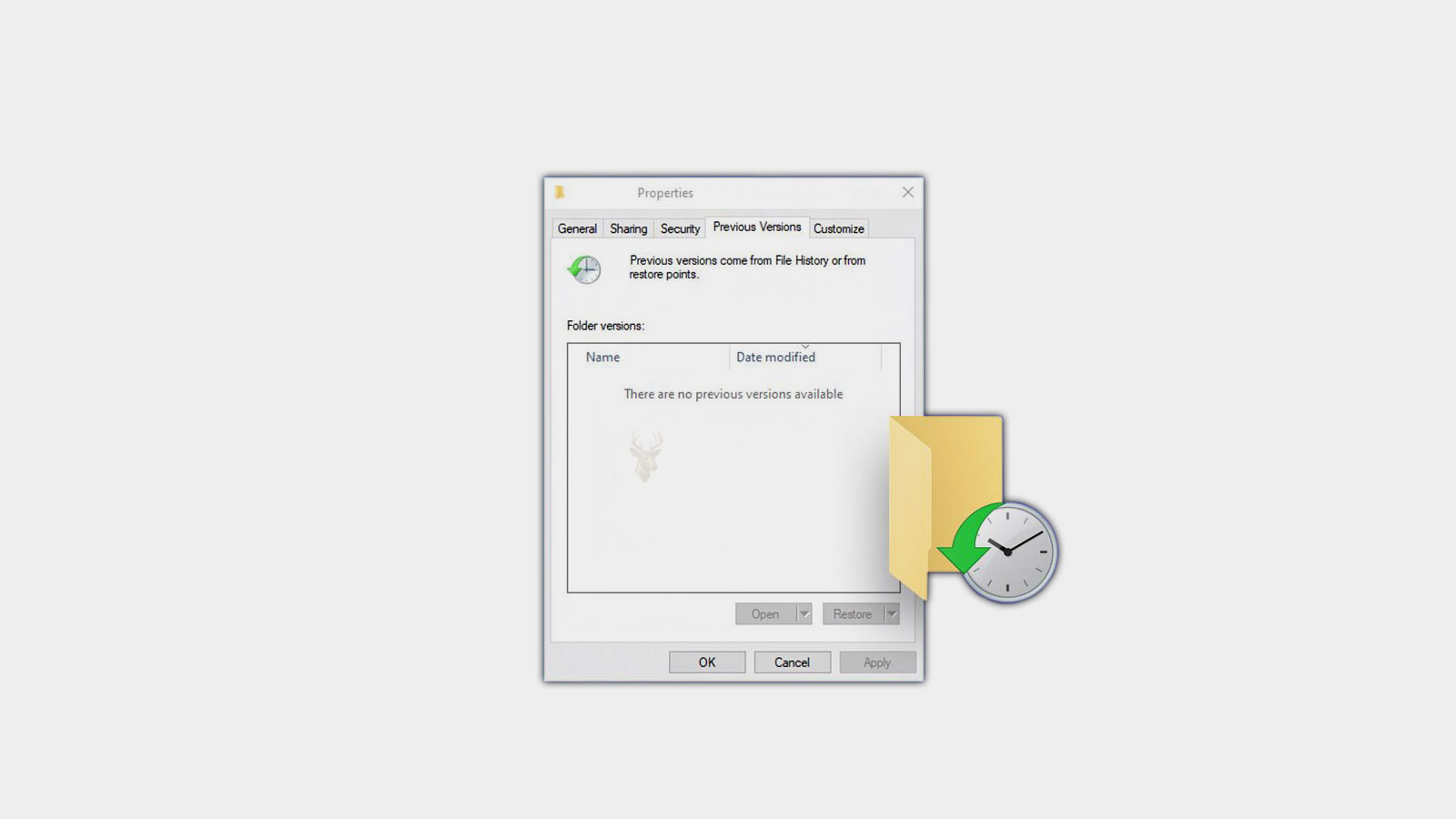
Older File Versions Can Sometimes Be Recovered After Changes
Deleting a file is not the only way important information can be lost. A document may be saved with incorrect changes, overwritten by mistake, or edited until valuable information disappears. In many situations, recovering an earlier version of the file is more useful than recovering the file itself.
Windows, cloud storage providers, backup applications, and document management systems may all keep previous versions of files under certain conditions. These earlier copies can provide a practical way to restore information without relying on traditional deleted-file recovery methods.
Whether previous versions are available depends on how the computer has been configured before the unwanted changes occurred. Version history usually cannot recreate copies that were never saved or backed up.
Version History Is Different From File Recovery
Recovering deleted files focuses on locating data that has been removed from storage. Version history, on the other hand, attempts to restore an earlier copy of a file that still exists but no longer contains the desired information.
Because the current file remains present, version recovery often involves selecting an earlier copy instead of rebuilding deleted data from unused storage space.
Version history restores an earlier copy of a file rather than searching for a deleted one.
Several Technologies Can Store Earlier Versions
Previous versions may be created by different technologies depending on where the file is stored. Local backups, cloud synchronization services, business document systems, and specialized backup software all use their own methods to preserve historical copies.
| Source of Version History | Typical Purpose |
|---|---|
| Windows backup features | Restore earlier copies after unwanted changes. |
| Cloud storage services | Recover previous revisions of synchronized files. |
| Backup software | Maintain historical copies across scheduled backups. |
| Business document systems | Track revisions made by multiple users. |
| Network storage | Preserve snapshots of shared files. |
Not Every Save Creates a Recoverable Version
Some applications automatically create recovery points after every significant edit, while others save only the current version unless additional protection has been enabled. The availability of previous copies depends on the software, storage location, and backup schedule.
As a result, two files stored on the same computer may have very different recovery options even if they were edited on the same day.
- Version history depends on the software being used.
- Automatic backups may occur on a schedule rather than after every save.
- Cloud services often maintain multiple historical revisions.
- Some applications save only the latest copy by default.
- Recovery options vary between storage locations.
Earlier Versions Can Help After Accidental Overwrites
One of the most common uses of version history occurs when a document is saved over by mistake. Instead of attempting complicated recovery procedures, an earlier revision may already contain the missing information.
This approach is especially valuable for documents that undergo frequent editing because multiple historical copies may exist from different points in time.
Version History Is Useful for More Than Documents
Although word processing files are common examples, version history may also apply to spreadsheets, presentations, databases, project files, photographs, and other types of data, depending on the backup system being used.
Some systems preserve complete copies, while others record only the changes between versions to reduce storage requirements.
| Situation | How Version History Can Help |
|---|---|
| Accidental overwrite | Restore an earlier revision. |
| Incorrect edits | Recover a copy made before the changes. |
| Collaborative work | Compare multiple saved revisions. |
| Software corruption | Replace the damaged version with an older copy. |
| Unexpected file changes | Determine when the content was modified. |
Recovery Depends on Earlier Copies Already Existing
Version history can be an effective safeguard against accidental edits and overwritten files, but only if previous copies were created before the problem occurred. In the next part, we’ll examine how version history is maintained, why some files have many recoverable revisions while others have none, and the factors that determine how long earlier versions remain available.
How Earlier Versions Are Created
Version history is not produced in the same way on every computer. Some systems create a new version each time a file is saved, while others generate copies only during scheduled backups or synchronization events.
Because every application and storage platform works differently, the number of available versions and the time between them can vary significantly.
| Method | When a New Version Is Typically Created |
|---|---|
| Cloud synchronization | After a file is saved and synchronized. |
| Scheduled backup | During the next backup cycle. |
| Business document management | When revisions are checked in or saved. |
| Automatic application recovery | At intervals defined by the application. |
| Storage snapshots | When the storage system creates a snapshot. |
Storage Limits Affect How Many Versions Remain Available
Keeping every revision forever would consume an increasing amount of storage space. For that reason, many backup systems automatically remove older versions after a certain period or once storage limits have been reached.
The retention policy may depend on available storage, administrative settings, or the capabilities of the software being used.
Version history depends not only on creating new copies but also on how long those copies are retained.
Earlier Versions Can Help Identify When Changes Occurred
Historical copies are valuable for more than restoration. Comparing multiple versions can help determine approximately when unwanted edits first appeared, making it easier to understand what changed during a project.
This information can be particularly useful when several people work with the same documents or when changes were introduced gradually over time.
- Compare revisions from different dates.
- Locate when incorrect information first appeared.
- Review changes before restoring an earlier copy.
- Identify whether edits were gradual or immediate.
- Reduce unnecessary recovery attempts.
Restoring a Version Does Not Always Delete the Current Copy
Some version management systems replace the current file during restoration, while others allow the earlier revision to be copied elsewhere for comparison. This flexibility lets users review both versions before deciding which one should remain in use.
The exact behavior depends on the software responsible for maintaining version history.
Version History Is Not a Complete Backup Strategy
Although previous versions provide valuable protection against accidental edits, they are not intended to replace complete backups. If an entire storage device fails or important files are permanently removed before any versions are created, version history alone may not be enough.
Maintaining independent backups remains one of the most reliable ways to protect important information against hardware failure, accidental deletion, and other unexpected events.
| Protection Method | Primary Purpose |
|---|---|
| Version history | Recover earlier revisions of existing files. |
| Full backup | Recover data after major loss or hardware failure. |
| Cloud synchronization | Keep copies available across multiple devices. |
| External backup drive | Maintain separate recovery copies. |
| Network backup | Protect multiple computers from a central location. |
Some Files May Never Receive Historical Copies
Files stored in temporary folders, unsupported locations, or applications without version management may have no recoverable history at all. Likewise, newly created files may have only a single version until additional saves or backups occur.
This explains why some documents provide numerous recovery options while others have none despite being stored on the same computer.
- New files often begin with only one saved version.
- Temporary files may never be included in backups.
- Unsupported storage locations may not retain revisions.
- Retention settings vary between systems.
- Backup schedules influence available recovery points.
Restoration Should Be Performed Carefully
Before replacing the current document with an earlier revision, it is often helpful to review the available versions and confirm which copy contains the desired information. Selecting the wrong revision could remove legitimate recent work.
Many version management systems allow users to preview dates, modification times, or version comments before restoring a file.
Version History Depends on Preparation Before Problems Occur
Recovering an earlier copy of a file is possible only when previous versions have already been created and retained. Backup schedules, cloud synchronization, storage policies, and application settings all influence how many revisions remain available and how far back recovery can reach.
In the final part, we’ll discuss common misconceptions about version history, explain situations where earlier copies cannot be recovered, and outline practical ways to improve the chances of restoring previous versions when they are needed.
Version History Cannot Recover Work That Was Never Saved
Version history can restore earlier saved copies, but it cannot usually recreate changes that existed only in memory and were never written to storage. If an application closes unexpectedly before a document is saved, recovery depends on whether that program created temporary or automatic recovery data.
This distinction is important because version history and application recovery are separate systems. One preserves earlier saved revisions, while the other may attempt to recover unsaved work after a crash or interruption.
A previous version must exist before it can be restored.
Synchronization Is Not Always the Same as Backup
Cloud synchronization services may preserve file history, but their primary purpose is often to keep the same files updated across multiple devices. An unwanted edit or deletion can therefore synchronize quickly to every connected computer.
Version history may provide a way to reverse that change, but the available recovery period depends on the service, account type, storage limits, and retention policy.
| Feature | Primary Function |
|---|---|
| Synchronization | Keeps current files consistent across devices. |
| Version history | Preserves selected earlier revisions. |
| Scheduled backup | Creates recovery copies at defined intervals. |
| Automatic recovery | Attempts to restore unsaved work after application failure. |
| Storage snapshot | Captures the condition of many files at a specific time. |
Restoring the Wrong Version Can Remove Recent Work
An earlier revision may contain the missing information while also lacking legitimate changes made afterward. Replacing the current file without reviewing both copies can solve one problem while creating another.
When possible, the older version should be opened, downloaded, or copied to a separate location before it replaces the current file. This allows useful information from both revisions to be compared or combined.
- Review the date and time of each available version.
- Preview the earlier copy when the system allows it.
- Save the current version to a separate location.
- Restore or download the selected earlier revision.
- Confirm that the required information is present.
File Names and Locations Can Affect Recovery
Renaming or moving a file may affect how some backup and versioning systems track it. Certain systems follow the file to its new location, while others treat the renamed or moved copy as a new item with a separate history.
If version history appears missing, checking the original folder, previous filename, cloud recycle area, or backup location may reveal earlier copies that are no longer associated with the current file.
Retention Policies Determine How Far Back Recovery Can Reach
Historical copies are commonly removed according to age, quantity, or available storage space. A system may keep many recent versions while preserving fewer copies from earlier months.
Business systems may use formal retention policies, while personal cloud accounts may limit history according to the subscription level or service rules.
| Retention Method | Possible Effect |
|---|---|
| Time-based retention | Versions older than a defined period are removed. |
| Quantity limit | Only a certain number of revisions remain available. |
| Storage-based cleanup | Older copies are removed when space becomes limited. |
| Manual deletion | A user or administrator removes selected versions. |
| Account closure | Cloud-based history may become inaccessible. |
Malware Can Affect Current Files and Their History
Some malicious programs alter or encrypt large numbers of files. Version history may help recover earlier copies, but it should not be assumed that every stored revision is protected from the same incident.
If backups and synchronized versions remain continuously accessible from the affected computer, malicious changes may spread or older copies may be removed. Separate backups provide stronger protection because they are not always connected to the active system.
- Disconnect affected computers from networks and storage when appropriate.
- Avoid restoring files before the cause of the damage is addressed.
- Confirm that earlier versions were created before the incident.
- Scan restored files before returning them to normal use.
- Maintain at least one backup that is not continuously accessible.
Business Files May Have More Detailed Revision Records
Document management platforms often record more than the file itself. They may also preserve the revision date, user identity, comments, approval status, and other information related to each change.
These records can help organizations determine which version should be restored and explain how a document changed during collaboration.
Version history can serve as both a recovery tool and a record of how work developed.
Previous Versions May Not Preserve Every File Detail
Some recovery systems restore the file contents but may not preserve every original attribute, permission, timestamp, or ownership setting. This is more likely when files move between different storage systems or are restored through third-party applications.
After restoration, important files should be opened and checked rather than judged only by their names or modification dates.
| Item to Check | Reason |
|---|---|
| File contents | Confirms the required information was restored. |
| Modification date | May help identify the selected revision. |
| File permissions | May change during restoration or transfer. |
| Application compatibility | Older revisions may use different formats. |
| Related files | Some projects depend on several linked items. |
Recovery Options Should Be Tested Before They Are Needed
A version history feature provides little protection if it is disabled, misconfigured, or saving copies to an unavailable location. Periodic testing can confirm that earlier versions are being created and can actually be restored.
Testing is especially important for business documents, financial records, project files, and other information that changes frequently.
- Confirm that version history is enabled where expected.
- Review how often new versions are created.
- Check how long historical copies are retained.
- Test restoration with a noncritical file.
- Document the recovery process for important systems.
Independent Backups Provide Broader Protection
Version history is most effective when combined with a complete backup strategy. Earlier revisions can correct unwanted edits, while separate backups help protect against device failure, account problems, widespread corruption, and permanent deletion.
Keeping more than one recovery method reduces dependence on a single application, cloud account, or storage device.
Earlier Copies Provide Another Path to File Recovery
File version history can restore information after accidental overwrites, unwanted edits, synchronization mistakes, and certain forms of corruption. Its usefulness depends on earlier copies being created before the problem and retained long enough to remain available.
Different systems create versions at different intervals, preserve them for different lengths of time, and handle restoration in different ways. Reviewing an earlier copy before replacing the current file helps protect legitimate recent work while recovering the missing information.
Version history should be treated as one part of a broader protection plan that also includes independent backups, careful synchronization settings, and periodic recovery testing. When these safeguards are prepared in advance, an unwanted file change is less likely to become permanent data loss.











