
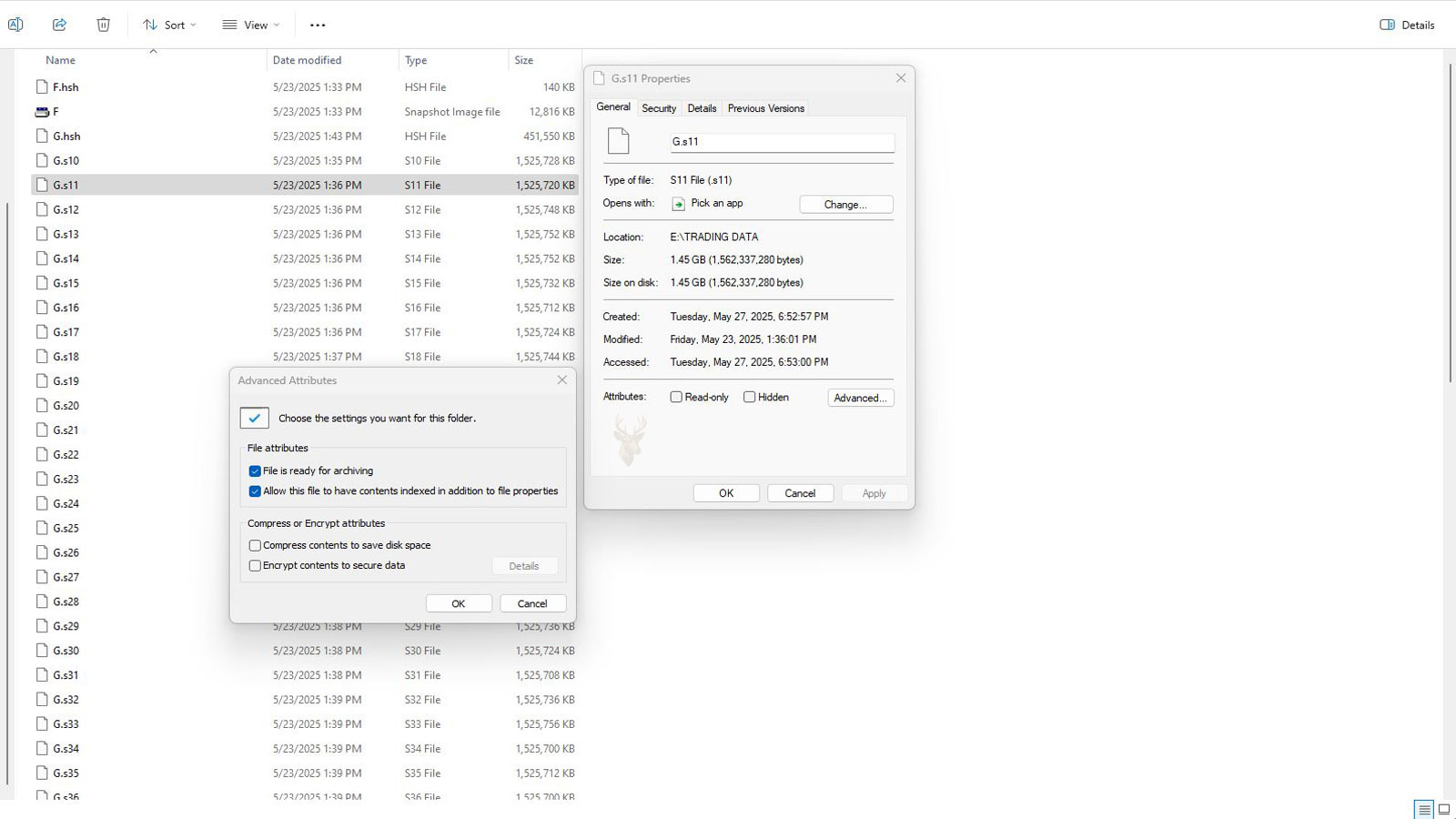
Windows Uses File Attributes to Describe More Than Just File Names
Every file stored on a Windows computer contains more information than its name, size, location, and modification date. Windows also maintains file attributes, which are small pieces of information that describe how a file should be treated by the operating system and certain applications.
Most users rarely notice these attributes because they work silently in the background. However, backup software, File Explorer, security tools, and Windows itself frequently rely on them when deciding how to display, protect, or process files.
Understanding file attributes can make it easier to explain why some files cannot be edited, why certain folders remain hidden, and why backup applications sometimes behave differently after files have been modified.
Attributes Are Separate From File Permissions
Although both influence how files behave, attributes and permissions serve different purposes. Attributes describe characteristics of a file, while permissions determine which users are allowed to access or modify it.
For example, marking a document as Read-only does not change which users have permission to open it. Instead, the attribute simply indicates that the file should not normally be modified.
File attributes describe the file itself, while permissions control who can use it.
Several Common Attributes Exist in Windows
Windows supports numerous file attributes, although only a few are encountered regularly during everyday computer use. Each attribute serves a different purpose and may be used by Windows, backup utilities, or specialized applications.
| Attribute | Primary Purpose |
|---|---|
| Read-only | Indicates the file should not normally be modified. |
| Hidden | Prevents the file from appearing during normal browsing. |
| System | Identifies files used by Windows itself. |
| Archive | Helps backup software identify changed files. |
| Compressed | Shows that NTFS file compression is being used. |
| Encrypted | Indicates that file contents are protected using encryption. |
The Read-only Attribute Does Not Always Prevent Changes
The Read-only attribute is often misunderstood. While many applications respect it by preventing direct editing or prompting before saving changes, the attribute alone does not provide true security.
A user with sufficient permissions may still remove the attribute or save a modified copy of the document under another name. This is one reason Read-only should not be considered a replacement for proper permission management.
Hidden Files Help Reduce Accidental Changes
The Hidden attribute keeps selected files and folders from appearing in File Explorer when Windows is using its default viewing settings. Many configuration files use this attribute to reduce the chance that important information will be modified or deleted accidentally.
Hidden does not mean inaccessible. Users who choose to display hidden items or applications that know the file’s location can still access the data when appropriate.
- Hidden files remain on the storage device.
- The attribute affects normal display settings.
- Applications can still access hidden files when permitted.
- Users may choose to display hidden items.
- Many application configuration files use this attribute.
System Files Receive Additional Protection
The System attribute identifies files that are important to the operating system. Windows normally combines this attribute with other protections to discourage accidental deletion or modification.
Displaying protected operating system files requires additional File Explorer settings because these files often play an important role in startup, hardware support, or operating system stability.
The Archive Attribute Supports Backup Operations
The Archive attribute was originally designed to help backup software identify files that had changed since the previous backup. After a file was modified, Windows typically marked it with the Archive attribute so backup applications could determine which files required attention.
Modern backup software may use additional methods to detect changes, but the Archive attribute continues to exist for compatibility with many tools and workflows.
| Attribute | Common Everyday Example |
|---|---|
| Read-only | A template document intended to remain unchanged. |
| Hidden | Application configuration files. |
| System | Critical Windows operating system files. |
| Archive | Documents recently modified before backup. |
| Compressed | Folders stored using NTFS compression. |
| Encrypted | Confidential user documents protected by Windows. |
Some Attributes Affect Windows More Than Users Notice
Although file attributes are usually invisible during everyday work, they influence how Windows displays files, how backup programs identify changed data, and how applications interact with stored information. In the next part, we’ll examine less common attributes, explain how multiple attributes can exist together, and discuss situations where changing them may produce unexpected results.
Multiple Attributes Can Be Applied to the Same File
A Windows file is not limited to a single attribute. Several attributes may exist together depending on how the file is being used. For example, a file may be both Hidden and Read-only, or it may be Compressed while also carrying the Archive attribute.
Windows evaluates each attribute independently. The combination influences how the operating system and applications interact with the file without changing its actual contents.
| Attribute Combination | Typical Result |
|---|---|
| Hidden + Read-only | The file is normally hidden and should not be edited. |
| Hidden + System | Windows provides additional protection from accidental changes. |
| Archive + Compressed | The file remains eligible for backup while using NTFS compression. |
| Encrypted + Archive | The file is protected while still being tracked for backup purposes. |
| Read-only + Archive | The file is marked as changed but intended to remain unmodified. |
Changing an Attribute Does Not Modify the File Contents
Adjusting an attribute changes only the information Windows stores about the file. The document, photograph, spreadsheet, or application itself normally remains unchanged.
Because of this separation, modifying attributes is generally much faster than editing the file. The operating system simply updates the file’s metadata rather than rewriting the stored data.
Attributes describe how Windows should treat a file, not what the file contains.
Compressed Files Use Less Disk Space
The Compressed attribute indicates that Windows is using NTFS compression to reduce the amount of storage required. Files are automatically decompressed as they are opened and recompressed when saved, making the process largely transparent to the user.
Compression may save considerable disk space for documents, logs, and other compressible data, although already compressed formats such as many photographs and videos often show little additional reduction.
- Compression reduces storage requirements.
- Opening files usually requires no manual decompression.
- Saving automatically updates the compressed copy.
- Results depend on the type of data being stored.
- Some file formats compress much more effectively than others.
Encrypted Files Protect Data From Unauthorized Access
The Encrypted attribute indicates that Windows Encrypting File System (EFS) is protecting the contents of the file. Encryption focuses on preventing unauthorized users from reading the stored data even if they obtain the storage device.
Unlike the Hidden or Read-only attributes, encryption is a security feature rather than simply a descriptive characteristic. Access depends on the appropriate encryption keys rather than only on file visibility.
| Attribute | Main Purpose |
|---|---|
| Compressed | Reduce storage space. |
| Encrypted | Protect file contents. |
| Hidden | Reduce accidental access. |
| Read-only | Discourage unwanted edits. |
| Archive | Assist backup operations. |
File Explorer Displays Attributes Through File Properties
Many common attributes can be viewed by opening a file’s Properties dialog in Windows. This allows users to determine whether a file is marked as Read-only or Hidden without relying on command-line tools.
More specialized attributes may require administrative utilities, scripting tools, or command-line commands to examine or modify them.
Applications May Use Attributes Differently
Although Windows defines the attributes, individual applications decide how they respond. Some programs fully respect the Read-only attribute by preventing direct editing, while others simply display a warning before allowing the user to continue.
Likewise, backup software may use the Archive attribute as one part of its decision-making process while combining it with timestamps, change journals, or other tracking methods.
- Programs determine how strictly attributes are enforced.
- Backup software may evaluate several indicators together.
- Older applications often rely more heavily on Archive status.
- Modern applications frequently maintain additional metadata.
- Windows provides the attribute information consistently.
Copying Files Usually Preserves Their Attributes
When files are copied between NTFS drives, Windows generally preserves their existing attributes. However, moving data to storage devices that use different file systems may result in some attributes being lost because the destination does not support every NTFS feature.
This difference becomes more noticeable when files are transferred to removable media, network storage, or devices formatted with file systems designed primarily for compatibility.
| Transfer Scenario | Typical Attribute Result |
|---|---|
| NTFS to NTFS | Most attributes are preserved. |
| NTFS to another file system | Some NTFS-specific attributes may not be retained. |
| Copy within the same folder | Attributes are generally copied with the file. |
| Restore from backup | Results depend on the backup application. |
Attributes Influence Many Everyday Windows Tasks
Although most users rarely change file attributes manually, Windows and many applications reference them continuously. They influence how files appear, how backups identify modified content, how storage space is managed, and how sensitive information is protected.
In the final part, we’ll examine common misunderstandings about file attributes, situations where changing them can create unexpected behavior, and practical guidelines for managing attributes without affecting normal Windows operation.
Read-only Is Not the Same as Locked
A file marked as Read-only may still be copied, renamed, deleted, or changed after the attribute is removed. The exact result depends on the application being used and the permissions assigned to the user account.
This makes the Read-only attribute useful for reducing accidental edits, but unsuitable as a security control. Protecting important files requires proper permissions, backups, or encryption rather than relying on this attribute alone.
Read-only is a warning to software, not a guarantee that the file cannot be changed.
Hidden Files Are Not Automatically Private
The Hidden attribute changes how a file appears in normal File Explorer views, but it does not prevent access. Anyone who enables hidden-item display or knows the file location may still open it if permissions allow.
For this reason, sensitive information should never be protected by hiding it. Encryption and access permissions provide actual protection, while the Hidden attribute mainly reduces clutter and accidental interaction.
| Method | What It Actually Provides |
|---|---|
| Hidden attribute | Removes the file from normal browsing views. |
| Read-only attribute | Discourages editing in compatible applications. |
| NTFS permissions | Controls which users can open, change, or delete the file. |
| Encryption | Protects file contents from unauthorized reading. |
| Backup | Provides another copy if the original is lost or damaged. |
Changing System Attributes Can Affect Windows Behavior
Removing the System or Hidden attribute from an operating system file does not necessarily damage it immediately, but it may expose the file to accidental deletion or modification. Applying these attributes to ordinary files can also make them difficult to locate through normal browsing.
Attributes on Windows files should not be changed without understanding why they were assigned. A file that appears unnecessary may still support startup, application settings, recovery features, or hardware functions.
- Do not remove System attributes simply to make files easier to see.
- Avoid changing attributes on unfamiliar Windows folders.
- Confirm the purpose of a file before modifying its properties.
- Use File Explorer settings to view protected files temporarily.
- Restore the original viewing settings after troubleshooting.
Folder Read-only Status Can Be Misleading
Windows often displays a partially filled Read-only box in folder properties. This does not always mean that the folder or every file inside it is protected from changes.
For folders, Windows may use the setting for customization information rather than as a straightforward editing restriction. Users should check file permissions and individual file attributes before assuming that a folder is locked.
Attributes May Change During Downloads and Transfers
Files downloaded from the internet, extracted from archives, restored from backups, or copied through cloud services may not retain every original attribute. The result depends on the file system, application, and transfer method involved.
A file may also receive new metadata after download, such as information indicating that it originated from another computer. This can cause Windows to display a security warning even when the visible attributes appear normal.
| Action | Possible Attribute Change |
|---|---|
| Downloading a file | Windows may attach security-related origin information. |
| Extracting a ZIP archive | Some original attributes may not be preserved. |
| Copying to a USB drive | Unsupported NTFS-specific attributes may be lost. |
| Uploading through cloud storage | The service may recreate files with different metadata. |
| Restoring from backup | Preservation depends on the backup program and settings. |
The Archive Attribute May Return After a File Is Modified
Backup software may clear the Archive attribute after successfully processing a file. When the file is changed again, Windows can set the attribute once more to indicate that the updated version may need to be backed up.
Manually clearing this attribute can interfere with older backup workflows that depend on it. Modern backup systems may use additional tracking methods, but unnecessary changes should still be avoided.
Compression and Encryption Require Additional Care
Compressed and Encrypted attributes affect more than appearance. Compression changes how data is stored to reduce space, while encryption controls how the contents can be accessed.
Encrypted files can become inaccessible if the required certificate or key is lost. Before reinstalling Windows, replacing a computer, or moving encrypted data, the recovery information should be exported and stored safely.
- Identify whether files are compressed or encrypted.
- Confirm that important encrypted files can be opened.
- Back up encryption certificates and recovery keys.
- Verify copied files before removing the originals.
- Keep an unencrypted recovery copy when appropriate.
Attribute Problems Can Be Mistaken for File Damage
A document that refuses to save, a folder that appears empty, or a file that seems to disappear may not be corrupted. The behavior can result from Read-only, Hidden, or System attributes combined with application settings and File Explorer display options.
Checking attributes early can prevent unnecessary recovery attempts or software repairs when the file remains intact but is being handled differently by Windows.
| Observed Problem | Possible Attribute-Related Cause |
|---|---|
| A file cannot be saved over | It may be marked as Read-only. |
| A known file is missing from a folder | It may have the Hidden attribute. |
| A file reappears in backup selections | The Archive attribute may have been set again. |
| A copied file cannot be decrypted | The required encryption key may not be available. |
| A folder appears protected | The folder Read-only display may be misleading. |
Command-Line Tools Can Reveal More Detail
File Explorer shows the most common attributes, but Windows command-line tools can display and modify additional information. These tools are useful when attributes affect many files or when a file cannot be managed through the graphical interface.
Commands should be used carefully, especially when applying changes to an entire folder. A broad command can alter attributes on operating system files, backups, and application data at the same time.
Attribute changes are easy to apply in bulk and difficult to review after the wrong files have been affected.
Attributes Should Be Checked Before They Are Removed
When a file behaves unexpectedly, reviewing its attributes can help explain the problem. However, removing every attribute is rarely the correct solution. Each one may exist for a legitimate reason related to backup, visibility, storage, security, or Windows operation.
- Identify the exact attribute causing concern.
- Check permissions separately from attributes.
- Preserve encryption keys before moving protected files.
- Avoid bulk changes on Windows and application folders.
- Confirm that backups retain the attributes you need.
File Attributes Help Windows Manage Data Consistently
Windows file attributes provide additional information about how files should be displayed, edited, backed up, compressed, encrypted, and protected from accidental changes. They work alongside permissions and file system features but do not replace them.
Read-only and Hidden attributes mainly influence normal application and File Explorer behavior, while Compressed and Encrypted attributes affect how data is stored and accessed. The Archive and System attributes support backup operations and operating system management.
Reviewing attributes before changing them can prevent confusion, protect important files, and reveal when an apparent file problem is actually caused by Windows metadata rather than damaged content.











