
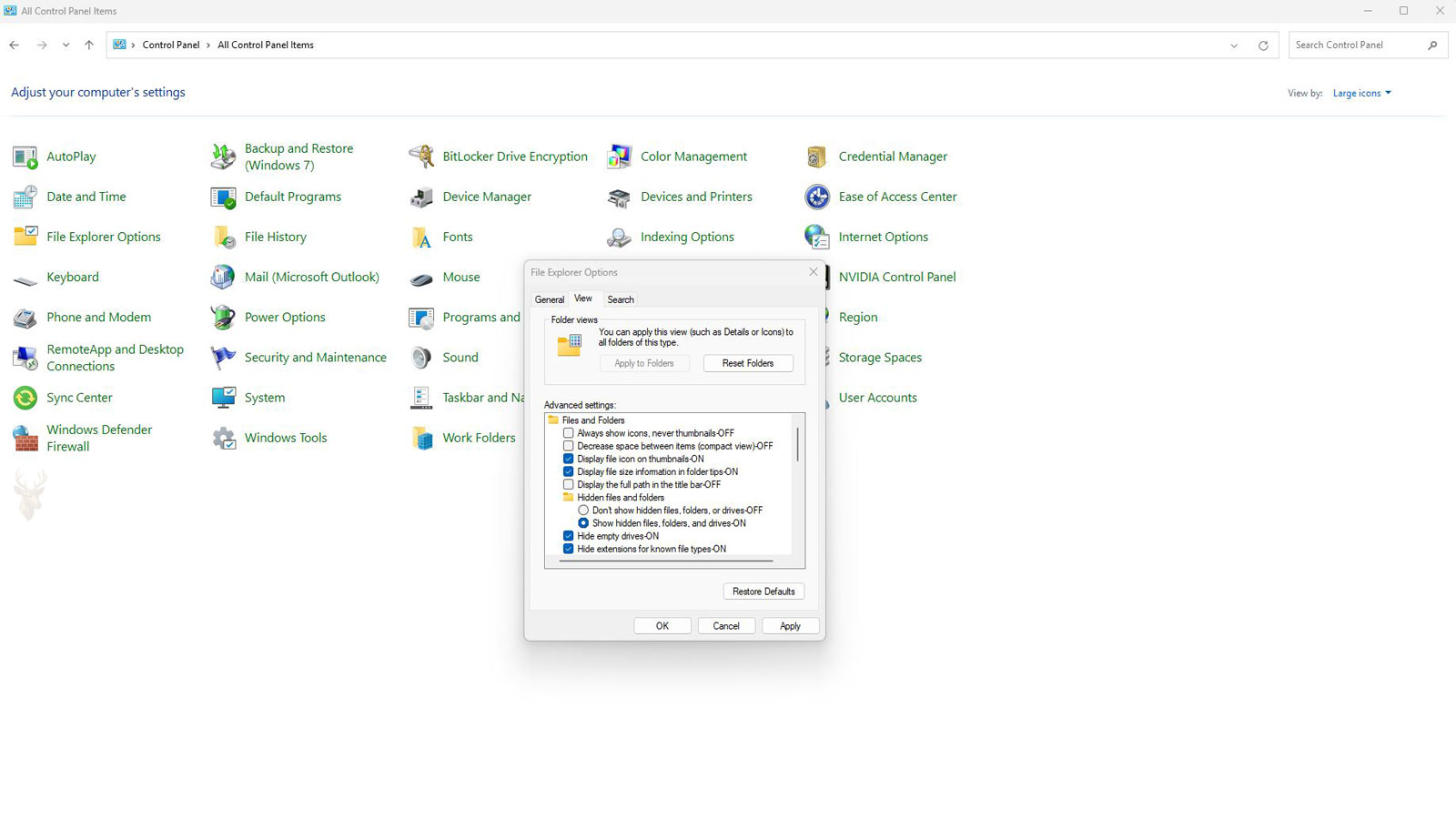
Why Windows Hides Certain Files and Folders From Everyday View
When opening File Explorer, users do not automatically see every file stored on the computer. Windows intentionally hides certain files and folders because many of them support the operating system or installed applications rather than everyday work. Keeping these items out of normal view helps reduce accidental changes that could affect system stability.
Hidden files are not deleted or inaccessible. They simply have an attribute that tells File Explorer not to display them unless the user chooses to show hidden items. Once that setting is enabled, the hidden files become visible alongside ordinary documents and folders.
Understanding why hidden files exist helps explain many troubleshooting instructions, software installation guides, and maintenance procedures that refer to folders users cannot immediately find.
Hidden Does Not Mean Protected
Many people assume a hidden file is somehow encrypted or secured. In reality, hiding a file only changes how it is displayed in File Explorer. If hidden items are enabled, the file becomes visible and can usually be opened like any other file unless additional permissions or security measures apply.
Because of this, the hidden attribute should never be viewed as a method of protecting confidential information.
A hidden file is simply hidden from normal view—it is not automatically protected from access.
Many Hidden Files Support Normal System Operation
Windows and installed applications create hidden files for many different purposes. Some store configuration settings, while others maintain temporary information, application preferences, indexing data, synchronization details, or system information needed during startup.
These files are often hidden because users rarely need to modify them directly during normal computer use.
| Hidden Item | Typical Purpose |
|---|---|
| Application configuration files | Store software preferences. |
| System folders | Support Windows operation. |
| Temporary working files | Assist running applications. |
| Synchronization data | Track cloud or network changes. |
| Indexing information | Improve search performance. |
Hidden Folders Often Store Program Settings
Many applications save user-specific settings inside folders that remain hidden by default. These folders may contain preferences, saved sessions, templates, caches, databases, logs, or licensing information that allows the software to function consistently between sessions.
Deleting these folders without understanding their purpose can cause applications to lose settings or recreate default configurations.
- User preference files.
- Application configuration data.
- Temporary cache information.
- Software licensing records.
- Synchronization and indexing data.
System Files Receive Additional Protection
Some important Windows files remain hidden even after ordinary hidden items are displayed. These protected operating system files receive additional safeguards because accidental changes could prevent Windows from starting or functioning correctly.
Viewing these protected files generally requires changing a separate File Explorer setting beyond simply enabling hidden items.
Troubleshooting Sometimes Requires Viewing Hidden Items
Technical support instructions occasionally ask users to open hidden folders in order to clear temporary files, reset application settings, review logs, or locate configuration information. In these situations, making hidden items visible helps technicians access the necessary files without permanently changing how the operating system works.
| Situation | Why Hidden Files May Be Needed |
|---|---|
| Software troubleshooting | Locate configuration information. |
| Application reset | Remove damaged settings. |
| Log review | Find diagnostic information. |
| Profile repair | Access user-specific data. |
| Maintenance tasks | Review temporary storage locations. |
Hidden Items Exist to Reduce Accidental Changes
Hidden files and folders are an important part of everyday Windows operation, even though most users never interact with them directly. They help applications preserve settings and allow the operating system to organize important information without cluttering normal folders. In the next part, we’ll examine how hidden items become visible, when they should be accessed, and why modifying them without understanding their purpose can create unexpected problems.
Hidden Items Can Be Displayed Through File Explorer
Windows allows users to make hidden files and folders visible through File Explorer. Once the setting is enabled, hidden items usually appear slightly faded compared with ordinary files, helping distinguish them from content intended for regular use.
The visibility setting does not move, unlock, or modify the files. It only changes whether File Explorer displays them.
Protected Operating System Files Use a Separate Setting
Some files remain hidden even after ordinary hidden items are shown. Windows treats these as protected operating system files because they may be essential for startup, hardware support, recovery, or core system functions.
Displaying protected files requires an additional option and normally produces a warning. That warning exists because deleting or altering one of these files can cause serious problems.
Making a system file visible does not make it safe to edit.
| File Type | Normal Visibility | Risk Level |
|---|---|---|
| Ordinary document | Visible | Depends on content |
| Hidden application file | Not shown by default | Moderate |
| Hidden user folder | Not shown by default | Moderate |
| Protected system file | Hidden separately | High |
Application Data Often Resides in Hidden Locations
Programs commonly store settings, saved sessions, local databases, templates, logs, and temporary information inside hidden user folders. These locations help keep technical files separate from documents that users open every day.
When an application begins behaving incorrectly, support instructions may direct the user to one of these folders so a damaged setting can be renamed, backed up, or removed.
- Saved program preferences.
- Browser profiles.
- Local email data.
- Application logs.
- Licensing information.
- Cached program resources.
Hidden Files May Appear on External Drives
USB drives and external storage devices can also contain hidden files. Some are created by Windows, while others come from backup software, media applications, indexing tools, or devices that previously used the drive.
Unexpected hidden files on a removable drive are not automatically malicious. Their names, locations, dates, and purpose should be reviewed before anything is deleted.
Malware Can Abuse the Hidden Attribute
Although Windows uses hidden files for legitimate reasons, unwanted software can also hide files to make them less noticeable. Some infections hide a user’s original folders and replace them with misleading shortcuts or executable files.
Because many legitimate files are hidden, the attribute alone does not prove that a file is dangerous. Suspicious behavior, unusual names, unexpected locations, security alerts, or files that reappear after deletion provide more useful warning signs.
| Observation | Possible Meaning |
|---|---|
| Known application folder | Likely normal program data |
| Expected Windows location | May support system operation |
| Random executable on a USB drive | Requires careful review |
| Folders replaced by shortcuts | Possible malware activity |
| Hidden item repeatedly returns | May be recreated by software or infection |
Cloud Services Create Hidden Control Files
Cloud synchronization software may place hidden files inside synchronized folders to track status, conflicts, permissions, or local changes. Removing these files can interfere with synchronization or cause the software to rebuild its local database.
The same principle applies to backup programs and collaboration tools. Small hidden files may contain important instructions even when they do not appear useful to the user.
Not Every Hidden File Should Be Included in a Manual Backup
Some hidden files contain valuable application settings, while others hold temporary data that does not need to be preserved. Copying every hidden item without understanding its purpose can increase backup size and restore unwanted cache or configuration problems.
Important user data should be prioritized first. Application-specific hidden folders can be added when their contents are known to be necessary.
- Identify the application involved.
- Confirm the purpose of the hidden folder.
- Back up important files before making changes.
- Modify only the specific item required.
- Test the application after the change.
Visibility Can Be Restored After Troubleshooting
Once the required maintenance or troubleshooting task is complete, hidden items can be turned off again. Returning File Explorer to its normal view reduces clutter and lowers the chance of accidental changes.
Technicians may leave hidden items visible temporarily while checking several related folders, but most users do not need them displayed during everyday computer use.
Visibility Should Be Used With a Clear Purpose
Showing hidden files can be useful when locating application data, reviewing logs, repairing settings, or investigating suspicious activity. The setting itself is harmless, but the files revealed by it may be important.
In the final part, we will cover common mistakes involving hidden files, safe troubleshooting practices, and the warning signs that suggest a hidden item should be examined more carefully.
Deleting Hidden Files Can Reset More Than Expected
A hidden folder may appear unimportant because it contains unfamiliar names or small files, but it can still hold critical application settings. Removing the wrong item may erase preferences, sign-in information, templates, saved sessions, or local program data.
Some applications recreate deleted folders automatically, but the replacement may contain only default settings. Others may fail to start until the missing data is repaired or rebuilt.
Unfamiliar does not mean unnecessary, especially inside hidden system or application folders.
Renaming Is Often Safer Than Immediate Deletion
When troubleshooting a suspected configuration problem, renaming a hidden file or folder can be safer than deleting it immediately. The program can then create a fresh replacement while the original remains available in case the change does not solve the problem.
This approach is commonly used for damaged preference files, cached settings, local databases, or user profiles associated with a specific application.
| Action | Advantage | Possible Risk |
|---|---|---|
| Rename the item | Preserves the original data | The application may create a new default copy |
| Move it elsewhere | Keeps it available for restoration | Linked programs may temporarily lose access |
| Back it up first | Provides a recovery option | Requires enough storage space |
| Delete it immediately | Removes the suspected problem quickly | May cause permanent data loss |
Showing Hidden Items Can Reveal Duplicate Data
Once hidden files become visible, users may notice duplicate-looking folders, backup copies, temporary versions, or files with similar names. These items are not always redundant. Some may be active working files, recovery copies, synchronization records, or previous configuration versions.
Dates, locations, file extensions, and the program that created them should be reviewed before deciding whether two items truly serve the same purpose.
- Compare the complete folder location.
- Review the date modified.
- Check the file extension.
- Confirm which application uses the item.
- Create a backup before removing uncertain files.
Hidden Files Can Explain Unusual Storage Usage
A folder may appear nearly empty while still consuming a large amount of disk space. Hidden caches, application data, logs, synchronization files, or protected system content can account for the difference.
Viewing hidden items may help explain where the storage is being used, but size alone should not determine what gets removed. Some large hidden files support recovery, updates, search indexing, or active applications.
Changing Attributes Does Not Repair Damaged Files
Removing the hidden attribute only changes visibility. It does not repair corruption, restore missing content, remove malware, or correct permissions. A file that is damaged remains damaged after it becomes visible.
Likewise, hiding a problematic file does not stop it from being used by Windows or another application. Visibility and function are separate characteristics.
| Change | What It Does | What It Does Not Do |
|---|---|---|
| Show hidden items | Displays hidden content | Repairs or validates files |
| Remove the hidden attribute | Makes an item normally visible | Changes its purpose |
| Hide a file | Removes it from ordinary view | Secures or encrypts it |
| Enable protected file viewing | Displays sensitive system content | Makes modification safe |
Unexpected Hidden Shortcuts Deserve Attention
On removable drives, malware sometimes hides original folders and creates shortcuts with similar names. A user may click the shortcut believing it is the original folder while an unwanted program runs in the background.
Folders that suddenly disappear, unexpected executable files, unfamiliar shortcuts, or repeated security alerts should be investigated before the drive is used on additional computers.
Hidden Files May Reappear After Removal
Some hidden files return because the application or system service that created them is still active. This can be normal behavior. Configuration files, thumbnail databases, indexing records, and synchronization data are often rebuilt automatically when needed.
If a suspicious item repeatedly returns, the process recreating it must be identified. Repeated deletion alone may not resolve the underlying cause.
- Note the exact file name and location.
- Check when the item reappears.
- Identify which program was running at that time.
- Review security alerts and application logs.
- Scan the system when malicious activity is suspected.
System Folder Changes Can Affect Startup
Protected system folders may contain files required during startup, sign-in, updates, recovery, or hardware initialization. Modifying these items without a specific reason can produce errors that are difficult to trace back to the original change.
Before editing a protected location, the exact file, expected result, and recovery method should be known. General cleanup should never involve deleting unfamiliar system files simply because they are hidden.
Safe Troubleshooting Depends on Documentation
When hidden files must be changed, documenting the original name, folder path, and action taken makes reversal easier. This is particularly important when several similar files are present or when troubleshooting continues over multiple steps.
A screenshot, written note, or backup copy can prevent uncertainty if the application behaves differently after the change.
Hidden Files Should Be Handled With Purpose
Windows hides certain files to reduce clutter and lower the chance of accidental modification. These items may contain application settings, system information, synchronization records, recovery data, temporary resources, or files needed during startup.
Making hidden items visible can help with troubleshooting, storage review, software repair, and security checks, but visibility alone does not reveal whether a file is safe to change. Its location, purpose, creator, and connection to running software must still be considered.
Careful backups, reversible changes, clear documentation, and targeted troubleshooting provide a safer approach than deleting unfamiliar hidden content. Once the work is complete, returning File Explorer to its normal view helps keep everyday folders clear and reduces unnecessary risk.











