
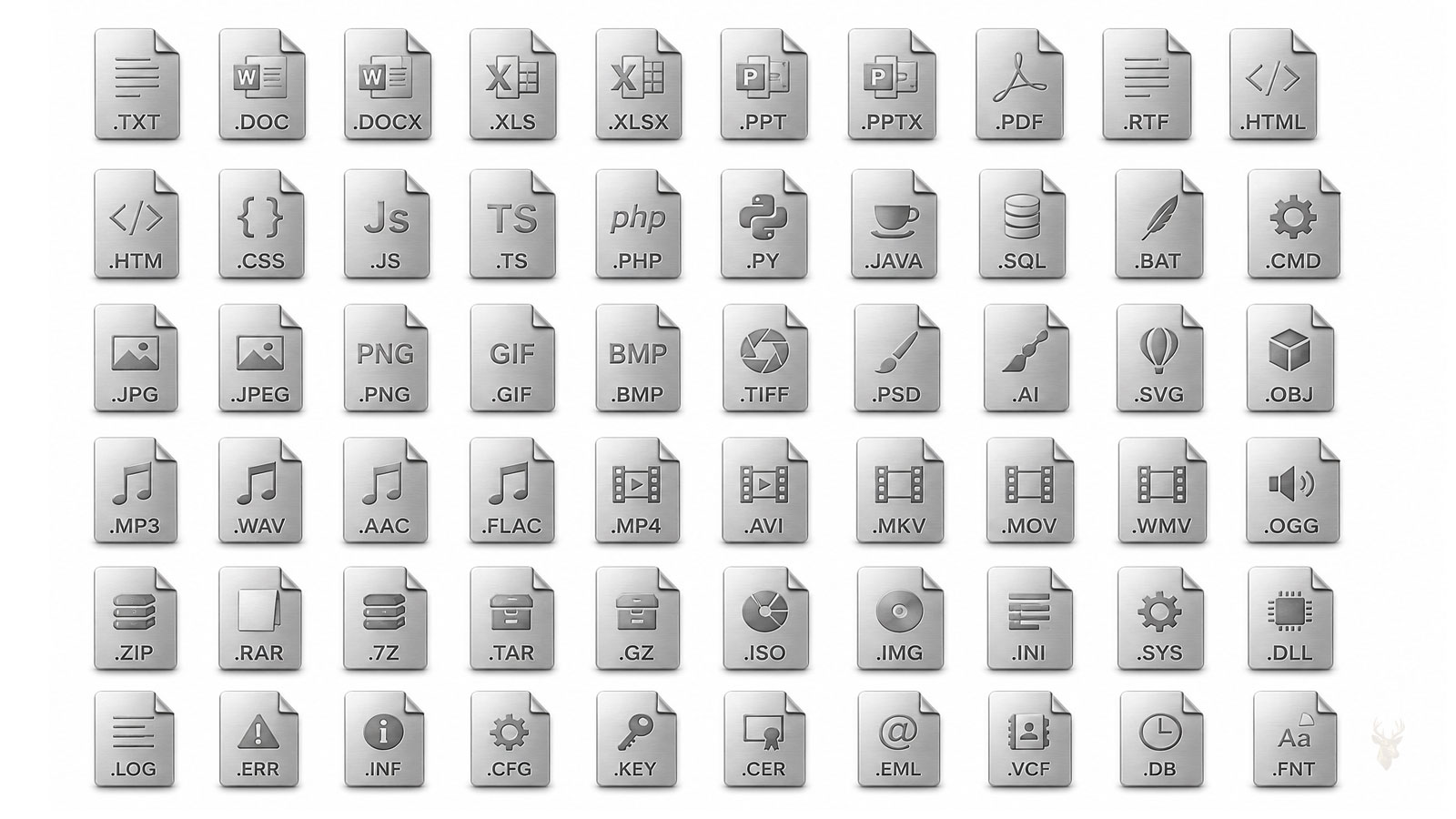
Understanding How File Extensions Help Windows Identify Your Files
Every file stored on a Windows computer has a type, even if that type is not immediately visible. Documents, photographs, videos, spreadsheets, compressed archives, and programs all contain information that tells Windows what kind of file they are and which application should normally open them.
One of the easiest ways Windows identifies a file is through its file extension. Although most users interact with filenames every day, relatively few understand the purpose of the characters that appear after the final period in a filename. Those few letters play an important role in organizing data, launching applications, and preventing users from opening files with incompatible software.
Learning how file extensions work can make everyday computing easier while also helping users recognize unusual files, avoid common mistakes, and better understand how Windows manages information.
What Is a File Extension?
A file extension is the short group of letters that appears after the final period in a filename. For example, a document named Report.docx uses the .docx extension, while a photograph named Vacation.jpg uses the .jpg extension.
These extensions provide Windows with a quick indication of the file’s general format. They also help determine which application should normally open the file when it is double-clicked.
A file extension does not create the file’s contents—it simply helps Windows recognize what kind of file it is expected to be.
Extensions Are Different From File Names
The filename and the file extension serve different purposes. The filename helps people identify the document, while the extension helps Windows identify the file format.
Changing the filename usually has no effect on the contents of the file. However, changing or removing the extension can prevent Windows from recognizing which application should open it.
| Example Filename | Extension | Typical File Type |
|---|---|---|
| Budget.xlsx | .xlsx | Spreadsheet |
| Presentation.pptx | .pptx | Presentation |
| Photo.jpg | .jpg | Image |
| Manual.pdf | Portable document | |
| Archive.zip | .zip | Compressed archive |
| Music.mp3 | .mp3 | Audio file |
Windows Uses Extensions to Choose an Application
When a file is opened, Windows checks its extension and compares it with the list of registered applications installed on the computer. If an association already exists, Windows launches the appropriate program automatically.
For example, PDF documents may open in a PDF reader, photographs may open in an image viewer, and spreadsheets may launch a spreadsheet application. This process usually happens instantly without the user noticing the steps occurring behind the scenes.
- Documents open in word processing software.
- Images open in photo viewing applications.
- Videos launch media players.
- Compressed files open archive utilities.
- Audio files open music players.
Extensions Help Organize Large Collections of Files
File extensions also assist with organization. Users can sort folders by file type, search for specific formats, and quickly distinguish between different kinds of information even when filenames are similar.
For example, a project folder may contain reports, photographs, spreadsheets, presentations, and archived backups that all begin with the same project name. The extension immediately identifies the purpose of each file.
Some Extensions Are Encountered More Frequently Than Others
Windows supports thousands of different file formats, but most home and business users regularly encounter only a relatively small group of them.
| Extension | Common Use |
|---|---|
| .docx | Word processing documents |
| .xlsx | Spreadsheets |
| Portable documents | |
| .jpg / .png | Images |
| .zip | Compressed folders |
| .txt | Plain text documents |
| .mp4 | Video files |
| .mp3 | Audio files |
Hidden Extensions Can Sometimes Cause Confusion
Many Windows installations hide known file extensions by default. While this creates a cleaner appearance, it can also make it more difficult to identify the true file type, especially when files have similar names or unusual icons.
Learning how Windows displays extensions allows users to better understand exactly what they are opening rather than relying solely on the file’s icon or descriptive name.
Understanding Extensions Helps Prevent Everyday Mistakes
Recognizing file extensions is useful for much more than technical troubleshooting. It helps users distinguish between documents and programs, recognize compatible file formats before sharing them, and understand why some files open differently than others. In the next part, we’ll examine file associations, changing default applications, hidden extensions, security considerations, and why simply renaming an extension does not convert one file format into another.
File Associations Determine Which Program Opens Each File
A file extension by itself does not open a document. Instead, Windows maintains a list of file associations that connects each extension to one or more installed applications. When a file is double-clicked, Windows checks its extension and launches the program associated with that file type.
This process happens automatically for thousands of different file formats. As new software is installed, additional associations may be created, modified, or offered to the user as default choices.
A file extension identifies the file type, while a file association tells Windows which application should open it.
More Than One Program Can Support the Same Extension
Many common file formats are supported by multiple applications. For example, a PDF document might open in a dedicated PDF reader, a web browser, or another compatible program. Likewise, image files may be viewed with several different applications installed on the same computer.
Windows simply uses the program that has been designated as the default application unless the user specifically chooses another compatible program.
| File Type | Possible Compatible Applications |
|---|---|
| PDF readers, modern web browsers, document viewers | |
| JPG | Photo viewers, image editors, graphics software |
| TXT | Text editors, code editors, document applications |
| MP4 | Media players, video editing software |
| ZIP | Windows compressed folder support and archive utilities |
Changing the Default Application Does Not Change the File
Users sometimes believe that selecting a different default application somehow converts the file into another format. In reality, the file itself remains unchanged. Only the application that Windows chooses to open it is different.
For example, opening the same photograph with a different image viewer does not alter the image. It simply changes which software displays the contents.
Renaming an Extension Does Not Convert the File Format
One of the most common misconceptions is that changing the extension changes the actual file. Renaming Document.pdf to Document.docx does not transform a PDF into a Word document.
The internal structure of the file remains exactly the same. Windows may simply become confused about which application should attempt to open it, often resulting in an error or unreadable content.
- Changing .jpg to .png does not convert an image.
- Changing .pdf to .docx does not create an editable document.
- Changing .mp4 to .mp3 does not extract audio.
- Changing .zip to .iso does not create a disc image.
True file conversion requires software capable of reading one format and saving or exporting it into another compatible format.
Displaying File Extensions Can Improve Clarity
Although Windows often hides extensions for familiar file types, many experienced users choose to display them. Seeing the complete filename makes it easier to distinguish similarly named files and verify exactly what kind of document is being opened.
This can be especially helpful when organizing large folders, comparing different versions of files, or identifying unexpected downloads.
Extensions Can Help Identify Unexpected Files
Recognizing common file extensions also helps users notice files that differ from what they expected. If someone anticipates receiving a document but instead receives an unfamiliar file type, checking the extension provides an immediate clue about what was actually delivered.
This awareness encourages users to verify unfamiliar files before opening them, particularly when they arrive through email or downloads from the internet.
| Expected File | Unexpected Example | Reason to Review |
|---|---|---|
| PDF document | Unknown executable or script | Verify the source before opening. |
| Image | Compressed archive | Confirm that the sender intended to compress the files. |
| Spreadsheet | Plain text file | Check whether the export format changed. |
| Presentation | Compressed folder | Determine whether supporting files were included. |
Older and Newer File Formats May Coexist
Many software applications continue supporting both older and newer file formats. As a result, two files serving the same purpose may have different extensions depending on the version of the application that created them.
This compatibility helps organizations continue accessing older documents while gradually adopting newer formats over time.
- Create the document.
- Save it using the desired file format.
- Share it with compatible software.
- Verify the recipient can open the file.
- Convert the file only when a different format is genuinely required.
Understanding Extensions Simplifies Everyday File Management
File extensions are small, but they influence how Windows identifies files, selects applications, and organizes information. Understanding the relationship between extensions, file associations, and software compatibility helps users avoid unnecessary confusion while making everyday file management more predictable.
In the final part, we’ll examine common mistakes involving file extensions, practical organization habits, compatibility considerations when sharing files, and simple practices that make managing different file formats easier over time.
Double Extensions Can Hide a File’s Real Purpose
When known extensions are hidden, a file can appear to have one type while actually ending with something different. A filename such as Invoice.pdf.exe may display only as Invoice.pdf if Windows hides the final extension.
This is one reason many users and technicians prefer to keep file extensions visible. The complete filename provides more information than the icon or descriptive name alone.
The last extension in a filename is the one Windows normally uses to determine the file type.
File Icons Are Helpful but Not Always Reliable
Windows displays icons based on the application associated with each extension. These icons offer a convenient visual clue, but they should not be treated as absolute proof of a file’s contents.
Changing the default program can change the icon without changing the file itself. Corrupted icon caches, missing applications, or altered file associations can also cause a familiar file type to display an unexpected symbol.
| What Changes | What Usually Remains the Same |
|---|---|
| Default application | The file’s internal contents |
| Displayed icon | The actual file format |
| Program used to open the file | The filename and stored data |
| Open-with preference | The extension unless manually renamed |
Sharing Files Requires Attention to Compatibility
A file may open correctly on one computer but fail on another because the receiving system does not have compatible software. The extension helps identify the format, but it does not guarantee that every device can read it.
Before sending an important document, it is useful to consider which programs the recipient is likely to have. Widely supported formats are often preferable when the file only needs to be viewed rather than edited.
- Use PDF when preserving document appearance is important.
- Use common image formats for photographs and graphics.
- Confirm spreadsheet compatibility before sharing complex workbooks.
- Compress multiple files into an archive when organization is necessary.
- Keep an editable original before exporting to another format.
Older Formats May Lose Features During Conversion
Saving a newer document in an older format can improve compatibility, but some modern features may not be supported. Advanced formatting, formulas, fonts, embedded media, or application-specific elements may change or disappear during conversion.
Applications often display a warning when the selected format cannot preserve everything in the original file. These messages should be reviewed carefully rather than dismissed automatically.
Unknown Extensions Do Not Automatically Mean a File Is Damaged
Windows supports many specialized file formats that ordinary users may never encounter. An unfamiliar extension may belong to accounting software, engineering tools, backup applications, databases, design programs, or other industry-specific systems.
If Windows does not recognize the extension, the file may still be completely valid. The computer may simply lack the application required to open it.
| Observed Situation | Possible Explanation |
|---|---|
| Blank or generic file icon | No application is associated with the extension. |
| Windows asks which program to use | The file association is missing. |
| The file opens as unreadable text | An incompatible program was selected. |
| The file came from specialized software | The original application may be required. |
| The extension is missing | The filename may have been altered or exported incorrectly. |
Recovering a Missing Extension Requires Caution
If a file has lost its extension, Windows may no longer know how to open it. Restoring the correct extension can help, but only when the original format is known with reasonable certainty.
Guessing several extensions at random does not repair the file and may create additional confusion. The file’s source, original application, surrounding folder contents, and any backup copies can provide clues about its intended format.
- Identify where the file originated.
- Check whether similar files are stored nearby.
- Review the application that created or exported it.
- Restore the likely extension only after gathering evidence.
- Keep an untouched copy before making changes.
Backup Copies Should Preserve Original Formats
When archiving documents, it is usually best to preserve the original file along with any converted copies. An exported PDF may be convenient for viewing, but the editable source document may still be required for future changes.
Keeping both versions avoids the need to recreate information later and protects against conversion problems that may not become obvious until the file is reopened months or years afterward.
A Small Part of the Filename With an Important Job
File extensions are easy to overlook because Windows often manages them automatically. Even so, they influence which applications open files, how folders are organized, and whether documents can be shared successfully between different computers.
Understanding extensions helps users recognize file types, avoid incorrect renaming, choose suitable formats, and identify situations where compatible software is missing. It also makes unexpected downloads and unfamiliar attachments easier to evaluate before they are opened.
By keeping important extensions visible, preserving original files, and using proper conversion tools instead of simply renaming filenames, users can manage everyday documents more confidently and avoid many preventable file compatibility problems.











