
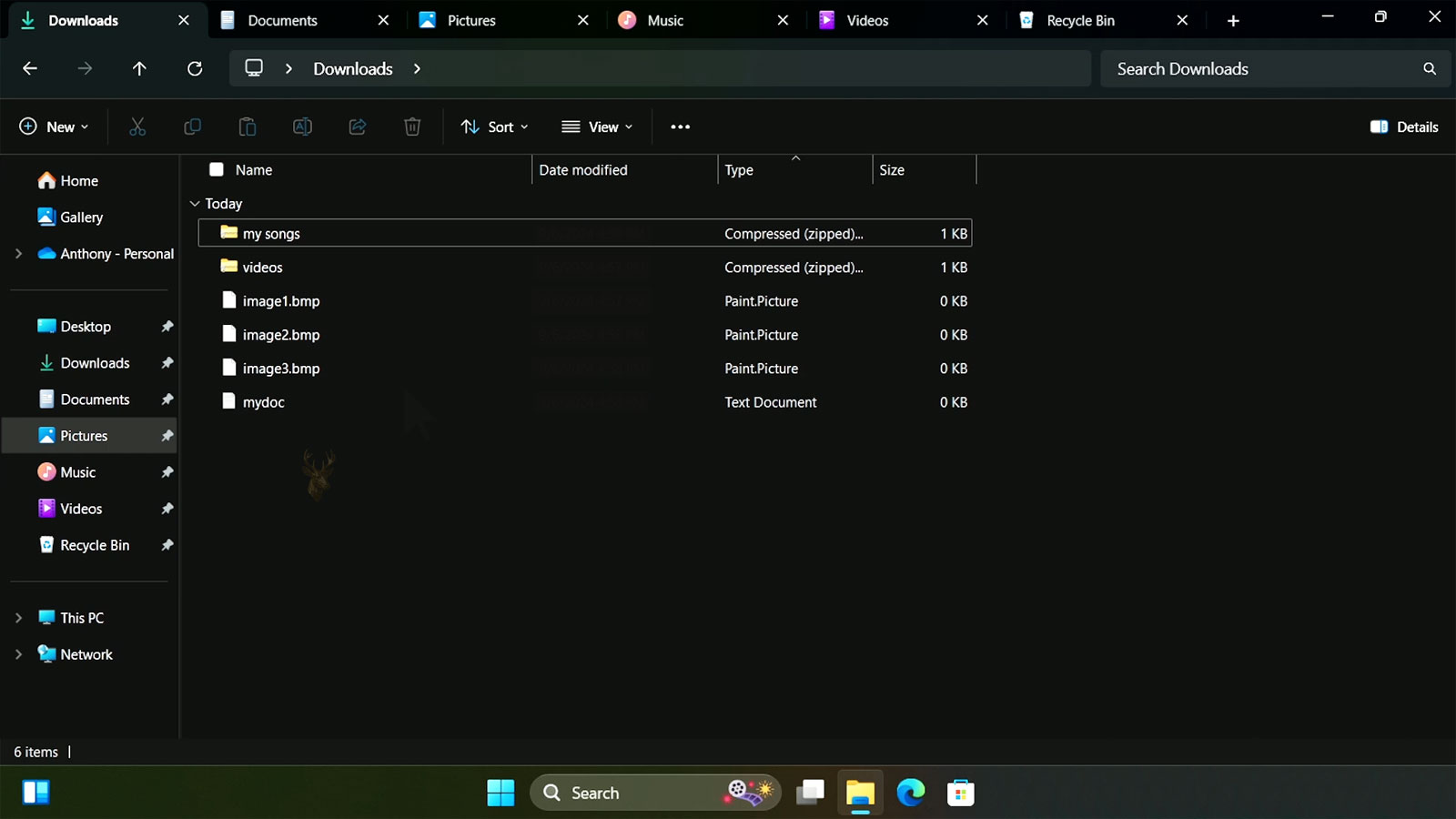
Managing Multiple Folder Locations More Efficiently in Windows File Explorer
Working with files often requires moving between several folders at the same time. A user may need to compare documents, organize photographs, transfer project files, review downloaded attachments, or copy information between storage locations. Traditionally, this meant opening multiple File Explorer windows and arranging them across the desktop.
Modern versions of Windows have expanded File Explorer to make these tasks more efficient. Instead of relying exclusively on separate windows, users can organize several folder locations in a way that reduces desktop clutter while making navigation easier. Even on systems that do not include every newer feature, understanding how File Explorer manages multiple locations can significantly improve everyday productivity.
Although these improvements appear simple, they address one of the most common daily computing activities. File management is involved in almost every office task, from opening email attachments to organizing customer records and maintaining backups.
File Explorer Is More Than a File Browser
Many people think of File Explorer only as the place where documents are stored. In reality, it serves as Windows’ primary interface for navigating storage devices, network locations, removable media, shared folders, cloud-synchronized directories, and many system resources.
Every time a folder is opened, File Explorer provides tools for browsing, searching, copying, renaming, organizing, and managing files without requiring specialized software.
File Explorer is not simply a list of folders; it is the central workspace where most Windows file management takes place.
Working With Multiple Locations Has Always Been Common
Long before newer navigation features appeared, Windows users frequently opened several Explorer windows simultaneously. This remains a perfectly valid approach and is often the best solution when comparing folders side by side.
However, as projects become larger, managing many independent windows can become increasingly difficult. Users may spend more time searching for the correct window than working with the files themselves.
| Common Task | Typical Folder Locations |
|---|---|
| Copying photographs | Camera storage and Pictures folder |
| Organizing business documents | Downloads and project directory |
| Moving archived files | Internal drive and external backup drive |
| Reviewing email attachments | Downloads and client folders |
| Updating shared documents | Local folder and network location |
Tabbed Navigation Reduces Desktop Clutter
Tabbed navigation applies a familiar concept already used by most web browsers. Instead of opening a completely separate File Explorer window for every folder, multiple locations can be organized within one window using individual tabs.
This allows users to switch quickly between different locations while keeping the desktop cleaner and reducing the number of overlapping windows.
- Open several folders without filling the taskbar.
- Switch between locations more quickly.
- Reduce overlapping Explorer windows.
- Keep related project folders grouped together.
- Simplify navigation during larger file management tasks.
Although not every Windows version includes identical File Explorer capabilities, the underlying organizational benefits remain the same regardless of the interface.
Separate Windows Still Have Important Advantages
Tabbed browsing does not eliminate the usefulness of multiple Explorer windows. Certain activities become easier when two folders remain visible simultaneously.
For example, dragging files between two side-by-side windows often requires fewer navigation steps than switching repeatedly between tabs. Users with multiple monitors may also prefer keeping different folders permanently visible on separate screens.
| Situation | Often More Convenient |
|---|---|
| Comparing folder contents | Separate Explorer windows |
| Browsing many project folders | Tabbed navigation |
| Working across two monitors | Separate windows |
| Opening reference folders occasionally | Tabs within one window |
Navigation Becomes More Efficient With Consistent Folder Organization
Even the best navigation tools cannot compensate for poor folder organization. When files are stored consistently, switching between locations becomes much faster regardless of whether separate windows or tabs are being used.
Clearly named folders, logical project structures, and predictable storage locations reduce unnecessary searching and make File Explorer considerably easier to navigate during everyday work.
- Create descriptive folder names.
- Group related documents together.
- Avoid storing important files in temporary locations.
- Maintain consistent project structures.
- Archive completed work separately from active projects.
Quick Access Complements Multi-Folder Navigation
Quick Access allows frequently used folders to remain readily available without repeatedly browsing through long directory structures. Combined with organized navigation, this feature reduces the number of clicks required to reach commonly used locations.
Rather than replacing normal folder organization, Quick Access serves as a shortcut layer for directories that users open repeatedly throughout the day.
Navigation Habits Often Matter More Than Individual Features
Whether someone prefers tabs, separate windows, Quick Access, or keyboard shortcuts, the goal remains the same: reaching the correct files efficiently without unnecessary repetition. Understanding the strengths of each navigation method allows users to choose the approach that best fits the work they perform.
In the next part, we’ll examine navigation history, address bar shortcuts, search integration, pinned folders, keyboard techniques, and practical ways to work across multiple storage locations without losing track of active projects.
Navigation History Makes Returning to Previous Folders Easier
Just as web browsers remember previously visited pages, File Explorer keeps track of recently visited folder locations during a browsing session. This allows users to move backward and forward through their navigation history without manually reopening each directory.
This feature is especially useful when comparing information from several folders. Instead of repeatedly browsing through the same directory tree, users can quickly return to earlier locations while maintaining their workflow.
Navigation history reduces unnecessary browsing by allowing previously visited folders to be revisited with only a few clicks.
The Address Bar Offers More Than Location Information
Many users think of the File Explorer address bar as simply displaying the current folder. In reality, it also serves as a navigation tool. Users can select portions of the displayed path, move directly to parent folders, or type an entirely new location without browsing through each intermediate directory.
For experienced users, entering a known folder path directly is often much faster than repeatedly expanding folders through the navigation pane.
| Navigation Method | Typical Benefit |
|---|---|
| Navigation pane | Browse folder structures visually. |
| Address bar | Jump directly to known locations. |
| Back and Forward buttons | Return through recent navigation history. |
| Quick Access | Reach frequently used folders immediately. |
Searching Can Be Faster Than Browsing
When folder structures become large, manually browsing every directory may no longer be the quickest approach. File Explorer includes search capabilities that allow users to locate files by name and, depending on indexing and search settings, by additional file properties.
Searching is particularly useful when the approximate filename is known but the storage location is not. Instead of opening numerous folders individually, a targeted search may locate the desired document almost immediately.
- Locate recently downloaded documents.
- Find spreadsheets stored in large project folders.
- Search for photographs by filename.
- Locate reports without remembering their exact location.
- Reduce unnecessary browsing through deep folder structures.
Keyboard Shortcuts Can Speed Up File Navigation
Although File Explorer is designed for mouse navigation, keyboard shortcuts often provide faster access for users who perform repetitive file management throughout the day.
| Shortcut | Function |
|---|---|
| Windows + E | Open File Explorer. |
| Alt + Left Arrow | Go to the previous folder. |
| Alt + Right Arrow | Move forward in navigation history. |
| Alt + Up Arrow | Open the parent folder. |
| F2 | Rename the selected file or folder. |
| Ctrl + L | Select the address bar. |
Learning only a few of these shortcuts can noticeably reduce repetitive mouse movement during routine file management.
Network Folders Behave Differently Than Local Storage
Folders stored on network servers or shared office computers often respond differently than folders located on the local hard drive or SSD. Navigation speed depends not only on File Explorer but also on network performance, server responsiveness, permissions, and connection quality.
When a shared folder appears slow to open, the delay may originate from the network itself rather than the File Explorer application.
External Storage Devices Introduce Additional Navigation Considerations
USB flash drives, portable SSDs, memory cards, and external hard drives often appear as separate storage locations inside File Explorer. While they can be accessed similarly to internal drives, they may become temporarily unavailable if disconnected or powered off.
Moving files between internal and removable storage requires awareness of available capacity, transfer speed, and safe device removal practices to reduce the risk of interrupted transfers.
Cloud Storage Adds Another Layer of File Organization
Many users now organize documents inside cloud-synchronized folders. These locations appear within File Explorer alongside local folders, allowing cloud files to be managed using the same familiar interface.
Depending on synchronization settings, some files may always remain stored locally while others are downloaded only when opened. Understanding this distinction helps avoid confusion when internet connectivity changes.
| Storage Location | Typical Characteristic |
|---|---|
| Internal drive | Always available while the computer is operating. |
| External drive | Requires the storage device to remain connected. |
| Network share | Depends on network and server availability. |
| Cloud-synchronized folder | Availability depends on synchronization settings. |
Large Numbers of Open Folders Can Reduce Organization
Opening many folders without a clear organizational approach can eventually become counterproductive. Whether using tabs or multiple Explorer windows, keeping only the folders required for the current task often leads to a cleaner and more manageable workspace.
- Open only the folders needed for the current project.
- Close locations that are no longer in use.
- Keep frequently accessed folders pinned or easily accessible.
- Separate long-term storage from active project folders.
- Review folder organization periodically as projects evolve.
Efficient Navigation Depends on Good Organization
File Explorer includes numerous tools that simplify navigation, but the greatest improvements often come from consistent organization habits rather than any single feature. Well-structured folders, predictable storage locations, and effective navigation techniques allow users to spend less time searching and more time completing their work.
In the final part, we’ll explore common navigation mistakes, practical organization strategies for homes and businesses, troubleshooting tips when File Explorer behaves unexpectedly, and recommendations for maintaining an efficient file management workflow over time.
Avoid Treating the Desktop as Long-Term Storage
One of the most common file management habits is storing large numbers of documents directly on the Windows desktop. Although this makes files immediately visible, it can eventually create unnecessary clutter and make important information more difficult to locate.
Using clearly organized folders inside Documents, Pictures, or dedicated project directories allows File Explorer to remain efficient while reducing visual distractions. The desktop is generally most effective when reserved for temporary shortcuts or files that are actively being used.
An organized folder structure usually saves more time over the long term than placing everything on the desktop for immediate visibility.
Consistent Folder Names Simplify Navigation
File Explorer becomes much easier to use when folders follow a consistent naming convention. Descriptive folder names help users recognize locations quickly without opening several directories to verify their contents.
This approach is especially valuable for businesses where multiple employees access the same files. Clear folder names reduce confusion and make training new staff members considerably easier.
- Use descriptive names instead of generic labels.
- Group related projects together.
- Include dates when chronological organization is important.
- Avoid creating several folders with nearly identical names.
- Archive completed work separately from active projects.
File Explorer Can Display Information in Several Useful Ways
Different folder views are designed for different types of work. Large thumbnails may be ideal for photographs, while detailed lists are often better for documents, spreadsheets, and archived records. Choosing the appropriate view can make locating files considerably faster.
| View Option | Best Used For |
|---|---|
| Extra Large Icons | Photographs and image collections. |
| Large or Medium Icons | Mixed media and frequently accessed files. |
| List | Folders containing many similarly named files. |
| Details | Sorting by name, date, size, or file type. |
| Content | Viewing additional information without opening files. |
Sorting and Grouping Reduce Time Spent Searching
File Explorer allows folders to be sorted by several different properties, including file name, modification date, size, and type. Grouping files by similar characteristics can also make large collections easier to review.
These tools are especially helpful when working with directories that contain hundreds or even thousands of files. Rather than manually scanning every entry, users can quickly narrow the visible information using the available sorting options.
Copying Is Usually Safer Than Moving During Important Projects
When reorganizing valuable files, copying them first often provides an additional layer of protection. After verifying that the copied files are complete and accessible in the new location, the original versions can be removed if appropriate.
This approach reduces the likelihood of accidental data loss caused by interrupted transfers, mistaken folder selections, or removable storage devices that become disconnected before a move operation finishes.
- Create the destination folder.
- Copy the files rather than moving them immediately.
- Verify the copied files open correctly.
- Confirm the expected number of files transferred.
- Remove the originals only after verification is complete.
Unexpected Explorer Problems May Not Be File Problems
If File Explorer becomes slow, stops responding, or displays folders incorrectly, the files themselves are not always responsible. Explorer depends on many Windows components, including storage devices, indexing services, network availability, and user profile settings.
A temporary delay while opening a network share, an unavailable external drive, or an overloaded storage device can all affect Explorer’s behavior without indicating that documents have been damaged.
| Observed Behavior | Possible Cause |
|---|---|
| Folders open slowly. | Storage performance, network delays, or large directory contents. |
| Files appear to be missing. | Sorting, filtering, permissions, or incorrect folder location. |
| External drive disappears. | Loose connection or removable device interruption. |
| Explorer stops responding. | Temporary Windows process, storage issue, or third-party extension. |
| Search returns incomplete results. | Search indexing or folder scope limitations. |
Good Folder Organization Supports Reliable Backups
Well-organized folders benefit more than everyday navigation. They also simplify backup routines by making it easier to identify which directories contain important information. Backup software performs more predictably when files are stored in consistent, logical locations.
Businesses and home users alike benefit from reviewing folder structures periodically to remove outdated files, archive completed projects, and verify that important documents are included in regular backups.
Small Navigation Improvements Add Up Over Time
File Explorer is one of the most frequently used components of Windows, making even small workflow improvements worthwhile. Features such as tabs, Quick Access, navigation history, search, sorting, and consistent folder organization all contribute to faster and more predictable file management.
No single feature transforms the experience on its own. Instead, the greatest benefit comes from combining several navigation tools with well-planned folder structures and thoughtful organization habits that match the way files are actually used.
Whether managing personal photographs, business records, project documentation, or archived data, understanding how File Explorer organizes and navigates multiple folder locations can reduce unnecessary searching, simplify daily work, and make Windows file management considerably more efficient over the long term.











