
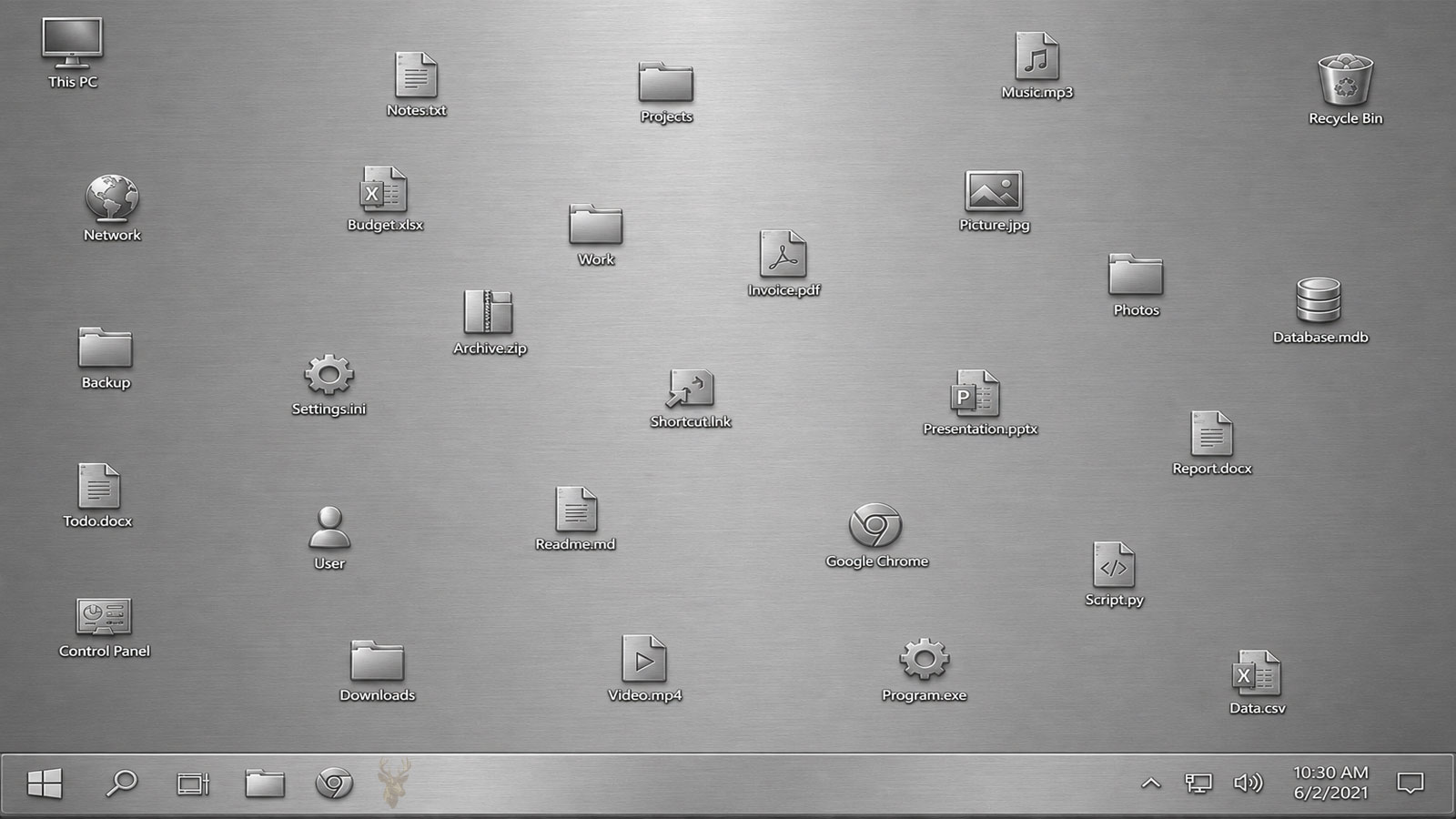
When a Carefully Organized Desktop Will Not Stay That Way
Some computer problems prevent Windows from starting, interrupt internet access, or make important files unavailable. Desktop icons that move after every restart may seem minor by comparison, but the problem can become surprisingly disruptive when someone relies on a particular arrangement to find programs, folders, documents, and shortcuts quickly.
A user may arrange accounting software on one side of the screen, work folders in the center, and frequently opened documents along the bottom. Everything appears correct until the computer restarts, a monitor reconnects, or Windows wakes from sleep. The icons may then shift into different rows, move to another monitor, collect in the upper-left corner, or return to positions that were used days earlier.
This behavior does not always come from a single Windows defect. The desktop layout depends on several parts of the system working together, including screen resolution, monitor identification, icon spacing, user profile data, graphics drivers, and the Windows shell. A change in any one of those areas can cause Windows to rebuild or reinterpret the saved icon arrangement.
The Desktop Is More Than an Empty Background
The Windows desktop is managed by the same shell process that controls the taskbar, Start menu, notification area, and File Explorer windows. The icons shown on the desktop are not simply painted onto the wallpaper. Windows must remember which items are present, the order in which they appear, the size of the icons, and the coordinates where each item was placed.
Those coordinates only make sense while the usable desktop area remains consistent. If Windows believes the screen has become smaller, larger, rotated, duplicated, or moved to a different position, some saved coordinates may no longer fit. Windows then relocates icons so they remain visible within the available area.
An icon that moves is not always losing its saved position. Windows may be protecting it from being placed outside the desktop area it currently recognizes.
This distinction matters because repeatedly dragging the icons back into place does not correct the underlying cause. If the monitor configuration changes again during the next startup, Windows may repeat the same rearrangement.
What the Rearrangement Pattern Can Reveal
The way the icons move can provide useful clues. A complete collapse into the upper-left corner suggests a different problem from two or three icons switching places. Icons moving only when a docking station is disconnected also points in a different direction than a layout that resets after every normal shutdown.
| What Happens | What It May Suggest |
|---|---|
| All icons collect in the upper-left corner | The saved layout may not be loading, or Windows may temporarily detect a much smaller desktop area. |
| Icons move after connecting or removing a monitor | The display arrangement, scaling, or primary monitor designation may be changing. |
| Only newly created icons move | Automatic arrangement settings or limited open space may be affecting placement. |
| The desktop resets after every sign-in | The user profile may not be saving changes correctly. |
| Icons change after a graphics driver update | Resolution, scaling, or monitor identification may have been reset. |
No single pattern proves a diagnosis, but these observations can narrow the investigation. It is helpful to note whether the problem follows a restart, a shutdown, sleep mode, a monitor change, a remote session, or an update.
Auto Arrange and Align to Grid Are Not the Same Setting
Windows includes two desktop options that are often confused with each other. Both can affect icon placement, but they behave differently.
- Auto arrange icons places desktop items into an ordered sequence and prevents them from remaining in freely selected positions.
- Align icons to grid allows icons to be moved while keeping them attached to an invisible spacing grid.
When Auto arrange icons is enabled, Windows controls the layout. A user may still be able to change the order, but icons will remain grouped into rows or columns according to the current desktop arrangement. When Align icons to grid is enabled by itself, icons can be placed in different areas while maintaining even spacing.
These settings can be checked by right-clicking an empty area of the desktop and opening the View menu. If Auto arrange icons is selected unexpectedly, turning it off may restore manual control. However, changing this option will not solve layouts that are being reset by display detection, profile corruption, or third-party software.
Screen Resolution Changes Can Force Icons Into New Positions
Every icon position is limited by the screen space Windows believes is available. A desktop using a resolution of 1920 by 1080 pixels has more usable horizontal and vertical space than the same display operating temporarily at 1024 by 768. If Windows starts at the lower resolution before the graphics driver finishes loading, icons positioned near the right or bottom edges may no longer fit.
Windows may move those icons inward. When the correct resolution returns moments later, the icons do not necessarily return to their previous positions because the newly adjusted layout may already have been saved.
This temporary resolution change may occur so quickly that the user never sees it. The only visible result is a rearranged desktop after signing in.
Display Scaling Can Alter the Usable Desktop Area
Windows display scaling enlarges text, icons, menus, and other interface elements without requiring the screen to use a lower physical resolution. Scaling is especially useful on high-resolution laptop displays where items would otherwise appear too small.
A change from 100 percent scaling to 125 or 150 percent can affect how much desktop space is available for icon placement. Even when the resolution remains unchanged, Windows may calculate icon positions differently because each interface element occupies more logical space.
- A graphics driver update restores a default scaling value.
- Windows detects a different monitor during startup.
- A docking station reports display information differently.
- A remote session changes the effective desktop dimensions.
- The original scaling value returns after the session or device reconnects.
During that sequence, the desktop may be recalculated several times. Icons can move even though the user never intentionally changed a display setting.
Multiple Monitors Add Another Layer of Positioning
A multi-monitor desktop is treated as one large workspace made from several display areas. Windows tracks which monitor is primary, where each screen is positioned, and whether the screens are extended, duplicated, or temporarily unavailable.
Problems begin when the monitor arrangement reported during startup does not match the arrangement that existed when the icons were saved. A monitor may respond slowly, a cable may have an intermittent connection, or a docking station may not initialize until after sign-in. Windows can briefly believe that only one display is connected.
Icons stored on the missing display must then be moved onto a screen that Windows can currently see. Once the second monitor appears, the system may leave those icons where they were relocated rather than returning them automatically.
A Monitor Can Be Connected Without Being Identified Consistently
Windows identifies monitors using information supplied by the display and the connection path. That information can be affected by adapters, docking stations, KVM switches, converters, and some low-quality cables. Two startup sessions may appear identical to the user while Windows internally treats the display as newly connected or differently identified.
When that happens, the primary display assignment or monitor numbering can change. Desktop icons may then move to the screen Windows currently considers primary, even though the physical monitors have not changed places.
Before assuming that the desktop itself is corrupted, it is worth observing whether the problem occurs only with a particular cable, dock, adapter, monitor input, or startup order. The next part will examine graphics drivers, user profile data, Windows shell behavior, and programs that can interfere with saved icon positions.
Graphics Drivers Do More Than Display Images
Graphics drivers are responsible for far more than producing a picture on the screen. They communicate display capabilities, monitor identification, supported resolutions, refresh rates, scaling information, and multiple-monitor arrangements to Windows. If that communication changes unexpectedly, desktop icon positions can be affected even though the desktop itself is functioning normally.
Driver updates occasionally reset display preferences or temporarily load generic display settings before the proper driver initializes. In most situations this happens only once, but unstable drivers or incomplete installations can cause Windows to believe the display configuration changes every time the computer starts.
This is one reason icon movement sometimes begins immediately after a graphics driver update while every other part of Windows appears to work normally.
The Desktop Layout Is Stored Within the User Profile
Every Windows account maintains its own desktop preferences. Two people sharing the same computer can arrange their icons differently without affecting each other’s workspace.
Because the layout belongs to the user profile, Windows must successfully save those settings when the user signs out or shuts down. If the profile cannot update correctly, the next sign-in may restore an older layout instead of the one that was used previously.
Several conditions may interfere with that process:
- A partially corrupted Windows user profile.
- Unexpected power loss during sign-out.
- Insufficient permissions to update profile data.
- Third-party utilities that restore previous desktop settings.
- Storage errors affecting profile files.
In these situations, moving the icons repeatedly rarely solves the problem because Windows is not successfully preserving the latest arrangement.
Third-Party Desktop Utilities Can Override Windows
Many desktop customization programs promise additional organization features such as automatic icon grouping, desktop fences, virtual workspaces, shortcut management, or scheduled layout restoration. While these tools can be useful, they also introduce another layer of software between Windows and the desktop.
If one of these programs restores a previously saved layout each time Windows starts, it may appear that Windows itself is moving the icons. In reality, the utility is intentionally replacing the current arrangement with an older snapshot.
Whenever icon positions change consistently after every restart, it is worth considering not only what Windows is doing, but also whether another application is attempting to “help” by restoring its own preferred layout.
Remote Desktop Sessions Can Produce Temporary Rearrangements
Remote access introduces another variable because the remote session often operates at a different resolution than the physical monitor connected to the computer. Someone may connect from a small laptop while the office computer normally uses two large monitors.
Windows must compress the available desktop space into the dimensions of the remote session. Icons that originally occupied a second monitor may suddenly have nowhere to exist, forcing Windows to relocate them temporarily.
Once the remote session ends, the original monitor arrangement usually returns. Depending on the sequence of events, however, Windows may preserve the temporary icon layout rather than restoring the previous one.
Organizations that regularly use remote access often notice this behavior more frequently than home users because computers transition between different display environments throughout the day.
Storage Problems Can Affect More Than Documents
Although desktop icon movement usually points toward display or profile issues, storage devices can also contribute. If Windows cannot reliably read or update profile information because of developing storage errors, configuration data may become inconsistent.
A failing drive does not always begin by preventing Windows from starting. Early symptoms may include settings that refuse to save, unexpected application behavior, missing preferences, or desktop layouts that repeatedly revert to older versions.
| Possible Cause | Typical Clue | Likely Area to Investigate |
|---|---|---|
| Graphics driver behavior | Icons move after updates or resolution changes. | Display driver and graphics settings. |
| User profile issue | Desktop returns to an older arrangement. | Profile integrity and permissions. |
| Monitor detection problem | Icons shift after docking or reconnecting displays. | Display configuration and hardware connections. |
| Desktop management software | Layout changes occur identically every startup. | Installed utilities and startup applications. |
| Storage reliability issue | Other Windows settings also fail to remain saved. | Drive health and file system condition. |
Cloud Synchronization Can Introduce Unexpected Changes
Some Microsoft accounts synchronize desktop folders between multiple computers using cloud storage services. This feature primarily keeps files available across devices, but it can occasionally create confusion when desktop contents differ from one computer to another.
Adding or removing shortcuts on one synchronized computer may change the overall desktop layout elsewhere. Although synchronization generally affects files rather than icon coordinates, a large number of newly synchronized items can alter how Windows organizes available space.
Restart Patterns Often Reveal the Real Cause
One useful troubleshooting technique is observing exactly when the rearrangement occurs instead of focusing only on the fact that it happens.
- Does it happen after every restart?
- Only after a complete shutdown?
- Only after Windows updates?
- Only when a second monitor is disconnected?
- Only after using Remote Desktop?
- Only after waking from sleep?
Each answer narrows the list of possible causes considerably. For example, if the desktop remains perfectly organized after ordinary restarts but changes every time a docking station is disconnected, attention should shift toward monitor detection rather than user profile corruption.
Simple Observations Can Save Significant Diagnostic Time
People sometimes attempt dozens of fixes before identifying a consistent pattern. Carefully noting the circumstances surrounding each rearrangement is often more valuable than immediately changing Windows settings.
Keeping a short record for several days can reveal whether the desktop changes are linked to one specific event, such as connecting an external monitor, installing updates, switching between office and home workstations, or using remote access.
Once those patterns become clear, diagnosing the underlying cause becomes much more straightforward than repeatedly dragging icons back into place. In the final part of this article, we’ll look at practical prevention strategies, situations where the desktop database itself may require rebuilding, and when persistent icon rearrangement points to a larger Windows configuration problem rather than an isolated desktop annoyance.
Begin With the Settings That Directly Control Icon Placement
Before making deeper changes to Windows, it is sensible to confirm that the desktop is not being rearranged by a basic viewing option. Right-clicking an empty area of the desktop and opening the View menu provides access to Auto arrange icons and Align icons to grid.
If Auto arrange icons is enabled, Windows will continue controlling the order and placement of desktop items. Turning it off allows icons to remain where they are manually positioned. Align icons to grid can remain enabled when evenly spaced icons are preferred, because it does not normally force every item back into one continuous group.
After changing the setting, move one or two icons to clearly recognizable positions and restart the computer. Testing with a small change is easier than reorganizing the entire desktop before knowing whether the setting will remain saved.
Confirm That Windows Is Using a Stable Display Configuration
A desktop layout is unlikely to remain consistent when resolution, scaling, orientation, or monitor order changes between sessions. The display configuration should be reviewed while all regularly used monitors, docks, adapters, and cables are connected.
- Verify that each monitor is using its recommended resolution.
- Confirm that display scaling is appropriate and does not change after restart.
- Make sure the intended screen is selected as the primary display.
- Check that the monitor arrangement in Windows matches the physical arrangement on the desk.
- Look for a display that disappears briefly or reconnects during startup.
If the monitor numbering changes frequently, the issue may be related to a docking station, adapter, KVM switch, or cable rather than the icon layout itself. Replacing one connection component at a time can help identify whether Windows is receiving inconsistent display information.
Avoid Reorganizing the Desktop While a Monitor Is Missing
When a second monitor is temporarily unavailable, Windows may move its desktop icons onto the remaining display. Rearranging everything during that temporary state can make the final layout more difficult to restore once the missing monitor returns.
It is often better to reconnect the normal display setup first, wait for Windows to recognize every monitor, and then organize the icons. This gives the operating system a stable desktop area in which to save the arrangement.
A desktop layout should be created under the same monitor configuration that will be used most often. Saving positions while a dock or display is disconnected can produce an arrangement that Windows must change later.
Check Whether the Problem Belongs to One Windows Account
A second Windows account can be useful for separating a user profile problem from a system-wide display problem. If icon positions remain stable in another account using the same monitor and graphics configuration, the original profile becomes a stronger suspect.
This test does not require immediately abandoning the existing account. It simply provides a comparison. A temporary local account can be created, a few desktop shortcuts can be arranged, and the computer can be restarted several times.
| Test Result | What It Suggests |
|---|---|
| Both accounts lose icon positions | The cause is more likely related to display detection, graphics drivers, installed software, or the broader Windows configuration. |
| Only the original account is affected | The original user profile may contain damaged or unsaved desktop settings. |
| The problem appears only with multiple monitors | Monitor order, docking behavior, or display identification is likely involved. |
| The problem disappears after disabling a startup utility | Third-party desktop software may have been restoring or reorganizing the layout. |
If the profile is damaged, creating a replacement account and carefully transferring documents may be more reliable than repeatedly repairing isolated symptoms. The decision depends on whether other profile-related problems are also present, such as missing settings, temporary sign-ins, failed application preferences, or files appearing in unexpected locations.
Review Programs That Start With Windows
Desktop organizers, cleanup utilities, system optimization tools, backup applications, synchronization software, and manufacturer control programs may all run automatically at sign-in. Some of them can modify the desktop directly, while others can indirectly trigger a layout change by altering display settings or restoring saved configuration data.
A clean startup comparison can help determine whether one of these programs is involved. Rather than uninstalling several applications at once, disable only the most likely utility, restart the computer, and observe whether the icon arrangement remains stable.
Changing many startup items simultaneously may stop the symptom, but it also removes the evidence needed to identify the responsible program. A controlled one-at-a-time approach takes longer, but it produces a clearer answer.
Graphics Driver Repair Should Be Based on Evidence
Updating a graphics driver is often suggested for any display-related problem, but the newest driver is not automatically the correct solution. If icon movement began immediately after an update, rolling back to the previous stable driver may be more useful than installing another version.
When the problem began after Windows started using a generic display driver, installing the correct driver from the computer or graphics hardware manufacturer may restore consistent monitor detection. A complete driver reinstall can also help when the existing installation is damaged or incomplete.
- Record the current resolution, scaling, and monitor arrangement.
- Identify the installed graphics adapter and driver version.
- Determine whether the problem began before or after a driver change.
- Install, roll back, or reinstall only when the history supports that step.
- Restore the preferred display arrangement before reorganizing the desktop.
This sequence reduces the chance of creating additional display changes while trying to correct the original problem.
A Damaged Icon Cache Is Not Always the Main Cause
Windows maintains icon cache files so it can display application and document icons without rebuilding every image repeatedly. When that cache becomes corrupted, icons may appear blank, display the wrong image, or fail to update correctly.
Rebuilding the icon cache can correct those visual problems, but it does not necessarily repair saved desktop coordinates. The icon image and the icon position are related parts of the desktop experience, yet they are not the same data.
For that reason, rebuilding the cache should not be treated as the first answer when the only symptom is rearrangement. It becomes more reasonable when icon movement occurs alongside blank icons, incorrect symbols, or thumbnails that fail to refresh.
Desktop Layout Backup Tools Can Help in Complex Setups
People who use several monitors, frequently switch docking stations, or connect remotely from different screen sizes may continue to experience occasional layout changes even after the computer is functioning correctly. In those environments, a desktop layout backup utility can provide a practical way to save and restore icon positions.
Such a tool should be selected carefully. It should save layouts only when instructed, support the correct number of monitors, and avoid automatically replacing the desktop at every sign-in unless that behavior is specifically desired.
A layout utility is most useful as a convenience for a changing workspace. It should not be used to hide an unresolved profile, storage, or monitor detection problem.
When the Rearrangement Points to a Larger Windows Problem
Desktop icons moving by themselves can remain an isolated annoyance, but the symptom deserves more attention when it appears with other settings that refuse to stay saved. Wallpaper changes, taskbar preferences, application settings, default programs, mapped drives, or sign-in options that repeatedly revert may indicate a broader user profile or Windows configuration issue.
Storage warnings, repeated file system repairs, slow sign-ins, temporary profiles, or unexpected shutdowns also change the situation. In those cases, protecting important files should take priority over cosmetic desktop adjustments.
- Back up documents that are not already stored safely elsewhere.
- Check whether Windows is loading the correct user profile.
- Review drive health and file system errors.
- Confirm that shutdowns complete normally.
- Investigate display hardware only after the data is protected.
Keeping the Desktop Predictable
A stable desktop depends on more than the position of individual shortcuts. Windows must detect the same display area, load the correct graphics configuration, open the intended user profile, and save changes successfully when the session ends.
The most effective troubleshooting approach is to identify the event that causes the icons to move. A rearrangement after docking points toward display detection. A reset limited to one account suggests profile data. A change after remote access may result from temporary resolution differences. A layout restored identically every time may be controlled by another program.
Once the pattern is understood, the problem usually becomes more manageable. Instead of repeatedly rebuilding the desktop by hand, the user can correct the setting, connection, driver, profile, or utility that is preventing Windows from preserving a familiar workspace.











