
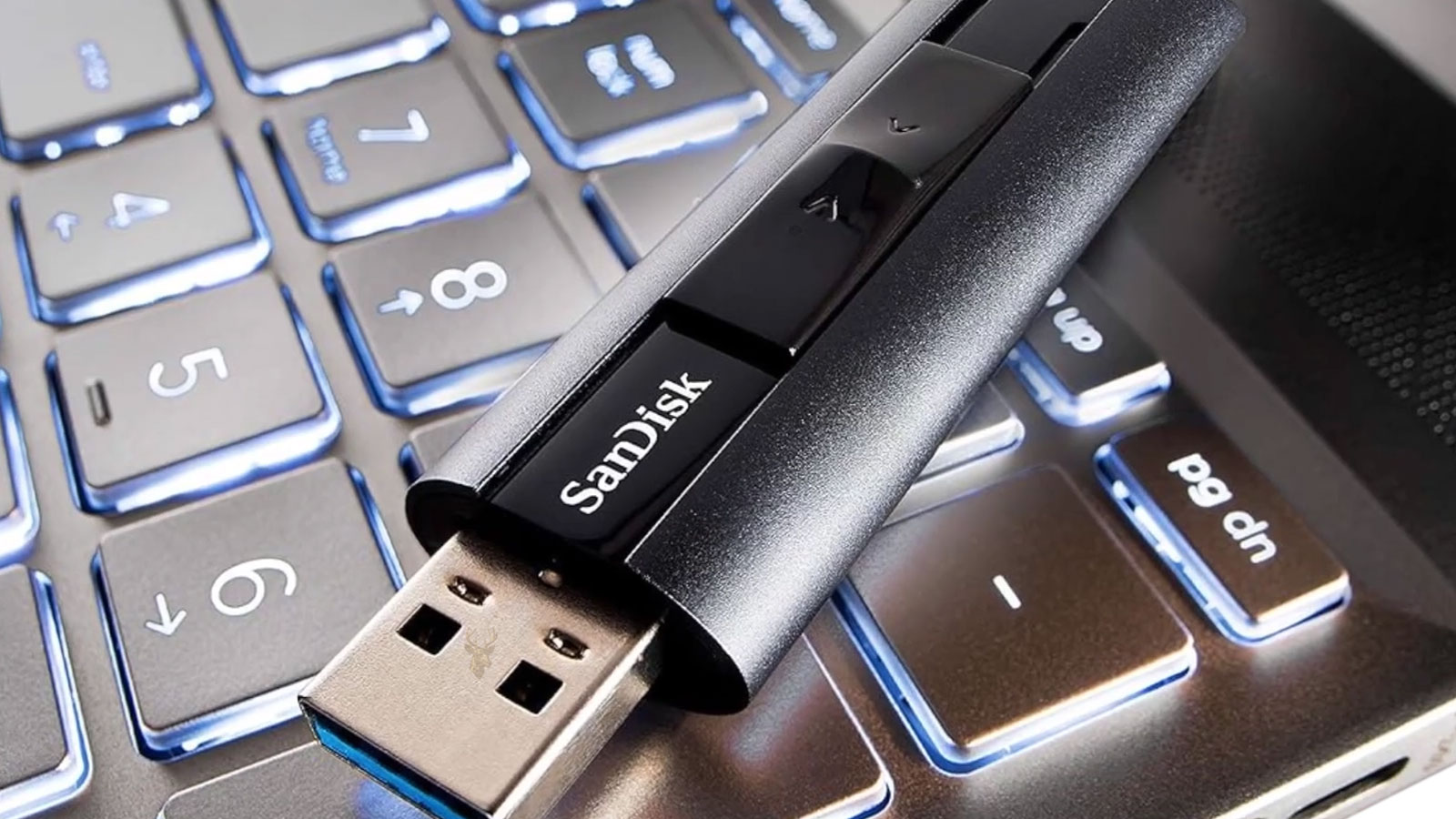
USB Operation Before Windows Loads Provides an Important Clue
A keyboard, mouse, flash drive, or other USB device may work correctly inside the BIOS setup screen but stop responding as soon as Windows begins loading. This behavior usually shows that the port and device can communicate at a basic hardware level.
The failure often begins when Windows replaces the motherboard firmware’s basic USB support with its own drivers, services, and power-management settings.
BIOS and Windows Control USB Devices Differently
Before the operating system starts, motherboard firmware provides limited support for keyboards, mice, and certain storage devices. After Windows loads, control passes to chipset drivers, USB controllers, device drivers, and system services.
A device that works during startup but fails at the sign-in screen therefore does not automatically have a damaged cable or connector.
Recently Installed Drivers Can Disrupt USB Support
An incorrect chipset, motherboard, USB controller, or device driver can prevent Windows from communicating with hardware that worked before an update or software installation.
- The keyboard works while entering BIOS but stops at the Windows sign-in screen.
- The mouse light remains on while movement and clicking stop.
- USB storage appears during startup but is missing inside Windows.
- Several ports fail at the same moment after Windows begins loading.
Safe Mode Can Separate Driver and Software Problems
Safe Mode loads Windows with a reduced group of drivers and startup services. If the USB device works there, the failure may involve a third-party driver, security program, hardware utility, or background service loaded during a normal startup.
If the device also fails in Safe Mode, the investigation should include Windows system files, chipset support, controller settings, and physical hardware.
| Test Result | Possible Direction |
|---|---|
| Works in BIOS and Safe Mode | Startup software or a third-party driver may be interfering. |
| Works in BIOS but not Safe Mode | Windows drivers, system files, or controller support may be damaged. |
| Fails in BIOS and Windows | Inspect the device, port, cable, or motherboard hardware. |
| Only one USB device fails | The individual device or its specific driver may be responsible. |
USB Controller Entries May Show Errors
Device Manager lists USB host controllers, root hubs, composite devices, and connected hardware. Warning symbols, missing controllers, or repeated unknown-device entries can reveal that Windows is not loading the expected hardware support.
Removing controller entries without understanding the system can temporarily disable additional ports, so driver work should be performed carefully.
Chipset Drivers Affect More Than the Processor
Motherboard chipset drivers help Windows identify and manage communication between the processor, storage controllers, USB hardware, and other onboard components. Generic Windows drivers may provide limited operation but fail with certain ports or controller features.
When USB devices stop working only after Windows takes control, the operating system’s hardware support becomes a primary area of diagnosis.
Power Management Can Disable a Working Port
Windows can reduce power to USB hubs and controllers to conserve energy. Incorrect power-state transitions may leave a device powered but unable to send or receive data.
This can occur immediately after startup, after waking from sleep, or when Windows changes power profiles.
Front and Rear Ports May Use Different Controllers
Desktop computers often route front-panel and rear-panel USB ports through different internal connections or controller groups. Testing ports in several locations can show whether the problem affects one controller, one header, or the entire Windows USB system.
- Test the device in a rear motherboard port.
- Try a USB 2.0 port if one is available.
- Disconnect unnecessary USB accessories.
- Start Windows again and observe when the device stops responding.
- Compare the result with Safe Mode.
USB 2.0 and USB 3.x Ports Can Behave Differently
Different USB generations may use separate controller resources and drivers. A keyboard or mouse that fails in a high-speed port may continue working in a basic USB 2.0 port, providing temporary access for further diagnosis.
Startup Utilities Can Take Control of Input Devices
Gaming-device software, keyboard customization tools, security applications, docking utilities, and remote-access programs can install filters that change how Windows handles USB input.
If the problem began after installing or updating one of these utilities, disabling it during startup can help determine whether the software is responsible.
Windows Updates Can Change USB Behavior
A Windows update may replace chipset, controller, or device drivers with newer versions. Most updates install correctly, but an incompatible driver can cause USB hardware to stop responding after startup.
Checking the update history can help determine whether the failure began immediately after a system change.
Driver Rollback May Restore Previous Operation
If Windows recently replaced a USB-related driver, returning to the previous version may restore normal operation. The rollback option is not always available, especially when old driver files have already been removed.
Drivers should come from the computer or motherboard manufacturer whenever possible.
Fast Startup Can Preserve a Faulty Controller State
Windows Fast Startup does not perform the same complete hardware reset as a full shutdown. A USB controller that enters an unstable state may remain affected across repeated power cycles.
Restarting Windows or temporarily disabling Fast Startup can help determine whether the problem is being carried into the next session.
| Condition | Possible Effect |
|---|---|
| Recent Windows update | A controller or device driver may have changed. |
| Fast Startup enabled | An unstable hardware state may persist after shutdown. |
| Device works after restart | A complete controller reset may have restored communication. |
| Failure returns after sleep | Power management may not be restoring the device correctly. |
USB Filter Drivers Can Block Normal Communication
Some security programs, virtualization tools, phone utilities, and specialized hardware applications install filter drivers between Windows and the USB device. A damaged or incompatible filter can prevent otherwise functional hardware from responding.
Removing the associated application may be necessary when disabling it does not unload the driver.
Corrupted System Files Can Affect Hardware Services
Windows depends on system files and services to detect devices, load drivers, and manage controller communication. Corruption after a failed update, storage error, or sudden power loss can interfere with USB support.
System file checks may repair damaged Windows components, but they will not correct a physically failing controller or port.
A Clean Boot Can Expose Software Conflicts
A clean boot starts Windows with Microsoft services and a reduced set of startup programs. If the USB device works in that environment, one of the disabled applications or services is likely contributing to the failure.
- Disable unnecessary startup applications.
- Temporarily hide and disable non-Microsoft services.
- Restart Windows with the USB device connected.
- Confirm whether the device remains responsive.
- Re-enable items gradually to identify the conflict.
Legacy USB Support Is Mainly for Pre-Boot Operation
BIOS settings such as Legacy USB Support allow keyboards and mice to function before the operating system loads. These settings can explain why a device works in firmware screens, but they do not replace proper Windows drivers.
Successful operation in BIOS confirms basic communication, not complete compatibility with Windows.
Older Hardware May Need Manufacturer-Specific Drivers
Some older computers require dedicated USB 3.0 or chipset drivers that are not included in a basic Windows installation. Without them, certain ports may work before startup but become unavailable after the operating system takes control.
This is especially relevant after reinstalling Windows or replacing the storage drive.
Wireless Receivers Should Be Tested Separately
A wireless keyboard or mouse receiver may have its own driver, pairing, interference, or power problem. Testing a basic wired device can show whether the USB controller is failing or only the wireless accessory is affected.
- Try a simple wired keyboard or mouse.
- Move the receiver to a different USB port.
- Replace or recharge the device batteries.
- Remove nearby sources of wireless interference.
Powered Hubs Can Hide or Create Power Problems
A powered USB hub may allow devices to operate when the computer cannot provide stable power through its own ports. A defective hub can also create communication problems that appear only after Windows loads its full driver stack.
Direct connection to the computer is the best baseline for testing.
Repeated Connection Sounds Can Indicate Controller Resetting
If Windows repeatedly plays device connection and disconnection sounds, the controller may be resetting, the port may be unstable, or the device may be losing communication. Device Manager may refresh each time the connection changes.
| Observed Pattern | Likely Direction |
|---|---|
| All USB devices fail together | Controller, chipset driver, or system-level problem. |
| One device repeatedly reconnects | Device, cable, port, or specific driver issue. |
| Only high-speed ports fail | USB 3.x controller support may be missing or unstable. |
| Devices work after a clean boot | Startup software or a third-party service is interfering. |
A Repair Installation May Be Considered After Other Tests
When hardware works in BIOS, manufacturer drivers are correct, and software conflicts have been ruled out, repairing the Windows installation may restore damaged hardware services without immediately erasing personal files.
Important data should still be backed up before any operating-system repair.
Final Testing Should Begin With Basic USB Devices
After drivers, startup software, power settings, or damaged Windows components are corrected, the computer should be tested with a simple wired keyboard, mouse, or flash drive. Basic devices provide a clearer result than accessories that require additional software.
Each Port Group Should Be Checked Separately
Rear motherboard ports, front-panel ports, USB 2.0 connections, and USB 3.x connections may not all use the same controller path. Testing each group helps confirm whether the repair restored the entire USB system or only one section.
- Start the computer with one basic USB device connected.
- Confirm that it works in BIOS and after Windows loads.
- Test additional ports one at a time.
- Reconnect other USB accessories gradually.
- Restart and repeat the test after normal use.
Sleep and Restart Tests Can Reveal Remaining Problems
A device may work after a fresh startup but fail after sleep, hibernation, or a fast shutdown. Successful testing should include several power-state changes to confirm that Windows restores the controller correctly.
| Final Result | Interpretation |
|---|---|
| Device works after startup and restart | Driver and controller communication are likely stable. |
| Device fails only after sleep | Power management remains a likely cause. |
| Only front ports fail | Inspect the internal header, cable, or front-panel assembly. |
| All devices stop after Windows loads | A system-level driver or software problem may remain. |
Device Manager Should Remain Free of New Errors
USB controllers and connected devices should appear without warning symbols, repeated unknown-device entries, or constant refreshing. New errors that return after each restart indicate that the original cause has not been fully corrected.
Manufacturer Drivers Should Be Preserved
Once stable operation is restored, the correct chipset and controller drivers should be retained for future reinstallations. This is particularly important for older systems whose USB support depends on model-specific software.
Driver packages should be stored with other recovery files rather than downloaded from unverified sources.
Windows Recovery Tools May Be Needed When Input Is Unavailable
If no keyboard or mouse works after Windows starts, recovery options may need to be opened before the operating system fully loads. Safe Mode, System Restore, startup repair tools, or offline driver removal can provide access when normal input is unavailable.
A working keyboard in BIOS can still be useful for reaching recovery tools even when normal Windows input has failed.
A System Restore Point Can Reverse a Recent Change
When USB failure begins immediately after a driver, application, or Windows update, a restore point may return system files and settings to an earlier working state. Personal files are generally unaffected, but recently installed software may need to be added again.
Hardware Failure Is Still Possible
Working in BIOS does not completely eliminate a motherboard problem. A controller can function under limited firmware support but become unstable when Windows enables higher speeds, additional ports, or advanced power features.
- Several devices fail on the same controller group.
- Ports disconnect repeatedly under normal use.
- Known-good drivers do not restore operation.
- The same problem remains after a clean Windows installation.
A Clean Installation Is a Last Diagnostic Step
When driver repair, clean boot testing, system file checks, and recovery options fail, a clean Windows installation can separate operating-system corruption from hardware failure. Important files and software license information should be backed up first.
If USB devices still fail after a properly configured clean installation, motherboard or controller hardware becomes a stronger possibility.
Professional Diagnosis Is Appropriate When Access Remains Limited
Service may be needed when the computer cannot be controlled after Windows loads, recovery tools are inaccessible, or the failure affects every USB port. Diagnosis may require offline driver repair, component testing, or temporary use of alternate input hardware.
Stable USB Operation Must Continue After Windows Takes Control
A successful repair should allow USB devices to work before startup, at the sign-in screen, during normal use, and after sleep or restart. Consistent operation across these stages confirms that firmware support, Windows drivers, power management, and the physical controller are functioning together correctly.











