
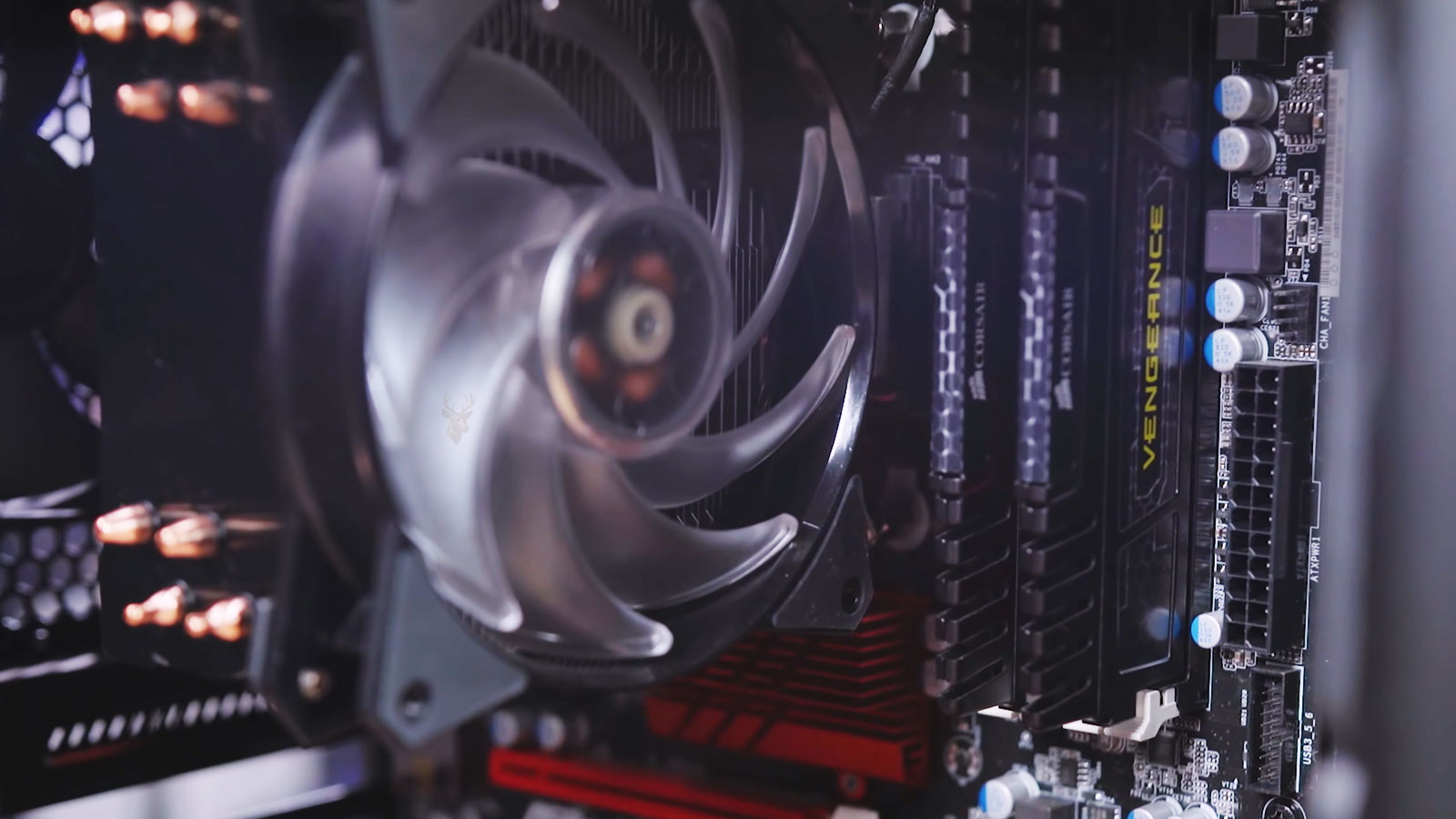
Heavy Workloads Can Reveal Hidden Hardware Problems
A desktop computer that operates normally during light tasks but suddenly powers off while gaming, rendering video, compiling software, or running other demanding applications is often experiencing a hardware issue that becomes noticeable only under increased electrical or thermal stress.
Because the computer may restart and appear normal afterward, the underlying problem can easily be mistaken for a software crash instead of a hardware failure.
Power Demand Increases Significantly Under Load
Modern processors and graphics cards can consume substantially more power during intensive workloads than they do while the computer is idle. A component that performs normally at low demand may become unstable when full power is required.
The shutdown itself is often a protective response rather than the original fault.
Overheating Is One of the First Conditions to Check
High processor, graphics card, or motherboard temperatures can trigger automatic shutdowns designed to prevent permanent damage. These safety mechanisms activate only after certain temperature limits are reached.
- Processor temperatures rise rapidly under load.
- Graphics cards generate significantly more heat during demanding tasks.
- Restricted airflow slows cooling efficiency.
- Dust accumulation reduces heat dissipation.
- Cooling fans may not increase speed correctly.
Power Supplies Can Become Unstable Without Completely Failing
A power supply does not always stop working completely when problems develop. It may provide stable voltage during ordinary use but become unable to maintain proper output as electrical demand increases.
This type of failure commonly causes sudden shutdowns instead of warning messages.
| Observed Behavior | Possible Cause |
|---|---|
| Shutdown only while gaming | GPU temperature or power demand. |
| Shutdown during video rendering | CPU overheating or unstable power delivery. |
| Instant power loss without error | Power supply protection or hardware fault. |
| Normal operation during web browsing | Problem appears only under heavy system load. |
Graphics Cards Can Trigger Protective Shutdowns
Modern graphics cards consume large amounts of power during demanding applications. Insufficient cooling, unstable auxiliary power connections, or internal GPU faults may cause the entire system to power off unexpectedly.
Stress placed on the graphics hardware often exceeds what occurs during normal desktop use.
Processors May Reach Thermal Limits Quickly
Even systems that appear cool while idle can experience rapid temperature increases during processor-intensive work. Improper heatsink installation, aging thermal compound, or reduced airflow can accelerate the rise.
A computer that powers off under heavy load is often responding to a condition that develops only when hardware reaches its operating limits.
Cooling Performance Should Be Evaluated as a Complete System
Effective cooling depends on more than one fan. Airflow direction, intake cleanliness, cable routing, heatsink condition, and exhaust ventilation all influence how efficiently heat leaves the computer case.
A single restriction can raise temperatures throughout the system during prolonged workloads.
Background Workloads Can Produce Similar Symptoms
Large backups, antivirus scans, software compilation, and virtualization tasks can stress hardware even when no demanding application appears to be running. Monitoring overall system activity helps explain shutdowns that seem random.
Event Logs May Show an Unexpected Power Loss
Windows commonly records that the previous shutdown was unexpected but may not identify the exact hardware responsible. These records are useful for establishing when the failure occurred, even if they do not reveal the underlying cause.
- Determine which workload consistently causes the shutdown.
- Observe system temperatures during the workload.
- Inspect airflow and cooling components.
- Review system event logs for unexpected shutdown entries.
- Compare the results across multiple test sessions.
Memory Errors Can Appear Only Under Heavy Demand
Some memory problems become noticeable only when a large amount of RAM is actively used. Video editing, virtual machines, engineering software, and modern games can expose errors that never appear during ordinary web browsing or office work.
Intermittent memory faults may lead to an unexpected shutdown, restart, or system freeze after extended periods of high activity.
Power Connectors Should Be Properly Seated
The motherboard and graphics card rely on secure power connections. A partially connected cable may deliver enough power for light use but become unstable when the system draws significantly more current.
Every internal power connector should be inspected whenever unexplained shutdowns occur under load.
Case Airflow Changes During Long Work Sessions
Temperatures continue to rise as demanding tasks remain active. A system that appears stable during the first few minutes of testing may gradually accumulate heat until a protection limit is reached.
| Condition | Possible Result |
|---|---|
| Loose power connector | Unexpected shutdown during high power demand. |
| Restricted airflow | Increasing internal temperatures over time. |
| Faulty memory | Instability during large memory workloads. |
| Weak power supply | System powers off without warning. |
Stress Testing Helps Reproduce the Problem
Controlled stress testing places predictable demand on specific hardware components. Reproducing the shutdown under monitored conditions allows temperatures, voltages, and system behavior to be observed as the failure develops.
Consistent results are generally more valuable than failures that occur randomly.
Graphics Card Cooling Should Be Verified
Dust buildup, worn cooling fans, or dried thermal interface material can reduce the graphics card’s ability to dissipate heat. Modern GPUs automatically protect themselves when operating temperatures become excessive.
Monitoring both temperature and fan speed provides a more complete picture than temperature alone.
Overclocking Can Reduce Stability Margins
Processor, graphics card, and memory overclocks may appear stable during light work while becoming unreliable during sustained heavy processing. Returning hardware to factory settings is often an important diagnostic step.
Hardware that appears stable during everyday tasks can become unreliable once sustained electrical and thermal loads increase.
Motherboard Power Circuits Also Generate Heat
Voltage regulation components surrounding the processor convert incoming power into the precise voltages required by the CPU. These circuits generate heat of their own and depend on adequate airflow for reliable operation.
Poor ventilation around these components can contribute to shutdowns during extended workloads.
Electrical Problems Can Mimic Overheating
An unstable power supply, failing wall outlet, overloaded surge protector, or defective UPS may interrupt power without producing high temperatures. Both electrical and thermal causes should be evaluated before replacing hardware.
- Verify the wall outlet and power cable.
- Inspect surge protectors or UPS equipment.
- Confirm secure motherboard power connections.
- Observe voltage stability during testing.
Storage Activity Rarely Causes Immediate Shutdowns
Heavy storage access can slow a computer or produce application errors, but complete power loss is more commonly associated with cooling, power delivery, or motherboard stability. Storage problems should still be considered when additional symptoms are present.
Repeated Shutdowns Should Not Be Ignored
Allowing a computer to continue shutting down unexpectedly under heavy workloads can increase stress on hardware and interrupt important work. Identifying the underlying cause early helps prevent additional component damage and improves long-term reliability.











