
A 0% Reading Does Not Always Mean the Battery Is Empty
A laptop may continue operating on battery power even though Windows reports that the charge level is 0%. This usually means the computer is receiving inaccurate battery information rather than confirming that no power remains.
The battery, charging circuit, firmware, and operating system must exchange information to calculate the displayed percentage. A problem anywhere in that process can produce an incorrect reading.
Battery Percentage Is an Estimate
Laptop batteries do not contain a simple gauge that directly measures an exact percentage. Internal electronics estimate the remaining charge by monitoring voltage, current flow, temperature, and previous charging behavior.
As a battery ages, its actual capacity can change faster than the stored estimate. The laptop may then display 0%, remain at one percentage for a long time, or shut down before reaching the expected level.
The First Test Is to Disconnect the Charger
If the computer continues running after the power adapter is removed, the battery is supplying at least some usable power. The length of time it remains operating provides an important diagnostic clue.
- Save all open work before testing.
- Confirm that the charger is connected and recognized.
- Disconnect the charger while watching the battery icon.
- Note whether the laptop remains on or shuts down immediately.
- Record how long it continues operating.
Different Results Suggest Different Problems
| Observed Behavior | Possible Direction |
|---|---|
| Laptop runs for a long time at 0% | The charge estimate or battery data may be inaccurate. |
| Laptop shuts off immediately when unplugged | The battery may be depleted, disconnected, or unable to supply power. |
| Percentage changes after a restart | Windows, firmware, or battery communication may be involved. |
| Battery alternates between 0% and a higher value | The battery connection or internal controller may be unstable. |
Battery Calibration Can Become Inaccurate
The battery controller tracks charging and discharging patterns to estimate capacity. Partial charging, long periods on AC power, and normal battery aging can cause the displayed percentage to drift away from the battery’s actual condition.
A controlled charge and discharge cycle may help the system relearn the usable range, but calibration cannot restore capacity that has been lost through physical wear.
Calibration can correct an inaccurate estimate, but it cannot repair worn battery cells.
A Worn Battery May Report Its Capacity Incorrectly
Older batteries can develop uneven or weakened cells. The battery controller may struggle to calculate how much usable energy remains, especially when the computer changes from light activity to a heavier workload.
The laptop may appear stable at 0% during basic use and then shut down suddenly when the processor, display, or cooling system requires more power.
The Charging Status Should Be Read Carefully
Windows may display different messages such as “plugged in,” “charging,” “not charging,” or “battery not detected.” Each message points toward a different part of the power system.
- Plugged in, charging: The adapter is recognized and current should be entering the battery.
- Plugged in, not charging: Charging may be paused, limited, or blocked by a fault.
- Battery not detected: Communication with the battery may be missing.
- 0% available: The system sees the battery but believes little or no charge remains.
Battery Protection Settings Can Limit Charging
Some laptops include battery-preservation settings that stop charging at a selected level. These features are designed to reduce long-term battery wear when the computer remains connected to AC power.
A normal protection limit usually stops charging around a partial level rather than 0%, but incorrect settings or manufacturer software problems should still be reviewed.
Firmware Helps Interpret Battery Information
The BIOS or embedded controller communicates with the battery before Windows loads. If the firmware stores an incorrect power state, the wrong percentage may continue to appear after the operating system starts.
A complete shutdown and power reset may refresh this communication. Firmware updates should be considered only after the correct laptop model and battery condition are confirmed.
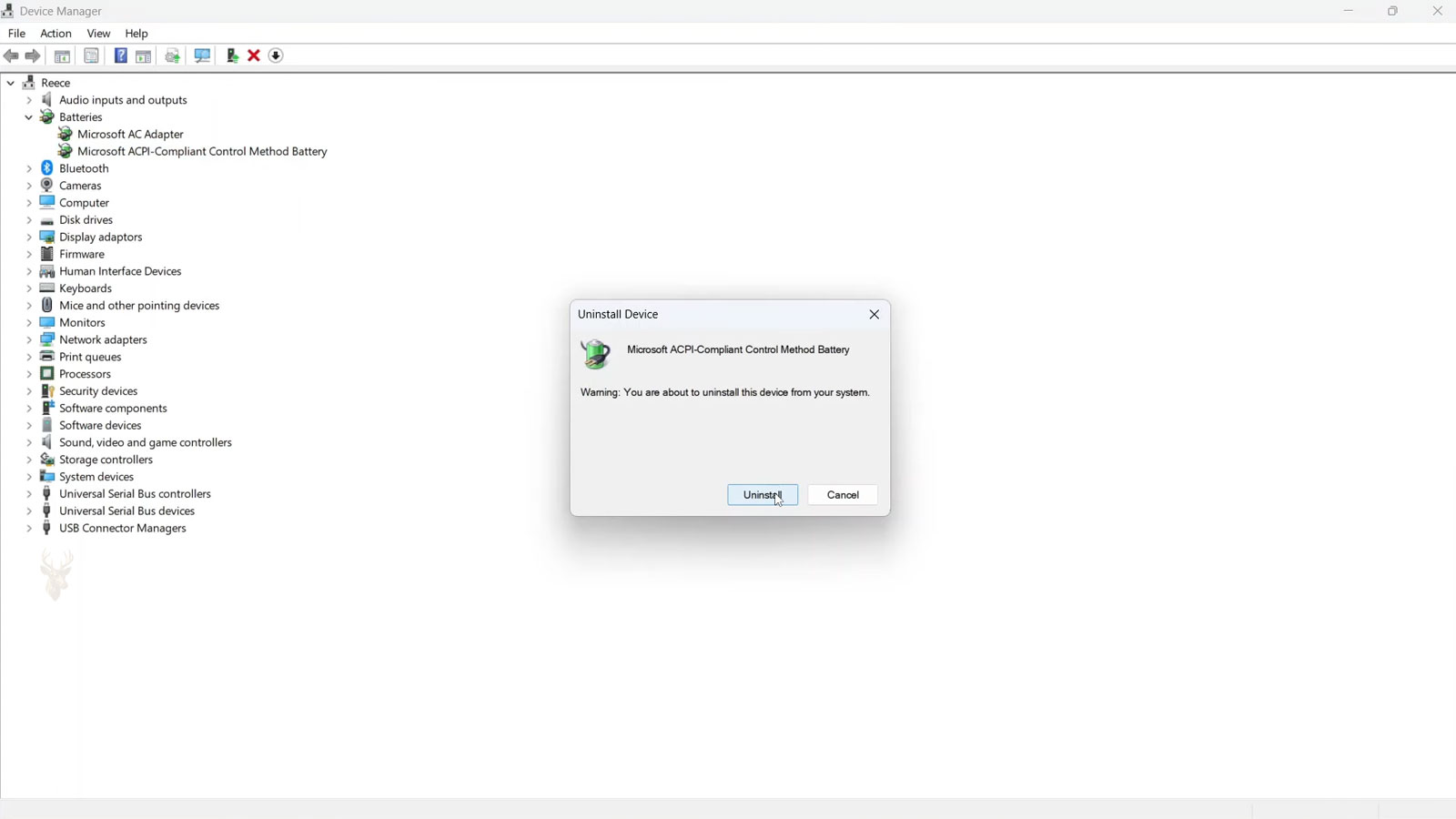
Battery Drivers Can Affect the Windows Display
Windows uses battery-related system drivers to display charging status and remaining capacity. A damaged driver entry can cause the taskbar percentage to stop updating even when the hardware continues working.
If the battery information is also incorrect in the BIOS or manufacturer diagnostics, the cause is less likely to be limited to Windows.
A Loose Battery Connection Can Interrupt Data
Modern laptop batteries often use one connector for power, temperature monitoring, and communication. A loose or damaged connection may allow the computer to receive power while battery information remains unstable.
This possibility becomes more likely when the percentage changes after the laptop is moved, opened, repaired, or pressed near the battery area.
Swelling Requires Immediate Attention
A battery that is swollen, unusually hot, leaking, or separating the laptop case should not be recalibrated or repeatedly charged. The computer should be turned off and inspected safely.
An inaccurate percentage is a secondary concern when the battery shows signs of physical failure.
Manufacturer Diagnostics Can Confirm Battery Health
Many laptop manufacturers include built-in diagnostic tools that can report battery health, charging status, cycle count, and estimated remaining capacity. These results help determine whether the problem is an incorrect reading or a battery approaching the end of its service life.
If the manufacturer’s diagnostics also report abnormal battery information, the issue is less likely to be caused by Windows alone.
Battery Wear Increases With Charge Cycles
Rechargeable batteries gradually lose capacity with normal use. Every charge and discharge cycle reduces the amount of energy the battery can store, making inaccurate percentage estimates more noticeable as the battery ages.
A battery that originally powered a laptop for several hours may eventually provide much shorter operating time even when it reports a full charge.
Temperature Can Affect Battery Readings
Battery management systems monitor temperature continuously. Excessive heat or very low temperatures can temporarily affect charging behavior and the reported battery percentage.
Using the laptop in a normal room-temperature environment provides more reliable diagnostic results than testing immediately after heavy workloads or exposure to extreme temperatures.
| Condition | Possible Effect |
|---|---|
| Normal battery aging | Reduced runtime and less accurate percentage estimates. |
| High operating temperature | Charging may slow or pause temporarily. |
| Cold environment | Battery capacity may appear lower than normal. |
| Battery communication fault | Incorrect charge percentage despite normal operation. |
Power Management Software Can Influence Charging
Many manufacturers install utilities that manage charging limits, battery preservation modes, and power profiles. Incorrect settings or software problems may prevent battery information from updating correctly.
Checking both Windows power settings and the manufacturer’s battery utility can help identify conflicting configurations.
A BIOS Update May Improve Battery Communication
Some firmware updates improve compatibility between the embedded controller and newer battery revisions. When recommended by the manufacturer for a specific model, an update may correct inaccurate battery reporting.
Firmware should never be updated simply because the battery displays 0%. Other causes should be ruled out first, and updates should only be performed with stable AC power.
Firmware updates should solve a documented compatibility issue, not replace proper battery diagnosis.
Battery Calibration Has Practical Limits
Calibration helps the battery controller relearn available capacity, but it does not restore worn cells. If the battery remains inaccurate after calibration, replacement may be the more appropriate solution.
Repeatedly performing deep discharge cycles on an aging battery can increase wear instead of improving long-term performance.
Power Adapters Should Also Be Verified
A weak or incompatible power adapter may operate the laptop while failing to charge the battery correctly. The battery percentage may remain at 0% even though the computer continues functioning from AC power.
Testing with the correct manufacturer-approved adapter helps eliminate charging-source problems.
Battery Connectors Can Become Loose After Repairs
If the laptop was recently serviced, the internal battery connector should be considered. A partially seated connector may supply intermittent communication while still allowing limited power transfer.
This is especially relevant if the incorrect battery reading began immediately after disassembly.
Windows Battery Reports Can Provide Useful Information
Windows can generate a battery report that summarizes design capacity, current full-charge capacity, recent usage, and charging history. Comparing these values can reveal whether the battery has experienced significant wear.
- Generate a Windows battery report.
- Compare design capacity with current full-charge capacity.
- Review recent charging history.
- Look for unusually rapid capacity loss.
- Compare the findings with manufacturer diagnostics.
Sudden Percentage Changes Suggest Measurement Problems
A battery that jumps from 0% to 40% or drops suddenly from a high percentage often indicates inaccurate battery tracking rather than normal discharge. These rapid changes should be investigated before assuming the battery is functioning normally.
| Observed Behavior | Possible Explanation |
|---|---|
| Battery remains at 0% for a long period | Calibration or communication error. |
| Battery jumps between percentages | Controller or battery measurement instability. |
| Battery charges normally but reports incorrectly | Reporting or firmware issue. |
| Battery never charges above 0% | Battery failure, charging circuit, or communication fault. |
Replacing the Battery Is Not Always the First Step
Although battery wear is common, replacing the battery before checking charging hardware, firmware, calibration, and diagnostic information can lead to unnecessary expense. Confirming the actual cause helps ensure that the correct component is repaired or replaced.











