
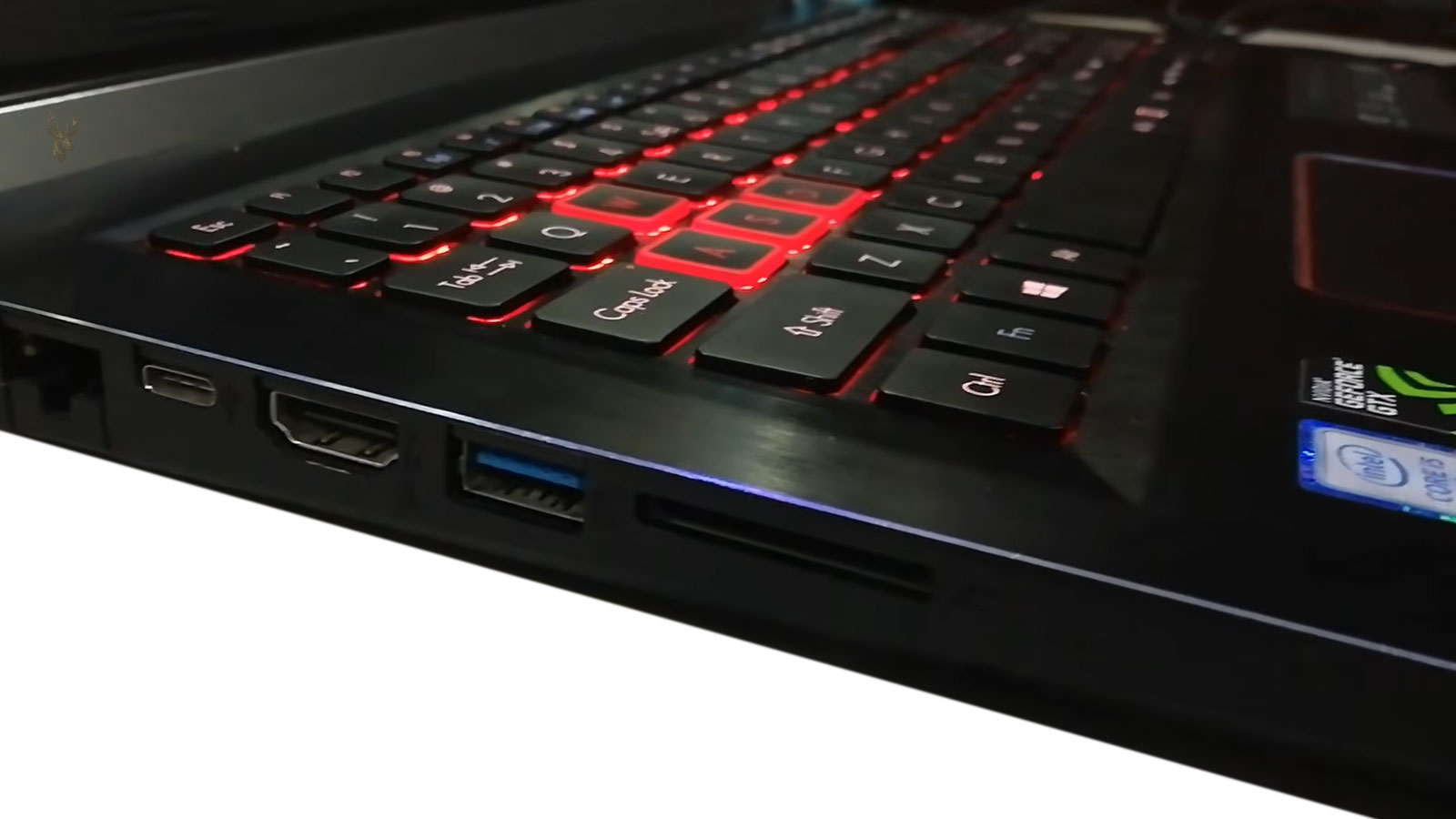
An Angled USB Connection Usually Indicates a Physical Problem
A laptop USB port should maintain a stable connection without the plug being lifted, pushed sideways, or held in a particular position. When a mouse, flash drive, printer cable, or external drive works only at a certain angle, movement is changing the electrical contact inside the port.
The cause may be wear inside the connector, a loose port, cracked solder joints, case damage, contamination, or a damaged USB plug. Continuing to force the cable into a working position can make the failure worse.
The Cable and Device Should Be Tested First
A damaged cable can produce the same intermittent behavior as a failing laptop port. The plug may contain worn contacts, bent metal, or an internal wire that separates when the cable moves.
- Test the same device with another known-good cable.
- Connect the device to a different computer.
- Try another USB device in the affected laptop port.
- Compare the result with the laptop’s other USB ports.
- Record whether the connection changes when the plug moves.
One Failing Device Does Not Prove the Laptop Port Is Damaged
If only one accessory disconnects, the problem may remain with that device or its cable. A failing external drive enclosure, loose printer cable, or worn flash drive connector can work intermittently in several computers.
If several known-good devices fail in the same laptop port, the port itself becomes the stronger suspect.
| Test Result | Likely Direction |
|---|---|
| One device fails in every computer | The device or cable may be defective. |
| Several devices fail in one laptop port | The laptop port or its internal connection may be damaged. |
| All laptop ports fail with one device | The device, cable, driver, or power requirement should be checked. |
| The connection changes when the plug is moved | Mechanical wear or unstable electrical contact is likely. |
USB Port Contacts Can Wear or Bend
Inside a USB port are small contacts that press against the contacts on the inserted plug. Repeated use, angled insertion, impact, or oversized connectors can reduce that pressure or bend the internal parts.
The device may connect only when the plug is lifted or pushed toward one side. That pressure temporarily restores contact but also places additional stress on the damaged connector.
The Center Tongue Can Become Cracked or Misaligned
Many USB ports contain a plastic center tongue that supports the electrical contacts. If it cracks, bends, or shifts, the plug may sit loosely or contact the pins unevenly.
A damaged tongue can also allow contacts to touch incorrectly. The port should not be used when broken plastic, bent metal, or severe looseness is visible.
A USB port that works only when pressure is applied is not operating normally, even if the connected device appears usable.
Loose Ports May Move Inside the Laptop Case
Some USB ports are soldered directly to the motherboard, while others are mounted on a smaller daughterboard connected by a cable. In either design, the port should remain firmly positioned when a plug is inserted.
If the entire connector moves inward, upward, or sideways, its mounting points may be damaged. Case cracks and broken internal supports can allow this movement even when the port itself is still electrically functional.
Cracked Solder Joints Can Cause Intermittent Contact
A port soldered to a circuit board depends on several electrical and structural connections. Repeated sideways pressure can crack those joints, allowing the connector to separate slightly from the board.
The connection may return when the cable pushes the port toward the board. Once pressure is released, the device disconnects again.
| Observed Behavior | Possible Cause |
|---|---|
| Port moves with the plug | Broken mounting points, case support, or solder joints. |
| Device connects when the plug is lifted | Worn contacts or a cracked board connection. |
| Power remains but data disconnects | Some contacts may still work while data contacts fail. |
| Connection drops when the laptop is moved | Loose internal hardware or board flex may be involved. |
Power and Data Contacts Can Fail Separately
A USB device may continue receiving power while losing communication with Windows. For example, a phone may keep charging even though file transfer stops, or an external drive light may remain on after the drive disappears.
This occurs because USB power and data use different contacts. A partially damaged connector can maintain one function while losing another.
Contamination Can Prevent Full Plug Insertion
Lint, dust, broken plastic, or other debris can collect inside a laptop port. The plug may appear inserted while remaining slightly outside its normal position.
Metal tools should not be inserted into a powered USB port. Improper cleaning can bend contacts, create a short circuit, or push debris farther inside.
- Shut down the laptop completely.
- Disconnect the charger and removable accessories.
- Inspect the port under strong lighting.
- Look for compacted debris, bent metal, or broken plastic.
- Avoid forcing a plug into a blocked connector.
- Have the port cleaned professionally if the contacts cannot be protected.
Liquid Exposure Can Corrode the Port and Circuit Board
A small liquid spill near the side of a laptop can enter a USB connector and remain around its pins. Corrosion may develop gradually, causing resistance and intermittent contact days or weeks later.
Residue can also bridge contacts and damage the USB controller or nearby components. A port affected by liquid should be inspected internally rather than repeatedly tested with valuable devices.
Case Damage Can Change the Port Alignment
A cracked palm rest, bent lower case, or broken side frame can move the opening around the USB port. The plug may strike the case before entering the connector fully.
Users may compensate by inserting the cable at an angle, which increases pressure on the port. Repair may require correcting the case support as well as replacing or resoldering the connector.
Heavy USB Devices Can Place Extra Stress on the Connector
Large flash drives, wireless adapters, card readers, and rigid extension devices can act as levers when connected directly to a laptop. A small impact can transfer significant force into the port.
A short flexible extension cable may reduce future stress for devices that remain attached for long periods, but it will not repair a port that is already loose.
The farther a rigid device extends from the laptop, the more leverage it can apply to the USB port.
Frequent Cable Use Can Gradually Loosen a Port
Ports used daily for charging phones, connecting external drives, or attaching office accessories experience repeated insertion and removal. Pulling cables sideways or removing them by the cord accelerates wear.
The plug should be removed by holding its connector and pulling it straight outward. Cables should not remain under tension while connected.
Software Problems Usually Do Not Change With Plug Angle
Drivers, Windows power settings, and USB controller errors can cause devices to disconnect, but those problems normally do not respond consistently to physical pressure on the plug.
If moving the connector immediately restores the device, a mechanical or electrical contact problem should be investigated before drivers are repeatedly reinstalled.
| Symptom | More Likely Direction |
|---|---|
| Device reconnects when the plug is moved | Port, plug, solder joint, or case alignment. |
| Every USB port fails after sleep | Driver or power-management problem. |
| One device is not recognized anywhere | Device or cable failure. |
| Port has no power and no data with any device | Physical damage, circuit failure, or disabled controller. |
Repeated Disconnects Can Damage Files on Storage Devices
An external drive or flash drive can lose power or communication while files are being copied. This may corrupt individual files, damage the file system, or leave transfers incomplete.
Important storage devices should not be used through an unstable port. Another reliable port or computer should be used until the connector is repaired.
A Damaged Port Can Affect More Than One USB Device
USB ports may share power, protection circuits, or controller connections. Severe physical damage or a short circuit in one port can sometimes affect another port on the same board.
If nearby ports also stop working, the problem may extend beyond the visible connector and require circuit-level inspection.
The Port Should Not Be Held in Position for Daily Use
Taping a cable upward, placing an object beneath the plug, or bending the connector to maintain contact may keep a device working temporarily. These methods increase pressure on the port and motherboard.
The connection can fail without warning and may damage both the laptop and the attached device. A temporary workaround should not replace repair.
- Stop using the affected port for storage transfers.
- Do not force oversized or bent plugs into the connector.
- Use another stable port when available.
- Back up important data from devices exposed to repeated disconnects.
- Arrange inspection before the looseness becomes severe.
Repair Options Depend on the Laptop Design
A USB port mounted on a separate daughterboard may be replaceable as a small assembly. A port soldered directly to the motherboard may require microsoldering or motherboard replacement.
The correct repair also depends on whether the case supports, internal cable, nearby components, or circuit traces were damaged.
Replacing only the visible connector may not solve the problem when the surrounding case or circuit board is also damaged.
Daughterboard-Mounted USB Ports May Be Easier to Replace
Some laptops place one or more USB ports on a separate circuit board connected to the motherboard by a ribbon cable or small wire harness. When the port is damaged, the complete daughterboard may be replaceable without soldering directly on the main board.
The replacement board must match the laptop model and internal connector layout. Similar-looking boards may use different cable positions, mounting holes, or USB versions.
Motherboard-Mounted Ports Often Require Precision Soldering
When the USB connector is soldered directly to the motherboard, repair may require removal of the damaged port and installation of a matching replacement. The work must preserve nearby components, pads, and circuit traces.
Excessive heat or pulling force can lift copper pads from the board. A damaged trace may require additional reconstruction before the new connector can operate reliably.
Mounting Tabs Provide Mechanical Strength
USB ports usually include larger metal tabs that anchor the connector to the circuit board. These tabs absorb much of the force created when a cable is inserted or moved.
If the mounting tabs break loose, the smaller electrical pins can carry more stress than they were designed to handle. The port may continue working temporarily while the data or power connections begin to crack.
| Damaged Area | Possible Result |
|---|---|
| Metal mounting tab | The entire port moves inside the case. |
| Power pin | The device receives no power or disconnects under load. |
| Data pin | The device powers on but is not recognized. |
| Board pad or trace | The new port may not work without circuit repair. |
A Broken Trace Can Extend the Repair Beyond the Connector
Impact can tear a USB port away from the motherboard and remove part of the copper path attached to it. In that condition, installing a new connector alone may leave one or more signals disconnected.
The damaged path may need to be rebuilt with a fine wire or connected to another verified point on the circuit. This work requires board-level inspection and accurate identification of the affected signal.
USB Protection Components Can Fail After a Short Circuit
Laptop USB circuits often include fuses, current-limiting switches, filters, and protection components. A bent pin or damaged accessory can create a short circuit that disables power to the port.
The visible connector may look normal while an internal protection component has failed. Electrical testing is needed when the port remains completely inactive with several known-good devices.
A USB port with no visible damage can still have a failed power or protection circuit behind it.
USB Power Failure Can Affect Charging and Accessories
When the port loses its power supply, devices such as mice, flash drives, phones, and external adapters may remain completely inactive. Other devices with their own power supply may still appear partially functional but fail to communicate.
A voltage test can help determine whether the port is supplying power, but probes must be used carefully to avoid shorting adjacent contacts.
High-Power Devices Can Expose a Weak Connection
A mouse or keyboard may work through a damaged port because it draws little power. An external hard drive, optical drive, or phone may disconnect because it requires more current.
This difference can make the port appear selective. The underlying problem may still be a loose power contact, cracked solder joint, or weakened protection circuit.
- Test a low-power device such as a basic mouse.
- Test a known-good flash drive.
- Compare the result with a higher-power USB device.
- Observe whether the port becomes warm.
- Stop testing if the device repeatedly loses power.
USB Hubs Can Hide or Complicate the Original Problem
A powered USB hub may allow devices to operate because it supplies its own power. This can hide a weak laptop power connection while the data contacts remain functional.
An unpowered hub can create the opposite effect by increasing the current demand on an already unstable port. Hub behavior should not be used as the only proof that the laptop connector is healthy.
A Loose Internal Ribbon Cable Can Affect a Port Board
Daughterboard-mounted USB ports depend on an internal cable. If that cable becomes loose, creased, or damaged, the ports on the board may disconnect when the laptop is moved.
The connector locks must be handled carefully. A broken latch can leave the cable in place visually while allowing unreliable electrical contact.
| Symptom | Possible Internal Cause |
|---|---|
| Several ports on one side fail together | Shared daughterboard, cable, or power circuit. |
| Ports work when the case is pressed | Loose ribbon cable or board movement. |
| One port moves but nearby ports remain stable | Individual connector or mounting damage. |
| All ports fail after case disassembly | Disconnected internal cable or damaged connector latch. |
Hinge and Chassis Damage Can Affect Nearby Ports
USB ports located near a laptop hinge can be affected by case separation or internal frame damage. Repeated opening and closing may flex the area around the port board or its cable.
Repairing only the USB connector may not last if the surrounding chassis continues to move. Broken mounts and frame supports should be corrected at the same time.
Side Impact Can Damage the Port Without Breaking the Case
A cable left connected while the laptop is dropped or moved can transfer force directly into the USB port. The outside case may show little damage even though the connector or solder joints have cracked.
The history of the failure can be important. A port that began working only at an angle immediately after impact should be treated as physically damaged.
Bent Contacts Can Create a Short Circuit Risk
Internal USB contacts should remain separated and aligned. If one bends into another contact or the metal shell, connecting a device may cause a short circuit.
The port should remain unused until repaired if bent pins are visible. Repeated testing can damage the accessory, the port protection circuit, or the motherboard.
A visibly bent USB contact should not be straightened while the laptop is powered or connected to its charger.
Intermittent Ports Can Create Repeated Windows Connection Sounds
Windows may repeatedly play device-connected and device-disconnected sounds when a loose USB port changes contact. The accessory may appear and disappear from File Explorer or Device Manager.
The repeated sounds are a symptom of changing communication. They do not identify whether the failure is in the cable, accessory, connector, or internal circuit.
Device Manager May Show Temporary USB Errors
An unstable physical connection can cause Windows to report an unknown USB device, descriptor request failure, or device initialization error. The message may disappear when the plug is moved.
Reinstalling the device entry may temporarily refresh detection, but it will not repair a connector that loses contact under movement.
| Windows Behavior | Possible Explanation |
|---|---|
| Unknown USB device appears and disappears | Unstable data contact or damaged cable. |
| Device remains listed but stops responding | Partial communication failure or power interruption. |
| No device entry appears at all | No power, no data contact, or a failed controller circuit. |
| Error changes when the plug is moved | Physical contact is strongly indicated. |
USB Power Management Can Cause Similar Disconnects
Windows can reduce power to USB devices when they are idle. This may cause disconnections after sleep or during low activity, especially with certain adapters and external drives.
Power-management problems usually follow a timing pattern rather than a physical angle. If pressure on the plug immediately changes the connection, the hardware should be inspected first.
Driver Reinstallation Should Follow Hardware Testing
USB controller and chipset drivers can affect device detection. However, driver changes should not replace basic cable and port testing when the symptom responds to movement.
- Test the accessory and cable on another computer.
- Test multiple devices in the affected port.
- Inspect the connector for movement or damage.
- Compare the port with other ports on the laptop.
- Review Windows drivers only if the physical tests remain normal.
External Storage Should Not Be Used Through an Unstable Port
Hard drives, SSDs, and flash drives can experience incomplete writes when the connection fails unexpectedly. A copied file may appear present while remaining incomplete or corrupted.
Repeated disconnects can also damage the storage device’s file system. Important data should be copied through a stable port before additional testing is performed.
Bootable USB Devices May Fail During Startup
A loose port may detect a bootable flash drive in the BIOS but lose contact while the computer starts from it. Installation or recovery tools can freeze, restart, or report missing files.
Operating-system installation and firmware updates should never be performed through a port that disconnects when touched.
Phone Charging Through a Damaged Port Can Be Misleading
A phone may continue showing a charging symbol even when the connection is weak. Charging may stop and restart repeatedly, operate slowly, or fail when the cable moves.
The ability to charge does not confirm that the data contacts or full power path are healthy.
A USB port can still provide partial power while remaining unsuitable for data transfer or reliable charging.
Heat Around the Port Requires Immediate Attention
A USB connector, cable, or plug should not become unusually hot during normal use. Heat can indicate high resistance, a damaged contact, excessive current, or a short circuit.
The device should be disconnected immediately if heat, odor, discoloration, or melted plastic appears. Continued use can damage the laptop and the connected accessory.
Repair Should Include Mechanical Testing
A repaired USB port should remain stable when a plug is inserted and removed normally. The connector should not move inside the case or require pressure to maintain communication.
- Confirm that the port is aligned with the case opening.
- Check that the plug inserts fully without force.
- Verify that the connector does not move on the board.
- Test power and data functions with several devices.
- Inspect nearby ports and internal cables for related damage.
The Replacement Port Must Match the Original Design
USB connectors can differ in pin layout, mounting-tab position, height, depth, and case alignment. A port that looks similar may not fit the motherboard or laptop opening correctly.
The exact board number and connector measurements should be verified before replacement. Forcing an incorrect part can damage the board and prevent proper case assembly.
A Complete Repair Addresses the Cause of the Movement
If the port failed because the case is cracked, the board is loose, or a heavy accessory applies constant pressure, replacing the connector alone may provide only temporary improvement.
The repair should restore the connector, its board attachment, the internal mounting support, and the alignment of the case opening.
Testing Should Confirm Both Power and Data
A repaired USB port should be tested with more than one type of device. A mouse can confirm basic recognition, while a flash drive or external storage device can verify data transfer.
Charging alone is not enough because a damaged port may still provide power while the data contacts remain unreliable.
File Transfers Can Reveal Intermittent Failures
A device may appear normally in Windows but disconnect when a larger file is copied. Longer transfers place the connection under continuous use and can expose weak contacts or unstable solder joints.
- Connect a known-good storage device.
- Confirm that Windows recognizes it consistently.
- Copy a test file to and from the device.
- Observe the connection without applying pressure to the plug.
- Repeat the test after restarting the laptop.
The Plug Should Remain Stable During Normal Movement
Normal cable movement should not cause repeated connection sounds, disappearing devices, or interrupted transfers. The plug may have a small amount of ordinary movement, but it should not require support from the user.
If light movement still causes failure, the repair or replacement should be inspected again.
Nearby Ports Should Also Be Checked
Ports located on the same daughterboard or power circuit may share internal components. Damage severe enough to affect one connector can sometimes weaken another nearby port.
| Post-Repair Check | Expected Result |
|---|---|
| Mouse or keyboard test | Immediate and continuous recognition. |
| Flash drive transfer | No interruption or file errors. |
| Phone charging | Stable charging without heat or repeated reconnecting. |
| Nearby USB ports | Normal power and data operation. |
Windows Errors May Remain After the Hardware Is Repaired
Repeated disconnections can leave temporary USB errors in Windows. After the physical repair is complete, restarting the computer or removing a failed device entry from Device Manager may be necessary.
Software corrections should be performed only after the port remains mechanically stable.
Data Should Be Checked After Unexpected Disconnects
Files copied through an unstable port may be incomplete or corrupted. External storage devices should be checked for file-system errors when they have repeatedly disconnected during use.
Important documents should be opened and verified rather than assuming that a completed-looking transfer was successful.
A stable connection protects both the laptop hardware and the information stored on connected devices.
Preventing Future USB Port Damage
- Insert and remove plugs straight rather than at an angle.
- Hold the connector instead of pulling on the cable.
- Do not lift or carry the laptop with devices attached.
- Use short extension cables for large or rigid accessories.
- Keep cables away from areas where they can be pulled or struck.
- Stop using a port when looseness first appears.
Docking Stations Can Reduce Repeated Port Wear
A compatible docking station or hub can reduce the number of times accessories are connected directly to the laptop. This may help in offices where monitors, storage devices, printers, and input devices are attached every day.
The laptop connection used by the dock must still remain secure, and a dock should not be used to compensate for an already damaged port.
Early Repair Can Limit Motherboard Damage
A loose USB connector may initially require only port or daughterboard replacement. Continued movement can tear pads, damage traces, or affect nearby protection components.
Repairing the problem before the port separates completely can reduce the complexity of the work.
Professional Inspection Is Appropriate When Damage Is Visible
The laptop should be inspected when the port moves inside the case, contains bent contacts, becomes hot, shows corrosion, or causes several devices to disconnect.
Board-level work may be necessary when the connector is soldered directly to the motherboard or when its mounting pads have been damaged.
A Reliable Port Should Not Depend on Cable Position
A laptop USB port that works only at certain angles usually has a physical connection problem. Testing the cable and accessory first helps separate an external failure from damage inside the computer.
Once the cause is identified, the repair should restore stable power, reliable data transfer, proper case alignment, and normal operation without pressure on the plug.











