
Group Policy Helps Keep Business Computers Configured Consistently
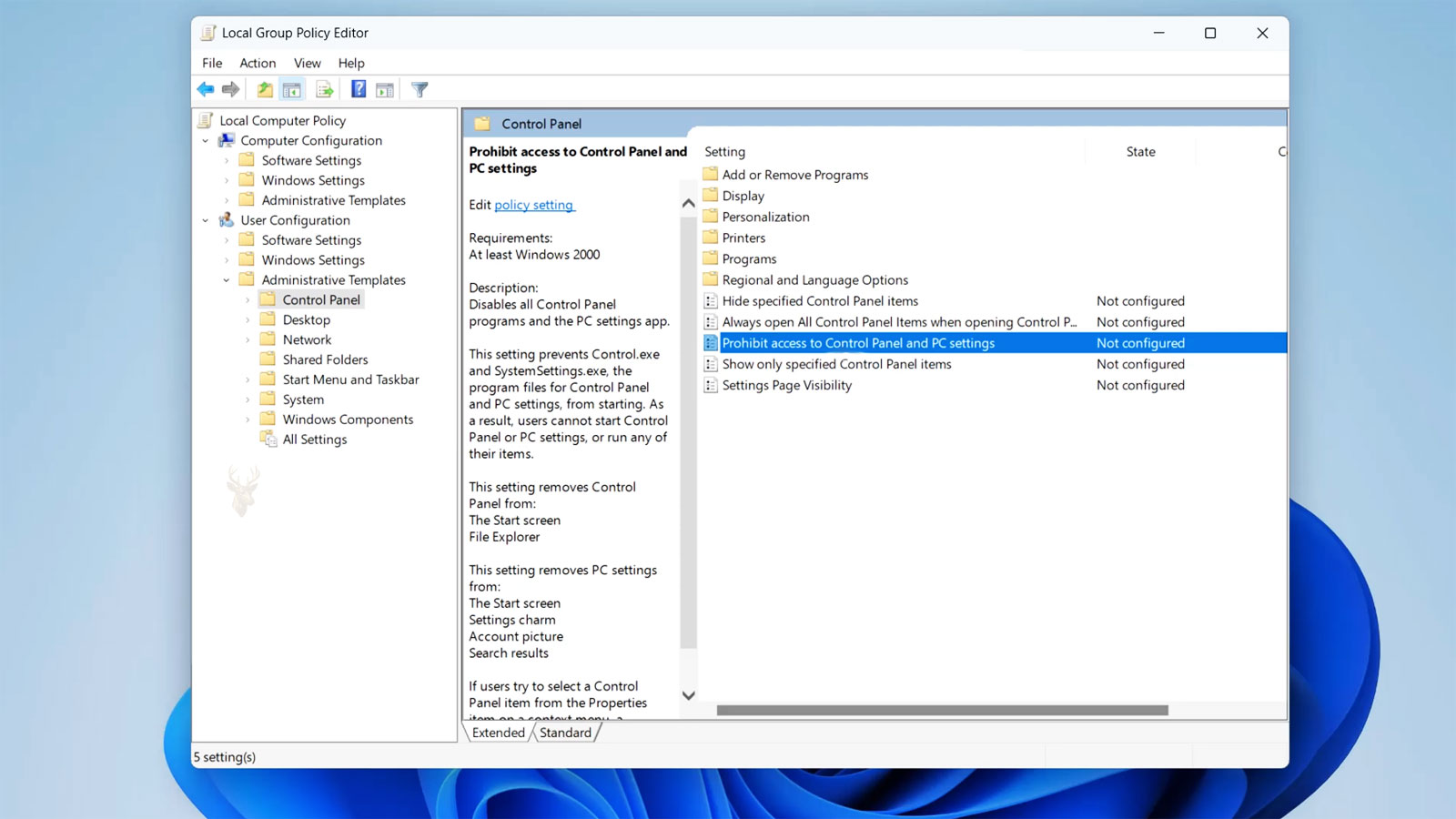
Organizations that use a Windows domain can manage many computer and user settings through Group Policy. Administrators may use policies to control password requirements, mapped resources, security options, software behavior, desktop settings, updates, and access to system features.
A policy can be configured correctly on the server and still fail to appear on one or more office computers. The affected workstation may continue using an older setting, ignore a newly assigned restriction, or receive only part of the intended configuration.
Group Policy failures should be investigated systematically because the visible symptom may result from network communication, domain membership, DNS, replication, permissions, filtering, or a local Windows problem.
Computer Policies and User Policies Apply at Different Times
Group Policy contains settings that apply to the computer and settings that apply to the signed-in user. Computer settings normally process during startup, while user settings normally process during sign-in.
A user may sign out and back in without receiving a computer-level policy that requires a full restart. Similarly, restarting the workstation without signing in as the affected user may not provide enough information about a user-level setting.
| Policy Area | Typical Processing Time |
|---|---|
| Computer configuration | During startup and scheduled background refresh. |
| User configuration | During sign-in and scheduled background refresh. |
| Startup script | Before or during the Windows startup process. |
| Logon script | When the assigned user signs in. |
| Some security settings | May require a restart before becoming fully active. |
Policy Processing Is Not Always Immediate
Domain computers periodically check for policy changes in the background. A newly edited policy may therefore take time to appear unless an administrator forces an update or restarts the computer.
Waiting for normal refresh can be appropriate for routine changes, but urgent security or access settings should be verified rather than assumed to have reached every workstation.
A policy saved on the server is not complete until the intended computers and users have received and applied it successfully.
A Forced Policy Update Can Confirm Whether Communication Works
The Windows Group Policy update command can request an immediate refresh of computer and user settings. A successful command indicates that Windows completed the request, but it does not guarantee that every desired setting was applicable.
The command may report that a restart or sign-out is required. It may also display errors when the workstation cannot contact a domain controller, locate required files, or complete policy processing.
- Save open work before forcing an update.
- Open an elevated command prompt when administrative access is required.
- Run the appropriate Group Policy update command.
- Record any error messages or requested actions.
- Restart or sign out when the policy requires it.
- Confirm the actual setting after Windows loads again.
A Successful Update Message Does Not Prove the Correct Policy Won
Several policies may contain settings for the same Windows feature. The workstation can process Group Policy successfully while a higher-priority policy overrides the setting the administrator expected to see.
The resulting configuration depends on policy order, inheritance, organizational-unit placement, filtering, and whether another policy defines the same option.
The Computer Must Be Able to Reach a Domain Controller
A domain computer needs network access to a domain controller to obtain new Group Policy information. A workstation disconnected from the office network may continue using previously cached settings but cannot receive current changes.
This commonly affects laptops used from home, computers on isolated wireless networks, remote employees who sign in before connecting to a company VPN, and systems placed on the wrong network segment.
| Connection Condition | Possible Policy Result |
|---|---|
| Connected directly to the office network | The computer may reach a local domain controller normally. |
| Working remotely without VPN | New domain policies may not be available. |
| VPN connects after user sign-in | Startup and early logon policies may be missed. |
| Connected to a guest wireless network | Domain services may be blocked or unreachable. |
| Network connection is intermittent | Policy processing may fail or complete only partially. |
Remote Computers May Need Network Access Before Sign-In
A remote employee may start a laptop and sign in using cached domain credentials before the VPN connection becomes available. Windows can allow access to the desktop even though the computer has not contacted the domain during startup.
User and computer policies that depend on early domain communication may not apply in the expected order. A pre-sign-in VPN connection or another supported remote-access design may be needed for certain business configurations.
Cached Credentials Can Hide a Domain Communication Failure
Windows may allow a previously authenticated domain user to sign in when the domain controller is unavailable. This helps employees continue working, but it can make the workstation appear fully connected to the domain when it is not.
The user may reach the desktop while mapped resources, password changes, scripts, and policy updates fail. Domain connectivity should therefore be tested independently of whether sign-in succeeds.
- Confirm that the computer has a valid office or VPN connection.
- Verify that domain servers can be reached by name.
- Check whether shared domain resources are accessible.
- Review the time of the last successful policy update.
- Compare startup behavior on the office network and away from it.
DNS Configuration Is Essential for Group Policy
Active Directory relies heavily on DNS to locate domain controllers and related services. A workstation configured to use an unsuitable public DNS server may still reach websites while failing to find the business domain correctly.
This can produce confusing symptoms because general internet access appears normal. Group Policy, domain authentication, shared resources, and administrative tools may fail even though web browsing continues.
A working internet connection does not confirm that a Windows domain computer is using the correct DNS service.
Multiple Network Adapters Can Introduce the Wrong DNS Path
A workstation may have Ethernet, Wi-Fi, VPN, docking-station, and virtual network adapters active at the same time. Each connection can provide its own DNS configuration and routing behavior.
Windows may send domain requests through an unintended adapter. Disabling unused connections temporarily can help determine whether one network path is interfering with policy processing.
| Adapter Situation | Possible Effect |
|---|---|
| Ethernet and Wi-Fi active together | Windows may prefer an unintended route or DNS server. |
| VPN assigns different DNS servers | Domain lookup may change after the VPN connects. |
| Old virtual adapter remains installed | Routing and name resolution can become more complicated. |
| Docking station uses another network interface | Policy behavior may differ when docked and undocked. |
| Static DNS information is outdated | The workstation may search for domain services at the wrong location. |
The Workstation Clock Must Be Reasonably Accurate
Domain authentication depends on coordinated time between computers and domain controllers. A workstation with a significantly incorrect clock may fail to authenticate properly even when the username and password are correct.
Policy processing can then fail because Windows cannot establish the required trusted communication. The date, time, time zone, and domain time synchronization should be checked before changing policy settings.
Time Correction May Be Temporary When Hardware Is Failing
Correcting the clock inside Windows may restore domain communication for the current session. If the motherboard clock resets after shutdown, the same authentication and Group Policy problems can return later.
The underlying time-retention problem should be repaired rather than repeatedly correcting the displayed clock.
Domain Membership Should Be Verified
A computer may display an expected name and allow a familiar user to sign in while its secure relationship with the domain is damaged. It may also have been accidentally moved to a workgroup or joined to the wrong domain.
The system properties, sign-in context, and domain status should be checked. Removing and rejoining a computer should not be the first response because doing so without preparation can affect user profiles, encryption, certificates, and access to locally stored information.
- Confirm the exact domain name shown by Windows.
- Verify that the user is signing in with the domain account.
- Check whether the computer account exists in Active Directory.
- Test the secure relationship between the workstation and domain.
- Document encryption and local administrator access before rejoining.
A Broken Trust Relationship Can Stop Normal Policy Processing
Each domain computer has an account and a secure password used for communication with Active Directory. If the workstation and domain disagree about that relationship, Windows may report a trust error or fail to process domain resources correctly.
This can occur after restoring an old system image, duplicating a computer incorrectly, reverting a virtual machine, or leaving a workstation disconnected from the domain for an extended period.
| Event Before the Failure | Possible Domain Concern |
|---|---|
| Old disk image restored | The computer account password may no longer match the domain. |
| Computer was cloned | Duplicate identity or unsupported deployment may be involved. |
| Virtual machine snapshot restored | The system may return to an earlier domain state. |
| Computer renamed manually | The account and records may not match the intended configuration. |
| Device remained offline for months | Account, certificate, password, or policy information may be outdated. |
The Computer Object Must Be in the Correct Organizational Unit
Group Policy Objects are often linked to organizational units that contain specific departments, workstations, servers, or user accounts. A policy intended for office computers will not apply if the computer object is stored in another location outside the link.
Newly joined computers commonly appear in a default container until an administrator moves them to the correct organizational unit. During that time, they may receive only domain-wide policies.
User and Computer Objects Can Be in Different Locations
The user account and the computer account are separate Active Directory objects. A policy linked to the user’s organizational unit may apply wherever that person signs in, while a computer policy follows the workstation object.
Troubleshooting must identify whether the missing setting belongs to the user or computer section and then verify the location of the corresponding object.
Policy Links Can Be Disabled Without Deleting the Policy
A Group Policy Object can remain visible in the management console while its link to a domain or organizational unit is disabled. Administrators may continue editing the policy without realizing that the intended location is no longer processing it.
The policy link, link status, and target location should be reviewed. Re-enabling the wrong link without checking scope can affect more computers or users than intended.
A Group Policy Object can exist, contain valid settings, and still affect no computers because it is not linked to the correct location.
Security Filtering Can Limit Which Accounts Receive a Policy
Security filtering allows a policy to apply only to selected users, computers, or groups. A workstation outside the permitted group may read information about the policy but remain excluded from applying its settings.
Changes to group membership may also require sign-out, restart, or time for directory replication before the workstation recognizes its new access.
| Filtering Condition | Possible Result |
|---|---|
| Computer is not in the required security group | The computer-side policy is excluded. |
| User is not in the required group | The user-side policy does not apply. |
| Read permission is missing | The account may be unable to evaluate the policy. |
| Apply permission is denied | The policy is intentionally or accidentally blocked. |
| Group membership changed recently | The current sign-in session may still use older membership information. |
A Deny Permission Can Override an Allow Permission
An account may receive permission through one group and a denial through another. The denial can prevent the policy from applying even when the workstation appears to be included in the correct target group.
Security permissions should be reviewed carefully before broad changes are made. Removing a denial without understanding its purpose can expose settings to users or computers that were intentionally excluded.
WMI Filters Can Exclude Computers Based on System Information
A Windows Management Instrumentation filter can limit a policy according to operating-system version, hardware type, installed software, or other system details. If the filter returns a false result, the linked policy will not apply.
An outdated query may stop matching after a Windows upgrade or hardware replacement. A filter can also take too long to evaluate, contributing to slow or incomplete policy processing.
- Confirm that the policy has a WMI filter attached.
- Review the exact conditions used by the query.
- Test whether the affected workstation matches those conditions.
- Compare a working and nonworking computer.
- Update obsolete operating-system or hardware criteria carefully.
Policy Inheritance Determines Which Settings Reach Lower Locations
Policies linked at the domain or a higher organizational unit can normally pass down to child organizational units. Blocking inheritance can prevent some higher-level policies from reaching the affected computer or user.
An enforced policy may continue applying even where inheritance is blocked. The final result depends on the complete path from the domain to the object rather than one organizational unit viewed by itself.
Policy Precedence Can Override a Lower-Priority Setting
When multiple policies configure the same option, Windows applies precedence rules to determine the effective value. A policy closer to the object commonly has greater influence, but enforced links and other processing rules can change the result.
The administrator should identify every policy defining the setting instead of editing only the policy that appears most obvious.
| Policy Situation | Possible Outcome |
|---|---|
| Only one applicable policy defines the setting | The expected value is usually straightforward. |
| Several policies define different values | The higher-precedence setting becomes effective. |
| Inheritance is blocked | Some higher-level policies may not reach the object. |
| A higher-level link is enforced | Its settings may continue applying despite lower-level controls. |
| The setting is marked not configured | Another policy or local setting may determine the result. |
Loopback Processing Can Change User Policy Behavior
Loopback processing allows the computer’s location to influence which user settings apply when someone signs in. It is often used for shared workstations, kiosks, training rooms, reception computers, and remote-session systems.
A user may therefore receive different settings on one computer than on another even though the same domain account is used. This behavior can be intentional rather than evidence that Group Policy is failing.
Replace and Merge Modes Produce Different User Results
Loopback processing can replace the user’s ordinary policy set or merge computer-location policies with it. The selected mode changes which settings remain effective.
Administrators troubleshooting shared computers should check for loopback configuration before moving user accounts or changing unrelated policy links.
Resultant Set of Policy Shows What Windows Actually Applied
Resultant Set of Policy information can show which policies were considered, which settings became effective, and why certain policies were filtered out. This is more reliable than judging policy application from the management console alone.
A report should be generated while signed in as the affected user on the affected computer whenever possible. Results from an administrator’s workstation may not represent the same organizational-unit placement, groups, filters, or network conditions.
- Generate a policy-results report on the affected workstation.
- Review computer and user sections separately.
- Identify the policies listed as applied.
- Check policies excluded by security or WMI filtering.
- Locate the winning policy for the missing setting.
- Compare the report with one from a working computer.
A Comparison With a Working Computer Can Narrow the Cause
Two computers intended to receive the same settings should be compared for domain, organizational unit, security groups, operating-system version, DNS configuration, network location, and policy results.
The first meaningful difference often provides more useful direction than repeatedly editing the policy itself.
When one workstation works and another does not, comparing their effective configuration is usually more useful than assuming the server policy is universally broken.
Event Logs Record Group Policy Processing Errors
Windows records policy activity in event logs that can show domain-controller discovery, file-access, authentication, script, extension, and processing failures. The time of the event should be compared with startup, sign-in, VPN connection, and the forced update attempt.
One warning does not always identify the final cause. Repeated events and their order can show whether a network problem occurred before the policy failure.
| Log Pattern | Possible Direction |
|---|---|
| Domain controller cannot be found | DNS, network, VPN, routing, or domain availability. |
| Policy file cannot be accessed | Permissions, replication, network path, or server availability. |
| Script fails to run | Path, permissions, execution requirements, or script error. |
| Processing takes unusually long | Slow connection, WMI filter, script, or unavailable resource. |
| Policy is filtered out | Security filtering, WMI criteria, or scope configuration. |
Slow Network Detection Can Delay Policy Processing
Windows may reach the sign-in screen before a wired, wireless, docking-station, or VPN connection is fully ready. The computer can then treat the network as unavailable during an important part of startup.
This can affect scripts, mapped resources, software deployment, and settings that require synchronous communication with the domain. The problem may be intermittent because network readiness varies between startups.
Wireless Authentication May Complete After the User Signs In
Some business wireless networks authenticate through user credentials or software that becomes available only after sign-in. The computer may not have domain access during startup even though Wi-Fi appears connected moments later.
Machine-based wireless authentication or another supported network design may be needed when computer policy must process before user sign-in.
SYSVOL Must Be Reachable for Many Policy Components
Group Policy information is stored partly in Active Directory and partly in the SYSVOL shared folder on domain controllers. A workstation may locate the domain correctly but still fail to read files required for scripts, templates, preferences, or policy processing.
Access to SYSVOL should be tested using the affected computer and user context. A server administrator may reach the path successfully while an ordinary workstation account encounters permissions, network, or replication problems.
The Policy Object Has Directory and File-Based Components
Each Group Policy Object includes information stored in Active Directory and a corresponding folder stored in SYSVOL. These two parts must remain synchronized so that clients receive a consistent version of the policy.
If the directory portion indicates that a new version exists but the corresponding files are unavailable, the workstation may report processing errors or continue using an older configuration.
| Policy Component | What It Commonly Contains |
|---|---|
| Active Directory portion | Policy identity, version information, links, permissions, and configuration data. |
| SYSVOL portion | Templates, scripts, preference files, and other file-based policy content. |
| Client-side cache | Previously processed policy information stored on the workstation. |
| Resultant policy data | The final settings Windows calculated for the computer and user. |
Replication Problems Can Affect Only Part of the Office
Organizations with more than one domain controller rely on replication to keep policy information consistent. A policy changed on one server may not immediately appear on another server used by a different office, floor, or network site.
This can create a situation where some workstations apply the new setting while others continue using an older version. The difference may depend on which domain controller each computer contacts.
When policy behavior differs by office location, the domain controller serving each workstation should be included in the comparison.
A Workstation May Contact a Different Domain Controller Than Expected
Active Directory sites and network subnets help direct computers toward an appropriate domain controller. If a subnet is missing or assigned incorrectly, a workstation may contact a remote server across a slow connection.
The policy may eventually apply, but startup can become slow or time out before every component finishes. The problem may disappear temporarily when the computer contacts another server.
- Identify the domain controller used during the failed update.
- Compare it with the server used by a working workstation.
- Verify that the office subnet belongs to the correct Active Directory site.
- Review replication health between domain controllers.
- Confirm that SYSVOL and directory data show matching policy versions.
Replication Delay Is Different From Replication Failure
A short delay after editing a policy may be normal in an environment with several domain controllers and network sites. A continuing mismatch, repeated error, or policy that never reaches one location suggests a replication problem rather than ordinary timing.
Administrators should avoid making repeated edits merely to force a visible change. Additional versions can make troubleshooting more difficult when the original replication path is already unhealthy.
Firewall Rules Can Block Required Domain Communication
Group Policy depends on several Windows domain services rather than one simple network connection. A firewall can allow web browsing and file access while blocking authentication, name resolution, remote procedure calls, or other traffic required for complete policy processing.
The workstation firewall, network firewall, VPN policy, and endpoint security software should all be considered. Temporarily disabling protection without authorization is not an appropriate long-term test in a business environment.
| Network Behavior | Possible Interpretation |
|---|---|
| Websites open but domain policies fail | Internet access works, but domain-specific traffic may be blocked. |
| Policy works on Ethernet but not Wi-Fi | Wireless segmentation, firewall, DNS, or authentication may differ. |
| Policy works inside the office but not through VPN | The remote tunnel may not carry all required domain traffic. |
| Only one workstation fails | Local firewall, security software, adapter, or Windows configuration may be involved. |
| An entire subnet fails | Routing, site configuration, firewall, or domain-controller access should be reviewed. |
VPN Split Tunneling Can Change the Route to Domain Services
A split-tunnel VPN sends only selected business traffic through the company connection while ordinary internet traffic uses the local network. If domain routes or DNS rules are incomplete, the computer may connect to the VPN but still fail to locate or reach required servers.
The presence of a connected VPN icon is therefore not enough to confirm domain readiness. Name resolution, routes, server access, and policy processing should be tested directly.
Network Location Awareness Can Influence Processing
Windows uses network information to determine whether the computer has domain connectivity. If the network is identified slowly or incorrectly, policy processing may begin before Windows recognizes the domain connection.
This can occur after adapter changes, docking, VPN connection, driver updates, or network-service problems. The workstation may later recognize the domain, but the original startup policy window has already passed.
Fast Startup Can Prevent a Complete Computer Policy Cycle
Windows Fast Startup can preserve part of the system state during shutdown. The next power-on may not behave like a traditional full restart, which can affect troubleshooting of startup-related policy problems.
A restart normally performs a more complete system cycle than shutdown followed by power-on. When testing computer policy, the exact method used to restart the workstation should be documented.
- Save open files and close applications.
- Force a policy refresh and record the response.
- Use Restart rather than an ordinary shutdown.
- Allow Windows to reach the sign-in screen without interruption.
- Sign in with the affected domain account.
- Generate a new policy-results report.
- Compare the effective settings with the previous report.
Synchronous and Asynchronous Processing Can Produce Different Results
Some Group Policy components can process in the background after the desktop appears. Others require Windows to wait during startup or sign-in until network communication and policy processing are complete.
Software installation, folder redirection, and certain scripts may not behave as expected when the computer uses asynchronous processing on a slow or late network connection.
The First Sign-In May Not Process Every Assigned Setting
A newly joined computer or newly created user profile may require more than one startup and sign-in cycle before all settings, applications, and redirected resources appear. Some policy extensions mark changes for processing during the next foreground cycle.
Repeatedly interrupting startup or forcing shutdowns can prevent this process from completing. The workstation should be allowed enough time to finish the initial domain configuration.
Group Policy Preferences Behave Differently From Administrative Policies
Group Policy Preferences can create, update, replace, or delete items such as drive mappings, shortcuts, registry values, files, printers, and scheduled tasks. Their behavior depends on the selected action and any item-level targeting.
A preference item may apply once and remain on the computer even after the policy changes. Another item may be recreated at every refresh. Understanding the selected action is essential when the visible result does not match the current console settings.
| Preference Action | General Behavior |
|---|---|
| Create | Creates the item when it does not already exist. |
| Update | Changes selected properties while preserving others. |
| Replace | Deletes and recreates the item during processing. |
| Delete | Removes the targeted item when the policy applies. |
Apply Once Settings Can Make a Preference Appear Stuck
A preference item can be configured to apply only once and then stop processing for that user or computer. Later changes to the item may not appear because Windows records that it has already been applied.
This behavior may be intentional for an initial setup. It should be reviewed before deleting local configuration or assuming that the workstation cannot communicate with the domain.
Item-Level Targeting Can Exclude One Computer Quietly
Preferences can include targeting conditions based on group membership, computer name, operating system, IP address, organizational unit, registry value, battery state, or many other details.
A preference may therefore be inside an applicable policy while the individual item is skipped. Resultant policy tools may show that the policy applied without making the item-level condition immediately obvious.
- Review whether item-level targeting is enabled.
- Check every targeting condition and logical operator.
- Compare the affected computer with one that receives the preference.
- Verify current group membership and network information.
- Test outdated operating-system or registry conditions carefully.
Mapped Drive Preferences Can Fail Because the Share Is Unavailable
A drive-mapping policy may process correctly while the target file server or share remains inaccessible. The user may see a disconnected drive, a red marker, or no mapping at all depending on the action and timing.
The share path, permissions, DNS resolution, network readiness, and user access should be tested separately from the Group Policy link.
| Drive Mapping Symptom | Possible Cause |
|---|---|
| Drive appears but cannot open | The mapping exists, but share access or permissions fail. |
| Drive appears only after policy refresh | The network may not be ready during sign-in. |
| Drive appears for some users only | Security filtering, item targeting, or share permissions may differ. |
| Old drive letter keeps returning | Another policy, script, or saved mapping may recreate it. |
| Mapping disappears at every refresh | A replace or delete action may be configured unexpectedly. |
Printer Deployment Depends on Driver and Server Availability
A printer policy can fail even when Group Policy itself is functioning. The print server may be unavailable, the driver may be blocked, the user may lack installation permission, or Windows security requirements may prevent the connection.
The policy-results report should be compared with print-service logs and direct access to the shared printer. Repeatedly recreating the policy will not correct an incompatible or unavailable driver.
Scripts Require Accessible Paths and Suitable Permissions
Startup and logon scripts may be assigned through Group Policy but stored in network locations. If the path is incorrect, the file is missing, or the account lacks permission, the policy can apply while the script itself fails.
Scripts may also depend on mapped drives, administrative rights, PowerShell execution conditions, or resources that are not yet available during startup.
A policy can successfully assign a script without guaranteeing that every command inside the script will complete.
Startup Scripts Run Under a Different Security Context
A computer startup script commonly runs under the local system context rather than the signed-in user account. It may therefore have different network permissions, environment variables, and access to user-specific locations.
A command that works when an administrator runs it manually may fail during startup because the execution context is different. Testing should reproduce the same account, timing, and environment used by Group Policy.
Logon Scripts Can Finish After the Desktop Appears
Depending on policy and Windows configuration, a logon script may continue running while the user begins working. Network resources or shortcuts may appear late, making the policy seem inconsistent.
Long scripts, unavailable servers, and commands waiting for a response can delay completion. Script duration and error handling should be reviewed before increasing sign-in delays for every employee.
PowerShell Scripts Can Be Blocked by Their Own Requirements
A PowerShell script can fail because of signing requirements, execution policy, missing modules, unavailable network locations, or differences between PowerShell versions. The Group Policy assignment may still appear correct.
The script should be tested under the same security context used during startup or sign-in. Error output should be recorded to a controlled log when possible.
- Confirm that the script file exists at the assigned path.
- Verify read permission for the computer or user account.
- Test required network resources before the script begins.
- Review signing, module, and execution requirements.
- Capture script errors in a log file.
- Compare manual execution with policy-based execution.
Software Deployment Policies Have Additional Requirements
Software assigned through Group Policy commonly depends on a network installation package, computer startup processing, permissions, and a reliable connection to the distribution path.
The workstation may receive the policy but fail to install the application because the package was moved, replaced, damaged, or referenced through a path the computer cannot access.
| Deployment Problem | Possible Cause |
|---|---|
| Application never installs | Package path, permissions, scope, or startup processing may be incorrect. |
| Installation repeats at every startup | The installation does not complete or detection remains unsuccessful. |
| Only some computers install it | Architecture, operating-system version, filtering, or network location may differ. |
| Old application remains installed | Upgrade or removal settings may not be configured correctly. |
| Startup becomes very slow | The computer may be waiting for an unavailable package or server. |
UNC Paths Are More Reliable Than User-Mapped Drive Letters
A startup process should not depend on a drive letter that is mapped only after a user signs in. Computer-level policies and services may not recognize that mapping.
Network package and script locations should generally use a complete server and share path appropriate for the environment. The path must remain available to the account processing the policy.
Administrative Template Files Must Match the Settings Being Edited
Administrative templates define the policy settings visible in the Group Policy editor. If template files are missing, outdated, or inconsistent between administration computers, an administrator may not see the same options everywhere.
This can become more noticeable after new Windows versions or applications introduce additional policy definitions. The central policy-definition store should be reviewed before copying individual template files randomly between servers.
An Older Template Can Hide or Misrepresent a New Setting
A setting configured through a newer template may still remain inside the policy even when an older administration computer cannot display it properly. Editing the policy from that computer can create confusion about whether the setting exists.
The Windows version and template source used by administrators should be documented, especially when several technicians manage the same domain.
Some Policies Apply Only to Specific Windows Editions
A policy setting may be available in the editor but unsupported by the Windows edition installed on the workstation. Business environments can contain a mixture of Professional, Enterprise, Education, and older operating-system editions.
The affected computer’s exact edition, version, and build should be compared with the requirements of the intended setting.
| Compatibility Difference | Possible Result |
|---|---|
| Unsupported Windows edition | The setting may be ignored or unavailable. |
| Older Windows release | The client may not understand a newer policy option. |
| Newer feature update | An older template or script condition may no longer match. |
| 32-bit and 64-bit differences | Registry or software paths may require separate handling. |
| Different application version | The configured application policy may not apply as intended. |
Registry-Based Policies May Remain After the Policy Is Removed
Many administrative settings are designed to return to an unmanaged state after the policy no longer applies. Other registry changes created by scripts, preferences, or manual edits may remain until they are explicitly reversed.
A computer can therefore appear to be receiving an old policy when the visible value is actually leftover local configuration. The source of the registry value should be confirmed before deleting it.
Local Group Policy Can Conflict With Domain Expectations
A workstation has local policy settings in addition to domain-based policies. Domain policy generally has greater precedence, but local configuration can still affect settings that remain undefined by the domain.
Computers that were previously used outside the organization may contain local restrictions, scripts, or security values that differ from the office standard.
- Review whether the workstation was previously managed elsewhere.
- Check local policy for settings not defined by the domain.
- Compare local security configuration with a working computer.
- Document manual registry changes and management utilities.
- Avoid resetting all local policy without preserving needed settings.
Mobile Device Management Can Configure the Same Windows Feature
Some business computers receive settings from both traditional Group Policy and a cloud-based management platform. When both systems configure the same feature, the effective result can depend on the specific policy area and management rules.
The computer may therefore display a setting that does not match the domain policy even though Group Policy processed successfully. Enrollment status and cloud-management reports should be reviewed alongside domain results.
In a co-managed environment, the visible Windows setting may have more than one administrative source.
Security Baselines Can Override Individual Administrative Choices
Organizations may apply broad security baselines containing hundreds of settings. A technician can change one departmental policy without realizing that a separate baseline defines the same option at a higher priority.
The complete list of winning policies should be reviewed before weakening a security setting. An unexpected result may be part of an intentional organization-wide requirement.
Antivirus and Endpoint Management Can Delay Policy Actions
Security software can inspect scripts, installation packages, registry changes, and network files during policy processing. This may increase startup time or block an action considered suspicious.
Security logs should be checked before creating broad exclusions. Any approved exception should be limited to the required file, process, or path rather than disabling protection across the computer.
Corrupted Local Policy Data Can Affect One Workstation
Windows stores local copies and processing information related to Group Policy. If this data becomes damaged, one workstation may fail repeatedly while similar computers apply the same domain policy normally.
Event logs, policy reports, system-file condition, and network communication should be checked before local policy data is reset. Removing diagnostic evidence too early can make the original failure harder to understand.
| Scope of Failure | Likely Direction |
|---|---|
| One user on one computer | User profile, item targeting, account software, or user-side policy. |
| Every user on one computer | Computer configuration, local Windows condition, network, or machine account. |
| One user on every computer | User object, groups, user policy, or account permissions. |
| Every computer in one office | Network site, domain controller, replication, firewall, or subnet configuration. |
| Every domain computer | Policy design, domain service, SYSVOL, or broad infrastructure problem. |
System File Damage Can Interrupt Client-Side Processing
Group Policy depends on Windows services, management components, networking, and system files. Damage to those components can cause policy extensions to fail even though domain communication appears normal.
Windows integrity checks and repair tools may be appropriate after logs indicate local component failure. They should not replace investigation of DNS, permissions, or policy scope when those remain the actual cause.
Required Windows Services Must Be Available
Policy processing relies on several Windows services involved in authentication, networking, event logging, task execution, and management. A disabled or failing service can prevent a particular policy component from completing.
Service configuration should be compared with a healthy workstation before startup types are changed. Some services run only when triggered and do not need to remain active continuously.
- Review service-related errors at the time of policy processing.
- Check whether system-tuning software disabled required components.
- Compare service configuration with a working domain computer.
- Restore supported Windows defaults when unauthorized changes are found.
- Repeat policy processing after the service problem is corrected.
User Profile Problems Can Affect User-Side Policy
A damaged user profile can interfere with preferences, registry changes, shortcuts, folder redirection, and other settings tied to the user environment. The same account may work normally on another computer.
Testing with another domain account on the affected workstation can help separate a computer-wide problem from one limited to the user profile.
Temporary Profiles Can Hide the Expected Configuration
When Windows cannot load the regular profile, it may sign the user into a temporary profile. Desktop items, registry settings, and policy preferences may appear missing or return to defaults.
The profile warning and user-profile service logs should be addressed before the missing settings are blamed on Group Policy.
Folder Redirection Depends on Both Policy and File-Server Access
Folder redirection can move locations such as Documents or Desktop to a network path. The policy may be valid, but the change can fail when the server is unavailable, permissions are incorrect, the path does not exist, or files cannot be moved safely.
Because redirected folders may contain important user data, settings should not be changed repeatedly without confirming backups and the current location of the files.
| Folder Redirection Symptom | Possible Cause |
|---|---|
| Folder remains local | The policy, path, permissions, or move operation may have failed. |
| Folder opens slowly | Network performance or server availability may be poor. |
| Files appear missing | The user may be viewing a different local or redirected location. |
| Policy works in the office but not remotely | The file server may be unavailable before VPN connection. |
| Repeated synchronization errors occur | Offline Files, permissions, or network interruptions may be involved. |
Offline Files Can Make Network Folder Behavior Confusing
Windows may cache network files so employees can continue working while disconnected. The user can appear to access the redirected folder even though the server is unavailable.
Synchronization conflicts, stale cached copies, and delayed reconnection can make a successful policy appear unsuccessful. The online and offline states should be checked separately.
Scheduled Tasks Created by Policy Have Their Own Conditions
A Group Policy Preference can create a scheduled task successfully while the task itself never runs. The configured account, password, trigger, privilege level, network condition, and executable path all affect execution.
Task Scheduler history should be reviewed to determine whether the task was created, triggered, and completed. These are separate stages of the process.
Creating a scheduled task through policy and successfully running that task are two different diagnostic questions.
Policy Changes Should Be Tested on a Limited Group First
A setting intended for many office computers should be tested on a controlled group before broad deployment. This helps identify compatibility, sign-in delay, software, and permission problems without affecting the entire organization.
The test group should include representative computer models, Windows versions, office locations, remote users, and normal business applications.
- Create a clearly identified pilot group or organizational unit.
- Link or filter the policy only to the selected test systems.
- Record the original configuration before the change.
- Test startup, sign-in, applications, and network resources.
- Review policy results and event logs.
- Correct unexpected behavior before wider deployment.
- Maintain a documented rollback method.
A Rollback Plan Is Necessary for Business-Critical Settings
Policies can affect sign-in, network access, security tools, printers, applications, and shared storage. A mistake can prevent employees from working across many computers at once.
Before a major change, administrators should know how to disable the link, reverse the setting, recover local access, and reach remote systems if domain communication is interrupted.
Editing Several Policies at Once Makes Troubleshooting Harder
When several Group Policy Objects are changed during the same maintenance period, it becomes difficult to identify which change produced a new problem. Replication timing can make the sequence even less clear.
Each change should be documented with the time, administrator, policy name, previous value, new value, and intended target.
Policy Names Should Describe Their Purpose Clearly
Generic names such as New Policy or Test Policy make long-term administration difficult. Clear naming helps technicians identify scope, purpose, department, and whether the object is active or temporary.
Descriptions and change notes should explain why important settings exist. A future administrator may otherwise remove a policy that appears unnecessary but supports a critical business process.
| Documentation Item | Why It Matters |
|---|---|
| Policy name and purpose | Helps administrators understand the intended result. |
| Link location | Shows which users or computers are in scope. |
| Security and WMI filters | Explains why some objects are excluded. |
| Change history | Connects new symptoms with recent administrative work. |
| Rollback procedure | Supports faster recovery when a deployment causes problems. |
Duplicate Settings Should Be Consolidated Carefully
As an environment grows, several policies may configure the same security option, browser setting, drive mapping, or desktop restriction. This increases the chance of unexpected precedence and makes troubleshooting slower.
Consolidation can improve clarity, but settings should not be moved or deleted without reviewing every linked location and filtered group. A policy that looks redundant may apply to a different department or special computer class.
Unused Policies Can Remain Linked for Years
Old project policies, temporary software deployments, and settings from retired applications may remain active long after their original purpose ends. They can continue adding sign-in delays or overriding newer configurations.
Regular review should identify unlinked policies, empty objects, obsolete scripts, unavailable server paths, and settings for software no longer used by the business.
Policy Troubleshooting Should Begin With Scope Before Repair
The number and location of affected systems provide immediate direction. A failure limited to one user is different from one affecting an office subnet or every domain computer.
Identifying the scope first reduces unnecessary changes to domain controllers, local profiles, and policy objects.
- Determine whether the missing setting is user-based or computer-based.
- Identify exactly which users and workstations are affected.
- Confirm network, DNS, time, and domain-controller access.
- Generate effective policy reports.
- Review object location, links, inheritance, and filtering.
- Check event logs and the specific client-side extension involved.
- Compare the failure with a known-working computer.
The Visible Setting Should Be Verified Directly
A successful report does not always confirm that the intended business outcome occurred. The configured registry value may be present while the application ignores it, or a mapped resource may exist while users cannot access it.
Final testing should include the actual feature, application, printer, network share, security control, or user restriction affected by the policy.
Effective policy information explains what Windows processed, but practical testing confirms whether employees received the intended result.
Administrative Access Should Be Preserved During Testing
A policy affecting local administrators, remote access, firewall rules, sign-in rights, or security software can accidentally lock technicians out of a workstation. Remote computers are especially vulnerable because physical recovery may not be immediately available.
Before testing restrictive policies, the organization should maintain approved recovery credentials, encryption keys, local access procedures, and a method to remove the computer from the affected scope.
Removing a Computer From the Domain Is Not a Routine First Step
Leaving and rejoining the domain can repair certain trust or account problems, but it does not correct a policy that is linked, filtered, or configured incorrectly. It can also create profile, certificate, encryption, and application complications.
The secure relationship should be tested first, and the rejoin process should be planned with local administrator access and user data protection in place.
A Policy Failure Can Be a Symptom of a Larger Domain Problem
When many computers suddenly stop receiving policy, the cause may extend beyond one Group Policy Object. DNS outages, domain-controller failures, replication problems, certificate issues, network changes, or time synchronization errors can affect several domain services simultaneously.
Authentication failures, inaccessible shares, delayed sign-ins, and policy errors occurring together should be investigated as a broader infrastructure event.
Domain Controller Health Should Be Checked Before Client Repairs Continue
When several computers report similar policy failures, repairing each workstation individually may waste time. The domain controllers, DNS services, replication status, SYSVOL availability, and network paths should be checked first.
A healthy client cannot apply a policy that the domain cannot provide consistently. Server-side problems should be corrected before local caches, profiles, or Windows installations are reset.
A Single Domain Controller Failure May Produce Intermittent Results
An organization with several domain controllers may continue operating when one server becomes unhealthy. Some computers contact a working server and process policy normally, while others reach the affected server and fail.
The problem can appear random until the domain controller used during each successful and failed attempt is recorded.
| Observed Scope | Possible Infrastructure Direction |
|---|---|
| Only computers using one domain controller fail | That server, its SYSVOL copy, DNS registration, or replication may be unhealthy. |
| Only one office location fails | Site, subnet, routing, firewall, or local domain-controller access may be involved. |
| Failures alternate between restarts | The workstation may contact different domain controllers each time. |
| All computers fail simultaneously | A broad domain, DNS, network, or policy configuration problem is more likely. |
| Only newly edited policies fail | Replication or version synchronization should be investigated. |
DNS Records for Domain Controllers Must Remain Accurate
Domain controllers register service records that allow Windows clients to locate authentication and directory services. Missing, duplicated, or outdated records can send workstations to unavailable servers.
DNS zones, server registrations, replication, and workstation cache information should be reviewed together. Manually creating records without understanding the underlying registration failure may provide only a temporary correction.
Old Domain Controller Records Can Survive After a Server Is Removed
If a retired domain controller was not removed cleanly, clients may continue finding references to it through DNS, Active Directory, scripts, or manually configured paths. Policy updates may then pause or fail while Windows attempts to contact a server that no longer exists.
Decommissioning records should be reviewed carefully before remaining references are deleted. An active server should never be removed merely because its name appears in an old error.
- Identify whether the referenced server is still active.
- Check DNS records and Active Directory site information.
- Review replication partnerships and server metadata.
- Search scripts and policies for hard-coded server names.
- Remove obsolete references through a documented process.
SYSVOL Replication Must Remain Consistent Between Servers
The SYSVOL folder contains file-based portions of Group Policy and must replicate between domain controllers. A server can appear online while its SYSVOL copy remains incomplete or outdated.
Clients reaching that server may receive missing scripts, older templates, or version errors. Replication events and the contents of corresponding policy folders should be compared between servers.
A domain controller answering authentication requests is not automatically proof that its Group Policy files are current.
Policy Version Numbers Can Reveal Synchronization Problems
Group Policy uses version information to determine whether computer and user settings have changed. A mismatch between directory and SYSVOL versions can prevent clients from receiving a consistent policy.
Administrators should compare the version reported by the management tools with the versions available on each domain controller. Repeatedly editing the policy to increase its version does not repair broken replication.
Backup and Restore Procedures Can Affect Group Policy Objects
Restoring Active Directory, SYSVOL, virtual machines, or individual policy objects through an unsupported process can create version and replication inconsistencies. The policy may appear in the console while part of its content remains missing or outdated.
Domain controller and Group Policy recovery should follow procedures designed for directory services. Ordinary file copying is not a substitute for a valid system-state or policy backup.
| Recovery Action | Possible Policy Risk |
|---|---|
| Old virtual machine snapshot restored | Directory, SYSVOL, and replication state may become inconsistent. |
| Policy folder copied manually | Permissions, versioning, or directory references may not match. |
| Only one policy component restored | The directory and file-based portions may disagree. |
| Unsupported domain controller image restored | Replication and computer identity problems may develop. |
| Documented policy backup imported | The restoration is easier to track and validate. |
Delegated Administration Can Create Permission Gaps
Large organizations may allow different technicians to edit policies, link them to organizational units, or manage security groups. A person may have permission to change policy settings without having permission to modify the link or filtering that determines where the policy applies.
This can cause an administrator to believe a complete change was made when only one part of the configuration was updated. Delegated rights and change responsibilities should be documented clearly.
Ownership Changes Can Affect Policy Management
Policies created by former administrators or migrated from another domain may contain unusual ownership and permissions. Current technicians may be able to view the policy but not edit, link, or back it up successfully.
Ownership and delegation should be corrected carefully without granting broad control to unnecessary accounts. Policy security affects both administration and client application.
Change Auditing Helps Explain When a Policy Stopped Working
Without change records, administrators may not know whether a policy link, security group, WMI filter, script path, or setting changed shortly before the failure began.
Audit records, help desk notes, maintenance logs, and policy backups can establish a timeline. This is especially important when several administrators manage the environment.
- Record the policy name and unique purpose.
- Document who made the change and when.
- Preserve the previous configuration or backup.
- Identify the intended users, computers, and locations.
- Note testing results before broader deployment.
- Record the rollback action when a change is reversed.
Policy Backups Should Be Created Before Major Editing
A backup allows administrators to restore the settings and supporting files of a Group Policy Object after an accidental change. It also provides a reference for comparing old and new configurations.
A policy backup does not replace a complete Active Directory recovery plan. Links, organizational-unit structure, groups, and external files may require separate documentation or protection.
Scripts and Packages Outside SYSVOL Need Their Own Backups
A policy may reference installation files, scripts, templates, or configuration data stored on another server. Backing up the Group Policy Object alone may not preserve those external resources.
The full dependency chain should be documented so that a restored policy does not point to missing files or retired servers.
| Policy Dependency | Protection Needed |
|---|---|
| Group Policy Object | Regular policy backup and change history. |
| External script | File backup, version control, permissions, and path documentation. |
| Software package | Verified installation media and accessible distribution share. |
| Security group | Membership and purpose documentation. |
| WMI filter | Query backup and compatibility notes. |
| Organizational-unit link | Link order, enforcement, and inheritance documentation. |
Removing an Old Policy Requires More Than Deleting the Object
Some settings disappear when the policy no longer applies, while others remain on the workstation. Preferences, scripts, scheduled tasks, files, and registry values may require an explicit cleanup action.
Before deleting an old policy, administrators should determine what it created and whether those items must be removed, replaced, or left in place.
Deleting a Policy Can Remove Evidence Needed for Troubleshooting
An obsolete or malfunctioning policy may contain important information about old scripts, server paths, security groups, and settings still present on workstations. Immediate deletion can make cleanup more difficult.
Disabling the link, documenting the configuration, creating a backup, and testing the effect on a limited group may be safer than deleting the object immediately.
Retiring a policy safely requires understanding both what it currently applies and what it may have left behind.
Policy Naming and Structure Should Support Future Troubleshooting
Policies that combine unrelated security, software, printer, browser, and desktop settings can be difficult to test and roll back. One small change may require reviewing a large object with many possible effects.
Separating policies by clear purpose can improve testing and administration, but excessive fragmentation can also create too many links and precedence relationships. The structure should remain understandable to future technicians.
A Standard Workstation Build Reduces Unexpected Differences
Office computers with inconsistent Windows editions, manual settings, old local policies, different security agents, and unsupported software are more likely to process Group Policy differently.
A documented workstation standard helps administrators compare affected systems and identify exceptions. Standardization should include operating-system versions, network configuration, security software, and required business applications.
- Use supported Windows editions across managed computers.
- Maintain consistent DNS and domain configurations.
- Document approved endpoint security software.
- Remove obsolete local management tools.
- Track exceptions that require different policies.
- Review new computer placement before deployment.
New Computers Should Be Verified Before Employees Receive Them
A newly prepared workstation may join the domain successfully while remaining in the wrong organizational unit, missing required groups, or using unsuitable DNS settings. These problems become more disruptive after the employee begins working.
Deployment testing should confirm startup policy, user policy, mapped resources, printers, security tools, updates, applications, and remote-access behavior before the computer is delivered.
| Deployment Check | Expected Result |
|---|---|
| Domain membership | The secure relationship is valid and the computer account is correctly named. |
| Organizational-unit placement | The computer object is in the intended administrative location. |
| Computer policy | Required security and system settings apply after restart. |
| User policy | The employee receives the expected desktop and resource settings. |
| Network resources | Shares, printers, and applications are accessible. |
| Remote use | VPN and off-site policy behavior match the business plan. |
Reimaging a Computer Does Not Correct a Domain Design Problem
Reinstalling Windows can repair local corruption, but it does not fix incorrect policy links, filters, permissions, DNS, or replication. A freshly installed workstation may develop the same problem as soon as it rejoins the existing environment.
Reimaging should be reserved for confirmed local problems or standard deployment needs rather than used as the first response to every policy failure.
Remote Troubleshooting Requires Careful Access Planning
A remote technician may depend on the same VPN, firewall, and policy settings being investigated. A change that disables remote access can leave the workstation unreachable.
Before testing restrictive policies, the technician should confirm an approved recovery method, user availability, local administrator access, encryption information, and a plan for reconnecting the device.
Remote Users May Need More Than One Connection Cycle
A remote laptop may sign in with cached credentials, establish the VPN, refresh policy, and then require a restart or second sign-in for the new settings to become active.
The complete sequence should be communicated to the employee. Ending the VPN session or shutting down too early can interrupt the process and make the policy appear unreliable.
- Confirm that important work is saved.
- Connect to the approved business VPN.
- Verify access to required domain resources.
- Run or wait for the policy refresh.
- Record any restart or sign-out request.
- Complete the required restart while following the remote-access procedure.
- Reconnect and verify the actual business setting.
A Local Administrator Account Supports Recovery
When domain authentication, network access, or policy processing fails, an approved local administrator account can allow technicians to inspect the workstation and restore communication.
Local credentials should be protected, unique where possible, and managed according to the organization’s security practices. A shared unmanaged password creates its own business risk.
Encryption Recovery Information Should Be Available Before Major Changes
Changes to domain membership, firmware, startup configuration, or hardware can trigger encryption recovery requirements. A workstation should not be removed from the domain or reimaged without confirming access to required recovery keys.
The key should be verified through the organization’s approved storage system rather than assumed to exist because encryption appears managed.
Security Policies Should Not Be Weakened Merely to Remove an Error
A policy may block software, scripts, sign-in methods, or network access because of an intentional security requirement. Disabling the control can make the symptom disappear while creating a larger risk.
The business purpose, affected application, available updates, and safer alternatives should be reviewed before changing a security baseline.
The goal is not only to make the error disappear, but to restore the intended business function without removing necessary protection.
Policy Exceptions Should Be Narrow and Documented
Some departments or applications may require an exception to a standard policy. Applying the exception through a small security group or dedicated organizational unit is usually easier to track than weakening the setting for every computer.
The exception should include an owner, purpose, affected systems, approval, review date, and removal plan. Temporary exceptions can otherwise remain active indefinitely.
| Exception Record | Reason for Documenting It |
|---|---|
| Business justification | Explains why the standard policy cannot be used. |
| Affected users or computers | Prevents the exception from becoming broader than necessary. |
| Approving authority | Shows that the security impact was reviewed. |
| Review date | Ensures the exception is reconsidered later. |
| Removal procedure | Supports a controlled return to the normal policy. |
Group Policy Reports Should Be Saved With the Support Record
A policy-results report captures the effective configuration at a specific time. Saving the report before and after a repair provides evidence of what changed.
The report should be stored with relevant event logs, error messages, workstation details, domain controller information, and testing notes. This can shorten future troubleshooting if the problem returns.
Screenshots Alone May Not Capture the Effective Configuration
A screenshot of the Group Policy editor shows the setting configured in one policy, but not every policy that applies to the workstation. It also may not show filtering, precedence, or whether the client processed the setting.
Policy reports and logs provide stronger evidence than isolated screenshots, though screenshots can still be useful for documenting visible errors and application behavior.
The Repair Should Be Verified From the Employee’s Perspective
Technical tools may show that Group Policy processed successfully while the employee still cannot open the required share, use the printer, start an application, or access a restricted feature.
Final verification should include the actual account, workstation, location, network connection, and business task that originally failed.
- Sign in with the affected user account.
- Use the same office or remote network condition.
- Open the intended application or resource.
- Confirm required restrictions and permissions.
- Restart and sign in again to verify persistence.
- Document the final effective policy report.
Temporary Success Should Not Be Confused With a Permanent Repair
A policy may apply once after a manual update and fail again at the next startup because the underlying DNS, replication, VPN, or timing problem remains. The repair should survive ordinary restarts and normal employee use.
Several processing cycles may be needed to confirm reliability when the original problem was intermittent.
A Structured Troubleshooting Order Prevents Unnecessary Changes
Group Policy troubleshooting is more effective when basic communication and scope are confirmed before policies are deleted, computers are rejoined, or Windows is reinstalled.
- Identify the exact missing setting and whether it belongs to the user or computer.
- Determine the complete scope of affected accounts, systems, and locations.
- Verify network connectivity, DNS, time, domain membership, and trust.
- Identify the domain controller and confirm SYSVOL access.
- Generate resultant policy reports and review event logs.
- Check links, organizational units, inheritance, precedence, and filtering.
- Inspect the specific script, preference, package, or resource involved.
- Compare the affected system with a working system.
- Correct one confirmed cause at a time.
- Verify the business function through repeated startup and sign-in cycles.
Professional Support May Be Needed for Broad Domain Failures
A failure affecting many users, several office locations, domain controllers, security policies, or business-critical resources may require experienced domain administration. Improper changes to replication, DNS, SYSVOL, permissions, or organizational structure can expand the outage.
Professional support is especially important when the environment lacks current backups, documentation, recovery credentials, or a clear understanding of which policies control security and access.
Reliable Group Policy Depends on the Entire Management Path
A Group Policy setting must be created correctly, linked to the proper location, permitted by filtering, replicated between domain controllers, delivered across the network, processed by Windows, and supported by the target application or feature.
A failure at any point can make the final setting appear missing. Effective troubleshooting follows that path from the server configuration to the employee’s actual workstation instead of assuming that one console screen proves the whole process.
The most dependable Group Policy repair identifies where the management path failed, corrects that specific condition, and confirms the intended result through normal office use.
Consistent Testing and Documentation Reduce Future Policy Problems
Group Policy can provide reliable and consistent management across business computers when policies, domain services, network access, and workstation standards are maintained together. Problems become harder to solve when changes are undocumented or several management systems configure the same feature.
Clear policy structure, limited pilot testing, verified backups, healthy domain infrastructure, and saved diagnostic reports help prevent a single missing setting from becoming a prolonged office-wide interruption.











