
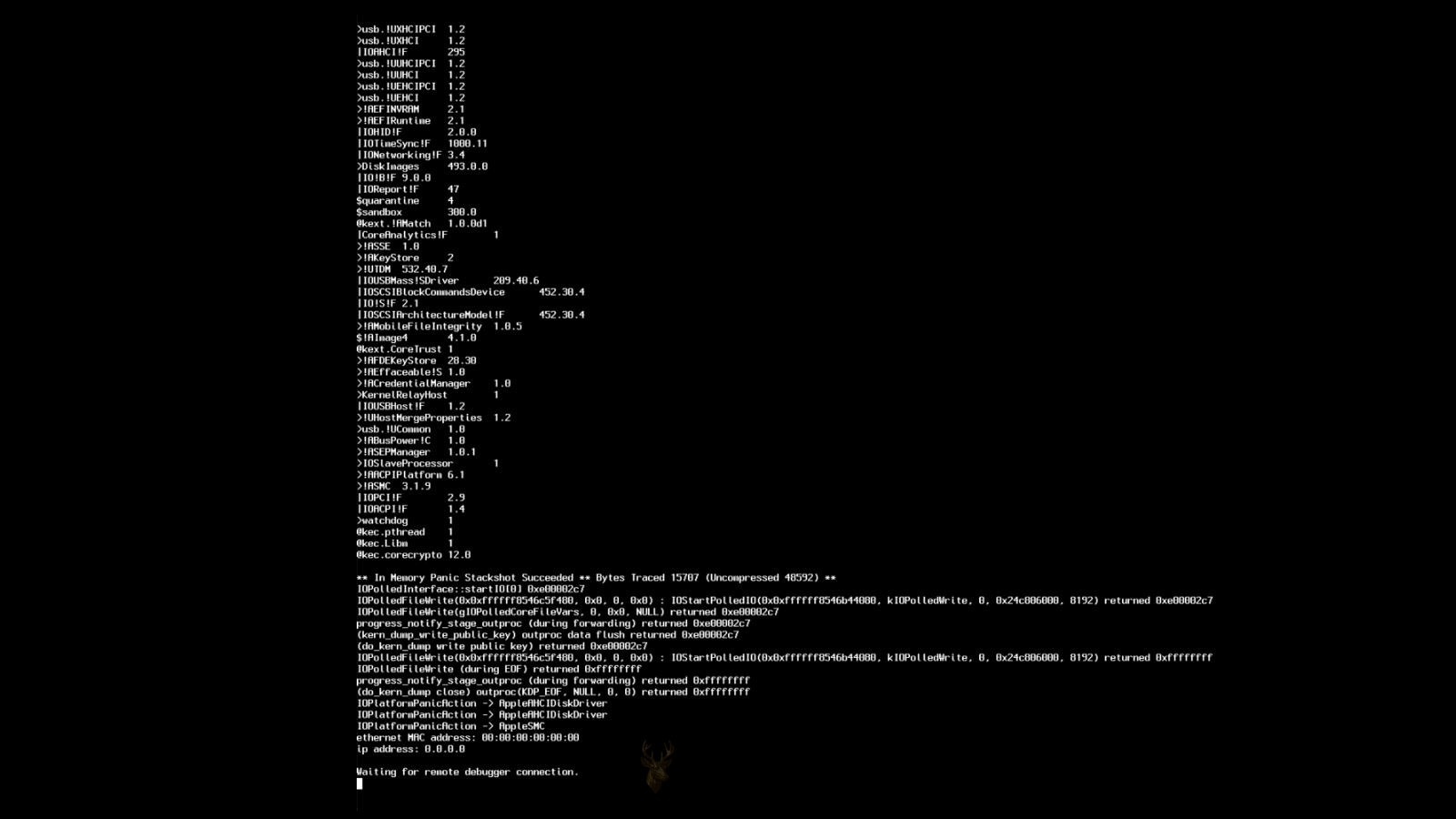
A Kernel Panic Occurs When macOS Cannot Continue Operating Safely
A Mac may suddenly restart and display a message explaining that the computer restarted because of a problem. This behavior is commonly associated with a kernel panic, which occurs when macOS detects a serious condition that prevents the operating system from continuing safely.
The kernel controls communication between macOS, installed hardware, memory, storage, drivers, and running software. When an error affects a critical part of that process, the system may stop immediately rather than continue operating with unstable data or hardware behavior.
One isolated restart does not always indicate permanent hardware failure. Repeated kernel panics, however, should be investigated because they can interrupt work, damage open files, and become more frequent over time.
The Restart Message Does Not Identify the Cause by Itself
After macOS restarts, it may display a general notice stating that the computer restarted because of a problem. The message confirms that an unexpected system-level failure occurred, but it does not explain whether the cause was memory, storage, software, an external device, or another component.
The timing of the restart, recently installed software, connected accessories, system logs, and hardware condition must be considered together. Replacing parts based only on the restart message can lead to unnecessary repairs.
| Observed Pattern | Possible Area to Investigate |
|---|---|
| Restart begins after connecting one device | Accessory, cable, adapter, port, or related software. |
| Restart occurs during heavy processing | Memory, temperature, power, graphics, or processor stability. |
| Restart occurs while opening files | Storage condition, file corruption, or application behavior. |
| Restart begins after a software update | Compatibility, system files, drivers, or extensions. |
| Restart occurs even before sign-in | Hardware, firmware, or core operating-system problem. |
A Kernel Panic Is Different From an Ordinary Application Crash
An ordinary application crash usually closes only the affected program. Other applications and macOS continue running, and the user may be able to reopen the program without restarting the computer.
A kernel panic affects the entire operating system. The screen may freeze, darken, display diagnostic text, or restart without allowing the user to save open work.
- One application closes but the desktop remains usable.
- The entire Mac freezes and restarts automatically.
- A multilingual restart message appears.
- The computer displays diagnostic text before restarting.
- The same failure returns during similar system activity.
The Panic Report Can Contain Important Diagnostic Information
macOS may create a panic report after the computer restarts. The report can include the time of the failure, operating-system version, hardware model, loaded extensions, processor activity, and the process that was running when the panic occurred.
The report is technical and should not be interpreted from one isolated word or component name. A device or process listed near the failure may have been active without being the true cause.
A panic report is most useful when it is compared with repeated failures, recent system changes, and the exact activity occurring before each restart.
Repeated Reports Can Reveal a Consistent Pattern
One panic report may not provide enough information to identify an intermittent problem. Several reports can show whether the same extension, process, hardware subsystem, or error type appears repeatedly.
If every panic occurs in a different area, the system may have a broader stability problem involving memory, storage, power, or motherboard communication. If the same item appears each time, the diagnosis can be narrowed more quickly.
Recently Installed Software Should Be Reviewed
Software that operates close to the system level can contribute to kernel panics. Security tools, virtualization programs, storage utilities, hardware-control applications, network filters, and older system extensions may interact directly with macOS.
A panic that begins immediately after installing or updating one of these programs should be tested by disabling or removing it through the developer’s normal procedure.
| Software Type | Possible System Interaction |
|---|---|
| Security software | May inspect files, network traffic, or system activity. |
| Virtualization software | Can interact with processors, memory, networking, and storage. |
| Storage utilities | May install low-level components for disks or file systems. |
| Hardware-control software | Can communicate with displays, audio devices, docks, or accessories. |
| Older system extensions | May be incompatible with the installed macOS version. |
Removing an Application May Not Remove Its System Components
Dragging an application to the Trash may leave behind extensions, launch services, filters, helper tools, or background processes. These remaining components can continue loading even though the main application is gone.
When a low-level program is suspected, its official uninstaller or removal instructions should be used. Manually deleting unknown system files can create additional startup and stability problems.
Older Extensions May Become Incompatible After a macOS Update
A system extension that worked correctly under an earlier version of macOS may become unstable after an operating-system upgrade. Changes to security, driver handling, file systems, or hardware communication can expose compatibility problems.
The Mac may restart only when the related hardware or feature is used. For example, a panic may appear when connecting a specialized device, starting a virtual machine, or accessing a third-party storage volume.
- Record when the unexpected restarts began.
- Review macOS updates installed shortly before the problem.
- Identify software that uses extensions or background services.
- Check whether compatible updates are available.
- Remove unsupported components through the proper uninstaller.
- Repeat the activity that previously caused the panic.
Safe Mode Can Help Separate Startup Software From Core Problems
Starting a Mac in Safe Mode limits some software and performs certain startup checks. If the computer remains stable in Safe Mode but panics during a normal startup, a login item, extension, cache, font, or background component may be involved.
Safe Mode is a diagnostic condition rather than a permanent operating mode. Some graphics, audio, sharing, and accessory features may behave differently while it is active.
A Stable Safe Mode Session Does Not Prove the Hardware Is Good
Safe Mode reduces the number of active components and may also reduce graphics acceleration or background activity. A marginal hardware problem may therefore remain hidden because the computer is under a lighter workload.
The result should be considered alongside hardware diagnostics, panic reports, and testing under the conditions that normally produce the restart.
Login Items Can Trigger Problems Shortly After Sign-In
Applications configured to open automatically may start several background services as soon as the user signs in. A panic that occurs at nearly the same point after every login may be connected to one of these items.
Disabling optional login items can help isolate the cause. Required security or business software should not be removed without understanding its purpose and having a plan to restore it.
| Restart Timing | Possible Direction |
|---|---|
| Before the Apple logo completes | Firmware, hardware, storage, or core startup files. |
| At the login screen | System service, graphics, storage, or account-related activity. |
| Immediately after sign-in | Login items, user software, cloud services, or background tools. |
| When one application opens | Application, plugin, extension, or accessed hardware. |
| Only after extended use | Heat, memory growth, power, storage, or intermittent hardware. |
External Devices Can Cause System-Level Instability
Storage drives, docks, audio interfaces, displays, network adapters, hubs, and other accessories communicate with macOS through hardware controllers and software support components. A defective device or unstable connection can contribute to a kernel panic.
The Mac should be tested with nonessential devices disconnected. Required input devices and power should remain connected, while optional accessories are added back one at a time.
- Disconnect external storage and card readers.
- Remove USB and Thunderbolt hubs.
- Test without docks and video adapters.
- Disconnect specialized audio or business equipment.
- Reconnect one device at a time after stability is confirmed.
- Use known-good cables and adapters during comparison testing.
A Damaged Cable Can Affect More Than Data Transfer
Some external connections carry data, display signals, and power through the same cable. A damaged cable can create intermittent communication, voltage instability, repeated device detection, or controller errors.
The accessory itself may operate normally on another connection while the original cable produces restarts. Cable substitution is therefore an important part of device testing.
Bus-Powered Devices Can Place Additional Demand on the Mac
Portable drives, hubs, adapters, and other devices may receive their operating power directly from the Mac. A defective accessory or overloaded hub can draw unstable current and interfere with normal communication.
A restart that occurs when a device is connected, accessed, or awakened should be tested with a powered hub, another port, another cable, or the device removed entirely.
An accessory can appear to be recognized correctly and still cause instability when it begins transferring data or drawing more power.
External Storage Problems Can Trigger Panics During File Access
A damaged drive, unstable enclosure, incompatible file-system utility, or failing connection can cause a panic when macOS attempts to mount, read, write, eject, or index the volume.
The restart may occur only when opening a folder, copying a large file, or waking the drive from sleep. Important data should be protected before repeated testing is performed on a device that may be failing.
Internal Storage Problems Can Affect Core System Activity
macOS depends on the internal storage device for system files, temporary data, virtual memory, applications, and user information. Read or write errors can destabilize critical processes and contribute to unexpected restarts.
Storage problems may also appear as slow startup, beachball delays, damaged files, applications that refuse to open, or repeated attempts to repair the disk.
| Storage-Related Symptom | Possible Concern |
|---|---|
| Panic during large file transfers | Drive, controller, cable, enclosure, or file-system instability. |
| Panic while waking from sleep | Storage power transition or device communication problem. |
| Repeated disk repair messages | File-system damage or underlying storage failure. |
| Slow startup with frequent freezes | Read errors, insufficient free space, or failing storage. |
| Files become damaged after restarts | Interrupted writes or unstable storage hardware. |
File-System Damage Can Develop After Forced Shutdowns
Each kernel panic interrupts the system without allowing every open file and storage transaction to close normally. Modern file systems are designed to reduce damage, but repeated interruptions can still create directory, snapshot, or application-data problems.
Disk Utility or recovery tools may identify file-system errors after several unexpected restarts. Repairing those errors may be necessary, but the original cause of the kernel panic must still be found.
Insufficient Free Storage Can Increase System Pressure
A nearly full startup disk leaves less room for temporary files, system updates, application caches, and virtual memory. This condition does not automatically cause a kernel panic, but it can make an already unstable system less reliable.
Free space should be restored carefully without deleting important user data. Large files should be reviewed, backed up, and moved through a controlled process.
- Review available storage before installing updates.
- Empty the Trash only after confirming its contents.
- Remove unused applications through their normal process.
- Move completed projects to verified backup storage.
- Avoid deleting unfamiliar system folders manually.
Memory Errors Can Cause Different Panic Reports
Defective or unstable memory can corrupt data used by many unrelated processes. As a result, repeated panic reports may name different applications, extensions, or system components even though the underlying cause is the same RAM problem.
Memory-related failures may occur more frequently while several applications are open, large files are processed, or the computer is under a sustained workload.
Replaceable Memory Should Be Checked for Compatibility and Contact
Some Mac models use removable memory modules. Incorrect specifications, mixed modules, poor seating, contaminated contacts, or failing slots can create intermittent system instability.
The correct memory type and supported configuration should be verified for the exact Mac model. Modules should not be removed or exchanged while power or battery voltage remains connected to the logic board.
- Record the installed memory configuration.
- Verify that the modules match the Mac model requirements.
- Disconnect power according to the service procedure.
- Inspect modules and slots for contamination or damage.
- Reseat compatible memory evenly and securely.
- Test each supported configuration under the original workload.
Soldered Memory Requires Logic Board Diagnosis
Many Mac models have memory soldered directly to the logic board. A suspected memory fault cannot be tested by simply replacing a removable module.
Diagnostics, panic-report patterns, thermal testing, and board-level inspection may be needed. In some cases, the practical repair involves logic board service or replacement rather than a separate RAM upgrade.
Apple Diagnostics Can Identify Some Hardware Problems
Apple Diagnostics can test certain internal components and may return a reference code when it detects a fault. It can be useful when the Mac repeatedly restarts without a clear software cause.
A passed diagnostic test does not prove that every component is reliable. Intermittent failures, heat-related problems, storage errors, accessory conflicts, and some logic board faults may not appear during a short automated test.
A diagnostic result should be treated as one part of the investigation rather than a complete guarantee of hardware condition.
Testing Must Reproduce the Conditions That Trigger the Restart
A Mac that passes a brief test may still panic during video processing, large file transfers, external display use, virtual machines, gaming, or extended operation. The original workload provides important information about which subsystem is being stressed.
Testing should be controlled so that one variable changes at a time. Replacing software, disconnecting devices, reinstalling macOS, and changing hardware simultaneously can hide the actual cause.
Graphics Activity Can Expose an Unstable System
Video editing, external displays, games, three-dimensional applications, and hardware-accelerated web content can place sustained demand on the graphics subsystem. A kernel panic that appears only during these activities may involve graphics hardware, shared memory, drivers, temperature, or power delivery.
The application visible at the time of the restart is not necessarily defective. It may simply be the program that placed enough demand on the system to expose an underlying weakness.
| Graphics-Related Pattern | Possible Area to Review |
|---|---|
| Panic when connecting an external display | Display cable, adapter, dock, port, graphics support, or resolution settings. |
| Panic during video rendering | Graphics load, temperature, memory, power, or application compatibility. |
| Panic when waking displays | Sleep transition, graphics switching, dock, or display communication. |
| Panic only with one monitor | Monitor firmware, cable, adapter, refresh rate, or connection type. |
| Panic during ordinary desktop use | Broader graphics, logic board, memory, or operating-system instability. |
Automatic Graphics Switching Can Affect Some Mac Models
Mac models equipped with more than one graphics processor may switch between them according to workload and power conditions. A failure can occur during the transition rather than while one graphics processor is operating continuously.
The restart may appear when an application opens, an external display is connected, or the computer changes between battery and adapter power. Panic reports and repeated testing can help determine whether graphics switching is part of the pattern.
External Displays Add Cables, Adapters, and Controllers to the Test
An external display configuration may include a dock, conversion adapter, long cable, monitor hub, and power delivery through one connection. A fault anywhere in that chain can create intermittent detection or unstable communication.
The Mac should be tested with the display connected directly when possible. Another cable, adapter, resolution, refresh rate, or monitor can help isolate the source.
- Test the Mac without the external display.
- Bypass the dock or hub when a direct connection is available.
- Use a known-good cable rated for the required signal.
- Reduce the resolution or refresh rate temporarily.
- Reconnect only one display during initial testing.
Temperature Problems Can Produce Restarts Under Load
A cooling problem can allow internal temperatures to rise during demanding work. Dust buildup, blocked airflow, degraded thermal material, defective fans, damaged temperature sensors, or poor contact between cooling components can contribute to instability.
Many Macs reduce processor speed or increase fan activity before reaching a dangerous condition. A sudden restart under heat does not automatically prove that overheating is the cause, but temperature behavior should be included in the diagnosis.
A panic that appears only after sustained work may require longer testing than a brief startup diagnostic can provide.
Fan Noise Alone Does Not Confirm Excessive Temperature
Fans may run faster during normal processing, indexing, updates, video work, or external display use. High fan speed means the cooling system is responding to a reported condition, but it does not identify whether the temperature is abnormal.
Conversely, a Mac can overheat if a fan is not spinning correctly even when the computer remains relatively quiet. Fan operation, airflow, temperature readings, and workload should be evaluated together.
Blocked Airflow Can Be Caused by the Work Environment
Using a Mac notebook on bedding, soft furniture, or another surface that obstructs its vents can restrict cooling. Desktop Macs may also run warmer when placed in enclosed cabinets or against walls that limit exhaust airflow.
Environmental heat and accumulated dust can make the condition worse. The computer should be tested on a stable surface with unobstructed ventilation before internal repair conclusions are made.
| Cooling Observation | Possible Meaning |
|---|---|
| Restart occurs after several minutes of heavy use | Heat, power, memory, or graphics instability may be load-dependent. |
| Fans remain at high speed after startup | Sensor, software, or cooling-control issue may be present. |
| One fan does not spin | Fan, cable, connector, or control-circuit failure may exist. |
| Mac is stable in a cooler environment | Temperature may influence the fault, but further testing is still required. |
| Restart occurs while the Mac is cold | The cause may not depend on sustained heat. |
Power Delivery Problems Can Resemble Kernel Panics
An unstable power adapter, damaged cable, battery fault, charging circuit, or logic board power rail can cause sudden shutdowns and restarts. Some power interruptions may leave reports that resemble software failures, while others provide little diagnostic information.
The exact behavior matters. A Mac that loses power instantly may have a different problem from one that displays a panic screen, records a detailed report, and then restarts.
The Power Adapter Should Match the Mac’s Requirements
A low-wattage, damaged, or incompatible adapter may not provide enough power during demanding activity. The Mac may draw from the battery while connected or become unstable if the battery is also weak.
The correct adapter, cable, connector condition, and charging behavior should be confirmed. A charger that works for light tasks may still fail when system demand increases.
- Confirm that the adapter is intended for the Mac model.
- Inspect the cable and connector for damage or heat discoloration.
- Test another known-good compatible adapter when available.
- Observe whether the restart occurs only on battery or adapter power.
- Check whether the battery percentage drops during heavy use while connected.
Battery Condition Can Influence System Stability
A worn or damaged battery may be unable to support sudden changes in power demand. The Mac may operate normally during light use and restart when the processor, graphics system, or connected devices require more energy.
Battery health information can provide useful direction, but a normal status message does not exclude every electrical fault. Physical swelling, rapid discharge, unexpected shutdowns, and charging irregularities should also be considered.
Sleep and Wake Transitions Can Trigger Repeated Panics
During sleep, macOS changes the power state of memory, storage, network hardware, displays, ports, and other controllers. A problem may appear only when those components enter sleep or return to full operation.
The Mac may restart while the lid is closed, immediately after it is opened, or several seconds after the desktop returns. Connected accessories and background software can also participate in the wake process.
| Sleep-Related Timing | Possible Direction |
|---|---|
| Restart occurs as sleep begins | Power transition, background task, storage, or connected device. |
| Restart occurs when the lid opens | Display, graphics, sensor, memory, or wake-state restoration. |
| Restart occurs after several hours asleep | Standby transition, battery, background wake, or power-management issue. |
| Restart occurs only with a dock connected | Dock, display, network, storage, or power delivery may be involved. |
| Mac remains stable when sleep is avoided | The fault may be tied to a power-state transition rather than constant operation. |
Closing the Lid Can Change More Than the Display State
On a Mac notebook, closing the lid activates sensors and may change display routing, power behavior, and sleep status. A damaged sensor, external display arrangement, or clamshell configuration can affect this process.
Testing should compare lid-open use, normal sleep, and external-display operation. The results can help determine whether the failure is connected to one particular state.
Network Hardware Can Contribute to Wake Failures
Wi-Fi, Ethernet adapters, docks, and network services may become active during wake or scheduled background activity. A driver, adapter, or network extension problem can cause instability during that transition.
Testing without optional network adapters and third-party network software can help separate a communication problem from a broader sleep failure.
The fact that a panic occurs during wake does not mean the display or sleep system is the only possible cause.
macOS Updates Can Correct Known Stability Problems
Operating-system updates may include corrections for graphics, storage, networking, power management, security, and hardware compatibility. A Mac running an outdated maintenance release may experience a problem that has already been addressed.
Before updating, important files should be backed up and adequate free storage should be confirmed. An unstable Mac should not begin a major upgrade without considering the risk of another restart during installation.
A Problem Beginning After an Update Requires Careful Comparison
If kernel panics begin after a macOS update, the cause may be incompatible third-party software, a damaged installation, a newly exposed hardware weakness, or an operating-system defect.
The update date, first panic time, panic reports, and application changes should be compared. Assuming the update alone is responsible can overlook another change that occurred at the same time.
- Record the installed macOS version and build.
- Review the dates of recent updates and software installations.
- Check whether third-party tools support the current macOS release.
- Test with optional extensions and accessories removed.
- Install available compatible maintenance updates.
- Repeat the workload that previously caused the restart.
Reinstalling macOS Can Replace Damaged System Files
A reinstall can replace core operating-system components without necessarily erasing user data, depending on the method used. This may correct damaged or incomplete system files that contribute to repeated panics.
Reinstallation should not be treated as proof that the hardware is healthy. A failing drive, unstable memory, or power problem can interrupt the installation or cause the same panics to return afterward.
A Backup Is Important Before System Repair
Repeated unexpected restarts increase the risk of file damage and may indicate failing storage or another deteriorating component. Important user data should be copied to verified storage before extensive testing, updates, or reinstallation.
A backup should be checked rather than assumed complete. Critical documents, photographs, project files, and account information should be confirmed from another device or restore process when possible.
- Confirm that the backup destination is healthy and has enough space.
- Allow active file transfers to finish before restarting.
- Verify that recently modified files are included.
- Open several backed-up files from the destination.
- Keep the backup disconnected during risky repair procedures.
Migration Can Carry the Original Software Problem to Another Installation
Restoring every application, extension, setting, and background service from a backup can also restore the component that caused the kernel panic. A clean installation may appear stable until the full migration is completed.
When software is strongly suspected, applications and data may need to be returned in controlled stages. Stability should be checked after each group is added.
A New User Account Can Help Isolate Account-Level Software
Creating a temporary user account can help determine whether login items, preferences, background agents, or account-specific applications contribute to the problem.
If the Mac remains stable in the new account, the investigation can focus on software that loads only for the original user. A panic that occurs in every account is more likely to involve system-wide software or hardware.
| Account Test Result | Possible Interpretation |
|---|---|
| Only the original account triggers the panic | Login items, preferences, agents, or account-specific software may be involved. |
| Every account triggers the panic | System-wide software, hardware, or operating-system problem is more likely. |
| Panic occurs before any account signs in | The cause is not limited to one user profile. |
| New account is stable until one application is installed | The added application or its components should be reviewed. |
Background Agents May Run Without a Visible Application Window
Cloud synchronization, backup tools, menu bar utilities, update services, and hardware helpers can remain active even when their main applications are closed. A panic may therefore appear while the user believes no related program is running.
Activity logs, launch items, and installed system components should be reviewed when the failure occurs during otherwise light use.
Virtualization Places Heavy Demand on Several Subsystems
Virtual machines use processor virtualization, large memory allocations, virtual storage, networking, and graphics simultaneously. A panic that occurs during virtual machine use can involve the virtualization software or expose marginal hardware stability.
The virtual machine software should be updated for the installed macOS version. Memory and processor allocations should also leave enough resources for the host system.
A demanding application can reveal a hardware fault without being the component that created it.
Audio Hardware and Drivers Can Produce System-Level Failures
Professional audio interfaces, recording devices, virtual audio tools, and specialized plugins can install system components that operate continuously. Compatibility problems may appear when recording begins, sample rates change, or the device wakes from inactivity.
The Mac should be tested with the external audio device disconnected and related system software disabled or updated. Ordinary built-in audio can then be compared with the specialized configuration.
Security Software Can Interact With Files and Network Traffic
Antivirus programs, firewalls, web filters, and endpoint-management tools may inspect data at a low level. An outdated or damaged component can contribute to instability after a macOS change.
Business-managed software should not be removed without authorization. Compatibility, policy requirements, and replacement protection must be considered before testing proceeds.
Peripheral Management Utilities Should Match the Hardware
Keyboard, mouse, printer, scanner, display, and docking utilities may install background services to control special features. Old software can remain even after the original device is no longer used.
Removing unused hardware software can simplify the system, but the official removal process should be used so that hidden components are not left behind.
- Review software installed for devices no longer connected.
- Confirm compatibility with the current macOS version.
- Use the manufacturer’s uninstaller when available.
- Restart the Mac after removing system-level components.
- Check whether the same panic pattern returns.
Panic Reports Should Be Preserved Before Major Changes
Removing software, reinstalling macOS, or erasing storage can delete diagnostic records that show how the problem developed. Copies of recent panic reports and notes about each restart should be saved before major repair steps begin.
The records are more useful when they include the date, workload, connected devices, power source, and whether the Mac had recently awakened from sleep.
| Information to Record | Diagnostic Value |
|---|---|
| Exact restart time | Allows comparison with logs and scheduled activity. |
| Open applications | Shows which workloads were active. |
| Connected devices | Helps identify accessory patterns. |
| Battery or adapter use | Supports power-related comparison. |
| Sleep or wake status | Identifies power-transition failures. |
| Panic report text | Provides repeated technical patterns for analysis. |
One Change at a Time Produces More Reliable Results
Disconnecting every accessory, deleting several applications, updating macOS, and reinstalling the system at the same time may stop the panics without revealing what caused them.
A controlled process makes the repair more dependable. Each change should be documented, followed by enough testing to determine whether the original failure can still be reproduced.
- Back up important data and preserve panic reports.
- Disconnect optional devices and test the Mac.
- Review recently added system-level software.
- Install appropriate updates or remove one suspected component.
- Repeat the original workload for a meaningful period.
- Record whether the panic returns and under what conditions.
- Continue to hardware testing if software isolation does not resolve the problem.
Intermittent Panics May Require Extended Observation
A Mac that restarts once every several days cannot be considered repaired after a brief period of normal operation. The computer should be tested through the same applications, sleep cycles, accessories, and workloads that previously produced the failure.
The longer the original interval between panics, the longer the observation period may need to be before stability can be judged with confidence.
Logic Board Faults Can Produce Unpredictable Panic Patterns
The Mac logic board distributes power and connects the processor, memory, storage, graphics system, ports, sensors, and other controllers. A fault in one part of the board can therefore create symptoms that appear in several unrelated areas.
Intermittent solder joints, damaged traces, corrosion, failed controller chips, and unstable voltage rails may cause panic reports that change from one restart to another. Board-level diagnosis may be necessary when software and replaceable components have already been excluded.
Liquid Exposure Can Create Delayed Instability
A Mac may continue working after a small spill and begin restarting days or weeks later as corrosion develops. Moisture can affect connectors, sensors, power rails, memory communication, and other logic board circuits.
Visible residue near one area does not guarantee that the damage is limited to that location. Liquid can travel beneath shields, along cables, and under surface-mounted components.
- Review whether the Mac was exposed to liquid or high humidity.
- Inspect connectors and board areas for corrosion or residue.
- Disconnect power before internal examination.
- Avoid repeated startups when active corrosion is suspected.
- Protect important data before the condition becomes worse.
Impact Damage Can Affect Internal Connections
A drop or strong impact can damage more than the exterior case. Internal connectors may loosen, solder joints can crack, and the logic board may flex enough to create intermittent communication failures.
The Mac may continue operating until it is moved, warmed, cooled, or placed under load. A panic that begins after physical damage should be evaluated with the event in mind even when the case appears only lightly marked.
| Physical History | Possible Internal Concern |
|---|---|
| Recent drop | Loose connectors, cracked solder joints, storage damage, or board flex. |
| Liquid exposure | Corrosion, leakage current, or damaged components. |
| Previous repair | Improper reassembly, damaged cables, or missing shields and screws. |
| Case bending | Pressure on the logic board, battery, display, or internal connectors. |
| Frequent transport | Intermittent connections may worsen through repeated movement. |
Previous Repairs Can Introduce New Variables
A kernel panic beginning after battery, display, keyboard, storage, or logic board service may be connected to a cable that is not fully seated, an incorrect part, misplaced insulation, or damage created during disassembly.
The repair area should be reviewed before unrelated software changes are made. Internal screws, shields, thermal material, and connectors may all affect system stability when installed incorrectly.
Sensor Problems Can Affect Power and Cooling Decisions
Mac computers use temperature, current, voltage, lid, and other sensors to control cooling and power behavior. Missing or unrealistic sensor data can cause high fan speed, reduced performance, charging problems, sleep issues, or system instability.
A damaged sensor cable or connector may produce problems after an otherwise successful repair. Diagnostic logs and hardware testing can help determine whether sensor communication is involved.
A small disconnected sensor can affect the behavior of the entire computer because macOS relies on that information for system control.
Third-Party Replacement Parts Can Affect Stability
Replacement batteries, storage devices, display assemblies, adapters, and other components vary in quality and compatibility. A part may fit physically and still communicate incorrectly or provide unstable electrical behavior.
If panics begin after a component replacement, the part number, firmware support, installation quality, and original hardware behavior should be reviewed. Returning temporarily to a known-good configuration can provide useful evidence.
Storage Upgrades Can Introduce Adapter and Firmware Problems
Some Mac models use proprietary storage connectors or require adapters when standard drives are installed. An incompatible adapter, unsupported firmware feature, or unstable power-management behavior can cause restarts during sleep, wake, or heavy storage activity.
The problem may not appear during ordinary file access. It can emerge only when the drive changes power state, performs background maintenance, or handles sustained writes.
| Upgrade-Related Pattern | Possible Cause |
|---|---|
| Panic begins after storage replacement | Drive, adapter, firmware, installation, or power-state compatibility. |
| Panic only during sleep or wake | Storage power management or adapter behavior. |
| Panic during large writes | Drive temperature, controller, firmware, or connection instability. |
| Panic stops with original hardware | The replacement configuration should be reviewed. |
A Clean Installation Can Help Separate Software From Hardware
When backups are secure and simpler isolation steps have failed, a clean installation of macOS on known-good storage can provide a controlled test environment. Only the operating system and essential updates should be present initially.
If the Mac still panics before third-party software or user data is restored, hardware becomes more likely. If the system remains stable until a particular program or migration stage is added, the software investigation can focus there.
- Verify that important data is backed up and readable.
- Preserve recent panic reports and repair notes.
- Install macOS on known-good storage through an appropriate method.
- Apply supported system updates.
- Test without restoring applications or settings.
- Add software and data in controlled stages.
- Record the point at which instability returns.
An External Test System Can Protect the Original Installation
On supported Macs, starting from an external system can help test the computer without immediately altering the internal installation. This may show whether the panic continues under a separate operating environment.
The external drive, enclosure, cable, and operating system must also be reliable. A defective test device can create misleading results.
Recovery Mode Stability Provides Limited Evidence
A Mac that remains stable in macOS Recovery may have a problem connected to the normal operating system, user software, or a workload not present in recovery. However, recovery uses fewer features and may not stress the graphics, memory, storage, or network hardware in the same way.
A panic inside recovery is more concerning because the system is operating with a reduced software environment. Hardware, firmware, storage, or severe system-level instability should then be investigated carefully.
Internet Recovery Adds Network and Firmware Variables
Internet Recovery may depend on firmware support, Wi-Fi or Ethernet access, DNS, network security, and Apple’s recovery service. A failure during that process does not automatically identify the same cause as the original kernel panic.
Local recovery, external boot testing, and ordinary macOS use should be compared separately. Network interruptions should not be mistaken for logic board or storage failure.
Each diagnostic environment changes the workload, so stability in one environment does not guarantee stability in every other condition.
Repeated Restarts Can Damage Unsaved Work
A kernel panic can interrupt documents, databases, photo libraries, email files, and other information while changes are still being written. Applications may recover temporary versions, but recovery is not guaranteed.
Important work should be saved frequently and copied to a verified backup while the computer remains unstable. Continuing normal production use increases the chance of losing recent changes.
Databases and Large Libraries Require Additional Care
Photo libraries, accounting files, email databases, virtual machines, and project catalogs may contain many related files that must remain synchronized. An unexpected restart during an update can affect the entire library rather than one visible document.
These data sets should be backed up through methods designed for the application whenever possible. Copying only a few visible folders may not preserve every required component.
| Data Type | Risk During Unexpected Restart |
|---|---|
| Open document | Recent unsaved edits may be lost. |
| Photo or media library | Database and media references may become inconsistent. |
| Virtual machine | Guest file system or virtual disk may be damaged. |
| Accounting database | Active transactions may remain incomplete. |
| System update | Installation files or startup components may become incomplete. |
Installing Updates During Active Instability Requires Caution
An update can correct a software problem, but an unexpected restart during installation can leave the system unable to start. The recent panic frequency, backup condition, battery health, and power reliability should be considered first.
When the Mac cannot remain stable long enough to complete ordinary work, protecting data and diagnosing the hardware may be safer than immediately attempting a major operating-system upgrade.
Erase-and-Reinstall Procedures Should Not Be the First Step
Erasing storage removes valuable logs, software history, and the original environment in which the panics occurred. It can also create unnecessary data risk when the cause is a loose device, incompatible extension, or hardware fault.
Less destructive testing should normally come first. Erasure is more useful after backups are verified and the information gained from the original installation has been preserved.
Panic Frequency Helps Measure Severity
A Mac that panics once after a specific update may require a different response from one that restarts several times each day. Increasing frequency can indicate a deteriorating component, expanding corruption, or a workload that is repeatedly triggering the same fault.
- Record every panic date and time.
- Note whether the interval between restarts is becoming shorter.
- Compare failures with temperature, workload, and sleep activity.
- Document whether new symptoms appear between panics.
- Reduce normal use when the condition is worsening.
Some Panics Appear Random Until the Trigger Is Documented
A restart may seem random when the triggering event occurs in the background. Cloud synchronization, indexing, backup activity, sleep transitions, security scans, and device wake events can all happen without a visible application window.
Comparing panic times with system logs and scheduled activity can reveal a pattern that ordinary observation misses.
A Stable Idle Test Does Not Confirm a Complete Repair
Leaving the Mac at the desktop tests only a limited condition. The computer may remain stable while idle and panic as soon as memory, graphics, storage, networking, or external devices are used heavily.
Final testing should include the original applications, accessories, sleep cycles, and workload. A repair should address the circumstances that produced the failure rather than only basic startup.
| Test Condition | What It Helps Evaluate |
|---|---|
| Cold startup | Firmware, storage detection, and initial hardware state. |
| Extended idle operation | Background services and low-load stability. |
| Sustained processor workload | Temperature, power, processor, and memory stability. |
| Large file transfer | Storage, memory, cables, and connected devices. |
| Sleep and wake cycles | Power management, graphics, storage, and accessories. |
| Original production workload | Whether the practical failure has been resolved. |
Professional Diagnosis Is Appropriate When the Cause Remains Unclear
Repeated kernel panics can involve software, memory, storage, power, graphics, external devices, thermal conditions, or the logic board. The overlapping symptoms can make part replacement by guesswork expensive and ineffective.
Professional testing is especially appropriate when the Mac contains important data, has liquid or impact history, restarts during recovery, fails under several operating systems, or continues panicking after a controlled clean installation.
A Complete Repair Includes Data Protection and Repeated Verification
The first priority is protecting important information before the instability becomes worse. Diagnostic records should then be preserved, optional devices removed, system-level software reviewed, and hardware tested under the conditions that trigger the panic.
A Mac should not be considered repaired merely because it starts once without displaying an error. Reliable operation should continue through normal workloads, sleep and wake transitions, external device use, and an observation period appropriate to the original panic frequency.
The most dependable diagnosis comes from identifying a repeatable pattern, changing one variable at a time, and confirming stability under real use.
Kernel Panics Require a Systematic Investigation
A kernel panic is macOS responding to a critical condition that prevents safe operation. The visible restart message confirms the failure but does not identify whether software, hardware, storage, memory, power, temperature, or a connected device caused it.
Careful records, verified backups, controlled isolation, and repeated testing provide a more reliable path than random software removal or immediate part replacement. Once the real trigger is identified and corrected, the Mac should remain stable through the same conditions that previously caused repeated unexpected restarts.











