
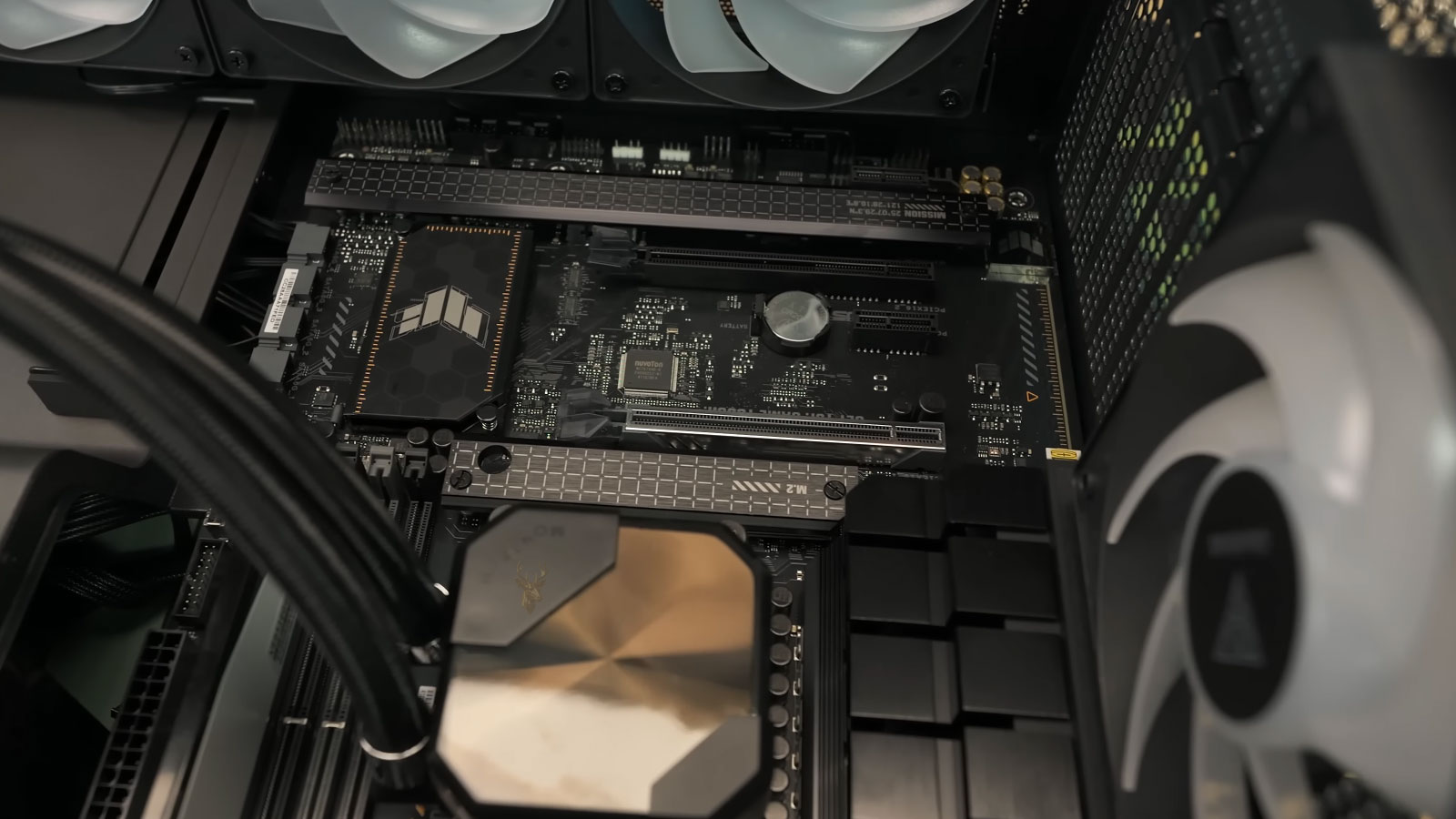
A Small Motherboard Battery Preserves Important Settings While the Computer Is Off
Desktop and laptop computers use a small battery to preserve certain firmware information when the system is shut down and disconnected from external power. This battery is commonly called the CMOS battery, although modern systems may store settings differently from older computers.
The battery helps maintain the real-time clock and supports the retention of selected BIOS or UEFI settings. When its voltage becomes too low, the computer may lose the correct date, time, boot configuration, or other stored information after power is removed.
A weak battery normally does not prevent the processor, memory, or storage drive from operating. However, the settings it fails to preserve can create startup warnings, delayed booting, incorrect timestamps, and repeated configuration problems.
The Real-Time Clock Continues Running Without Normal System Power
The computer clock must continue tracking time even when the machine is turned off. The motherboard battery supplies a very small amount of power to the real-time clock and related circuitry while the primary power source is unavailable.
When the battery weakens, the clock may stop, slow down, or return to a default date after shutdown. The operating system may correct the time after connecting to the internet, but the underlying battery problem remains.
| Battery-Supported Function | Possible Effect of Failure |
|---|---|
| Real-time clock | The date and time may reset after shutdown. |
| Firmware configuration | Custom BIOS or UEFI settings may return to defaults. |
| Boot information | The computer may search the wrong device during startup. |
| Hardware preferences | Fan, storage, or security settings may need to be restored. |
The Date May Reset to an Older Default Value
A computer with a depleted motherboard battery may display a date from many years earlier. The exact default depends on the motherboard, firmware version, and operating system.
The time may also return to midnight or another preset value. If the machine remains connected to power continuously, the problem may not become visible until it is unplugged, moved, or disconnected during maintenance.
- The clock becomes incorrect after the computer is unplugged.
- The date returns to the same older value repeatedly.
- The correct time remains only while external power is connected.
- The operating system corrects the clock after internet access begins.
- Startup warnings appear before Windows or another operating system loads.
An Incorrect Clock Can Affect More Than the Time Display
Applications and online services rely on accurate time for security, file management, synchronization, licensing, and communication. A significant clock error can therefore produce problems that seem unrelated to the motherboard battery.
Websites may report certificate errors, email messages may appear in the wrong order, and synchronized files may receive confusing timestamps. Scheduled tasks can also run at unexpected times or fail to run at all.
An incorrect system clock can create security and synchronization errors even when the computer otherwise appears to work normally.
Website Security Warnings Can Result From the Wrong Date
Secure websites use digital certificates with defined validity periods. If the computer believes the current date is far in the past or future, a valid certificate may appear expired or not yet valid.
Changing browsers or clearing browser data will not correct this condition. The system clock should be checked before assuming the website or security certificate is defective.
File Timestamps May Become Confusing
Files created or modified while the clock is incorrect can receive inaccurate dates. A document saved today may appear older than files created years earlier, or a new backup may seem to contain future-dated information.
Correcting the clock does not automatically repair timestamps already written to files. Important records may need to be reviewed individually if the computer operated with an incorrect date for an extended period.
| Clock-Related Symptom | Possible Consequence |
|---|---|
| Incorrect creation date | New files may appear in the wrong chronological order. |
| Incorrect modification date | Backup or synchronization software may misinterpret changes. |
| Future-dated file | Applications may treat the file as newer than all other versions. |
| Old system date | Secure websites and licensed software may report errors. |
| Incorrect scheduled time | Maintenance or backup tasks may run unexpectedly. |
BIOS Settings May Return to Their Defaults
The motherboard battery may also help preserve firmware settings. When the battery can no longer maintain them, the computer may load default values after external power is removed.
Default settings are not always suitable for the existing hardware configuration. A storage controller mode, memory profile, fan setting, virtualization option, or boot preference may change and affect normal operation.
- Boot order returns to a default sequence.
- Storage controller settings change unexpectedly.
- Virtualization support becomes disabled.
- Custom fan or temperature settings are lost.
- Memory performance settings return to standard values.
- Security or device-access settings must be entered again.
Boot Order Changes Can Delay Startup
If the firmware forgets the preferred boot drive, the computer may search optical drives, network devices, USB storage, or other locations before finding the operating system.
This can create a long delay or a message indicating that no boot device was found. The storage drive may still be healthy and fully readable, but the motherboard is no longer selecting it correctly.
Storage Mode Changes Can Prevent Windows From Starting
Some computers are installed with a particular storage controller mode, such as AHCI, RAID, or another manufacturer-specific configuration. If firmware settings reset to a different mode, the operating system may fail to start.
The resulting error can resemble drive failure or Windows corruption. Restoring the previous controller setting may allow the system to boot normally again.
A computer can lose access to a working operating system when the firmware forgets the storage mode used during installation.
Startup Messages May Directly Identify the Battery Problem
Many motherboards display a warning when the real-time clock has lost power or when stored settings are invalid. The message may mention a CMOS checksum error, low battery, time-and-date failure, or default settings being loaded.
The wording varies by manufacturer. Some systems pause and require a key press before startup continues, while others display the warning briefly and then load the operating system.
| Possible Startup Message | General Meaning |
|---|---|
| CMOS checksum error | Stored firmware information no longer matches its validation value. |
| Time and date not set | The real-time clock lost its retained information. |
| CMOS battery low | The motherboard detected insufficient battery voltage. |
| Defaults loaded | Firmware settings were reset to standard values. |
| Press a key to continue | The system requires acknowledgment before booting. |
A Checksum Error Does Not Always Mean the Firmware Is Damaged
Firmware settings are stored with information that helps verify their integrity. If the retained data is lost or changes unexpectedly, the motherboard may report a checksum error and reload default settings.
A weak battery is a common cause, but firmware updates, deliberate resets, motherboard faults, and interrupted configuration changes can produce similar messages. The pattern of when the error returns is important.
The Problem May Appear Only After the Computer Is Unplugged
A desktop computer connected to wall power may receive a small amount of standby power even while shut down. That power can conceal a weak battery because the clock and firmware circuitry are not relying entirely on the battery.
The symptoms may begin after the computer is moved, disconnected during a storm, switched off at a power strip, or stored for several days. This timing can make the failure appear sudden even though the battery weakened gradually.
- Set the correct date and time in the firmware.
- Record any custom BIOS or UEFI settings.
- Shut down the computer normally.
- Disconnect external power for a controlled period.
- Reconnect the computer and inspect the clock and settings.
- Confirm whether the same information was lost again.
Battery Life Varies Between Computers
Motherboard batteries often last for several years, but there is no exact replacement interval that applies to every computer. Battery quality, motherboard design, storage conditions, temperature, and how often the computer remains disconnected from power can all affect service life.
A computer stored without power for long periods may rely on the battery more heavily than a desktop that remains connected continuously. Older machines are therefore more likely to show clock and firmware-retention problems.
Most Desktop Motherboards Use a Coin-Cell Battery
Many desktop motherboards use a removable coin-cell battery installed in a holder. The battery is often visible after the side panel is removed, although expansion cards or cables may block access.
The replacement must match the type specified by the motherboard or computer manufacturer. A battery that fits physically is not automatically the correct electrical replacement.
Laptop Battery Designs Can Be More Difficult to Service
Laptops may use a coin cell in a holder, a wrapped battery with a cable, a rechargeable clock battery, or another design integrated into the motherboard assembly. Access may require removal of the bottom cover, main battery, keyboard, or internal components.
The connector polarity, voltage, cable length, and physical dimensions must match the original part. Installing an incorrect battery assembly can damage the motherboard or prevent the clock circuit from operating properly.
| Computer Design | Typical Service Consideration |
|---|---|
| Standard desktop | The coin cell may be directly accessible on the motherboard. |
| Compact desktop | Drive cages or expansion components may block access. |
| All-in-one computer | Display or rear-cover disassembly may be required. |
| Laptop with wired battery | The correct connector and polarity must be verified. |
| Specialized motherboard | The battery may be soldered or integrated into another assembly. |
The Computer Should Be Disconnected Before Battery Replacement
The system should be shut down and disconnected from external power before the motherboard battery is removed. On laptops, the main battery should also be disconnected when the design allows it.
Standby voltage may remain present inside a desktop even when the computer appears off. Pressing the power button briefly after unplugging can help discharge some remaining energy before internal work begins.
- Shut down the operating system normally.
- Disconnect the external power cable or adapter.
- Turn off the power-supply switch when one is present.
- Disconnect the laptop’s internal main battery when accessible.
- Use appropriate static precautions around the motherboard.
- Document existing firmware settings before removing the battery.
Removing the Battery Can Intentionally Clear Settings
Even when the old battery still retains some power, removing it may cause the firmware to lose stored configuration information. The replacement process should therefore include a plan for restoring the correct date, time, boot order, storage mode, and other required settings.
Photographs of firmware screens or written notes can help prevent uncertainty after installation. Specialized systems may require additional configuration that is not obvious from default values.
The Battery Holder Must Be Handled Carefully
Desktop coin-cell holders use small spring contacts to secure the battery and maintain electrical connection. Excessive force can bend or break the retaining clip.
The battery should be released according to the holder design rather than pried out with uncontrolled pressure. Metal tools can also create a short if they contact nearby components or both battery terminals.
A low-cost battery replacement can become a motherboard repair if the holder or nearby components are damaged during removal.
Battery Orientation Must Match the Original Installation
Coin-cell batteries have positive and negative sides. The battery must be installed in the same orientation required by the holder.
An incorrectly installed battery will not preserve the clock and may create electrical risk. The markings on the original battery, holder, and motherboard should be inspected before removal.
A New Battery Does Not Correct Every Clock Problem
If the date and firmware settings continue resetting after a correct replacement, the cause may involve poor battery contact, corrosion, a damaged holder, motherboard circuitry, incorrect firmware behavior, or another power-related fault.
The battery voltage and physical connection should be verified before assuming the replacement itself is defective. The computer should then be tested through more than one shutdown and power-disconnection cycle.
Battery Voltage Can Be Checked Before Replacement
A motherboard battery can be tested with an appropriate meter after it is removed or isolated according to the computer’s design. The measured voltage should be compared with the rating printed on the battery and the manufacturer’s service information.
A battery may still show some voltage while no longer providing enough dependable power to preserve the clock and firmware settings. Testing should therefore consider both the measurement and the symptoms observed after the computer is disconnected from power.
| Test Result | Possible Interpretation |
|---|---|
| Voltage near the rated value | The battery may still be serviceable, but connection quality should also be checked. |
| Voltage noticeably below the rating | The battery may no longer retain the clock and firmware settings reliably. |
| No measurable voltage | The battery is depleted or internally open. |
| Voltage appears normal but settings reset | The holder, wiring, contacts, or motherboard circuitry may be involved. |
A Battery Can Test Differently Under Load
An unloaded voltage measurement does not always reveal whether a battery can maintain adequate voltage while connected to the motherboard circuit. A weak battery may appear acceptable when measured alone but drop excessively under even a very small load.
For this reason, a replacement may still be appropriate when the symptoms are consistent, the battery is old, and the measured voltage is marginal. The replacement part should be verified rather than selected only because it has a similar appearance.
Poor Contact Can Resemble a Dead Battery
The battery holder must maintain clean contact with both sides of the coin cell. Dust, oxidation, residue, weakened spring tension, or physical damage can interrupt the connection even when the battery itself is good.
A computer may then lose time and firmware settings intermittently. Moving the system, replacing another component, or touching the battery area can temporarily change the contact and make the problem difficult to reproduce.
- Inspect the holder for bent or broken retaining clips.
- Check for residue or corrosion around the contacts.
- Confirm that the battery sits flat and securely.
- Verify that the positive and negative contacts touch the correct surfaces.
- Avoid scraping or bending the holder without proper tools.
Corrosion Near the Battery Requires Additional Attention
Coin-cell batteries normally remain sealed, but contamination from liquid damage, humidity, or nearby component leakage can affect the battery holder and motherboard traces. Green, white, or dark residue may indicate corrosion rather than ordinary dust.
Installing a new battery without addressing corrosion may provide only temporary improvement. The affected area should be examined for damaged contacts, weakened solder joints, and interrupted circuit paths.
A new battery cannot provide reliable retention if corrosion prevents its voltage from reaching the clock circuit.
Wired Laptop Batteries Can Fail at the Cable or Connector
Some laptops use a small wrapped battery connected to the motherboard by a short cable. The battery cells may remain functional while the cable, connector, or soldered lead becomes damaged.
A loose connector can produce the same symptoms as a depleted battery. The connection should be inspected carefully because these small plugs and wires can be damaged by pulling on the cable instead of the connector body.
| Wired Battery Condition | Possible Symptom |
|---|---|
| Loose motherboard connector | The clock resets intermittently after movement or service. |
| Broken wire near the plug | The battery voltage does not reach the motherboard. |
| Incorrect replacement polarity | The battery fails to preserve settings and may create electrical risk. |
| Damaged insulation | The wires may short against shielding or nearby metal. |
| Wrong connector type | The replacement may fit poorly or reverse the expected pin arrangement. |
The Main Laptop Battery May Also Support the Clock Circuit
Some modern laptops rely partly or entirely on the main internal battery to maintain the clock and firmware information. A separate coin cell may not be present.
If the main battery is completely discharged, disconnected, or defective, the clock may reset after the adapter is removed. Service documentation is important because replacing a nonexistent CMOS battery would not correct this design-specific behavior.
A Swollen Main Battery Can Complicate Clock Diagnosis
A laptop with a swollen internal battery should not continue operating normally merely to test whether it supports the clock circuit. Swelling can place pressure on the case, touchpad, keyboard, and internal components.
The unsafe battery condition should be addressed first. Clock retention can then be tested after the correct replacement is installed and the firmware settings are restored.
Firmware Updates Can Reset the Clock and Configuration Once
A BIOS or UEFI update may intentionally clear or change stored settings. The date, boot order, security options, or hardware configuration may need to be reviewed after the update completes.
A single reset immediately after a firmware update does not prove that the battery has failed. The concern becomes stronger when the same settings disappear again after later shutdowns or power disconnections.
- Record the firmware version before the update.
- Document important custom settings.
- Complete the update without interrupting power.
- Restore the correct date, time, and hardware options.
- Shut down and disconnect power after normal startup.
- Confirm whether the restored settings remain saved.
Clearing the CMOS Can Produce Similar Symptoms Temporarily
Desktop motherboards often include pins, a button, or another method for intentionally clearing stored firmware information. This procedure may be used during troubleshooting when incorrect settings prevent startup.
After a deliberate reset, the system clock and configuration may return to defaults even when the battery is healthy. The settings should remain preserved after they are entered again if the battery and motherboard circuit are working correctly.
A Clear-CMOS Jumper Left in the Wrong Position Can Prevent Retention
Some motherboards use a movable jumper to clear stored settings. If the jumper is left in the reset position or installed incorrectly, the computer may fail to retain configuration information.
The motherboard documentation should be consulted before changing jumper positions. Moving the wrong jumper can affect unrelated hardware or create a short circuit.
Repeated setting loss after service may result from an incorrectly positioned reset jumper rather than a weak battery.
Power Supply Standby Voltage Can Conceal the Failure
Many desktop power supplies provide standby voltage to portions of the motherboard whenever the system remains plugged into an active outlet. This small supply may help maintain certain functions even while the computer is shut down.
A weak coin cell may therefore seem normal until the power cord is removed or the power-supply switch is turned off. Testing should include a controlled period without standby power when the symptoms occur only after disconnection.
| Power Condition | Possible Clock Behavior |
|---|---|
| Computer plugged in continuously | A weak battery may remain unnoticed. |
| Power strip switched off overnight | The clock may reset by the next startup. |
| Computer unplugged for relocation | Stored firmware information may be lost. |
| Power supply disconnected during repair | The battery must preserve the clock without standby voltage. |
| Extended storage without power | A marginal battery may become completely depleted. |
Frequent Power Disconnection Does Not Normally Damage a Healthy Battery
Turning off a power strip or unplugging a desktop does not normally cause immediate battery failure. The motherboard battery is designed to support the clock and retained settings while external power is unavailable.
However, a computer that is disconnected frequently relies on the battery more often. A battery already near the end of its service life may reveal symptoms sooner under those conditions.
Cold Storage Can Affect Battery Performance
Computers stored in very cold, hot, or humid environments may experience shortened battery life or temporary voltage changes. Condensation can also create corrosion after the system is moved between environments.
A stored computer should be allowed to reach a safe room temperature before power is applied. Visible moisture, corrosion, or battery leakage should be addressed before attempting startup.
The Operating System Can Hide the Incorrect Firmware Time
Windows and other operating systems can synchronize the clock with an internet time source. This may correct the displayed time shortly after startup, making the user believe the problem has stopped.
The firmware clock may still have been incorrect before synchronization. Entering the BIOS or UEFI setup immediately after power-on can reveal whether the motherboard retained the proper date and time independently.
- Check the clock before the computer connects to a network.
- Inspect the date directly in the firmware setup screen.
- Note whether the time corrects itself only after Windows loads.
- Review time-service logs if synchronization occurs automatically.
- Repeat the test after external power has been removed.
Time Synchronization Cannot Preserve Firmware Settings
An internet time service can correct the clock after startup, but it cannot restore boot order, storage mode, fan settings, virtualization options, or other firmware configuration values.
If those settings also reset, the problem extends beyond a simple operating-system time synchronization issue. The battery-retention circuit and firmware configuration should be evaluated directly.
The Time Zone Can Be Wrong Even When the Battery Is Healthy
An incorrect time zone can make the displayed clock appear several hours early or late while the motherboard battery continues working correctly. Daylight-saving settings and dual-boot configurations can also produce clock differences.
A battery problem is more likely when the date returns to an old value, the clock resets after power removal, or firmware settings are repeatedly lost. A consistent offset of one or several hours usually points to software configuration instead.
| Clock Pattern | More Likely Cause |
|---|---|
| Time is consistently one hour wrong | Daylight-saving or time-zone configuration. |
| Time is consistently several hours wrong | Incorrect time zone or operating-system clock interpretation. |
| Date returns to an old default | Battery-retention or firmware-setting problem. |
| Clock is correct until power is disconnected | Weak battery or failed retention circuit. |
| Clock changes randomly while running | Software, synchronization, firmware, or motherboard fault. |
Dual-Boot Computers May Interpret the Hardware Clock Differently
Two operating systems installed on the same computer may use different assumptions about whether the hardware clock stores local time or coordinated universal time. Switching between them can cause the displayed time to shift.
This behavior can occur even when the battery retains the clock correctly. The time changes after booting another operating system rather than after the computer is unplugged.
Network Time Problems Can Also Produce Clock Errors
A computer may fail to synchronize because it cannot reach its time source, the Windows Time service is stopped, a firewall blocks the request, or a business network provides incorrect time information.
These conditions normally affect clock correction while the computer is running. They do not usually cause the firmware to forget its date and configuration after power is removed.
The timing of the clock error helps separate a battery-retention failure from an operating-system synchronization problem.
Incorrect Time Can Affect Domain Sign-In
Business computers joined to a managed network rely on reasonably accurate time for authentication. A significant difference between the workstation and the network server can cause sign-in failures or access problems.
The user may receive password or trust-related errors even though the credentials are correct. Correcting the clock may restore access temporarily, but a failing motherboard battery must still be replaced if the time is lost again after shutdown.
Backup Software Can Misinterpret an Incorrect Date
Backup applications often compare file modification times to determine what has changed. Files created while the system clock is wrong may appear older or newer than the existing backup set.
This can cause files to be skipped, recopied unnecessarily, or placed in an unexpected restore point. Backup logs should be reviewed if clock errors occurred during scheduled protection tasks.
- Verify the current system date before starting a backup.
- Review recent backup completion times.
- Check whether new files appear in the expected restore point.
- Compare timestamps on critical documents.
- Perform a test restore after the clock problem is corrected.
Email and Messaging Records May Appear Out of Order
Applications that use the local computer time may assign incorrect timestamps to drafts, sent messages, chat records, or exported conversations. Items can appear before older messages or far in the future.
Server-based services may preserve their own accurate timestamps, but locally created files and cached records can still be affected by the wrong clock.
Software Licensing May Depend on Accurate Time
Some licensed applications use date information when checking subscriptions, trial periods, certificate validity, or activation records. A clock that moves far backward or forward can trigger warnings or temporarily block access.
The date should be corrected before reinstalling or reactivating software. Repeated clock changes should be resolved at the hardware or firmware level to prevent the licensing problem from returning.
| Affected Function | Possible Result of Incorrect Time |
|---|---|
| Secure website access | Certificate validity warnings. |
| Domain authentication | Sign-in or resource-access failure. |
| Backup scheduling | Missed, duplicated, or misordered backup records. |
| Software licensing | Activation or subscription errors. |
| File synchronization | Incorrect version selected as the newest copy. |
Replacing the Battery Should Be Followed by Firmware Setup
After the new battery is installed, the computer may still start with default settings because the old configuration was already lost. The correct values must be entered and saved through the BIOS or UEFI setup utility.
- Enter the firmware setup during startup.
- Set the correct date and time.
- Confirm that all storage devices are detected.
- Restore the correct boot order and controller mode.
- Review fan, security, virtualization, and memory settings.
- Save the changes and restart the computer.
- Verify normal operating-system startup.
Default Firmware Settings Should Not Be Changed Without a Reason
After battery replacement, it can be tempting to alter multiple BIOS or UEFI options while reviewing the setup screens. Unnecessary changes can create new startup, cooling, security, or hardware-detection problems.
Only settings required for the computer’s established configuration should be restored. Unknown options should remain at their documented defaults unless troubleshooting confirms that a change is necessary.
The First Successful Startup Does Not Complete the Test
A computer may boot correctly immediately after the battery is replaced because external power is still present and the new settings have just been saved. Retention must be tested after a normal shutdown and a period without external power.
The clock, boot order, and important firmware settings should then be checked again. Repeating the test over more than one cycle helps confirm that the repair is stable.
A Replacement Battery Can Be Defective or Discharged
A newly installed battery should not be assumed to be good simply because it came from sealed packaging. Old inventory, poor storage conditions, manufacturing defects, or accidental shorting during handling can reduce its usable voltage.
If the clock and settings continue to reset, the replacement battery should be tested and its type confirmed before further motherboard diagnosis begins.
- Verify the exact battery model and rated voltage.
- Check the expiration or manufacturing information when available.
- Measure the replacement battery before installation.
- Confirm that it was not installed upside down.
- Inspect whether the holder grips it securely.
Fingerprints and Residue Can Affect Small Electrical Contacts
Oils, cleaning residue, and contamination on the battery surface can interfere with contact in a worn or low-pressure holder. The effect is more likely when the retaining clip is already weak.
The battery should be handled by its edges when practical. Contacts should remain clean and dry, and unsuitable chemicals should not be applied to the motherboard.
Repeated Battery Failure May Point to Excessive Current Draw
A replacement battery that becomes depleted unusually quickly may indicate a fault in the motherboard’s clock-retention circuit. A damaged component or contaminated board area can draw more current than the battery is designed to supply.
Replacing batteries repeatedly will not provide a lasting repair if the board continues discharging them. Current draw and circuit condition may need to be evaluated directly.
| Observed Pattern | Possible Explanation |
|---|---|
| Original battery lasted many years | Normal battery aging is likely. |
| New battery fails within days | Incorrect battery, poor contact, or excessive circuit draw may be present. |
| Settings reset only when the case moves | Intermittent holder or connector contact is possible. |
| Several tested batteries fail quickly | Motherboard-level diagnosis may be required. |
Motherboard Trace Damage Can Interrupt Battery Power
The battery holder connects to the clock and firmware-retention circuit through small motherboard traces and solder joints. Liquid damage, corrosion, impact, or previous repair work can interrupt that path.
The battery may measure correctly at the holder while the required voltage fails to reach another part of the circuit. Visual inspection alone may not reveal a cracked trace or damaged via.
A working battery cannot preserve the clock if its voltage is interrupted before reaching the retention circuit.
Solder Joints Under the Holder Can Become Unstable
Battery holders are exposed to mechanical pressure whenever a coin cell is removed or installed. Repeated replacement attempts or excessive force can weaken their solder joints.
An unstable joint may make contact while the computer is stationary and fail when the case is moved. Reflowing or replacing the holder requires appropriate board-repair tools and temperature control.
Firmware Corruption Can Resemble Battery Failure
Damaged or unstable firmware can fail to save settings correctly even when the battery and clock circuit are functioning. The system may repeatedly load defaults, reject changes, or report configuration errors.
Firmware recovery or reprogramming should be considered only after power, battery voltage, contact quality, and reset-jumper position have been checked. An unnecessary firmware update can add risk to an otherwise simple battery problem.
Some Settings Are Stored Separately From the Clock
Modern computers may store firmware configuration in nonvolatile memory while using battery power mainly for the real-time clock. As a result, the date may reset while most BIOS or UEFI settings remain intact.
The opposite pattern can also occur when firmware storage is defective but the clock remains accurate. Diagnosis should be based on exactly which information is lost.
| Information Lost | Possible Area of Concern |
|---|---|
| Date and time only | Clock battery, clock circuit, or timekeeping hardware. |
| Custom firmware settings only | Firmware storage, reset condition, or configuration failure. |
| Date, time, and all settings | Battery-retention or broader motherboard problem. |
| Settings change randomly while running | Firmware instability, electrical fault, or software interaction. |
The Clock Can Drift Without Resetting Completely
A weak battery or faulty clock circuit may cause the time to lose or gain minutes rather than returning to a clear default date. Small errors can accumulate over several days.
Clock drift can also result from time-service problems, virtualization, firmware defects, or operating-system behavior. Testing should determine whether the error occurs while the computer is running, shut down, or disconnected from power.
- Synchronize the computer to a known accurate time source.
- Record the time displayed in the firmware.
- Shut down and disconnect power for a measured period.
- Check the firmware clock before the operating system loads.
- Compare the amount and direction of the time difference.
- Repeat the test while the computer remains powered on.
A Clock That Changes While Running May Have Another Cause
The motherboard battery is mainly important while normal system power is unavailable. If the date or time changes significantly while the computer remains powered on, software synchronization, firmware, virtualization, malware, or motherboard faults should also be considered.
Replacing the battery may still be reasonable on an older system, but it should not end the investigation when the clock continues changing during active use.
Virtual Machines Can Display a Different Time From the Host
A virtual machine may synchronize with the host computer, a network server, or its own operating-system time service. An incorrect clock inside the virtual machine does not necessarily mean the physical computer has a weak motherboard battery.
The host firmware clock, host operating system, and guest operating system should be checked separately before hardware service is performed.
All-in-One Computers May Require Extensive Disassembly
In an all-in-one computer, the motherboard battery may be located behind the display assembly, shielding, speakers, or internal frames. Access can require removal of adhesive panels or fragile display cables.
The cost and risk of disassembly should be considered before attempting a battery replacement. A simple component can require significant labor because of the computer’s physical design.
| Access Difficulty | Typical Concern |
|---|---|
| Directly accessible desktop holder | Low disassembly risk when handled correctly. |
| Holder beneath a graphics card | Expansion hardware must be removed safely. |
| Laptop beneath the motherboard | Major disassembly may be required. |
| All-in-one behind the display | Panel and cable damage are possible. |
| Soldered battery assembly | Board-level tools and repair experience may be necessary. |
Small Form Factor Systems Can Hide the Battery
Compact desktops often place the motherboard beneath drive cages, cooling assemblies, or proprietary brackets. The battery may be visible but impossible to remove without first disassembling nearby components.
Cables and screws should be documented during service. Incorrect reassembly can create cooling, storage, or power problems unrelated to the original clock failure.
Battery Replacement Can Affect Encrypted Systems
Firmware changes after battery removal can alter security measurements used by disk-encryption systems. A computer may request a recovery key after the boot order, secure boot state, trusted platform settings, or other firmware values change.
Recovery information should be available before internal service begins. The battery itself does not decrypt the drive, but the settings lost during replacement can trigger additional security verification.
On an encrypted computer, documenting firmware settings and recovery credentials is part of safe battery replacement.
Secure Boot and TPM Settings Should Be Reviewed Carefully
Default firmware values may differ from the settings used when the operating system and encryption were configured. Enabling, disabling, or clearing security features without understanding their purpose can prevent normal startup.
The original state should be restored from documentation whenever possible. A trusted platform module should not be cleared merely because a battery was replaced.
Business Computers May Depend on Custom Firmware Settings
Office workstations can use wake schedules, network boot options, virtualization support, remote-management features, storage modes, and security settings that differ from ordinary defaults.
Losing these settings may interrupt backups, remote access, scheduled startup, or specialized applications. The configuration should be recorded before the battery is removed whenever the computer still starts normally.
- Storage-controller mode.
- Secure boot and trusted platform settings.
- Virtualization support.
- Wake-on-LAN configuration.
- Scheduled power-on settings.
- Network boot and device restrictions.
Incorrect Fan Settings Can Appear After a Reset
Some motherboards store customized fan curves, temperature limits, or cooling profiles in firmware. When those values return to defaults, the computer may become noisier, quieter, or warmer than before.
A sudden cooling change after battery failure does not automatically indicate a bad fan. The firmware configuration should be compared with the settings used before the reset.
Memory Profiles May Return to Standard Speeds
Performance memory can rely on a firmware profile to operate at its advertised speed and timing. If the BIOS or UEFI resets, the memory may return to a lower standard configuration.
The computer may remain stable but show reduced performance. Any profile should be restored only if the motherboard, processor, and memory were previously verified to support it reliably.
| Reset Setting | Possible Visible Effect |
|---|---|
| Fan profile | Different noise or temperature behavior. |
| Memory profile | RAM operates at a lower default speed. |
| Virtualization option | Virtual machines or security features may stop working. |
| Wake settings | The computer no longer starts remotely or on schedule. |
| Storage mode | The operating system may fail to boot. |
Battery Disposal Should Follow Local Requirements
Coin-cell and rechargeable clock batteries should not be discarded carelessly. Their terminals can short against other metal objects, and local recycling rules may apply.
The removed battery should be stored so its terminals cannot contact conductive materials and taken to an appropriate battery-recycling location.
Post-Replacement Testing Should Include More Than the Clock
The computer should be tested for correct date retention, normal startup, storage detection, cooling behavior, network access, and security prompts. This helps confirm that no required firmware setting was overlooked.
- Set and save the correct firmware configuration.
- Start the operating system and confirm normal hardware detection.
- Shut down the computer without forcing power off.
- Disconnect external power for a controlled period.
- Reconnect power and enter the firmware before the operating system loads.
- Verify that the date, time, boot order, and custom settings remain correct.
- Repeat the test after a longer disconnection period when necessary.
Professional Service Is Appropriate When Access Is Difficult
A motherboard battery is inexpensive, but accessing it may involve fragile connectors, adhesive displays, soldered assemblies, encrypted storage, or extensive laptop disassembly. The service risk depends more on the computer design than on the price of the battery.
Professional diagnosis is also appropriate when new batteries fail quickly, corrosion is present, the holder is damaged, or the clock continues resetting after a correct replacement.
Stable Timekeeping Depends on Both the Battery and the Motherboard
A weak CMOS or real-time clock battery commonly causes incorrect dates, startup warnings, and lost firmware settings after external power is removed. Replacing the correct battery and restoring the required configuration usually resolves the problem.
When the symptoms continue, the battery holder, connector, reset jumper, firmware, board traces, and clock-retention circuit should be examined. Careful testing separates an ordinary maintenance replacement from a deeper motherboard fault and prevents repeated loss of time, startup settings, and system reliability.











