
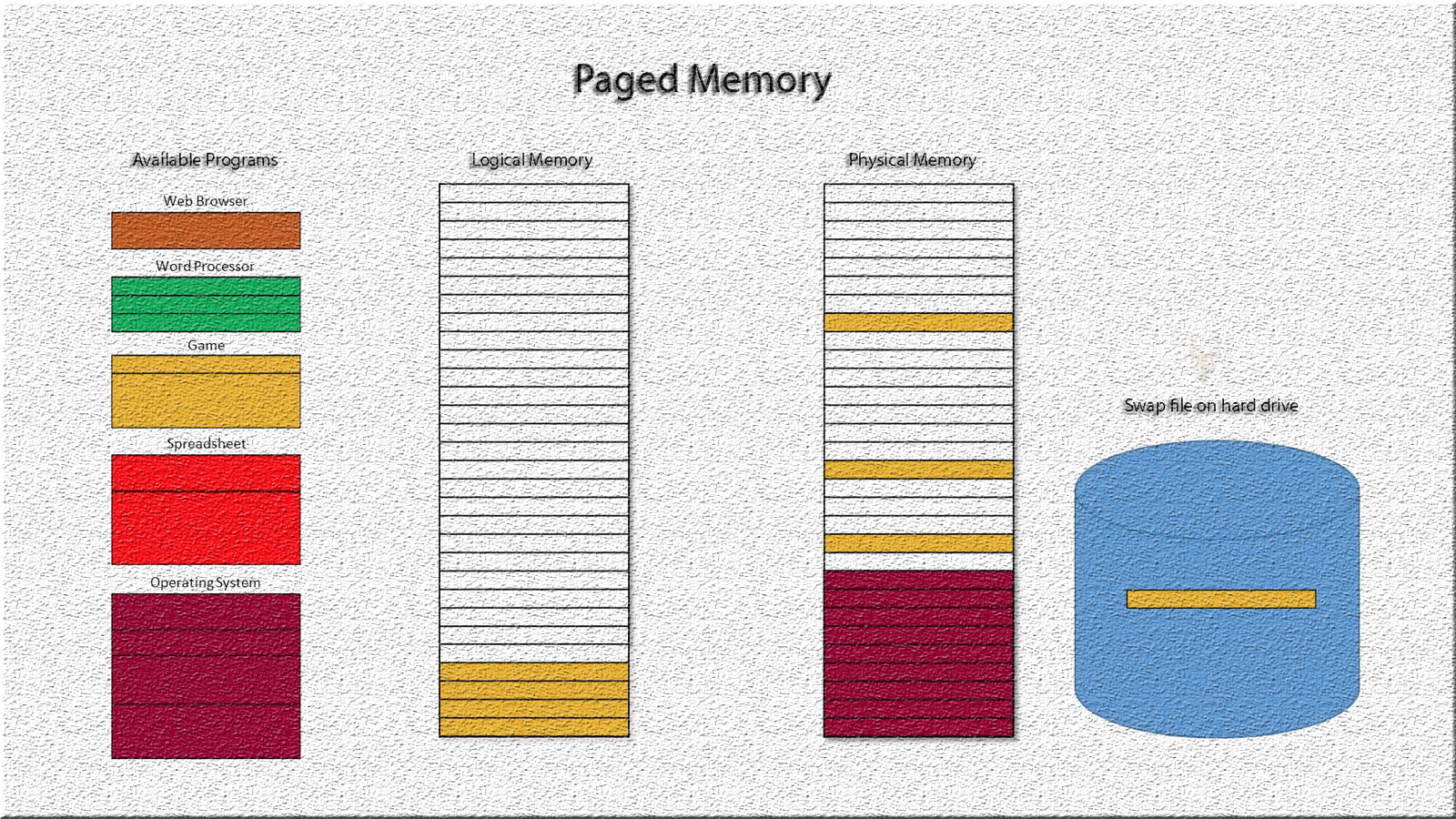
Virtual Memory Helps Windows Continue Working When Physical RAM Is Limited
Windows uses physical memory, commonly called RAM, to hold active programs, open files, background services, and operating-system data. When the amount of information in use approaches the available RAM, Windows can move less-active memory contents to a paging file stored on a drive.
This process creates virtual memory, allowing the computer to support a larger combined workload than physical RAM alone could hold. It does not make storage as fast as RAM, but it can prevent applications from closing immediately when memory demand increases.
Low virtual memory warnings can appear when the combined capacity of RAM and the paging file is no longer sufficient, when the paging file cannot expand, or when Windows has been configured with unsuitable limits.
The Paging File Is Stored on a Local Drive
The Windows paging file is normally named pagefile.sys and is stored as a protected system file. Its size may be managed automatically by Windows or defined manually through advanced system settings.
Because the paging file occupies drive space, its operation depends on the storage device remaining accessible and having enough free capacity. A nearly full or unstable system drive can interfere with virtual memory even when the computer has adequate physical RAM for ordinary tasks.
| Memory Resource | Primary Purpose |
|---|---|
| Physical RAM | Provides fast working memory for active programs and Windows. |
| Paging file | Stores less-active memory contents when additional capacity is needed. |
| Committed memory | Represents memory Windows has promised to applications and system processes. |
| Available memory | Shows memory that can be assigned without immediately exceeding current resources. |
Virtual Memory Is Not the Same as Installed RAM
The paging file increases the amount of memory Windows can commit, but it does not provide the same performance as physical RAM. Storage devices have higher latency and lower transfer performance than system memory.
A computer that repeatedly moves large amounts of data between RAM and the paging file may become slow even though applications remain open. Replacing a properly configured paging file with additional physical RAM can improve performance when the workload regularly exceeds the installed memory.
The paging file extends memory capacity, but it does not turn storage space into memory with the speed of physical RAM.
Low Virtual Memory Warnings Can Have More Than One Cause
A warning does not automatically mean that the computer needs more RAM. The message can result from application behavior, paging-file restrictions, limited drive space, storage errors, or unusual Windows settings.
- Several memory-intensive programs are open at the same time.
- An application continues consuming memory because of a software defect.
- The paging file has been disabled.
- A manually configured maximum size is too small.
- The system drive lacks enough free space for expansion.
- Storage errors prevent Windows from using the paging file reliably.
- A background service consumes increasing amounts of memory over time.
Committed Memory Explains More Than RAM Usage Alone
Task Manager may show that physical memory is heavily used while also reporting a commitment value. Committed memory includes memory that must be backed by either RAM or the paging file.
The commitment limit is generally based on available physical memory and paging-file capacity. When committed memory approaches that limit, Windows may display warnings, refuse new memory requests, or close unstable applications.
| Task Manager Observation | Possible Meaning |
|---|---|
| High RAM use with commitment below the limit | The system is busy but may still have usable virtual memory capacity. |
| Commitment close to its limit | Windows has little remaining capacity for additional memory requests. |
| Commitment rises continuously | An application or service may have a memory leak. |
| High disk activity during low available memory | Windows may be moving memory contents between RAM and the paging file. |
A Memory Leak Can Gradually Exhaust Virtual Memory
A memory leak occurs when a program requests memory but fails to release it after the information is no longer needed. The application may continue consuming additional memory for as long as it remains open.
The computer may work normally after startup and then become slower over several hours or days. Eventually, Windows may display a low virtual memory warning or the affected program may stop responding.
- Memory use increases even when the workload remains unchanged.
- Closing one application immediately restores a large amount of memory.
- The problem returns after the same program is reopened.
- Restarting Windows temporarily corrects the condition.
- A specific background process grows steadily in Task Manager.
Restarting the Computer Can Hide a Memory Leak Temporarily
A restart releases memory assigned to applications and system processes. This can make the computer appear repaired even when the software condition that caused the excessive memory use remains present.
If the warning returns after a predictable period or after opening a particular program, memory use should be observed before and after that software begins running.
Disabling the Paging File Can Reduce System Stability
Some users disable the paging file because the computer has a large amount of RAM or because they want to reduce storage activity. Windows and certain applications may still expect virtual memory to be available even when physical memory appears sufficient.
Without a paging file, the commitment limit becomes more dependent on installed RAM. A temporary increase in workload can therefore cause memory allocation failures sooner than it would with a properly managed paging file.
A computer with substantial RAM can still benefit from keeping a Windows-managed paging file available.
Manually Setting the Paging File Too Small Can Cause Warnings
A fixed paging-file size may work under normal conditions but become insufficient during large updates, data processing, video editing, virtual machine use, gaming, or other demanding activity.
Windows cannot expand beyond a manually configured maximum. Once the commitment limit is reached, applications may report insufficient memory even though the drive still has unused space.
| Paging-File Configuration | Possible Result |
|---|---|
| Windows-managed size | The file can adjust according to system requirements and available space. |
| Small fixed size | Memory capacity may become insufficient during heavier workloads. |
| Paging file disabled | The commitment limit may depend almost entirely on physical RAM. |
| Very large fixed size | Unnecessary drive space may remain reserved. |
| Paging file on an unstable drive | Memory operations may fail or produce system errors. |
Insufficient Free Drive Space Can Prevent Automatic Expansion
When Windows manages the paging file automatically, it may increase the file when memory demand rises. That expansion requires free space on the selected drive.
If the system drive is nearly full, Windows may be unable to enlarge the paging file enough to satisfy new memory requests. The computer can then display low-memory warnings while also showing storage-capacity alerts.
- Check the free space on the system drive.
- Review whether the paging file is managed automatically.
- Identify unusually large temporary or downloaded files.
- Confirm that storage-cleanup efforts do not remove needed information.
- Restart Windows after correcting the space shortage.
- Observe whether the commitment limit increases normally.
Storage Errors Can Interfere With the Paging File
The paging file depends on reliable storage access. Bad sectors, file system corruption, controller errors, unstable cables, or a failing storage device can prevent Windows from reading or writing virtual memory correctly.
In these cases, low-memory symptoms may appear together with freezes, disk errors, delayed startup, application crashes, or unexpected restarts. Increasing the paging-file size would not correct the underlying storage problem.
High Paging Activity Can Make a Computer Feel Unresponsive
When active programs require more memory than the installed RAM can hold efficiently, Windows may repeatedly transfer memory pages between RAM and storage. This condition is sometimes described as heavy paging or thrashing.
The computer may respond slowly to mouse clicks, application switching, and file operations because the storage device is occupied servicing memory requests. The effect is usually more noticeable on slower hard drives than on solid-state storage.
- Applications pause when switching between windows.
- The storage activity indicator remains active for long periods.
- Programs reopen slowly after being left in the background.
- Performance improves after closing memory-intensive software.
- The system becomes responsive again after additional RAM is installed.
More Paging Does Not Always Mean That Something Is Broken
Windows may use the paging file even when some physical memory remains available. Moving inactive data to storage can leave more RAM available for frequently used applications and file caching.
The presence of paging-file activity alone is therefore not proof of a defect. Diagnosis should consider system responsiveness, commitment levels, active processes, available RAM, and storage health together.
Task Manager Can Help Identify the Largest Memory Users
Task Manager can sort running applications and processes by memory use. This provides a starting point for identifying software that consumes unusually large amounts of RAM.
A high-memory process is not necessarily defective. Web browsers, virtual machines, media editors, games, and database applications can legitimately use substantial memory during normal operation.
| Observation | Useful Question |
|---|---|
| One program uses most available memory | Is that amount expected for its current workload? |
| Memory use grows continuously | Does the process release memory when its task finishes? |
| Many small processes consume memory | Are unnecessary startup programs and services running? |
| Memory remains high after programs close | Are background processes or cached tasks still active? |
Closing the Largest Process Is Not Always Safe
Ending an unfamiliar process can interrupt Windows functions, close unsaved work, stop security software, or damage an active database operation. The process should be identified before it is terminated.
When an application is responsible for high memory use, saving work and closing it normally is safer than forcing it to end through Task Manager.
The Warning Should Be Investigated Before Settings Are Changed
A low virtual memory warning can result from insufficient hardware resources, unsuitable paging-file settings, limited drive space, defective software, or storage failure. Changing the paging file without identifying the pattern may only conceal the original problem.
The first investigation should document which programs were open, how long the computer had been running, how much memory was committed, whether drive space was low, and whether the warning returned after a restart.
Startup Programs Can Consume Memory Before Work Begins
Many applications configure background components to start automatically with Windows. Cloud synchronization tools, communication software, update managers, security utilities, printer software, and hardware control programs may all reserve memory before the user opens any documents.
One startup item may use only a small amount of memory, but many unnecessary items can reduce the capacity available for normal work. On systems with limited RAM, this can cause paging activity soon after sign-in.
- Review applications that start automatically with Windows.
- Keep security and hardware services that are genuinely required.
- Disable optional launchers that do not need to run continuously.
- Restart the computer and compare memory use after sign-in.
- Confirm that disabled items still open normally when needed.
Web Browsers Can Use Large Amounts of Committed Memory
Modern browsers often separate tabs, extensions, graphics processes, and background services into multiple processes. This improves stability because one failed tab is less likely to close the entire browser, but it can also increase total memory use.
Dozens of open tabs, media-heavy websites, browser-based business applications, and poorly behaving extensions can push committed memory toward its limit. Closing unused tabs may reduce the load, although some browser processes remain active until the entire browser is exited.
| Browser Activity | Possible Memory Effect |
|---|---|
| Many open tabs | Each tab may reserve memory for page content and scripts. |
| Video or web conferencing | Media decoding and buffering can increase memory demand. |
| Numerous extensions | Background browser processes may remain active continuously. |
| Complex web applications | Large documents and interactive tools may consume substantial memory. |
| Browser left open for days | Memory use may grow because of active pages or software defects. |
Virtual Machines Can Reserve Memory in Large Blocks
Virtual machine software assigns part of the host computer’s memory to a simulated computer. A virtual machine configured with several gigabytes of RAM can quickly reduce the memory available to Windows and other applications.
Running more than one virtual machine, or assigning nearly all installed RAM to a single guest system, can cause heavy paging on the host. The virtual machine may appear to run normally while the rest of Windows becomes slow or reports insufficient memory.
Memory assigned to a virtual machine must leave enough capacity for the host operating system and its remaining applications.
Integrated Graphics Can Use Part of the Installed Memory
Computers with integrated graphics may reserve or dynamically use part of the system RAM for graphics processing. As a result, the amount of memory available to Windows can be lower than the total amount physically installed.
This difference is normally expected, but it becomes more noticeable on systems with small amounts of RAM. Graphics-intensive applications may increase shared memory use and leave less capacity for other programs.
Thirty-Two-Bit Software Can Encounter Its Own Memory Limits
A 32-bit application can reach an address-space limit even when the computer still has unused RAM and paging-file capacity. The program may report that it is out of memory while Windows as a whole remains below its commitment limit.
This behavior is common with older business applications, legacy design software, large spreadsheets, and programs that were not developed to handle very large files.
| Condition | Likely Scope of the Problem |
|---|---|
| Only one older application reports low memory | The program may be reaching its own address-space limit. |
| Several applications fail at the same time | Windows may be approaching the overall commitment limit. |
| Memory use rises only with one large document | The file or application workload may exceed the program’s design. |
| The warning disappears after switching to a 64-bit version | The earlier software likely had a more restrictive memory limit. |
Large Spreadsheets and Databases Can Create Sudden Memory Spikes
A computer may operate normally until a large spreadsheet, database, image collection, or project file is opened. The application may then request a substantial amount of memory for calculations, previews, indexes, undo history, or temporary copies.
The memory requirement can increase further during sorting, exporting, printing, or saving. A warning that appears only during one specific operation may therefore be tied to a temporary workload spike rather than constant background use.
- Opening a very large workbook.
- Importing thousands of records into a database.
- Rendering or exporting a high-resolution media project.
- Creating a large compressed archive.
- Processing many photographs at the same time.
- Running several reports simultaneously.
Application Updates Can Correct Excessive Memory Use
Software developers may release updates that correct memory leaks, improve file handling, or reduce the amount of memory used during specific operations. If one program repeatedly triggers the warning, its version and update history should be reviewed.
An update should not be installed in the middle of an unstable condition without saving work and confirming that important data is backed up. After updating, the same workload can be repeated while memory use is observed.
A Damaged Application Installation Can Produce Abnormal Memory Behavior
Corrupted program files, incomplete updates, defective add-ins, or incompatible plugins can cause an application to behave unpredictably. The program may consume excessive memory, fail to release resources, or repeatedly crash during the same task.
Disabling optional add-ins or testing the application with a clean configuration can help determine whether the base program or an extension is responsible.
- Save all open work and close unrelated programs.
- Record the application’s memory use before opening the affected file.
- Repeat the operation that normally produces the warning.
- Disable nonessential add-ins or extensions.
- Update or repair the application installation if appropriate.
- Compare memory behavior after each change.
Malware Can Consume Memory or Create Large Numbers of Processes
Malicious software can run hidden processes, inject code into legitimate applications, or repeatedly create new tasks. This may produce high memory use, unusual processor activity, network traffic, or system instability.
High memory usage alone does not prove that malware is present. The process names, file locations, digital signatures, startup behavior, and security scan results should be reviewed together.
A Paging File on More Than One Drive Requires Careful Planning
Windows can use paging files on more than one local drive. This may be useful in certain workstation configurations, but adding paging files to several drives does not automatically improve performance or correct insufficient RAM.
The reliability, speed, free space, and connection type of each drive should be considered. A paging file should not be placed on removable media or an unstable storage device that may disconnect during use.
| Drive Condition | Paging-File Consideration |
|---|---|
| Healthy internal SSD | Usually provides fast and stable paging-file access. |
| Nearly full system drive | May not allow enough room for automatic expansion. |
| Failing secondary drive | Can introduce errors if used for virtual memory. |
| External USB drive | May disconnect and is generally unsuitable for this purpose. |
| Encrypted or specialized volume | Compatibility and startup availability should be confirmed. |
Moving the Paging File Does Not Replace Storage Diagnosis
If the system drive has errors, moving the paging file to another drive may reduce one visible symptom while leaving the original storage problem unresolved. Windows, applications, user profiles, and temporary files still depend on the system drive.
Storage health should be evaluated before paging-file changes are used as a workaround for freezing, error messages, or slow performance.
Crash Dump Creation May Depend on Paging-File Availability
Windows can record diagnostic information after certain system crashes. Depending on the type of memory dump configured, an appropriately sized paging file may be required on the system drive.
Disabling the paging file or placing it only on another drive can limit the diagnostic information available after a blue-screen failure. This may make later troubleshooting more difficult.
The paging file supports more than application memory and may also help Windows preserve information about serious system failures.
Changing Advanced Settings Requires a Restart
Windows may not apply paging-file changes fully until the computer restarts. A warning can therefore continue after settings are modified if the system has not completed a fresh startup.
Before restarting, open work should be saved and any active updates or file transfers should be allowed to finish. After startup, the current paging-file configuration and commitment limit can be checked again.
Automatic Management Is Usually the Safest Starting Point
For most general-purpose computers, allowing Windows to manage paging-file size reduces the risk of an unsuitable manual limit. The operating system can adjust the file according to workload, available drive space, and system requirements.
Manual settings may be appropriate for specialized systems, but they should be based on measured memory demand rather than a universal formula copied from another computer.
Adding RAM May Be Appropriate When the Workload Is Consistently High
If the paging file is configured correctly, storage is healthy, and normal work repeatedly consumes nearly all available memory, additional RAM may provide a meaningful improvement. More physical memory allows Windows to keep a larger active workload in faster storage.
The computer’s motherboard, processor, operating system, available memory slots, and supported module types should be checked before an upgrade is selected.
| Observed Pattern | Possible Next Step |
|---|---|
| One application grows continuously | Investigate a software defect or memory leak. |
| Memory is high only with a normal heavy workload | Consider adding compatible RAM. |
| Commitment limit is unusually low | Review paging-file configuration. |
| The system drive is almost full | Restore safe free space before changing memory settings. |
| Freezes occur with storage errors | Evaluate the drive and storage connections. |
Memory Upgrades Should Match the Computer’s Actual Use
A basic office computer, gaming system, design workstation, and virtual machine host can have very different memory requirements. The correct amount of RAM depends on the applications used, the size of the files handled, and how many tasks run at the same time.
Installing more memory than the motherboard or operating system can support provides no benefit. A proper upgrade plan should also consider whether existing modules can remain installed or must be replaced.
A Consistent Testing Process Helps Separate the Causes
Low virtual memory warnings are easier to diagnose when changes are made one at a time. Closing several programs, changing paging-file settings, cleaning the drive, and installing updates simultaneously can make it difficult to identify which action corrected the problem.
- Record RAM use, committed memory, and the commitment limit.
- Check the current paging-file configuration.
- Confirm that the system drive has adequate free space.
- Identify processes whose memory use continues to rise.
- Review storage health and system errors.
- Correct one likely cause and repeat the original workload.
- Document whether the warning returns.
Temporary Improvement Does Not Always Confirm a Permanent Fix
Closing applications or restarting Windows may immediately restore performance, but the same warning can return if the underlying workload, software defect, or configuration problem remains unchanged.
The computer should be observed over the same amount of time and under the same working conditions that previously produced the warning. This is especially important for problems that develop only after many hours of use.
Performance Monitor Can Show Memory Behavior Over Time
Task Manager provides a useful snapshot, but some memory problems develop slowly and may not be obvious during a brief inspection. Windows Performance Monitor can record memory use, paging activity, and process behavior over a longer period.
This can help identify whether memory demand rises at a predictable time, after a specific application starts, or while a scheduled background task is running.
- Committed memory approaching the system limit.
- Paging activity increasing during normal work.
- One process consuming more memory over time.
- Available memory remaining consistently low.
- Storage activity rising when applications are switched.
Resource Monitor Can Connect Memory Pressure With Disk Activity
Resource Monitor provides additional detail about processes, physical memory, hard faults, and storage activity. A hard fault occurs when Windows must retrieve a memory page from storage rather than from physical RAM.
Hard faults are not automatically errors. They are a normal part of virtual memory operation. However, a consistently high rate combined with poor responsiveness can indicate that the active workload exceeds the amount of RAM available.
| Resource Monitor Pattern | Possible Interpretation |
|---|---|
| Occasional hard faults | Normal retrieval of inactive memory from storage. |
| Sustained hard faults with slow performance | The system may be relying heavily on the paging file. |
| High memory use from one process | The application may have a demanding workload or a memory leak. |
| Low available memory with many active processes | The computer may be running too many tasks for its installed RAM. |
Event Logs May Record Resource Exhaustion
Windows may record events when the system runs low on virtual memory or when applications consume unusually large amounts of committed memory. These records can provide process names, timestamps, and other details that are no longer visible after a restart.
The logs should be compared with the time the warning appeared and with any application crashes, freezes, or unexpected shutdowns that occurred at the same time.
A resource-exhaustion event can help identify which processes were using the most committed memory when the problem occurred.
Low Memory Can Cause Applications to Save Incompletely
When Windows cannot satisfy a memory request, an application may freeze, close, or fail during a save operation. Documents, project files, databases, and temporary recovery files may be affected.
Users should avoid continuing memory-intensive work after repeated warnings. Important files should be saved carefully, verified, and backed up before additional troubleshooting is performed.
- Save active work before closing applications.
- Use a new file name when the original document may be unstable.
- Confirm that the saved file opens correctly.
- Copy important work to another storage location.
- Avoid forcing the computer off unless it is completely unresponsive.
Background Updates Can Temporarily Increase Memory Demand
Windows updates, application updates, security scans, search indexing, cloud synchronization, and backup tasks can all increase memory use. A warning may appear when one of these background activities overlaps with a demanding foreground workload.
If the condition occurs only during maintenance activity, it may not indicate a permanent defect. The system should be observed again after the background task finishes.
Security Software Can Use More Memory During Scans
Security software may consume additional memory while examining archives, application files, email data, or large groups of documents. Real-time protection can also increase memory use when many files are opened or created rapidly.
Disabling security protection should not be used as a routine solution. Instead, scan schedules, software updates, exclusions, and system requirements should be reviewed carefully.
| Background Activity | Possible Memory Effect |
|---|---|
| Full security scan | Temporary increase while files and archives are examined. |
| Cloud synchronization | Memory use may rise while changes are indexed and uploaded. |
| Windows update | Installation services and temporary processes may consume additional resources. |
| Search indexing | Large file collections may increase memory and storage activity. |
| Backup operation | File scanning, compression, and verification can add temporary demand. |
Remote Sessions Can Add to the Existing Workload
Remote support, Remote Desktop, and screen-sharing applications use memory for the connection, display encoding, clipboard transfer, and session management. On a computer already close to its commitment limit, starting a remote session can trigger additional paging or a low-memory warning.
The remote tool may not be the original cause. It may simply add enough demand to expose a system that was already running with very little remaining capacity.
Multiple Signed-In Users Can Consume Memory Simultaneously
Switching users without signing out can leave applications and background processes running in the earlier session. A second user may then open another group of programs while the first session continues using memory.
On shared computers, this can create unexpectedly high committed memory even though the current desktop appears to have only a few applications open.
- Open Task Manager and review the Users section.
- Check whether inactive sessions still have applications running.
- Save work in each session before signing out.
- Compare memory use after unused sessions are closed.
- Review whether the computer has enough RAM for simultaneous users.
Memory Compression May Delay Paging but Cannot Remove the Limit
Windows can compress some memory contents so they occupy less physical RAM. This may reduce the amount of data that must be written to the paging file and improve responsiveness under moderate pressure.
Compression still uses processor time and does not create unlimited capacity. If applications continue requesting memory, Windows may eventually need to page data to storage or reject additional requests.
Standby Memory Is Not Necessarily Wasted
Windows may use otherwise available RAM to cache recently accessed files and program data. Task Manager can show this as standby or cached memory.
This memory can usually be reassigned when applications need it. A large cache by itself does not mean the computer is out of memory or that the paging file is defective.
| Memory State | General Meaning |
|---|---|
| In use | Currently assigned to Windows, applications, or drivers. |
| Available | Can be assigned to new tasks when needed. |
| Cached or standby | Holds reusable data but can usually be reclaimed. |
| Committed | Must be backed by RAM or the paging file. |
| Compressed | Stored in reduced form inside physical memory. |
Driver Problems Can Consume Nonpaged Memory
Device drivers use areas of memory that are managed differently from ordinary application memory. A defective driver can consume increasing amounts of paged or nonpaged pool memory and create system-wide resource pressure.
This type of problem may continue even after ordinary applications are closed. Driver updates, recently installed hardware, and pool-memory behavior may need to be reviewed when no user application explains the rising usage.
A Driver Memory Leak Can Require More Than a Restart
Restarting clears the accumulated memory, but the leak may return as soon as the affected driver resumes normal activity. Network adapters, storage controllers, graphics drivers, printer software, and security components can all operate continuously in the background.
The timing of the problem and any recent driver changes can help narrow the cause. A rollback or updated driver may be appropriate after the affected device is identified.
When memory remains unusually high after applications close, Windows services and device drivers should also be considered.
RAM Hardware Errors Can Create Different Symptoms
Defective RAM does not usually cause a genuine low virtual memory condition by simply reducing the paging-file size. Instead, it may produce crashes, corrupted data, application errors, failed startups, or inconsistent memory-test results.
However, hardware instability can complicate diagnosis because application crashes and memory-related messages may appear together. Physical memory testing may be appropriate when low-memory warnings occur with broader signs of instability.
BIOS Settings Can Affect the Amount of Usable Memory
Hardware-reserved memory, integrated graphics allocation, memory remapping, and firmware configuration can affect how much installed RAM Windows can use. A computer may show less usable memory than expected even though all modules are physically detected.
Before changing firmware settings, the installed memory total, Windows system information, motherboard documentation, and current BIOS configuration should be reviewed.
| Memory Observation | Possible Area to Review |
|---|---|
| Installed RAM exceeds usable RAM | Hardware reservation, graphics allocation, or firmware settings. |
| One module is not detected | RAM seating, slot condition, compatibility, or module failure. |
| Usable memory changed after a BIOS update | Firmware settings may have reset or changed. |
| Windows edition limits available memory | Operating-system architecture and edition should be verified. |
Paging-File Recommendations Should Not Rely on One Fixed Formula
Older guidance sometimes recommends setting the paging file to a fixed multiple of installed RAM. Modern workloads and Windows versions vary too widely for one rule to fit every computer.
A suitable configuration depends on peak committed memory, crash-dump requirements, available storage space, application behavior, and the amount of installed RAM. Automatic management is generally more appropriate unless a measured requirement supports a manual setting.
Freeing Drive Space Should Be Done Carefully
When the system drive is full, removing unnecessary files can restore space for the paging file and other Windows operations. Important documents should not be deleted simply because they occupy a large amount of storage.
- Review the Recycle Bin and temporary files.
- Move completed projects to appropriate backup storage.
- Remove applications that are no longer needed through their normal uninstall process.
- Check for duplicate downloads and obsolete installation files.
- Keep enough free space for Windows updates and normal system growth.
A Paging-File Problem Can Be a Symptom Rather Than the Main Fault
Low virtual memory warnings may point to a software leak, undersized hardware, insufficient free storage, a failing drive, unsuitable settings, or an unusually demanding workload. The paging file is only one part of the memory system.
Increasing its maximum size can provide temporary capacity, but it will not repair defective software, failing storage, unstable drivers, or a computer that regularly needs more physical RAM.
Post-Repair Testing Should Reproduce the Original Workload
After settings, software, storage, or hardware changes are made, the computer should be tested under the same conditions that produced the warning. A light workload may not reveal whether the original limitation remains.
- Restart the computer and confirm the current paging-file configuration.
- Record the commitment limit and available physical memory.
- Open the applications normally used together.
- Repeat the operation that previously caused the warning.
- Observe memory, paging, and storage activity.
- Continue testing long enough to detect a gradual memory leak.
- Confirm that applications remain stable and files save correctly.
Professional Diagnosis Is Appropriate When Warnings Continue
Repeated low virtual memory warnings should be evaluated when ordinary workload levels do not explain them, when the system drive reports errors, or when memory use grows without an identifiable application.
A complete diagnosis may include paging-file configuration, process monitoring, event logs, driver behavior, storage health, installed RAM, firmware settings, and application testing.
Stable Virtual Memory Depends on Balanced System Resources
Windows virtual memory works best when the computer has enough physical RAM for its normal workload, a healthy drive with adequate free space, and a paging file configured to meet changing demand. Software and drivers must also release memory correctly.
A low virtual memory warning should not be treated as a request to change one setting without investigation. By reviewing committed memory, active processes, drive capacity, paging activity, and the timing of the warning, the actual cause can be identified and corrected without creating unnecessary performance or stability problems.











