
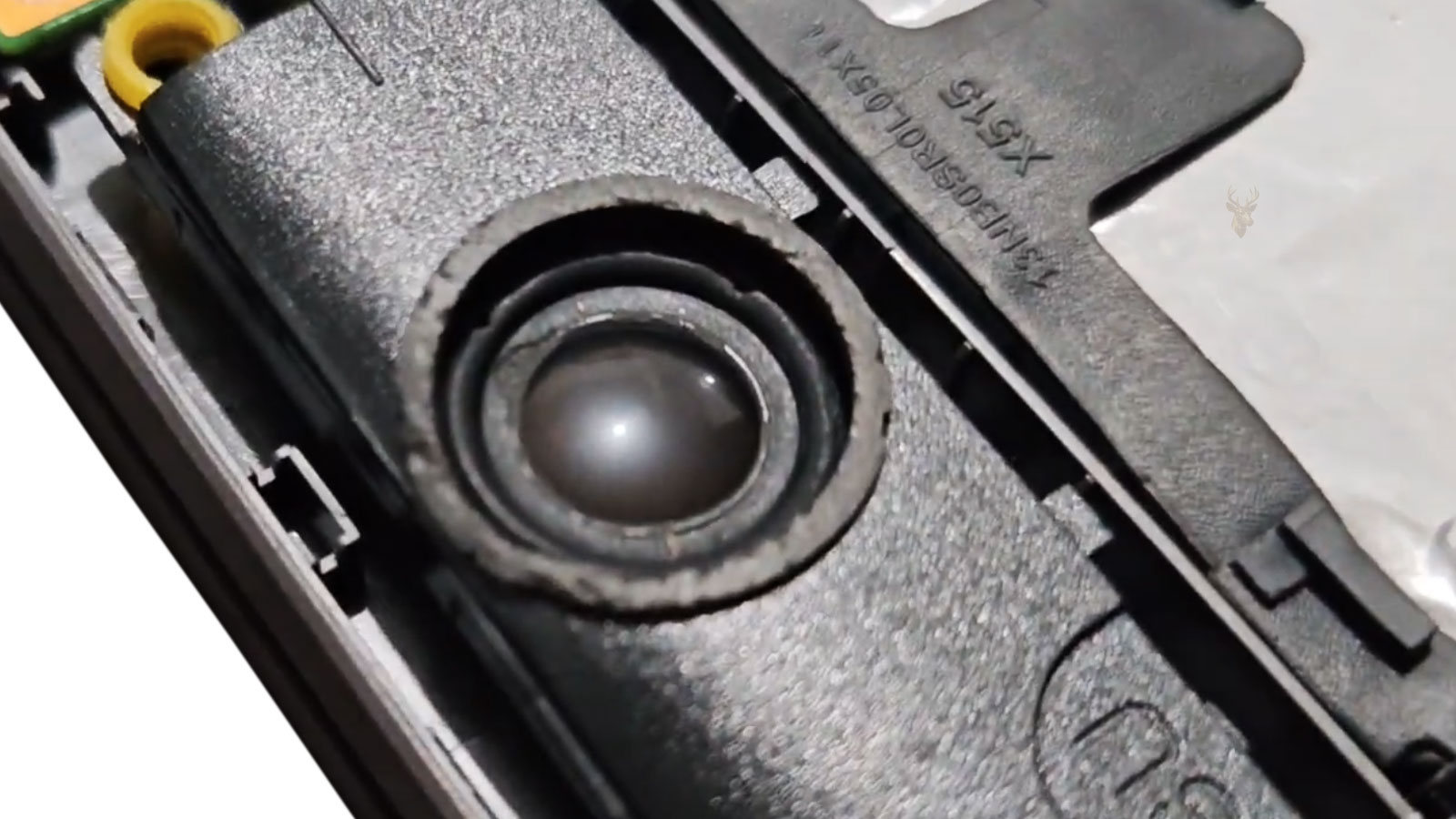
Distorted Laptop Audio Does Not Always Mean the Speakers Have Failed
Laptop speakers can develop crackling, buzzing, muffled sound, uneven volume, or complete audio loss. Some problems appear constantly, while others occur only during certain sounds, at higher volume levels, or when the laptop is moved.
The speakers themselves may be damaged, but the same symptoms can also come from audio drivers, sound-enhancement settings, loose internal wiring, debris near the speaker openings, or a fault in the motherboard audio circuit.
Careful testing helps determine whether the problem follows the built-in speakers, the Windows audio system, or every audio output connected to the computer.
Built-In Speakers Operate Differently From Headphones
Laptop speakers are small components installed inside the case. They receive an amplified audio signal from the motherboard and create sound by moving a lightweight internal diaphragm.
Headphones and external speakers use a different physical output path. Comparing them with the built-in speakers can help separate an internal speaker problem from a broader software or audio-circuit failure.
| Test Result | Possible Direction |
|---|---|
| Built-in speakers distort, but headphones sound normal | The internal speakers or their connection may be affected. |
| Both speakers and headphones distort | Drivers, software settings, or the audio circuit may be involved. |
| Only one internal speaker works | One speaker or one side of the wiring may have failed. |
| External USB audio works normally | The problem may be limited to the laptop’s internal audio hardware. |
Crackling at Higher Volume Can Indicate Physical Speaker Damage
A damaged speaker may sound acceptable at low volume but begin buzzing or distorting as the diaphragm moves farther. Certain bass notes, voices, or notification sounds may trigger the problem more strongly than others.
The speaker can also become partially detached from its frame or mounting area. When that happens, vibration may cause nearby plastic or metal parts to rattle even though the electrical portion of the speaker still works.
- Crackling becomes worse as the volume increases.
- Distortion appears mainly during bass-heavy audio.
- One speaker sounds weaker than the other.
- A buzzing sound comes from one side of the laptop.
- Pressing near the speaker temporarily changes the sound.
A Loose Speaker Connection Can Produce Intermittent Sound
Internal laptop speakers usually connect to the motherboard through a small cable and plug. If the connector is loose, damaged, contaminated, or placed under tension, sound may cut in and out.
The audio may change when the laptop is lifted, opened, closed, or pressed near the palm rest. Movement-related symptoms make the internal connection and speaker wiring important areas to inspect.
Audio that changes when the laptop is moved may involve a physical connection rather than the sound file or application.
Speaker Wires Can Be Pinched During Reassembly
Speaker cables are often routed around batteries, storage drives, cooling assemblies, or case edges. If a wire is trapped beneath a screw, bracket, battery, or bottom cover, the insulation or conductor can be damaged.
This type of problem may appear after a battery replacement, fan cleaning, storage upgrade, keyboard repair, or another service requiring the laptop to be opened.
- Sound problems begin immediately after internal service.
- One speaker stops working after the bottom cover is installed.
- Audio returns when pressure on the case is reduced.
- The speaker cable appears flattened or sharply bent.
- The connector no longer sits securely in its socket.
Debris Near the Speaker Openings Can Change the Sound
Dust, crumbs, fabric fibers, and other debris can collect around speaker grilles. A foreign object touching the speaker diaphragm or vibrating against the case may create buzzing that resembles a damaged speaker.
Cleaning should be performed carefully. Sharp tools, liquids, and excessive compressed air can damage the speaker, push debris deeper into the laptop, or force contamination into other components.
Sound Enhancements Can Create Distortion
Windows, audio-driver software, and laptop manufacturer utilities may include equalization, bass enhancement, loudness control, surround effects, and automatic volume processing.
These features can make small speakers sound louder, but aggressive processing may push them beyond what they can reproduce cleanly. Disabling enhancements temporarily can help determine whether the distortion is being created by audio processing.
| Audio Setting | Possible Effect |
|---|---|
| Bass enhancement | May create buzzing or distortion in small speakers. |
| Loudness equalization | Can make quiet sounds louder but reduce natural volume differences. |
| Virtual surround | May alter balance or clarity. |
| Manufacturer sound profile | Can change after an update or software reset. |
| Application equalizer | May affect only one music or video program. |
Audio Drivers Can Affect Volume and Speaker Balance
The audio driver allows Windows to communicate with the sound hardware. An incorrect, damaged, or incompatible driver can cause missing speakers, low volume, popping sounds, delayed audio, or incorrect left-and-right balance.
A driver problem may begin after a Windows update, system recovery, clean installation, or manual driver change. The computer may still produce sound, but some manufacturer-specific controls may no longer operate correctly.
- Test more than one audio file or application.
- Compare the built-in speakers with headphones.
- Check the left-and-right speaker balance.
- Temporarily disable sound enhancements.
- Review whether the problem began after an update.
- Confirm that the correct audio device is selected.
One Failed Speaker Can Make the Entire Laptop Sound Unbalanced
Many laptops contain two speakers positioned on opposite sides of the case. If one becomes weak or stops working, voices and music may sound distant, uneven, or quieter than expected.
Some computers also use additional speakers or a small internal subwoofer. A failure in only one component can affect particular frequencies while other sounds remain relatively normal.
Testing Different Types of Audio Can Reveal the Pattern
A single recording may already contain distortion, clipping, or poor-quality sound. Testing several known audio sources helps prevent a damaged file or streaming problem from being mistaken for a laptop hardware failure.
| Audio Test | What It Can Reveal |
|---|---|
| Spoken voice | Clarity and midrange performance. |
| Music with bass | Buzzing during low-frequency movement. |
| Windows notification sounds | Whether the problem affects system audio. |
| Headphone comparison | Whether distortion is limited to the internal speakers. |
| Left and right channel test | Whether one side is weak or silent. |
Intermittent Sound Requires More Than a Volume Adjustment
Changing the volume can temporarily hide distortion by reducing speaker movement, but it does not correct damaged hardware, loose wiring, or unstable audio circuitry.
The most useful clues are whether the problem affects one or both speakers, changes with movement, follows a software update, occurs only at certain frequencies, or remains present through headphones and external speakers.
A Weak Speaker May Stop Producing Sound Below a Certain Level
Some damaged speakers do not fail completely. They may produce sound only after the volume reaches a certain level, then cut out again when the volume is reduced. This can happen when the internal voice coil, wiring, or connection has become unstable.
The symptom may also appear when audio begins suddenly after a period of silence. A notification sound may be missing, while louder music causes the speaker to begin working again.
Popping Sounds Can Occur When Audio Starts or Stops
A brief pop when the laptop starts, wakes from sleep, changes audio devices, or begins playback may come from the audio amplifier turning on and off. Occasional mild sounds can be normal, but frequent or loud popping may indicate a driver, power-management, grounding, or hardware problem.
The timing of the sound is important. Popping that occurs only during startup suggests a different condition from continuous crackling during music or video playback.
| When the Sound Occurs | Possible Direction |
|---|---|
| Only when playback begins | Amplifier activation or driver behavior may be involved. |
| Continuously during audio | Speaker damage, software processing, or signal instability may be present. |
| When the laptop is moved | A loose cable or internal connection may be involved. |
| When the charger is connected | Electrical noise or grounding should be considered. |
Charging Equipment Can Introduce Electrical Noise
A damaged, poorly filtered, or incompatible power adapter can introduce buzzing or crackling into the audio system. The noise may appear only while the charger is connected and disappear when the laptop runs from its battery.
This comparison can help identify whether the audio problem is related to power. The adapter, wall outlet, surge protector, and grounding conditions may all affect the result.
- Test the laptop briefly on battery power.
- Reconnect the original manufacturer-approved adapter.
- Try another known reliable wall outlet.
- Remove unnecessary USB and external devices.
- Check whether the noise changes when the charger cable is moved.
USB Devices Can Affect the Audio Signal
USB hubs, docking stations, external drives, chargers, and other accessories can introduce electrical interference or create driver conflicts. A laptop may begin producing noise only when a particular device is connected.
Disconnecting optional accessories one at a time can help identify whether the issue follows an external device rather than the internal speakers.
An audio problem that disappears when one accessory is removed may involve interference, power sharing, or a device driver rather than a failed speaker.
Bluetooth Audio Can Help Separate Software From Speaker Hardware
Bluetooth headphones or speakers use a separate output device and transmission path. If Bluetooth audio remains clear while the built-in speakers distort, the problem is more likely to be limited to the internal speakers, their wiring, or the laptop’s speaker amplifier.
If Bluetooth audio also crackles, the source application, system load, driver configuration, or the original audio file may need closer inspection.
High Processor or Storage Activity Can Interrupt Audio
Audio playback depends on the computer processing data continuously. If the system is overloaded, drivers become delayed, or storage access is unstable, the sound may pause, crackle, or repeat briefly.
This type of interruption may affect headphones and external speakers as well as the internal speakers. It is often accompanied by freezing, slow application response, or high processor and disk activity.
| Related Symptom | Possible Cause |
|---|---|
| Audio crackles while the computer freezes | High system load or driver delays may be involved. |
| Sound skips while files are being copied | Storage or system performance should be checked. |
| Only one application is affected | The problem may be limited to that program. |
| All audio outputs are interrupted | A broader Windows, driver, or performance issue may exist. |
Incorrect Audio Formats Can Cause Compatibility Problems
Windows allows some audio devices to use different sample rates and bit depths. Most systems handle these settings automatically, but an incompatible format can sometimes produce silence, distortion, or failed playback in certain applications.
Changing the default format temporarily can help determine whether the problem is related to software compatibility. The original setting should be recorded before changes are made.
Exclusive Audio Control Can Affect Other Programs
Some applications can take exclusive control of the audio device. While that program is using the speakers, another application may produce no sound, distorted playback, or an error stating that the audio device is unavailable.
This behavior is different from physical speaker damage because it usually follows a particular application and may disappear after the program is closed or the audio service is restarted.
- Close all programs that may be using audio.
- Restart the application with the problem.
- Test a Windows system sound.
- Compare playback through headphones.
- Review exclusive-mode and audio-format settings.
- Restart the computer if the audio device remains unavailable.
Balance Settings Can Make One Speaker Appear to Have Failed
Left-and-right balance controls determine how much sound is sent to each speaker. If one channel is reduced accidentally, the laptop may sound as though one speaker has stopped working.
Application-specific balance, accessibility settings, media-player controls, and manufacturer audio utilities should also be checked because they may override the main Windows setting.
Mono Audio Changes How Left and Right Channels Are Combined
Mono audio combines both channels so that the same information is sent to each side. This can be useful for accessibility, but it may change how recordings sound and can hide a problem that affects only one channel.
Testing with mono audio both enabled and disabled can help confirm whether the issue involves channel separation or an individual speaker.
Reinstalling the Audio Driver Should Be Done Carefully
Removing and reinstalling an audio driver may correct damaged software, but a generic driver may not include the controls required by the laptop’s amplifier, microphone array, headphone jack, or sound-enhancement system.
The correct driver should match the laptop model and Windows version. If the problem began after an update, testing the previous manufacturer-supported driver may be more useful than repeatedly installing the newest available package.
| Driver Situation | Recommended Consideration |
|---|---|
| Problem began after an update | Review the previous driver or rollback option. |
| Sound features are missing | The generic Windows driver may be installed. |
| Audio device is not detected | Driver, BIOS, or hardware inspection may be needed. |
| Only built-in speakers are affected | Physical speaker hardware should remain under consideration. |
A BIOS or Firmware Update Can Change Audio Behavior
Some laptops use firmware to control power delivery, device detection, and communication between the motherboard and audio hardware. A firmware change can occasionally alter when the amplifier turns on, how the speakers are detected, or how the device behaves after sleep.
Firmware should not be updated only as an experiment. The laptop must have stable power, the correct update package, and a valid reason for the procedure.
Heat Can Affect an Unstable Audio Circuit
If the sound begins normally and becomes distorted only after the laptop warms, heat may be affecting the amplifier, motherboard connection, or another audio component. The same symptom can also occur when cooling fans or nearby parts begin vibrating at higher temperatures.
Comparing the laptop when cold and after extended use can help establish whether temperature is part of the pattern.
Physical Inspection Requires Care Around the Battery and Speaker Wiring
Internal speaker inspection may require removal of the bottom cover, battery, storage shield, or other nearby components. The laptop should be powered off, disconnected from the charger, and handled with appropriate static precautions before internal parts are touched.
Speaker connectors are often small and fragile. Pulling on the wires instead of the connector body can damage the cable or separate it from the plug.
- Disconnect external power before opening the laptop.
- Disconnect the internal battery when the design allows it.
- Photograph cable routing before removing parts.
- Inspect the connector without forcing it.
- Keep screws organized by location and length.
Speaker Replacement Must Match the Laptop Design
Laptop speakers are not universal. Their shape, impedance, cable length, connector type, mounting points, and acoustic chamber must match the original design.
A speaker set that looks similar may not fit correctly or may produce poor sound if its enclosure, connector, or electrical characteristics differ from the original part.
| Replacement Detail | Reason It Matters |
|---|---|
| Connector type | The plug must match the motherboard socket. |
| Cable routing | Incorrect length can place tension on the wires. |
| Speaker shape | The unit must fit the internal case and grille position. |
| Mounting points | Loose mounting can create vibration and rattling. |
| Electrical rating | The speaker must be compatible with the amplifier circuit. |
Improper Mounting Can Make New Speakers Sound Defective
A replacement speaker can buzz or rattle if it is not seated flat, if a screw is missing, or if a cable is trapped beneath it. Foam seals and adhesive strips may also be needed to prevent vibration against the case.
The speaker should be tested before the laptop is fully reassembled, but exposed components must remain protected from accidental contact.
A correctly functioning speaker can still sound distorted when its mounting surface or enclosure is loose.
Case Damage Can Change the Speaker Enclosure
Laptop speakers often use the surrounding plastic case as part of their acoustic enclosure. Cracked palm rests, broken screw mounts, separated bottom covers, and warped internal frames can change how sound travels and create vibration.
Replacing the speaker alone may not correct the problem if the surrounding case no longer holds it securely.
Liquid Exposure Can Damage Speakers and Audio Circuits
Liquid entering through the keyboard, speaker grille, or case openings can affect the speaker diaphragm, connector, amplifier, and motherboard traces. Sound may become muffled, distorted, intermittent, or completely absent.
Corrosion can continue after the visible liquid has dried. A speaker that begins working again temporarily may still fail later if contamination remains inside the laptop.
- Muffled sound after a spill.
- Crackling that changes as the laptop warms.
- One speaker failing several days after exposure.
- Visible residue around the grille or connector.
- Audio problems occurring with keyboard or charging faults.
The Headphone Jack Can Affect Internal Speaker Detection
Some laptops use a mechanical or electronic sensor inside the headphone jack to determine whether headphones are connected. If the sensor sticks or the jack is damaged, the computer may continue routing sound away from the internal speakers.
The audio control panel may show headphones as connected even when the port is empty. Repeatedly inserting objects into the jack is not recommended because it can bend contacts or worsen the damage.
External Monitor Audio Can Change the Selected Output
Connecting a monitor or television through HDMI or DisplayPort can create a new audio output. Windows may automatically switch sound from the laptop speakers to the external display.
When the display is disconnected, the laptop may not always return to the intended speaker device immediately. Checking the selected output can prevent a routing issue from being mistaken for speaker failure.
| Connection | Possible Audio Change |
|---|---|
| HDMI monitor | Windows may send audio to the monitor. |
| USB docking station | A separate sound device may become active. |
| Bluetooth headset | The internal speakers may be muted automatically. |
| Headphone jack | The laptop may disable its built-in speakers. |
Application Volume Can Differ From the Main System Volume
Windows can assign separate volume levels to individual applications. A media player, browser, video meeting program, or game may be muted or set much lower than the main speaker volume.
This can make the speakers appear intermittent when system sounds continue working but one program remains silent.
- Confirm that the correct output device is selected.
- Check the main Windows volume.
- Review the application-specific volume level.
- Test a known Windows system sound.
- Compare the result with headphones or Bluetooth audio.
- Restart the affected application if necessary.
Audio Problems After Sleep May Involve Power Management
A laptop may lose sound, produce popping, or detect the wrong output after waking from sleep. The audio device or amplifier may not resume correctly, especially after driver, firmware, or Windows changes.
Restarting the computer may restore sound temporarily, but repeated failures after sleep indicate that the driver and power-management behavior should be investigated.
Post-Repair Testing Should Cover More Than One Volume Level
A repaired or replaced speaker should be tested at low, medium, and moderately high volume using several types of audio. Both channels should remain clear, balanced, and free of vibration.
| Test | What Should Be Confirmed |
|---|---|
| Low-volume speech | Both speakers remain audible and clear. |
| Music at medium volume | Sound remains balanced without rattling. |
| Bass-heavy audio | No buzzing appears from the case or speaker. |
| Headphone test | The laptop switches outputs correctly. |
| Sleep and wake test | Audio returns normally after resume. |
Professional Diagnosis May Be Needed When Every Output Is Affected
If the built-in speakers, headphones, Bluetooth devices, and external displays all produce distorted or interrupted sound, the problem may extend beyond the physical speakers. Windows, drivers, system performance, motherboard audio circuitry, and power stability may require additional testing.
Board-level audio faults are less common than damaged speakers or incorrect settings, but they should be considered when replacement speakers do not correct the problem.
A Consistent Testing Pattern Helps Identify the Real Cause
Laptop speaker problems can come from physical damage, loose wiring, case vibration, electrical interference, audio settings, driver behavior, or motherboard faults. The most useful diagnosis compares different outputs, applications, volume levels, power conditions, and physical positions.
Testing one variable at a time helps separate a failed speaker from a broader audio problem and reduces the risk of replacing parts that are still functioning correctly.











