
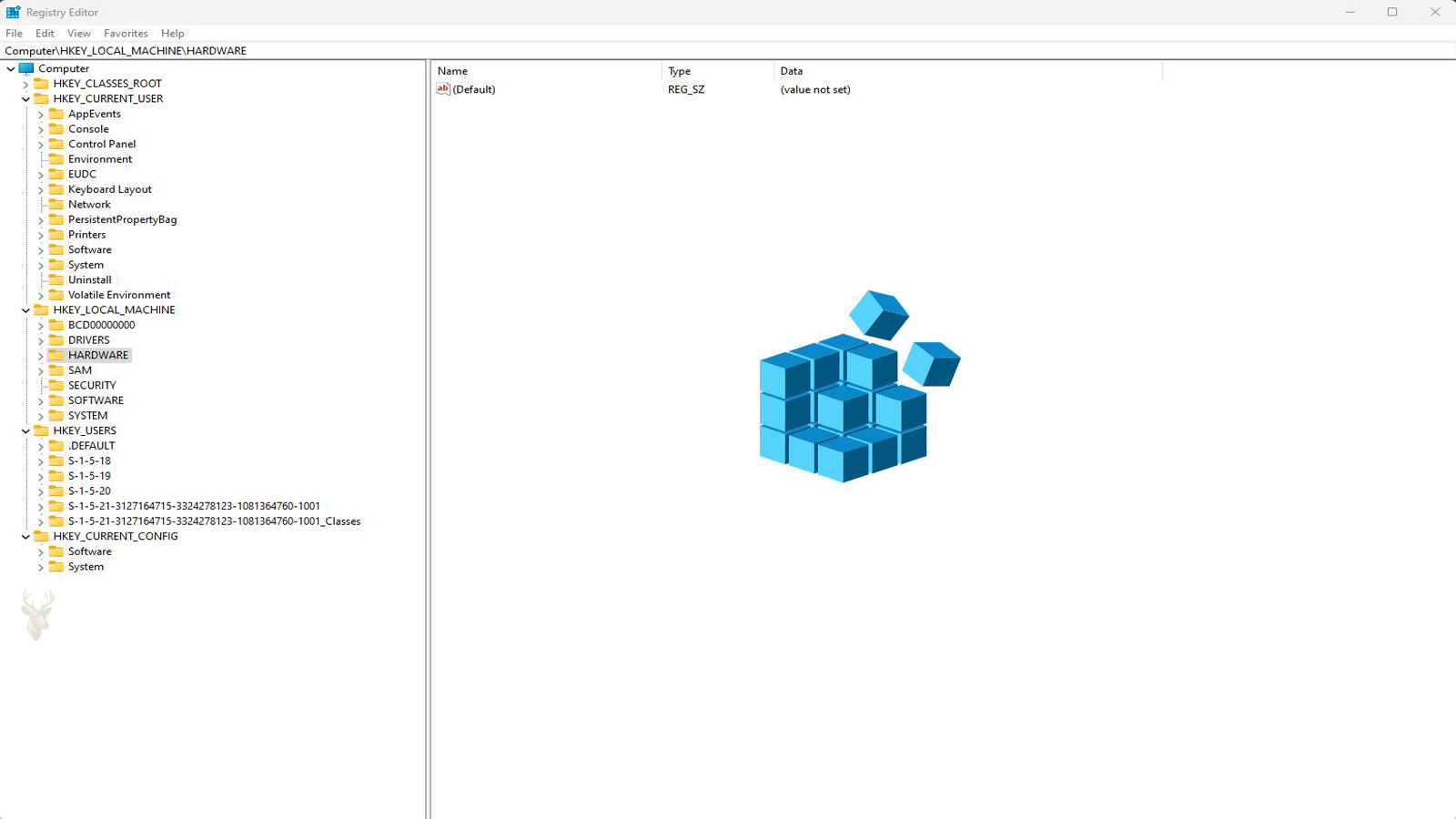
Windows May Be Updating Important System Records When Power Is Lost
Windows continuously reads and updates information about installed hardware, software, user accounts, services, drivers, and system settings. Much of this information is stored in a structured collection of databases known as the Windows Registry.
If a computer suddenly loses power while Windows is writing changes to these files, some information may be left incomplete or inconsistent. The computer may restart normally, but it can also develop startup errors, missing settings, damaged user profiles, or repeated recovery attempts.
Registry corruption is only one possible result of an improper shutdown. File-system damage, incomplete updates, driver problems, and storage-device failure can create similar symptoms, so the cause should not be assumed without proper diagnosis.
The Registry Stores More Than Personal Preferences
The Windows Registry contains settings used by the operating system and many installed programs. It helps Windows determine which drivers to load, which services to start, how users sign in, and how hardware should be configured.
Some registry entries change rarely, while others may be updated during software installation, Windows updates, driver changes, user sign-in, shutdown, and normal application use.
| Registry Information | Examples |
|---|---|
| System configuration | Startup services, drivers, and hardware settings. |
| User settings | Desktop preferences, application options, and account configuration. |
| Installed software | Program locations, components, and registration information. |
| File associations | Programs assigned to open specific file types. |
| Security information | Policies, permissions, and sign-in-related configuration. |
Registry Data Is Divided Into Several Files
The registry is displayed as a single organized structure inside Windows, but its information is stored across several files called hives. Different hives contain system-wide settings, user-specific settings, security information, and other configuration data.
Damage to one hive may affect only a particular account or function. Damage to a critical system hive can prevent Windows from completing startup.
- Hardware and driver configuration.
- Windows service startup information.
- Installed software settings.
- Individual user preferences.
- Security and account information.
- Default profile configuration.
A Power Failure Does Not Always Damage the Registry
Modern versions of Windows use transaction logs, cached writes, and recovery methods intended to protect important system data. In many cases, the computer can lose power unexpectedly and restart without any noticeable damage.
The risk increases when power is interrupted during a system update, driver installation, software setup, account change, or another operation that is actively modifying important configuration files.
An improper shutdown creates the opportunity for corruption, but it does not prove that registry damage occurred.
Startup Failure Can Appear in Several Different Ways
A damaged registry file does not always produce a message that clearly identifies the registry. Windows may stop early in the startup process, display a recovery screen, restart repeatedly, or reach the sign-in screen with missing system functions.
- Windows enters Automatic Repair repeatedly.
- The computer displays a registry-related error during startup.
- Windows restarts before reaching the sign-in screen.
- A user account opens with missing settings.
- System services fail to start.
- Recently installed hardware or software stops working.
- The computer starts only in Safe Mode.
User Profile Problems May Be Limited to One Account
Each Windows user account has its own registry information. If only one user hive becomes damaged, another account on the same computer may continue to work normally.
The affected person may see a temporary profile, missing desktop preferences, applications that have returned to default settings, or repeated messages stating that the account could not be loaded correctly.
| Observed Behavior | Possible Direction |
|---|---|
| Every account fails to load | A system-wide problem may be involved. |
| Only one account is affected | The individual user profile or user registry hive may be damaged. |
| A temporary profile appears | Windows may be unable to load the normal account configuration. |
| Settings disappear after every restart | Profile changes may not be saving correctly. |
Interrupted Windows Updates Can Produce Similar Symptoms
Windows updates may replace system files, change services, install drivers, and modify registry entries. Losing power during this process can leave several parts of the operating system in an incomplete state.
The resulting startup failure may involve registry information, damaged system files, an unfinished update, or a combination of problems. Repairing only one component may not restore normal operation.
Storage Problems Can Be Mistaken for Registry Corruption
Registry files must be read from and written to the computer’s storage drive. If the SSD or hard drive has unstable sectors, controller problems, or file-system damage, Windows may report that a registry hive cannot be loaded even though the original cause is the storage device.
A repair that restores one damaged registry file may therefore provide only temporary improvement if the drive continues corrupting data.
- Determine what the computer was doing when power was lost.
- Record the exact startup message or error code.
- Check whether Windows reaches recovery options.
- Identify whether one user account or the entire system is affected.
- Review the storage drive for signs of failure.
- Protect important files before extensive repair attempts.
Repeated Forced Shutdowns Can Make the Condition Worse
When Windows remains on a repair screen or appears frozen during startup, repeatedly holding the power button may interrupt additional recovery work. This can create new file-system or configuration damage.
If the computer repeatedly fails at the same point, continuing the same startup cycle is less useful than documenting the behavior and moving to controlled diagnostic steps.
Automatic Repair May Detect the Damage Without Correcting It
Windows Automatic Repair can check startup configuration, system files, boot records, and other conditions that prevent normal loading. It may identify that startup has failed, but it cannot always rebuild a damaged registry hive or restore the exact configuration that existed before the power loss.
A computer can therefore return to the same recovery screen after every restart. The repeated loop confirms that Windows cannot complete startup, but it does not identify the exact damaged component by itself.
Safe Mode Can Help Separate Core Windows Problems From Additional Software
Safe Mode starts Windows with a limited set of drivers and services. If the computer can enter Safe Mode but fails during a normal startup, the problem may involve an optional driver, service, startup program, or configuration entry that is not loaded in the reduced environment.
If Safe Mode also fails, the issue may involve a more critical system file, registry hive, storage problem, or boot component.
| Startup Result | Possible Meaning |
|---|---|
| Normal startup fails but Safe Mode works | An additional driver, service, or startup item may be involved. |
| Both normal startup and Safe Mode fail | A critical system or storage problem may be present. |
| Safe Mode opens with missing settings | User-profile or registry damage may still exist. |
| Safe Mode also restarts repeatedly | The failure may occur before optional components are loaded. |
System Restore May Reverse Recent Configuration Changes
System Restore can return certain Windows system files, drivers, and registry settings to an earlier restore point. It may help when the failure began after a recent update, driver installation, or software change.
Restore points are not guaranteed to exist, and they do not serve as complete backups. Personal documents are normally left in place, but recently installed applications or drivers may be removed during the restoration.
System Restore can reverse selected configuration changes, but it cannot repair every form of registry or storage damage.
Startup Repair and System Restore Address Different Problems
Startup Repair focuses primarily on conditions that prevent Windows from loading. System Restore attempts to return system configuration to an earlier state. One tool may succeed where the other does not, depending on what was damaged.
- Startup Repair may correct some boot-related problems.
- System Restore may reverse recent registry and driver changes.
- Safe Mode may allow troubleshooting from within Windows.
- Command-line tools may check system files and storage.
- Data backup may be necessary before additional repair attempts.
Offline System File Checks May Be Necessary
When Windows cannot start, system files may need to be examined from the recovery environment or another trusted operating system. Offline checks can identify damaged Windows components without relying on the failed installation to remain fully operational.
These checks can repair some protected system files, but they may not restore damaged user settings, incomplete third-party software entries, or a registry hive that cannot be read.
File-System Errors Should Be Evaluated Before Repeated Registry Repairs
If the storage file system contains errors, Windows may be unable to read registry files consistently. Repairing the registry without checking the underlying storage structure can lead to repeated failures.
File-system repair should be approached carefully when important data is present. A failing drive may become less accessible during intensive scans, making data protection the higher priority.
| Condition | Recommended Priority |
|---|---|
| Drive appears healthy and data is backed up | Controlled Windows repair may proceed. |
| Drive reports read errors | Protect data before extensive repair attempts. |
| Drive disappears intermittently | Investigate hardware and connection stability first. |
| Important files exist without a backup | Avoid unnecessary write operations. |
Manual Registry Replacement Carries Significant Risk
Some repair procedures involve replacing registry hive files with older copies. This can restore startup in certain cases, but it can also create conflicts between the registry, installed software, drivers, and current system files.
An older hive may not contain information about recent updates, applications, accounts, or hardware changes. Replacing files without confirming compatibility can leave Windows in a different but still unstable condition.
- The replacement files may be outdated.
- Recent programs may no longer be registered correctly.
- Installed drivers may not match the restored configuration.
- User accounts or permissions may behave differently.
- Windows updates may become incomplete or inconsistent.
Registry Cleaning Software Is Not a Startup Repair Method
Registry cleaning programs are often promoted as a general solution for Windows problems. They are not designed to rebuild severely damaged system hives or correct a computer that cannot complete startup.
Removing entries automatically can create additional problems, especially when the operating system is already unstable. Registry cleaners should not be treated as a substitute for diagnosis, backups, or proper recovery tools.
A New User Account Can Help Confirm Profile-Specific Damage
If Windows starts but one account remains damaged, creating or testing another account can help determine whether the problem is limited to the original user profile.
A working second account does not repair the damaged profile, but it can provide access to the computer while files, application settings, and account permissions are evaluated.
- Confirm whether Windows starts normally.
- Test another existing account if one is available.
- Create a temporary local account when appropriate.
- Compare desktop, application, and service behavior.
- Copy important files only after verifying access permissions.
- Avoid deleting the original profile until its data is protected.
Event Logs May Preserve Clues From Before the Failure
If Windows can start in Safe Mode or from another account, Event Viewer may contain errors recorded before or after the sudden shutdown. These logs can show failed services, disk errors, profile-loading problems, and unexpected shutdown events.
Logs do not always identify the root cause directly, but they can help establish whether the failure began with storage errors, an interrupted update, a driver problem, or a user-profile issue.
Data Protection Should Come Before Aggressive Repair
When important files exist only on the affected computer, preserving those files should take priority over repeated startup experiments. Registry and file-system repairs can write changes to the drive and may reduce recovery options if the storage device is already unstable.
A controlled backup or drive image can provide a safer foundation before major configuration changes, reinstallations, or manual registry work are attempted.
A Repair Installation May Preserve More Than a Clean Reinstallation
When Windows still starts well enough to run setup, a repair installation may replace damaged system components while preserving personal files and some installed programs. This can be useful when corruption affects Windows broadly but the storage device remains healthy.
A repair installation is not available in every situation, and it may not correct a damaged user profile, unstable drive, or severely corrupted registry hive. Compatibility with the installed Windows version and edition must also be confirmed.
A Clean Installation Removes the Existing Configuration
Reinstalling Windows from the beginning creates a new registry and a new operating system configuration. This can eliminate corruption that cannot be repaired reliably, but it also removes installed applications, custom settings, and other system-specific information.
Personal files should be backed up before the installation begins. Software license information, installation media, account credentials, and device drivers may also be needed afterward.
| Recovery Method | Primary Consideration |
|---|---|
| System Restore | Returns selected system settings to an earlier point. |
| Repair installation | May preserve files and some applications while replacing Windows components. |
| New user profile | Can bypass damage limited to one account. |
| Clean installation | Creates a new Windows configuration but requires software reinstallation. |
Power Problems Should Be Corrected Before Windows Is Repaired
If the original shutdown was caused by a failing power supply, loose power connection, defective battery, unstable outlet, or electrical interruption, repairing Windows without correcting the power problem can lead to additional corruption.
The computer should remain electrically stable during recovery, file backup, updates, and reinstallation. Another sudden shutdown during those operations can damage the repaired system or interrupt the recovery process.
- Check the power cable and adapter connection.
- Inspect the battery condition on portable computers.
- Confirm that the computer does not shut down under load.
- Use a reliable outlet or surge-protection device.
- Investigate repeated power loss before performing major repairs.
Unexpected Shutdown Records Can Confirm the Timing
Windows may record that the previous shutdown was unexpected even when it cannot explain why power was lost. The timestamp can help compare the shutdown with update activity, storage errors, application failures, or other events.
An unexpected shutdown record does not prove that registry corruption occurred. It only confirms that Windows did not complete its normal shutdown process.
The shutdown event helps establish when the problem began, while other evidence is needed to determine what was damaged.
Backups Reduce the Consequences of Registry and Startup Failure
Registry files can often be repaired or replaced, but personal documents, photos, business records, and project files may be much more difficult to recover after severe storage damage.
A current backup allows troubleshooting to focus on restoring Windows without placing the only copy of important data at unnecessary risk.
- Keep important files on more than one storage device.
- Verify that backups can be opened.
- Disconnect backup drives when they are not in use.
- Include user folders that may not be stored on the desktop.
- Update backups before major Windows or hardware changes.
Registry Export Files Have Limited Recovery Value
Windows allows selected registry keys to be exported, but those files are not complete system backups. They may help restore a specific setting after Windows is running, yet they usually cannot recover a computer that cannot load its critical registry hives.
Restoring exported entries from a different Windows configuration can also introduce conflicts. Registry exports should be treated as targeted configuration records rather than full recovery images.
Successful Startup Does Not Always Mean the System Is Fully Repaired
A computer may begin starting again after System Restore, Safe Mode changes, registry replacement, or file repairs. Additional testing is still needed to confirm that updates install correctly, user profiles load normally, services start, and the storage device remains stable.
| Post-Repair Check | Reason |
|---|---|
| Restart the computer several times | Confirms that startup remains consistent. |
| Test each user account | Identifies profile-specific damage. |
| Review storage health | Helps detect an underlying drive problem. |
| Check Windows Update | Confirms that servicing components remain functional. |
| Open important applications | Reveals missing settings or registration problems. |
Repeated Corruption Usually Points Beyond a Single Registry File
If registry or startup problems return after a successful repair, the computer may have unstable storage, defective memory, repeated power interruptions, or another hardware condition that continues damaging data.
Replacing registry files repeatedly without finding the cause may restore operation temporarily while allowing the underlying problem to continue.
- Confirm that the computer receives stable power.
- Test the storage drive for errors and instability.
- Evaluate memory if corruption appears in different files.
- Review whether failures follow updates or software changes.
- Verify that repaired user profiles save changes correctly.
- Maintain a current backup before additional testing.
Professional Service May Be Needed When Windows and Data Are Both at Risk
A computer that cannot start, reports storage errors, contains important unprotected files, or repeatedly corrupts system information may require professional diagnosis. Data access, drive condition, Windows repair, and hardware stability should be evaluated in the correct order.
Attempting numerous automated fixes without protecting the files can reduce recovery options, especially when the storage device is already failing.
Controlled Recovery Is Safer Than Repeated Startup Attempts
Sudden power loss can interrupt registry updates and leave Windows unable to load part of its configuration. The resulting symptoms may include startup loops, missing settings, temporary profiles, failed services, or complete boot failure.
The safest response is to separate registry damage from storage failure, interrupted updates, user-profile corruption, and unstable power. Protecting important data first and applying one controlled recovery step at a time provides a more reliable path back to normal operation.











