
A Heavy Graphics Card Can Place Continuous Pressure on the Computer
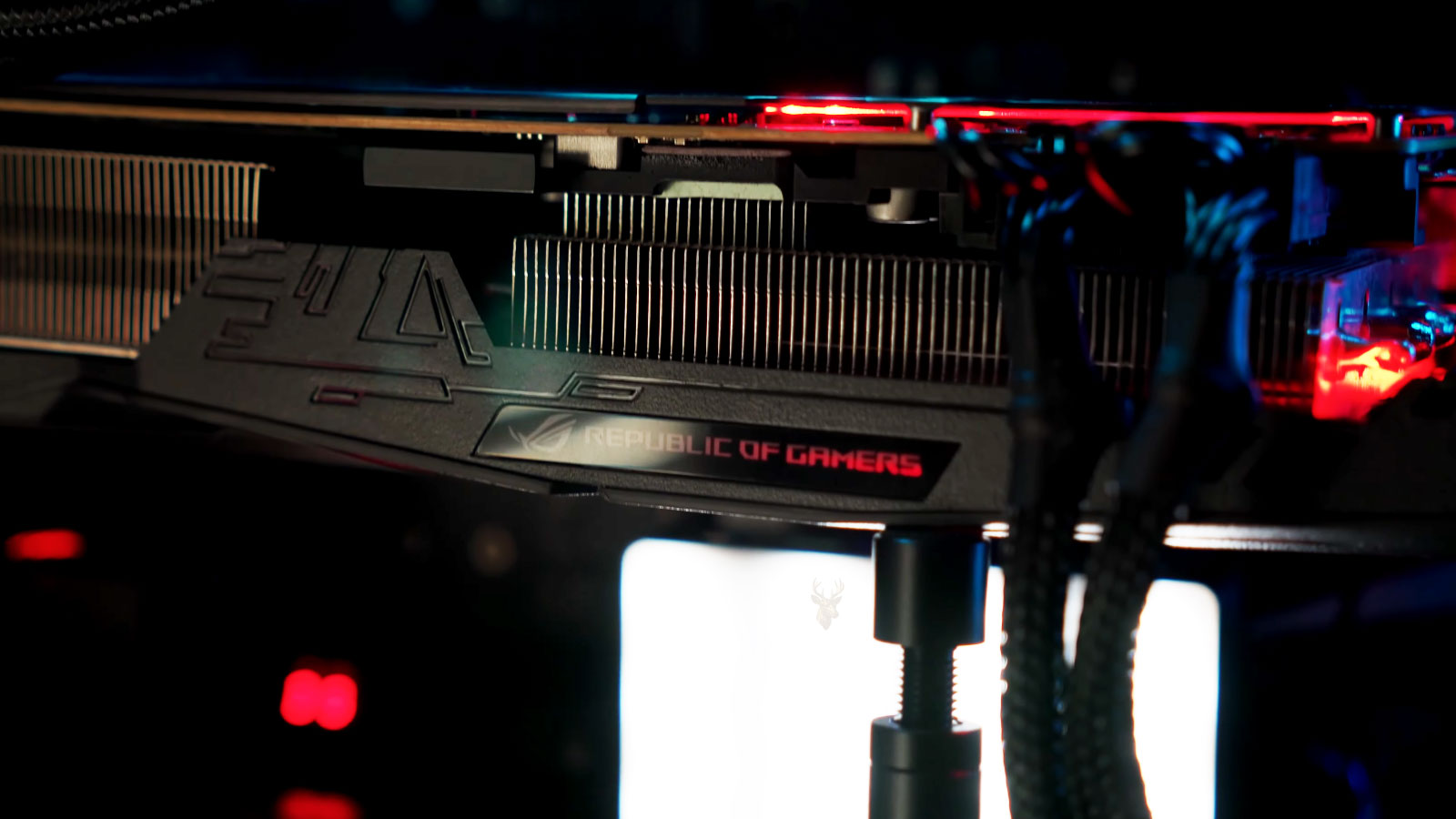
Modern gaming graphics cards can be large, heavy, and several expansion slots thick. Their cooling assemblies may include substantial heatsinks, multiple fans, reinforced frames, and metal backplates. Although these parts help control heat, they also add weight that must be supported by the PCI Express slot and the mounting screws at the rear of the computer case.
When the outer end of a graphics card begins hanging lower than the end attached to the case, the condition is commonly called GPU sag. A small amount of visible movement does not always cause immediate failure, but significant or increasing sag can place mechanical stress on the graphics card, motherboard slot, mounting bracket, and internal electrical connections.
The effect may develop gradually. A gaming computer can operate normally for months or years before movement, transportation, heat, or repeated vibration makes the weakened connection noticeable.
The Graphics Card Is Supported at Two Main Points
In a conventional desktop layout, the graphics card connects to the motherboard through a PCIe slot. Its metal bracket is also secured to the rear of the case with one or more screws.
These two areas support most of the card’s weight. The far end of a long graphics card may have no direct support unless the case or builder includes a brace, bracket, or support stand.
| Support Area | Primary Function |
|---|---|
| PCIe slot | Provides the electrical connection and supports part of the card’s weight. |
| Rear mounting bracket | Secures the card to the computer case. |
| Retention latch | Helps prevent the card from pulling out of the PCIe slot. |
| Optional GPU support | Supports the outer end of a long or heavy graphics card. |
Not Every Slightly Uneven Graphics Card Is Damaged
Some graphics cards naturally appear slightly uneven because of their cooler design, decorative shroud, case alignment, or backplate shape. The visible edge of the cooler may not be perfectly parallel with the motherboard even when the PCIe connection remains secure.
The more important questions are whether the card has changed position, whether the mounting bracket remains tight, and whether the computer shows symptoms when the case is moved or the graphics card warms during use.
- The outer end of the graphics card is noticeably lower than the mounted end.
- The rear bracket does not sit evenly against the computer case.
- The card moves when power cables are touched.
- The PCIe slot appears bent or pulled downward.
- Display problems occur after the computer is transported.
- The system changes behavior when the case position changes.
Long Cards Create More Leverage
A longer graphics card places its weight farther away from the motherboard slot and rear mounting bracket. This creates leverage that can increase downward pressure at the outer end of the card.
The total weight matters, but length and weight distribution are also important. A long card with a large heatsink can place more mechanical strain on its mounting points than a shorter card of similar weight.
The farther the graphics card extends beyond its mounting points, the more leverage its weight can place on the PCIe slot.
The PCIe Slot Was Not Designed to Carry Unlimited Weight
Motherboard PCIe slots are built to hold expansion cards securely, but they still have physical limits. The plastic slot housing, solder connections, retention latch, and surrounding motherboard material can all experience stress from a heavy card.
Some motherboards include reinforced PCIe slots with metal coverings or additional anchoring points. Reinforcement can improve physical strength, but it does not eliminate all stress from an unsupported graphics card.
| Affected Area | Possible Stress |
|---|---|
| PCIe slot housing | Downward force can distort or loosen the connector. |
| Slot solder joints | Repeated movement can stress motherboard connections. |
| Graphics card circuit board | The board may flex beneath the cooler’s weight. |
| Rear bracket | Misalignment can place pressure on the case and card. |
| Retention latch | Excess movement may damage or disengage the latch. |
Graphics Card Flexing Can Affect Internal Connections
The graphics card itself is a circuit board containing the GPU, memory chips, power circuitry, and many small soldered components. A heavy cooling assembly can place bending pressure across that board if the card is not supported evenly.
Minor flexing may not produce an immediate symptom. Over time, however, repeated heating, cooling, transportation, and vibration can add stress to solder joints and other connections.
Power Cables Can Pull the Card Out of Alignment
Gaming graphics cards often require one or more dedicated power cables. Thick or tightly bent cables can pull upward, downward, or sideways on the card depending on how they are routed.
A cable should have enough slack to reach the connector without forcing the graphics card away from its natural position. Excess cable should be managed without placing tension on the power connector or circuit board.
- Avoid pulling power cables tightly toward the rear of the case.
- Do not force sharp bends directly beside the GPU connector.
- Confirm that each power plug is inserted completely.
- Keep cables away from graphics card fans.
- Check whether cable tension changes the angle of the card.
Case Alignment Can Make Sag Appear Worse
A graphics card may not sit correctly when the motherboard, expansion-slot openings, or rear case frame are slightly misaligned. Tightening the bracket screws while the card is being pulled sideways can place uneven pressure on the PCIe connection.
The card should be fully seated in the slot before the mounting screws are tightened. The bracket should rest naturally against the case rather than being forced into position.
Transportation Can Turn Minor Sag Into a Larger Problem
A heavy graphics card creates greater force when the computer is dropped, tilted, or transported over uneven surfaces. Even a small impact can place sudden pressure on the PCIe slot and mounting bracket.
Gaming desktops with large graphics cards require particular care during transportation. Carrying the computer upright with the card installed may allow the card’s weight to move repeatedly against the slot.
- Shut the computer down completely.
- Disconnect external cables and accessories.
- Secure loose internal components.
- Support or remove a very heavy graphics card when appropriate.
- Keep the computer from shifting inside the vehicle.
- Inspect the card before powering the system on again.
Display Problems May Appear After the Computer Is Moved
A graphics card that shifts slightly inside the PCIe slot may lose reliable contact with one or more electrical connections. The computer may then power on without displaying an image, show visual artifacts, restart under load, or detect the card intermittently.
These symptoms do not prove that sag is the cause, but movement-related changes make the graphics card connection an important area to inspect.
| Symptom | Possible Connection Concern |
|---|---|
| No display after transportation | The graphics card may have shifted in the PCIe slot. |
| Artifacts appear during gaming | The card, power connection, or internal hardware may be unstable. |
| Computer works when placed on its side | Card position or slot pressure may be changing the connection. |
| Video returns after reseating the card | The PCIe connection may have been incomplete or unstable. |
| Problem returns after the card warms | Board flexing or another internal fault may require diagnosis. |
A Support Bracket Can Reduce Downward Pressure
GPU support brackets are designed to carry part of the weight at the outer end of the graphics card. They may attach to expansion slots, rest on the bottom of the case, or use an adjustable arm beneath the card.
The support should hold the card close to its natural level without pushing it upward excessively. Too much upward pressure can create a different type of strain on the graphics card and PCIe slot.
- Position the support beneath a solid area of the cooler or frame.
- Keep the support away from fan blades.
- Avoid pressing against exposed electronic components.
- Use only enough height to reduce visible sag.
- Confirm that the support remains stable when the case is moved.
Vertical GPU Mounting Changes the Direction of Stress
Some gaming computer cases allow the graphics card to be mounted vertically. This can reduce the traditional downward sag seen in a horizontal installation, but it introduces a PCIe riser cable and changes airflow around the card.
A vertical installation is not automatically safer or more reliable. The mounting frame must remain rigid, the riser cable must be compatible, and the graphics card fans need enough space to pull in air.
| Mounting Style | Primary Consideration |
|---|---|
| Traditional horizontal | The outer end may sag downward. |
| Vertical mount | The riser cable and mounting frame become critical. |
| Case-integrated support | The support must align correctly with the card. |
| Freestanding support | The base must remain stable inside the case. |
An Improvised Support Can Create New Problems
Some users place household objects beneath a graphics card to hold it level. An object that shifts, blocks airflow, conducts electricity, or contacts a fan can damage the computer instead of protecting it.
A proper support should be made from a suitable material, remain secure, and contact only a safe structural area of the graphics card.
A support device should reduce mechanical stress without interfering with cooling, electrical components, or moving fans.
The Rear Mounting Screws Must Be Tight but Not Forced
Loose expansion-slot screws allow the graphics card bracket to move, increasing strain on the PCIe slot. Screws that are overtightened or installed while the bracket is misaligned can also twist the card.
The bracket should sit flat against the rear of the case. If the screw holes do not align naturally, the card seating and case alignment should be checked before additional force is applied.
A Damaged Retention Latch May Allow Movement
Most full-length PCIe slots include a latch that locks against the graphics card connector. This latch helps prevent the card from pulling upward or outward.
If the latch is broken, blocked, or not fully engaged, the card may move more easily during transportation or cable handling. The mounting screws may still hold the bracket in place, but the motherboard connection can remain less secure.
- The latch does not click into position.
- The graphics card can lift from the slot after installation.
- The latch appears cracked or missing.
- The card cannot be removed because the latch is inaccessible.
- The slot shows signs of previous forced removal.
Removing a Heavy Graphics Card Requires Care
A graphics card should not be pulled upward until the rear screws, power cables, and PCIe retention latch have been released. Pulling against a locked latch can damage the slot or motherboard.
Large cards should be supported with both hands during removal. Once released, the card should be lifted evenly rather than twisted from one end.
- Shut down the computer and disconnect power.
- Allow the system to cool.
- Disconnect the graphics card power cables.
- Remove the rear mounting screws.
- Release the PCIe retention latch.
- Support both ends of the graphics card.
- Lift the card evenly from the slot.
Dust and Debris Can Complicate Reseating
When a graphics card is removed, dust near the PCIe slot or card connector may interfere with a clean reinstallation. Debris should be removed carefully without forcing material deeper into the slot.
The gold edge connector should not be scraped, bent, or handled unnecessarily. Oils from fingers and improper cleaning materials can affect the contact surface.
Reseating May Restore Contact Without Fixing the Cause
Removing and reinstalling a graphics card can restore a poor connection temporarily. This may make the computer appear repaired even when sag, bracket misalignment, slot damage, or cable tension remains.
If the same symptom returns after the computer is moved or after several heating cycles, the complete mounting arrangement should be inspected rather than repeatedly reseating the card.
| Result After Reseating | Possible Meaning |
|---|---|
| System becomes stable permanently | The card may not have been fully seated. |
| Problem returns after transportation | Movement or inadequate support may still be involved. |
| Problem returns under gaming load | Power, heat, or graphics card failure may require testing. |
| No improvement | The fault may not be related to slot contact. |
A Secondary PCIe Slot Can Help With Diagnosis
Some motherboards provide another full-length PCIe slot that can be used temporarily for testing. If the graphics card works reliably in a different slot, the original slot or its motherboard connection may require closer inspection.
The secondary slot may operate at a lower bandwidth and may not be intended for permanent use. Testing should also account for case clearance, airflow, and motherboard specifications.
Visible Sag Does Not Explain Every Gaming Instability
Crashes, black screens, artifacts, and restarts can also result from overheating, defective graphics memory, unstable power delivery, driver problems, or a failing power supply.
GPU sag becomes a stronger suspect when symptoms change with physical movement, card position, bracket pressure, or reseating.
- Check whether the problem appears only during heavy graphics use.
- Observe whether touching the case changes the display.
- Confirm that power connectors are fully inserted.
- Inspect the bracket and PCIe slot for movement.
- Compare behavior before and after proper card support.
- Review temperatures and power stability separately.
The Motherboard Should Be Inspected for Physical Damage
A slot that appears tilted, cracked, separated from the motherboard, or surrounded by damaged solder joints should not be ignored. Continued use may worsen the condition or create intermittent contact.
Physical motherboard damage can be difficult to confirm while the board remains installed in the case. Professional inspection may be necessary when the slot moves independently or the computer changes behavior under slight pressure.
The Graphics Card Circuit Board Should Remain as Straight as Possible
A slight amount of flex can occur because of the weight of the cooling assembly, but the circuit board should not appear sharply bent or twisted. Significant curvature can place stress on soldered components, memory modules, power connections, and the GPU mounting area.
The card should be inspected from more than one angle. Decorative covers can make the cooler appear uneven even when the circuit board itself remains straight.
Support Placement Matters
A GPU support should contact a strong section of the cooler frame or backplate. It should not press directly against exposed circuit-board components, small connectors, fan blades, or flexible plastic trim.
- Choose a stable contact point near the unsupported end.
- Keep the support clear of all cooling fans.
- Confirm that it does not block airflow.
- Avoid excessive upward pressure.
- Recheck the support after moving the computer.
Case Movement Can Reveal an Unstable Mount
A properly mounted graphics card should not shift noticeably when the computer is moved carefully. Clicking, rattling, or visible card movement can indicate loose screws, an unstable support, or incomplete seating in the PCIe slot.
The computer should be powered off and disconnected before the card is inspected physically. Pressing on a graphics card while the system is operating can cause a sudden loss of contact or electrical damage.
Movement-related symptoms should be investigated with the computer powered down rather than by pressing on live hardware.
Very Heavy Cards May Need Removal Before Shipping
Shipping subjects a desktop computer to repeated vibration, drops, and impacts that are far greater than normal household movement. A large graphics card can act like a lever against the motherboard during transit.
For some systems, removing the graphics card and packaging it separately is the safest option. When removal is not practical, suitable internal packaging and case orientation may reduce movement, but the packing material must not damage fans or electronic components.
| Transportation Method | Recommended Consideration |
|---|---|
| Carrying across a room | Keep the case stable and avoid sudden tilting. |
| Local vehicle transport | Prevent the computer from sliding or falling. |
| Long-distance transport | Consider supporting or removing a heavy graphics card. |
| Commercial shipping | Use proper internal and external packaging. |
Compact Cases Can Limit Support Options
Small gaming cases may leave little room beneath the graphics card for a support stand. Power-supply covers, bottom-mounted fans, cables, and front radiators can all restrict where a support can be placed.
In those situations, an expansion-slot support bracket or a case-specific mounting solution may be more practical than a freestanding support.
Temperature Can Change the Amount of Visible Flex
Metal, plastic, and circuit-board materials expand slightly as they warm. A graphics card may therefore appear or behave differently after a long gaming session than it does when the computer is cold.
If display problems develop only after the card warms, mechanical stress may be one possibility, but graphics processor temperature, memory temperature, power delivery, and cooling performance must also be evaluated.
Inspection Should Include the Entire Mounting Area
Examining only the visible angle of the graphics card can miss other important problems. The rear bracket, slot latch, motherboard mounting screws, case frame, power cables, and support device all affect how securely the card is held.
- Confirm that the card is fully seated in the PCIe slot.
- Check that the retention latch is engaged.
- Inspect the rear bracket for bending or misalignment.
- Verify that the mounting screws are secure.
- Check power cables for unwanted tension.
- Inspect the motherboard slot for cracks or movement.
- Adjust the GPU support without lifting the card excessively.
Professional Diagnosis May Be Needed When Symptoms Continue
If the computer continues to lose video, restart, display artifacts, or stop detecting the graphics card after the mounting has been corrected, additional testing is necessary. The graphics card, motherboard, power supply, drivers, and cooling system may each require separate evaluation.
A damaged PCIe slot or cracked solder connection may require motherboard repair or replacement. A graphics card with internal board damage may also remain unstable even after proper support is added.
Proper Support Helps Protect Both the Card and Motherboard
GPU sag is not always an emergency, but a long and heavy graphics card should not be allowed to place unnecessary strain on its mounting points. Correct installation, relaxed cable routing, secure bracket screws, careful transportation, and an appropriate support can reduce that pressure.
The goal is not to force the graphics card into a perfectly level position. It is to keep the card securely seated, reduce excessive bending, and prevent movement from damaging the PCIe slot or graphics card over time.











