
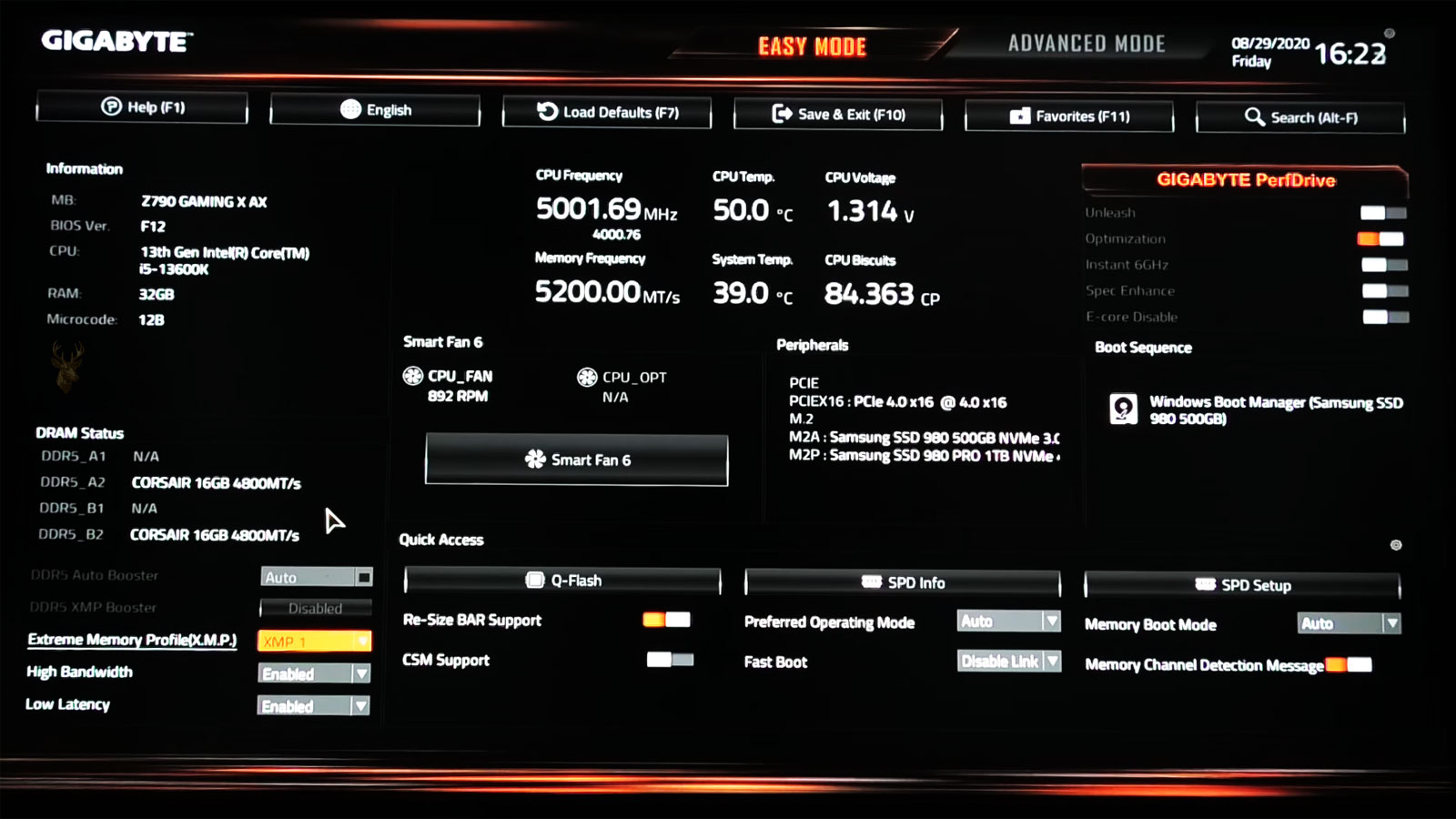
BIOS Changes Should Normally Remain After the Computer Is Turned Off
The BIOS or UEFI firmware stores important settings that the computer needs before Windows or another operating system begins loading. These settings can include the system date and time, storage configuration, boot order, security options, fan behavior, and hardware preferences.
Under normal conditions, those settings remain available after the computer is shut down and disconnected from electrical power. When they repeatedly return to their defaults, the system may display an incorrect clock, forget the preferred startup drive, change storage modes, or show a warning before every startup.
A reset does not always mean the motherboard has failed. The cause may be a weak CMOS battery, a firmware update, an incomplete configuration change, a reset jumper in the wrong position, or another condition preventing the settings from being preserved.
The Firmware Starts Working Before the Operating System
When the power button is pressed, the motherboard firmware checks essential hardware and prepares the computer to start. It identifies the processor, memory, storage devices, graphics hardware, and other components before selecting a bootable device.
The firmware must remember certain choices between startup cycles. If those stored values are lost, the motherboard may return to its factory defaults the next time power is restored.
| Stored Setting | Possible Result After a Reset |
|---|---|
| System date and time | The clock returns to an earlier date or an incorrect default value. |
| Boot order | The computer attempts to start from the wrong drive or network device. |
| Storage controller mode | Windows may fail to start if the mode changes unexpectedly. |
| Memory profile | RAM may return to a lower default speed. |
| Fan configuration | Cooling behavior may return to standard motherboard settings. |
| Virtualization support | Virtual machines or security features may stop working as expected. |
A Small Battery Helps Preserve Basic Firmware Information
Most desktop motherboards use a small coin-cell battery to support the real-time clock and preserve certain firmware information while the computer is disconnected from external power. This battery is commonly referred to as the CMOS battery, even though modern systems do not always store settings in the same way as older computers.
The battery normally lasts for several years. As its voltage decreases, the first noticeable symptom may be an incorrect date and time after the computer has been unplugged. Continued battery weakness can eventually be accompanied by warnings or repeated firmware resets.
- The date returns to an old year after the computer is unplugged.
- The time becomes incorrect after an extended shutdown.
- A CMOS checksum or configuration warning appears during startup.
- The boot order repeatedly returns to its default arrangement.
- Custom fan or memory settings disappear.
- The computer asks for firmware confirmation before continuing.
An Incorrect Clock Does Not Always Confirm Battery Failure
A wrong clock is one of the best-known signs of a weak motherboard battery, but it is not the only possible cause. Windows time synchronization, incorrect time-zone settings, dual-boot configurations, malware, or a firmware defect can also create clock problems.
The pattern matters. A clock that becomes incorrect only after the computer is unplugged suggests a different problem from one that changes while Windows is already running.
| Clock Behavior | Possible Direction |
|---|---|
| Time resets after the power cable is removed | The CMOS battery or standby power should be examined. |
| Time remains correct in BIOS but changes in Windows | The operating system, time zone, or synchronization service may be involved. |
| Clock slowly loses minutes while the computer runs | The real-time clock or synchronization behavior may require testing. |
| Date and multiple BIOS settings reset together | The firmware is probably losing stored configuration. |
| The clock resets immediately after every shutdown | The battery may be fully depleted or disconnected. |
Remaining Connected to Power Can Hide the Problem
A desktop computer may appear normal while it remains connected to a working electrical outlet. Even after shutdown, the power supply can continue providing a small amount of standby power to the motherboard.
If the CMOS battery is weak, the system may preserve its settings as long as standby power remains available. The reset becomes noticeable only after the power strip is turned off, the power cable is disconnected, or an electrical outage occurs.
A computer that forgets its settings only after being unplugged may have been depending on standby power instead of a healthy motherboard battery.
Laptop Firmware Power May Be Supplied Differently
Laptops do not all use the same method to preserve firmware settings. Some have a separate coin-cell or wrapped CMOS battery, while others depend partly on the main battery or use a rechargeable internal power source.
A laptop with a completely failed main battery may still preserve its firmware settings, but another model may begin losing time or configuration after both the charger and main battery are disconnected.
- The CMOS battery may be connected by a small cable instead of sitting in a visible socket.
- The battery may be located beneath the motherboard or another internal assembly.
- Some models preserve settings through the main internal battery.
- Complete disassembly may be required to reach the firmware battery.
- The correct replacement depends on the laptop design and connector.
A laptop should not be opened solely because its clock changed once. The behavior should first be compared after several complete power-loss cycles.
Startup Warnings Can Identify a Lost Configuration
Many motherboards display a warning when saved firmware information is missing or no longer matches the expected values. The wording varies between manufacturers, but the message may mention default settings, a checksum error, an invalid date, or the need to enter setup.
The exact message should be recorded before continuing. Automatically pressing a key to bypass the warning can hide useful evidence about what the firmware detected.
| Startup Message | General Meaning |
|---|---|
| CMOS checksum error | The stored configuration may be missing, invalid, or inconsistent. |
| Defaults loaded | The motherboard has returned to its standard firmware settings. |
| Date and time not set | The real-time clock lost its stored value. |
| Press a key to enter setup | The firmware requires review before startup continues. |
| Configuration changed | Hardware or stored settings differ from the previous startup. |
Boot Order Changes Can Make a Healthy Drive Appear Missing
After a firmware reset, the motherboard may attempt to start from a different device. A secondary drive, USB device, network adapter, or empty optical drive may be placed ahead of the normal Windows drive.
The computer may then report that no operating system was found even though the Windows installation and storage device remain intact.
- Enter the firmware setup screen.
- Confirm that the expected system drive is detected.
- Review the available boot entries.
- Select the correct Windows Boot Manager or system drive.
- Save the change and restart.
- Disconnect external storage devices if they interfere with testing.
- Check whether the boot order resets again after power is removed.
If the drive itself does not appear in the firmware, the problem extends beyond the boot sequence and may involve the drive, cable, connector, or storage controller.
Storage Mode Changes Can Prevent Windows From Starting
Some firmware resets change the storage controller to a default mode that differs from the mode used when Windows was installed. Depending on the system, the available choices may include AHCI, RAID, compatibility, or another manufacturer-specific setting.
Windows may then display a startup error or enter a repair loop because it cannot access the system drive through the newly selected controller mode.
A detected storage drive can still become temporarily unbootable when the firmware changes the controller mode used by Windows.
The previous storage configuration should be identified before values are changed repeatedly. Selecting the wrong mode can complicate startup diagnosis and create additional errors.
Memory Speeds May Return to Standard Values
Performance memory often uses an optional profile that allows the motherboard to apply higher speeds, adjusted timings, and appropriate voltage settings. After a BIOS reset, the system may return the memory to a lower standard speed.
The computer can continue operating normally, but users may notice that the reported memory speed no longer matches the installed kit. This is usually different from missing memory capacity or a failed module.
| Memory Observation | Possible Explanation |
|---|---|
| Full capacity is detected at a lower speed | The optional memory profile may have been disabled by the reset. |
| One module is missing | A module, slot, contact, or installation problem may exist. |
| The system becomes unstable after restoring the profile | The selected speed may not be stable with the current hardware. |
| The profile disappears after each unplugging | The firmware configuration is not being retained. |
A Firmware Update May Intentionally Restore Default Settings
Some BIOS or UEFI updates erase existing configuration values and load the manufacturer’s defaults. This can be normal behavior rather than a battery failure.
The difference is usually timing. When the settings reset once immediately after a firmware update and remain stable afterward, the update is the likely explanation. When they disappear after every complete power loss, a continuing retention problem remains.
- Record custom settings before installing a firmware update.
- Review the manufacturer’s update instructions.
- Allow the update to finish without interrupting power.
- Enter setup after the update and confirm important values.
- Do not restore every old setting without considering firmware changes.
- Test whether the new configuration remains after shutdown.
Loading Defaults Manually Is Sometimes Part of Troubleshooting
A technician may intentionally load firmware defaults when diagnosing unstable hardware, failed startup, or incorrect configuration. This removes custom values that may be preventing the computer from operating normally.
Once defaults are loaded, important settings should be reviewed before Windows starts. Storage mode, boot order, virtualization, security features, fan controls, and memory profiles may require confirmation.
A manual reset should be documented so it is not confused with a motherboard that is losing settings by itself.
The Clear-CMOS Jumper Can Cause Repeated Resets
Desktop motherboards often include a jumper or pair of pins used to clear saved firmware settings. This feature is helpful when an incorrect BIOS configuration prevents the computer from starting, but the jumper must return to its normal position afterward.
If the jumper remains in the reset position, the motherboard may erase its settings each time power is removed or every time the system attempts to start.
- Check the motherboard manual before moving any jumper.
- Disconnect the computer from electrical power first.
- Confirm the normal and clear positions carefully.
- Do not assume all motherboards use the same pin arrangement.
- Return the jumper to its original position before testing.
A Loose or Incorrect Battery Installation Can Produce the Same Symptoms
Replacing the CMOS battery does not solve the problem if the new battery is installed incorrectly, does not fit securely, or fails to make proper contact with the socket.
The positive side of a common coin-cell battery normally faces upward, but the motherboard markings should always be checked. Bent contacts, debris, corrosion, or a damaged socket can prevent a healthy battery from supplying power.
| Battery Condition | Possible Result |
|---|---|
| Installed backward | The motherboard may not receive backup power. |
| Loose in the holder | Settings may reset when the case is moved or power is removed. |
| Wrong battery type | The voltage or physical fit may be incorrect. |
| Dirty socket contacts | Electrical contact may remain intermittent. |
| Damaged battery holder | Replacement may not restore reliable retention. |
Battery Voltage Can Be Checked Before Replacement
A standard CR2032 battery is commonly rated near three volts when new. A multimeter can help determine whether the battery has weakened, although a voltage reading alone does not confirm that the motherboard socket and related circuitry are working correctly.
When testing is practical, the battery should be removed carefully and measured with the meter set to direct-current voltage. If the reading is significantly below its expected value, replacement is reasonable.
A new battery is useful only when the socket, contacts, and firmware retention circuit are also functioning correctly.
The Replacement Battery Should Match the Original Type
Many desktop computers use a CR2032 coin cell, but not every system does. Laptops and compact computers may use a smaller battery, a rechargeable type, or a wrapped battery pack with a cable and connector.
Installing a battery with the wrong voltage, chemistry, polarity, or connector can damage the motherboard or prevent the settings from being retained.
- Read the number printed on the original battery.
- Match the voltage and battery chemistry.
- Confirm the connector shape and wire polarity on wired batteries.
- Avoid forcing a battery into an incompatible socket.
- Use a fresh replacement from a reliable source.
Some Settings May Appear to Reset Because They Were Never Saved
Changes made inside the BIOS normally require a save-and-exit command. Leaving the setup screen by pressing the wrong key or selecting an exit option that discards changes can make it appear that the motherboard forgot the configuration.
After changing an important setting, the confirmation message should be read carefully. The computer should then restart and the value should be checked again before power is removed.
- Enter the firmware setup screen.
- Change one setting at a time.
- Select the option to save changes and exit.
- Allow the computer to restart normally.
- Return to setup and confirm the value remained.
- Shut down and remove external power.
- Test again after several minutes.
A Failed Overclock Can Trigger Automatic Defaults
Motherboards may automatically restore safer values when a processor, memory, or voltage setting prevents a successful startup. This protective behavior can look similar to a firmware retention problem.
The difference is that the reset usually follows a failed boot attempt rather than a simple loss of electrical power. A warning may report that overclocking failed or that previous settings were unstable.
| Reset Pattern | Likely Direction |
|---|---|
| Settings reset after unplugging | Battery or retention power should be checked. |
| Settings reset after a failed startup | Unstable performance settings may be involved. |
| Only memory speed returns to default | The memory profile may have failed training. |
| All values reset after repeated boot attempts | The motherboard may be loading safe defaults. |
Memory Training Can Change Settings During Startup
Modern systems may test memory timing and compatibility during startup. If the selected memory profile is unstable, the motherboard may restart several times and return the RAM to a safer speed.
This behavior does not always mean the complete BIOS configuration was lost. The system may preserve the clock and boot order while changing only the values related to memory stability.
A Motherboard Firmware Defect Can Prevent Settings From Being Retained
Occasionally, a BIOS version contains a defect that causes specific settings to disappear, revert, or behave inconsistently. The issue may affect one setting rather than the entire configuration.
A later firmware release may correct the problem, but updating should not be treated as the first solution for every reset. The battery, reset jumper, save procedure, and startup warnings should be checked first.
- Review the motherboard model and current firmware version.
- Check whether the reset began after a recent update.
- Read the manufacturer’s change notes.
- Use only firmware intended for the exact system model.
- Maintain stable power throughout the update.
- Reconfigure important settings after completion.
Corrupted Firmware Storage Can Create Persistent Problems
The motherboard stores firmware code and configuration information in nonvolatile memory. If that storage becomes corrupted or the write process fails, settings may not save correctly even when the battery remains healthy.
Symptoms may include failed firmware updates, values that change unexpectedly, setup screens that freeze, or settings that appear saved until the next restart.
Repeated configuration loss after a confirmed battery replacement may point toward the motherboard rather than the battery itself.
Standby Power Problems Can Affect Firmware Retention
The power supply provides a small standby voltage whenever the desktop remains connected to electricity. Problems with that standby circuit can contribute to unusual startup behavior, especially when the motherboard battery is already weak.
A failing power supply may also create delayed startup, repeated power-button attempts, or complete loss of power. These additional symptoms help separate a simple battery problem from a larger electrical issue.
| Observed Behavior | Possible Concern |
|---|---|
| Settings remain only while plugged in | The CMOS battery may be weak. |
| The computer also struggles to power on | Standby power or the power supply may require testing. |
| USB devices lose standby power unexpectedly | The motherboard or power supply may not be providing stable standby voltage. |
| A new battery changes nothing | The socket, board circuitry, or firmware may be responsible. |
Security Settings Can Change After a Reset
A firmware reset may disable or alter Secure Boot, Trusted Platform Module settings, virtualization features, and other security-related options. Windows may then request a BitLocker recovery key or report that a security feature is unavailable.
These changes should be handled carefully. Restoring a setting without understanding the previous configuration can make an encrypted system harder to access.
- Confirm that the BitLocker recovery key is available before changing firmware security settings.
- Record whether Secure Boot was previously enabled.
- Check the TPM status before clearing or resetting it.
- Do not erase security keys during routine battery replacement.
- Review firmware changes before allowing Windows to continue.
Virtualization Features May Stop Working After Defaults Are Loaded
Processor virtualization is often disabled in factory firmware settings. A reset can therefore prevent virtual machines, emulators, development tools, or certain Windows security features from starting correctly.
The computer itself may appear normal, making the missing setting easy to overlook. Re-enabling virtualization may be necessary after confirming that the reset cause has been corrected.
Custom Fan Curves May Also Disappear
Many motherboards allow users to create custom fan speeds based on component temperature. After a reset, the system may return to a standard fan profile.
The computer may then become louder, quieter, or warmer than before even though the cooling hardware has not changed. Fan behavior should be reviewed after restoring firmware defaults.
- Confirm that every fan is detected.
- Check whether each header is using the correct control mode.
- Restore custom fan curves gradually.
- Monitor temperatures after making changes.
- Avoid setting fan speeds so low that cooling becomes unreliable.
One Reset Is Different From a Repeating Failure
A single firmware reset can follow a battery replacement, BIOS update, failed overclock, hardware change, or intentional troubleshooting step. It does not automatically indicate an ongoing motherboard problem.
The more important question is whether the configuration remains stable after it has been restored and saved. Repeated loss after complete power removal provides stronger evidence of a battery, socket, firmware, or motherboard retention fault.
Testing Should Separate Power Loss From a Normal Restart
A restart does not remove standby power from a desktop motherboard. For that reason, firmware settings may remain intact during repeated restarts even when the CMOS battery is weak.
A more useful test is to save a recognizable setting, shut the computer down, disconnect external power, and wait before checking the configuration again.
- Record the current BIOS settings.
- Change one harmless setting that is easy to verify.
- Save the configuration and restart.
- Confirm that the change remained after the restart.
- Shut the computer down completely.
- Disconnect the power cable or charger.
- Wait several minutes before reconnecting power.
- Enter the BIOS and check whether the setting was retained.
If the setting survives a restart but disappears after external power is removed, the backup power system becomes a stronger suspect.
Replacing the Battery Requires Basic Safety Precautions
A desktop CMOS battery is usually simple to replace, but the computer should be fully disconnected from power before the motherboard is touched. Static electricity and accidental contact with nearby components can create additional problems.
- Shut the computer down normally.
- Disconnect the power cable and attached accessories.
- Press the power button briefly to help discharge remaining standby power.
- Use appropriate static precautions.
- Note the battery orientation before removal.
- Avoid bending the retaining clip.
- Install the replacement without touching unnecessary motherboard components.
After replacement, the firmware may load defaults once because power was intentionally removed from the retention circuit. The date, time, boot order, and other necessary settings should then be restored.
Important Settings Should Be Documented Before Service
Photographs or written notes can prevent confusion when a motherboard has several customized settings. This is especially important for systems using RAID, specialized boot configurations, virtualization, custom fan controls, or performance memory profiles.
| Setting to Record | Reason |
|---|---|
| Boot order | Ensures the correct operating system drive starts first. |
| Storage controller mode | Prevents startup failure after the configuration is restored. |
| Secure Boot and TPM status | Helps avoid encryption and security complications. |
| Memory profile | Preserves the intended RAM speed and timing. |
| Fan controls | Restores expected cooling and noise levels. |
| Virtualization | Keeps virtual machines and related features available. |
The Computer Clock Should Be Corrected Before Windows Is Used
An incorrect firmware date can affect software licensing, browser certificates, file timestamps, scheduled tasks, updates, and network authentication. Windows may correct the time automatically after connecting to the internet, but the BIOS clock should still be set properly.
If the clock becomes incorrect again after the next complete power loss, the underlying retention problem has not been resolved.
Repeated Resets Can Create Secondary Windows Problems
The BIOS reset itself does not normally damage Windows, but changed firmware settings can interfere with startup and hardware access. A computer may enter recovery mode, request an encryption key, or stop recognizing the expected boot entry.
- Windows Boot Manager may no longer be first in the boot order.
- The storage controller may return to a different mode.
- Secure Boot settings may change.
- The TPM may appear unavailable.
- Virtualization-based features may stop loading.
- The system clock may interfere with sign-ins and certificates.
These symptoms should be traced back to the firmware configuration before Windows repair tools are used unnecessarily.
A New Battery Does Not Repair a Damaged Motherboard
If a known-good battery is installed correctly and the settings still disappear, the battery holder, circuit traces, firmware storage, or motherboard power circuitry may be defective.
Corrosion from previous liquid exposure, physical damage near the battery socket, or a cracked solder connection can interrupt backup power even when the battery itself is healthy.
Replacing the CMOS battery is a common repair, but it should not become a substitute for testing when the reset continues.
Motherboard Replacement Is Not Always Necessary
A computer that loses BIOS settings may remain usable after the correct battery, socket, jumper, or firmware problem is repaired. Motherboard replacement should be considered only after simpler causes have been ruled out.
For valuable or specialized systems, a damaged battery holder or retention circuit may sometimes be repaired at board level. The practical choice depends on the age of the computer, replacement cost, availability of parts, and importance of the system.
| Finding | Likely Repair Direction |
|---|---|
| Weak battery | Install the correct fresh replacement. |
| Loose or dirty battery contact | Clean, adjust, or repair the holder. |
| Clear jumper positioned incorrectly | Return it to the normal position. |
| Settings were not saved | Save and verify the configuration correctly. |
| Firmware defect | Review approved firmware updates or recovery procedures. |
| Damaged retention circuitry | Consider board repair or motherboard replacement. |
A Consistent Testing Process Prevents Misdiagnosis
BIOS settings that reset after power loss often point toward a weak CMOS battery, but several other conditions can create similar behavior. The reset jumper, battery socket, firmware version, save procedure, standby power, and motherboard condition should all be considered.
The most useful evidence comes from comparing what happens after a restart, a normal shutdown, and a complete disconnection from external power. Recording exactly which settings disappear also helps distinguish a full configuration loss from an automatic safety reset affecting only one feature.
Once the underlying cause is corrected, the date, boot order, storage mode, security options, and other required settings should remain stable through repeated shutdown and power-loss tests.











