
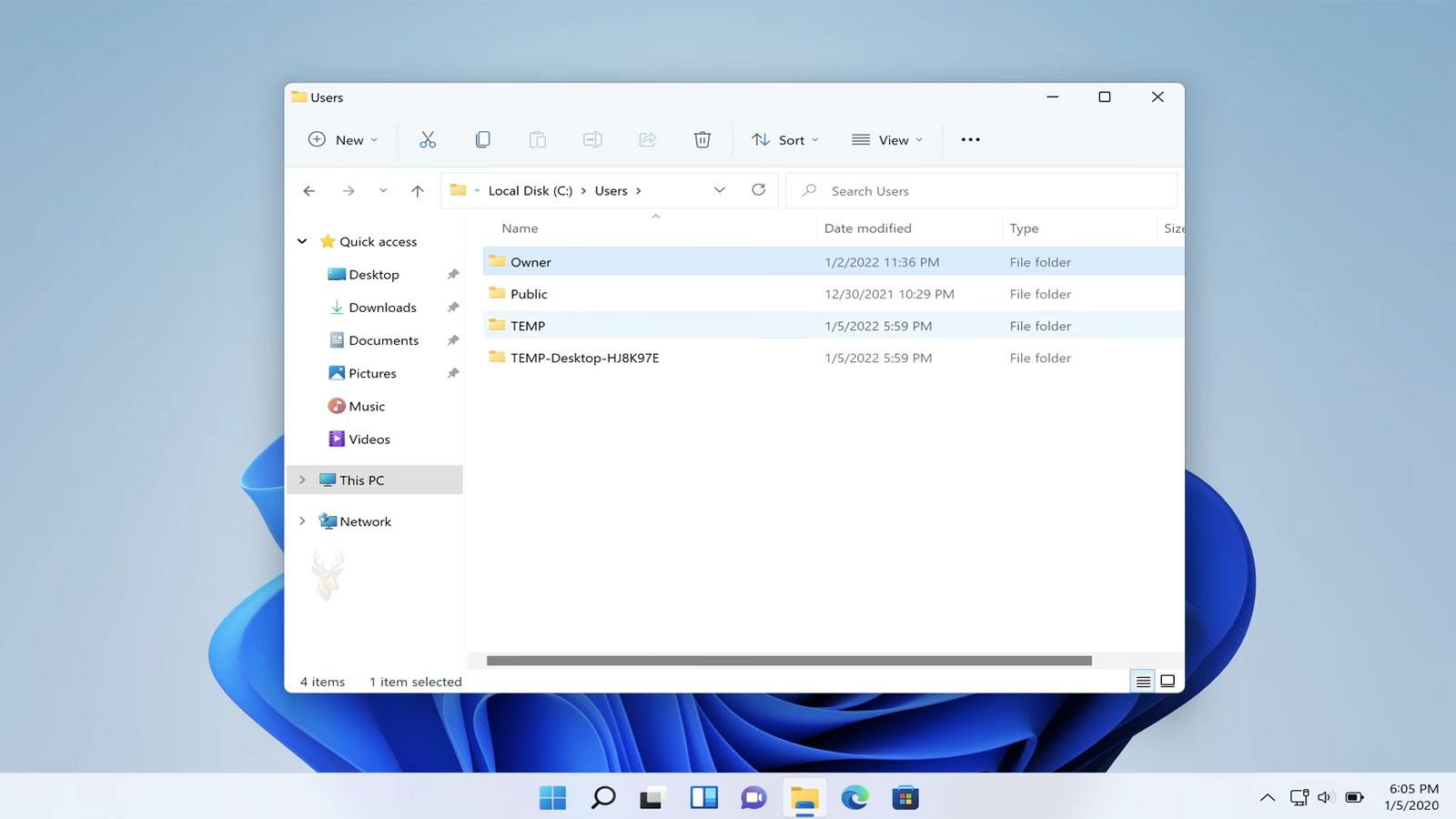
A Temporary Profile Can Make the Computer Look Reset
A Windows computer may sign in successfully and then display an unfamiliar desktop with a default background, missing shortcuts, changed application settings, and empty personal folders. The user may believe the files were deleted or that Windows created an entirely new account.
In many cases, Windows has loaded a temporary user profile because it could not open the normal profile correctly. The original files may still exist under the established user folder even though the current session is displaying a separate temporary environment.
A temporary profile should be treated carefully. Files saved only inside that session may disappear after sign-out or restart, while aggressive profile repairs can damage the original account structure if the cause has not been identified.
The User Profile Stores More Than the Desktop
A Windows user profile connects an account to its personal folders, preferences, application data, registry settings, and parts of the desktop environment. It allows several people to use the same computer while maintaining separate files and configurations.
When the profile loads normally, Windows identifies the correct user folder and applies the settings associated with that account. When it cannot complete this process, it may provide a temporary workspace so the computer remains usable enough for diagnosis.
| Profile Component | What It Commonly Contains |
|---|---|
| Desktop | Files, folders, and shortcuts shown on the user’s desktop |
| Documents | Personal and business documents saved to the standard folder |
| Downloads | Files obtained through browsers and other applications |
| Pictures and Videos | Media stored in the user’s standard libraries |
| AppData | Application preferences, caches, databases, and local program information |
| User registry hive | Account-specific Windows and application settings |
The profile is therefore not one folder or one setting. A failure can affect the appearance of Windows, access to files, saved application configurations, browser data, and account-specific behavior at the same time.
Windows May Display a Temporary Profile Warning
Windows sometimes displays a notification stating that the user has been signed in with a temporary profile or that the account could not be loaded. The exact wording varies by Windows version and the type of profile failure.
The warning can disappear before the user reads it, leaving only the unfamiliar desktop and missing settings as evidence. Other systems may show no obvious notification even though a temporary folder was created.
- The desktop background returns to a Windows default.
- Desktop icons and personal shortcuts are missing.
- Applications behave as though they were opened for the first time.
- Browser preferences or saved sessions are unavailable.
- The Start menu layout has changed.
- Files saved during the session disappear after sign-out.
- A warning mentions a temporary profile or unavailable account.
These signs should be evaluated together. One missing shortcut does not confirm a profile failure, but several account-specific settings disappearing at the same time strongly suggest that Windows loaded a different profile environment.
The Original Files May Still Be Under the Users Folder
Local Windows profiles are commonly stored beneath the Users directory on the system drive. A temporary sign-in does not automatically erase the original user folder.
The computer may contain the established folder, a newly created temporary folder, or additional folders with modified names. The original folder can still hold the missing Desktop, Documents, Pictures, and other personal content.
| Folder Observation | Possible Meaning |
|---|---|
| The original username folder still exists | The personal files may remain present even though the profile did not load |
| A TEMP folder appears | Windows may have created a temporary profile location |
| A username folder has a computer-name suffix | Windows may have generated another local profile folder |
| Several similar username folders exist | Repeated profile creation or earlier repair attempts may have occurred |
| The expected user folder is missing | The files may have been moved, deleted, redirected, or stored elsewhere |
The folder names alone do not prove which profile Windows is currently using. The active profile path and the contents of each folder should be compared before anything is renamed or deleted.
Files Saved in a Temporary Session May Not Remain
A user may continue working after the temporary profile appears and save new documents to the visible desktop or Documents folder. Those locations may belong to the temporary environment rather than the established account.
Windows can remove or replace temporary profile data when the user signs out, restarts, or successfully loads the normal profile later. New work should therefore be copied to a separate verified location before the session ends.
- Stop saving additional work to the unfamiliar desktop.
- Identify any files created or changed during the current session.
- Copy them to an external drive or another confirmed location.
- Open the copied files to verify that they are usable.
- Record where the temporary-session originals were found.
- Proceed with profile diagnosis only after the new work is protected.
Restarting repeatedly before protecting those files can turn a profile problem into a separate data-loss problem.
A Temporary Profile Is Different From a Newly Created Account
A newly created Windows account also presents a clean desktop and default settings, but it is intended to remain on the computer. A temporary profile is created because Windows could not load the expected profile and may not preserve changes normally.
The distinction matters because the troubleshooting direction is different. A user who accidentally selected another account may only need to sign out and choose the correct one. A user whose normal account repeatedly loads temporarily requires profile and system investigation.
| Condition | Typical Behavior |
|---|---|
| Correct account with normal profile | Expected files, settings, and desktop appear |
| Different existing account | Another user’s established environment appears |
| New permanent account | A clean environment is created and normally remains after restart |
| Temporary profile | A default environment appears and changes may not persist |
| Microsoft account synchronization delay | Some settings may be delayed while local files remain under the correct profile |
The account name shown on the sign-in screen and the active profile folder should both be checked. Display names can be similar even when Windows is using a different underlying account or folder.
Restarting Once Can Correct a Temporary Loading Failure
A profile can occasionally fail to load because of a one-time startup conflict, incomplete update, locked file, or delayed service. A controlled restart may allow the normal profile to open on the next attempt.
The restart should occur only after files created in the temporary session have been protected. The user should then observe whether the normal desktop and account settings return.
- Save and close open applications.
- Copy temporary-session work to separate storage.
- Use Restart rather than forcing the computer off.
- Allow Windows to complete any update activity.
- Sign in with the expected account.
- Check whether the original desktop and documents return.
If the temporary profile returns consistently, repeated restarts are unlikely to provide a permanent repair and may complicate the evidence.
An Incomplete Windows Update Can Interfere With Profile Loading
Windows updates can replace system files, modify services, and complete account-related changes during restart. If the process is interrupted or remains partially installed, the profile service may be unable to open the expected user environment correctly.
The timing of the first temporary sign-in is important. A problem that begins immediately after an update, forced shutdown, or unexpected restart should be investigated differently from a profile that has shown gradual corruption over time.
| Recent Event | Possible Connection |
|---|---|
| Windows installed updates before the failure | An incomplete update or restart sequence may have affected profile loading |
| The computer lost power during an update | System or profile-related files may be incomplete |
| The user forced shutdown during sign-in | The profile registry hive may not have closed correctly |
| The problem began after a feature upgrade | Profile migration or compatibility issues may be involved |
| No recent update occurred | Storage, permissions, security software, or profile corruption may be more likely |
An update should not automatically be removed without checking its status and protecting the user’s files. The profile failure may have exposed an existing storage or permission problem rather than being caused solely by the update.
Improper Shutdown Can Leave Profile Data Incomplete
Windows writes user settings and registry information while the account is active and during sign-out. A power outage, forced shutdown, battery loss, or system crash can interrupt those writes.
The next sign-in may fail if Windows cannot read or update the profile information safely. The operating system can then load a temporary environment rather than risk using incomplete account data.
Events That Can Damage an Active Profile
- Holding the power button while Windows is signing out
- Disconnecting power from a desktop during shutdown
- A laptop battery failing while updates are being applied
- A blue screen occurring during account activity
- A storage device disconnecting or becoming unreadable
- Security software interrupting profile files during sign-in
One improper shutdown does not always cause profile corruption, but it becomes more significant when the temporary profile appears immediately afterward.
Low Free Space Can Prevent Profile Changes From Completing
The Windows system drive needs free space for temporary files, updates, profile changes, application data, and registry operations. A nearly full drive may prevent the profile from loading or saving normally.
The user may have enough space to open existing documents while Windows lacks the working capacity required to complete sign-in. Large update files, temporary data, downloads, or another user profile may have consumed the remaining storage.
| Low-Space Symptom | Possible Effect |
|---|---|
| Windows reports that the system drive is full | Profile and update operations may fail |
| Applications cannot save settings | Account-specific data may not be written |
| Temporary files grow after repeated failures | Available capacity can decline further |
| Another account works only briefly | The complete system may be affected by low storage |
| Freeing space restores normal sign-in | Capacity was likely part of the failure |
Space should be recovered carefully. Deleting unfamiliar folders from the Users or Windows directories can remove personal data or system files that are still required.
Storage Errors Can Damage the Profile Structure
A Windows profile depends on many small files and registry records stored on the system drive. Read errors, file-system damage, unstable storage connections, or a failing drive can prevent those components from loading.
The temporary profile may therefore be one symptom of a broader storage problem. Other warnings can include slow startup, missing files, repeated disk checks, application errors, or folders that cannot be opened.
- The computer became unusually slow before the profile failure.
- Files or folders produce read errors.
- Windows performs disk checking during startup.
- The system drive disappears or reports incorrect capacity.
- Event logs contain storage or file-system warnings.
- The temporary profile returns after every restart.
- Other user accounts begin showing unusual behavior.
Profile registry edits should not be the first response when the underlying storage device is unstable. Important data should be protected before repair activity places additional load on the drive.
The User Profile Service Must Complete the Sign-In Process
Windows uses the User Profile Service to load and unload account-specific information. If the service encounters an inaccessible folder, damaged registry reference, locked file, or permission conflict, it may be unable to attach the correct profile to the account.
The sign-in screen can still accept the password because account authentication and profile loading are related but separate stages. The user’s identity is accepted, but the normal environment does not open.
A successful password does not prove that Windows loaded the correct user profile.
This explains why a user can enter the usual password and still arrive at a desktop that looks unfamiliar or empty.
Permissions Can Block Access to the Established User Folder
The user account and system services require appropriate permission to open the profile folder and its internal files. Incorrect ownership or access-control entries can prevent Windows from loading the profile even though the folder remains present.
Permissions may change after files are restored from another computer, copied between drives, modified by security software, or altered during an unsuccessful repair attempt.
| Permission Condition | Possible Result |
|---|---|
| The account cannot access its profile folder | Windows may load a temporary profile |
| Only one subfolder is restricted | Specific personal files may appear unavailable |
| Ownership belongs to an old account identifier | The current account may not receive expected access |
| Broad permissions were removed | Windows services may be unable to read required profile files |
| Every user has unrestricted access | Privacy and security may have been weakened by an earlier repair |
Granting full control to everyone is not a safe general solution. The goal is to restore the intended account and system access without exposing the complete profile unnecessarily.
Security Software Can Lock Profile Files During Sign-In
Antivirus, endpoint protection, backup utilities, synchronization software, and account-management tools can access profile files as Windows signs in. A software conflict, incomplete update, or locked database may prevent the User Profile Service from opening what it needs.
The problem may begin after a security product update or policy change. It can also appear intermittently when a background scan happens to overlap the profile-loading process.
- The profile failure began after security software was installed or updated.
- The account loads normally during some restarts but not others.
- Another account is affected only when the same software starts.
- Security logs report blocked or quarantined profile files.
- Backup or synchronization software reports that the profile is in use.
- The problem disappears during a controlled diagnostic startup.
Security protection should not be disabled permanently without identifying the conflict. The affected software, Windows version, and business security requirements should be considered together.
Cloud Synchronization Can Make Missing Files Harder to Interpret
Desktop, Documents, and Pictures folders may be redirected into a cloud synchronization service. When a temporary profile loads, the synchronization account may not be connected, making those folders appear empty even though the files remain online or under the original user profile.
Some files may also exist only as online placeholders. Copying the visible folder without confirming synchronization status can produce an incomplete backup.
| Cloud-Related Observation | Possible Meaning |
|---|---|
| The usual cloud icon is missing | The temporary profile may not be signed in to the synchronization service |
| Desktop files appear on the provider’s website | The data may still be stored online |
| Only file names appear in the original profile | Some items may be online-only placeholders |
| A second local folder contains older copies | Folder redirection or account changes may have created multiple locations |
| Synchronization begins under the temporary profile | A new folder structure could be created and cause confusion |
The established cloud account and original folder path should be identified before synchronization is restarted or files are moved between locations.
Folder Redirection Can Place Personal Data Outside the Local Profile
Business computers may redirect Desktop, Documents, or other folders to a server or managed storage location. A temporary profile can load locally while the redirected location remains unavailable because of network, permission, or policy problems.
The user may see an empty desktop even though the files were never stored in the local profile folder. Restoring from the wrong local location can create duplicates or overwrite newer server data.
- The computer is joined to a business domain or managed network.
- Personal folders normally follow the user between office computers.
- The files appear only when connected to the office or VPN.
- A server path is listed as the folder location.
- Other employees report problems accessing redirected folders.
- The account loads differently when the network is unavailable.
Local profile repair and network folder recovery should be treated as separate tasks until the true storage location is confirmed.
Domain Profiles Can Fail for Reasons Beyond the Local Computer
In a managed office, the Windows account may be authenticated by a domain while the profile remains stored locally or uses network-based components. Domain connectivity, policies, folder redirection, roaming-profile paths, and server permissions can all affect sign-in.
A user may sign in with cached credentials while the computer cannot reach the resources needed to complete the normal profile configuration. The result can resemble a damaged local profile even though the underlying issue is network-related.
| Business Environment Condition | Possible Effect |
|---|---|
| The domain controller is unavailable | Authentication or policy processing may be delayed or incomplete |
| A roaming-profile server cannot be reached | The expected network profile may not load |
| Folder redirection is unavailable | Desktop and document locations may appear empty |
| A Group Policy setting changed | Profile behavior or permitted paths may be altered |
| Only one workstation is affected | The local profile cache or computer configuration may be involved |
| The user fails on several office computers | The account, server profile, or centralized policy becomes more likely |
Creating a new local account may provide a useful test but does not resolve a domain profile or redirected-folder failure by itself.
Another Administrator Account Provides a Safer Diagnostic Environment
Signing in with another established administrator account can allow the original profile folder, storage condition, event logs, and system settings to be examined without continuing to work inside the temporary profile.
The comparison can also show whether Windows has a system-wide problem or whether only one user profile is affected.
- Protect any files created in the temporary session.
- Sign out rather than switching users while applications remain open.
- Sign in with a known working administrator account.
- Confirm whether that account loads its normal desktop.
- Inspect the Users folder without changing it.
- Check system storage, update status, and relevant error records.
- Copy important data from the affected profile before repairs.
If no separate administrator account exists, recovery options should be planned carefully before the affected profile or registry is modified.
The Scope of the Failure Helps Identify Its Source
A profile problem affecting one account suggests a different cause from one affecting every user. Testing another known account can help determine whether the damage is isolated to the profile or belongs to Windows, the system drive, or a shared service.
| Scope | Diagnostic Direction |
|---|---|
| Only one local account loads temporarily | The individual profile, its permissions, or registry reference may be damaged |
| Several accounts fail | Storage, system files, services, updates, or security software may be involved |
| A new account works normally | The original profile becomes more suspect |
| No account signs in correctly | The problem may extend beyond one user profile |
| The same domain user fails on several computers | Centralized account, policy, or network profile issues may be involved |
The comparison should be documented before the original account is recreated. A new account can hide the old problem without explaining whether important data and settings were preserved.
The Original Profile Should Be Preserved Before Registry Changes
Some profile repairs involve changing registry references that connect an account identifier to a folder. Incorrect edits can point the account to the wrong directory, create another temporary profile, or make the original environment harder to recover.
Before those changes are considered, the user folder and essential profile data should be copied to separate storage. The current registry state should also be documented so it can be compared with the expected configuration.
The presence of a familiar username in the Users folder does not guarantee that Windows is still linked to it correctly.
Profile repair should preserve both the personal files and the information needed to understand how the account was associated with them.
Not Every AppData Folder Should Be Copied Into a New Profile
When an original profile cannot be repaired, a new Windows account may be created and personal data transferred into it. Copying the complete old profile directly over the new one can also transfer the damaged settings that caused the failure.
Documents, pictures, videos, browser exports, and other known user files can often be migrated separately. Application databases and AppData content require more selective handling because some files contain account identifiers, permissions, cached paths, or corrupted configuration.
- Copy personal documents and project folders first.
- Export browser bookmarks and passwords through supported methods when possible.
- Identify email archives and application databases separately.
- Avoid copying temporary caches without a specific reason.
- Reinstall applications instead of moving program folders manually.
- Test transferred settings before adding more profile data.
A selective migration takes more planning but reduces the chance of recreating the same profile failure in the replacement account.
Encrypted Files May Depend on the Original Account
Some Windows files can be encrypted with credentials or certificates associated with the original user profile. Copying those files to another account does not necessarily make them readable.
This is especially important before deleting the damaged profile, resetting passwords through unsupported methods, or replacing the account. The encryption certificate and private key may be required to open the data.
| Protected Data | Access Consideration |
|---|---|
| Encrypted File System files | The original encryption certificate or recovery method may be required |
| Saved browser passwords | They may be tied to the Windows account and browser profile |
| Credential Manager entries | Stored credentials may not transfer directly to another user |
| Application license data | Reactivation or account sign-in may be necessary |
| Protected email archives | Application credentials or encryption keys may be needed |
Personal files should not be assumed usable merely because they copied successfully to another folder or drive.
A Profile Failure Should Begin With Protection and Observation
The unfamiliar desktop can create pressure to restore everything immediately, but the safest first steps are to protect temporary-session work, locate the original data, identify the active profile path, and determine whether the failure affects one account or the complete computer.
Once the data is protected, the investigation can continue through storage checks, permissions, event records, registry associations, Windows services, updates, security software, and account-specific repair options.
- Do not assume the missing files were deleted.
- Protect anything created in the temporary session.
- Locate the established user folder.
- Confirm which profile Windows loaded.
- Check whether another account works normally.
- Review recent shutdowns, updates, and storage warnings.
- Back up the original profile before making repairs.
A temporary profile is often recoverable, but the repair should not sacrifice the personal files and settings that the profile was meant to protect.
Event Viewer Can Show Where Profile Loading Failed
Windows records many sign-in and profile-loading events in Event Viewer. These records can identify whether the User Profile Service could not read the registry hive, access the profile folder, apply permissions, or complete another stage of the sign-in process.
The most useful entries are those created at the same time as the temporary sign-in. Older warnings may describe unrelated problems and should not be treated as the current cause without matching the date and time.
| Event Detail | What It Can Reveal |
|---|---|
| User Profile Service warning | Windows encountered a problem loading or unloading the user profile |
| Access denied message | Permissions or ownership may be blocking required files |
| Registry hive error | The user-specific registry file may be damaged, locked, or unavailable |
| Profile path not found | Windows may be pointing to a missing or renamed folder |
| Disk or file-system error at the same time | The profile failure may be connected to storage instability |
An event number by itself is not enough. The full message, affected account, referenced path, and timing should be reviewed together.
The Active Profile Path Can Be Different From the Account Name
The name displayed on the sign-in screen does not always match the folder Windows is currently using. Account renaming, Microsoft account conversion, domain changes, and earlier repairs can leave a profile folder with an older or abbreviated name.
During a temporary sign-in, Windows may attach the account to a TEMP folder or another newly created directory. Confirming the active path helps distinguish the established profile from the temporary environment.
- Compare the account shown at sign-in with folders under the Users directory.
- Check environment information that identifies the current profile path.
- Look for recent folders created at the time the problem began.
- Compare Desktop, Documents, and AppData contents between similar folders.
- Do not rename folders until the registry association is understood.
A folder that contains the expected files may still not be the folder Windows is currently attempting to load.
The ProfileList Registry Area Connects Accounts to Their Folders
Windows stores profile associations in the registry beneath the ProfileList area. Each account is represented by a security identifier, and the associated values identify the folder that belongs to that user.
If those references are damaged, duplicated, or pointed to the wrong location, Windows may fail to load the intended profile and create a temporary one instead.
| Registry Observation | Possible Meaning |
|---|---|
| The profile path points to the expected user folder | The failure may involve permissions, corruption, or locked files rather than the path itself |
| The profile path points to TEMP | The current account may be attached to a temporary environment |
| Two similar security identifier entries exist | A failed profile load or earlier repair may have created a duplicate reference |
| An entry ends with a backup-style suffix | Windows may have preserved the original association while creating another one |
| The referenced folder no longer exists | The account cannot load the expected profile location |
Registry information should be exported or documented before changes are made. Editing the wrong security identifier can affect another user account.
Duplicate Profile Entries Require Careful Comparison
A common profile-repair situation involves two registry entries with similar security identifiers, sometimes with one carrying a backup-style suffix. This can indicate that Windows retained the original profile association while creating another entry during a failed sign-in.
The presence of duplicate entries does not justify deleting one immediately. The profile paths, timestamps, account identity, and original user folder should be confirmed first.
- Identify the affected Windows account.
- Record the complete security identifiers involved.
- Compare the profile path listed in each entry.
- Confirm which folder contains the expected personal data.
- Export the relevant registry section.
- Protect the entire original user folder.
- Change only the values required by the verified repair plan.
A repair that reconnects the wrong account to the wrong folder can create permission problems, missing settings, and additional temporary profiles.
Profile State Values Can Prevent Normal Loading
Profile registry entries can include status and reference information used by Windows to determine whether a profile is available, active, or in an abnormal state. Incorrect values may remain after a crash, interrupted sign-out, or failed repair.
Resetting these values is sometimes part of a controlled profile repair, but doing so without understanding the complete condition can hide a deeper problem such as storage damage or a locked registry hive.
| Condition | Repair Consideration |
|---|---|
| The path and folder are correct, but the profile still fails | Status values and profile files may require examination |
| The system drive reports errors | Storage should be evaluated before registry changes |
| The profile works only after several restarts | A lock, service, or timing conflict may remain |
| Another account loads normally | The problem is more likely isolated to the affected profile |
| Several accounts fail | System-wide causes should be investigated first |
Registry values should never be changed simply because they differ from an online example. Windows versions and profile conditions can vary.
The NTUSER.DAT File Holds User-Specific Registry Settings
Each normal Windows profile commonly contains a hidden file named NTUSER.DAT. Windows loads this file as the user’s personal registry hive during sign-in.
If the file is damaged, locked, missing, or inaccessible, Windows may authenticate the account but fail to build the expected desktop environment. A temporary profile can then be used instead.
- The file may be damaged after an improper shutdown.
- Security software may hold it open during sign-in.
- Permissions may prevent the User Profile Service from reading it.
- Storage errors may make part of the file unreadable.
- An earlier migration may have copied it incorrectly.
- Manual replacement may remove important account-specific settings.
NTUSER.DAT should not be deleted casually. Removing it can force Windows to rebuild user settings and may discard application preferences, mapped resources, and account-specific configuration.
A Locked Registry Hive Can Cause an Intermittent Temporary Profile
Some profile failures occur only occasionally because another process holds the user registry hive open or prevents it from closing correctly. The account may load normally after one restart and temporarily after another.
Backup tools, antivirus software, synchronization utilities, remote-management agents, and incomplete sign-out processes can all contribute to this type of conflict.
| Intermittent Pattern | Possible Direction |
|---|---|
| The profile fails only after a fast restart | A service or background process may not have released the profile fully |
| The profile loads after a full shutdown | Fast Startup or incomplete session closure may be involved |
| The problem appears during scheduled backups | Backup software may be accessing profile files |
| The issue follows a security-software update | A new filter or scanning conflict may be present |
| The profile fails only during remote sign-in | Session handling or remote-profile behavior may be involved |
Intermittent success should not be considered a repair. The condition should be reproduced and documented before the system returns to normal use.
Fast Startup Can Preserve an Incomplete System State
Windows Fast Startup combines elements of shutdown and hibernation so the computer can start more quickly. In some situations, this can preserve a service or driver condition that continues affecting profile loading.
A restart normally performs a more complete system reload than a standard shutdown with Fast Startup enabled. This is one reason a profile may return after Restart but fail again after a normal power-off cycle.
- Protect temporary-session files.
- Use Restart and observe whether the normal profile returns.
- Compare the result with a standard shutdown and power-on.
- Review whether Fast Startup is enabled.
- Temporarily disable it only as part of a controlled test.
- Restore the preferred setting after the cause is understood.
Fast Startup should not be blamed automatically. A profile that remains damaged after a full restart requires broader investigation.
Safe Mode Can Help Separate Profile Damage From Background Software
Safe Mode starts Windows with a reduced set of drivers and services. If the affected account loads normally in Safe Mode, a third-party service, security product, startup application, or driver may be interfering with the normal sign-in process.
If the profile still loads temporarily in Safe Mode, the problem may be more closely tied to the profile files, permissions, registry association, or storage condition.
| Safe Mode Result | Diagnostic Direction |
|---|---|
| Normal profile loads in Safe Mode | A background service, driver, or startup program may be involved |
| Temporary profile remains | The profile itself or its system association may be damaged |
| Another account also fails in Safe Mode | A broader Windows or storage problem may exist |
| The profile loads but applications are limited | This is expected because Safe Mode does not start every service |
| The problem returns in normal mode | Selective startup testing may be required |
Safe Mode is a diagnostic comparison, not a normal working environment or a complete repair.
A Clean Boot Can Identify Service and Startup Conflicts
A clean boot starts Windows with Microsoft services and a limited set of startup items. This can help identify third-party software that interferes with profile loading while preserving more normal Windows functionality than Safe Mode.
The disabled items should be documented so they can be restored. Business security, backup, and management software may be essential and should not remain disabled after testing.
- Record the currently enabled services and startup applications.
- Hide Microsoft services before disabling third-party entries.
- Restart and test the affected account.
- Re-enable items in controlled groups.
- Observe when the temporary profile returns.
- Update, repair, or replace the conflicting software.
Disabling everything at once may show that a conflict exists, but reintroducing items gradually is necessary to identify the actual cause.
System File Damage Can Affect the Profile Service
The profile depends on Windows services, registry components, libraries, and permissions. Damaged system files can interfere with sign-in even when the user folder itself remains intact.
Windows includes tools that can verify and repair protected system files and the component store used to restore them. These tools should be run from a stable administrator environment after important data is protected.
| System Check Result | Possible Meaning |
|---|---|
| No integrity violations found | The cause may be profile-specific, storage-related, or outside protected system files |
| Damaged files were repaired | System corruption may have contributed to the sign-in failure |
| Some files could not be repaired | The component store or deeper system condition may require attention |
| The repair tool cannot complete | Storage, servicing, or Windows-image problems may exist |
| The profile still fails after repair | The original profile association or files remain suspect |
A successful system-file repair does not automatically restore a damaged user registry hive or incorrect profile path.
File-System Checks Should Follow Data Protection
If storage or file-system errors are suspected, Windows can examine the system volume for structural problems. A repair may require a restart because the active Windows volume cannot always be corrected while it is in use.
File-system repair changes disk structures and can relocate damaged records. Personal files should be copied first when they remain accessible.
A profile repair cannot remain dependable when the drive storing the profile is still producing errors.
If the system drive reports unusual noises, repeated read failures, severe slowness, or disappearing capacity, the priority should shift toward storage evaluation and data recovery.
A New Local Account Can Test Whether Windows Itself Is Stable
Creating a separate local account provides a clean profile for comparison. If the new account loads consistently and retains changes after restart, the original profile becomes more likely to be the isolated problem.
If the new account also loads temporarily or shows missing settings, the failure may extend to Windows services, permissions, storage, or security software.
- Create the test account from a working administrator profile.
- Grant only the access required for diagnosis.
- Sign in and allow Windows to build the new profile.
- Create a temporary desktop file.
- Restart and sign in again.
- Confirm that the file and settings remain.
- Compare Event Viewer records between both accounts.
The test account should not replace the original until the user’s files, applications, encryption, and business access have been reviewed.
Creating a New Account Can Be Safer Than Repeatedly Repairing a Severely Damaged Profile
A profile with extensive registry corruption, recurring permission problems, and unstable application settings may be less reliable than a newly created account. Rebuilding the environment can provide a cleaner result than continuing to patch several damaged components.
This approach still requires careful migration. The new account must receive the correct documents, browser data, email archives, cloud access, application settings, printers, network resources, and security permissions.
| Profile Condition | Possible Direction |
|---|---|
| The failure occurred once and the profile is otherwise stable | A targeted repair may be reasonable |
| The profile repeatedly loads temporarily | A new profile may provide better long-term reliability |
| Application settings are broadly corrupted | Selective migration may be safer than copying the entire profile |
| Encrypted data depends on the original account | Access must be preserved before replacement |
| Business policies control the account | Domain or management requirements must be included in the plan |
The old account should remain available until the replacement profile has been tested and all required data has been verified.
Personal Folders Should Be Migrated Selectively
The safest migration begins with known personal folders rather than copying every hidden file from the damaged profile. Documents, Desktop, Pictures, Videos, Music, and project folders can be transferred and tested separately.
Hidden application data should be moved only when its purpose and compatibility are understood. Some applications provide an export, backup, or synchronization method that is safer than direct folder copying.
- Copy Documents and project folders.
- Review Desktop items for files stored outside shortcuts.
- Transfer Pictures, Videos, and Music as required.
- Check Downloads for installers and important records.
- Export browser bookmarks through the browser.
- Move email archives using the application’s supported process.
- Reconfigure cloud synchronization under the correct account.
Each transferred group should be verified before the next one is added. This makes it easier to identify damaged data or settings that reintroduce problems.
Browser Data May Be Distributed Across Several Locations
Bookmarks, saved passwords, extensions, cookies, browsing history, and open tabs may be stored in AppData, synchronized with an online account, or protected by Windows credentials.
A user may recover the browser history but not saved passwords, or recover bookmarks through synchronization while local extensions remain missing. The migration method depends on the browser and whether account synchronization was enabled.
| Browser Item | Preferred Recovery Direction |
|---|---|
| Bookmarks | Use browser export or account synchronization when available |
| Saved passwords | Use supported export or synchronization before deleting the original profile |
| Extensions | Reinstall or restore through the browser account |
| History | May require the original local browser database |
| Open tabs and sessions | May depend on local session files or synchronization |
Copying an entire browser profile can also copy corruption, outdated extensions, or account tokens that no longer work.
Email Data Requires Application-Specific Handling
Email applications may store local archives, cached mailboxes, address books, signatures, rules, and account settings inside the user profile. Some information can be recreated from the mail server, while other data exists only on the computer.
Before replacing the profile, local archive files and unsynchronized folders should be identified. Simply reinstalling the email application may not restore locally stored messages.
- Identify which email application is used.
- Confirm whether the account uses cloud, server, or local-only storage.
- Locate local archive files and exported mailboxes.
- Protect signatures, templates, and address books.
- Document account and server settings.
- Verify that recovered mail opens in the replacement profile.
Email data should be tested before the original profile is removed, especially when business records or historical messages are involved.
Application Licenses May Need to Be Reconnected
Some applications store activation information under the user profile, in the registry, or through an online account. A new profile can make the software appear unlicensed even though it remains installed.
License records, account credentials, serial numbers, and installation media should be collected before the original profile is retired.
| License Type | Migration Consideration |
|---|---|
| Online account license | Sign in with the authorized application account |
| Product key | Preserve the key and purchase record |
| Machine-based activation | The application may remain activated for all users |
| User-based configuration | The new profile may require separate activation |
| Legacy software | Installation media and older activation methods may be difficult to replace |
Deleting the original profile before identifying specialized software can remove settings that are difficult to reproduce.
Mapped Drives and Printers May Not Transfer Automatically
Network drive mappings, saved credentials, printer connections, and remote resources are often stored per user. A replacement profile may open normally while appearing to have lost access to office systems.
The resources themselves may still be available. Their paths, credentials, permissions, and connection methods need to be recreated for the new account.
- Record mapped-drive letters and network paths.
- Document printer names and preferred defaults.
- Identify VPN or remote-access requirements.
- Preserve approved saved credentials when possible.
- Confirm access to shared office folders.
- Test business applications that depend on network paths.
A profile should not be considered fully restored until the user can reach the same required local and network resources.
Cloud Folder Reconnection Can Create Duplicate Desktops
When a new profile signs in to a cloud synchronization service, the service may create a fresh Desktop, Documents, or Pictures structure. The old profile may already contain another synchronized copy, while the temporary profile may have created a third local location.
Files should not be dragged between these folders without confirming which one is current and whether synchronization is complete.
| Folder Situation | Risk |
|---|---|
| Two folders have similar names | Newer files may be split between locations |
| One folder contains online-only placeholders | A local copy may be incomplete |
| Synchronization begins before migration is planned | Duplicates and conflict copies may be created |
| Files are deleted from the wrong synchronized folder | The deletion may propagate to the cloud |
| The same account connects under a new profile | The service may rebuild or merge its local database |
Cloud status should be verified before large folder moves, deletions, or account reconnections are performed.
Copying the Entire Old Profile Can Reintroduce the Failure
The damaged profile may contain corrupted registry data, startup settings, application caches, shell configuration, or permissions that contributed to the original problem. Copying everything into the replacement profile can reproduce the same symptoms.
Selective migration takes longer but keeps the new account cleaner and provides an opportunity to remove obsolete applications, damaged caches, and unused settings.
A new profile should receive the user’s data and required settings, not every unknown problem from the old profile.
Permission Changes Should Be Limited to the Required Folders
When an administrator needs to copy files from the damaged profile, Windows may request elevated access. This does not mean every file on the computer should be assigned unrestricted permissions.
Broad recursive changes can alter application data, encryption behavior, inherited permissions, and privacy between users. Access should be adjusted only where necessary and documented.
- Confirm the exact folder that requires access.
- Preserve inherited permissions when appropriate.
- Avoid granting access to every user.
- Do not replace ownership across the complete system drive.
- Record the original permissions before changing them.
- Remove temporary administrative access after migration.
The goal is to recover and migrate data without weakening the security of other accounts or system folders.
Deleting the Old Profile Too Early Can Remove Recovery Options
Windows can remove a user profile through system settings or account-management tools. This action may delete the local profile folder and its application data.
The old profile should remain until documents, browser data, email, encrypted files, application settings, licenses, cloud folders, and network access have been reviewed and verified.
- Create and test the replacement profile.
- Copy personal folders to protected storage.
- Verify specialized application data.
- Confirm access to encrypted and cloud-based files.
- Test printers, mapped drives, and business applications.
- Keep a separate backup of the old profile.
- Remove the old account only after verification is complete.
Deleting a profile is a cleanup step, not a diagnostic step.
The Temporary Profile Should Not Be Used as the Permanent Replacement
A temporary profile is not designed to become the long-term working account. Its folder name, registry state, and persistence behavior may change after sign-out or repair.
Important work should be moved into a verified permanent account rather than continuing to use the temporary desktop because it appears functional.
| Temporary Profile Use | Risk |
|---|---|
| Saving documents to its Desktop | The files may disappear after sign-out |
| Installing applications | User-specific settings may not remain |
| Connecting cloud synchronization | A new and confusing folder structure may be created |
| Saving browser passwords | The credentials may remain tied to a disposable profile |
| Using it for business work | Files and access settings may become difficult to recover |
The temporary session is best used only long enough to protect current work and begin diagnosis.
A Successful Sign-In Should Be Tested More Than Once
A profile that loads normally one time may still fail again if the underlying cause is intermittent. Several controlled sign-ins and restarts should be completed before the repair is considered stable.
- Sign in and verify the expected desktop.
- Create a temporary test file.
- Sign out normally.
- Sign in again and confirm the file remains.
- Restart the computer.
- Repeat the sign-in test.
- Review Event Viewer for new profile warnings.
- Test normal applications and cloud synchronization.
Testing should include the same conditions under which the failure originally appeared, such as office network access, remote sign-in, or startup after a complete shutdown.
Recurring Temporary Profiles Often Point to an Unresolved Cause
If the profile repeatedly fails after registry correction or account recreation, the computer may still have storage errors, security-software conflicts, permissions changes, update damage, or a service problem.
Reapplying the same profile fix each time can hide the pattern without correcting the condition that keeps damaging or blocking the account.
- The same profile entry becomes damaged again.
- New profiles begin failing after several days.
- Disk or file-system warnings continue.
- The problem returns after security software starts.
- Sign-out takes unusually long or never completes.
- Temporary folders continue accumulating under Users.
Repeated profile failure should be treated as a system reliability problem rather than an isolated account inconvenience.
Profile Folder Cleanup Should Wait Until the System Is Stable
Multiple TEMP folders and similarly named user directories can consume storage and create confusion. They should not be deleted until the active profile, original data, registry associations, and backup status are confirmed.
A folder that appears unused may still contain files from a temporary session, an earlier account, or a failed migration.
| Cleanup Check | Reason |
|---|---|
| Review folder creation and modification dates | Helps connect folders to specific sign-in events |
| Compare Desktop and Documents contents | Temporary-session work may remain inside |
| Confirm the active profile path | Prevents deletion of the account currently in use |
| Verify registry associations | Shows whether Windows still references the folder |
| Back up uncertain folders | Preserves recovery options before removal |
Cleanup should occur after the profile has remained stable through repeated sign-ins and the user confirms that no files are missing.
A Structured Repair Sequence Protects the User’s Data
Temporary-profile troubleshooting should move from protection to diagnosis and only then to repair or migration. This order reduces the chance of losing files while testing profile settings.
- Protect files created during the temporary session.
- Locate and back up the original user folder.
- Confirm the account and active profile path.
- Test another administrator account.
- Review Event Viewer and recent system changes.
- Check system-drive capacity and storage condition.
- Compare Safe Mode or clean-boot behavior when appropriate.
- Document registry profile associations.
- Attempt a targeted repair only after evidence is collected.
- Create and migrate to a new profile when the original remains unreliable.
Each step should answer a specific question. Uncontrolled changes to folders, permissions, and registry entries can make the original cause harder to identify.
System Restore May Help Only When a Suitable Restore Point Exists
System Restore can return certain Windows system files, registry settings, drivers, and installed software configurations to an earlier state. It may help when the temporary-profile problem began after a recent system change and a usable restore point is available.
System Restore is not a personal-file backup. It does not guarantee that a damaged user profile, missing local file, cloud synchronization problem, or failing storage device will be corrected.
| Restore Scenario | Expected Limitation |
|---|---|
| The problem began after a driver or software installation | A restore point may reverse the related system change |
| The profile folder is physically damaged | System Restore may not reconstruct the missing personal data |
| The system drive is failing | The profile can fail again even if Windows temporarily improves |
| No restore point exists from before the failure | The tool cannot return the system to an earlier usable state |
| Cloud files appear missing | The synchronization account and online storage still require separate review |
The original profile and personal files should be protected before a restore attempt. A successful rollback should also be followed by repeated sign-in testing.
Uninstalling a Recent Update Requires Careful Timing
When the failure begins immediately after a Windows update, removing the most recent update may be considered. The date of installation, the first failed sign-in, and any related system errors should be compared before that step is taken.
An update can expose an existing profile problem without being the only cause. Removing it may provide temporary improvement while storage damage, permissions, or security-software conflicts remain unresolved.
- Record the update installation date and identifier.
- Confirm that the profile worked before the update.
- Review whether the update completed successfully.
- Protect the original profile and temporary-session files.
- Remove only the update connected to the timing of the failure.
- Restart and test the account more than once.
- Pause further changes until the result is understood.
Security and stability updates should not remain removed indefinitely without a plan to correct the underlying compatibility problem.
A Repair Installation Can Preserve Data While Rebuilding Windows Components
An in-place repair installation can reinstall core Windows components while preserving many installed applications, user accounts, and personal files. It may be useful when system corruption affects profile services but the computer still starts normally enough to complete the process.
This procedure is more extensive than repairing one profile entry. It should be considered only after storage stability, backups, edition compatibility, available space, and installation media are confirmed.
| Before a Repair Installation | Reason |
|---|---|
| Back up user profiles and business data | The procedure changes Windows system components |
| Confirm the installed Windows edition | The repair source must match the system appropriately |
| Check available drive space | The installation requires temporary working capacity |
| Review encryption and recovery keys | Startup protection may require verification |
| Document specialized applications | Some software may require repair or reactivation afterward |
| Verify storage health | A failing drive can interrupt the repair and worsen the condition |
A repair installation may restore damaged system files without correcting a corrupted NTUSER.DAT file or an account linked to the wrong profile folder.
Resetting Windows Is a Last-Stage Option, Not a Profile Test
Windows reset options can reinstall the operating system while offering different levels of file preservation. Resetting is much broader than repairing a temporary profile and can remove applications, settings, drivers, and account configuration.
A reset should not be used merely because the desktop appears empty. The original data location, profile folder, encryption, cloud status, and backup completeness must be confirmed first.
- Back up all accessible user data.
- Protect browser, email, license, and application records.
- Verify cloud synchronization independently.
- Record required business software and network resources.
- Confirm BitLocker or device-encryption recovery information.
- Review whether a targeted profile repair remains possible.
- Use reset only when the broader Windows condition justifies it.
A reset can produce a functioning computer while still leaving important profile-specific information behind if the migration was incomplete.
User Account Deletion and Profile Deletion Are Not Always the Same Action
Removing an account from Windows can affect sign-in access, while deleting a stored profile can remove the local folder and settings associated with that account. Different management tools may handle these actions differently.
An account should not be removed until the administrator understands whether the local profile data will remain, be deleted, or become inaccessible through its original permissions.
| Administrative Action | Possible Effect |
|---|---|
| Disable an account | Prevents sign-in while the profile may remain stored |
| Remove a local account | May also offer to delete its files |
| Delete a profile through system settings | Removes local profile data and account-specific configuration |
| Disconnect a Microsoft account | Changes sign-in identity but may retain a local profile |
| Remove a domain profile cache | Forces Windows to rebuild a local copy at the next sign-in |
The exact result should be confirmed before the action is approved, especially when the profile contains data that has not been fully migrated.
Microsoft Accounts Can Add Another Identity Layer
A Windows account may use a Microsoft account for sign-in while storing a local profile folder with a shortened or older name. Changing the online email address or account display name does not automatically rename the local folder.
This can make profile diagnosis confusing because the sign-in name, local folder name, cloud account, and security identifier may all appear different while belonging to the same user.
- Confirm the email address used for Windows sign-in.
- Identify the local folder currently linked to that account.
- Review whether the account was converted from local to Microsoft sign-in.
- Check whether another similarly named account exists.
- Do not rename the profile folder to match the email address.
- Verify the cloud-storage account separately from the Windows profile.
The account identity and profile path should be matched by their Windows associations rather than by visible names alone.
Password Changes Usually Do Not Repair a Temporary Profile
A temporary profile often appears after the password has already been accepted. Changing the account password may therefore have no effect on the damaged profile path, registry hive, permissions, or storage condition.
Password resets can also affect access to encrypted files, saved credentials, synchronized applications, and business resources when they are performed through an unsupported method.
| Password-Related Result | Interpretation |
|---|---|
| The new password is accepted but the temporary desktop remains | Authentication succeeded while profile loading still failed |
| The original password no longer unlocks encrypted data | Credential-dependent access may have been affected |
| Online services request sign-in again | Saved tokens or credentials may no longer match |
| The account cannot authenticate at all | The problem now includes sign-in credentials, not only the profile |
| A separate administrator account works | The affected user profile still requires independent repair |
Password changes should address an authentication problem, not be used as a general profile-repair step.
Credential Recovery and Profile Recovery Should Be Planned Together
A user profile can contain saved browser passwords, wireless network credentials, remote-access information, email tokens, application sign-ins, and Credential Manager entries. Replacing the profile can remove access to these stored items even when personal files are migrated successfully.
Critical credentials should be documented through approved methods before the old profile is removed. Business passwords should remain protected and should not be copied into unsecured notes.
- Confirm access to the primary email account.
- Verify password-manager synchronization or export options.
- Record approved VPN and remote-access settings.
- Review browser synchronization status.
- Confirm multi-factor authentication methods.
- Document application accounts required for daily work.
- Store recovery information in a secure location.
A technically successful profile repair can still disrupt the user’s work if essential accounts and credentials are not included in the recovery plan.
Business Applications May Store Data Inside the User Profile
Accounting tools, design programs, database clients, browser-based business systems, remote-support utilities, and specialized software may store templates, local databases, connection files, cached credentials, and configuration under AppData.
Reinstalling the application can restore the program itself without restoring the user-specific data that made it functional.
| Application Component | Migration Concern |
|---|---|
| Local database | May contain records not synchronized elsewhere |
| Custom templates | May exist only inside the old profile |
| Connection profiles | May store server names, ports, and account settings |
| Application cache | May be disposable or may contain unsynchronized work |
| Plug-ins and extensions | May require separate installation and licensing |
| User preferences | Can be rebuilt manually or selectively migrated |
Each important application should be reviewed individually instead of assuming that the Documents folder contains all required business data.
Desktop Shortcuts Can Point to Files Stored Elsewhere
A missing desktop shortcut does not always mean the related file or application is gone. Shortcuts may point to network folders, cloud locations, another local drive, or application data stored outside the profile.
During migration, the shortcut itself may copy successfully while its destination remains unavailable to the new account.
- Check whether the item is a file or a shortcut.
- Review the shortcut’s target path.
- Confirm that the destination still exists.
- Verify the new account has permission to open it.
- Reconnect any required mapped drive or cloud location.
- Create a new shortcut only after the destination works.
Rebuilding shortcuts without verifying their targets can create a desktop that appears restored while important resources remain inaccessible.
Search Results May Not Immediately Reflect the Recovered Profile
After files are restored or migrated, Windows Search may not display them immediately because the new profile has a different search index or the original index was damaged.
Missing search results should not be confused with missing files. The folders should be checked directly before additional recovery steps are taken.
| Search Behavior | Possible Explanation |
|---|---|
| The file opens when browsed directly but not through Search | The new profile index may be incomplete |
| Only older files appear | Index rebuilding may still be in progress |
| Search points to the old profile path | Cached index data may reference the previous location |
| No files appear from a redirected folder | The network or cloud location may not be indexed yet |
| Search works after rebuilding the index | The files were present but not indexed correctly |
Search-index repair should occur after the permanent profile and file locations are stable.
File History and Other Backups Can Supplement Profile Recovery
When parts of the original profile are damaged or missing, File History, cloud versioning, server backups, image backups, and application-specific backup systems may provide earlier copies.
Backup restoration should be selective. Restoring an entire damaged profile over a newly created one can reintroduce corrupted registry and application data.
- Identify the exact files or folders that remain missing.
- Review the date of the last known good copy.
- Restore to a separate location first.
- Open and verify the restored files.
- Compare them with any newer copies.
- Move the verified data into the permanent profile.
- Preserve the backup until the migration is complete.
A backup can fill gaps in the recovered data without becoming a replacement for understanding why the profile failed.
Offline Access Can Help Protect Data From a Damaged Windows Installation
If the affected computer becomes too unstable for normal sign-in, the system drive may be accessed from another Windows installation, a recovery environment, or another computer when encryption and hardware compatibility allow it.
Offline copying reduces the chance that the damaged profile will continue changing during recovery. It can also provide access when Windows repeatedly signs in temporarily or fails to reach the desktop.
| Offline Method | Consideration |
|---|---|
| Connect the drive to another computer | Encryption, permissions, and hardware interface must be supported |
| Use a Windows recovery environment | Provides file access without loading the damaged user profile |
| Boot from another approved system drive | Reduces writes to the affected installation |
| Create a storage image | Preserves the original condition for later recovery |
| Use professional recovery tools | May be required when the drive is unstable or files are inaccessible |
The affected drive should not be altered unnecessarily while important files remain unprotected.
BitLocker Can Limit Offline Profile Access
A system drive protected by BitLocker or device encryption may remain unreadable when connected to another computer until the correct recovery key, password, or authorized startup environment is provided.
Encryption protects the data from unauthorized access, but it also makes recovery planning dependent on preserved keys and account access.
- Confirm whether the system drive is encrypted.
- Locate the BitLocker recovery key before removing the drive.
- Verify access to the Microsoft or business account holding the key.
- Do not format a drive that appears unreadable before checking encryption.
- Record which volume the key belongs to.
- Preserve the original encrypted drive until the files are verified.
An encrypted profile is not necessarily damaged merely because another computer cannot open the drive.
Profile Repair Should Include Malware and Security Review When Appropriate
Malware can change permissions, damage registry entries, interfere with account services, redirect folders, or install software that disrupts sign-in. A temporary profile does not prove malware is present, but unexplained account changes may justify a security review.
Security scanning should be performed from a stable environment and should not remove unknown profile files without confirming whether they contain needed data.
| Additional Warning | Security Relevance |
|---|---|
| Unexpected administrator accounts appear | Account integrity should be reviewed |
| Security software is disabled without explanation | Malware or policy changes may be involved |
| Browser settings and profiles change at the same time | Potential unwanted software should be investigated |
| Permissions change across several user folders | A broader system modification may have occurred |
| Only one damaged profile is affected after a power loss | Corruption may be more likely than malware |
The repair plan should be based on evidence rather than assuming that every profile failure is either malware or ordinary corruption.
Remote Support Can Be Limited Inside a Temporary Profile
Remote-support software may not have its normal settings, credentials, unattended-access configuration, or administrative permissions when Windows loads a temporary profile.
A technician may be able to view the desktop but lose access after restart or sign-out because the temporary session is not persistent.
- Do not rely on temporary-profile unattended access.
- Confirm that administrative credentials are available.
- Protect files before restarting the remote computer.
- Record the active profile path during the session.
- Plan for reconnection after the computer restarts.
- Test remote access again from the repaired permanent profile.
Remote diagnosis should account for the possibility that the current desktop and application settings will disappear at the end of the session.
Office Computers May Require Policy and Management Review
Managed computers may receive account settings through Group Policy, mobile-device management, endpoint security, scripts, or remote-management platforms. A local profile repair can be overwritten when the computer reconnects to the organization.
The technician should determine whether the system belongs to a domain, cloud directory, or managed workgroup before making permanent account changes.
| Managed Setting | Possible Profile Effect |
|---|---|
| Folder redirection policy | Desktop and Documents may depend on a server path |
| Roaming profile policy | Profile data may be loaded from centralized storage |
| Account cleanup policy | Old local profile caches may be removed automatically |
| Security baseline | Permissions and sign-in behavior may be enforced centrally |
| Login script | Mapped resources and user settings may depend on script completion |
| Endpoint management agent | The repaired system can receive new changes after reconnection |
Business profile recovery should preserve organizational security and access requirements rather than converting the computer into an unmanaged local setup.
A New Profile Must Be Tested With the User’s Complete Workflow
A replacement account is not fully validated merely because Windows reaches the desktop. The user’s normal applications, files, printers, browser data, email, cloud folders, network drives, and remote resources should all be tested.
- Confirm repeated normal sign-ins.
- Open important local documents.
- Test browser bookmarks and required websites.
- Verify email and calendar access.
- Connect cloud synchronization and review folder status.
- Test printers and scanners.
- Open mapped drives and office shares.
- Launch specialized business applications.
- Confirm backup and security software operation.
- Restart and repeat critical tests.
The profile should be considered restored only when the user can complete the same tasks performed before the failure.
Temporary Profile Recurrence Should Be Documented
If the problem returns, the time, account, startup method, network state, error message, and recent software activity should be recorded. This evidence can reveal whether the failure follows a predictable pattern.
A recurrence after every update suggests a different cause from one that appears only after a power interruption, remote session, or backup operation.
| Recorded Detail | Diagnostic Value |
|---|---|
| Date and time of failed sign-in | Allows comparison with event logs and updates |
| Account used | Shows whether the failure is user-specific |
| Network connection state | Helps identify domain or redirected-folder involvement |
| Previous shutdown method | Can reveal incomplete sign-out or power-loss patterns |
| Security or backup activity | May identify profile-file locking |
| Active profile path | Confirms whether Windows created another temporary location |
Good documentation prevents the same temporary repair from being repeated without addressing the actual source.
Preventive Maintenance Can Reduce Future Profile Damage
No maintenance plan can prevent every profile failure, but stable storage, controlled shutdowns, adequate free space, reliable backups, and current software reduce the risk and improve recovery options.
- Keep sufficient free space on the Windows system drive.
- Allow Windows to finish updates before powering off.
- Replace batteries or power equipment that cause sudden shutdowns.
- Monitor system-drive health and file-system warnings.
- Maintain current backups of personal and business folders.
- Preserve encryption and account recovery information.
- Review temporary and duplicate user folders before deleting them.
- Test backup restoration before an emergency occurs.
Preventive work cannot repair an already damaged profile, but it can limit data loss and shorten the recovery process.
A Temporary Profile Is a Warning, Not a New Normal
Windows loads a temporary profile because the expected user environment could not be opened safely or completely. The blank desktop and missing settings are symptoms of that failure, not proof that the user’s original files were erased.
The most important first steps are to protect anything created during the temporary session, locate the original profile, confirm the active profile path, and evaluate the system drive before changing folders or registry entries.
A dependable repair may involve correcting a profile association, resolving permissions, repairing Windows components, replacing a damaged profile, or addressing a broader storage or management problem. The correct choice depends on evidence collected from the account, file system, event records, hardware condition, and the user’s complete working environment.
Once the permanent profile has been restored or rebuilt, repeated sign-in testing and careful data verification are necessary before temporary folders, old accounts, or backup copies are removed.











