
A Visible External Drive May Still Be Read-Only
An external hard drive or solid-state drive can appear normally in Finder while preventing the user from copying new files, renaming folders, deleting existing content, or saving changes. The drive is mounted and readable, but macOS is not allowing normal write access.
This behavior does not always mean the storage device has failed. The drive may use a format that macOS reads without modifying, its permissions may restrict the current account, or the operating system may have mounted it read-only after detecting file-system damage.
Because important files may remain accessible, the first response should be to protect the data rather than repeatedly attempting repairs. A drive that suddenly becomes read-only can be providing an early warning that its condition or file structure has changed.
Mounting and Write Access Are Separate Conditions
Mounting allows macOS to recognize a storage volume and present its contents to the user. Write access determines whether files and folders can be created, changed, moved, or removed.
A drive can therefore complete the first process without receiving permission for the second. Finder may show the volume name and allow documents to open while every attempt to modify the contents produces an error.
| Drive Behavior | What It Confirms |
|---|---|
| The volume appears in Finder | macOS recognized and mounted the storage volume |
| Existing files open | At least part of the file system remains readable |
| New files cannot be copied | Write access is unavailable or failing |
| Files cannot be renamed or deleted | The restriction applies to changes within the volume |
| The drive disconnects during access | A connection, power, or hardware problem may also be present |
The exact error and the drive’s format provide important direction. A predictable compatibility limitation differs from a volume that unexpectedly changed from writable to read-only.
The File-System Format Determines What macOS Can Do
External drives can be formatted for macOS, Windows, or compatibility between several operating systems. macOS does not provide the same level of native write support for every file system.
A drive prepared on a Windows computer may use NTFS. macOS commonly reads files from an NTFS volume but does not provide ordinary native write access to it. The drive can appear healthy while remaining read-only by design.
| Common Format | Typical macOS Access | General Use |
|---|---|---|
| APFS | Read and write | Modern Mac storage and Mac-focused external drives |
| Mac OS Extended | Read and write | Older macOS systems, archives, and certain backup uses |
| exFAT | Read and write | File exchange between current Mac and Windows computers |
| FAT32 | Read and write | Broad device compatibility with individual file-size limits |
| NTFS | Usually read-only without additional software | Windows-focused storage |
The format should be identified before permissions are changed or repair tools are used. A normal NTFS limitation will not be corrected by repeatedly restarting the Mac or modifying Finder preferences.
NTFS Read-Only Access Can Be Normal on a Mac
When a Windows-formatted NTFS drive is connected, macOS may allow the user to browse folders, open documents, and copy files from the drive onto the Mac. Attempts to copy files back to the drive, however, may be rejected.
This is often mistaken for a permission error or drive failure because the volume otherwise appears normal. The restriction comes from file-system support rather than ownership of one particular folder.
- Files can be copied from the drive to the Mac.
- New folders cannot be created on the drive.
- Existing files cannot be renamed or deleted.
- The problem affects the entire volume rather than one directory.
- The drive works normally when connected to a Windows computer.
- Disk Utility identifies the volume as NTFS or Microsoft NTFS.
Third-party software can add NTFS write support, but compatibility with the installed macOS version should be confirmed. Outdated file-system software can create instability after an operating-system update.
Reformatting Changes Compatibility but Erases the Drive
A drive can be reformatted to APFS, Mac OS Extended, exFAT, or another supported file system when its current format does not match how it will be used. Reformatting, however, removes the existing file system and normally erases the stored content.
The files should be copied to another verified location before the volume is erased. Seeing files in Finder is not the same as having a safe backup.
- Identify the existing drive format.
- Confirm which computers and devices must use the drive.
- Copy the important files to separate storage.
- Open several copied files to verify that they are usable.
- Select a format appropriate for the intended systems.
- Erase the correct physical drive or volume in Disk Utility.
- Copy the protected data back only after the new volume is tested.
Reformatting should not be used as the first response when a drive became read-only unexpectedly. That change can indicate file-system damage or hardware trouble that should be evaluated before the original evidence is erased.
Permissions Can Restrict One User Without Affecting Another
A Mac-formatted drive can store ownership and permission information for files and folders. The current user may have permission to read the content but not modify it.
This can occur when the files were created under another account, restored from a different Mac, copied from a managed system, or assigned restrictive settings. Another administrator may be able to edit the same folder while the affected user cannot.
| Permission Level | Typical Capability |
|---|---|
| Read and Write | Open, create, modify, rename, and delete content when folder permissions also allow it |
| Read Only | Open and copy content without changing the original |
| Write Only | Place items into certain folders without viewing all existing content |
| No Access | Unable to open or use the protected location |
Permission changes should be applied only after the intended ownership is understood. Broadly granting access to an entire business or backup drive can expose files that were deliberately restricted.
The Sharing and Permissions Panel Shows the Current Access
Finder can display permission information for a selected drive, folder, or file through the Get Info window. The Sharing and Permissions section lists users or groups and the access assigned to them.
The panel may show that the current account has read-only access. It may also be locked against changes until an administrator authenticates.
Information Worth Checking
- Whether the restriction affects the complete drive or one folder
- The privilege assigned to the current Mac account
- Whether an unknown user or group owns the content
- Whether the permission controls are locked
- Whether the volume is marked read-only for another reason
- Whether the drive uses a format that supports macOS permissions
The panel cannot provide normal write support to a file system that macOS mounts read-only by design. Format compatibility should be checked before permission controls are edited.
Ignoring Ownership Can Change Access on Some External Drives
Some Mac-formatted external volumes provide an option to ignore ownership. When enabled, macOS treats the drive more like shared removable storage instead of strictly enforcing the original file ownership for each local user.
This can be useful for a personal external drive moved between accounts on the same Mac. It may be inappropriate for managed storage, backups, or drives containing files that depend on controlled ownership.
| Situation | Ownership Setting Consideration |
|---|---|
| Personal transfer drive used by several local accounts | Ignoring ownership may simplify normal access |
| Time Machine or system-related backup | Ownership behavior should not be changed casually |
| Business drive with restricted folders | Existing permissions may be intentional |
| Drive restored from another Mac | Old account ownership may prevent modification |
| NTFS-formatted drive | The ownership option does not add native NTFS write support |
The option may not appear for every format or volume configuration. Its absence does not by itself indicate a malfunction.
A Locked File Can Be Different From a Read-Only Drive
An individual file can be marked as locked even when the rest of the external drive remains writable. The user may be able to create new folders and modify other documents while one item refuses to be renamed, replaced, or deleted.
This differs from a volume-level restriction. Testing several locations can show whether the problem affects one file, one folder, or the entire drive.
- Try creating a new folder at the top level of the drive.
- Test whether another existing file can be renamed.
- Check the affected item’s Get Info window for a locked setting.
- Determine whether the parent folder permits changes.
- Confirm that an application is not actively using the file.
Unlocking one document does not correct a drive that macOS mounted read-only because of file-system damage or incompatibility.
Open Applications Can Prevent Specific Files From Changing
A document, media file, disk image, database, or backup package may remain in use by an application. Finder can then report that the item cannot be moved, renamed, or deleted even though the drive itself allows normal changes.
Closing the visible document may not release every background process immediately. Backup utilities, synchronization services, media libraries, and antivirus software can continue accessing external storage.
| Observed Behavior | Possible Interpretation |
|---|---|
| Only one file cannot be changed | The file may be locked, in use, or individually restricted |
| Changes work after closing an application | The program was holding the item open |
| The entire drive remains read-only | A broader format, permission, or file-system condition exists |
| The drive will not eject | A process may still be reading or writing to it |
| The problem returns when a backup begins | Backup software may be controlling or using the volume |
Force-ejecting a drive while data is being written can damage the file system. The process using the volume should be identified and stopped safely when possible.
macOS May Mount a Damaged Volume Read-Only
A drive that was previously writable can become read-only when macOS detects inconsistencies in its file system. Restricting changes can reduce the risk of additional damage while still allowing available files to be copied.
This behavior is more serious than a normal NTFS limitation, especially when it begins after an improper disconnection, power loss, crash, or storage error.
Warning Signs of File-System Trouble
- The drive was writable before the current incident.
- The problem began after the cable was removed without ejecting.
- Finder reports that the volume cannot be modified.
- Folders open slowly or display incomplete contents.
- File names appear damaged or unexpected.
- Disk Utility reports errors during verification.
- The drive disconnects or remounts without warning.
Important files should be copied before repair attempts when the volume remains readable. A repair process changes file-system structures and cannot guarantee that every damaged item will remain recoverable.
Improper Removal Can Damage File-System Records
An external drive should be ejected before its cable is disconnected. Applications and macOS may continue writing cached information even when the user is no longer actively copying a file.
Removing power during those writes can leave directory records, allocation information, or volume metadata incomplete. The next connection may trigger a warning, failed mount, or read-only condition.
- Close documents stored on the external drive.
- Wait for active transfers and backups to finish.
- Eject the volume through Finder or another approved method.
- Wait until the drive disappears from Finder.
- Disconnect the cable without moving the connector sideways.
- Store portable drives where the connector cannot be struck or bent.
A successful disconnection does not require shutting down the entire Mac, but the operating system should be allowed to finish using the volume first.
Disk Utility Can Identify the Format and Report Structural Errors
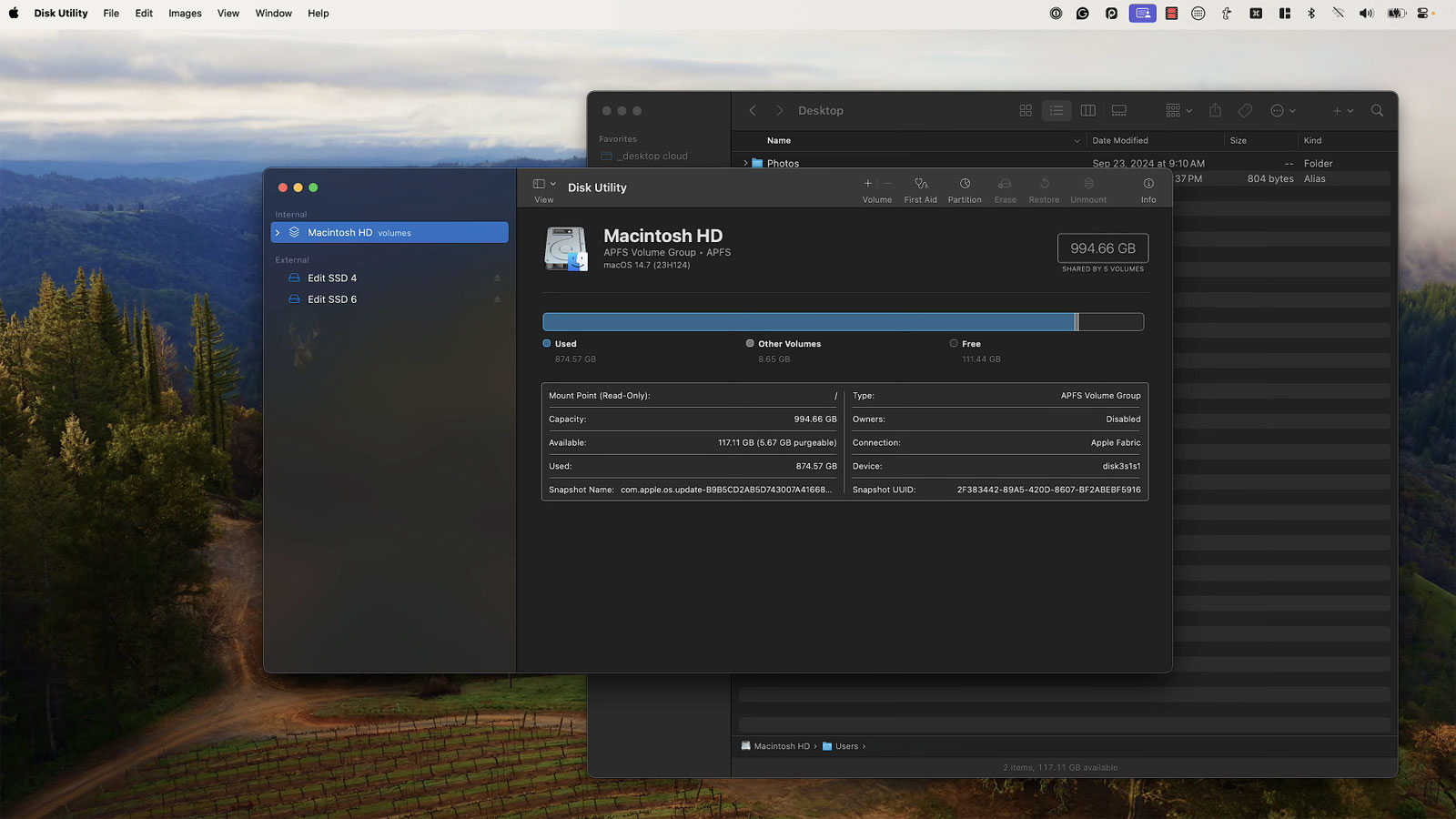
Disk Utility displays the physical storage device, its containers, and its mounted volumes. It can help identify the file-system format, capacity, partition structure, and whether macOS reports an obvious volume problem.
The application may initially show only volumes. Enabling the view that displays all devices can reveal the physical drive and the structure beneath it.
| Disk Utility Item | What It Represents |
|---|---|
| Physical device | The external hard drive, SSD, or flash storage hardware |
| Container | A structure that may hold one or more APFS volumes |
| Volume | The mounted storage location visible in Finder |
| Partition map | The layout used to organize volumes on the physical device |
| File-system format | The method used to store and organize files within the volume |
Selecting the wrong level during an erase operation can remove more data than intended. The device hierarchy should be understood before changes are made.
First Aid Is Not a Substitute for a Backup
Disk Utility includes First Aid to check and attempt repairs on supported disk structures. It can correct certain file-system inconsistencies, but it cannot repair every failure or restore every damaged file.
When a drive is unstable, First Aid may place additional activity on the storage device. Files that are still accessible should be protected first when their value is greater than the need for immediate repair.
A readable drive with important files should be treated as a data-protection task before it becomes a repair experiment.
If the drive contains irreplaceable material, repeated repair attempts may reduce later recovery options. The physical condition and value of the data should guide the next step.
A Read-Only Change Can Be an Early Hardware Warning
Some storage devices enter a restricted condition when internal errors exceed what the controller can manage safely. A flash-based drive may allow existing data to be read while refusing new writes to prevent further corruption.
Hard drives can also develop unreadable sectors or mechanical instability that damages file-system records and leads macOS to restrict the mounted volume. The read-only condition may therefore be a symptom rather than the original failure.
- The drive became read-only without being reformatted.
- Copying files from it is unusually slow.
- The drive disconnects during large transfers.
- Mechanical clicking or repeated spin-up sounds are present.
- Disk Utility cannot complete verification.
- The same problem occurs on another computer.
- Files develop read errors or cannot be copied completely.
A failing drive should not be trusted simply because some files still open. Accessible data should be copied to reliable storage and verified before the device deteriorates further.
Testing the Drive on Another Mac Can Separate System Settings From Drive Problems
Connecting the external drive to another compatible Mac can show whether the restriction follows the storage device or remains limited to one computer. If the drive is read-only on both Macs, the format, file system, enclosure, or storage hardware becomes more likely.
If the drive works normally on another Mac, the original computer may have a local permission issue, outdated file-system software, security restriction, damaged preference, or connection problem.
| Comparison Result | Likely Direction |
|---|---|
| Read-only on both Macs | The condition likely belongs to the drive, format, or stored file system |
| Writable on another Mac | The original Mac may have a software, account, or connection issue |
| Works only with another cable | The original cable may be unstable or damaged |
| Works through another enclosure | The original bridge board or enclosure may be involved |
| Fails on every computer | The drive or file system may require recovery-oriented testing |
The comparison should use a computer capable of supporting the drive’s format. A Windows computer may write to NTFS normally while a Mac continues to mount the same volume read-only by design.
A Windows Test Can Confirm Normal NTFS Behavior
When Disk Utility identifies the external volume as NTFS, testing it on a Windows computer can clarify whether the drive is functioning normally within its intended operating system.
If Windows can create, rename, and delete test files while the Mac can only read them, the drive may be healthy and the limitation may be standard macOS behavior. If Windows also reports errors or refuses changes, the problem extends beyond ordinary Mac compatibility.
- Confirm that Windows detects the expected drive and volume.
- Open existing files without modifying the originals.
- Create a small temporary test folder when safe.
- Rename and remove only the temporary test item.
- Review any file-system warning shown by Windows.
- Eject the drive correctly before reconnecting it to the Mac.
Testing should not involve editing important documents until the condition of the drive is understood.
Third-Party NTFS Drivers Can Stop Working After a macOS Update
Some Mac users install third-party software to add NTFS write support. A major macOS update, security change, or driver incompatibility can cause that support to stop loading correctly.
The drive may continue to mount because macOS can still read NTFS, but the added write function disappears. This can make the change seem like a sudden drive failure even though the storage device itself has not changed.
| Observed Change | Possible Cause |
|---|---|
| The drive became read-only immediately after a macOS update | The NTFS driver may no longer be compatible |
| The driver application reports that its extension is blocked | macOS security approval may be required |
| Another NTFS drive has the same problem | The issue may involve the installed driver rather than one disk |
| The drive remains writable on Windows | The storage device may be healthy |
| Write access returns after a supported driver update | The earlier software version was likely responsible |
Only software intended for the installed macOS version should be used. Installing several file-system drivers at the same time can create conflicts and make troubleshooting more difficult.
Security Approval May Be Required for Storage Extensions
Modern versions of macOS place restrictions on system extensions and software that operates close to storage hardware. A file-system driver may install without becoming fully active until the user approves it in the system security settings.
After approval, the Mac may require a restart before the driver can provide write access. If the software remains blocked, the external drive can continue appearing as read-only.
- Confirm that the installed driver supports the current macOS version.
- Open the security or privacy settings indicated by the software vendor.
- Review any message about a blocked system extension.
- Approve only software from the expected developer.
- Restart the Mac when required.
- Reconnect the drive and test a temporary file.
Security protections should not be reduced broadly to make one driver work. The software should be updated or replaced when it cannot operate under the supported security model.
Privacy Controls Can Restrict Applications Without Making the Whole Drive Read-Only
macOS privacy controls can limit an application’s access to removable volumes, files, folders, or protected locations. Finder may still modify the external drive while one program reports that it cannot save or export files there.
This application-specific behavior differs from a volume that refuses every change. Testing through Finder and another program can reveal whether the restriction belongs to one application.
| Behavior | Possible Explanation |
|---|---|
| Finder can create files but one application cannot | The application may lack required privacy permission |
| Only one folder is unavailable to the program | The location may have separate access restrictions |
| The problem began after an application update | The application’s access request may have changed |
| Saving works after permission is granted | The drive itself was writable |
| No application can modify the drive | A broader file-system or hardware condition remains likely |
Access should be granted only to applications that have a legitimate need to use the external storage.
A Full Disk Access Setting Is Not a General Repair
Some applications request Full Disk Access so they can work with protected locations, backups, or system files. Granting this permission does not change the format of an external drive or repair a damaged file system.
If Finder itself cannot write to the volume, increasing one application’s privileges is unlikely to correct the underlying condition. The test should begin by determining whether the restriction affects the entire Mac or only one program.
Application permission and drive permission are related only when the failure is limited to that application.
Encrypted Drives Require the Correct Unlock Method
An external drive may use APFS encryption, FileVault-related protection, or third-party encryption software. The volume can appear in Disk Utility while remaining unavailable or restricted until it is unlocked correctly.
A partially mounted encrypted volume may reveal its name without allowing access to the protected contents. The correct password, recovery key, software, or user authorization may be required.
- Confirm whether the drive was intentionally encrypted.
- Use the expected password rather than repeatedly guessing.
- Locate any recovery key or documented unlock procedure.
- Verify that required encryption software is installed and current.
- Check whether the drive was created under another Mac account.
- Avoid erasing the volume when the stored files are still needed.
Encryption does not normally create a read-only NTFS condition, but it can prevent normal access when the volume is not fully unlocked.
APFS Snapshots Are Not Ordinary Writable Folders
APFS can preserve point-in-time snapshots of a file system. These snapshots are intended to represent earlier states and are not edited like ordinary folders on the live volume.
A user browsing backup or snapshot content may be able to open files while being unable to modify them in place. The files normally need to be restored or copied to a writable location first.
| Location | Expected Behavior |
|---|---|
| Live APFS volume | Writable when permissions and file-system condition allow |
| APFS snapshot | Represents a preserved state and is not edited directly |
| Mounted backup image | May be read-only depending on how it was created |
| Restored file in a normal folder | Can be modified when local permissions permit |
The location being viewed should be confirmed before the complete external drive is diagnosed as read-only.
Disk Images Can Mount as Read-Only Volumes
A disk image stored on an external drive can mount as a separate volume. The image itself may have been created as read-only, compressed, or locked even though the physical external drive remains writable.
The user may believe they are working directly inside the external drive when they are actually browsing the mounted image. Finder can show both volumes in the sidebar, which makes the distinction easy to miss.
- Check the name of the selected volume in Finder.
- Determine whether a disk image file was opened.
- Test whether a new folder can be created outside the mounted image.
- Review whether the image was designed to allow changes.
- Copy files out of a read-only image before editing them.
A read-only disk image does not necessarily indicate a problem with the external storage device holding it.
Time Machine Drives Use a Controlled Backup Structure
An external drive assigned to Time Machine is managed as a backup destination. Its folders and historical backup contents should not be treated like ordinary storage locations for manual editing.
Some areas may appear restricted, and changing permissions or deleting items manually can damage the backup history. Files should be restored through the approved backup interface rather than edited inside a historical backup set.
| Action | Recommended Approach |
|---|---|
| Recover an older document | Restore it through Time Machine |
| Delete an individual backup folder manually | Avoid changing the backup structure directly |
| Use free space for unrelated files | Use a separately planned volume or another drive |
| Change ownership recursively | Avoid broad permission changes on backup data |
| Verify backup health | Use supported macOS backup tools and status information |
A backup drive can also develop genuine file-system or hardware problems, but its managed structure should be considered before access restrictions are altered.
Network Backup Volumes Can Behave Differently From Directly Connected Drives
An external drive connected to another Mac, a router, or a network storage device may be presented through a shared network protocol rather than mounted as direct local storage.
The user’s network account, share permissions, server settings, and connection method can control write access even when the physical drive itself is writable.
- The same drive is writable when connected directly but read-only over the network.
- One network user can modify files while another cannot.
- The share was intentionally configured for read-only access.
- The server mounted the underlying disk read-only after detecting an error.
- Saved network credentials belong to a restricted account.
Local disk permissions and network share permissions should be evaluated separately because both can affect the final access level.
Connection Instability Can Interrupt Writes Without Creating a True Read-Only Volume
A damaged cable, loose adapter, insufficient power source, or unstable hub can interrupt a file operation. Finder may report that a file cannot be copied or that the device disappeared, which can resemble a write restriction.
The difference is that the failure may occur only during larger transfers or when the drive draws more power. Small files might copy successfully while larger files stop partway through.
| Connection Pattern | Possible Cause |
|---|---|
| Small files copy but large files fail | Power, heat, cable, or storage instability may appear under sustained activity |
| The drive disappears and reconnects | The connection is being interrupted rather than merely restricted |
| Moving the cable changes the result | A damaged connector or cable is likely |
| The drive works when connected directly | The hub or adapter may be involved |
| The drive fails only on battery-powered accessories | Available power may be insufficient |
A connection problem should be corrected before file-system repair is attempted because repeated disconnections can create additional corruption.
USB Hubs May Not Supply Enough Power for Every Drive
Portable hard drives and some external SSD enclosures receive power through the same cable used for data. A passive hub may divide its available power among several connected devices.
The drive can mount initially and fail when a write operation increases activity. Connecting it directly to the Mac or using a properly powered hub can provide a useful comparison.
- Disconnect unrelated devices from the hub.
- Connect the external drive directly to the Mac.
- Use the original or a known-good short cable.
- Test a small temporary file.
- Test a larger transfer only after the connection remains stable.
- Observe whether the drive becomes unusually warm or disconnects.
A stable direct connection does not prove the drive is healthy, but it can identify the hub or power arrangement as part of the problem.
External Enclosures Add Another Layer Between macOS and the Drive
An external drive enclosure contains a bridge board that translates between USB, Thunderbolt, or another external connection and the internal SATA or NVMe storage device.
The internal drive can be functional while the enclosure develops power, firmware, connector, or controller problems. These failures may cause disconnections, incorrect capacity, missing health information, or unsuccessful writes.
Enclosure-Related Clues
- The drive works after being installed in another compatible enclosure.
- The enclosure disconnects when touched or moved.
- The bridge board becomes unusually hot.
- The drive reports different behavior through another interface.
- Several internal drives fail when used in the same enclosure.
- The cable connector is loose within the enclosure.
Opening a factory-sealed external drive can affect warranty coverage and may expose a drive that uses proprietary connectors or hardware encryption. The device design should be identified before disassembly.
Hardware Encryption in Some Enclosures Can Affect Data Access
Certain external drives encrypt data through the enclosure’s controller even when the user did not configure a password. Removing the internal disk and connecting it through a different adapter may then produce unreadable data.
This is important when an enclosure is suspected of failing. Replacing the bridge board or moving the disk may not provide ordinary access if the original controller participated in encryption.
An external drive is not always a standard internal disk placed inside a simple case. The enclosure may be part of how the data is stored and decoded.
When the files are important, the original enclosure and controller should be preserved until the storage design is understood.
Large Files Can Expose FAT32 Limitations
A FAT32 drive can allow normal creation, deletion, and modification while refusing a single file that exceeds the format’s individual file-size limit. This may be mistaken for a read-only condition when smaller files continue to work.
Videos, disk images, virtual machines, and large archives commonly exceed the limit even when the drive has plenty of free space.
| Result | Possible Explanation |
|---|---|
| Small files copy normally | The volume is writable |
| One large file is rejected | The file may exceed the FAT32 size limit |
| Finder reports the item is too large | The limitation belongs to the file system, not free capacity |
| The same file copies to exFAT | The newer format supports larger individual files |
| No files can be changed | A broader read-only condition remains present |
The format should be selected according to the largest expected files as well as the computers that must use the drive.
Free Space and Write Access Should Be Checked Separately
A nearly full drive can refuse new files even though it is not technically read-only. macOS may also need available space for file replacement, metadata updates, temporary data, or safe-saving behavior.
Deleting one file may not immediately produce the expected free space when snapshots, hidden folders, or application-managed data are involved.
- Review the available capacity shown for the volume.
- Confirm the size of the file being copied.
- Test a very small temporary file.
- Empty the Trash while the external drive is connected when appropriate.
- Check whether hidden backup or snapshot data consumes space.
- Avoid deleting unfamiliar system or backup folders manually.
A drive with adequate free space that rejects every change requires a different investigation from a full volume that accepts small deletions but cannot store additional data.
Files Deleted From an External Drive May Remain in Its Trash Folder
When files are moved to the Trash from an external drive, they may remain stored in a hidden trash folder on that same volume until the Trash is emptied. The files disappear from their original folders but continue using drive space.
This can make the drive appear unable to accept new data even after a large amount of content was deleted.
- Reconnect the external drive to the Mac used for deletion.
- Confirm that no needed files remain in the Trash.
- Empty the Trash through the normal macOS command.
- Wait for the deletion process to finish.
- Review the available capacity again.
- Eject the drive correctly after the space is released.
Emptying the Trash permanently removes those items and should not be done until their value has been confirmed.
A Finder Error Message Should Be Recorded Exactly
Messages such as permission denied, read-only file system, item in use, disk full, file too large, or unexpected disconnection point toward different causes. Describing every failure as a read-only drive can lead to unnecessary formatting or permission changes.
| Error Direction | Area to Investigate |
|---|---|
| Read-only file system | Format compatibility, file-system damage, or controller restriction |
| Permission denied | User access, ownership, folder permissions, or application privacy |
| Item is in use | An application or background process is holding the file |
| Not enough space | Free capacity, Trash contents, snapshots, or file size |
| Disk was not ejected properly | Cable, power, hub, enclosure, or physical disconnection |
The time of the error, file being changed, connection method, and recent system updates should be documented before further testing.
Temporary Test Files Reduce the Risk to Important Data
Write testing should use a small disposable file or folder rather than an important document. The test can determine whether the drive allows creation, renaming, editing, and deletion without placing valuable data at additional risk.
- Create a small text file on the Mac.
- Copy it to the top level of the external drive.
- Rename the copied file.
- Open and make a minor test edit.
- Save and close it.
- Move the test file to the Trash.
- Verify that unrelated files remain unchanged.
If the drive disconnects, reports errors, or becomes slow during this basic test, larger write operations should be avoided until its condition is evaluated.
Read-Only Access Should Be Confirmed at the Volume Level
A failed copy does not always prove that the entire external drive is read-only. The restriction may affect one folder, one file type, one application, or one mounted image stored on the drive.
Testing several simple actions at the top level of the volume can help establish the scope before permissions, formatting, or repair procedures are changed.
- Create a new empty folder on the drive.
- Rename the temporary folder.
- Copy a small disposable file into it.
- Open and save a change to the test file.
- Move the test items to the Trash.
- Check whether the same actions work in another folder.
If every modification fails across the complete volume, the investigation should focus on the format, mount status, file system, enclosure, or storage device. If only one location fails, folder-level permissions or file ownership may be more relevant.
Terminal Information Can Clarify How macOS Mounted the Drive
Advanced diagnostic tools can show whether macOS mounted a volume with read-only status, which file system it uses, and how the operating system identifies the physical device. This information can confirm conditions that are not obvious in Finder.
Command-line results should be interpreted carefully because external drives may contain several partitions, containers, or mounted volumes. Selecting the wrong identifier during a repair or erase operation can affect unrelated data.
| Information Found | Diagnostic Value |
|---|---|
| File-system type | Shows whether the format normally supports Mac write access |
| Read-only mount status | Confirms that macOS restricted the mounted volume |
| Physical disk identifier | Separates the storage device from its individual volumes |
| Partition layout | Shows how the drive is divided |
| Mount point | Identifies the location macOS assigned to the volume |
Terminal commands should not be copied from an unrelated repair guide without confirming the correct disk identifier and understanding whether the action changes data.
Forcing a Read-Write Mount Can Increase Damage
It may be technically possible in some situations to attempt remounting a volume with write access. This is not a safe general repair when macOS restricted the volume because of structural errors or storage instability.
Allowing new writes can change directory records, overwrite recoverable information, and make the original file-system condition more difficult to reconstruct. The ability to force a command does not mean that doing so protects the data.
A drive mounted read-only after an error should be treated as a warning to protect the files, not as a restriction that must immediately be bypassed.
When the content is important, copying readable files or creating a controlled image of the drive is generally safer than forcing additional modifications.
Repair Attempts Should Follow Data Protection
File-system repair changes the structures used to locate files and folders. A successful repair may restore normal write access, but an unsuccessful repair can leave some content renamed, relocated, or inaccessible.
The order of operations matters when the drive contains valuable data. Repairing first may remove the opportunity to copy files from the original readable state.
- Identify the drive format and current mount condition.
- Copy accessible important files to another reliable device.
- Open a selection of copied files to verify them.
- Document any folders or files that could not be copied.
- Evaluate the physical stability of the drive and connection.
- Run an appropriate file-system check only after protection is complete.
- Retest write access with temporary data.
If the drive disconnects, clicks, becomes extremely slow, or produces repeated read errors, file-system repair may not be the correct first procedure.
A Disk Image Can Preserve the Original Condition
When a drive is unstable but still readable, a sector-level image can preserve its current contents on another storage device. Recovery work can then be performed on the image instead of repeatedly stressing the original hardware.
Creating a useful image requires enough destination capacity and a method capable of handling read errors. A normal Finder copy is not the same as a complete disk image because Finder copies accessible files rather than every readable storage sector.
| Method | What It Preserves |
|---|---|
| Finder file copy | Selected readable files and folders |
| Standard disk image | A structured copy when the source remains stable enough |
| Sector-level imaging | Readable sectors, file-system structures, and unallocated areas |
| File-system repair | Attempts to modify and correct the original structure |
| Reformatting | Creates a new file system and removes the old structure |
Imaging should stop if the drive shows signs of severe mechanical failure and continued operation could reduce the chance of professional recovery.
Repeated Mounting Can Stress a Failing Device
Disconnecting and reconnecting an unstable external drive may seem like a harmless test, but each attempt requires the device to power up, initialize, and read critical file-system areas.
A hard drive with weak heads, damaged media, or spindle problems may deteriorate during repeated startup attempts. A failing flash-based device may also become less responsive as its controller encounters additional errors.
- The drive takes longer to appear after each reconnection.
- Mechanical sounds change or become more frequent.
- Folders that opened earlier stop responding.
- The available capacity appears incorrectly.
- The volume alternates between mounted and unavailable.
- Copy operations fail earlier during each attempt.
When the behavior is getting worse, troubleshooting should shift from normal access testing to data-preservation planning.
Drive Health Information May Be Limited Through USB
Some external enclosures do not pass complete storage-health information from the internal drive to macOS. A device can therefore appear without detailed SMART data even when the internal disk supports it.
The absence of a visible health warning does not prove that the drive is healthy. Connection behavior, read speed, error frequency, noise, and comparison through another supported interface may provide more useful evidence.
| Health Observation | Limitation |
|---|---|
| SMART status is unavailable | The enclosure may not pass the information |
| SMART status reports verified | Not every impending failure is predicted |
| The drive is slow without a warning | Performance problems can exist before a health threshold is crossed |
| The drive disconnects under load | The enclosure, cable, power source, or disk may be involved |
| The drive works through another adapter | The original enclosure becomes more suspect |
Health information should be treated as one diagnostic input rather than the sole reason to continue using a questionable device.
Cloning a Failing Drive Is Different From Copying Its Files
A file copy asks the file system to locate and transfer selected items. A clone or recovery image reads the underlying storage in a more controlled sequence and may preserve data that is not visible through Finder.
When a drive has only a permission or compatibility issue, ordinary copying may be sufficient. When it has read errors, damaged directories, or intermittent detection, a recovery-oriented clone can be more appropriate.
- Use file copying when the drive is stable and all needed folders are accessible.
- Use imaging when file-system damage may hide data.
- Avoid cloning directly onto a destination that contains needed files.
- Use a destination at least as large as the source device.
- Keep the original drive unchanged after a usable image is created.
- Perform recovery work on a copy whenever possible.
A clone does not repair the source drive. It creates another working copy of the readable information so diagnosis and recovery can continue with less risk to the original.
Permission Commands Can Cause Broad Unintended Changes
Recursive ownership or permission commands can alter thousands of files at once. They may restore access in one area while damaging application data, backups, shared folders, or security controls elsewhere on the volume.
The correct user, group, inherited permission structure, and intended use of the drive should be understood before broad changes are applied.
Situations That Require Extra Caution
- The drive contains a Time Machine backup.
- The files belong to several users or departments.
- The volume was restored from another Mac.
- Applications store libraries or databases on the drive.
- The drive contains encrypted or access-controlled folders.
- The original ownership information may still be needed.
A targeted correction is safer than granting unrestricted access to the entire volume without understanding the original design.
Changing Every File to Read and Write Is Not Always Appropriate
Some folders are intentionally restricted to protect backups, shared business information, or application data. Giving every user full control can remove protections that prevented accidental deletion or unauthorized changes.
The goal should be to restore the intended access level, not simply the most permissive one available.
| Drive Use | Appropriate Access Consideration |
|---|---|
| Personal transfer storage | Broad access for the owner may be reasonable |
| Shared office files | Department and user permissions may need to remain separated |
| Backup destination | The backup system should control the stored structure |
| Application database | Only the required account or service should modify the files |
| Archive storage | Read-only access may be intentional to protect records |
The purpose of the drive should be identified before its access controls are changed.
Reformatting Requires the Correct Scheme as Well as the Correct Format
Disk Utility can select both a file-system format and a partition scheme. The scheme affects how computers and devices recognize the physical drive, while the format determines how files are organized within the volume.
A drive intended for current Mac and Windows computers may use a different combination from one intended only for macOS startup, backups, or older equipment.
| Configuration Choice | General Consideration |
|---|---|
| GUID Partition Map with APFS | Common for modern Mac-focused use |
| GUID Partition Map with exFAT | Common for exchange between current Mac and Windows systems |
| Master Boot Record with FAT32 | May be required by some older devices |
| Mac OS Extended | May be appropriate for older Mac workflows or specific backups |
| NTFS | Windows-focused unless supported Mac write software is installed |
Compatibility should be confirmed with every computer, camera, console, television, router, or other device expected to use the drive.
exFAT Is Convenient but Still Requires Safe Removal
exFAT is often selected for drives shared between Mac and Windows because both systems can normally read and write it. The format avoids the individual file-size limit associated with FAT32.
Cross-platform compatibility does not make the file system immune to corruption. Improper removal, unstable cables, power interruption, and failing storage can still leave the volume damaged or mounted read-only.
- Eject the drive from whichever operating system is using it.
- Allow file transfers to finish before disconnecting it.
- Avoid moving the cable during active writes.
- Keep another copy of important shared files.
- Check the volume after any improper-removal warning.
- Do not use one portable drive as the only location for business records.
Convenience should not replace a backup plan, especially when the drive travels between several computers.
APFS Is Better Suited to Mac-Only Workflows
APFS supports modern macOS features such as encryption, snapshots, space sharing, and efficient handling of solid-state storage. It is generally more appropriate when the external drive will remain within a current Mac environment.
Windows does not provide ordinary native APFS access. Selecting APFS for a drive that must move regularly between Mac and Windows computers can create a compatibility problem even though it works normally on the Mac.
| Primary Requirement | Format Direction |
|---|---|
| Modern Mac-only storage | APFS may be appropriate |
| Mac backup use | Use the format supported by the intended backup method |
| Current Mac and Windows sharing | exFAT is commonly considered |
| Windows-focused storage | NTFS may be preferred on Windows |
| Older device compatibility | FAT32 or another required legacy format may be necessary |
The format should be chosen according to the complete workflow rather than the computer used on the day the drive is erased.
A Successful Repair Should Be Followed by a Full Copy Test
Creating one small folder confirms only that a basic write completed. It does not prove that the drive can sustain long transfers, maintain data integrity, or remain connected under normal use.
After important data is protected and the drive is repaired or reformatted, a controlled test can evaluate whether it is dependable enough to return to service.
- Create and delete a small temporary folder.
- Copy several files of different sizes.
- Open the copied files directly from the external drive.
- Compare their sizes with the originals.
- Perform a longer transfer while observing for disconnections.
- Eject and reconnect the drive.
- Confirm that the copied files remain available and unchanged.
A drive that becomes read-only again, disconnects, or produces new errors during testing should not be trusted with the only copy of important files.
A Replacement Drive May Be Safer Than Continued Repair
Repairing a file system can restore access without restoring confidence in the physical device. If the read-only condition resulted from storage errors, controller problems, repeated disconnections, or unstable hardware, continued use may place future files at risk.
Replacement becomes more reasonable when the drive is old, inexpensive compared with the value of the data, or no longer behaves consistently across known-good cables and computers.
- The drive has already lost write access more than once.
- File-system errors return after repair.
- Transfers remain slow or unreliable.
- The enclosure or connector is physically damaged.
- The drive contains growing numbers of unreadable files.
- The device is no longer supported by its manufacturer.
- The cost of another data-loss incident would exceed replacement cost.
A repaired drive may still be useful for noncritical testing, but it should not automatically return to primary backup or business-storage duty.
The Original Drive Should Be Preserved Until the Files Are Verified
After copying files to another device, the original external drive should remain unchanged until the replacement data has been reviewed. A completed progress bar does not guarantee that every file copied correctly.
Verification is particularly important for photo libraries, video projects, archives, databases, virtual machines, and other large collections where missing or damaged items may not be immediately visible.
- Compare the expected folder structure.
- Open representative documents from several locations.
- Play sections of copied audio and video files.
- Check whether application libraries open normally.
- Confirm that hidden or package-based data was included.
- Keep the original drive disconnected until verification is complete.
Erasing the original too soon can remove the only remaining copy of files that were skipped or copied incompletely.
A Reliable Backup Requires More Than One External Drive
An external drive can fail, become corrupted, be lost, or be damaged at the same time as the Mac. Keeping all important files on one removable device only changes the location of the risk.
A stronger backup plan keeps multiple copies on separate devices or services, with at least one copy protected from the same physical incident.
| Backup Element | Purpose |
|---|---|
| Working copy on the Mac | Supports normal daily access |
| Local external backup | Provides faster recovery from deletion or computer failure |
| Second separate copy | Protects against failure of the first external drive |
| Off-site or cloud copy | Reduces risk from theft, fire, flooding, or local damage |
| Regular verification | Confirms that backups remain readable and current |
A drive that becomes read-only may still allow enough access to improve the backup plan before the condition becomes more serious.
The Correct Diagnosis Depends on What Changed
A drive that has always been read-only on a Mac may simply use NTFS. A drive that became read-only after an improper disconnection may have file-system damage. A drive that works only through one cable or enclosure may have a connection problem, while one that rejects writes on every computer may be failing internally.
Recent changes often provide the clearest direction. The macOS version, driver updates, account changes, drive movement, power interruption, and previous error messages should all be considered.
| When the Problem Began | Area to Check First |
|---|---|
| The first time an NTFS drive was connected to a Mac | Normal format compatibility |
| Immediately after a macOS update | Third-party file-system driver support |
| After an improper disconnection | File-system integrity and data protection |
| After changing user accounts | Ownership and permissions |
| After moving the drive or cable | Connector, cable, enclosure, and physical stability |
| Without any known software change | Storage health and developing hardware failure |
The timing of the first failure can prevent unnecessary permission changes or formatting.
A Controlled Troubleshooting Sequence Reduces Data Risk
External-drive troubleshooting should move from observation to protection and only then to repair. Changing several settings at once can hide the cause and create additional access problems.
- Record the exact error and actions that fail.
- Identify the drive’s format in Disk Utility.
- Determine whether the problem affects one item or the whole volume.
- Test a known-good cable and direct connection.
- Compare the behavior on another compatible computer.
- Copy important readable files before repair attempts.
- Check for file-system, enclosure, or storage-health warnings.
- Repair or reformat only after the data is protected.
- Perform sustained write and reconnect tests.
- Replace the drive if reliability remains uncertain.
Each test should answer one question. This makes it easier to distinguish ordinary Mac compatibility from permissions, corruption, connection failure, and physical storage damage.
Readable Files Should Not Create False Confidence
An external drive that mounts and opens files may appear close to normal, but the loss of write access can reveal an important limitation or an early failure. Continuing to use it without identifying the cause can leave future saves incomplete or place the only copy of valuable data at risk.
The correct response depends on whether the drive is read-only by design, restricted by permissions, controlled by software, damaged at the file-system level, or becoming unreliable as hardware.
Protecting accessible files first, testing the drive under controlled conditions, and selecting a format appropriate for its intended use can restore dependable storage without sacrificing the data already present.











