
A Disconnected Drive May Still Be Available
A mapped network drive gives a shared folder its own drive letter in Windows. Employees can open the drive from File Explorer and use it much like a local storage location, even though the files remain on an office server, network-attached storage device, or another authorized computer.
After signing in, Windows may display a red mark over the mapped drive or report that it could not reconnect all network drives. In some cases, opening the drive immediately restores access. In others, the connection remains unavailable until the network, server, VPN, or user credentials are corrected.
The disconnected appearance does not identify the cause by itself. Windows may have attempted the connection before the computer obtained network access, or it may be unable to locate the server, verify the user, reach the required share, or reuse the saved mapping correctly.
Drive Mapping Creates a Reusable Path
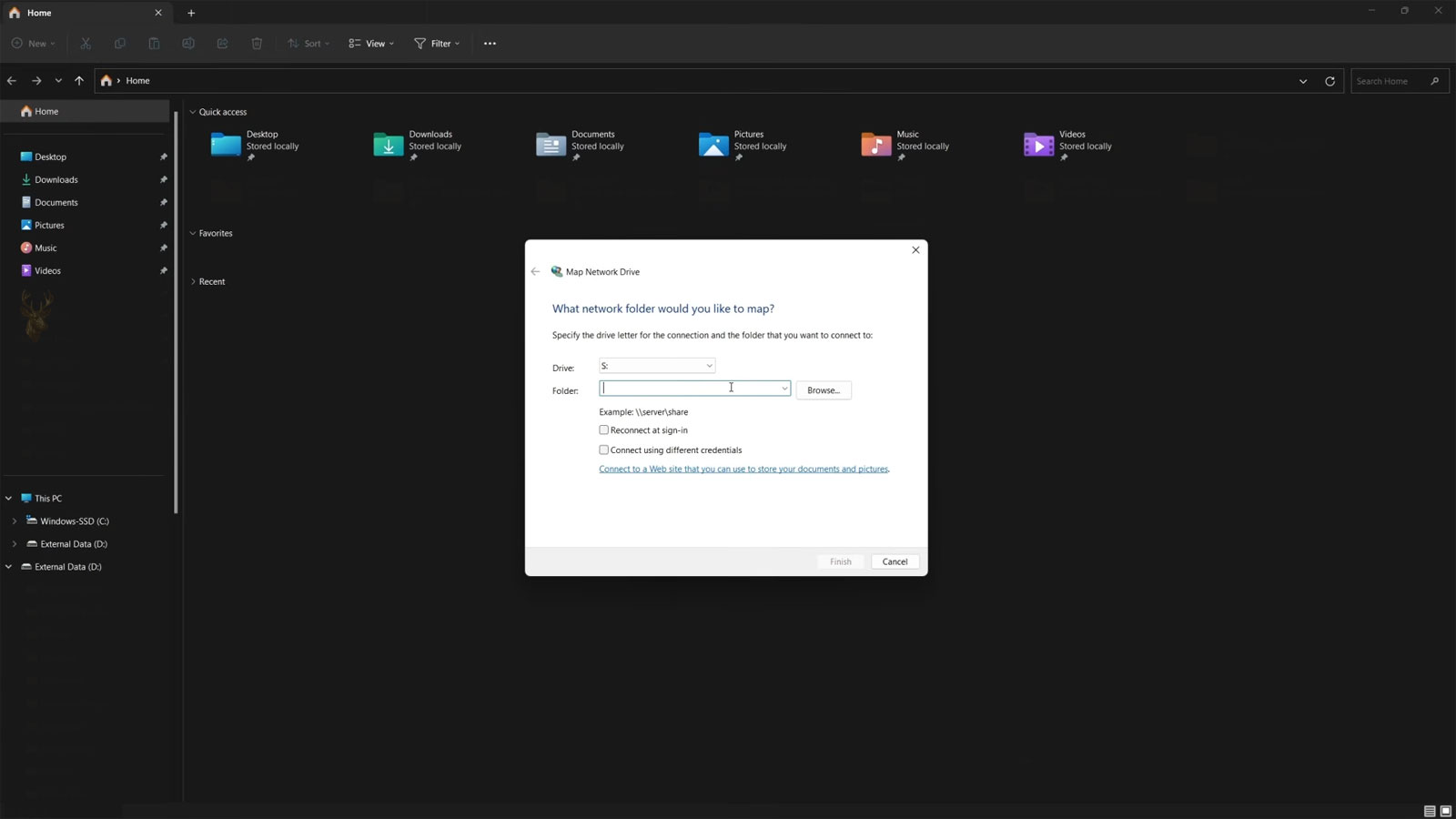
A mapped drive associates a letter such as S: or R: with a network path. That path commonly identifies a server and a shared folder, such as a department directory, accounting location, scanned-document archive, or shared project folder.
The mapping can be created manually, through a sign-in script, by Group Policy, or through business management software. It may be configured to reconnect whenever the same user signs in.
| Mapping Component | Purpose |
|---|---|
| Drive letter | Provides a familiar location inside File Explorer and applications |
| Network path | Identifies the server and shared folder |
| User credentials | Determine whether the person has permission to connect |
| Reconnect setting | Requests that Windows restore the mapping after future sign-ins |
| Network availability | Allows the computer to locate and communicate with the server |
If any part of this relationship changes, the drive letter may remain visible even though the connection behind it no longer works.
Windows May Attempt the Connection Too Early
Modern computers often reach the desktop before every network service has finished initializing. Wireless networking may still be connecting, an Ethernet adapter may still be negotiating access, or a VPN may not yet be active when Windows tries to restore mapped drives.
The initial connection attempt can therefore fail even though the required network becomes available moments later. Opening the drive after the network is ready may establish the connection successfully.
- The desktop appears before Wi-Fi finishes connecting.
- The Ethernet adapter takes time to obtain an address.
- A security application delays network access during startup.
- The user signs in with cached credentials while the server is still unreachable.
- A VPN connection must be started after Windows sign-in.
- A docking station or USB network adapter initializes later than the operating system.
This timing issue can make the warning inconsistent. One startup may reconnect normally, while another shows the drive as unavailable depending on how quickly the computer and network become ready.
Opening the Drive Can Trigger a New Attempt
When a user opens a disconnected mapped drive, Windows may attempt to reach the network path again. If the network and server are now available, the red mark can disappear and the files may open normally.
This behavior indicates that the saved mapping may still be valid. The earlier warning may have resulted from startup timing rather than a permanent permission or server failure.
| What Happens After Opening the Drive | What It May Suggest |
|---|---|
| The files appear immediately | The mapping is valid and the initial reconnection may have occurred too early |
| A credential prompt appears | Saved credentials may be missing, expired, or no longer accepted |
| The network path cannot be found | Name resolution, connectivity, or server availability may be involved |
| Access is denied | The server was reached, but the user may lack share or folder permission |
| The window remains unresponsive | Windows may be waiting for a slow or unreachable network resource |
The exact message is more useful than the red disconnected symbol alone because it shows how far the connection progressed.
The Computer Must Locate the Server First
Before Windows can open a mapped drive, it must translate the server name into a reachable network address. This commonly depends on DNS, local name-resolution services, or information supplied by the office network.
If the computer cannot resolve the server name, the drive may fail even though general Internet access works. Websites can open normally while an internal office server remains unavailable because the computer is using the wrong DNS service or is no longer connected to the business network.
Signs of a Server Name Resolution Problem
- The mapped drive fails by server name but works when an address is used.
- Internet websites open, but internal office resources do not.
- The problem begins after changing Wi-Fi networks.
- The drive works in the office but not from a remote location.
- A VPN connects, but internal server names remain unavailable.
- Only computers using a particular network configuration are affected.
Using a numerical address as a permanent replacement may create new problems if the server address later changes. The underlying name-resolution configuration should be corrected instead of bypassed without documentation.
Server Availability Must Be Confirmed
A mapped drive cannot reconnect when the server or storage device is powered off, restarting, disconnected from the network, or experiencing a service failure. The workstation may display the same disconnected symbol whether the problem is local or server-wide.
Checking another computer can help determine the scope. If several users lose the same drive at the same time, the server, network equipment, or shared-folder service becomes more likely than an isolated workstation setting.
- Identify the server and share used by the mapped drive.
- Check whether another authorized computer can open the same location.
- Confirm that the server is powered on and connected to the network.
- Verify that the shared folder still exists under the expected name.
- Check whether maintenance or a recent restart interrupted access.
- Determine whether the problem affects one user, one computer, or the entire office.
Testing multiple workstations is useful only when those users are supposed to have access. A successful connection from an administrator account does not prove that the affected employee’s permissions are correct.
Saved Credentials Can Become Outdated
Windows may store credentials used to access a server or network-attached storage device. If the account password changes, the saved entry may continue presenting the previous password during reconnection.
The user may then receive repeated prompts, an access-denied message, or a warning that the network password is incorrect. The mapped drive remains visible because its path is saved, but authentication cannot complete.
| Recent Change | Possible Effect on the Mapping |
|---|---|
| Windows or domain password changed | The stored server credential may no longer match |
| Server account renamed | The mapping may continue using the previous username |
| User signed in with a different Windows account | The new profile may not contain the same credentials or mappings |
| Network storage device was replaced | The new device may require different authentication |
| Account locked or disabled | The server may reject every reconnection attempt |
Deleting credentials without recording them can interrupt access to other resources that use the same account. The server name, username format, and intended permissions should be identified before stored entries are changed.
Different Username Formats May Be Treated Differently
A server may expect a domain account, a local server account, a Microsoft-connected identity, or credentials created directly on a storage device. Entering only the username may cause Windows to apply it to the wrong computer or security domain.
For example, an office domain account and a local account can share the same visible username while remaining separate identities. One may have access to the shared folder while the other does not.
- A domain account may use a domain name with the username.
- A local server account may need the server name as its prefix.
- A storage appliance may maintain its own independent user database.
- A personal Microsoft account may not match the office file-server account.
- A renamed user profile may still contain mappings created under an earlier identity.
The correct format depends on how the business network was configured. Repeatedly entering different credentials can lock the account, so the expected identity should be confirmed before additional attempts are made.
Permissions Exist at More Than One Level
Reaching the server does not guarantee access to every folder. Shared storage commonly uses both share permissions and file-system permissions. The effective access depends on the combination of those controls.
A user may connect to the server but receive an access-denied message when opening the mapped drive. Another user may open the drive but be unable to edit, rename, or delete files.
| Access Result | Possible Permission Condition |
|---|---|
| Drive opens and files can be edited | The user has the required share and folder permissions |
| Drive opens in read-only form | Write or modify permission may be missing |
| Top-level drive opens but one folder is denied | That subfolder may have different file-system permissions |
| The server is reachable but the share is denied | Share permission or account authorization may be missing |
| Access changed after moving departments | Group membership or assigned permissions may have changed |
Permissions should not be broadened simply to make the warning disappear. The user should receive only the access required for their work, and changes should be documented so confidential folders do not become visible unintentionally.
Duplicate Mappings Can Create Conflicting Connections
Windows can encounter problems when the same server is accessed through more than one name, more than one drive letter, or more than one set of credentials. A user may already have an active connection to a server under one identity while a second mapping attempts to connect with another.
The result can be a credential conflict, repeated sign-in prompts, or a message indicating that multiple connections to the same server are not allowed. The mapped drive may remain disconnected even though another shared folder on the same server is already open.
- The same server is mapped by both hostname and numerical address.
- One drive uses a domain account while another uses a local server account.
- A previous connection remains active after the mapping was changed.
- A sign-in script creates a second copy of a manually mapped drive.
- Different drive letters point to the same network share.
Existing connections should be reviewed before a new mapping is created. Removing only the visible drive letter may not clear every active connection associated with the server.
Drive Letter Conflicts Can Prevent the Correct Mapping
A mapped drive depends on the assigned letter remaining available. If a USB drive, memory-card reader, software package, or another network mapping uses the same letter first, Windows may be unable to restore the original connection.
The problem can appear inconsistent because removable devices do not always receive the same letter on every computer. A mapping that works until an external drive is connected may be competing for the same location.
| Observed Condition | Possible Explanation |
|---|---|
| The network drive is missing after a USB device is connected | The removable device may have taken the same drive letter |
| A different folder appears under the expected letter | Another mapping may have been assigned first |
| The drive works under a new letter | The original letter may be reserved or already occupied |
| The problem affects only one workstation | That computer may have a local letter conflict |
| The mapping returns after removing an external device | The drive-letter assignment likely changed the connection order |
Business mappings are often easier to manage when higher drive letters are used consistently and documented across workstations.
Manual Mappings and Sign-In Scripts Can Overlap
A drive may be created manually by the user and also assigned through a company sign-in script or Group Policy. If the path, drive letter, or reconnect setting differs, the two methods can compete during sign-in.
One process may delete and recreate the mapping while another attempts to restore the saved connection. The drive can briefly appear, disappear, or reconnect to an outdated location.
Clues That More Than One Mapping Method Is Active
- The drive returns after being removed manually.
- The assigned letter changes after the next sign-in.
- The path shown in File Explorer differs from the documented path.
- A command window briefly appears during sign-in.
- Only users in a particular department receive the mapping.
- The drive is recreated after Group Policy refreshes.
The intended management method should be identified before the mapping is edited. A centrally assigned drive should usually be corrected in the policy or script rather than changed independently on every workstation.
Group Policy Processing Can Finish After the Desktop Appears
In managed Windows environments, drive mappings may be delivered through Group Policy. The desktop can appear before every policy has finished processing, especially when the computer starts away from the office, connects through Wi-Fi, or waits for a VPN.
The drive may therefore appear late, remain disconnected temporarily, or fail to update until policy processing is repeated. This is different from a permanent server or permission failure.
| Policy-Related Behavior | Possible Meaning |
|---|---|
| The drive appears several minutes after sign-in | Policy processing may have completed after the desktop loaded |
| The mapping works only after connecting to the office VPN | The policy or target server required internal network access |
| The old path returns after manual correction | A policy may be reapplying the previous configuration |
| Only one organizational group receives the drive | The policy may be filtered by user or computer membership |
| The mapping changes after a restart or policy refresh | Central management is likely controlling it |
Policy troubleshooting should include the affected user, the workstation, the assigned groups, and the exact time the connection became available.
VPN Timing Is Critical for Remote Employees
A remote employee may sign in to Windows before the VPN is connected. At that moment, the computer can reach the Internet but not the internal office server. Windows attempts to restore the mapped drive, fails, and marks it as disconnected.
After the VPN is established, opening the drive may reconnect it. In some environments, however, the mapping must be recreated or refreshed because the original attempt ended before the internal route and DNS settings were available.
- Confirm that the Internet connection is active.
- Connect the approved business VPN.
- Verify that the VPN shows the expected office connection.
- Test access to the server name or internal resource.
- Open the mapped drive again.
- Record whether the drive reconnects without entering new credentials.
A VPN that reports connected is not always providing the required route, DNS service, or access permission. The mapped drive should be tested against another known internal resource before the drive mapping itself is changed.
Split Tunneling Can Leave Internal Resources Unreachable
Some VPN configurations send only selected traffic through the office connection while ordinary Internet traffic continues through the user’s local network. This arrangement is known as split tunneling.
If the server network or internal DNS service is not included correctly, the VPN may connect while the mapped drive remains unavailable. Websites and email can continue working, which may make the problem appear isolated to the drive.
- The VPN shows connected, but the server cannot be reached.
- Only certain internal resources work.
- The drive opens when using one VPN profile but not another.
- Internal server names fail while Internet names resolve normally.
- The problem changes when the user connects from a different home network.
Routing and DNS settings should be corrected centrally when possible. Permanent workarounds using addresses or alternate paths can become unreliable when the office network changes.
Home Networks Can Use the Same Address Range as the Office
A remote connection can fail when the employee’s home router uses the same private network range as the office. The computer may try to reach the server through the local home network instead of sending the traffic through the VPN.
This conflict can affect only certain employees because home routers use different address ranges. The mapped drive may work from one location and fail from another even though the same laptop and VPN account are used.
| Pattern | Possible Network Conflict |
|---|---|
| The drive works in the office but not at home | The home and office networks may overlap |
| The VPN connects, but one server address opens the router instead | Local routing may be taking priority |
| The same laptop works from a mobile hotspot | The original home network may use a conflicting address range |
| Other remote employees are unaffected | The conflict may be specific to one home router |
| Server access returns after changing the local network range | The overlapping addresses were likely responsible |
Changing business network addressing requires planning, but changing a home router’s private range may be a practical solution when the conflict affects only one remote location.
Wireless Roaming Can Interrupt an Active Mapping
In larger offices, a laptop may move between wireless access points while remaining connected to the same network name. A brief interruption during roaming can disconnect an open network file or cause the mapped drive to appear unavailable.
The connection may recover automatically, but applications that were using files at the time can freeze, report save errors, or create temporary copies. The user may believe the drive mapping itself failed even though the underlying problem was wireless instability.
- The problem occurs while carrying the laptop between rooms.
- Open documents report a lost network location.
- The drive reconnects after Wi-Fi stabilizes.
- Other users in the same area experience brief interruptions.
- Signal strength changes sharply near certain parts of the office.
Persistent file access is more reliable when the wireless network provides stable coverage and properly coordinated roaming between access points.
Sleep and Resume Can Leave a Stale Network Session
A mapped drive may work before a laptop enters sleep and fail after it wakes. During sleep, the wireless connection, VPN, or server session may expire. Windows can retain the drive letter even though the earlier network connection is no longer valid.
Opening the drive may create a new session, but some applications continue waiting on the old connection. Signing out, reconnecting the VPN, or closing the affected application may be required before access returns.
A visible drive letter does not confirm that the original network session survived sleep, roaming, or a change in connectivity.
Offline Files Can Make the Drive Appear Available
Windows Offline Files can keep local copies of selected network content so users can continue working when the server is unavailable. This can make a mapped drive appear partly functional even when the live network connection has been lost.
The user may open cached files successfully but be unable to see recent changes made by others. When the connection returns, synchronization conflicts can occur if the same file was edited in more than one location.
| Observed Behavior | Possible Offline Files Condition |
|---|---|
| Some files open while newer files are missing | Only cached content may be available |
| A file shows an older version | The local copy may not have synchronized |
| Changes appear after reconnecting to the office | Synchronization completed when the server returned |
| A conflict warning appears | The local and server versions may both have changed |
| The drive appears available without a network connection | Windows may be presenting cached offline content |
Offline Files should be used only when the business understands how synchronization and conflict handling affect shared documents.
Applications May Hold an Old Path After Reconnection
An application can remain connected to a network path that became unavailable earlier in the session. Even after the mapped drive reconnects in File Explorer, the program may continue reporting that the file location cannot be found.
Closing and reopening the application can force it to request the path again. Programs that maintain recent-file lists, databases, templates, or automatic-save locations may require additional verification.
- File Explorer opens the drive, but one application still cannot save.
- A recent-file shortcut points to an outdated server path.
- The application was open before the VPN or network became available.
- A database connection remains locked in a failed state.
- The program uses a direct network path instead of the mapped letter.
The drive and the application should be tested separately so a stale program session is not mistaken for a continuing network failure.
Security Software Can Delay or Block File-Server Traffic
Endpoint security software, firewalls, and network inspection tools can affect how quickly a workstation reaches shared storage. A new security policy may allow general Internet traffic while delaying or blocking the protocols used for office file sharing.
The timing of the problem should be compared with security updates, firewall changes, new VPN software, and workstation management changes. Disabling protection without authorization is not an appropriate diagnostic shortcut.
- Record the exact error and time of the failed connection.
- Confirm whether the server is reachable by other approved methods.
- Check whether the problem began after a security policy change.
- Compare the affected computer with a working workstation.
- Review firewall or endpoint logs when authorized.
- Adjust only the required rule rather than broadly reducing protection.
Security changes should preserve the intended restrictions while allowing the specific business resource and users that require access.
Persistent Mappings Should Be Verified Before They Are Recreated
A mapped drive can remain listed in Windows even when its saved connection information is incomplete, outdated, or no longer appropriate for the current network. Recreating the drive may help, but the existing path, letter, credentials, and management method should be recorded first.
Deleting and rebuilding a mapping without checking those details can restore access temporarily while removing evidence about the original failure. It can also create a new conflict if the drive is managed by a sign-in script or Group Policy.
- Record the assigned drive letter.
- Confirm the complete server and share path.
- Identify whether the mapping was created manually or centrally.
- Check whether the reconnect option is enabled.
- Determine which user account is expected to access the share.
- Document any error shown before the mapping is removed.
A replacement mapping should use the same documented business resource unless the server, share name, or access plan has intentionally changed.
Command-Line Results Can Reveal Hidden Connections
File Explorer shows the mapped drives that are most visible to the user, but Windows may also maintain network sessions that do not appear clearly in the graphical interface. Reviewing the active network connections can reveal duplicate paths, remembered mappings, or sessions using unexpected credentials.
This information is especially useful when Windows reports that another connection to the same server already exists or when a drive returns after it has been removed from File Explorer.
| Finding | Possible Meaning |
|---|---|
| The same server appears under multiple names | Windows may be treating the paths as separate connections |
| A remembered drive is listed but not visible | The mapping may be stored but currently disconnected |
| A connection uses an unexpected username | Old credentials or another sign-in context may be active |
| The same share appears under two letters | A script and a manual mapping may overlap |
| No connection appears for the expected drive | The visible entry may be stale or incomplete |
Network sessions should not be removed indiscriminately on a business workstation. Other applications may be using the same server, and disconnecting every session can interrupt open files or background processes.
Open Files Can Prevent a Clean Disconnection
A mapped drive may resist removal or reconnect incorrectly when a document, database, backup process, or application still has a file open on the server. Windows may continue holding the network session even after File Explorer is closed.
The user should save work and close programs that use the shared location before the mapping is disconnected. Restarting the computer may clear the session, but it should not be the first response when important files remain open.
Programs That May Keep a Network Session Active
- Office applications with documents open from the mapped drive
- Accounting or database programs using shared data files
- Backup software scanning or copying network folders
- File synchronization tools
- Media applications reading files from shared storage
- Windows Explorer windows displaying the affected folder
Removing a connection while a file is being written can create incomplete saves or application errors. The active workload should be identified before the network session is reset.
Slow Servers Can Make a Working Drive Look Unavailable
A mapped drive may appear disconnected because the server responds too slowly during sign-in or when File Explorer first requests the folder. Storage problems, heavy server activity, antivirus scanning, backup jobs, and overloaded network links can all delay access.
The workstation may eventually connect after waiting, while users interpret the delay as a failed mapping. Comparing response times from several computers can help determine whether the problem is local or server-wide.
| Performance Pattern | Possible Direction |
|---|---|
| Every user experiences the same delay | The server, storage, or network may be overloaded |
| Only one workstation is slow | Local network, security software, or profile settings may be involved |
| The drive is slow during scheduled times | Backups, scans, or maintenance may be consuming resources |
| Folders open quickly but individual files are delayed | Storage or application-level scanning may be involved |
| The problem clears after the server restarts | A service or resource condition may have accumulated |
Recreating the mapping does not correct a server that is overloaded or a storage device that is responding slowly.
Server Share Names Can Change During Upgrades
Businesses sometimes replace a file server, reorganize shared folders, or rename a storage device. The old mapped path can remain on workstations after the new resource is introduced.
Some systems temporarily redirect the old name to the new server, which can hide the outdated mapping. When that redirection is removed, users may suddenly lose access even though the replacement server is operating normally.
- The server name changed during a hardware replacement.
- The shared folder was moved into a new department structure.
- An old alias or redirection was removed.
- The drive letter now points to a retired server.
- Only workstations that missed the migration update are affected.
Mappings should be updated through the same management method that originally created them. A manual correction on one computer may be overwritten later by an old policy or script.
Access-Based Visibility Can Make Folders Seem Missing
Some file servers hide folders that a user is not authorized to open. The mapped drive may connect successfully while certain departmental or restricted folders do not appear.
This behavior can be mistaken for an incomplete mapping or synchronization problem. In reality, the server may be applying access-based visibility according to the user’s current group membership and permissions.
| Observed Result | Possible Explanation |
|---|---|
| The drive opens but one department folder is absent | The user may not have permission to view it |
| The folder appears for an administrator only | Access-based visibility may be filtering the content |
| The folder disappeared after a role change | Group membership may have been updated |
| A direct path returns access denied | The folder exists but the user lacks permission |
| The folder returns after authorization is restored | The mapping itself was functioning correctly |
Permission changes should be made according to business responsibilities rather than simply restoring visibility for every user.
Password Expiration Can Affect Remote Access Differently
A user may continue signing in to a laptop with cached credentials even after the office account password has expired or changed. The local desktop opens, but the server rejects the outdated credentials when the mapped drive attempts to reconnect.
This is common when a laptop spends long periods away from the office network. The user may not receive the same password-change prompts that appear while directly connected to the business domain.
- Confirm whether the business account password recently changed or expired.
- Connect the computer to the approved office network or VPN.
- Verify that the updated credentials are accepted by another internal resource.
- Lock and unlock the session when required to refresh authentication.
- Test the mapped drive again without creating a second account.
- Remove outdated saved credentials only after the correct identity is confirmed.
Repeated failed attempts should be avoided because they can lock the account and affect access to email, applications, and other business systems.
Different Windows Profiles Can Have Different Drive Mappings
Mapped drives are often associated with the signed-in user rather than the computer as a whole. A drive that appears under one Windows profile may be missing or configured differently under another.
This can occur after a profile repair, account migration, domain change, or temporary sign-in. The files on the server remain unchanged, but the new profile may not contain the original drive letters, credentials, or policy assignments.
- The drive works for one user on the same computer.
- A temporary profile does not receive the expected mapping.
- The mapping disappeared after the user account was recreated.
- A local account and domain account show different network drives.
- The user signed in with a similarly named but separate identity.
The correct profile and account type should be confirmed before the drive is rebuilt. Creating the mapping under the wrong identity may leave it unavailable when the employee returns to the intended account.
Scheduled Tasks and Services May Not See User Mappings
A program running as a background service or scheduled task may not have access to the mapped drives visible in the user’s File Explorer session. The task can report that a drive letter is missing even while the employee opens it normally.
This occurs because services and tasks can run under different accounts and security contexts. They may need a direct network path and their own authorized credentials rather than relying on a drive letter created for an interactive user.
| Situation | Possible Cause |
|---|---|
| The user can open the drive but backup software cannot | The backup service may run under another account |
| A scheduled script fails only when no user is signed in | The mapped drive may not exist in that session |
| The task works when started manually | The interactive user context may provide the mapping |
| A direct network path works but the drive letter fails | The task does not recognize the user-specific mapping |
| The service account lacks access to the share | Separate server permissions may be required |
Business applications should use a documented access method appropriate for the account under which they operate.
A Test With the Direct Network Path Can Isolate the Mapping
Opening the underlying network path directly can help determine whether the problem involves the drive letter or the server connection itself. If the direct path opens while the mapped letter fails, the mapping configuration becomes more likely.
If both methods fail with the same message, the cause may involve connectivity, name resolution, authentication, permissions, or server availability rather than the drive letter.
A mapped drive is only a convenient reference to a network path. Testing the path separately shows whether the shortcut or the destination is failing.
Troubleshooting Should Begin With the Scope of the Failure
The number of affected users provides one of the fastest ways to narrow the cause. A problem limited to one application differs from a failure affecting one employee, one workstation, one office location, or every user connected to the server.
| Scope | Likely Areas to Check First |
|---|---|
| One application | Stale session, saved path, or application permissions |
| One user on several computers | Account credentials, permissions, group membership, or policy assignment |
| Several users on one computer | Workstation networking, security software, or local configuration |
| One office area | Switch, wireless coverage, VLAN, or local network equipment |
| Every user | Server, storage, DNS, authentication, or central network services |
Starting with the scope reduces unnecessary changes and helps avoid replacing a working mapping when the actual failure is elsewhere.
A Controlled Diagnostic Sequence Protects Business Access
Mapped-drive troubleshooting should preserve open work, document existing settings, and change one condition at a time. Removing credentials, mappings, and policies together can create additional access problems and make the original cause difficult to identify.
- Record the drive letter, network path, error message, and affected user.
- Confirm that the computer has the required office network or VPN connection.
- Test whether the server name resolves and the server is reachable.
- Check whether another authorized user or computer can open the same share.
- Verify the expected credentials and permission level.
- Review duplicate connections, drive-letter conflicts, scripts, and policies.
- Test the direct network path separately from the mapped drive.
- Recreate the mapping only after the original configuration is documented.
- Repeat the test after sign-out, restart, sleep, and VPN reconnection.
The final test should match the conditions under which the employee normally works. A drive that reconnects only while an administrator is present or only after manual intervention is not yet a dependable business configuration.
Reliable Drive Mapping Depends on More Than the Drive Letter
A mapped network drive depends on the workstation, user account, network connection, name resolution, server, credentials, permissions, and mapping method all working together. The red disconnected symbol is only an indication that Windows did not complete the connection at that moment.
Some drives reconnect as soon as the network becomes available. Others remain inaccessible because the server path changed, credentials expired, permissions were removed, a VPN route is missing, or multiple mapping methods are conflicting.
A reliable solution identifies which part of the connection failed and corrects that specific condition. When the path, identity, permissions, timing, and management method are documented properly, mapped drives can reconnect consistently and provide stable access to shared business files.











