
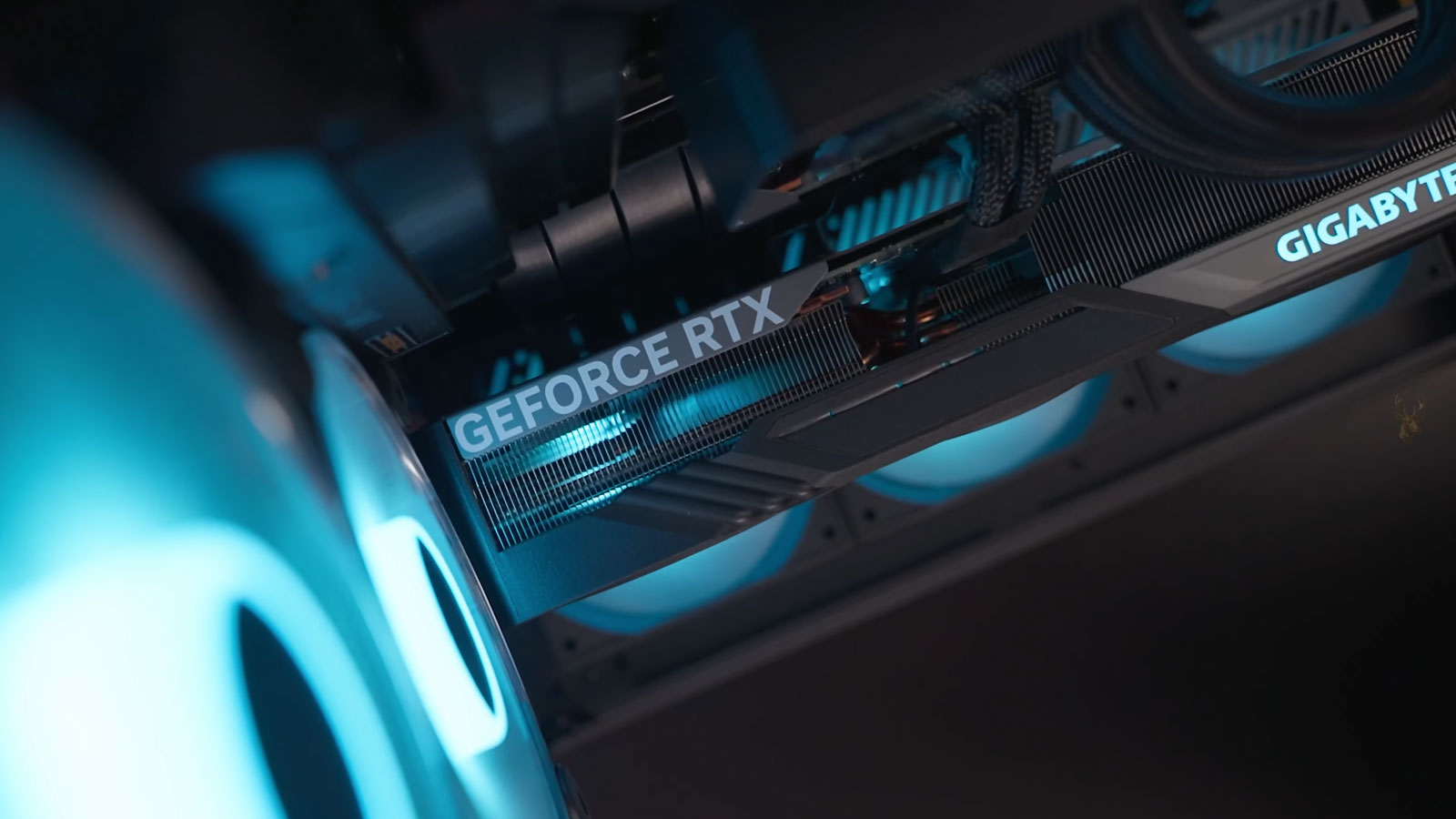
A Riser Cable Extends the Graphics Card Connection
A PCI Express riser cable allows a graphics card to be installed away from the motherboard’s main expansion slot. It is commonly used in gaming computers with vertical GPU mounts, compact cases, open-frame systems, and custom layouts where the card cannot connect directly to the motherboard.
The riser carries the same high-speed data signals that normally travel through the motherboard slot. Although the cable may look like a simple extension, it must preserve precise timing and signal quality across many individual conductors.
A damaged, poorly routed, or incompatible riser can cause symptoms that resemble a failed graphics card, motherboard, power supply, or driver. The computer may start without displaying an image, crash during games, operate at a reduced PCIe link speed, or work only after the graphics card is reinstalled directly into the motherboard.
Vertical Mounting Changes the Diagnostic Process
In a standard installation, the graphics card plugs directly into a reinforced motherboard slot. A vertical installation adds another connection between the card and motherboard, creating additional points where signal loss or poor contact can develop.
- The riser connector must sit fully inside the motherboard slot.
- The graphics card must seat correctly in the riser’s expansion connector.
- The cable must support the PCIe generation selected by the motherboard.
- The conductors must not be sharply folded, crushed, or twisted.
- The vertical bracket must hold the card without pulling on the cable.
- The graphics card power cables must remain separate from the PCIe data connection.
Because the graphics card is often hidden behind a vertical bracket or side panel, a partially seated connection may not be immediately visible. The installation can appear complete even when one side of the connector has not entered evenly.
No Display Is a Common Riser Failure Symptom
A computer may power on normally while failing to establish communication with the graphics card through the riser. Fans and lighting can operate because they receive power independently, but the motherboard may not detect the card well enough to produce an image.
Some motherboards respond by illuminating a graphics diagnostic light or producing a beep code. Others continue starting without video, repeatedly restart, or switch to integrated graphics when the processor supports it.
| Observed Behavior | Possible Riser-Related Cause |
|---|---|
| GPU lights and fans operate but no image appears | Power is present, but PCIe communication is incomplete |
| Display appears only after several restarts | Marginal contact or unstable link training |
| Integrated graphics works but the GPU is missing | The motherboard may not be detecting the card through the riser |
| Graphics diagnostic light remains on | The PCIe connection may not complete initialization |
| Video disappears when the case is moved | The cable or connector may be under mechanical stress |
The fastest comparison is often to remove the riser and install the graphics card directly into the motherboard. If the computer then starts reliably, the riser installation becomes a primary area of concern.
PCIe Generation Compatibility Can Prevent Startup
PCI Express generations use the same general connector shape, but each newer generation transfers data at a higher signaling rate. A riser cable that works reliably at one generation may not maintain adequate signal quality at a faster setting.
This can become noticeable when a newer motherboard and graphics card automatically negotiate a high-speed PCIe connection through an older or lower-quality riser. The system may fail to display an image even though every component works when connected directly.
| Configuration | Possible Result |
|---|---|
| PCIe 4.0 motherboard, PCIe 4.0 GPU, older riser | No display, crashes, or unstable device detection |
| Firmware forced to PCIe 3.0 | The same riser may begin working reliably |
| Automatic link selection | Startup may vary depending on signal training |
| Long or poorly shielded cable | Higher signal loss and increased error risk |
| Certified cable for the selected generation | Greater likelihood of maintaining the expected link speed |
Reducing the motherboard slot to an earlier PCIe generation can be a useful diagnostic test, but it is not proof that the graphics card or motherboard is defective. It may show that the riser cannot maintain the faster signaling rate.
Firmware Settings May Need to Be Changed Before Installation
A difficulty can arise when the computer already has no display through the riser and the necessary PCIe setting is located inside the motherboard firmware. The graphics card may need to be connected directly first so the slot can be manually configured.
After the system displays normally, the primary expansion slot can sometimes be changed from an automatic setting to a fixed PCIe generation. The computer should then be shut down before the riser and vertical graphics card are installed again.
- Install the graphics card directly into the motherboard slot.
- Confirm that the computer starts and produces a stable image.
- Open the motherboard firmware settings.
- Locate the PCIe link-speed option for the primary graphics slot.
- Select a generation supported reliably by the riser cable.
- Save the change and shut down the computer completely.
- Reinstall the riser and test the vertical graphics card arrangement.
The terminology and location of this setting differ between motherboard manufacturers. Changing unrelated firmware options should be avoided because it can introduce additional startup or performance problems.
Sharp Bends Can Damage Internal Conductors
Riser cables are designed to flex, but they have a limited bending radius. Folding the cable sharply behind a motherboard tray, pressing it against a case panel, or forcing it around a bracket can damage conductors or alter the spacing needed for stable signal transmission.
The damage may not be visible from the outside. The protective covering can remain intact while one or more internal paths become weakened. The connection may then fail only when the cable is moved into a particular position.
Routing Conditions That Increase Risk
- The cable is folded tightly at the motherboard connector.
- A side panel presses against the riser after the case is closed.
- The cable passes beneath a heavy graphics card bracket.
- A screw or sharp case edge contacts the cable covering.
- The riser is twisted so both connectors face different directions.
- Repeated case changes have bent the same section back and forth.
A cable that works while the case is open but fails after the side panel is installed may be changing shape under pressure. The panel should not be used to force the riser into a space that is too small.
Connector Alignment Matters at Both Ends
The motherboard end of the riser should enter the expansion slot evenly and engage the slot latch when the connector design permits it. The graphics card end must also support the full connector without tilting or allowing one side to lift.
Vertical brackets can make alignment difficult if the bracket holes do not match the case precisely. Tightening the graphics card to a misaligned bracket may pull it partly out of the riser or place continuous sideways pressure on the connector.
- Check that the gold contacts are inserted evenly.
- Confirm that no protective cover remains on either connector.
- Support the graphics card while securing the bracket.
- Do not use the mounting screws to pull the card into alignment.
- Verify that the connector does not move when display cables are attached.
A properly mounted graphics card should remain stable without relying on the riser cable to carry its weight.
Cable Length Influences Signal Quality
A longer riser can make installation easier, but it also increases the distance over which high-speed signals must remain synchronized and protected from interference. Cable construction becomes more important as length and PCIe speed increase.
Shielding, conductor arrangement, connector quality, and manufacturing consistency all affect performance. Two cables that look similar from the outside may behave very differently in the same computer.
A riser cable does not improve the PCIe connection. Its purpose is to extend that connection while introducing as little signal loss as possible.
The shortest cable that fits the intended layout without tight bends is generally easier to route and test than an unnecessarily long cable folded inside the case.
A Riser Problem Can Appear Only Under Gaming Load
Some marginal riser connections allow the computer to start and operate normally on the desktop. Problems may appear only when a game places sustained demand on the graphics card and increases PCIe communication, temperature, and power consumption.
- The game may close without warning.
- The screen may turn black while audio continues.
- The graphics driver may restart.
- The entire computer may freeze or reboot.
- Visual corruption may appear briefly before the display is lost.
- The graphics card may disappear after the next restart.
These symptoms can also be caused by power delivery, graphics memory, overheating, drivers, or the graphics card itself. Testing the card directly in the motherboard helps separate the riser from the other possibilities.
Reduced Link Width Can Limit Graphics Performance
A graphics card may still operate through a damaged or poorly connected riser while using fewer PCIe lanes than expected. Instead of establishing a full x16 connection, the system may fall back to x8, x4, or another reduced link width.
The effect depends on the graphics card, workload, processor, and PCIe generation. Some games may show little difference, while others may experience lower frame rates, inconsistent frame delivery, or longer delays when large amounts of data move between system memory and the graphics card.
| Detected Link Condition | Possible Explanation |
|---|---|
| Expected generation but reduced width | Some lanes may not be making reliable contact |
| Expected width but earlier generation | The connection may have negotiated a slower signaling rate |
| Link width changes between restarts | Connector seating or signal quality may be unstable |
| Full link appears only when the case is open | Cable routing or panel pressure may be affecting the riser |
| Full link returns with direct installation | The riser or vertical mounting arrangement becomes more likely |
Link information should be checked while the graphics card is active because some systems reduce the reported speed during idle operation. A light graphics workload may be needed before comparing the negotiated connection.
Intermittent Lane Contact Can Produce Correctable Errors
PCI Express includes mechanisms for detecting and retrying some transmission errors. A marginal riser can therefore continue working while silently requiring repeated corrections. The user may notice reduced performance, brief pauses, driver recovery events, or instability before the connection fails completely.
System logs may record hardware communication errors, but the wording does not always identify the riser. The event may reference the graphics device, a PCI Express root port, or a hardware error architecture entry associated with the expansion connection.
- Repeated PCI Express corrected errors
- Graphics driver timeout and recovery messages
- Unexpected device removal or reinitialization
- Hardware error entries involving the primary expansion slot
- Black-screen events without a complete loss of system power
A few isolated log entries do not automatically prove that the riser is defective. The results should be compared with direct motherboard installation and repeated testing under the same workload.
Power Problems Can Be Mistaken for Riser Failure
The riser carries PCIe slot power in addition to data signals, but high-performance graphics cards also depend on separate power cables from the power supply. A loose auxiliary connector, damaged cable, overloaded power supply, or incorrect modular cable can create symptoms similar to a bad riser.
A graphics card may start at low load and fail when gaming increases power demand. If the same failure occurs with the card installed directly in the motherboard, the riser is less likely to be the only cause.
| Symptom | Riser Possibility | Power Possibility |
|---|---|---|
| No display from the first startup | Poor PCIe communication or seating | Missing GPU power connection |
| Black screen during a demanding game | Signal instability under load or heat | Voltage drop or inadequate power delivery |
| Computer restarts completely | Possible, but less specific | Power supply protection or power loss |
| GPU disappears until power is disconnected | Link initialization may have failed | Protection state or unstable power rail |
| Failure remains with direct installation | Riser becomes less likely | GPU, power supply, or motherboard still require testing |
Both the data path and power path should be checked independently rather than assuming that all graphics card failures originate from one connector.
Heat Can Change a Marginal Connection
Gaming raises the temperature of the graphics card, motherboard area, case interior, and nearby cables. Materials expand slightly as they warm, and a connection that is already close to failure may behave differently after the computer has been under load.
A riser may work during a cold startup and fail after several minutes of gaming. In another case, the connection may be unreliable when cold but stabilize after the system warms. These patterns can result from changing contact pressure, cable position, or signal characteristics.
Temperature-Related Clues
- The computer starts normally after cooling but fails after extended gaming.
- Display loss occurs at a similar temperature or time interval.
- The problem changes when case fans or side panels are adjusted.
- The riser is routed close to the graphics card backplate or exhaust area.
- The cable covering feels unusually warm near a sharp bend or connector.
Heat-related behavior should not be diagnosed by touching powered components unnecessarily. Temperatures, airflow, and failure timing can be observed through software monitoring and controlled testing.
Side-Panel Pressure Can Recreate the Failure
A gaming computer may operate correctly while open on a workbench and fail once the side panel is installed. This often indicates that the final assembly is changing the position of the riser, graphics card, or power cables.
Glass panels are rigid and may leave little room between the graphics card and the case wall. If the vertical mount places the card too close to the panel, the display connectors, cooling fans, or riser cable may be pushed out of alignment.
- Test the system with the panel removed.
- Observe whether the riser changes shape as the panel approaches.
- Check that no power cable presses against the graphics card connector.
- Confirm that display cables do not pull the card outward.
- Install the panel without forcing it into place.
- Repeat startup and gaming tests after the case is fully closed.
A case that does not provide enough clearance for the chosen vertical mounting arrangement may require a different bracket, cable route, or standard horizontal installation.
Vertical Installation Can Restrict GPU Cooling
Some vertical mounts position the graphics card fans very close to the side panel. Even when the riser works correctly, restricted airflow can increase graphics card temperature and create crashes, throttling, or fan noise that appears related to the cable installation.
The distinction matters because replacing the riser will not correct a cooling problem caused by insufficient intake space. The card should have enough clearance to draw air across its cooler without relying on a narrow gap against glass or solid metal.
| Observed Problem | Possible Cooling Cause | Possible Riser Cause |
|---|---|---|
| Temperatures rise quickly after vertical mounting | Fans are too close to the side panel | Usually not the primary cause |
| Performance decreases gradually under load | Thermal throttling | Possible if link errors are also present |
| Instant black screen when the case is moved | Less likely | Connector or cable movement |
| Fans become unusually loud | Restricted airflow | Indirectly related only if mounting blocks airflow |
| Direct installation restores stability and lowers temperature | Vertical placement affected cooling | Riser should still be tested separately |
Temperature and link stability should be evaluated as separate measurements even though both can change after the same installation.
Display Cable Tension Can Pull on the Graphics Card
HDMI and DisplayPort cables can be thick and relatively stiff. In a vertical installation, their weight or routing may pull sideways against the graphics card bracket and riser connector.
The computer may lose video when the monitor cable is touched, not because the display cable is electrically defective, but because the force moves the graphics card within the riser. This is more likely when the bracket is loose or the card is not fully supported.
- Use display cables that reach without being stretched.
- Provide slack so the cable does not pull against the card.
- Support heavy adapters or extension cables.
- Check that the bracket remains secure while cables are inserted.
- Do not force a plug into a port that is misaligned with the case opening.
Dust and Debris Can Affect the Riser Connectors
Open-frame and frequently modified gaming computers can expose riser connectors to dust, fibers, packaging material, and fingerprints. Contamination on the contact surfaces may interfere with seating or create an unstable connection.
The riser should be disconnected only while the computer is fully powered down and unplugged. The contacts can then be inspected for debris, damage, discoloration, and uneven wear.
Cleaning methods must be appropriate for electronic contacts and should not leave fibers or residue. Abrasive scraping can remove protective plating and make the connector more vulnerable to future corrosion.
Reseating may temporarily restore contact, but repeated improvement after movement is also evidence that the connection requires closer inspection.
A Direct Motherboard Test Is the Most Useful Comparison
Installing the graphics card directly into the motherboard removes the riser, vertical bracket alignment, and cable routing from the connection path. This makes it one of the most useful tests when display loss or instability begins after a vertical GPU installation.
The same graphics card, power cables, monitor, driver, and workload should be used whenever possible. Keeping the other conditions unchanged makes the comparison more meaningful.
- Power down the computer and disconnect it from electrical power.
- Remove the vertical graphics card and riser carefully.
- Inspect the motherboard slot and graphics card contacts.
- Install the card directly into the primary motherboard slot.
- Reconnect the same graphics power and display cables.
- Test startup, link speed, gaming stability, and system logs.
- Compare the results with the original vertical configuration.
If direct installation resolves the problem consistently, the riser, mounting bracket, or cable routing should be evaluated before the graphics card is replaced.
Substitute Testing Helps Separate the Cable From the Mount
A direct motherboard test can show that the graphics card works without the riser, but it does not always identify whether the original problem comes from the cable itself or from the vertical mounting hardware. A second known-good riser can provide a more specific comparison.
The substitute cable should support the required PCIe generation, fit the case without sharp bends, and be tested with the same graphics card and motherboard settings. If the replacement works reliably in the same arrangement, the original riser becomes the most likely cause.
| Test Result | Likely Direction |
|---|---|
| Both risers fail in the same vertical position | Bracket alignment, firmware settings, clearance, or another component may be involved |
| Known-good riser works consistently | The original cable is likely damaged or incompatible |
| Both risers work outside the case | Case pressure or cable routing may be causing the failure |
| Neither riser works, but direct installation does | Generation compatibility or installation geometry requires closer inspection |
| Failure remains with direct installation | The graphics card, motherboard, power supply, or software may be responsible |
Substitute testing is most useful when only one variable is changed at a time. Replacing the cable, power supply, driver, and firmware settings together makes it difficult to determine which change corrected the problem.
Motherboard Slot Damage Can Resemble Riser Failure
The primary PCIe slot should be inspected before the riser is blamed. A damaged latch, contamination, cracked connector housing, or weak solder connection beneath the slot can cause the same display and stability problems.
A heavy graphics card installed directly in the past may have placed stress on the slot. Repeated removal can also wear the connector or damage the latch. The riser may appear responsible simply because the problem becomes noticeable after the system is rearranged.
- Check the slot for dust, fibers, and foreign material.
- Inspect the plastic housing for cracks or deformation.
- Verify that the retention latch moves and holds correctly.
- Look for discoloration or damaged contacts.
- Observe whether the riser connector sits evenly across the slot.
- Test another suitable motherboard slot when the system design permits it.
A secondary slot may operate with fewer lanes or through a different chipset connection, so its performance may not match the primary slot. It can still provide useful evidence about whether the graphics card and riser can establish a stable connection elsewhere.
Graphics Card Contact Wear Should Also Be Inspected
The gold edge contacts on the graphics card must connect evenly with the riser socket. Scratches, contamination, worn plating, or uneven insertion can interrupt one or more lanes.
Minor marks from normal insertion are common, but deep scratches, darkened areas, residue, or damaged contact edges require closer attention. The card should not be repeatedly inserted at an angle because this can increase wear on both the graphics card and riser connector.
Cleaning should use suitable electronics procedures that do not leave moisture, fibers, or abrasive damage. A card should be completely dry before power is restored.
Firmware Updates Can Change Link Behavior
Motherboard firmware updates sometimes change PCIe initialization, device compatibility, or automatic link negotiation. A riser configuration that worked before an update may begin training at a different generation or behave less reliably afterward.
The opposite can also occur. A newer firmware version may improve compatibility with certain graphics cards or correct an initialization problem. The timing of the failure should therefore be compared with recent firmware, hardware, and configuration changes.
- Record the current firmware version before making changes.
- Review whether the problem began after an update or reset.
- Check whether PCIe settings returned to automatic values.
- Load only appropriate defaults when troubleshooting requires it.
- Avoid interrupting power during a firmware update.
Firmware should not be updated repeatedly as a general experiment. The change should have a clear purpose and the motherboard should remain on stable power during the process.
Driver Reinstallation Does Not Repair a Weak PCIe Connection
Graphics driver errors often appear when communication with the card becomes unstable. Reinstalling the driver may temporarily reset the device or remove damaged software, but it cannot correct a bent connector, damaged conductor, incompatible riser, or loose mount.
Software troubleshooting is still appropriate when the problem began after a driver change and remains present with direct motherboard installation. However, repeated driver removal should not replace physical testing when the failure occurs only through the riser.
| Behavior | More Consistent With Software | More Consistent With the Riser |
|---|---|---|
| Problem began immediately after a driver update | Possible | Less likely unless hardware was moved |
| No display before the operating system loads | Less likely | Possible PCIe initialization failure |
| Failure disappears with direct installation | Less likely | Strong evidence involving the vertical connection |
| Same crash occurs in every installation position | Possible | Riser is less isolated |
| Movement of the cable changes the symptom | Unlikely | Mechanical or electrical connection problem |
Repeated Reseating Can Hide a Developing Failure
Disconnecting and reconnecting the riser may temporarily restore operation by changing contact pressure or cable position. This can make the computer appear repaired even though the underlying weakness remains.
If the same problem returns after movement, heating, or several restarts, the improvement from reseating should be treated as diagnostic evidence. It suggests that the connection is sensitive to position or contact rather than proving that the issue has been permanently corrected.
A connection that works only after being moved is not yet a reliable connection.
Repeated insertion also creates additional wear. Once testing has identified a suspect cable or connector, replacement or correction is usually more appropriate than continuing to reseat it whenever the display fails.
A Structured Test Reduces Unnecessary Part Replacement
Graphics failures can involve the riser, graphics card, motherboard, power supply, display cable, monitor, firmware, driver, or cooling system. A controlled sequence helps prevent several expensive parts from being replaced without confirming the cause.
- Document when the problem occurs and whether movement affects it.
- Inspect both riser connectors, the cable route, and vertical bracket alignment.
- Confirm graphics power cables and monitor connections.
- Check the negotiated PCIe generation and link width.
- Test the graphics card directly in the primary motherboard slot.
- Use a known-good riser when a compatible substitute is available.
- Repeat startup and gaming tests with the case fully assembled.
- Review temperatures and system logs for supporting evidence.
The results should be recorded after each change. Reliable diagnosis depends on knowing which configuration failed and which configuration remained stable.
Long Gaming Tests Are More Useful Than a Single Startup
A system that reaches the desktop has completed only the first stage of testing. A marginal riser may remain stable during light use and fail after sustained graphics activity increases data transfer, power demand, and temperature.
Testing should include repeated cold starts, restarts, video playback, graphics workloads, and normal games used by the owner. The system should also be tested after the side panel and all exterior cables are installed.
Conditions Worth Verifying
- The graphics card appears on every startup.
- The expected PCIe link width remains consistent.
- No black screens or driver recoveries occur under load.
- GPU temperature remains appropriate for the case layout.
- Moving display cables does not disturb the card.
- Closing the side panel does not change stability.
- System logs do not continue recording PCIe communication errors.
A single successful benchmark run may not reveal a position-sensitive or temperature-sensitive failure. Repetition under realistic conditions provides stronger evidence that the installation is dependable.
Standard Horizontal Installation May Be the Better Choice
Vertical mounting can improve the appearance of a gaming computer, but it is not required for performance. If the case provides poor clearance, the cable must be folded tightly, or the graphics card becomes hotter near the side panel, a standard horizontal installation may be more reliable.
Installing the card directly removes the added cable and connector, usually provides more predictable support, and may improve airflow depending on the case. The decision should prioritize stable operation rather than appearance alone.
| Vertical Installation May Be Reasonable When | Horizontal Installation May Be Better When |
|---|---|
| The case is designed with adequate clearance | The card fans sit close to a solid or glass panel |
| The riser supports the selected PCIe generation | The available riser works only at reduced speed |
| The bracket holds the card without stress | The mount pulls the card out of alignment |
| The cable can follow a broad, natural curve | The cable must be sharply folded or crushed |
| Extended testing confirms stable operation | Display loss or PCIe errors continue to return |
Replacement Cables Must Match the Intended Configuration
A replacement riser should be selected according to the motherboard, graphics card, PCIe generation, cable length, connector orientation, and case layout. Choosing only by appearance or connector shape can reproduce the same compatibility problem.
- Confirm support for the required PCIe generation.
- Choose a length that reaches without excess folding.
- Verify the direction and angle of both connectors.
- Check compatibility with the case and vertical bracket.
- Avoid used cables with unknown bending or installation history.
- Test the replacement before final cable management.
The cable should be routed and tested before ties, panels, and decorative covers make it difficult to observe. Final cable management should hold it gently rather than compressing or sharply bending it.
Professional Diagnosis May Prevent Damage to Expensive Hardware
Modern gaming computers may contain costly graphics cards, specialized cases, liquid-cooling components, and tightly arranged wiring. Repeatedly removing the card without proper support can damage the motherboard slot, connectors, cooling tubes, or nearby components.
Professional inspection may be appropriate when the card is difficult to access, the failure remains intermittent, the system records repeated PCIe errors, or direct installation requires substantial disassembly. Controlled testing can help separate the riser from power, cooling, firmware, and graphics card faults.
Reliable PCIe Communication Matters More Than the Mounting Style
A PCIe riser cable allows flexible graphics card placement, but it also becomes part of one of the fastest communication paths in the computer. Compatibility, connector seating, cable condition, routing, and bracket alignment all affect whether that path remains stable.
No display, reduced link width, driver recovery, crashes, black screens, and movement-related failures can all result from a weak riser connection. These symptoms should be compared with direct motherboard installation before the graphics card or other major components are replaced.
A dependable vertical installation should start consistently, maintain the expected PCIe connection, remain stable during extended gaming, and continue working after the case is fully closed. When those conditions cannot be achieved without forcing the cable or reducing reliability, direct installation is the safer arrangement.











