
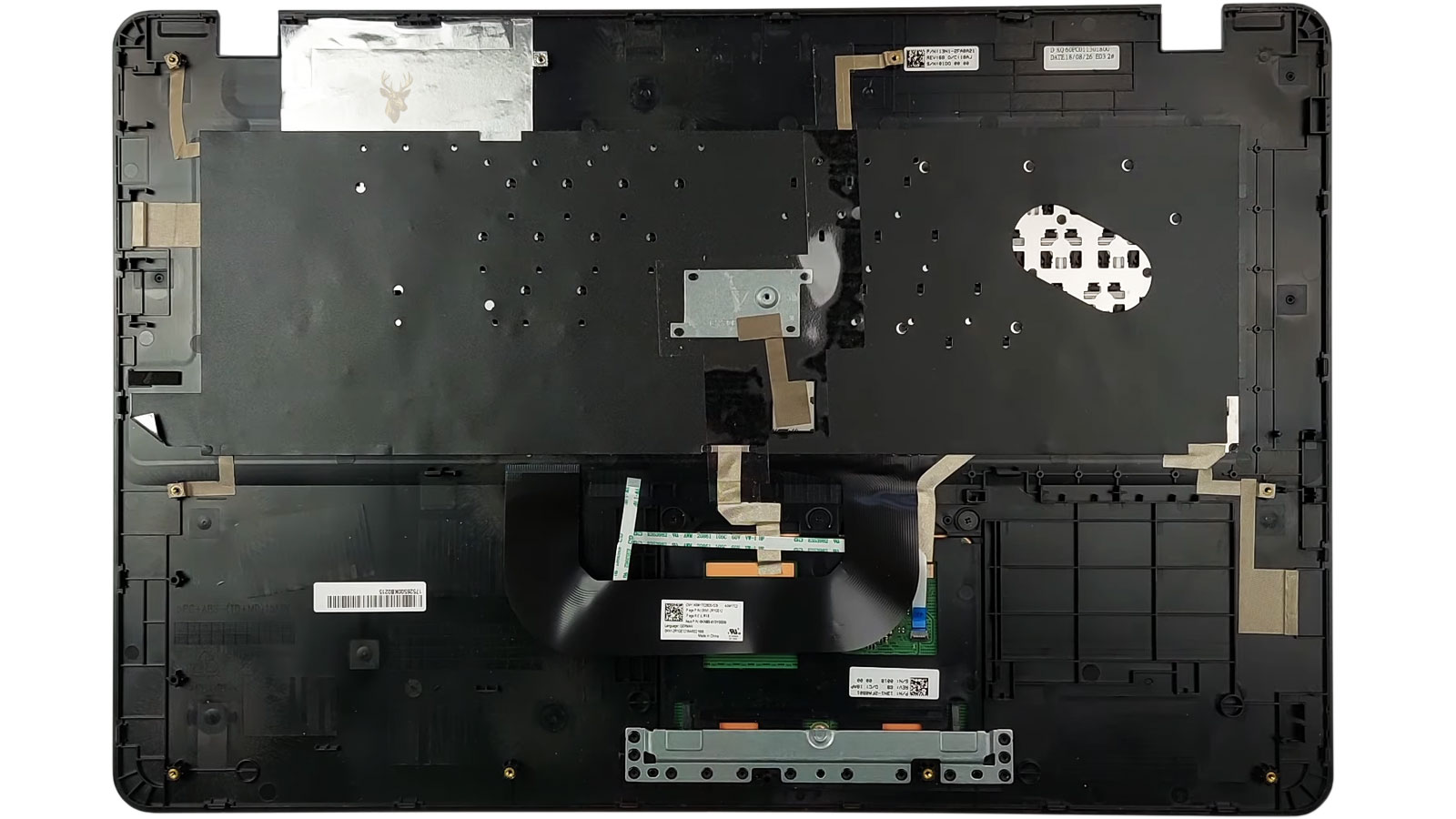
The Upper Case Supports More Than Hands and a Keyboard
The palm rest on a laptop may appear to be a simple cosmetic panel, but it often forms a major part of the computer’s internal structure. It surrounds the keyboard and touchpad, supports the hinge area, holds mounting points for internal components, and helps keep the lower case aligned.
When the palm rest cracks, separates, bends, or loses its internal screw mounts, the damage can affect much more than appearance. The keyboard may flex while typing, the touchpad may stop clicking correctly, the hinges may pull away from the case, and internal cables may be stretched or pinched whenever the screen is opened.
A laptop can continue working for some time with this type of damage, which makes it easy to postpone repair. However, repeated opening, carrying, and typing can allow a small crack to spread through the surrounding frame and place additional stress on parts that were not originally damaged.
Palm Rest Damage Takes Several Forms
Not every damaged upper case looks the same. Some laptops develop visible cracks near a corner, while others begin separating along the front edge or around one hinge. Internal damage may also exist even when the outer surface appears mostly intact.
- Surface cracks: Fine lines may form around screw locations, keyboard openings, or hinge corners.
- Case separation: The upper and lower sections may open along an edge because clips or mounting points have broken.
- Broken screw posts: Internal plastic mounts may pull away from the palm rest and allow parts to shift.
- Warped keyboard deck: The area surrounding the keyboard may bow upward or flex under normal typing pressure.
- Touchpad distortion: A bent or swollen palm rest can prevent the touchpad from clicking evenly.
- Hinge-area failure: The palm rest may split where the hinge bracket attaches to the case.
These forms of damage often develop together. A broken internal screw post can allow movement, that movement can create a visible crack, and the crack can eventually spread toward the keyboard or hinge area.
Internal Screw Posts Carry Structural Loads
Many laptop cases use molded plastic posts with threaded metal inserts to hold the motherboard, hinges, keyboard frame, speakers, and lower cover in position. These mounts are small, but they distribute force across the case whenever the laptop is opened, closed, lifted, or carried.
If one post cracks or separates from the surrounding plastic, the nearby screws may begin carrying more load than intended. The case can then flex unevenly, and additional mounts may fail over time.
| Damaged Mounting Area | Possible Result |
|---|---|
| Hinge screw post | The hinge lifts, shifts, or pulls the case apart |
| Motherboard mount | The board flexes or moves when cables are connected |
| Keyboard support | The keyboard bends or feels loose while typing |
| Touchpad bracket mount | The touchpad clicks unevenly or stops responding to pressure |
| Lower-cover mount | The case develops gaps or refuses to close evenly |
A missing screw does not always mean the technician or owner forgot to reinstall it. The internal plastic surrounding the screw may have broken away, leaving nothing secure for the screw to hold.
Hinge Resistance Can Start the Damage
Laptop hinges are designed to hold the screen at different angles, but they must move with controlled resistance. As hinges age, contamination, corrosion, internal wear, or overtightening can make them progressively harder to move.
Each time the screen is opened, that resistance is transferred into the hinge brackets and the case mounts holding them. If the mounts are made from thin plastic or have already weakened, the hinge can begin pulling the palm rest upward.
The first visible symptom may be a small gap near the hinge. Later, the corner may rise whenever the lid is moved, a cracking sound may be heard, or the palm rest may separate from the lower cover.
Warnings Around the Hinge Area
- The case opens slightly when the screen is raised.
- One corner of the palm rest moves with the hinge.
- A cracking or snapping sound occurs during lid movement.
- The screen requires more force to open than it did previously.
- Screws near the hinge repeatedly loosen.
- The display frame or bottom cover begins separating at the same corner.
Continuing to force a stiff hinge can break additional mounts, damage the display cable, or allow the hinge bracket to press against the motherboard or battery.
Carrying a Laptop by One Corner Adds Stress
A closed laptop may feel rigid, but its case can flex when lifted by one edge or corner. The weight of the battery, motherboard, cooling system, and display assembly then pulls across the internal frame unevenly.
This is especially damaging when the laptop is carried while open. Holding the computer by the palm rest with one hand can twist the upper case and place concentrated pressure near the touchpad, keyboard, or hinge mounts.
Repeated flexing may not cause an immediate break. Instead, fine cracks can develop around screw posts and gradually expand until the case begins separating during ordinary use.
Battery Swelling Can Distort the Palm Rest
A swollen internal battery can push upward against the touchpad and palm rest. Because the battery is often positioned beneath these areas, expansion may first appear as a touchpad that becomes difficult to click or a palm rest that no longer sits flat.
The pressure can bend brackets, separate case clips, and crack the upper case. It may also be mistaken for accidental damage because the laptop appears to be opening from the inside.
| Observed Change | Possible Explanation |
|---|---|
| Touchpad rises above the palm rest | Battery expansion beneath the touchpad |
| Front edge of the case separates | Swollen battery pushing the covers apart |
| Touchpad no longer clicks normally | Pressure has reduced available movement |
| Keyboard deck begins bowing upward | Expansion is affecting the internal frame |
| Case screws feel unusually tight | Internal pressure is loading the fasteners |
A swollen battery should not be pressed back into shape or forced inside a closed case. The laptop should be powered down and inspected because continued pressure can damage the palm rest, touchpad, battery cable, and motherboard.
Keyboard Flex Can Reveal Hidden Frame Damage
A keyboard that bends while typing may not have a defective keyboard. The supporting frame beneath it may be loose, cracked, or missing screws. Some laptops use the palm rest itself as part of the keyboard support structure, while others attach the keyboard to an internal metal or plastic panel.
If the upper case has weakened, the keyboard may sink in the center, rise at one edge, or make clicking sounds when keys are pressed. The keyboard cable can also move slightly inside its connector as the case flexes.
This movement may produce intermittent key failures that appear electrical even though the underlying problem is mechanical. Pressing on the palm rest may temporarily restore the connection, only for the fault to return when pressure is released.
Touchpad Problems May Begin With the Case
A touchpad relies on a stable mounting position and a small amount of controlled movement for its clicking mechanism. If the palm rest bends, separates, or shifts, the touchpad may no longer sit correctly against its bracket or buttons.
- One side may click while the other side remains rigid.
- The pointer may move normally even though physical clicking fails.
- The touchpad may sink when pressed because a support mount is broken.
- The surface may sit higher than the surrounding palm rest.
- Pressure on the case may cause temporary cursor movement or disconnection.
Replacing the touchpad without correcting the distorted palm rest may leave the same problem in place. The surrounding structure must be checked before the touchpad itself is considered defective.
Case Separation Can Pinch Internal Cables
When the palm rest begins lifting away from the lower case, internal cables may move outside their intended channels. Display, keyboard, touchpad, speaker, antenna, and power-button cables are often routed through narrow spaces where even a small change in alignment can create pressure.
A cable that becomes trapped between two case sections may be flattened, cut, or pulled partially out of its connector. The attached device can then fail intermittently whenever the laptop is opened, closed, carried, or pressed near the damaged area.
- A display cable may become stretched near a damaged hinge mount.
- A touchpad cable may fold sharply beneath a raised palm rest.
- A keyboard ribbon cable may loosen as the upper case flexes.
- Speaker wires may be pressed against broken plastic edges.
- A power-button cable may be pulled when the corner of the case separates.
Closing the case by force can make the damage worse. A cable caught between panels may be cut by a screw, compressed beneath a bracket, or forced into contact with a sharp metal edge.
Display Cables Are Vulnerable Near the Hinges
The display cable usually passes through or beside one of the hinge assemblies. It is designed to flex in a controlled path as the screen opens and closes. When the hinge mount shifts, that path can change.
A lifting palm rest may pull the cable tighter, bend it at an incorrect angle, or allow it to rub against a bracket. The screen may flicker, lose backlight, display lines, or turn off at certain lid positions even when the display panel itself remains functional.
The wireless antenna cables may follow a similar route. If they are pinched or damaged near the hinge, Wi-Fi or Bluetooth performance may weaken when the screen is moved.
| Symptom During Lid Movement | Area Worth Inspecting |
|---|---|
| Screen flickers at certain angles | Display cable routing and hinge pressure |
| Backlight turns off while the image remains faintly visible | Backlight power conductors within the display cable |
| Wi-Fi signal changes when the lid moves | Antenna cables near the hinge |
| Webcam or microphone disconnects intermittently | Upper display cable bundle |
| Cracking sounds accompany screen movement | Hinge mounts, palm rest, and display frame |
These symptoms may continue after the palm rest is replaced if the damaged cable is not identified at the same time.
Motherboard Flex Can Create Intermittent Failures
The motherboard depends on the case and its mounting points to remain flat and secure. If the palm rest loses internal supports, the board may flex when the laptop is picked up, typed on, or connected to external cables.
Repeated flexing can strain solder joints, board connectors, and small surface-mounted components. A laptop may then freeze, lose power, disconnect a charging port, or behave differently depending on how it is held.
Pressure-related symptoms do not automatically prove that the motherboard is cracked. Loose connectors, damaged cables, missing screws, and case movement can all create similar behavior. The complete structure must be examined before a board-level failure is assumed.
Clues That Structural Movement Is Affecting the Board
- The laptop shuts down when lifted from one corner.
- Charging stops when the palm rest is pressed or released.
- USB devices disconnect when a nearby cable is inserted.
- The computer freezes after the case twists slightly.
- The symptom changes after screws are tightened or loosened.
- The motherboard visibly moves because one or more mounts are broken.
Loose Ports May Be a Structural Problem
External ports are often mounted directly to the motherboard or attached to small internal boards. The surrounding laptop case helps keep those ports aligned with the openings in the palm rest or lower cover.
If the case cracks or shifts, a port may sit too high, too low, or at an angle. Inserting a USB cable, charger, or audio plug can then place additional leverage on the connector and its solder joints.
A loose port may therefore involve more than the connector itself. Replacing or resoldering the port without correcting the damaged case can allow the same stress to return.
| Port Behavior | Possible Structural Cause |
|---|---|
| Plug does not enter straight | Case opening and connector are no longer aligned |
| Port moves inward when used | Internal board or case mount is broken |
| Connection changes when the plug is touched | Connector or solder joints are under mechanical stress |
| Charging works only at one cable angle | Port, cable, or surrounding frame may be damaged |
| Plastic around the port is cracked | Repeated leverage has weakened the palm rest or lower case |
Missing Screws Allow Damage to Spread
Each laptop screw is placed to support a particular section of the case or an internal component. When screws are missing, loose, installed in the wrong location, or unable to tighten because a post is broken, the case may flex more than intended.
Using the wrong screw can also create damage. A screw that is too long may press into the palm rest, motherboard, battery, or keyboard. A screw that is too short may not hold the case sections together under normal movement.
- Keep screws organized by location during disassembly.
- Do not force a screw that does not turn easily.
- Check for broken plastic attached to a removed screw.
- Replace missing screws with the correct diameter and length.
- Do not overtighten screws into plastic mounting posts.
Overtightening can be as damaging as leaving a screw loose. Excess force may split the plastic surrounding the threaded insert and weaken a mount that was previously intact.
Adhesive Repairs Have Important Limits
Broken screw posts and cracked palm rests are sometimes repaired with adhesive. A properly prepared structural repair may reinforce a damaged area, but simply applying glue to the visible crack does not always restore the original strength or alignment.
The damaged surfaces must be clean, correctly positioned, and able to support the forces placed on them. Hinge mounts are especially demanding because they experience repeated leverage every time the screen moves.
Excess adhesive can also spread into nearby screw threads, cables, speakers, vents, or motherboard areas. Some products become brittle, soften under heat, or fail to bond well with the type of plastic used in the laptop.
A repair that closes the crack but does not restore alignment and load support may improve appearance without correcting the structural problem.
Replacement May Be More Reliable Than Reinforcement
When the palm rest contains several broken mounts, extensive cracking, warping, or damaged hinge supports, replacing the complete upper-case assembly may provide a more dependable result than repairing each point individually.
The replacement part may include only the plastic frame, or it may arrive with the keyboard, touchpad, speakers, power button, fingerprint reader, or other components already installed. The exact assembly varies by laptop model.
| Condition | Possible Repair Direction |
|---|---|
| One clean crack away from major mounts | Controlled reinforcement may be practical |
| Single broken screw post | Post repair or palm-rest replacement |
| Multiple failed hinge mounts | Upper-case replacement and hinge inspection |
| Warping caused by battery swelling | Battery replacement and case evaluation |
| Large sections missing or deformed | Complete palm-rest assembly replacement |
Part availability, labor, laptop value, and the condition of the hinges and lower case all influence whether replacement is reasonable.
The Lower Case Must Be Inspected Too
Palm rest damage often receives the most attention because it is visible during normal use, but the lower cover may contain equally important mounting points. A new palm rest cannot remain secure if the mating screw posts, clips, or frame sections in the bottom case are also broken.
The hinge brackets may attach partly to the palm rest and partly to the lower case. Damage on either side can allow movement to return after reassembly.
- Inspect both case halves for cracks and missing material.
- Check every hinge mounting point and metal bracket.
- Verify that the lower cover lies flat without force.
- Examine screw holes for stripped threads or broken inserts.
- Confirm that clips engage without trapping internal cables.
- Test lid movement before final screw tightening.
Repairing the complete structure instead of only the most visible crack helps prevent the same separation from returning after a short period of use.
Reassembly Must Restore the Original Alignment
A replacement palm rest or repaired upper case should fit together without being forced. Gaps, raised corners, uneven seams, or resistance during assembly can indicate that a cable is trapped, a bracket is misaligned, a screw is in the wrong location, or an internal component is not seated correctly.
Tightening screws should bring the case sections together evenly, not pull a distorted frame into position. If one area requires unusual pressure before the screw can reach its mounting point, the cause should be identified before assembly continues.
- Confirm that cables remain inside their original routing channels.
- Check that speakers, batteries, and small circuit boards sit flat.
- Verify that hinge brackets align with every mounting point.
- Install screws in their correct locations and lengths.
- Close clips gradually rather than pressing one area with excessive force.
- Inspect the outer seam before the laptop is powered on.
A case that closes correctly should remain even around the keyboard, touchpad, ports, hinges, and front edge. Small alignment problems can become larger once the laptop is carried and opened repeatedly.
Hinge Movement Should Be Tested Before Final Assembly
The display should be opened and closed carefully before every screw and decorative cover is installed. This allows the hinge area to be observed while the internal mounts are still accessible.
The hinges should move smoothly without lifting the palm rest or twisting the lower case. If one side moves differently from the other, the brackets may be misaligned, the hinges may have unequal resistance, or one mounting point may still be damaged.
| Test Result | Possible Concern |
|---|---|
| The palm rest rises near one hinge | The hinge mount is loose or the case is not fully secured |
| The lid requires excessive force | The hinge may be stiff, corroded, or overtightened |
| One hinge begins moving before the other | Uneven hinge resistance or bracket alignment |
| The case makes a cracking sound | A mount, clip, or frame section remains under stress |
| The display cable tightens visibly | Cable routing may be incorrect near the hinge |
Final assembly should not continue until the hinge action is stable. Closing the laptop completely can multiply the force on a weak mount and recreate the original damage.
Keyboard and Touchpad Testing Should Include Pressure Changes
A keyboard or touchpad may work while the laptop remains stationary on a desk but fail when the case flexes slightly during normal use. Testing should therefore include typing, clicking, lifting the laptop, and resting the hands naturally on the palm rest.
Every keyboard section should be checked, including keys near the repaired area. The touchpad should track movement evenly, recognize clicks on both sides when applicable, and remain at the correct height relative to the palm rest.
Behavior That Suggests the Structure Is Still Moving
- Keys stop responding when the laptop is lifted.
- The touchpad clicks differently after the case screws are tightened.
- Pressure on the palm rest causes the pointer to jump.
- The keyboard sinks or rises around one edge.
- A clicking sound comes from beneath the upper case.
- The palm rest flexes more on one side than the other.
These symptoms may indicate an incorrectly seated cable, missing support, loose bracket, or continuing pressure from the battery or another internal component.
Every Port Should Be Checked After Structural Repair
Replacing or repositioning the palm rest can change the alignment between external ports and the openings around them. A port may function electrically but still be difficult to use if the case presses against the plug or leaves the connector recessed.
USB, charging, audio, video, memory-card, and Ethernet connections should be tested with plugs that fit correctly. The connector should remain stable when the cable is inserted and should not move inward or force the case apart.
A misaligned opening should not be corrected by filing the case immediately. The internal board or bracket may simply be out of position. Altering the outer case can hide the alignment problem without restoring the proper support behind the port.
Cosmetic Damage and Structural Damage Are Not the Same
A scratch, worn finish, or shallow surface mark may affect appearance without weakening the laptop. Structural damage involves cracks, broken mounts, separation, distortion, or movement that changes how the computer is supported.
| Cosmetic Condition | Structural Condition |
|---|---|
| Surface scuff with no movement | Crack that opens when pressure is applied |
| Worn coating near the touchpad | Touchpad area raised by battery swelling |
| Small dent with stable case alignment | Warped palm rest affecting keyboard support |
| Discoloration around commonly touched areas | Broken hinge mount pulling the case apart |
| Minor edge wear | Lower and upper case sections no longer closing evenly |
The distinction matters because cosmetic wear may require no repair, while structural movement can damage cables, ports, hinges, and circuit boards if it continues.
Temporary Measures Should Reduce Stress, Not Hide It
When immediate repair is not possible, the laptop should be handled in a way that limits further movement. This may include leaving the screen at one angle, carrying the computer with both hands, and avoiding pressure near the damaged corner.
- Do not force a stiff or lifting hinge.
- Avoid carrying the laptop while the screen is open.
- Do not tape over vents, ports, or a swollen section of the case.
- Keep pressure away from a raised touchpad or palm rest.
- Back up important files in case the damage affects internal connections.
- Stop using the laptop if the battery appears swollen or damaged.
Tape, clamps, and added screws may hold the case closed temporarily, but they can also concentrate pressure in the wrong area. A temporary measure should never force a swollen battery or shifting hinge back into place.
Repair Decisions Depend on the Entire Laptop
The condition of the palm rest should be considered together with the hinges, battery, lower case, display assembly, motherboard, and overall value of the computer. Replacing one damaged section may not be worthwhile if several other structural parts are also failing.
On the other hand, an otherwise reliable laptop may justify a complete upper-case replacement when the required part is available and the internal components remain in good condition.
- Determine what caused the original damage.
- Inspect both case sections and all hinge mounts.
- Check for battery swelling or internal pressure.
- Evaluate cables, ports, keyboard, and touchpad operation.
- Compare repair cost with the age and value of the laptop.
- Confirm that replacement parts match the exact model and layout.
A repair is more likely to remain dependable when the cause is corrected along with the visible damage.
Early Repair Can Prevent Secondary Damage
A small gap or crack around the palm rest may seem unimportant while the laptop still operates normally. The concern is that the upper case helps control hinge movement, cable routing, keyboard support, touchpad alignment, port position, and motherboard stability.
Once that structure begins moving, repeated use can spread the damage into areas that are more expensive or difficult to repair. A loose hinge can tear a display cable, a raised case can interfere with the touchpad, and a broken mount can allow the motherboard to flex.
The visible crack may be only the first sign. The more important question is what the damaged frame is allowing to move inside the laptop.
A Stable Frame Protects the Entire Computer
The palm rest is a working structural component, not merely a surface surrounding the keyboard. It helps distribute force, support internal parts, and keep the laptop aligned during everyday handling.
Cracks, broken screw posts, case separation, hinge movement, and battery pressure should be evaluated before they spread. Repairing only the visible opening without checking the surrounding frame can leave the original stress in place.
A dependable repair restores the alignment of both case halves, secures the hinges, protects the cables, supports the keyboard and touchpad, and prevents the motherboard from moving. When those functions are restored together, the laptop is far more likely to remain reliable during normal use.











