
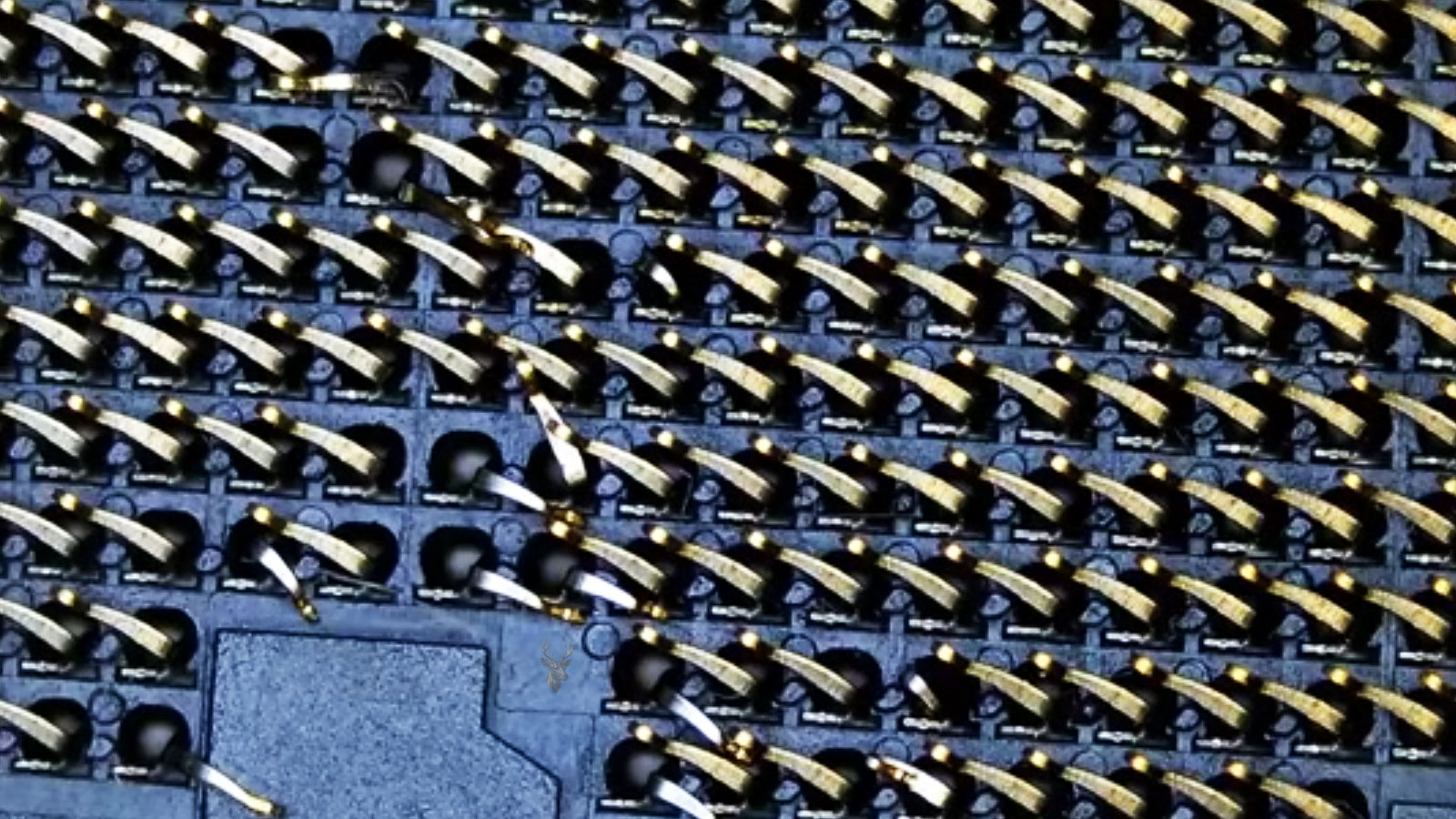
One Misaligned Pin Can Interrupt Several Computer Functions
A processor socket may contain hundreds or even thousands of electrical contact points arranged within a very small area. Each contact has a specific purpose, carrying power, control signals, memory communication, data, or other information between the processor and the motherboard.
When one or more socket pins become bent, flattened, twisted, contaminated, or pushed out of position, the processor may no longer communicate correctly with the rest of the computer. The system might refuse to start, power on without displaying an image, restart repeatedly, recognize only part of the installed memory, or behave unpredictably under load.
The damage is often difficult to see without magnification. A motherboard can look perfectly clean while one contact sits slightly lower than the surrounding pattern. Because the symptoms resemble memory failure, processor failure, firmware trouble, or a defective motherboard, socket damage can be overlooked during an ordinary inspection.
The Socket Connects More Than the Processor
The processor does not work as an isolated component. Through the socket, it communicates with memory, expansion devices, storage controllers, integrated graphics, motherboard power circuits, and firmware. A damaged contact can therefore affect a function that does not appear directly related to the processor.
For example, certain socket contacts carry signals between the processor and the computer’s memory channels. If one of those contacts fails to connect, the computer may detect only one memory module, reject an entire memory channel, or display errors that appear to indicate defective RAM.
- A power-related contact can prevent the processor from initializing.
- A memory contact can cause missing RAM or startup error codes.
- An integrated graphics contact can leave the monitor without a signal.
- A control-signal contact can produce repeated restarting or freezing.
- A ground contact may create instability that changes with pressure or temperature.
This is why socket damage can produce several different symptoms even when the processor itself remains functional.
Pin Location Depends on the Socket Design
Processor connections are arranged differently depending on the platform. Some processors carry visible pins on the underside of the chip, while others use flat contact pads and depend on spring-like pins located inside the motherboard socket.
| Connection Design | Pin Location | Typical Damage Area |
|---|---|---|
| Pin grid array | Processor | Bent or missing pins underneath the CPU |
| Land grid array | Motherboard socket | Misaligned spring contacts inside the socket |
| Soldered processor | Permanently attached to the board | Solder connections beneath the processor package |
The repair approach depends on which design is present. A bent pin on a removable processor is handled differently from a damaged contact embedded inside a motherboard socket. Soldered processors introduce another level of complexity because the contact points are not accessible without specialized board-level equipment.
Installation Errors Are a Frequent Cause
Modern processors and sockets are designed to fit in only one orientation. Alignment marks, keyed edges, and retention mechanisms help prevent incorrect installation. Even so, damage can occur when the processor is placed at an angle, moved while the retention frame is closing, or forced into position.
A processor should settle into its socket without pressure. If downward force is needed before the retention mechanism is engaged, something is likely misaligned. Pressing harder can bend processor pins, deform socket contacts, or damage the edges of the processor package.
Situations That Can Damage the Socket
- The processor is lowered into the socket at an angle.
- The alignment marks are overlooked during installation.
- The processor shifts while the retention frame is closing.
- A tool or loose screw falls into the exposed socket.
- Thermal paste reaches the socket contacts.
- The motherboard is transported without a protective socket cover.
- The processor cooler is installed with excessive or uneven pressure.
Damage can also occur during removal. Dried thermal compound may hold a cooler tightly against the processor, and pulling upward without first loosening that bond can lift or shift the processor unexpectedly.
Startup Symptoms Vary With the Damaged Contact
A computer with socket damage does not always remain completely lifeless. The fans may spin, lights may turn on, and storage devices may receive power even though the processor never completes its initialization sequence.
Some motherboards provide diagnostic lights, number displays, or beep codes that indicate where startup stopped. A CPU warning may appear, but memory or graphics warnings are also possible when the damaged socket contact serves one of those functions.
| Observed Symptom | Possible Socket-Related Explanation |
|---|---|
| Power is present but no picture appears | The processor or integrated graphics path does not initialize |
| Only part of the installed memory is detected | A contact serving one memory channel is not connecting |
| The computer restarts before reaching the operating system | A control, power, or ground signal is unstable |
| A CPU or memory warning light remains on | Startup testing cannot complete through the affected connection |
| The system works only when cooler pressure changes | Board flex or socket pressure may be altering contact |
These symptoms are not exclusive to socket damage. Defective memory, incompatible firmware, failed power delivery, incorrect cabling, or a damaged processor can produce similar behavior. The socket becomes a stronger suspect when the problem begins immediately after processor removal, cooler replacement, motherboard handling, or a new system assembly.
Missing Memory Can Point Toward the Processor Socket
A computer that recognizes only one memory module or one memory channel may appear to have a RAM problem. Replacing the modules, moving them between slots, and testing each one separately may show that the memory itself works correctly.
On systems where the memory controller is located inside the processor, communication between the CPU and each memory channel passes through specific socket contacts. A bent contact in that group can disable a slot or an entire channel even though the motherboard’s memory sockets are undamaged.
This possibility becomes especially relevant when several known-good memory modules fail in the same slot arrangement or when the problem appears immediately after the processor has been reinstalled.
Cooler Pressure Can Change the Behavior
A processor cooler must apply enough pressure to maintain proper thermal contact, but that pressure should remain even across the processor package. Uneven tightening can flex the motherboard or alter the way the processor rests against the socket contacts.
In some cases, a computer starts when the cooler is slightly loose but fails after the mounting screws are fully tightened. In other cases, additional pressure temporarily restores a weak connection. Either pattern suggests that mechanical force is influencing an electrical contact somewhere around the processor area.
Changing cooler pressure is not a dependable repair. It is a diagnostic clue that the socket, processor seating, motherboard shape, cooler hardware, and mounting method require closer inspection.
Inspection Requires Magnification and Strong Lighting
Processor socket damage can be difficult to identify because the contact pattern is dense and highly repetitive. One bent pin may be nearly invisible when viewed directly from above, especially if it remains close to its original position.
A useful inspection usually involves bright directional lighting and magnification. Viewing the socket from several angles allows the rows of contacts to reflect light in a consistent pattern. A damaged contact often becomes noticeable because its reflection, height, or direction differs from the surrounding pins.
- Inspect the socket before installing the processor.
- Compare each row from more than one viewing angle.
- Look for pins that appear lower, darker, twisted, or out of line.
- Check for thermal compound, dust, fibers, or foreign material.
- Examine the socket frame and retention mechanism for damage.
- Photograph the socket before attempting any adjustment.
A photograph taken under magnification can help document the original position and make subtle irregularities easier to compare. It also provides a reference if a repair attempt changes the contact pattern.
Thermal Paste Inside the Socket Can Block Contact
Thermal compound is intended to remain between the processor and its cooler, but excess material can spread beyond the edge of the processor during installation or removal. If it reaches the socket, it may coat contacts, trap debris, or prevent the processor from seating evenly.
Many common thermal compounds are not highly conductive, but that does not make them harmless inside a processor socket. A nonconductive film can still interrupt the physical connection between a contact and the processor pad. Some specialized compounds may also contain conductive particles that increase the risk of electrical shorts.
Cleaning a processor socket is more difficult than wiping the surface of a component. The contacts are delicate, closely spaced, and easily deformed. Solvent that remains trapped beneath the socket housing can also create additional problems if power is restored before the area is completely dry.
Contamination That May Be Found Near a Socket
- Thermal compound transferred during processor removal
- Dust or fibers from cloths and cleaning materials
- Skin oils from direct contact with the processor pads
- Residue from liquid exposure or earlier cleaning attempts
- Small fragments from damaged plastic or mounting hardware
Foreign material should never be blown deeper into the socket with high-pressure air. The contamination may move beneath the contact structure or cause the pins to flex.
Straightening a Socket Pin Is Delicate Work
A slightly misaligned contact may sometimes be returned to its original position, but the adjustment must be extremely controlled. Socket pins are thin spring contacts designed to flex within a limited range. Excess movement can weaken the metal, break the tip, or cause the pin to remain permanently lower than the surrounding contacts.
The goal is not simply to make the pin look straight. It must also match the height, angle, spacing, and spring tension of the neighboring contacts. A pin that appears visually aligned may still fail to press firmly against the processor.
| Condition | Repair Difficulty | Primary Risk |
|---|---|---|
| Slight sideways misalignment | Sometimes correctable | Overbending the contact |
| Pin pressed flat against the socket base | High | Breaking during lifting |
| Twisted or folded contact | Very high | Loss of proper height and tension |
| Missing contact tip | Usually not repairable by adjustment | Permanent loss of electrical connection |
| Multiple damaged contacts | Depends on location and severity | Creating additional damage during access |
Repeatedly bending the same contact back and forth should be avoided. Even when the pin does not break immediately, metal fatigue can reduce its ability to maintain pressure after the processor is installed.
Not Every Missing Pin Produces the Same Result
Processor sockets contain contacts for many different purposes. Some carry essential power or control signals, while others provide additional ground paths or duplicate connections. The effect of one missing or damaged contact therefore depends on its assigned function.
A damaged contact serving a critical startup signal may prevent the system from powering on correctly. Another contact may affect only one memory channel, an integrated feature, or stability under heavy load. In rare cases, a computer may appear to operate normally despite a damaged contact, but that does not confirm that the socket is fully reliable.
Determining the exact purpose of a contact requires accurate socket documentation and careful orientation. Guessing from its physical location can lead to incorrect conclusions, especially when several neighboring contacts perform different functions.
A Successful Startup Does Not Complete the Test
After a socket contact is corrected and the computer starts, further testing is still necessary. A marginal connection may work while the system is cold and fail after heat causes the motherboard, processor package, or socket materials to expand.
The computer should be tested through repeated cold starts, restarts, memory checks, processor load, and normal operation. All installed memory should be verified, along with integrated graphics or expansion devices that rely on processor communication.
- Confirm that the system starts consistently from a fully powered-off state.
- Verify that the correct processor and full memory capacity are detected.
- Run a memory test across all installed modules and channels.
- Apply a controlled processor workload while monitoring temperature and stability.
- Restart the computer several times after it reaches normal operating temperature.
- Check diagnostic logs for hardware-related errors or unexpected shutdowns.
A single successful boot proves only that the system completed startup once. It does not rule out weak contact pressure, intermittent communication, or temperature-related instability.
Firmware and Compatibility Should Be Checked Too
A computer that fails after a processor change may have a perfectly intact socket. The motherboard firmware may not support the installed processor, the memory settings may be incompatible, or the processor may require a newer firmware revision before startup can complete.
This is why the timeline matters. If the computer worked before the processor was removed and failed immediately after reinstallation, physical seating or socket damage becomes more likely. If a different processor was installed, compatibility and firmware support must be verified before assuming the socket is damaged.
| Recent Change | Area to Verify |
|---|---|
| Same processor removed and reinstalled | Orientation, seating, socket contacts, and cooler pressure |
| New processor installed | Motherboard support list and required firmware version |
| New memory installed at the same time | Memory compatibility, placement, and training behavior |
| Cooler replaced | Mounting hardware, pressure, and board flex |
| Motherboard transferred to another case | Standoffs, physical stress, and accidental socket exposure |
Separating configuration issues from physical damage prevents unnecessary socket repair attempts on a system that only needs compatible hardware or updated firmware.
Motherboard Flex Can Affect Socket Contact
The processor socket is mounted on a large circuit board that can flex under mechanical force. Heavy coolers, uneven mounting pressure, incorrect case standoffs, and rough transportation can place stress around the socket area.
Even a small amount of flex may change how the processor presses against the contacts. A marginal socket can therefore behave differently when the motherboard is installed in the case, removed for bench testing, or tightened under a large cooler.
If the computer works outside the case but fails after installation, the inspection should include case alignment, motherboard mounting points, cooler pressure, and any cable pulling against the board. The difference should not automatically be attributed to a short against the case.
Socket Replacement Is a Board-Level Procedure
When several contacts are missing, the socket housing is damaged, or the pins cannot maintain proper pressure, replacing the entire processor socket may be considered. This is not a routine component swap.
The socket is attached to the motherboard through a dense array of solder connections. Removal and installation require controlled heating, precise alignment, board support, and equipment designed for large board-level components. Excess heat can warp the motherboard, disturb nearby components, or damage internal circuit layers.
A processor socket is both an electrical connector and a precision mechanical assembly. Repairing it requires both functions to be restored accurately.
For many consumer motherboards, replacement of the board may be more practical than socket replacement. Higher-value, specialized, or difficult-to-replace systems may justify a more advanced repair evaluation.
Processor Damage Should Be Considered Separately
A damaged socket is only one possible cause of startup failure after processor work. The processor itself may also have cracked edges, contaminated contact pads, bent pins, missing components, or internal damage caused by incorrect voltage or overheating.
When possible, the processor should be tested in another compatible motherboard and the motherboard should be tested with another known-good processor. This comparison helps determine whether the failure follows the CPU, remains with the socket, or appears only when a particular pair of components is used together.
Testing must be performed cautiously. A visibly damaged processor should not be installed into a known-good motherboard until loose material, bent pins, contamination, and alignment have been inspected. A damaged component can create additional problems in the second system.
Diagnostic Indicators Can Be Misleading
Motherboard diagnostic lights and beep codes are useful, but they identify the stage where startup stopped rather than always naming the exact failed part. A memory warning may appear because a socket contact interrupted communication between the processor and a memory channel. A graphics warning may appear when the integrated display path never initialized.
| Diagnostic Indicator | What It May Actually Mean |
|---|---|
| CPU light remains on | The processor is unsupported, unpowered, damaged, or not making correct socket contact |
| Memory light remains on | RAM may be defective, incorrectly placed, or disconnected through a socket contact problem |
| Graphics light remains on | The graphics device may be missing, or the processor communication path may not initialize |
| Alternating CPU and memory lights | The system may be repeatedly attempting processor and memory initialization |
| No indicator progresses | Power delivery or an essential startup signal may be absent |
The indicators should be interpreted together with the repair history, recent changes, physical inspection, and component testing. Replacing the part named by a warning light without considering the socket can lead to unnecessary expense.
Repeated Processor Removal Increases the Risk
Processor sockets are not intended to be opened repeatedly without a reason. Every removal exposes the contacts to accidental impact, contamination, and improper handling. Frequent changes also increase the chance that thermal compound will spread into the socket or that the processor will be placed incorrectly during one installation.
Testing several processors in quick succession can be useful during diagnosis, but each exchange should be controlled. The socket should remain covered whenever no processor is installed, and tools, screws, cables, and cleaning materials should be kept away from the exposed contact area.
Precautions During Processor Handling
- Work on a stable, well-lit surface with enough room around the motherboard.
- Hold the processor by its edges rather than touching the contacts.
- Confirm the alignment marks before lowering the processor.
- Never slide the processor across exposed socket pins.
- Keep the protective socket cover available during storage or transportation.
- Remove excess thermal compound before it can spread during reassembly.
These habits reduce the chance of turning a simple upgrade or inspection into a motherboard repair.
Transportation Can Damage an Unprotected Socket
A motherboard shipped or stored without a processor should have its socket cover installed. The cover protects the contacts from packaging material, loose hardware, pressure, and accidental contact during handling.
Placing foam, paper, cloth, or tape directly over an exposed socket is not equivalent protection. Fibers can catch on the pins, adhesive can leave residue, and pressure from packing material may flatten delicate contacts.
A fully assembled desktop also requires careful transportation when it contains a heavy processor cooler. Sudden movement can place leverage on the motherboard, especially when the case is laid in an orientation that allows the cooler to pull sideways against the socket area.
Repair Value Depends on the Motherboard
The decision to repair or replace a motherboard depends on the severity of the socket damage, the value of the computer, component availability, and the labor required to produce a dependable result.
- A single slightly misaligned pin may justify a controlled adjustment.
- Several folded or broken contacts make a dependable repair less likely.
- An older consumer motherboard may cost less to replace than to repair.
- A proprietary or discontinued board may be difficult to replace.
- Industrial, workstation, or specialty systems may justify board-level work.
- Damage extending beyond the socket may make replacement the safer choice.
The lowest-cost option is not always the best option if the computer must remain stable under continuous use. A repair should be judged by reliability, not only by whether the motherboard powers on once.
Testing Should Include Every Affected Function
Socket contacts can serve different processor functions, so testing should extend beyond basic startup. A computer may reach the desktop while still having one disabled memory channel, unstable integrated graphics, reduced expansion connectivity, or errors that appear only under heavy processing load.
- Verify the processor model, speed, and core count in the firmware and operating system.
- Confirm that every installed memory module and channel is detected.
- Test integrated graphics when the processor and motherboard support it.
- Check expansion devices and storage interfaces that depend on processor communication.
- Run controlled processor and memory workloads while monitoring stability.
- Allow the system to cool and repeat startup testing from a cold condition.
- Review hardware logs for corrected errors, unexpected restarts, or device loss.
A complete test is especially important when the damaged contact’s exact purpose is unknown. Normal operation across all major functions provides stronger evidence than a successful startup alone.
When Professional Inspection Is Appropriate
Processor socket work becomes risky when the damage is difficult to see, several contacts are affected, contamination has entered the socket, or earlier repair attempts have already changed the pin positions. Continued adjustment without magnification and proper control can turn a recoverable contact into a broken one.
Professional inspection may also be appropriate when the computer contains valuable data, specialized software, expensive components, or a motherboard that is difficult to replace. The cost of careful diagnosis may be lower than the cost of damaging a second processor or compatible board during uncontrolled testing.
The most important decision is not whether a pin can be moved. It is whether the connection can be restored without weakening the socket or creating damage nearby.
Protecting the Socket Prevents Larger Repairs
Bent CPU socket pins can produce symptoms that appear unrelated to the processor, including missing memory, no video, repeated restarting, and unstable operation. The dense contact pattern allows one small physical defect to interrupt several important computer functions.
Careful installation, even cooler pressure, socket protection, clean handling, and controlled testing reduce the risk of damage. When a computer fails immediately after processor work, the socket should be inspected before multiple unrelated parts are replaced.
A processor socket is one of the most delicate areas on a motherboard. Treating it as a precision electrical connector rather than an ordinary component holder helps prevent a minor installation mistake from becoming a complete motherboard replacement.











