
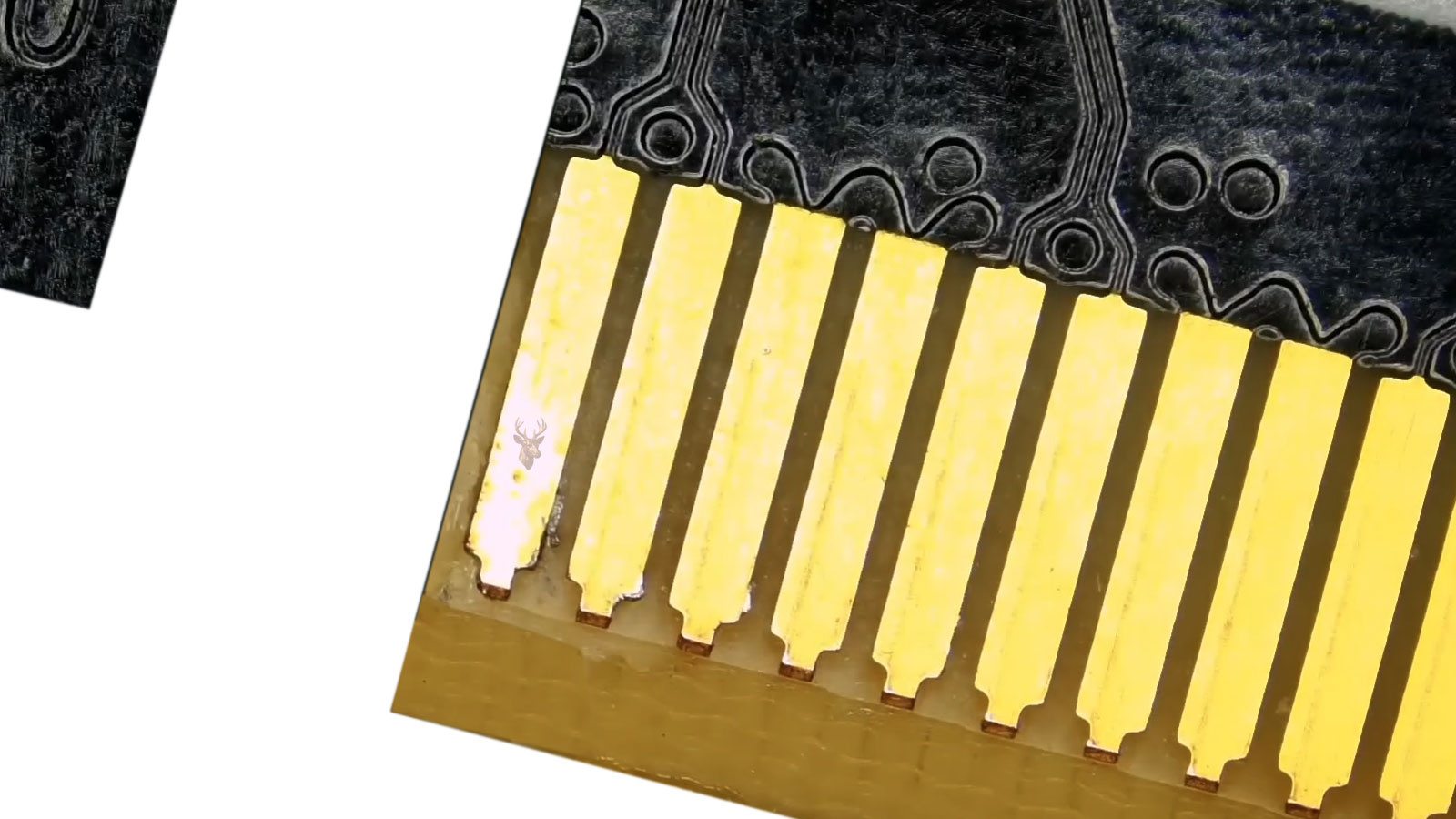
A Small Contact Surface Can Affect an Entire Computer
Computer components depend on dozens of metal contact points that are rarely noticed until one stops making a reliable connection. Memory modules press into narrow slots, expansion cards connect through rows of plated contacts, storage devices rely on data and power connectors, and removable batteries use terminals that must remain electrically stable.
These connections may look secure from the outside while oxidation, residue, contamination, or weakened contact pressure interferes with the electrical path. The resulting symptoms are often inconsistent. A computer may fail to start one day, work normally after being moved, lose a device during operation, or produce errors that disappear after the case is opened and reassembled.
Because the component itself may still be functional, an unstable contact can easily be mistaken for a failed motherboard, defective memory module, damaged storage drive, or unreliable power supply. Careful inspection and testing are needed before parts are replaced.
What Oxidation Does to an Electrical Connection
Electrical contacts are designed to let current or data signals pass across two conductive surfaces. Those surfaces are commonly made from copper alloys and may be coated with nickel, tin, gold, or another material selected for conductivity and resistance to corrosion.
When a contact surface reacts with oxygen, moisture, airborne contaminants, or residue, a thin layer can form between the two pieces of metal. That layer may increase resistance or prevent the surfaces from touching evenly. Digital signals that normally pass through the connection can then become weak, interrupted, or unreliable.
The amount of contamination does not need to be dramatic. A connector may appear clean to the eye while microscopic changes affect a high-speed memory bus, storage interface, or expansion-card connection. Modern computers operate with tight electrical tolerances, so a small change at one contact can create symptoms elsewhere in the system.
Connections Most Likely to Develop Trouble
Any removable electrical connection can become unstable, but certain areas are encountered more frequently during computer maintenance and repair.
- RAM contacts: Poor contact between a memory module and its slot can cause startup failures, memory errors, freezing, or unexpected restarts.
- Expansion cards: Graphics cards, network adapters, and other PCI Express devices may disconnect or behave unpredictably when their edge contacts are contaminated.
- SATA connectors: Oxidation or residue around storage data and power connections can cause drives to disappear, reconnect, or report communication errors.
- Battery terminals: Removable laptop batteries and internal coin-cell batteries depend on clean contact surfaces for dependable power.
- Ribbon-cable connectors: Keyboard, touchpad, display, and button-board cables can lose reliable contact when residue reaches the connector or the locking mechanism no longer applies even pressure.
- External ports: USB, audio, video, and charging ports are exposed to moisture, dust, skin oils, and environmental contamination.
Some contacts are protected inside the computer, while others are repeatedly exposed each time a cable or removable component is connected. The surrounding environment often determines which area develops trouble first.
Symptoms Can Change After the Computer Is Moved
One characteristic of a poor electrical contact is that the symptom may change after vibration, movement, or temperature changes. Carrying a desktop to another room, closing a laptop lid, pressing near the case, or allowing the system to cool can slightly alter the pressure between two surfaces.
This can temporarily restore the connection, which makes the fault difficult to reproduce. A customer may report that the computer would not start at home, only to have it operate normally after arriving for service. The movement during transportation may have shifted the component just enough to restore contact.
| Observed Behavior | Connection Worth Inspecting |
|---|---|
| The computer starts after the memory is removed and reinstalled | RAM contacts and memory slots |
| A graphics card disappears after the case is moved | PCI Express contacts and card support |
| A storage drive appears only after reconnecting its cables | SATA data and power connectors |
| A keyboard or touchpad works when pressure is applied | Ribbon cable and locking connector |
| A USB device disconnects when the plug is touched | External port contacts or internal solder joints |
Movement-related symptoms do not always prove that oxidation is present. Cracked solder joints, loose connectors, damaged cables, and worn ports can behave in similar ways. The pattern simply indicates that the physical connection deserves closer examination.
Environmental Conditions Influence Contact Quality
Computers used in humid, coastal, industrial, or poorly controlled environments may experience contact deterioration sooner than systems kept in clean, climate-controlled rooms. Moisture accelerates many forms of corrosion, while airborne particles can settle inside connectors and absorb additional humidity.
Salt carried through coastal air is particularly conductive and corrosive. It may enter through cooling vents in very small quantities and settle on internal surfaces over time. Workshops, kitchens, garages, and smoking environments can introduce different contaminants that leave films on connectors and circuit boards.
Conditions That Increase the Risk
- High indoor humidity or repeated condensation
- Storage in a garage, shed, vehicle, or non-climate-controlled room
- Exposure to salt air near coastal areas
- Smoke, cooking residue, or oily airborne particles
- Previous liquid exposure, even when the computer continued working
- Long periods of storage without being powered or inspected
A system does not need to show severe visible corrosion before contact resistance begins to change. Early deterioration may produce only occasional errors, especially when the affected connection carries high-speed data rather than steady electrical power.
Reseating a Component Is a Test, Not Always a Repair
Removing and reinstalling a memory module or expansion card can scrape through a thin layer of contamination and temporarily restore contact. This is why reseating a component sometimes appears to solve a problem immediately.
However, the improvement does not necessarily mean the issue is permanently corrected. If residue remains inside the slot, the plating is damaged, contact pressure is weak, or moisture continues reaching the area, the same fault may return later.
Reseating is most useful as part of diagnosis. When the computer’s behavior changes immediately afterward, attention can be directed toward that connector, the component’s contact surfaces, and the mechanical fit between them.
Cleaning Contacts Requires the Right Method
Electrical contacts should be cleaned carefully because an aggressive method can remove protective plating, bend connector pins, leave residue, or push contamination deeper into the slot. The goal is to restore a clean conductive surface without creating a new mechanical or electrical problem.
Before any internal connector is handled, the computer should be shut down, disconnected from power, and allowed to discharge. On laptops, the internal battery may also need to be disconnected before memory, storage, or ribbon-cable connections are disturbed.
- Use a cleaner intended for electronics that evaporates without leaving residue.
- Apply only a small amount rather than soaking the connector.
- Avoid scraping plated contacts with knives, screwdrivers, or coarse abrasives.
- Let the area dry completely before power is restored.
- Inspect the connector for bent contacts, weak locks, or physical damage after cleaning.
Household cleaners are not suitable for this work. Some contain water, fragrance, oils, or additives that remain behind after the visible liquid evaporates. The residue can attract dust or continue interfering with the connection.
Gold-Plated Contacts Are Not Immune to Failure
Gold is often used on memory modules and expansion cards because it resists oxidation better than many other metals. That does not mean every gold-colored contact remains reliable forever.
The plated layer is usually very thin. Repeated installation, contamination, abrasion, or manufacturing defects can expose the metal underneath. Dust, oils, and residue can also interrupt contact even when the gold itself has not corroded.
Some connector failures occur on the mating surface inside the slot rather than on the visible edge of the component. Cleaning only the removable part may therefore produce limited improvement if the slot contacts are dirty, worn, bent, or no longer applying enough pressure.
Weak Contact Pressure Can Resemble Oxidation
A connector depends on mechanical pressure as well as clean metal surfaces. If the spring tension inside a slot weakens, a card becomes slightly warped, or a latch no longer closes completely, the contact may remain unreliable even when no corrosion is visible.
This is especially important with ribbon cables and small board connectors. A locking tab may appear closed while one side of the cable sits slightly higher than the other. The device may work intermittently, fail after the case is moved, or respond only when pressure is applied near the connector.
| Contact Problem | Typical Clue | Likely Direction |
|---|---|---|
| Surface contamination | Operation improves after careful cleaning | Inspect both mating surfaces for residue |
| Weak slot tension | Failure returns when the component shifts | Check mechanical fit and connector wear |
| Damaged locking tab | Ribbon cable will not remain evenly seated | Repair or replace the connector assembly |
| Worn plating | Dark, scratched, or uneven contact surface | Evaluate the component and slot together |
| Bent internal contact | One device fails while identical replacements behave the same | Inspect the socket under magnification |
Cleaning alone cannot correct a connector that has lost its shape or clamping force. In those cases, the mechanical defect must be addressed or the connection may continue failing.
Memory Errors Are Often Blamed on the Module
RAM-related symptoms are among the most common examples of contact problems being mistaken for component failure. A computer may beep during startup, display memory errors, freeze under load, restart unexpectedly, or fail to recognize the full installed capacity.
Replacing the memory module may appear to solve the issue because the installation process also disturbs and refreshes the connection. If the slot itself is contaminated or worn, however, the replacement module may eventually develop the same symptoms.
Testing should include more than running a memory diagnostic once. The module may need to be tested in another slot, the slot may need to be tested with another known-good module, and the computer may need to be observed after several cold starts and periods of normal use.
Patterns That Help Separate the Module From the Slot
- If one module fails in every slot, the module becomes more suspicious.
- If several modules fail in one particular slot, the slot or motherboard path deserves attention.
- If the error changes after the computer is moved, contact pressure may be involved.
- If the problem appears only after warming up, expansion or board flex may be affecting the connection.
- If the installed memory amount changes between startups, the contact is likely unstable.
Storage Connections Can Produce Misleading Drive Errors
A storage drive may be healthy while its cable or connector is not. Unstable SATA contacts can cause delayed startup, missing drives, file-transfer interruptions, or communication errors recorded by the drive’s monitoring system.
These symptoms can resemble a failing hard drive or solid-state drive. The difference is that communication-related errors may change after a cable is replaced, a connector is cleaned, or the drive is connected through another port.
Power connections matter as well. A drive receiving inconsistent power may disconnect under load, disappear after waking from sleep, or fail to spin up during startup. Replacing only the data cable would not correct that condition.
A drive that disappears is not automatically a failed drive. The entire connection path must be checked before the storage device is condemned.
Expansion Cards Need Mechanical Support
Graphics cards and other expansion devices place physical stress on their connectors. A large card can sag under its own weight, pull unevenly against the slot, or shift slightly when the computer is transported.
The mounting screw or retention bracket is not only there to keep the card from falling out. It helps maintain alignment between the card’s edge contacts and the connector on the motherboard. If the bracket is loose or the case is bent, the card may remain partially connected while becoming electrically unstable.
A system that loses video, drops a network adapter, or stops recognizing an expansion device after being moved should be checked for both contact contamination and mechanical misalignment.
Liquid Exposure Can Continue Affecting Contacts
Liquid damage does not always produce immediate failure. A small spill may dry while leaving behind minerals, sugars, salts, or other conductive residue. Those deposits can remain around connectors and gradually react with the metal surfaces.
The computer may appear normal for days or weeks before intermittent faults begin. A keyboard connector may lose several keys, a battery may stop charging consistently, or a storage device may disconnect without warning.
Because the residue can continue attracting moisture, reconnecting the affected component without cleaning the area may provide only temporary improvement. A proper inspection should look beyond the visible spill location and include nearby connectors, cable ends, and the underside of circuit boards where liquid may have traveled.
External Ports Develop Their Own Contact Problems
USB, audio, video, Ethernet, and charging ports are exposed every time a cable is inserted or removed. Dust, skin oils, moisture, worn plugs, and repeated mechanical stress can gradually reduce the quality of the connection.
An external port may still look normal while the internal contacts have become contaminated, bent, recessed, or loose. The connected device may work only when the cable is held at a certain angle, disconnect when the plug is touched, or operate at a lower speed than expected.
These symptoms should not be blamed on oxidation alone. A damaged cable, cracked solder joint, worn connector shell, or loose internal mounting point can create the same behavior. Testing with another known-good cable and another port helps separate the external device from the computer’s connector.
Repeated Reconnection Can Hide the Real Cause
When a device starts working after it is unplugged and reconnected, it is tempting to consider the problem solved. In reality, the act of reconnection may only scrape through contamination, shift a weak contact, or temporarily restore pressure inside the connector.
If the same symptom returns, the pattern should be documented rather than treated as a random event. Repeated reconnection can also accelerate wear, especially when a loose plug is moved back and forth while the device is powered.
Details That Help Reveal a Contact Fault
- The device returns immediately after the connector is reseated.
- The failure becomes more frequent over time.
- Movement or vibration changes the symptom.
- The same component behaves normally in another computer or slot.
- Several replacement devices fail at the same connection point.
- Visible discoloration, residue, or wear appears on the mating surfaces.
No single clue is conclusive, but several of them together can justify a closer inspection of the connection rather than replacing the attached device.
Contact Problems Can Affect Data Integrity
An unstable connection does more than make a device disappear. When storage, memory, or expansion-card communication is interrupted during active use, data can be transferred incorrectly or not written at all.
A storage drive that repeatedly disconnects may leave files incomplete, damage an active file system, or interrupt an operating system update. Unstable memory contacts can contribute to application crashes and corrupted data before the user realizes a hardware connection is involved.
For that reason, important files should be backed up before repeated testing continues on a computer with intermittent storage or memory behavior. A system that appears stable after reseating a component may still need additional observation before it can be trusted with irreplaceable data.
A Careful Inspection Is More Useful Than Guessing
Diagnosing unstable contacts requires patience because the computer may operate normally during part of the inspection. The goal is to recreate the symptom safely and compare the behavior before and after one controlled change.
- Record the original symptom and the conditions under which it appears.
- Disconnect power and protect the computer from static electricity.
- Inspect the component, connector, cable, and mounting hardware.
- Clean or reseat only one connection at a time.
- Test the computer through several startups and normal workloads.
- Check whether movement, heat, or cooling changes the result.
- Replace parts only after the connection path has been evaluated.
This method reduces the chance of replacing a working component simply because reconnecting it temporarily changed the symptom.
When Cleaning Is Not Enough
Some contact faults cannot be corrected with routine maintenance. Severe corrosion may remove metal from the connector, while heat damage can distort plastic housings and weaken internal spring contacts. Liquid residue may also travel beneath a connector where surface cleaning cannot reach it.
| Condition | Likely Response |
|---|---|
| Light removable residue | Careful cleaning and controlled testing |
| Loose replaceable cable | Replace the cable and inspect both connectors |
| Worn or weak slot contacts | Repair or replacement of the connector or board |
| Severe corrosion beneath a connector | Board-level inspection and possible microsoldering |
| Burned or melted contact surfaces | Stop using the connection and evaluate the source of overheating |
A connector that has overheated should not simply be cleaned and returned to service. The underlying cause may include excessive resistance, a loose fit, an overloaded circuit, or damage in the attached cable or component.
Preventive Habits That Protect Connections
Contact deterioration cannot always be prevented, but the surrounding conditions can be improved. Computers benefit from stable indoor humidity, clean airflow, careful cable handling, and protection from spills and airborne residue.
- Keep computers away from damp floors, open windows, and areas where condensation forms.
- Avoid storing unused systems in garages, vehicles, or outdoor sheds.
- Support heavy graphics cards so they do not pull against the motherboard slot.
- Insert cables straight rather than twisting or forcing them into place.
- Address liquid exposure promptly instead of waiting for symptoms to appear.
- Include connector inspection when an older computer receives preventive maintenance.
Routine cleaning should not involve repeatedly removing every internal component without reason. Each installation cycle creates some wear. Connections are best disturbed when symptoms, inspection findings, or maintenance history provide a practical reason to do so.
Looking Beyond the Component
Oxidized and contaminated contacts are easy to overlook because the connected part may appear to be the obvious source of the failure. Memory errors suggest bad RAM, a disappearing drive suggests failed storage, and a missing graphics card suggests a defective card. Sometimes those conclusions are correct, but the connection between the component and the computer deserves equal attention.
A reliable diagnosis considers the full electrical path: the component contacts, the mating connector, the cable if one is present, the mounting pressure, and the circuit beyond it. That broader view helps explain faults that change after movement, cleaning, cooling, or reassembly.
Small contact surfaces carry essential power and data throughout a computer. Keeping those connections clean, properly aligned, and mechanically secure can prevent intermittent problems from being mistaken for major hardware failures.











