
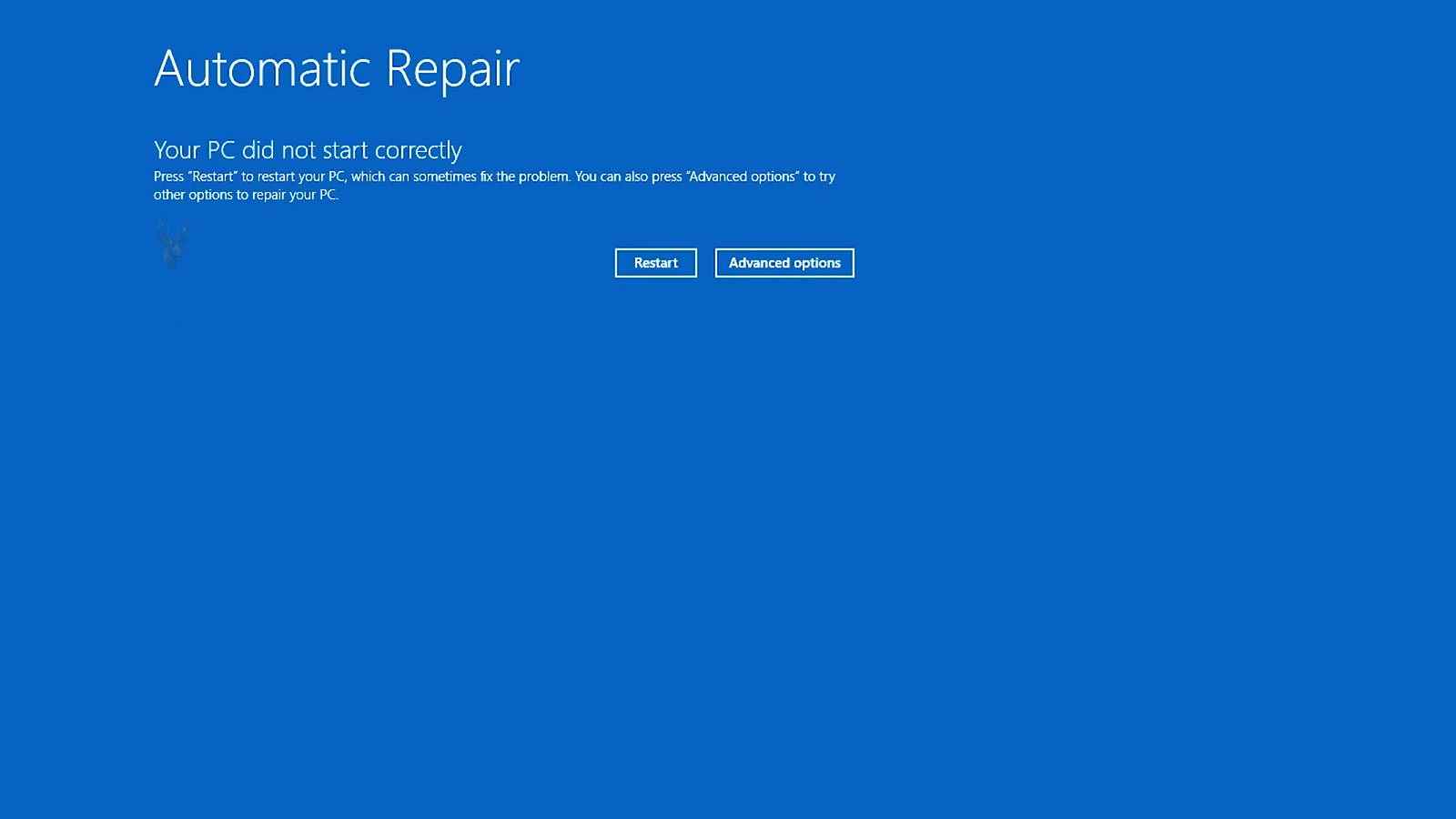
Automatic Repair Can Repeat Without Correcting the Startup Failure
A Windows computer may begin with a message such as Preparing Automatic Repair, Diagnosing Your PC, or Attempting Repairs, then restart and return to the same screen. Instead of reaching the desktop, the system repeats the recovery process or eventually displays a message stating that Automatic Repair could not repair the computer.
This loop occurs when Windows detects repeated startup failures and opens its recovery environment. The repair tools then examine selected boot files, system settings, and storage conditions. If the underlying problem remains unresolved, the next startup fails again and Windows returns to Automatic Repair.
The cause may be a damaged boot configuration, interrupted update, corrupted system file, failed driver, storage error, incorrect firmware setting, or unstable hardware. The Automatic Repair screen identifies the recovery response, but it does not identify the original fault by itself.
Windows Opens Recovery After Repeated Unsuccessful Starts
Windows monitors whether startup completes normally. When the operating system fails to load several times, the computer may enter the Windows Recovery Environment automatically.
This behavior is intended to provide access to Startup Repair, Safe Mode, System Restore, update removal, command-line tools, and other recovery options. It does not necessarily mean that Windows has already completed a successful repair.
| Startup Message | General Meaning |
|---|---|
| Preparing Automatic Repair | Windows has detected repeated startup trouble and is loading recovery tools |
| Diagnosing Your PC | The recovery environment is checking selected startup conditions |
| Attempting Repairs | Windows is applying an automated repair procedure |
| Automatic Repair Couldn’t Repair Your PC | The automated process did not correct the detected startup failure |
| Your PC Did Not Start Correctly | Windows has opened recovery choices after an unsuccessful boot |
The exact wording can vary by Windows version and by how far the startup process progresses before failing.
An Interrupted Windows Update Can Leave Startup Files Incomplete
Windows updates may replace system files, drivers, boot components, and configuration data. If power is lost, the computer is forced off, or storage stops responding during an update, the system can be left with an incomplete mixture of old and new files.
Windows may then attempt to reverse the update or finish installing it during the next startup. If that process also fails, the computer can move repeatedly between update recovery and Automatic Repair.
- The loop may begin immediately after an update restart.
- The screen may show Undoing Changes before entering recovery.
- Startup may fail at the same percentage on every attempt.
- Safe Mode may also refuse to load.
- Removing the most recent quality or feature update may restore startup.
Update timing is an important clue, but a storage device that failed during the update can create the same sequence. The update should not be blamed until drive health and file-system condition are considered.
Damaged Boot Configuration Data Can Prevent Windows From Finding the Correct Installation
The Boot Configuration Data store contains information Windows uses to locate and start the installed operating system. If this data becomes corrupted, references the wrong partition, or is changed during disk cloning or partition work, Windows may be unable to continue beyond the recovery environment.
The computer may still recognize the storage drive in firmware while failing to locate a valid Windows loader.
| Boot Configuration Condition | Possible Result |
|---|---|
| Missing boot entry | The installed copy of Windows may not appear as a startup option |
| Incorrect partition reference | The loader searches the wrong volume for system files |
| Damaged configuration store | Windows may return an error or enter recovery repeatedly |
| Cloned drive with unresolved identifiers | The system may select an outdated or duplicate boot path |
| Changed firmware boot mode | A previously valid installation may no longer match the startup method |
Boot records should be repaired only after the correct Windows installation and partition layout have been identified.
UEFI and Legacy Startup Settings Must Match the Installed System
A Windows installation may be configured for UEFI startup with a GUID Partition Table, or for an older legacy boot method with a master boot record. Changing firmware settings can prevent the motherboard from starting Windows through the method used when the operating system was installed.
This can happen after firmware defaults are loaded, the CMOS battery is replaced, or a motherboard setting is changed while diagnosing another problem.
- Confirm whether the system previously used UEFI or legacy startup.
- Review the current firmware boot mode.
- Check whether the correct Windows boot entry is available.
- Verify that the intended storage device appears first in the boot sequence.
- Avoid changing partition modes without understanding the existing installation.
Randomly switching between UEFI, legacy, compatibility, and secure startup settings can create additional confusion and should not replace a documented comparison.
Storage Errors Can Corrupt Files Needed During Startup
Windows depends on the storage device to read registry data, drivers, system files, and user configuration during startup. A hard drive or solid-state drive with unreadable areas, controller instability, or file-system corruption may fail each time Windows reaches the same damaged data.
Automatic Repair may attempt to analyze the installation, but it cannot reliably repair files when the storage hardware itself is unstable.
- The repair screen may take much longer than expected.
- The computer may freeze while diagnosing the drive.
- Startup behavior may change between attempts.
- Mechanical drives may click, pause, or repeatedly spin up.
- The Windows volume may sometimes disappear from recovery tools.
Important files should be protected before aggressive repair commands are used on a drive showing signs of physical failure.
File-System Corruption Can Exist Without a Failed Drive
An unexpected shutdown, disconnected drive, software crash, or interrupted disk operation can damage file-system structures even when the storage device remains physically healthy.
Windows may then lose access to a system directory, mark the volume as needing repair, or misread information required to mount the installation correctly.
| Observed Condition | Possible Direction |
|---|---|
| Drive passes hardware testing but Windows will not load | File-system or operating-system corruption may be present |
| Recovery reports that the volume is locked | Encryption, file-system state, or access conditions require review |
| Disk repair finds repeated errors | Underlying storage health should be checked closely |
| Windows starts after file-system correction | Logical corruption may have caused the loop |
| Errors return soon after repair | Hardware instability or continuing unsafe shutdowns may remain |
A successful file-system repair should be followed by storage-health testing and a review of the event that caused the original corruption.
Damaged Windows System Files Can Stop the Startup Sequence
System files can become corrupted through failed updates, storage errors, malware activity, unsafe shutdowns, or incomplete software removal. If a required startup component is missing or altered, Windows may reach a point where it can no longer continue.
Offline system-file checks can compare the installed files against protected copies, but the correct Windows volume and offline paths must be selected. Drive letters inside recovery mode may differ from the letters shown during normal Windows operation.
- The normal Windows drive may not appear as C: in recovery.
- A repair command can target the wrong installation if paths are assumed.
- Protected system files may depend on a healthy component store.
- Repair may fail when the Windows image is severely damaged.
- Storage errors can corrupt replacement files again.
Identifying the actual Windows partition should come before running offline repair tools.
A Faulty Driver Can Cause Windows to Fail Before the Sign-In Screen
Drivers begin loading early in the Windows startup process. A defective storage, display, security, network, or chipset driver can cause a freeze, stop error, restart, or black screen before the desktop appears.
If the system fails repeatedly, Automatic Repair may open even though the underlying issue belongs to one recently installed driver.
- Determine whether the problem began after a driver installation or update.
- Attempt Safe Mode or a minimal startup option.
- Remove or roll back the recently changed driver when possible.
- Restart and compare the behavior under normal startup.
- Confirm that the replacement driver matches the hardware and Windows version.
A driver-related loop may disappear in Safe Mode because Windows loads a reduced set of hardware drivers and services.
Recently Installed Security Software Can Interfere With Early Startup
Antivirus, encryption, backup, and endpoint-security programs can install low-level drivers and services that begin before a user signs in. If one of these components becomes damaged or incompatible, Windows may fail during the early startup sequence.
- The problem may begin immediately after security software is installed.
- Windows may freeze before displaying the sign-in screen.
- Safe Mode may load because the third-party service is not started.
- Startup Repair may report no specific hardware problem.
- Removing the software from recovery may require vendor-specific procedures.
Disabling security protections without understanding disk encryption or organizational policies can make files inaccessible, so recovery steps should be chosen carefully.
Memory Instability Can Corrupt Startup and Recovery Attempts
Unstable memory can alter data while Windows loads, decompresses files, builds system structures, or performs repair operations. The resulting crashes may appear to be a damaged Windows installation even when the original files on the drive are intact.
A memory problem is more likely when the failure changes between attempts, stop-error messages vary, or repair tools crash unexpectedly.
- Remove memory overclocking during diagnosis.
- Reseat memory modules when safe to do so.
- Test modules individually if multiple sticks are installed.
- Use the motherboard-recommended slots.
- Run a dedicated memory test outside the installed copy of Windows.
Repairing Windows while memory remains unstable can create new corruption and make the original problem harder to identify.
Safe Mode Can Confirm That Windows Still Reaches a Reduced Startup Environment
Safe Mode starts Windows with a limited group of drivers, services, and visual features. If the computer can enter Safe Mode while normal startup returns to Automatic Repair, the core installation may still be usable and the failure may involve a third-party driver, startup service, recent update, or software component.
Safe Mode is not available in every failure. A damaged storage volume, missing system file, broken boot configuration, or severe hardware problem can prevent even the reduced environment from loading.
- Successful Safe Mode startup suggests that some essential Windows components remain functional.
- A normal restart after removing recent software can confirm a software-related cause.
- Safe Mode with Networking may load additional drivers that reproduce the problem.
- A black screen in Safe Mode can indicate deeper display, profile, or system corruption.
- Repeated failure before Safe Mode begins points toward an earlier startup problem.
Changes made in Safe Mode should be limited to items connected clearly to the beginning of the failure.
Startup Settings Can Disable Automatic Restart and Reveal the Original Error
Windows often restarts automatically after a serious startup error. The restart may happen so quickly that the stop code or failure message cannot be read, making the problem appear to be only an Automatic Repair loop.
Disabling automatic restart after system failure can allow the original error screen to remain visible. The stop code, failed driver name, or other message may provide a more useful diagnostic direction.
| Displayed Result | Possible Direction |
|---|---|
| Specific driver filename appears | A recently changed or incompatible driver may be involved |
| Storage-related stop code appears | The drive, controller, file system, or storage driver requires testing |
| Memory-related codes change between starts | RAM or broader hardware instability becomes more likely |
| No error appears before restart | Power loss, firmware behavior, or very early startup failure remains possible |
| Same stop code repeats consistently | The failure may be reproducible enough for focused diagnosis |
A stop code narrows the investigation but does not always identify the failed component by itself.
Startup Repair Logs Can Show What the Automated Process Examined
When Automatic Repair fails, Windows may create a diagnostic log describing selected tests and the condition it considered the root cause. The file is often associated with Startup Repair and can be reviewed from the recovery command prompt.
The log may mention a damaged boot file, failed disk test, missing operating-system loader, or an inability to identify a specific cause. These entries are useful, but they should not be treated as complete proof.
- Identify the drive letter assigned to the Windows installation in recovery.
- Locate the Startup Repair log on the correct volume.
- Review the last reported test and root-cause entry.
- Compare the result with storage and hardware symptoms.
- Preserve the log before making major changes when possible.
A log that reports no root cause does not mean the computer is healthy. It means the automated tests did not isolate the failure.
Drive Letters Commonly Change Inside the Recovery Environment
The Windows partition that normally appears as drive C: may receive another letter while the computer is running from recovery tools. A small recovery or system partition may be assigned C: instead.
This difference matters when running file checks, copying data, removing updates, or rebuilding startup files. A command directed at the wrong partition may fail or modify an unrelated volume.
- Look for the partition containing the Windows folder.
- Compare partition size and file structure.
- Confirm the Users and Program Files directories are present.
- Do not assume that familiar letters remain unchanged.
- Document the recovery drive assignments before entering commands.
Accurate volume identification is one of the most important steps in offline Windows repair.
System Restore Can Reverse Some Configuration Changes Without Removing Personal Files
System Restore can return selected Windows system files, drivers, registry settings, and installed-program configuration to an earlier restore point. It may correct a loop that began after a driver, update, or software installation.
Restore points do not normally replace personal documents, but recently installed programs and drivers may be removed. The feature also depends on usable restore data being present and accessible.
| Restore Result | Interpretation |
|---|---|
| Windows starts after restoration | A recent system or configuration change likely contributed |
| No restore points are listed | Protection may have been disabled or restore data may be unavailable |
| Restore fails with a disk error | File-system or storage problems should be investigated |
| Restore completes but loop remains | The cause may be outside the restored configuration |
| BitLocker recovery is requested | The encrypted system volume requires its recovery key |
System Restore should not be repeated through many points without reviewing why each attempt failed.
Recent Updates Can Be Removed From Windows Recovery
The recovery environment may provide separate options to uninstall the latest quality update or the latest feature update. A quality update generally contains monthly fixes, while a feature update makes broader changes to the Windows version.
Removing the update closest to the beginning of the startup loop can restore access when the installation completed incorrectly or introduced an incompatible component.
- Confirm that the problem began immediately after an update.
- Try removal of the most recent quality update first when appropriate.
- Use feature-update removal only when a major version change occurred.
- Restart and test normal Windows startup.
- Review storage health if update removal fails unexpectedly.
An update that fails because the drive cannot read or write reliably may leave the computer unstable even after the update package is removed.
Offline System File Checking Must Target the Installed Copy of Windows
System File Checker can examine protected Windows files while the operating system is offline. This can be useful when normal Windows startup is unavailable, but the command must identify both the correct Windows directory and the correct boot location.
If the recovery environment assigns different drive letters, an otherwise valid command may scan the recovery system instead of the installed operating system.
- Confirm the actual Windows folder before beginning.
- Check whether the component store is accessible.
- Record whether corrupted files were found and repaired.
- Do not assume a completed scan proves that the drive is healthy.
- Restart only after confirming that the intended installation was scanned.
System-file repair can correct corruption, but it cannot stabilize defective memory or failing storage hardware.
The Windows Component Store May Need Separate Repair
Protected system files are repaired from component-store data maintained within Windows. If that source is also damaged, System File Checker may report that it found corruption but could not repair every file.
Offline image-servicing tools can evaluate and repair the Windows image, sometimes using installation media as a replacement source. The source must match the installed Windows version, language, and edition closely enough for the repair process.
| Repair Condition | Possible Result |
|---|---|
| Component store is healthy | Protected files may be repaired successfully |
| Component store is corrupted | System File Checker may be unable to complete repairs |
| Incorrect installation source is used | Image repair may fail or reject the source |
| Storage errors interrupt servicing | Repair may stop or create inconsistent results |
| Repair completes but startup still fails | Boot, driver, registry, or hardware problems may remain |
Image repair should follow storage and memory evaluation when hardware instability is suspected.
Boot File Repair Depends on the Existing Partition Layout
Modern UEFI systems typically store startup files on a dedicated EFI System Partition, while older legacy systems use different boot structures. Repair commands that are appropriate for one configuration may not match the other.
Before rebuilding startup files, the technician should identify the firmware mode, Windows partition, system partition, and current boot entries.
- Confirm whether the installation uses UEFI or legacy startup.
- Identify the EFI or active system partition.
- Verify that the Windows directory is readable.
- Back up existing boot data when possible.
- Rebuild only the startup files required for the identified configuration.
Formatting or replacing the wrong system partition can remove working recovery data or startup files from another operating system.
BitLocker Can Restrict Access to an Otherwise Intact Windows Installation
A BitLocker-encrypted Windows volume may appear locked in recovery. Startup Repair, System Restore, file checks, and offline commands may be unable to access the installation until the correct recovery key is provided.
The request can appear after firmware changes, security-chip resets, boot-file modifications, or hardware replacement. It does not automatically indicate that the files are damaged.
- Confirm that the displayed recovery-key identifier matches the saved key.
- Do not erase the drive because it appears unreadable while locked.
- Preserve organizational recovery records for business computers.
- Expect firmware changes to trigger additional verification.
- Unlock the volume before judging the condition of the Windows files.
Without the correct recovery key, encrypted data cannot be made accessible through ordinary Windows repair commands.
External Devices Can Interfere With Startup and Recovery
USB storage, memory-card readers, docking stations, printers, and other accessories can affect boot order, driver loading, or power stability. A computer may attempt to start from an external device or freeze while initializing a defective peripheral.
Removing nonessential devices creates a simpler startup condition and can reveal whether the loop depends on an attached accessory.
- Disconnect external drives and USB flash devices.
- Remove memory cards from built-in readers.
- Disconnect docks and unnecessary display adapters.
- Leave only the required keyboard, mouse, and monitor when applicable.
- Restart and compare the startup behavior.
If Windows starts after one device is removed, the device, its cable, its driver, and the related port should be tested separately.
A Failing Graphics Device Can Create a Black Screen That Resembles a Boot Loop
In some cases, Windows finishes much of the startup process but the display stops working when the graphics driver loads. The user may see the manufacturer logo, spinning dots, or recovery screen, followed by a black display.
After forced shutdowns, Windows may enter Automatic Repair even though the original problem is a graphics driver, graphics processor, display cable, or monitor connection.
| Display Pattern | Possible Direction |
|---|---|
| Safe Mode displays correctly | The normal graphics driver or resolution may be involved |
| External monitor works | The internal display path may be failing |
| Screen goes black when the driver loads | Graphics hardware or driver instability is possible |
| No display appears in firmware | The issue is earlier than Windows startup |
| Computer responds to keyboard commands while screen is black | Windows may be running without visible video output |
Display failure should be separated from operating-system failure before startup files are altered.
Power Instability Can Interrupt Every Repair Attempt
A weak power supply, failing battery, damaged charging connection, overheating motherboard, or loose internal cable can restart the computer while Windows is loading or repairing files. The repeated interruption can then create additional corruption.
- The restart may occur at different points on each attempt.
- The computer may lose power without displaying a Windows error.
- Recovery tools may freeze or close unexpectedly.
- The failure may become more frequent as the system warms.
- Repairs may complete only when hardware demand is reduced.
Stable power and temperature should be confirmed before lengthy update removal, disk checking, or system-file repair is attempted.
Personal Files Should Be Protected Before Major Recovery Changes
An Automatic Repair loop can lead to increasingly invasive recovery steps, including partition repair, Windows reset, or operating-system reinstallation. Important files should be copied before these changes whenever the storage device remains readable.
Data protection becomes especially urgent when the drive makes unusual sounds, disappears intermittently, reports health warnings, or reads files very slowly.
- Evaluate the physical condition of the storage device.
- Unlock encrypted volumes with the proper recovery information.
- Copy irreplaceable files before repeated repair attempts.
- Avoid writing unnecessary data to a questionable drive.
- Verify copied files from a separate device when possible.
Repairing Windows and recovering personal data are related but separate priorities. A computer can require operating-system reinstallation while its files remain recoverable.
Resetting Windows Is More Invasive Than Repairing a Specific Startup Fault
The Windows Recovery Environment may offer a Reset This PC option when ordinary repair tools do not restore startup. A reset reinstalls major operating-system components and can either attempt to preserve personal files or remove them, depending on the option selected.
This process can correct widespread software corruption, but it should not be treated as the first response to every Automatic Repair loop. A failed storage device, unstable memory module, power interruption, or incorrect firmware setting can cause the reset to fail or leave the computer in another startup loop.
| Reset Option | General Effect |
|---|---|
| Keep My Files | Reinstalls Windows while attempting to preserve personal data |
| Remove Everything | Removes personal files, applications, and Windows settings |
| Local Reinstall | Uses recovery files already stored on the computer |
| Cloud Download | Downloads replacement Windows installation files |
| Clean the Drive | Performs additional data removal intended for device transfer or disposal |
Even the file-preserving option can remove installed programs and customized settings. Important files should be backed up independently before the reset begins.
A Reset Can Fail When the Recovery Image Is Damaged
Local reset procedures depend on recovery files and Windows servicing components stored on the drive. If those files are corrupted, incomplete, or unreadable, the reset may stop with a message that no changes were made.
- The reset may remain at one percentage for an extended period.
- The computer may restart and return to Automatic Repair.
- Windows may report that it could not reset the computer.
- A storage error may appear during file preparation.
- The process may fail again at the same stage.
A cloud-based reinstall can provide fresh system files, but it still depends on stable storage, memory, power, and network access. It cannot correct failing hardware.
A Clean Installation Can Confirm Whether the Existing Windows Installation Is Beyond Repair
When startup files, the component store, registry data, and installed drivers are damaged extensively, a clean Windows installation may be more reliable than continuing to repair individual components.
A clean installation removes the previous operating-system configuration and creates a new Windows environment. It should be considered only after personal files, software-license information, encryption keys, and required drivers have been protected.
- Confirm that the storage device passes appropriate health testing.
- Back up all required personal and business data.
- Record Windows edition and activation information.
- Prepare installation media from a trusted source.
- Identify required storage, network, and chipset drivers.
- Install Windows using the correct firmware mode and partition structure.
If a clean installation also freezes, restarts, or corrupts files, the diagnosis should return to hardware rather than repeating the installation.
Installation Media Provides a Recovery Environment Independent of the Internal Drive
Bootable Windows installation media can open recovery tools without relying entirely on the recovery files stored on the computer. This is useful when the internal recovery environment is missing, damaged, or trapped in the same loop as the installed system.
| Result From External Media | Possible Interpretation |
|---|---|
| Recovery tools load normally | The internal recovery environment may be damaged |
| Internal Windows partition is readable | Data backup and offline repair may still be possible |
| Internal drive is missing | Storage detection, connection, controller, or drive failure requires investigation |
| External environment also freezes | Memory, power, processor, or motherboard instability becomes more likely |
| Installation media will not boot | Firmware settings, media creation, or USB compatibility may be involved |
The media should match the computer architecture and support the installed Windows version closely enough for the intended repair.
A Cloned Drive Can Carry the Startup Problem to New Hardware
Replacing a questionable drive and cloning every sector may preserve personal files and installed programs, but it can also copy corrupted boot data, damaged system files, and file-system errors to the replacement drive.
If the original drive is physically unstable, repeated cloning attempts can also place additional stress on it. Data preservation should take priority over producing an immediately bootable duplicate.
- A sector-by-sector clone may copy logical corruption exactly.
- A file-based transfer may omit unreadable damaged files.
- The cloned drive may still enter Automatic Repair.
- Boot files may need rebuilding after the clone is installed.
- A clean installation may be more reliable after important data is recovered.
The correct method depends on drive health, encryption, data importance, and whether preserving the original Windows environment is practical.
Changing SATA or Storage Controller Modes Can Trigger Startup Failure
Firmware may allow storage controllers to operate in AHCI, RAID, or other vendor-specific modes. Windows loads the driver associated with the mode used during installation. If that mode changes unexpectedly, Windows may no longer communicate with the system drive during startup.
This can occur after firmware defaults are restored, a motherboard battery loses its settings, or a technician changes storage configuration while testing another problem.
- Review the current storage-controller setting.
- Determine whether the computer previously used AHCI or RAID mode.
- Check the manufacturer’s original configuration when available.
- Restore the documented setting rather than testing modes randomly.
- Confirm that Windows begins loading before making additional changes.
Changing the controller mode without preparing Windows can create a startup failure even when the drive and operating-system files are healthy.
Registry Damage Can Prevent Essential Services From Loading
The Windows registry contains hardware configuration, driver loading instructions, service settings, user information, and system policies. Severe registry corruption can stop startup before the sign-in screen and cause Windows to return repeatedly to recovery.
Registry damage may follow a failed update, storage error, unsafe cleanup utility, malware removal, or interrupted restore operation. Recovery is difficult because replacing registry data with an older copy can reverse legitimate changes and create new compatibility problems.
- Startup may fail immediately after the Windows logo.
- Safe Mode may stop while loading system services.
- System Restore may correct the problem if a usable restore point exists.
- Offline registry edits can make the installation unbootable when performed incorrectly.
- Repeated corruption suggests that storage or memory should be tested.
Registry recovery should be based on verified backups and a clear understanding of which system hive is damaged.
Repeated Forced Shutdowns Can Make the Loop More Severe
Holding the power button may be necessary when a computer is completely frozen, but repeatedly interrupting Windows while it is repairing files, installing updates, or checking the disk can create additional corruption.
Each forced shutdown can leave unfinished transactions, incomplete update records, or file-system changes that must be repaired during the next startup.
Automatic Repair should not be interrupted merely because the screen remains unchanged for several minutes, especially when the storage device is slow.
However, a repair process that remains unchanged for an unusually long period may indicate a failing drive or frozen system. The next step should be diagnosis rather than another cycle of forced restarts.
Repair Success Must Be Verified Beyond a Single Startup
A computer that reaches the desktop once may still have unresolved storage, update, driver, or hardware problems. Verification should include several controlled restarts and a review of the conditions that caused the original loop.
- Restart the computer several times from Windows.
- Confirm that updates complete without returning to recovery.
- Review storage health and file-system results.
- Check Device Manager for failed or missing hardware.
- Examine reliability and event records for new startup errors.
- Test sleep, shutdown, and cold startup separately.
The repaired system should start consistently without requiring manual boot selection, recovery commands, or repeated power cycling.
Automatic Repair Loops Require Diagnosis Before Reinstallation
A Windows Automatic Repair loop can result from interrupted updates, damaged boot data, file-system corruption, failed drivers, encryption restrictions, incorrect firmware settings, or unstable hardware. Because several faults produce the same recovery screen, the visible loop should not be mistaken for a complete diagnosis.
A reliable process begins by protecting important files, identifying the correct Windows volume, checking storage and memory, reviewing recent changes, and testing recovery options in a controlled order. Safe Mode, update removal, System Restore, offline file repair, boot reconstruction, and installation media each address different layers of the startup process.
Resetting or reinstalling Windows may become appropriate when software damage is extensive, but neither method can correct a failing drive, unstable memory, weak power source, or damaged motherboard. Confirming the original cause prevents the repair loop from returning and helps determine whether the computer needs operating-system recovery, hardware service, or both.











