
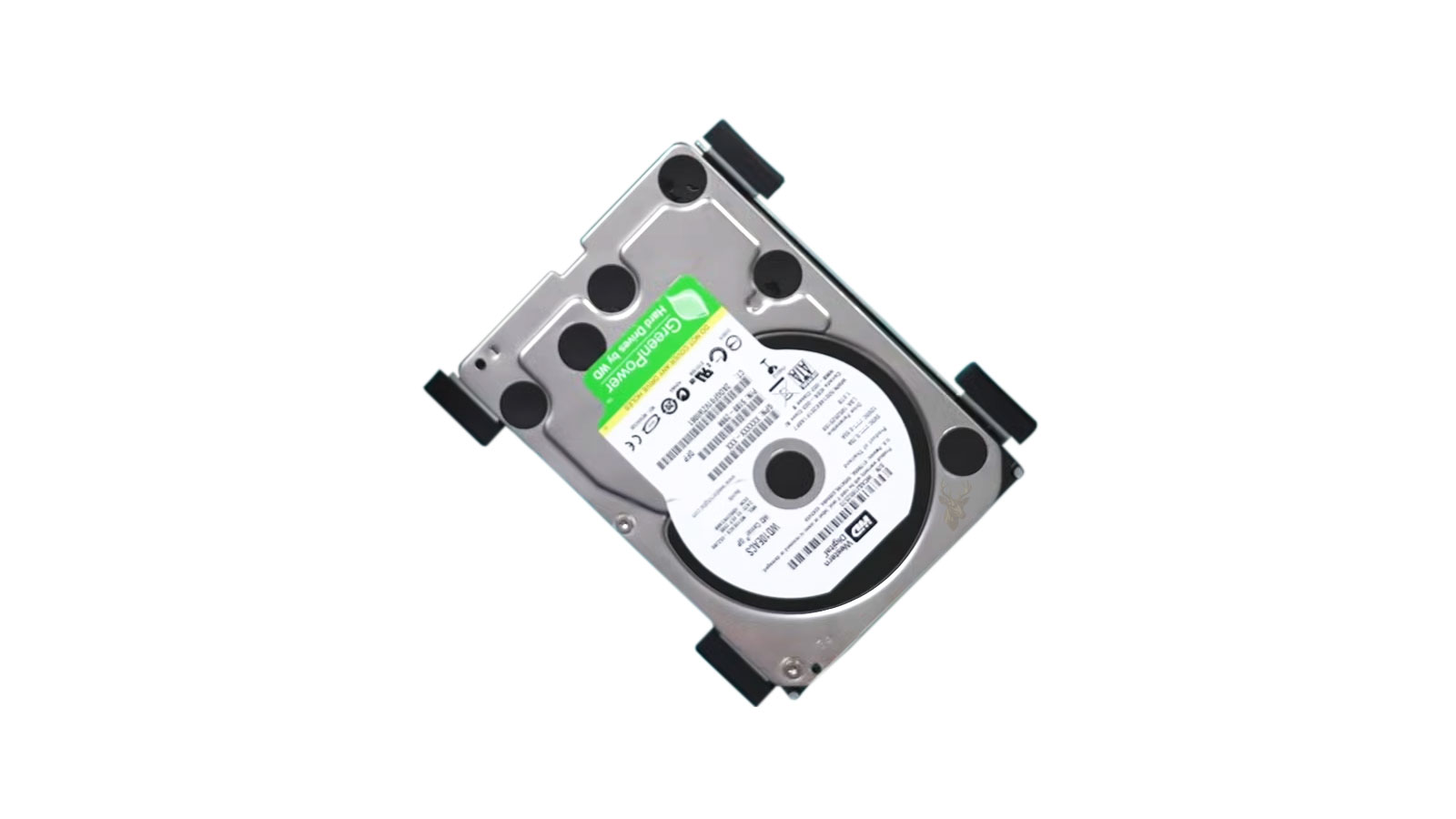
An Empty-Looking Drive May Still Contain Its Original Data
A storage drive removed from one computer may appear empty when connected to another system, even though it previously contained documents, photographs, business records, or other important files. File Explorer may show no visible folders, report an unexpectedly large amount of free space, or display only a few system directories that the user does not recognize.
This situation does not automatically mean that the files have been erased. The data may still exist but remain inaccessible because of hidden attributes, account permissions, encryption, partition damage, file-system corruption, an incorrect drive letter, or a connection that allows the device to be detected without reading it correctly.
The safest response is to avoid formatting, initializing, repairing, or writing new files to the drive until its structure has been evaluated. Actions intended to make the device usable can overwrite information needed for recovery.
Detection and File Access Are Separate Stages
When a drive is connected, the computer first detects the physical device. It then reads the partition information, identifies a file system, assigns a drive letter or mount point, and attempts to display the folders stored within that file system.
A failure during any later stage can leave the drive visible in one part of the operating system while its files remain unavailable.
| Detection Stage | What the Computer Attempts to Read |
|---|---|
| Hardware detection | Recognizes that a storage device is connected |
| Capacity identification | Determines the approximate physical size of the drive |
| Partition recognition | Locates the boundaries of stored volumes |
| File-system recognition | Interprets folders, filenames, and allocation records |
| User access | Displays files allowed by permissions and account settings |
Seeing the manufacturer’s name or total capacity confirms only that the hardware has been identified. It does not prove that the original file structure can still be read normally.
The Drive May Be Showing the Wrong Partition
A physical drive can contain more than one partition. Some computers include separate recovery, system, diagnostic, or manufacturer partitions in addition to the large volume where personal files are stored.
After the drive is connected through an enclosure or adapter, Windows may assign a letter to a small partition while leaving the main data partition without one. The volume that opens may therefore appear nearly empty because it was never intended to hold the user’s documents.
- The visible volume may be much smaller than the drive’s full capacity.
- Only boot, recovery, or system folders may appear.
- Disk Management may show another larger partition without a letter.
- One partition may be listed as healthy while another appears unknown.
- The expected data volume may not appear in File Explorer at all.
The complete partition layout should be reviewed before concluding that the files are gone.
A Missing Drive Letter Can Hide an Otherwise Readable Volume
Windows normally assigns a drive letter when it recognizes a compatible volume. A letter may not be assigned when it conflicts with another device, when the volume was previously hidden, or when the operating system encounters an unusual partition configuration.
In that condition, the volume may appear in Disk Management with the correct capacity and file-system type but remain absent from File Explorer.
- Confirm that the physical drive appears with the expected capacity.
- Identify each partition by size and file-system type.
- Check whether the expected volume already has a drive letter.
- Avoid changing partitions whose purpose is uncertain.
- Assign a letter only after confirming that the volume structure appears consistent.
Assigning a drive letter does not repair corruption. It only makes an already recognized volume accessible through the normal Windows interface.
Hidden File Attributes Can Make Folders Disappear
Windows supports hidden and system attributes that prevent selected files from appearing under normal File Explorer settings. These attributes are used legitimately for operating-system files, but malware, software errors, or previous troubleshooting attempts can apply them to personal folders.
The drive may show that storage space is in use even though the visible directory appears empty. Enabling the display of hidden files may reveal some content, but protected operating-system files and account restrictions can still keep other folders concealed.
| Observed Condition | Possible Explanation |
|---|---|
| Drive appears empty but reports used space | Files may be hidden, protected, or inaccessible |
| Only shortcuts are visible | Malware may have hidden the original folders |
| System Volume Information is visible | Normal protected system data is being displayed |
| Folders appear faded | Hidden items may now be shown |
| Used space is close to zero | The wrong partition may be open or file-system records may be damaged |
Hidden attributes should be investigated without deleting unfamiliar folders or running commands that modify every file on the drive indiscriminately.
Account Permissions Can Block Access to Another User’s Folders
Files created under one Windows installation can retain ownership and permissions associated with the original user account. When the drive is connected to another computer, the current account may not have permission to open those folders immediately.
Windows may display an access-denied message, request administrative approval, or appear to show an empty folder when the account cannot enumerate its contents properly.
- The original user folder may display a lock symbol.
- Opening the folder may take an unusually long time.
- Windows may request permission to gain permanent access.
- Subfolders may remain inaccessible after the top folder opens.
- Copying files may fail because inherited permissions are inconsistent.
Permission changes should be applied carefully. Replacing ownership across an entire drive can alter access controls that may still be needed if the drive returns to its original computer.
The Original Files May Be Inside a User Profile Folder
When an internal Windows drive is connected externally, personal data is not normally displayed at the root of the drive. Documents, Desktop files, Downloads, photographs, and browser data are commonly stored inside the original user profile.
A user who opens the drive and sees Windows, Program Files, and Users may assume that personal files are missing because the familiar Desktop view is no longer present.
- Open the folder named Users.
- Identify the original account folder.
- Look inside Desktop, Documents, Downloads, Pictures, and Videos.
- Check for older or renamed profile folders.
- Review public and shared folders when files were available to multiple accounts.
The original account name may differ from the name the user remembers seeing on the sign-in screen.
Cloud-Synchronized Files May Never Have Been Fully Stored on the Drive
Cloud services can display files in Windows without keeping a complete local copy of every item. Files marked as online-only may appear through the original user account but contain little or no recoverable local content after the drive is removed.
The folder structure, thumbnails, or filenames may have been cached while the full file remained on the cloud provider’s servers.
| Cloud File State | Likely Local Availability |
|---|---|
| Always available offline | A complete local copy should normally exist |
| Locally available | The file was downloaded but may later be removed by storage management |
| Online-only | The full content may not exist on the drive |
| Synchronization pending | The local and cloud versions may not match |
| Synchronization error | Some files may exist only in one location |
Recovery from the physical drive cannot recreate file content that was never fully downloaded to it. The associated cloud account should be checked separately.
Encryption Can Make Existing Data Appear Unavailable
A drive protected by BitLocker or another encryption system may be detected correctly while its contents remain unreadable until the proper password, recovery key, or account credential is provided.
Depending on the connection method and operating system, the encrypted volume may appear locked, unrecognized, or inaccessible rather than showing the normal folder structure.
Encryption can preserve the physical data while making recovery impossible without the required key.
- Look for a lock symbol beside the volume.
- Check whether Windows requests a BitLocker recovery key.
- Review the original user’s Microsoft account for stored keys.
- Search printed records or business documentation for recovery information.
- Avoid formatting the volume when Windows cannot unlock it.
Data-recovery software cannot bypass properly implemented encryption simply because the storage device is physically accessible.
A Damaged File System Can Lose Its Folder Directory
The file system maintains records describing filenames, folder locations, timestamps, permissions, and the storage blocks assigned to each file. If these records become damaged, the drive can contain large amounts of data while the normal directory appears empty or incomplete.
File-system damage can follow sudden disconnection, power loss, failing sectors, controller problems, unsafe removal, or an interrupted repair operation.
- Folders may disappear while used-space values remain high.
- Windows may report that the location is unavailable.
- The drive may open slowly or stop responding.
- Filenames may be replaced by damaged or unusual characters.
- The system may request that the volume be formatted.
A format request means Windows cannot mount the volume normally. It does not confirm that the underlying data has been erased.
File-System Repair Can Change Recoverable Evidence
Windows may offer to scan and repair a drive that contains structural errors. Repair utilities attempt to make the file system internally consistent, but they can remove damaged references, convert fragments, or alter directory records during the process.
This may be acceptable when the data is already backed up. It is more risky when the only copy of important files remains on the affected drive.
| Action | Possible Effect on Recovery |
|---|---|
| Mounting the drive read-only | Limits changes while the structure is evaluated |
| Creating a sector-level image | Preserves a working copy for later analysis |
| Running file-system repair | May change metadata and remove damaged references |
| Formatting the volume | Creates new file-system structures over existing information |
| Copying new files onto the drive | Can overwrite previously occupied storage areas |
When the files are valuable, preservation should come before attempts to make the original drive behave normally.
The Connection Adapter Can Distort What the Computer Sees
A drive connected through a USB enclosure, docking station, or SATA-to-USB adapter depends on an additional bridge controller. A defective or incompatible adapter can report the wrong capacity, disconnect during reads, or fail to expose certain drive features correctly.
- Confirm that the adapter supports the drive’s interface and capacity.
- Use the correct external power supply for full-size desktop drives.
- Try a known-good USB cable and direct computer port.
- Avoid unpowered hubs during recovery testing.
- Compare the result with a second compatible adapter when available.
A connection problem should be ruled out before changes are made to the drive’s partitions or file system.
Some Enclosures Translate Large Sectors Incorrectly
Storage drives do not all present their sectors in exactly the same way. Some USB enclosures and docking stations translate the drive’s physical sector arrangement before presenting it to the operating system. If the original computer or enclosure used one translation method and the new adapter uses another, the partition boundaries may appear incorrect.
The drive can then seem unformatted, display the wrong capacity, or show an empty volume even though the data was readable through the original connection hardware.
- The same drive may behave differently in two enclosures.
- A volume may appear only when the original adapter is used.
- Partition software may report boundaries that do not align correctly.
- Windows may request formatting through one connection but not another.
- The displayed capacity may differ from the drive’s labeled capacity.
When a drive was originally used inside a specific enclosure, testing with that enclosure can be important before assuming that the partition structure has been destroyed.
Desktop Hard Drives Require More Power Than a USB Port Can Supply
Three-and-a-half-inch desktop hard drives normally require both 5-volt and 12-volt power. A basic USB connection cannot provide the complete power needed to operate these drives, so the enclosure or adapter must include a suitable external power supply.
If the adapter supplies insufficient or unstable power, the drive may identify itself but fail during sustained reading. File Explorer may open slowly, show incomplete folders, disconnect unexpectedly, or appear empty after a failed read attempt.
| Power-Related Symptom | Possible Meaning |
|---|---|
| Drive spins up and immediately slows down | The adapter may not provide stable startup power |
| Repeated clicking after connection | The drive may be retrying because of power or mechanical failure |
| Device appears and disappears | Power delivery or the bridge controller may be unstable |
| Small files open but larger copies fail | The connection may become unstable during sustained activity |
| Drive remains silent | External power may be missing or the drive may have an electrical fault |
A power adapter with the correct connector is not necessarily safe or compatible. Voltage, current capacity, and polarity must match the enclosure’s requirements.
A Drive Letter Can Open the Wrong Device
Drive letters are assigned dynamically and can change when storage devices are moved between computers. A user expecting the recovered drive to appear as D: may accidentally open another partition, card reader, network location, or removable device that currently uses that letter.
The safest way to identify the correct volume is to compare its capacity, file-system type, label, and physical disk number rather than relying on a familiar letter.
- Disconnect unrelated removable storage devices.
- Record the list of visible drives before connecting the affected device.
- Connect the drive and identify the newly added disk.
- Compare its reported size with the original hardware.
- Confirm the partition layout before opening or modifying any volume.
This prevents troubleshooting work from being performed on the wrong disk.
Duplicate Disk Signatures Can Keep a Cloned Drive Offline
When a drive is cloned, both the original and the copy may contain the same disk-identification information. Windows can place one of them offline to avoid conflicts when both are connected simultaneously.
The offline disk may be visible in Disk Management but unavailable through File Explorer. This can look like missing data even though Windows has intentionally prevented the volume from mounting.
- The disk may be labeled Offline.
- A signature-collision message may appear.
- The expected partitions may still be listed.
- No drive letters may be assigned.
- The issue may occur only when the original and cloned drives are connected together.
Bringing a cloned disk online can change its identification information, so the purpose of the clone should be considered before altering it.
Storage Spaces and Dynamic Disks May Need Their Original Configuration
Some Windows systems combine multiple physical drives into one logical storage arrangement. Storage Spaces, dynamic disks, and software-based RAID configurations depend on metadata distributed across the participating devices.
Connecting only one member drive to another computer may reveal partitions that appear empty, foreign, incomplete, or unreadable. The files may have been divided across several disks rather than stored independently on the one being examined.
| Storage Configuration | Possible Result When One Drive Is Connected Alone |
|---|---|
| Storage Spaces mirror | One member may contain recoverable data but require pool recognition |
| Storage Spaces parity | Data may be distributed across several physical drives |
| Dynamic spanned volume | The volume may be incomplete without every member disk |
| Striped volume | Files cannot normally be reconstructed from one member alone |
| Manufacturer RAID | The original controller or matching configuration may be required |
All related drives should be labeled and preserved in their original order before recovery work begins.
A Mac-Formatted Drive May Not Display Its Files in Windows
A drive previously used with a Mac may contain a file system that Windows does not support natively. The device can appear in Disk Management while no usable drive letter is assigned.
Windows may describe the partition as healthy without identifying the file system, or it may offer to format the volume. The absence of visible files in Windows does not mean the Mac data has been deleted.
- APFS volumes normally require compatible Apple systems or specialized software.
- Mac OS Extended volumes may not mount in standard Windows installations.
- Encrypted Mac volumes require the correct password or recovery credentials.
- Time Machine disks use structures that differ from ordinary Windows folders.
- Formatting the drive for Windows would overwrite important volume information.
Testing the drive on a compatible Mac can help determine whether the problem is merely operating-system incompatibility.
Linux File Systems Can Also Appear Blank or Unrecognized
Drives from Linux computers, network appliances, recording systems, and some embedded devices may use file systems such as ext4, XFS, or Btrfs. Standard Windows tools generally do not display these volumes as ordinary folders.
The physical disk may be healthy and the files intact while Windows presents the partition as unknown or asks for initialization.
- Determine which device or operating system originally used the drive.
- Identify whether the drive belonged to a server, recorder, or network appliance.
- Avoid initializing an unrecognized disk.
- Use a compatible read-only environment when possible.
- Copy recovered files to a separate destination formatted for the receiving computer.
File-system compatibility should be established before corruption is assumed.
Network Storage Drives May Not Contain Ordinary Standalone Volumes
A drive removed from a network-attached storage device may contain only part of a larger RAID array, system partitions, or a proprietary layout. Connecting that drive directly to a Windows computer may reveal little or no recognizable user data.
The files may be distributed across several disks, stored inside a Linux-based volume, or arranged according to metadata maintained by the original network device.
| Original Device | Possible Recovery Complication |
|---|---|
| Two-bay mirrored NAS | Each drive may contain a usable copy, but the file system may be unsupported in Windows |
| Striped NAS array | All member disks and their order may be required |
| Parity-based NAS | Data and parity may be distributed across several drives |
| DVR or surveillance recorder | The drive may use a proprietary recording format |
| Home router storage | The volume may be Linux-formatted or managed by the router |
Reinitializing a NAS member disk in Windows can destroy metadata needed to reconstruct the original array.
Backup Programs May Store Data Inside Archives or Image Files
A backup drive may look nearly empty because the files were not copied as ordinary folders. Backup software often stores data inside compressed archives, disk-image files, catalogs, or proprietary containers.
The visible drive may contain only a few large files whose names do not resemble the original documents. Opening the backup through the software that created it may be necessary to browse or restore the contents.
- Look for unusually large image or archive files.
- Identify folders named Backup, Images, Catalog, or Restore.
- Check whether the original computer used manufacturer backup software.
- Preserve configuration files stored beside the backup data.
- Avoid renaming or reorganizing backup containers before they are tested.
A small number of large backup files can represent thousands of individual documents.
Virtual Machine Data May Be Stored Inside Virtual Disks
Files used inside a virtual machine are commonly stored within large virtual-disk containers rather than as ordinary host-computer folders. A drive may therefore appear to contain only a few unfamiliar files even though an entire Windows or Linux environment exists inside them.
Formats such as VHD, VHDX, VMDK, and VDI can contain partitions, user profiles, applications, and documents. These containers should be copied intact before attempts are made to mount or repair them.
An apparently empty folder can sometimes contain one virtual disk that holds an entire computer’s file system.
Opening a damaged virtual disk directly may cause virtualization software to modify metadata, so a duplicate should be used whenever the original files are important.
Deleted Partitions Can Leave the Drive Looking Unallocated
If a partition entry is deleted or damaged, Windows may show the affected area as unallocated even though the file data remains in its original sectors. The operating system no longer knows where the volume begins or ends, so it cannot assign a drive letter or display folders.
Creating a new partition in the unallocated space may overwrite structural information and complicate recovery.
- The disk may show its correct total capacity.
- Most or all space may be labeled unallocated.
- Windows may offer to create a new simple volume.
- The drive may have appeared normal before a partitioning mistake.
- Recovery tools may still locate the previous file-system boundaries.
Partition reconstruction should be attempted only after the disk has been imaged or the important files have been recovered to another device.
A Quick Format Does Not Immediately Erase Every File Sector
A drive that was accidentally quick-formatted may open normally and appear empty because a new file system has replaced the previous directory structure. Much of the older file content may still remain until new data is written over it.
Recovery success depends on the drive type, the format operation, later usage, encryption, and whether storage-management features have already cleared the released blocks.
| Condition After Formatting | Effect on Recovery Prospects |
|---|---|
| No new files written | More original sectors may remain unchanged |
| Large files copied afterward | Substantial areas may have been overwritten |
| Encrypted original volume | Old content may be unusable without its original key and metadata |
| SSD with TRIM active | Released blocks may be cleared rapidly |
| Mechanical hard drive | Unwritten sectors may retain older content longer |
The formatted drive should be disconnected immediately and not used as the destination for recovered files.
File Recovery Should Be Saved to a Different Drive
Recovered files must not be written back to the same source being examined. Saving data onto the affected drive can overwrite other files that have not yet been found.
- Prepare a separate healthy storage device with enough free space.
- Recover the most important folders first when the source is unstable.
- Preserve the original folder structure when recovery software can reconstruct it.
- Verify copied files by opening representative documents, images, and archives.
- Keep the source drive unchanged until the recovered data has been reviewed.
A recovery report showing thousands of filenames is not enough. The files must also be tested for readable and complete content.
A Sector-Level Image Protects an Unstable Source
When a drive disconnects, reports read errors, operates slowly, or makes unusual sounds, repeated browsing can worsen the condition. Creating a sector-level image or clone transfers as much readable information as possible to another device before intensive file recovery begins.
Specialized imaging tools can record unreadable areas, skip damaged regions temporarily, and return to difficult sectors later. This is safer than repeatedly asking File Explorer to reread the same failing locations.
- The original drive receives fewer repeated read attempts.
- Recovery work can continue from the duplicate.
- Different scanning methods can be tested without changing the source.
- Unreadable sector locations can be documented.
- The original device remains available for advanced recovery if needed.
Imaging is especially important when the drive contains the only copy of valuable data.
Mechanical Warning Signs Change the Recovery Strategy
A drive that appears empty because of permissions or an unsupported file system can often be examined through software. A drive that clicks, scrapes, spins down repeatedly, or disappears during reads may have a physical problem that requires a different approach.
Continuing to power a mechanically unstable drive can increase media damage and reduce the amount of data that remains recoverable. The priority should shift from browsing folders to preserving the device and minimizing unnecessary operation.
- Repeated clicking can indicate unsuccessful read or positioning attempts.
- Spin-up and spin-down cycles may point to power, motor, or firmware problems.
- Grinding or scraping sounds can indicate internal mechanical contact.
- Long pauses may occur while the drive retries damaged sectors.
- Disconnection during copying may show that the drive cannot sustain normal reads.
A mechanically failing drive should not be repeatedly scanned by several consumer recovery programs because each full scan adds operating time and read stress.
Solid-State Drives Can Lose Recoverability Quickly After Deletion
Solid-state drives manage deleted and unused storage differently from mechanical hard drives. When a file or partition is removed, the operating system may send a TRIM command identifying blocks that no longer need to preserve their previous content.
The drive’s controller can then erase or reorganize those blocks internally. As a result, an SSD that appears empty after deletion, formatting, or file-system damage may offer a much shorter recovery opportunity than a mechanical drive.
| Storage Type | General Recovery Consideration |
|---|---|
| Mechanical hard drive | Deleted sectors may remain unchanged until overwritten |
| SATA SSD | TRIM and internal cleanup may remove released data |
| NVMe SSD | Fast controller activity can reduce the recovery window |
| USB flash drive | Controller behavior varies widely by device |
| Memory card | Recovery depends on controller function and later writes |
The affected SSD should be disconnected promptly when the missing information is important. Leaving it powered can allow background cleanup processes to continue.
Encryption Changes What a Recovery Scan Can Produce
Recovery software can locate sectors and file-system remnants, but encrypted content remains unreadable without the correct decryption information. This applies to BitLocker, FileVault, encrypted virtual disks, hardware-encrypted external drives, and many business security products.
A scan may detect the presence of a volume while being unable to reconstruct meaningful files because the original key, password, recovery key, or encryption metadata is missing.
- Identify whether the original computer used full-disk encryption.
- Preserve any recovery-key screens, printed records, or account information.
- Check whether the drive unlocks on the original computer.
- Avoid changing partition metadata before the encryption state is documented.
- Do not assume that a visible scan result means the files can be decrypted.
When encryption is active, locating the proper credentials can be more important than running additional recovery scans.
Recovery Software Uses Different Methods to Find Missing Files
Not every recovery scan works in the same way. Some tools search for intact partition information, others reconstruct damaged file-system records, and deeper scans identify files by recognizing patterns inside their content.
The method that works best depends on what caused the drive to appear empty.
| Recovery Method | Information It Attempts to Use |
|---|---|
| Partition search | Previous volume boundaries and boot records |
| File-system reconstruction | Directory entries, allocation tables, and metadata |
| Deleted-file scan | Records marked as available but not yet overwritten |
| Signature scan | Recognizable internal patterns of known file types |
| Manual reconstruction | Specialized interpretation of damaged structures |
A quick scan that shows no files does not prove that deeper recovery is impossible. It may simply mean that the method relied on records that are no longer intact.
Signature Recovery Often Loses Original Names and Folders
When directory records are too damaged to reconstruct, recovery software may identify files by their internal signatures. This can recover usable content without knowing where the file was originally stored or what it was called.
- Recovered filenames may be replaced with numbers.
- The original folder structure may be unavailable.
- Dates and timestamps may be missing or inaccurate.
- Fragmented files may be incomplete.
- Files with similar internal formats may be identified incorrectly.
Signature recovery can still be valuable for photographs, documents, and other common formats, but organizing the results may require considerable manual review.
Previewing Files Helps Confirm Whether Recovery Is Real
Some recovery programs display filenames even when the underlying file content is damaged or has been overwritten. A successful-looking directory tree does not guarantee that the recovered documents will open correctly.
Representative files should be previewed before a large recovery is saved. Different types of content should be checked because one group may be intact while another is damaged.
- Preview several recent and older photographs.
- Open documents from different folders.
- Test compressed archives for integrity.
- Check video files at several points in playback.
- Compare expected file sizes with the recovered versions.
A file that opens partially may still contain corruption beyond the first visible page or frame.
The Original Computer Can Provide Important Context
Before the drive was removed, the original computer may have displayed clues about its configuration. Login prompts, BitLocker messages, storage-pool warnings, cloud synchronization icons, backup applications, and unusual drive letters can explain why the device looks empty elsewhere.
If the original computer still powers on, documenting its settings can reduce unnecessary changes to the drive.
| Original-System Clue | Possible Importance |
|---|---|
| BitLocker recovery request | The data volume is encrypted |
| Cloud status icons | Some files may not have full local copies |
| Storage Spaces control panel | The drive may belong to a multi-disk pool |
| Backup application | Files may be stored inside a proprietary archive |
| Multiple user accounts | The desired files may be under another profile |
Photographs of firmware settings, error messages, and the original disk layout can be useful if the computer later stops working entirely.
A Recovery Plan Should Prioritize the Most Valuable Data
When a drive is unstable, it may not remain readable long enough to copy everything. Recovery should begin with the files that are hardest to replace rather than automatically copying the largest folders first.
- Business documents and financial records
- Family photographs and personal videos
- Current project files
- Email archives and contact databases
- Application-specific records that cannot be recreated
Operating-system files and installed program folders usually have lower priority because the software can often be reinstalled after the important personal data has been secured.
Recovered Data Requires Verification and a Second Copy
Recovery is not complete when files have merely been copied to another drive. The destination must be checked for readable content, correct file counts, and enough remaining storage space to hold the complete recovery.
- Compare recovered folder sizes with available records when possible.
- Open a sample from every important file type.
- Check for zero-byte files and unexpected duplicates.
- Create a second copy of verified data on another device.
- Keep the original drive unchanged until the results are accepted.
A recovery destination can also fail, so one newly created copy should not become the only remaining copy of important information.
Certain Actions Should Be Avoided Until the Drive Is Evaluated
Windows and third-party utilities may offer immediate ways to make the drive visible again. Some of those actions can overwrite partition information, alter file-system records, or place new data onto sectors that still contain recoverable files.
A drive that appears empty should be treated as a source of evidence, not as blank storage ready to be reused.
- Do not initialize the disk when prompted.
- Do not create a new partition in unallocated space.
- Do not format the volume to make it open.
- Do not install recovery software onto the affected drive.
- Do not save recovered files back to the same source.
These precautions are especially important when the drive contains the only copy of irreplaceable data.
Professional Recovery Becomes Appropriate When the Risk Is High
Professional evaluation should be considered when the drive makes unusual sounds, disconnects repeatedly, reports a drastically incorrect capacity, contains encrypted business data, belongs to a RAID system, or holds information that cannot be replaced.
Advanced recovery may involve controlled imaging, hardware-assisted reading, firmware repair, reconstruction of damaged arrays, or clean-environment work on mechanically failed hard drives.
| Condition | Recommended Direction |
|---|---|
| Drive is healthy but permissions block access | Resolve ownership and copy files carefully |
| File system is damaged but the drive reads steadily | Create an image before logical recovery |
| Drive disconnects or reports read errors | Use controlled imaging with minimal retries |
| Drive clicks, scrapes, or fails to spin normally | Stop powering it and seek physical recovery evaluation |
| RAID or encrypted volume is involved | Preserve all member drives and configuration information |
The value of the data should determine how much risk is acceptable during troubleshooting.
An Empty Appearance Is a Symptom, Not a Final Diagnosis
A drive connected to another computer can appear empty for many reasons that do not involve complete data loss. The wrong partition may be open, the expected volume may lack a drive letter, account permissions may block access, the files may be hidden, or the operating system may not support the original file system.
More serious causes include damaged directory records, deleted partitions, accidental formatting, failing sectors, unstable adapters, multi-disk storage configurations, and encryption without the required key.
The safest recovery process begins by identifying the physical drive, confirming its capacity and partition layout, avoiding writes, and creating a sector-level image when instability is present. Files should then be recovered to a separate device, tested for completeness, and copied again before the original drive is repaired, reformatted, or retired.











