
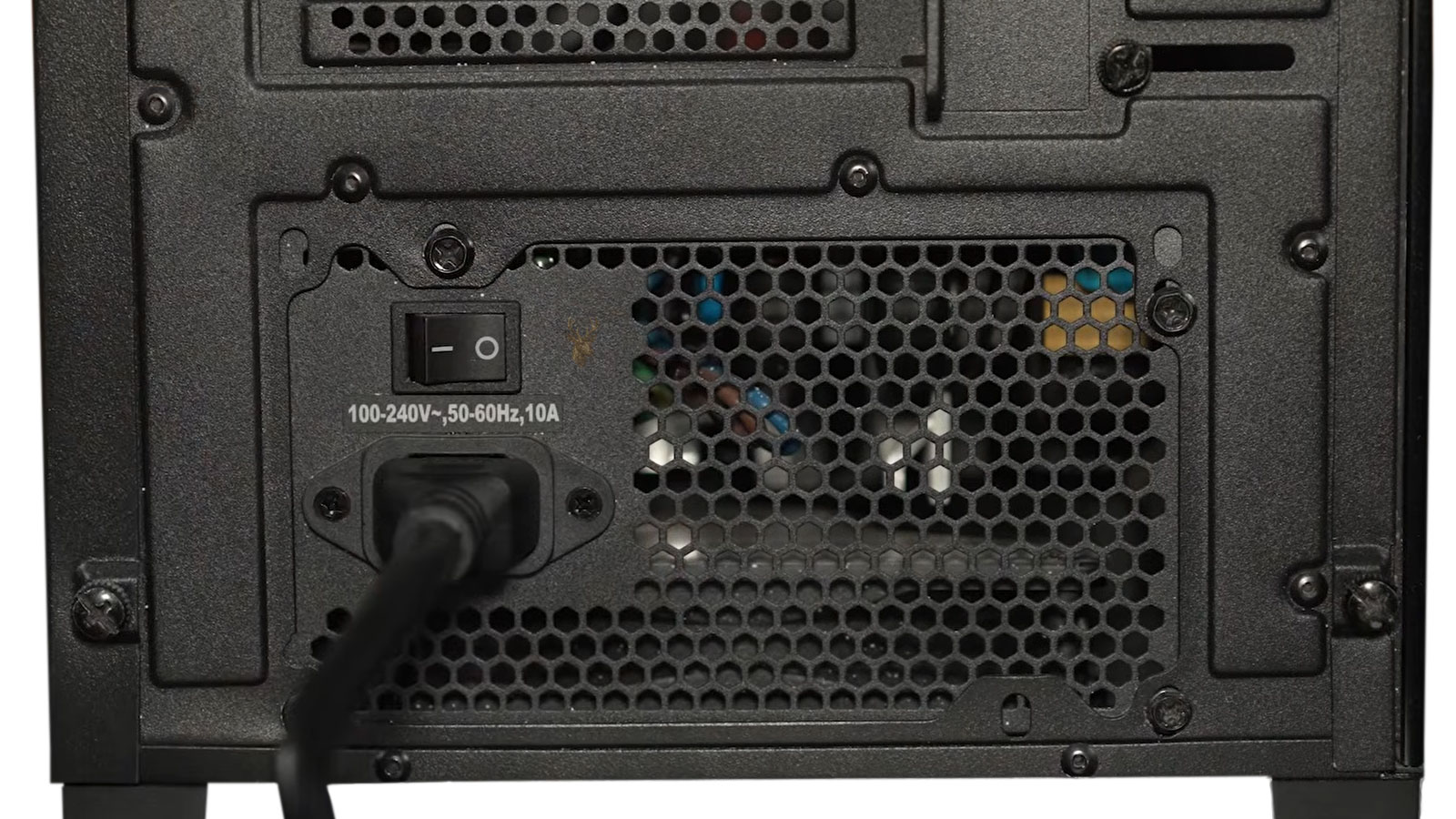
Disconnecting Power Can Temporarily Reset a Computer That Refuses to Start
A desktop computer may occasionally refuse to respond when its power button is pressed, yet begin working again after the power cable is removed, several seconds pass, and the cable is reconnected. This behavior can make the problem appear minor because the computer eventually starts, but the need to reset external power often indicates that part of the power-control system has entered an abnormal state.
Removing the power cable does more than disconnect electricity from the main components. It also allows stored electrical energy to discharge, clears certain standby conditions, and forces the power supply and motherboard to begin a new startup sequence. If the computer starts only after this process, the temporary reset may be hiding an unresolved hardware, firmware, or electrical problem.
The cause can involve the power supply, motherboard, front power button, internal connection, USB device, surge protector, or a standby circuit that remains active even while the computer appears to be turned off.
A Shut-Down Computer Still Receives Standby Power
A desktop computer is not always electrically inactive after Windows has shut down. As long as the power supply remains connected and switched on, it commonly provides a low-voltage standby output to portions of the motherboard.
This standby power supports features that must remain available before the computer fully starts. The motherboard uses it to detect the case power button, respond to wake commands, maintain certain USB functions, and manage the transition into the normal operating state.
| Standby Function | Purpose Before Full Startup |
|---|---|
| Power-button detection | Allows the motherboard to recognize when the case button is pressed |
| Wake-on-network support | Allows compatible network activity to start the computer |
| USB charging or wake support | Keeps selected USB circuits active while the computer is off |
| Power-state management | Maintains information related to shutdown, sleep, and startup |
| Motherboard control logic | Prepares the system to signal the power supply to turn on fully |
If this standby system becomes unstable, pressing the power button may produce no response until incoming power is completely interrupted.
Unplugging the Cable Allows Stored Electricity to Discharge
Power supplies and motherboards contain capacitors that temporarily store electrical energy. After the computer is unplugged, some circuits can remain energized for several seconds while that stored charge dissipates.
Waiting before reconnecting the cable gives these circuits time to return closer to a fully unpowered state. Pressing and holding the computer’s power button while it is unplugged can help consume part of the remaining stored energy, although this does not repair a defective component.
- Shut down the computer when possible.
- Disconnect the power cable from the computer or wall outlet.
- Wait long enough for standby circuits to discharge.
- Press the case power button briefly while the system remains unplugged.
- Reconnect power and attempt a normal startup.
If this process repeatedly restores operation, it confirms that removing standby power changes the condition. It does not identify which component created the condition.
The Power Supply Must Produce a Stable Standby Voltage
The power supply provides a dedicated standby output even when the main system rails are inactive. If that standby voltage becomes unstable, the motherboard may fail to recognize the power button or may remain trapped in an incomplete shutdown state.
A failing power supply may still operate normally after it has been reset. This can cause intermittent symptoms that appear only after the computer has remained connected for several hours or after a shutdown.
- The power button may produce no lights, fan movement, or sound.
- The computer may start immediately after power is reconnected.
- The symptom may occur more often after long periods of inactivity.
- USB lights may remain on even though the system will not start.
- The power supply switch may need to be turned off and on before startup succeeds.
A power supply tester can confirm that major outputs are present, but intermittent standby problems may require observation over time or substitution with a known-good unit.
Power-Supply Protection Can Remain Latched Until Input Power Is Removed
Computer power supplies include protective circuits intended to respond to excessive current, short circuits, abnormal voltage, and other unsafe operating conditions. When a protection circuit activates, the power supply may stop providing its normal outputs.
Some protection states remain latched until the incoming AC power is removed. Disconnecting the cable resets the protection circuit, allowing the power supply to attempt another startup.
A power supply that works after every reset may still be reacting to a fault somewhere in the computer.
The original trigger may be inside the power supply, but it can also come from a motherboard short, damaged peripheral, defective graphics card, or improperly connected cable.
Motherboard Power-Control Logic Coordinates the Startup Sequence
Pressing the case power button does not directly supply full power to the processor and drives. The button sends a low-voltage signal to the motherboard. The motherboard then evaluates the request and signals the power supply to activate its main outputs.
If the motherboard’s control logic becomes stuck, the button press may be ignored even though standby power is present. Removing power forces the control circuitry to restart from an unpowered condition.
| Startup Stage | General Action |
|---|---|
| Standby power arrives | Selected motherboard circuits become active |
| Power button is pressed | The motherboard receives a startup request |
| Power-on signal is sent | The power supply activates its main voltage outputs |
| Power-good signal returns | The power supply reports that its outputs are stable |
| Hardware initialization begins | The processor, memory, graphics, and firmware startup sequence proceeds |
A failure at any stage can leave the computer completely unresponsive or cause it to begin starting and then stop.
The Front Power Button Can Create an Intermittent No-Start Condition
The case power button is a simple momentary switch connected to the motherboard by a small two-wire cable. A worn switch, damaged cable, loose connector, or incorrect front-panel connection can prevent the startup signal from reaching the motherboard reliably.
Reconnecting external power may appear to solve the problem when movement of the case or cables temporarily restores contact. The real cause may be the switch assembly rather than the power supply.
- The button may feel loose, tilted, or unusually stiff.
- Startup may require pressing the button several times.
- The computer may start when the button is pressed at a certain angle.
- Moving the case can change whether the button responds.
- The front-panel connector may be partially detached from the motherboard.
A technician can test the motherboard’s power-switch pins directly to separate a defective case button from a deeper power problem.
A Stuck Power Button Can Hold the Computer in a Shutdown Command
The power button can also fail by remaining electrically closed after it is released. Holding a functioning power button for several seconds normally requests a forced shutdown. A damaged switch that remains closed may therefore prevent a stable startup or cause the system to turn off immediately.
Disconnecting and reconnecting power may temporarily change the switch position or allow the system to start before the fault returns.
- Inspect whether the button returns fully after being pressed.
- Listen for a normal mechanical click.
- Check for debris around the button opening.
- Disconnect the front switch temporarily during diagnosis.
- Test startup through the motherboard pins when appropriate.
The motherboard pins should be tested only with proper identification because nearby front-panel connections may control lights, reset functions, or other circuits.
Loose Main Power Connections Can Interrupt Standby and Startup Signals
The motherboard normally receives power through a large main connector and a separate processor power connector. Either connection can appear installed while remaining slightly loose or improperly latched.
Temperature changes, case movement, or cable tension can alter the contact enough to create an intermittent no-start condition. Handling the computer while disconnecting its external cable may unintentionally shift an internal connector and make the next startup successful.
| Connection | Possible Effect When Loose |
|---|---|
| Main motherboard power connector | Can interrupt standby power or prevent complete startup |
| Processor power connector | May allow fans to move while preventing processor initialization |
| Modular power-supply cable | Can create intermittent power delivery at the supply end |
| Front-panel switch connector | Can prevent the motherboard from receiving the button signal |
| Power-supply AC socket | Can cause unstable incoming power if the cable fits loosely |
Every connector should be inspected at both ends when modular power-supply cables are used.
External USB Devices Can Interfere With the Power-On Sequence
A damaged USB device, cable, hub, or front-panel port can place an abnormal electrical load on a standby-powered USB circuit. The motherboard may refuse to start, or the power supply may enter protection until the external device and incoming power are removed.
This is especially relevant when the computer starts normally after all accessories are disconnected.
- Remove external drives and USB hubs.
- Disconnect printers, webcams, and charging cables.
- Inspect front USB ports for bent internal contacts.
- Test with only the keyboard, mouse, and monitor connected.
- Reconnect accessories individually after stable startup is confirmed.
A USB fault can imitate a motherboard or power-supply failure because the computer may show no visible response when the button is pressed.
A Damaged Front USB Port Can Create a Hidden Short Circuit
Front USB ports are exposed to repeated cable insertion, accidental pressure, dust, and physical damage. If the internal contacts bend and touch the metal shell or each other, the motherboard may detect an electrical fault before the computer has fully started.
Because some front USB circuits receive standby power, the problem can remain present even while the computer appears shut down. Disconnecting the AC cable removes that standby voltage and temporarily resets the affected circuit.
- A USB plug may no longer fit smoothly into the port.
- The plastic insert inside the connector may be cracked or missing.
- Metal contacts may appear bent or pressed against the outer shell.
- The computer may fail to start only when the front-panel cable is connected.
- Startup may return after the damaged port is disconnected from the motherboard.
A visibly damaged USB port should not continue to be used because it can affect the motherboard even when no accessory is connected.
The Reset Switch Can Also Hold the Motherboard in an Abnormal State
Desktop cases may include a separate reset button connected near the power-switch pins. If that switch becomes stuck or its cable is damaged, the motherboard can remain under a continuous reset command and appear unable to start normally.
The fans may move briefly, the system may repeatedly restart, or nothing visible may occur depending on how the motherboard responds.
- Locate the reset-switch connector on the motherboard.
- Disconnect it temporarily while leaving the power switch connected.
- Reconnect AC power and test startup.
- Inspect the case button for sticking or physical damage.
- Replace or leave the reset switch disconnected if it is confirmed defective.
A reset-switch failure can be overlooked because many users rarely press that button and may not realize it is electrically active.
Surge Protectors and Power Strips Can Cause Intermittent Input Problems
The computer may not be receiving stable AC power even though the wall outlet appears functional. A worn surge protector, overloaded power strip, loose receptacle, or damaged extension cord can interrupt power long enough to confuse the power supply without producing an obvious outage.
Unplugging and reconnecting the computer may temporarily improve contact or reset the surge protector, making the power strip appear reliable when it is not.
| External Power Source | Possible Concern |
|---|---|
| Old surge protector | Internal contacts or protective components may be degraded |
| Overloaded power strip | Shared equipment may create voltage drops or intermittent contact |
| Loose wall outlet | The plug may not maintain a stable electrical connection |
| Extension cord | Damage or inadequate wire size can affect power delivery |
| UPS battery backup | A failing internal relay or battery can interrupt output power |
Testing the computer directly from a known-good wall outlet can help separate an external electrical problem from an internal computer fault.
A Loose AC Power Cable Can Reset the Computer When It Is Moved
The power cable may fit loosely in the rear of the power supply or at the wall outlet. Moving the cable during the unplugging process can temporarily restore contact, giving the impression that the computer required an electrical reset.
- The connector may move easily inside the power-supply socket.
- The cable may show cuts, flattened areas, or damaged insulation.
- The plug may become warm during use.
- Startup may fail when the cable is positioned at a certain angle.
- A replacement cable may fit more securely and restore normal operation.
The cable should be replaced if there is visible damage, heat discoloration, or unreliable contact.
Modular Power-Supply Connections Can Loosen at the Supply
Modular power supplies allow internal cables to disconnect from the power-supply housing. This simplifies cable management, but it also creates an additional connection point that can become partially loose.
A motherboard cable may appear fully connected at the board while remaining improperly seated at the power-supply end. Moving the case or external power cable can shift the internal wiring enough to change the symptom temporarily.
- Disconnect AC power before inspecting modular cables.
- Confirm that each connector is installed in the correct power-supply socket.
- Press each connector firmly until its latch is secure.
- Inspect for heat discoloration or damaged terminals.
- Use only cables specifically approved for that power-supply model.
Modular cables are not universally interchangeable. A cable that physically fits another power supply may use a different internal wiring arrangement and can damage connected hardware.
Motherboard Capacitor Problems Can Affect Standby Operation
Capacitors help stabilize voltage throughout the motherboard and power supply. As they age or become damaged, they may no longer charge and discharge correctly. This can affect the low-power circuits responsible for startup even when the computer operates normally after it finally turns on.
Some capacitor failures are visible, but others occur without obvious swelling or leakage. Intermittent no-start behavior may become more frequent as the component deteriorates.
| Possible Capacitor Symptom | Potential Effect |
|---|---|
| Bulging top | Indicates internal pressure and possible failure |
| Leaking residue | May indicate electrolyte escaping from the component |
| No visible damage | Electrical performance can still be degraded |
| Longer delay before startup | Weak circuits may require repeated power attempts |
| Increasing frequency of failure | The underlying component may be deteriorating further |
Capacitor condition should be evaluated as part of the complete board and power-supply diagnosis rather than by appearance alone.
Cold Starts and Warm Restarts May Produce Different Results
An electrical component can behave differently depending on temperature. A computer may refuse to start after sitting overnight but work normally after it has operated and warmed, or the reverse may occur.
This behavior can involve deteriorating capacitors, cracked solder joints, marginal power-supply circuits, or mechanical connections that expand and contract with temperature changes.
- Record whether the problem occurs after long periods of being off.
- Compare behavior after a normal shutdown and immediate restart.
- Note whether room temperature affects the symptom.
- Observe whether repeated power attempts eventually succeed.
- Check whether the problem becomes more frequent over time.
The timing of the failure can provide useful clues that are lost if the computer is tested only after it has already started.
Fast Startup Can Preserve a Problematic Power State
Windows Fast Startup combines parts of a normal shutdown with a hibernation process. Instead of fully closing every system state, Windows stores selected information so the next startup can occur more quickly.
Although a computer that shows no electrical response usually requires hardware investigation, Fast Startup can contribute when the system behaves differently after Shut down than after Restart. A restart typically performs a more complete operating-system reload.
| Power Action | General Behavior |
|---|---|
| Windows Shut down with Fast Startup | May preserve selected system state for the next startup |
| Windows Restart | Usually performs a more complete operating-system reload |
| Forced power removal | Removes standby input after stored energy dissipates |
| Sleep | Leaves the system in a low-power state with memory preserved |
| Hibernate | Saves the session to storage before entering a low-power state |
If the problem occurs only after a Windows shutdown, disabling Fast Startup temporarily can help determine whether stored software state contributes to the symptom.
Wake Features Can Keep Standby Circuits Active
Features such as wake on LAN, wake by keyboard, wake by mouse, scheduled startup, and USB charging require selected motherboard circuits to remain active while the system is off.
A malfunctioning network adapter, USB controller, or connected device can interfere with these standby functions. Removing AC power clears the active state until the circuit is energized again.
- Disable wake on LAN temporarily during diagnosis.
- Turn off USB wake features when they are not required.
- Disconnect network cables before testing startup.
- Remove charging devices from standby-powered USB ports.
- Review BIOS power-management settings after a firmware reset.
Standby features should be disabled one at a time so the specific source of the problem can be identified.
An Add-In Card Can Prevent the Power Supply From Starting
A graphics card, network adapter, sound card, storage controller, or other expansion card can develop an electrical fault that prevents normal startup. The computer may begin working again after power is reset, especially if the fault is intermittent.
Testing with nonessential cards removed reduces the electrical load and simplifies the startup path.
- Disconnect AC power and allow standby electricity to discharge.
- Remove nonessential expansion cards.
- Use integrated graphics when the system supports it.
- Reconnect power and test several shutdown and startup cycles.
- Reinstall cards individually until the failure returns.
Any card requiring auxiliary power should also have its cables and connectors inspected for overheating or poor contact.
Internal Drives and Accessories Can Trigger Power Protection
A failing hard drive, optical drive, lighting controller, fan hub, or internal USB accessory can create excessive current demand or a partial short circuit. The power supply may then refuse to start until AC input is removed and its protection system resets.
- Disconnect secondary storage drives during testing.
- Remove unnecessary lighting and fan-control accessories.
- Inspect SATA power connectors for melted or darkened plastic.
- Check internal USB headers for damaged cables.
- Reconnect devices individually after stable startup is restored.
A minimal-hardware test helps determine whether the failure follows the main computer or one connected component.
Case Shorts Can Appear Only After Movement or Reassembly
The motherboard is mounted above the case using metal standoffs positioned under approved screw holes. An extra standoff, loose screw, pinched wire, or bent metal tab can contact the underside of the motherboard and create an intermittent short.
Disconnecting the power cable often involves moving the computer slightly. That movement can change the pressure on the shorted area and allow the next startup to succeed.
A computer that starts after being moved should be inspected for both loose connections and unintended electrical contact.
Case-related faults are especially important after motherboard replacement, cable-management work, or any repair requiring the system to be disassembled.
BIOS Power Settings Can Affect What Happens After AC Is Restored
Most desktop motherboards include firmware settings that determine how the computer should respond after incoming power is lost and restored. Depending on the selected option, the system may remain off, turn on automatically, or return to its previous state.
These settings do not usually cause a complete failure to respond to the power button, but they can make the behavior more confusing during diagnosis. A computer that starts immediately when the power cable is reconnected may be following a firmware setting rather than responding to the case button.
| Firmware Setting | Typical Behavior After Power Returns |
|---|---|
| Stay Off | The computer remains off until the power button is pressed |
| Power On | The computer starts automatically when AC power returns |
| Last State | The system returns to the condition it was in before power was lost |
| Scheduled Power On | The computer may start at a programmed time |
| Wake on LAN | Network activity may trigger startup while standby power is present |
Reviewing these settings helps distinguish an intentional automatic startup from a power-control fault.
A Weak CMOS Battery Can Reset Power Configuration
The CMOS battery helps preserve firmware settings and the system clock while the computer is disconnected from external power. As the battery weakens, BIOS settings may return to their defaults after AC power is removed.
A weak battery does not normally prevent the computer from starting, but it can change power-management settings, boot order, memory configuration, or scheduled startup behavior. This may make the no-start problem appear inconsistent from one test to another.
- The system clock may lose the correct date and time.
- BIOS configuration changes may not remain saved.
- A warning about default settings may appear during startup.
- Power-restoration behavior may change after unplugging the computer.
- Boot devices may appear in a different order.
The battery should be considered a secondary factor unless other symptoms clearly indicate that firmware settings are being lost.
Clearing CMOS Can Reset a Corrupted Power State
Clearing CMOS returns many motherboard settings to their factory defaults. This can help when an incorrect firmware value, failed overclock, unsupported memory setting, or corrupted power-management configuration prevents normal startup.
The exact procedure varies by motherboard. Some systems use a jumper, others provide a dedicated button, and some require the CMOS battery to be removed temporarily after all external power has been disconnected.
- Disconnect AC power completely.
- Follow the motherboard manufacturer’s clearing procedure.
- Restore the jumper or battery to its normal position.
- Reconnect power and enter the BIOS setup utility.
- Reconfigure the date, boot order, and any required hardware settings.
Clearing CMOS should not be treated as a permanent repair if the same no-start behavior returns repeatedly.
Memory Problems Can Look Like a Power Failure
A computer can receive power and begin the startup sequence without producing a display or completing hardware initialization. From the user’s perspective, this may seem similar to a system that does not turn on.
If fans move, lights appear, or the power supply starts but the screen remains blank, memory contact or initialization should be checked separately from the power-control system.
| Observed Response | Likely Diagnostic Direction |
|---|---|
| No lights, sound, or fan movement | Standby power, switch, power supply, or motherboard control |
| Fans start but no display appears | Memory, graphics, firmware, or processor initialization |
| Fans move briefly and stop | Protection event, short circuit, or failed startup sequence |
| System repeatedly turns on and off | Memory training, unstable power, reset signal, or firmware configuration |
| Computer starts after several attempts | Marginal connection, aging component, or unstable initialization |
Identifying whether the system is truly unpowered or merely failing before video output prevents the wrong component from being replaced.
Minimal-Hardware Testing Helps Isolate the Fault
When the computer starts only after AC power is reset, testing with the fewest required components can reveal whether an accessory is loading the power system or interfering with initialization.
A basic test configuration usually includes the motherboard, processor, one compatible memory module, power supply, and graphics output required for the system. Storage drives, front USB cables, expansion cards, and nonessential accessories can be disconnected temporarily.
- Disconnect all external accessories except the monitor.
- Remove nonessential expansion cards and internal devices.
- Use one memory module in the recommended slot.
- Test the system through several shutdown and cold-start cycles.
- Reconnect one component at a time until the failure returns.
This method is more reliable than replacing several parts at once because it shows which change restores or disrupts normal startup.
A Known-Good Power Supply Is Often More Useful Than a Basic Tester
Simple power-supply testers can confirm that certain voltage outputs are present, but they may not reproduce the electrical load, timing, or intermittent standby condition that causes the computer to fail.
Substituting a compatible, known-good power supply allows the system to be tested under normal operating conditions. The replacement must provide the correct connectors and enough capacity for the installed processor, graphics card, and accessories.
- Match the motherboard and processor power connectors.
- Provide the correct graphics-card power connections.
- Use only the cables supplied with the test power supply.
- Confirm that the unit has adequate rated capacity.
- Repeat multiple cold starts rather than testing only once.
If the problem disappears across repeated shutdown and startup cycles, the original power supply becomes a strong suspect, although connected hardware should still be checked for the fault that may have triggered protection.
Intermittent Problems Require Repeated Cold-Start Testing
A computer that starts successfully once is not necessarily repaired. The failure may occur only after the system has remained connected to standby power for several hours or after the internal components have cooled completely.
Testing should reproduce the original timing as closely as possible. Several immediate restarts may all succeed even though the next morning’s cold start fails again.
| Test Condition | Reason for Testing |
|---|---|
| Immediate restart | Checks whether the operating system can reload normally |
| Shutdown followed by quick startup | Tests the transition from the off state while components remain warm |
| Several hours in standby | Checks whether the fault develops while AC remains connected |
| Overnight with AC connected | Reproduces a common first-start failure |
| Overnight with AC disconnected | Shows whether removing standby power prevents the symptom |
A written record of each condition can reveal a pattern that is difficult to recognize from memory alone.
Repeated Power Cycling Can Stress Storage and System Components
Disconnecting and reconnecting power may restore operation temporarily, but repeated forced power cycles are not a harmless long-term solution. Sudden interruptions can affect open files, storage writes, operating-system updates, and connected devices.
- Unsaved work can be lost.
- File-system errors may develop after abrupt interruptions.
- Updates can be left incomplete.
- Mechanical drives experience repeated spin-up cycles.
- Power connectors and switches can wear from frequent handling.
Important data should be backed up while the computer is still able to start reliably enough to access it.
Certain Warning Signs Call for Immediate Shutdown
Some symptoms indicate more than a temporary power-state problem. Burning odors, sparks, crackling sounds, melted connectors, excessive heat, or visible smoke require the computer to be disconnected immediately.
A system that repeatedly resets after a protection event should not be forced to start until the source of the electrical fault is identified.
- Do not continue using a cable or connector that becomes hot.
- Do not bypass a tripping power strip or circuit protector.
- Do not reuse melted modular or SATA power connectors.
- Do not open a power-supply housing because dangerous voltage may remain inside.
- Disconnect the system if liquid exposure or a burning smell is present.
Power supplies contain components that can retain hazardous electrical charge even after the external cable has been removed.
The Exact No-Start Behavior Should Be Documented
Small details can significantly narrow the diagnosis. The useful question is not only whether the computer starts, but exactly what happens before and after the power cable is disconnected.
- Note whether motherboard or USB lights remain on.
- Record whether fans move when the button is pressed.
- Observe whether the power-supply switch must also be cycled.
- Check whether the system starts automatically when AC returns.
- Identify how long the computer was off before the failure occurred.
These observations help separate a missing standby voltage, latched protection circuit, defective power button, firmware setting, external power problem, and failed hardware initialization.
A Complete Diagnosis Looks Beyond the Temporary Reset
Removing and reconnecting the power cable can reset the power supply, discharge motherboard circuits, clear a standby condition, or temporarily change a marginal connection. The fact that the computer starts afterward confirms only that a complete loss of AC power affects the symptom.
A proper diagnosis checks the external outlet and cable, surge protector, standby voltage, case switches, motherboard connectors, USB ports, add-in cards, storage devices, firmware settings, and the power supply under realistic operating conditions.
When the fault is identified before the computer stops starting entirely, the system can be repaired without relying on repeated unplugging, forced resets, or unnecessary replacement of unrelated components.











