
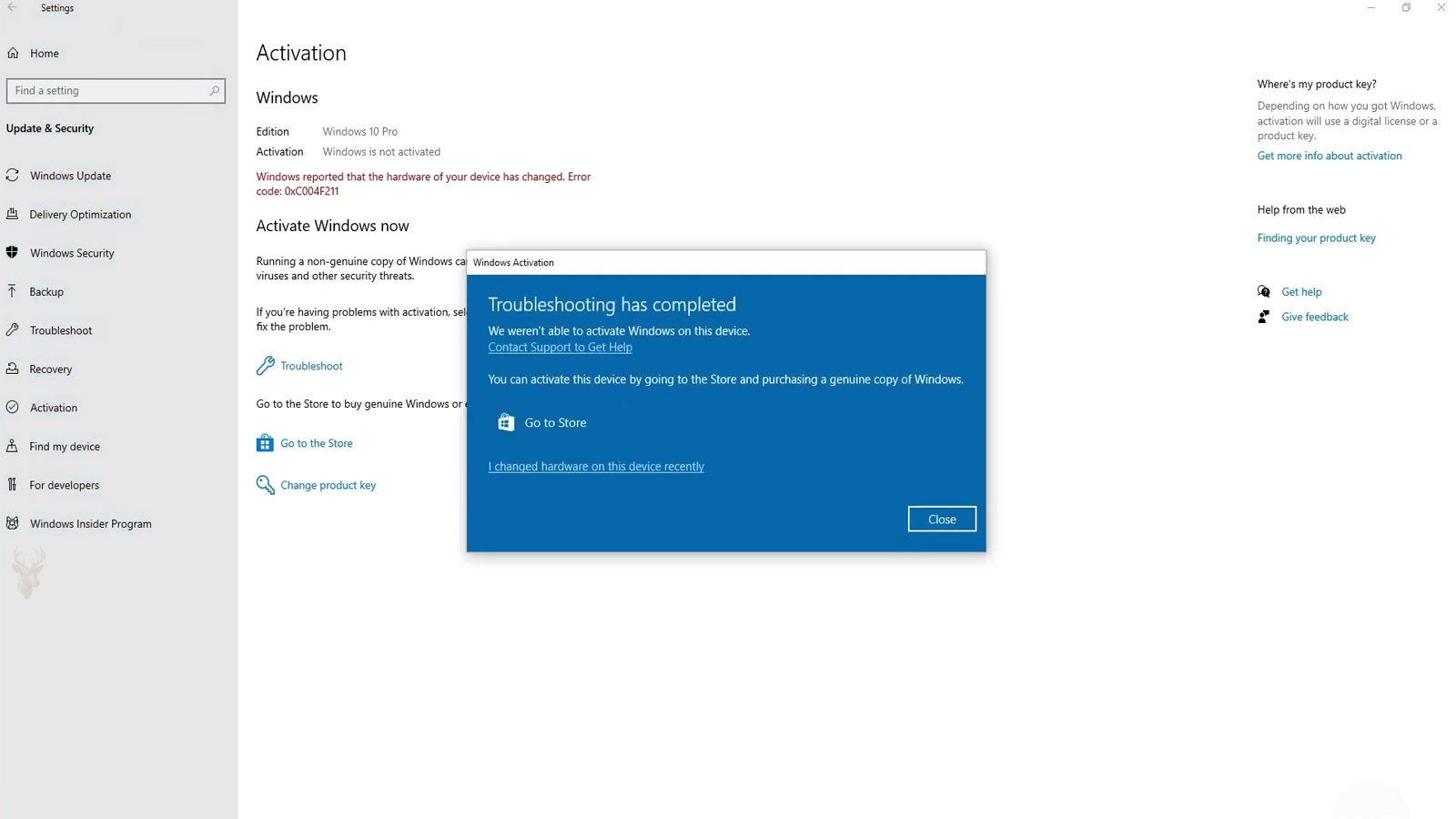
Major Hardware Changes Can Affect Windows Activation
Many computer owners are surprised when Windows suddenly reports that it is no longer activated after replacing hardware. The repair itself may have been successful, the computer may boot normally, and every device may function correctly, yet Windows displays an activation warning or requests a new product key.
This situation often appears after replacing a motherboard, upgrading a system, rebuilding a custom desktop, or restoring Windows onto substantially different hardware. Although the operating system still runs, Microsoft’s activation system may determine that the computer now appears different enough to require verification.
Activation problems do not necessarily indicate software piracy or an incorrect repair. They usually result from how Windows associates its license with the computer’s hardware identity and the type of license originally installed.
Activation Confirms That Windows Is Properly Licensed
Windows activation is Microsoft’s method of confirming that a particular installation is being used according to its license terms. Depending on the version and license type, activation may rely on a traditional product key, a digital license linked to Microsoft servers, or licensing managed by an organization.
Once Windows activates successfully, it normally remains activated unless significant changes affect the system identity or licensing information.
| Activation Method | Typical Use |
|---|---|
| Product key | Traditional retail or OEM installations |
| Digital license | Activation stored on Microsoft activation servers |
| Microsoft account association | Helps recover eligible digital licenses after hardware changes |
| Volume licensing | Business and organizational deployments |
| Subscription licensing | Certain enterprise environments |
The activation method determines which recovery options may be available after hardware replacement.
The Motherboard Plays a Major Role in Hardware Identity
Among all computer components, the motherboard has one of the greatest influences on how Windows identifies a system. Replacing memory, storage drives, or graphics cards often does not affect activation, but installing a different motherboard may cause Windows to recognize the computer as a different device.
This does not mean the repair was incorrect. It reflects how licensing systems distinguish one computer from another.
- Motherboard replacement is the most common hardware change associated with activation requests.
- Storage upgrades usually do not require reactivation by themselves.
- Memory upgrades rarely affect activation.
- Graphics card replacements normally do not change licensing status.
- Several hardware changes performed together may increase the likelihood of an activation review.
A Digital License Is Different From a Product Key
Many modern Windows installations activate without requiring the user to enter a product key during setup. Instead, Microsoft records a digital license associated with that computer after successful activation.
If Windows is later reinstalled on substantially the same hardware, activation may occur automatically after the computer connects to the internet.
A digital license can simplify reinstallations, but significant hardware changes may still require additional verification.
Retail and OEM Licenses Follow Different Rules
Not every Windows license provides the same transfer rights. Retail licenses generally offer more flexibility than OEM licenses that were supplied with a new computer.
| License Type | General Characteristic |
|---|---|
| Retail | Typically intended to be transferable under Microsoft’s license terms |
| OEM | Usually associated with the original computer on which it was supplied |
| Volume license | Managed through organizational licensing agreements |
| Educational license | Subject to institutional licensing conditions |
| Subscription-based license | Depends on the associated subscription entitlement |
The specific rights depend on the applicable Microsoft license agreement, so identifying the license type is an important part of activation troubleshooting.
Replacing a Failed Motherboard Is Different From Building a New Computer
A motherboard replacement performed because of hardware failure is different from assembling an entirely new system for performance upgrades. Although the physical repair may appear similar, Windows licensing may evaluate these situations differently depending on the original license and the replacement hardware.
Keeping documentation for the repair, original purchase, and replacement components can be helpful if activation questions arise later.
- Document the original hardware configuration.
- Record why the motherboard was replaced.
- Keep receipts for replacement components.
- Retain the original Windows purchase information when available.
- Verify activation after the repair is complete.
Activation Warnings Do Not Always Appear Immediately
Some computers continue operating normally for a period before Windows reports an activation issue. The system may reconnect to Microsoft’s activation servers later, complete hardware evaluation, and then determine that verification is required.
This delayed appearance can make it seem as though a recent Windows update caused the problem when the actual trigger was an earlier hardware change.
- The repair may appear successful initially.
- Windows may activate temporarily while offline.
- The warning can appear after internet connectivity returns.
- Activation messages may appear following later system checks.
- The operating system usually continues functioning while the issue is investigated.
Activation Status Should Be Checked Before Major Repairs
Before replacing a motherboard or performing another significant hardware repair, it is helpful to verify that Windows is currently activated and determine how the license is configured. Waiting until after the repair can make troubleshooting more complicated.
| Pre-Repair Check | Purpose |
|---|---|
| Confirm activation status | Verify that Windows is already properly licensed |
| Identify license type | Understand available recovery options |
| Record product information | Preserve licensing records |
| Verify Microsoft account association | Determine whether a digital license may be linked |
| Create a system backup | Protect important data before hardware work |
These simple checks often make activation recovery significantly easier if Windows later requests verification after the repair.
Multiple Hardware Changes Can Complicate Activation
Replacing several major components during one upgrade can make it more difficult to determine which change affected activation. Installing a new motherboard, processor, storage drive, and memory simultaneously may cause Windows to recognize the computer very differently from its previous configuration.
Whenever practical, documenting the sequence of hardware changes helps simplify later troubleshooting.
- Record the original configuration.
- Install compatible replacement hardware.
- Verify that Windows starts normally.
- Check activation before making additional upgrades.
- Document any activation messages that appear.
Careful documentation provides a clearer starting point if Windows activation needs to be reviewed after the repair.
A Microsoft Account Can Simplify Activation Recovery
Many modern Windows installations allow a digital license to be associated with a Microsoft account. When this association exists before a major hardware replacement, it can make activation recovery easier if Windows later determines that the computer’s hardware identity has changed.
This association does not guarantee automatic activation after every repair, but it can provide an additional method for verifying an eligible license when hardware changes occur.
- Confirm that Windows is activated before linking the account.
- Use the Microsoft account regularly associated with the computer.
- Verify internet connectivity after major repairs.
- Allow Windows time to communicate with activation services.
- Review activation status after completing hardware upgrades.
Creating the account association before replacing hardware is generally more useful than attempting to establish it afterward.
The Activation Troubleshooter May Help Eligible Systems
Windows includes an Activation Troubleshooter designed to assist when activation problems occur after certain hardware changes. It examines the current activation status and, in eligible situations, may help restore an existing digital license.
| Troubleshooter Function | Purpose |
|---|---|
| Check activation status | Determines whether Windows is currently activated |
| Review license information | Examines available activation data |
| Identify hardware changes | Detects whether significant hardware has changed |
| Guide recovery options | Presents available activation methods when applicable |
| Report remaining issues | Indicates when additional action may be required |
The troubleshooter cannot override license requirements, but it is often an appropriate first step before assuming that Windows must be reinstalled.
Storage Drive Replacements Usually Do Not Trigger Activation
Replacing a failing hard drive with an SSD or installing a larger storage device normally does not affect Windows activation by itself. Since the motherboard generally contributes more heavily to the computer’s hardware identity, storage upgrades are commonly completed without requiring reactivation.
However, replacing multiple components at the same time may make it more difficult to determine which change influenced activation.
- Back up important files before replacing the storage drive.
- Complete the hardware installation.
- Allow Windows to boot normally.
- Connect the computer to the internet.
- Verify activation before making additional upgrades.
Checking activation after each major change helps isolate any licensing issues that may arise.
Memory and Graphics Upgrades Rarely Affect Licensing
Installing additional memory or replacing a graphics card generally does not cause Windows activation to fail. These upgrades improve system capability without usually changing the hardware identity enough to require license verification.
Although exceptions can occur in unusual circumstances, these upgrades are among the least likely to create activation concerns.
| Hardware Upgrade | Typical Activation Impact |
|---|---|
| Additional RAM | Usually no activation change |
| Graphics card replacement | Normally no activation change |
| Additional storage drive | Usually no activation change |
| CPU replacement | May vary depending on accompanying hardware changes |
| Motherboard replacement | Most likely to require activation review |
When planning several upgrades, completing them in stages can simplify troubleshooting if activation behavior changes.
Firmware Updates Normally Do Not Affect Activation
Updating the system BIOS or UEFI firmware usually does not change Windows activation. Firmware updates modify low-level system software rather than replacing the hardware itself.
If an activation warning appears shortly after a firmware update, another hardware or licensing event may have occurred around the same time and should also be considered.
- Confirm that the firmware update completed successfully.
- Verify that BIOS settings remain correct.
- Check that Windows starts normally.
- Review activation only after startup is complete.
- Document any additional hardware changes performed during the update process.
Replacing a Motherboard With an Identical Part May Still Require Verification
Even when a failed motherboard is replaced with the same model, Windows may still recognize differences in hardware identifiers. The replacement board may contain different firmware information or unique identifiers despite being the same product.
For this reason, identical replacement parts do not always guarantee that activation will continue without review.
Using the same motherboard model does not necessarily preserve every hardware identifier used during Windows activation.
Cloning a Drive Does Not Transfer the License
Drive-cloning software copies files, partitions, and operating system data from one storage device to another. Although the cloned drive may boot successfully, cloning alone does not transfer Windows licensing rights to substantially different hardware.
The operating system and the activation system evaluate different information. A successful clone therefore does not guarantee continued activation after a motherboard replacement.
- A cloned drive may boot normally.
- Applications and files can remain intact.
- Activation status should still be verified afterward.
- Hardware identity is evaluated separately from copied files.
- Windows licensing continues to follow its applicable license terms.
Used Motherboards May Introduce Additional Questions
Installing a previously owned motherboard can complicate activation troubleshooting because its history may be unknown. The replacement board may have originated from another computer with its own licensing background.
While the hardware itself may function perfectly, documentation of the repair becomes more important when determining the proper activation path.
| Replacement Source | Documentation to Keep |
|---|---|
| Manufacturer replacement | Repair invoice and part information |
| Authorized service provider | Service documentation |
| Retail motherboard purchase | Sales receipt and product information |
| Used replacement board | Purchase record and installation details |
| Warranty replacement | Warranty repair paperwork |
Maintaining complete repair records helps explain legitimate hardware changes if activation questions arise later.
Enterprise Computers May Use Different Activation Methods
Business environments often activate Windows differently from home computers. Instead of relying entirely on retail product keys or personal digital licenses, organizations may use centralized licensing systems managed by their IT departments.
After major hardware repairs, these systems may require communication with organizational activation services before Windows reports a successful activation.
- Confirm the organization’s licensing method.
- Reconnect the computer to the business network when required.
- Allow communication with organizational activation services.
- Verify activation after synchronization completes.
- Consult the organization’s IT administrator when necessary.
Procedures that apply to personal retail licenses may not apply to computers managed under organizational licensing agreements.
Hardware Repairs Should Include a Licensing Check Before Returning the Computer
After replacing major hardware, activation status should be included as part of the final inspection. A computer that appears fully repaired can still present licensing questions once it reconnects to the internet.
Including activation in the final quality check helps ensure that both the hardware repair and the Windows licensing status are complete before the computer is returned to everyday use.
The Installed Windows Edition Must Match the Available License
Activation can fail when the installed edition of Windows does not match the edition covered by the product key or digital license. A computer previously activated with Windows Home will not normally activate Windows Pro unless a separate Pro license is available.
This mismatch can occur after a clean installation, motherboard replacement, recovery-image change, or repair performed with installation media that automatically selected the wrong edition.
| Installed Edition | License Available | Likely Result |
|---|---|---|
| Windows Home | Windows Home | Activation may complete normally |
| Windows Pro | Windows Home | Activation usually fails because the editions do not match |
| Windows Pro | Windows Pro | Activation may complete if the license remains eligible |
| Enterprise edition | Retail Home or Pro license | Organizational licensing is normally required |
| Education edition | Different edition license | Activation depends on the applicable institutional entitlement |
Before purchasing another key, the installed edition should be compared with the original license and the computer’s previous activation history.
Embedded Product Keys May Be Stored in System Firmware
Many computers originally sold with Windows include an OEM product key stored in the motherboard firmware. Windows setup may read this key automatically and install or activate the corresponding edition without displaying the key to the user.
When the original motherboard is replaced, the embedded key may no longer be present. A replacement board supplied through the manufacturer may require proper service programming or additional activation steps.
- The original key may have been stored only in the failed motherboard.
- A generic replacement board may not contain the same licensing information.
- The replacement firmware may identify a different Windows edition.
- Manufacturer service documentation may be required.
- The original purchase and repair records should be preserved.
A missing embedded key does not necessarily mean that the owner never had a valid license. It may reflect the loss of licensing information stored in the original hardware.
Incorrect Date and Time Can Interfere With Online Verification
Windows activation relies on secure communication with online services. A substantially incorrect system date, time, or time zone can interfere with encrypted connections and cause activation attempts to fail.
- Confirm the current date and time.
- Verify the correct time zone.
- Enable automatic time synchronization when appropriate.
- Check whether the clock becomes incorrect after shutdown.
- Retry activation after the time is corrected.
If the clock repeatedly resets after power is removed, the computer may also have a firmware configuration or real-time clock battery problem that should be corrected separately.
Network Problems Can Make a Valid License Appear Unavailable
An activation warning may remain because Windows cannot reach the required online services. The computer may appear connected to the internet while DNS filtering, firewall rules, proxy settings, security software, or a restricted business network blocks activation communication.
| Connection Problem | Possible Effect |
|---|---|
| No internet access | Windows cannot contact activation services |
| Incorrect proxy configuration | Requests may be routed incorrectly |
| DNS resolution failure | Activation service addresses may not resolve |
| Firewall restriction | Required communication may be blocked |
| Captive portal | The network may require browser sign-in before full access |
Basic network functionality should be confirmed before changing license information or reinstalling Windows.
Activation Error Codes Provide More Direction Than the Watermark Alone
The desktop activation watermark provides only a general warning. The activation settings page or diagnostic output may show an error code that helps distinguish a blocked key, edition mismatch, network problem, hardware change, or unavailable organizational server.
- Record the complete error code before changing settings.
- Note the exact message shown with the code.
- Confirm the installed Windows edition and version.
- Document the recent hardware changes.
- Check whether the computer uses personal or organizational licensing.
The error code should be interpreted together with the computer’s licensing history rather than treated as proof that a new key is automatically required.
Repeated Product-Key Changes Can Make Troubleshooting More Difficult
Entering several product keys from uncertain sources can complicate activation and obscure the original licensing state. A key intended for another edition, another computer, or an organization may create additional error messages without correcting the hardware-change issue.
The first goal should be to recover the legitimate existing license, not to cycle through unrelated product keys.
The original key, digital license, Microsoft account association, or organizational entitlement should be identified before replacement licensing is considered.
Low-Cost Product Keys From Unverified Sources Carry Significant Risk
Product keys offered at unusually low prices may originate from volume agreements, educational programs, geographic restrictions, recycled systems, or unauthorized resale. A key may activate temporarily and later be blocked when its original licensing conditions are reviewed.
- The key may belong to an organization rather than an individual purchaser.
- The key may already be activated on multiple computers.
- The seller may not provide legitimate transfer rights.
- Activation may be reversed later.
- Support and proof of purchase may be unavailable.
A valid repair should not be completed by replacing one licensing problem with another uncertain license.
Reinstalling Windows Does Not Automatically Correct a License Mismatch
A clean installation can correct damaged system files, driver conflicts, and startup problems, but it does not create a new license. If the computer no longer qualifies for the original activation because of a motherboard change or license restriction, reinstalling the same edition may reproduce the same activation warning.
- Confirm the original license type.
- Identify the edition previously activated.
- Verify whether the hardware change is eligible for reactivation.
- Use installation media that matches the licensed edition.
- Check activation only after drivers and internet access are working.
Reinstallation should be performed for a technical reason, not merely because an activation message appeared after hardware replacement.
A Local Account Does Not Prevent Windows Activation
Windows can activate while the user signs in with a local account. A Microsoft account is not always required for ordinary activation, although linking an eligible digital license to one can provide additional recovery options after major hardware changes.
| Account or License Item | Role in Activation |
|---|---|
| Local Windows account | Allows sign-in without directly storing a Microsoft account association |
| Microsoft account | May help associate and recover an eligible digital license |
| Product key | Provides a license credential for a matching edition |
| Digital license | Records activation eligibility on Microsoft services |
| Business domain account | May be separate from the organization’s activation method |
The Windows sign-in account and the operating-system license are related in some recovery situations, but they are not the same thing.
Business Computers Should Be Returned to Their Licensing Environment
A repaired business computer may need to reconnect to its office network, virtual private network, or management platform before organizational activation can complete. Testing only from a repair bench or residential internet connection may leave the system showing an unresolved activation message.
- Confirm that the correct business edition remains installed.
- Reconnect the computer to the authorized organizational network.
- Verify that domain and management settings remain intact.
- Allow the system to contact its licensing service.
- Coordinate with the organization’s administrator when activation remains unavailable.
Retail troubleshooting steps should not replace the procedures established by the organization that owns and manages the license.
Final Verification Should Continue After the First Successful Activation
After Windows reports that activation has succeeded, the computer should be restarted and checked again while connected to the internet. This helps confirm that the status remains stable and was not only a temporary display or communication result.
- Confirm that the correct Windows edition is installed.
- Verify that activation reports a successful status.
- Restart the computer normally.
- Reconnect to the internet and review activation again.
- Install available updates and repeat the check.
- Document the final activation result with the repair records.
The computer should not be considered fully ready until both the repaired hardware and the Windows license remain stable during normal use.
Hardware Replacement and Windows Licensing Should Be Planned Together
Replacing a motherboard or rebuilding a computer can change the hardware identity that Windows uses during activation. Whether the existing license can be restored depends on the license type, installed edition, previous digital-license association, replacement circumstances, and method originally used to activate the computer.
The most effective approach begins before the repair by confirming activation, recording the Windows edition, identifying the license type, preserving purchase records, and linking an eligible digital license when appropriate. After the hardware work, the system should be connected to the correct network and checked through the available activation recovery options.
An activation warning after a legitimate repair should be investigated methodically rather than answered immediately with another product key or unnecessary Windows installation. When the hardware history and licensing records are clear, the correct path can usually be identified without compromising the repaired computer or its original license.











