
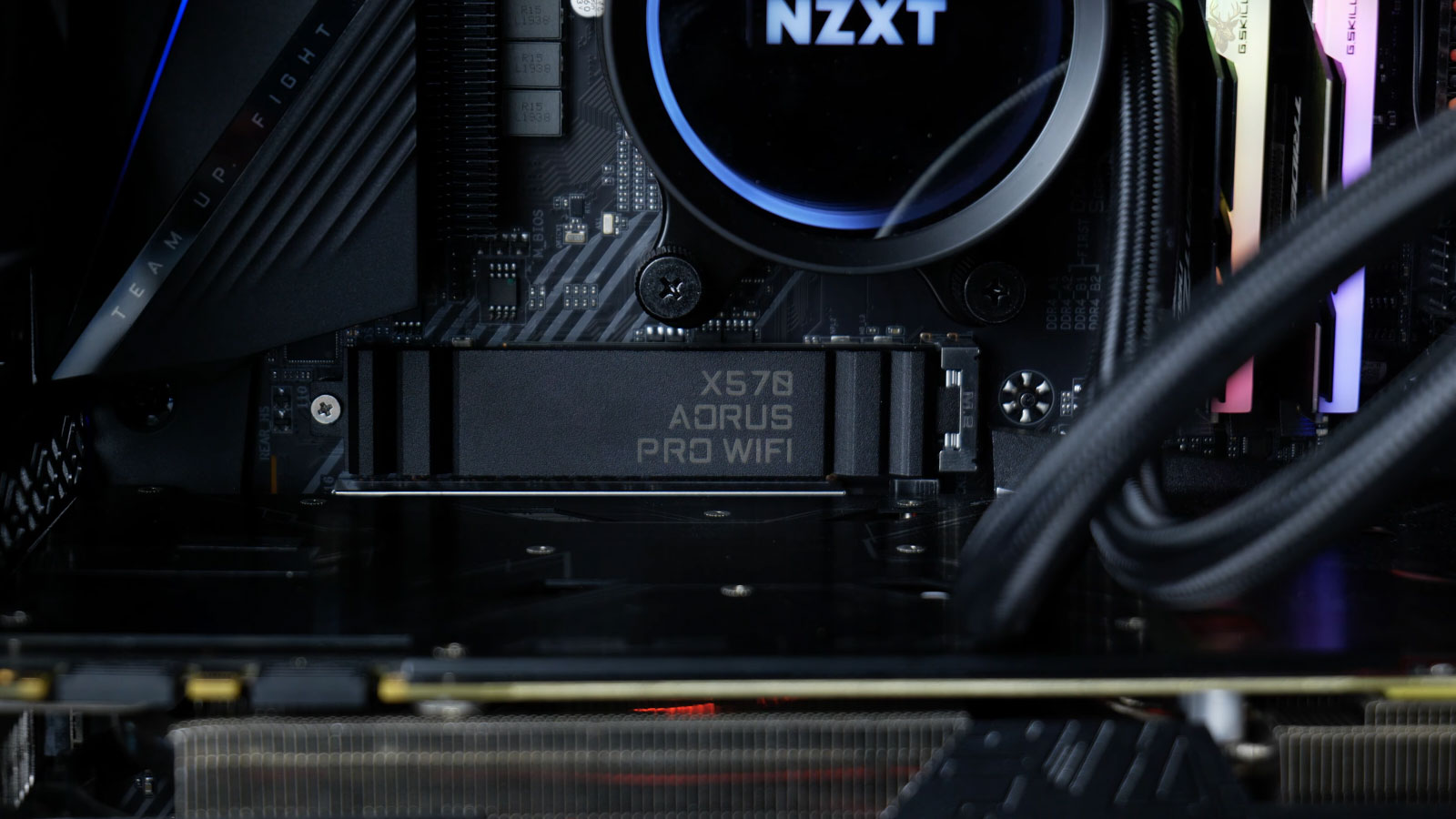
Fast Storage Can Slow Down When Heat Builds Around the Drive
An NVMe solid-state drive can start a file transfer at very high speed and then become noticeably slower before the operation finishes. A game may install quickly at first, a large archive may begin extracting normally, or a video project may load without delay, yet performance drops after the drive has been active for several minutes.
This behavior does not always mean that the drive is failing. NVMe storage can generate significant heat during sustained activity. When the controller reaches a temperature limit, it may reduce performance to protect the drive from operating outside its intended range. This automatic reduction is called thermal throttling.
The slowdown can be especially confusing because ordinary tasks may remain fast. Windows may start normally, programs may open without difficulty, and short file copies may complete before enough heat develops to trigger the performance limit.
Diagnosing the condition requires more than running one speed test. Drive temperature, workload duration, case airflow, motherboard placement, heatsink contact, and background activity all influence whether the slowdown appears.
NVMe Drives Communicate Through PCI Express
NVMe is a storage protocol designed for solid-state drives connected through PCI Express. Unlike a SATA drive, which communicates through the SATA storage interface, an NVMe drive can use several PCI Express lanes and process many commands efficiently.
The combination of fast flash memory, a capable controller, and direct PCI Express communication allows NVMe drives to reach high transfer speeds. It also creates more controller activity and heat during demanding operations.
| Storage Type | Connection | General Performance Characteristic |
|---|---|---|
| Mechanical hard drive | SATA | Limited by moving components |
| SATA solid-state drive | SATA | Faster response but restricted by the SATA interface |
| NVMe solid-state drive | PCI Express | Higher bandwidth and greater command efficiency |
| External NVMe drive | USB or Thunderbolt enclosure | Limited by enclosure, cable, interface, and temperature |
Two drives labeled NVMe can still perform very differently because their PCI Express generation, lane count, controller, flash type, firmware, and thermal design may not be the same.
The Controller Produces Heat While Managing Data
The controller coordinates communication between the computer and the flash-memory chips. It handles command processing, error correction, wear leveling, address translation, caching, and other internal operations.
During light use, the controller may remain relatively cool because activity occurs in short bursts. During sustained writing, installation, compression, or data movement, it remains active for much longer and its temperature rises.
- Large file transfers keep the controller active continuously.
- Operating-system updates can involve many reads and writes.
- Game installations may combine downloading, unpacking, and writing.
- Video editing can produce sustained storage activity.
- Virtual machines may generate frequent small and large operations.
The flash-memory packages also generate heat, although the controller is often the component most sensitive to rapid temperature increases.
Thermal Throttling Protects the Drive
An NVMe drive can monitor internal temperature through sensors. When the reported value reaches a threshold defined by the manufacturer, the controller reduces activity or performance to lower heat generation.
This protective behavior may reduce transfer speed substantially. Once the temperature falls, the drive may increase performance again without requiring a restart.
A drive that slows when hot and recovers after cooling may be protecting itself rather than experiencing immediate electronic failure.
Repeated operation at high temperature can still be undesirable. Thermal throttling prevents more severe overheating, but it indicates that cooling or workload conditions may not be allowing the drive to maintain full performance.
Short Benchmarks May Not Reproduce the Slowdown
A quick storage benchmark can finish before the controller reaches its thermal limit. The result may show excellent performance even though longer transfers become slow.
Testing should compare drive speed and temperature over time rather than relying only on the highest number reported during the first seconds.
| Test Pattern | What It May Show |
|---|---|
| Short read test | Initial drive capability before heat accumulates |
| Short write test | Cache-assisted burst performance |
| Extended transfer | Thermal limits and sustained write behavior |
| Repeated benchmark runs | Performance changes as temperature rises |
| Test after cooling | Whether full speed returns at a lower temperature |
A useful test should resemble the activity that causes the complaint. A computer that slows during large video transfers needs sustained testing rather than only a brief synthetic measurement.
Write Cache Exhaustion Can Resemble Thermal Throttling
Many solid-state drives use part of their flash memory as a faster write cache. Data is written quickly into this area and reorganized internally afterward.
During a large transfer, the cache can fill before the operation is complete. Write speed then drops to the sustained rate of the underlying flash memory. This reduction can occur even when drive temperature remains acceptable.
- Cache-related slowdown often appears after a similar amount of data is written.
- Thermal slowdown is more closely related to temperature and cooling conditions.
- A nearly full drive may have less space available for dynamic caching.
- Different flash types have different sustained write capabilities.
- Cache recovery may require idle time while the drive reorganizes data.
A drive can experience cache exhaustion and thermal throttling during the same transfer. Temperature monitoring helps separate the effects.
The M.2 Slot Location Influences Drive Temperature
Motherboards often place M.2 slots near the processor, graphics card, chipset, or lower expansion slots. The surrounding components can change the amount of heat reaching the drive and the airflow available around it.
A drive positioned directly beneath a graphics card may receive warm exhaust while also being shielded from case airflow. Another slot farther from the graphics card may operate at a lower temperature even when both slots support similar storage performance.
| M.2 Location | Possible Thermal Condition |
|---|---|
| Above the graphics card | May receive airflow from the processor area |
| Directly beneath the graphics card | Can be exposed to graphics heat and restricted airflow |
| Near the chipset | May receive heat from the chipset heatsink |
| Back of the motherboard | Often has limited direct airflow |
| Laptop motherboard slot | Cooling depends on chassis design and nearby heat pipes |
Moving the drive is not always appropriate because motherboard slots can differ in PCI Express generation, lane availability, or shared-resource behavior.
Motherboard Heatsinks Depend on Proper Contact
Many motherboards include an M.2 heatsink that sits over the drive. A thermal pad transfers heat from the controller and flash packages into the metal cover.
The heatsink is useful only when the thermal pad makes suitable contact. A protective plastic film left on the pad can block heat transfer. A pad that is too thin may not touch the drive, while excessive pressure can bend the drive or its connector.
- Confirm that the thermal-pad protective film has been removed.
- Check that the pad aligns with the drive components.
- Verify that the drive lies flat in the M.2 connector.
- Install the heatsink without forcing or bending the drive.
- Retest temperature during the same sustained workload.
Thermal pads can tear or remain attached to an older drive when storage is replaced. The new drive should not be installed beneath an incomplete or displaced pad.
A Heatsink Cannot Compensate for Poor Case Airflow
A heatsink absorbs and spreads heat, but the heat still needs to move into the surrounding air. If warm air remains trapped inside the case, the heatsink and drive eventually reach a higher temperature together.
Dust buildup, stopped fans, obstructed intake vents, and tightly packed cables can reduce the airflow passing through the storage area.
- Confirm that front intake fans are operating.
- Check whether the graphics card blocks airflow over the M.2 slot.
- Remove heavy dust from filters and vents.
- Keep cables from covering the drive and motherboard heatsinks.
- Verify that warm air can leave through rear or upper exhaust fans.
Improving the general case airflow can lower temperatures for the NVMe drive, graphics card, motherboard, and processor at the same time.
Graphics Workloads Can Heat the Drive Indirectly
A game or rendering task may not use the storage drive continuously, yet it can raise the drive temperature because the graphics card releases heat into the same area.
The drive may begin a game update or shader compilation while already surrounded by warm air. Thermal throttling can then occur sooner than it would during a storage test performed on a cool, idle system.
| Operating Condition | Possible Effect on NVMe Temperature |
|---|---|
| Computer idle before transfer | The drive begins from a lower temperature |
| Transfer during gaming | Graphics heat can reduce thermal headroom |
| Closed case with limited intake | Warm air accumulates around the motherboard |
| Graphics card fans stopped at idle | Little airflow may pass over the lower M.2 slot |
| Open side panel | Temperature may improve or worsen depending on airflow design |
Testing under the same combined workload is important when the slowdown appears only during gaming or graphics-intensive work.
Laptop NVMe Cooling Has Less Space for Airflow
Laptops often place the NVMe drive near the battery, wireless card, processor cooling assembly, or bottom cover. There may be little direct airflow across the storage device.
Some models use a thin thermal pad to transfer heat from the drive into a metal shield or the lower case. If the pad is missing after service, folded during reassembly, or replaced with the wrong thickness, drive temperature can increase.
- Confirm that the original thermal pad or shield is present.
- Inspect the bottom cover for blocked ventilation.
- Check whether the battery is swelling toward the drive area.
- Verify that internal fans and heat sinks are clean.
- Avoid covering laptop intake vents during heavy storage activity.
Adding an oversized aftermarket heatsink is usually not suitable because it can press against the cover, battery, or motherboard when the laptop is closed.
External NVMe Enclosures Can Trap Heat
An NVMe drive installed in a USB or Thunderbolt enclosure depends on the enclosure body, thermal pad, and surrounding air for cooling. Compact enclosures can become very warm during long transfers.
The external interface may also impose its own performance limit, making it necessary to distinguish enclosure throttling, interface bandwidth, cable problems, and drive temperature.
| External Drive Condition | Possible Result |
|---|---|
| Missing thermal pad | Heat remains concentrated around the controller |
| Plastic enclosure | Heat may dissipate more slowly than through metal |
| Low-quality cable | Connection speed or stability may decrease |
| USB port with lower bandwidth | Transfer rate remains below the drive’s capability |
| Continuous large transfer | Both the bridge controller and SSD may heat up |
An enclosure that is warm to the touch is not automatically defective. The important questions are whether temperature remains within the intended range and whether performance becomes unstable.
Temperature Readings Must Be Interpreted With Workload Timing
A single temperature reading taken after the transfer ends may miss the highest value. The drive can cool quickly once activity stops, especially when a heatsink and case airflow are present.
Monitoring software should record temperature while the slowdown occurs. Performance and temperature can then be compared along the same timeline.
- Record the idle temperature before testing.
- Begin the workload that normally causes the slowdown.
- Observe transfer speed and temperature together.
- Note the temperature when performance begins to fall.
- Continue monitoring as the workload ends.
- Check whether speed returns after the drive cools.
Different drives use different sensors and thermal thresholds, so one universal temperature number should not be applied to every model.
A Full Drive May Run Slower Without Overheating
Solid-state drives use free space for internal organization, wear management, and caching. As available space becomes limited, sustained write performance can decrease.
A nearly full drive may therefore slow during large transfers even when its temperature remains stable. Deleting unnecessary files and allowing the drive idle time can change the result.
- Check the amount of free storage space.
- Review whether the slowdown began as the drive became fuller.
- Confirm that TRIM is operating where supported.
- Allow background cleanup to complete before retesting.
- Do not assume that every sustained write reduction is thermal.
Capacity pressure, cache exhaustion, and temperature can combine, producing a larger slowdown than any one factor alone.
Background Storage Activity Can Distort Performance Tests
Windows updates, antivirus scans, cloud synchronization, search indexing, backups, and application installations can use the drive while a test or file transfer is running.
The visible operation then shares storage bandwidth with background tasks and may appear slower even though the drive has not throttled.
| Background Activity | Possible Effect |
|---|---|
| Antivirus scan | Increases reads and file-processing activity |
| Cloud synchronization | Creates additional reads, writes, and network use |
| Windows Update | Downloads, verifies, and installs many files |
| Search indexing | Reads file contents and updates its database |
| System backup | Produces sustained reads or writes |
Task Manager, Resource Monitor, or another storage-monitoring tool can show whether additional processes are using the drive during the slowdown.
The Source and Destination Can Limit a File Transfer
A file copy moves data between at least two locations. The slower side of the transfer can determine the observed speed.
Copying from a mechanical hard drive, network share, USB flash drive, or older external enclosure will not demonstrate the full speed of the internal NVMe drive.
- A mechanical source drive may read slowly.
- A USB connection may limit external storage bandwidth.
- A network transfer may be restricted by Ethernet or Wi-Fi speed.
- Many small files transfer more slowly than one large sequential file.
- Real-time scanning can inspect every file during the copy.
Thermal throttling should be suspected when the same drive begins fast, becomes slower as temperature rises, and improves again after cooling under otherwise comparable conditions.
Drive Health Data Helps Separate Heat From Failure
Temperature-related performance loss should be evaluated together with the drive’s health information. An NVMe drive can throttle while remaining otherwise healthy, but repeated errors, warning attributes, or disappearing storage may indicate a different problem.
Monitoring software may display temperature, available spare capacity, media errors, unsafe shutdowns, total data written, and critical warnings. The exact information depends on the drive and the utility used.
| Health Reading | What It May Indicate |
|---|---|
| High temperature during load | Cooling may be insufficient for sustained activity |
| Critical warning | The drive requires closer evaluation and data protection |
| Media or data errors | Storage reliability may be affected |
| Available spare decreasing | Flash reserves may be wearing down |
| Unsafe shutdown count | The system has lost power or reset without a normal shutdown |
A temperature spike by itself does not prove that the drive is defective. At the same time, acceptable temperature does not eliminate firmware, controller, flash-memory, or PCI Express problems.
Thermal Throttling Usually Follows a Repeatable Pattern
A genuine thermal slowdown often appears after a similar period of sustained activity. The drive begins near normal speed, heats gradually, slows near a particular temperature range, and recovers after the workload stops.
- The drive starts from a cool or idle condition.
- A sustained read or write workload begins.
- Temperature rises as the controller remains active.
- Performance falls after the thermal threshold is approached.
- The workload ends or becomes lighter.
- Temperature decreases and performance returns.
If the slowdown begins immediately while the drive is cool, another limit is more likely. Interface bandwidth, full-drive conditions, background activity, cache behavior, or a failing source device should be investigated.
Read and Write Throttling May Not Look the Same
Sustained writing generally produces more controller and flash activity than light reading. A drive may therefore maintain acceptable read speed while reducing write performance during large installations or transfers.
Some workloads mix reads and writes, making the reduction less obvious. Video editing, virtual machines, updates, and archive extraction can move data in several directions at once.
| Workload | Possible Thermal Behavior |
|---|---|
| Large sequential read | May heat the controller gradually |
| Large sequential write | Can raise temperature and exhaust write cache |
| Many small files | Creates command and metadata activity |
| Game installation | Combines download, decompression, and writing |
| Virtual machine use | Produces mixed random reads and writes |
The test should match the complaint. A drive that slows during sustained writing may still perform normally in a read-focused benchmark.
Firmware Can Influence Temperature and Performance Behavior
NVMe firmware controls how the drive manages power states, caching, error correction, and thermal protection. A firmware update may correct compatibility or performance issues, but it should not be installed casually on a drive containing important data.
- Confirm the exact drive model and firmware revision.
- Review the manufacturer’s update notes.
- Back up important files before updating.
- Use the approved utility or installation method.
- Keep the computer connected to reliable power.
A firmware update cannot compensate for a missing thermal pad, obstructed airflow, or unsuitable enclosure. Physical and software conditions should be evaluated separately.
Power Management Can Change NVMe Response and Temperature
NVMe drives support multiple power states. The operating system and firmware may reduce drive activity during idle periods and return it to a higher-performance state when needed.
A system configured for maximum performance may keep the drive more active and warmer at idle. Aggressive power saving can reduce temperature but may introduce small delays when the drive changes states.
Lower temperature, maximum benchmark speed, and minimum power use are not always achieved with the same settings.
Power-plan changes should be tested carefully rather than copied from unrelated systems. Laptop battery life, sleep behavior, and system stability may also be affected.
PCI Express Link Speed Should Be Verified
An NVMe drive may operate below its expected performance when the slot provides fewer lanes or an older PCI Express generation. This condition can resemble throttling because the drive never reaches advertised speed.
The motherboard manual should identify which slots share resources with graphics cards, SATA ports, or other expansion devices.
- Confirm the supported PCI Express generation.
- Verify whether the slot uses two lanes or four lanes.
- Check for shared bandwidth with other devices.
- Review firmware settings that control slot operation.
- Compare the negotiated link with the drive’s capability.
A drive limited by the slot will usually show consistently reduced performance rather than slowing only after heating.
Poor Heatsink Contact Can Be Visible During Inspection
When the drive is removed, the thermal pad may show whether contact was even across the controller and flash packages. A pad with no impression over the controller may not have been touching the hottest component.
- Look for protective film still covering the pad.
- Check whether the pad shifted away from the controller.
- Inspect for torn, compressed, or missing sections.
- Confirm that the drive is secured with the correct standoff.
- Check for visible bending under the heatsink.
The correct pad thickness depends on the motherboard or enclosure design. A pad that is too thick can create pressure, while one that is too thin may provide little thermal transfer.
Aftermarket Heatsinks Must Fit the Installation
An aftermarket M.2 heatsink may help when the motherboard provides no cooling plate, but physical clearance must be checked before installation.
| Fit Concern | Possible Problem |
|---|---|
| Graphics-card clearance | The heatsink may contact the card or prevent installation |
| Motherboard components | Clips or metal edges may touch nearby parts |
| Laptop cover clearance | The cover may press against the drive |
| Thermal-pad thickness | Excessive pressure may bend the SSD |
| Electrical insulation | Exposed metal may contact components improperly |
The largest heatsink is not automatically the best choice. Proper contact, safe clearance, and airflow are more important than size alone.
Cooling Changes Should Be Tested Under the Same Conditions
After correcting a thermal pad, improving airflow, or moving the drive, the same workload should be repeated. Comparing unrelated benchmarks can make the improvement appear larger or smaller than it really is.
- Allow the system to return to a similar starting temperature.
- Use the same test file or benchmark settings.
- Run the workload for the same duration.
- Record temperature and speed at regular intervals.
- Compare when throttling begins and how severe it becomes.
A successful cooling correction should lower peak temperature, delay throttling, reduce the performance drop, or prevent it during the workload that previously caused the problem.
Unstable Storage Requires More Urgent Attention
Thermal throttling normally reduces speed while the drive remains accessible. A drive that disappears, causes repeated blue screens, produces file-system errors, or prevents startup should not be treated as a simple cooling complaint.
- The drive vanishes from firmware or Windows.
- Files become unreadable or corrupted.
- The system freezes during ordinary storage activity.
- Critical NVMe warnings are recorded.
- The computer restarts when the drive is heavily used.
Important data should be protected before extended stress testing. Cooling improvements may help a hot drive, but they cannot repair failing flash memory, controller damage, or corrupted data.
Routine Monitoring Can Reveal Changes Before Performance Becomes Noticeable
An NVMe drive may operate acceptably for months before dust buildup, warmer room temperatures, new hardware, or heavier workloads reduce its cooling margin. Occasional temperature checks can show whether the drive is beginning to run hotter than it did under similar conditions.
- Record idle and sustained-load temperatures after installation.
- Compare later readings under a similar workload.
- Inspect case filters and fans during routine maintenance.
- Review drive health warnings rather than temperature alone.
- Investigate sudden changes in sustained performance.
A small increase may reflect normal environmental differences, but a large or persistent change can indicate reduced airflow, poor heatsink contact, or a new heat source near the drive.
Seasonal Temperatures Can Affect Storage Performance
A computer that performs normally in a cool room may throttle sooner during warmer months. Higher intake-air temperature gives the drive less room to absorb additional heat before reaching its thermal limit.
| Environmental Condition | Possible Effect |
|---|---|
| Warm office or bedroom | The drive starts from a higher idle temperature |
| Computer inside a closed cabinet | Exhaust heat may circulate back into the case |
| Dust-covered intake filter | Less cool air reaches the motherboard |
| Direct sunlight near the system | Case temperature may rise during the day |
| Air-conditioning turned off after hours | Long unattended workloads may run hotter |
Temperature comparisons are most useful when room conditions are similar. A result from a cool morning may not match a transfer performed later in a warmer room.
Drive Placement Should Be Reviewed During Hardware Upgrades
Adding a larger graphics card, capture card, or other expansion device can change airflow around an existing NVMe drive. A storage device that previously ran cool may become partially covered or exposed to warmer exhaust.
The drive does not need to be replaced simply because another component was added. Its location, heatsink clearance, and temperatures should be checked after the upgrade.
- Inspect whether the new component covers the M.2 area.
- Confirm that the motherboard heatsink remains secured.
- Check that intake and exhaust paths are not obstructed.
- Measure the drive temperature during the new combined workload.
- Move the drive only after confirming slot compatibility.
A different M.2 slot may provide better cooling, but it should not be used without checking lane support and shared-resource limitations.
Data Protection Should Come Before Aggressive Testing
Sustained benchmarks intentionally place a heavy workload on the drive. When storage is already producing errors, disappearing from the system, or holding irreplaceable files, repeated stress testing can create additional risk.
Performance testing should never take priority over protecting important data from an unstable storage device.
Important files should be copied to another verified location before extensive testing whenever the drive remains accessible. A backup also provides protection if a firmware update, hardware adjustment, or unexpected shutdown causes further problems.
Temperature Problems and Drive Failure Can Occur Together
A failing drive may also run hot, and a hot drive may develop additional instability. It is therefore unsafe to assume that cooling is the only concern simply because temperature rises during the failure.
| Observed Behavior | More Likely Direction |
|---|---|
| Speed drops gradually and returns after cooling | Thermal throttling or sustained-write limitation |
| Drive disappears from the system | Controller, firmware, slot, power, or drive failure |
| Files produce read errors | Data integrity or media problem |
| Performance is always low from startup | Link speed, configuration, capacity, or drive design |
| Computer freezes during light storage activity | Requires broader hardware and storage diagnosis |
The complete pattern matters more than any single temperature value or benchmark result.
Advertised Speed Does Not Represent Every Workload
Manufacturers often advertise the highest sequential read or write performance achieved under specific test conditions. Everyday storage activity may involve smaller files, mixed operations, limited source devices, background processes, and reduced cache availability.
- Sequential tests favor large continuous files.
- Random workloads involve many smaller requests.
- Write cache can raise short-term benchmark results.
- Drive capacity can influence sustained performance.
- System hardware can limit the available PCI Express bandwidth.
A drive operating below its advertised maximum is not automatically throttling. The important comparison is whether performance falls abnormally during a repeated workload as heat builds.
Cooling Improvements Should Remain Proportionate to the Problem
A drive that briefly reaches a higher temperature during a rare transfer may not require major changes. A drive that repeatedly loses most of its performance during ordinary work deserves closer attention.
The appropriate correction may be as simple as reseating the motherboard heatsink, replacing a damaged thermal pad, cleaning an intake filter, or restoring a stopped case fan.
- Correct obvious installation problems first.
- Improve general airflow before adding unnecessary hardware.
- Use thermal materials designed for the available clearance.
- Avoid excessive pressure on the M.2 drive.
- Retest before making additional changes.
Multiple changes made at once can make it difficult to determine which correction actually improved the result.
Laptop Repairs Should Preserve the Original Thermal Design
When a laptop NVMe drive is replaced, any shield, pad, bracket, or insulating film around the original drive should be documented before removal. These parts may appear unimportant but can control heat transfer and prevent contact with nearby components.
A replacement drive may also have components on one side or both sides, which can affect fit and thermal-pad contact inside a thin chassis.
- Compare the physical layout of the old and new drives.
- Transfer approved shields and pads when required.
- Confirm that the drive lies flat after installation.
- Close the bottom cover without pressure or bulging.
- Test temperature during a sustained transfer.
The laptop should not be forced closed around a drive or heatsink that exceeds the available space.
External Enclosures Need Both Cooling and a Reliable Connection
An external NVMe drive may slow because of heat, but the enclosure bridge controller, USB port, cable, and host computer also affect performance. Replacing the SSD without checking these parts may leave the original problem unchanged.
| Check | Purpose |
|---|---|
| Thermal-pad contact | Transfers heat into the enclosure body |
| Cable quality | Supports the expected connection speed and stability |
| USB or Thunderbolt port | Confirms adequate interface bandwidth |
| Enclosure ventilation | Allows accumulated heat to leave |
| Extended transfer test | Shows whether speed falls as the enclosure warms |
Testing the same enclosure on another compatible computer can help separate a host-system limitation from an enclosure or drive problem.
A Practical Diagnosis Compares Several Conditions
No single test confirms every case of NVMe thermal throttling. The strongest diagnosis compares temperature, workload duration, transfer speed, drive health, airflow, and installation quality.
- Does the slowdown begin only after sustained activity?
- Does drive temperature rise before performance falls?
- Does full speed return after cooling?
- Is the heatsink or thermal pad installed correctly?
- Are health warnings or storage errors also present?
- Can the source, destination, or interface explain the limit?
Answering these questions helps prevent unnecessary drive replacement and reduces the chance of overlooking a more serious storage problem.
Stable NVMe Performance Depends on More Than Maximum Speed
NVMe storage is valued for fast response and high transfer capability, but sustained performance depends on cooling, free space, firmware, workload type, slot configuration, and the rest of the computer.
A drive that briefly reaches a high benchmark number but repeatedly slows during real work is not delivering consistent performance. At the same time, a lower transfer rate does not automatically indicate overheating or failure.
Careful testing under repeatable conditions can distinguish thermal throttling from cache exhaustion, background activity, interface limits, and storage instability. When the drive remains healthy, improving thermal contact and airflow can often restore more predictable performance without replacing the storage device.











