
When Two Office Devices Attempt to Use the Same Network Address
A small office network can appear healthy while one computer, printer, camera, server, or other device repeatedly loses access. The affected equipment may connect normally after restarting, work for several hours, and then become unreachable when another device joins the network. In some cases, Windows displays an IP address conflict warning. In others, users see only intermittent internet access, failed printing, inaccessible shared folders, or devices that disappear from management software.
Every device communicating through an Internet Protocol network needs an address that identifies it within that network. When two active devices use the same address, the router, switches, computers, and applications cannot consistently determine which device should receive the traffic intended for that address.
The conflict may begin after a router replacement, printer installation, server migration, employee laptop connection, security-camera upgrade, or manual network change. It may also remain hidden for weeks because the two devices are not always powered on at the same time.
DHCP reservations can help prevent these conflicts by allowing a router or server to assign the same address consistently to a particular device. However, reservations must be planned correctly. A reservation that overlaps with another static address, points to the wrong hardware identifier, or remains in an outdated DHCP scope can create the same instability it was intended to prevent.
An IP Address Identifies a Device Within the Local Network
An IPv4 address used inside a small office commonly appears in a format such as 192.168.1.25 or 10.0.0.42. The address allows devices to send information to one another through the local network.
The address does not identify the physical computer permanently. It is a network setting that can be assigned automatically, configured manually, or changed when the device moves to another network.
| Network Value | General Purpose |
|---|---|
| IP address | Identifies the device within the network |
| Subnet mask | Defines which addresses belong to the local network |
| Default gateway | Directs traffic toward other networks and the internet |
| DNS server | Translates names such as websites and server names into addresses |
| MAC address | Identifies a particular network interface at the hardware level |
A device may have a valid IP address while still using an incorrect gateway or DNS server. An address conflict is more specific: two active interfaces are claiming the same local IP address.
DHCP Assigns Network Settings Automatically
Dynamic Host Configuration Protocol allows a router or server to supply network settings automatically. When a computer connects, it requests an address. The DHCP server selects an available address from its configured range and provides the address along with the subnet mask, gateway, DNS information, and lease duration.
This process reduces the need to configure every computer manually. It also makes it easier for laptops and mobile devices to join different networks without retaining incompatible settings.
- The device connects to the wired or wireless network.
- It requests configuration from an available DHCP server.
- The server offers an address from its active pool.
- The device requests the offered address.
- The server confirms the lease and supplies additional network settings.
- The device uses the address until the lease is renewed, released, or expires.
Under normal conditions, the DHCP server tracks which addresses have already been leased and does not assign the same address to two clients at the same time.
A DHCP Scope Defines the Addresses Available for Assignment
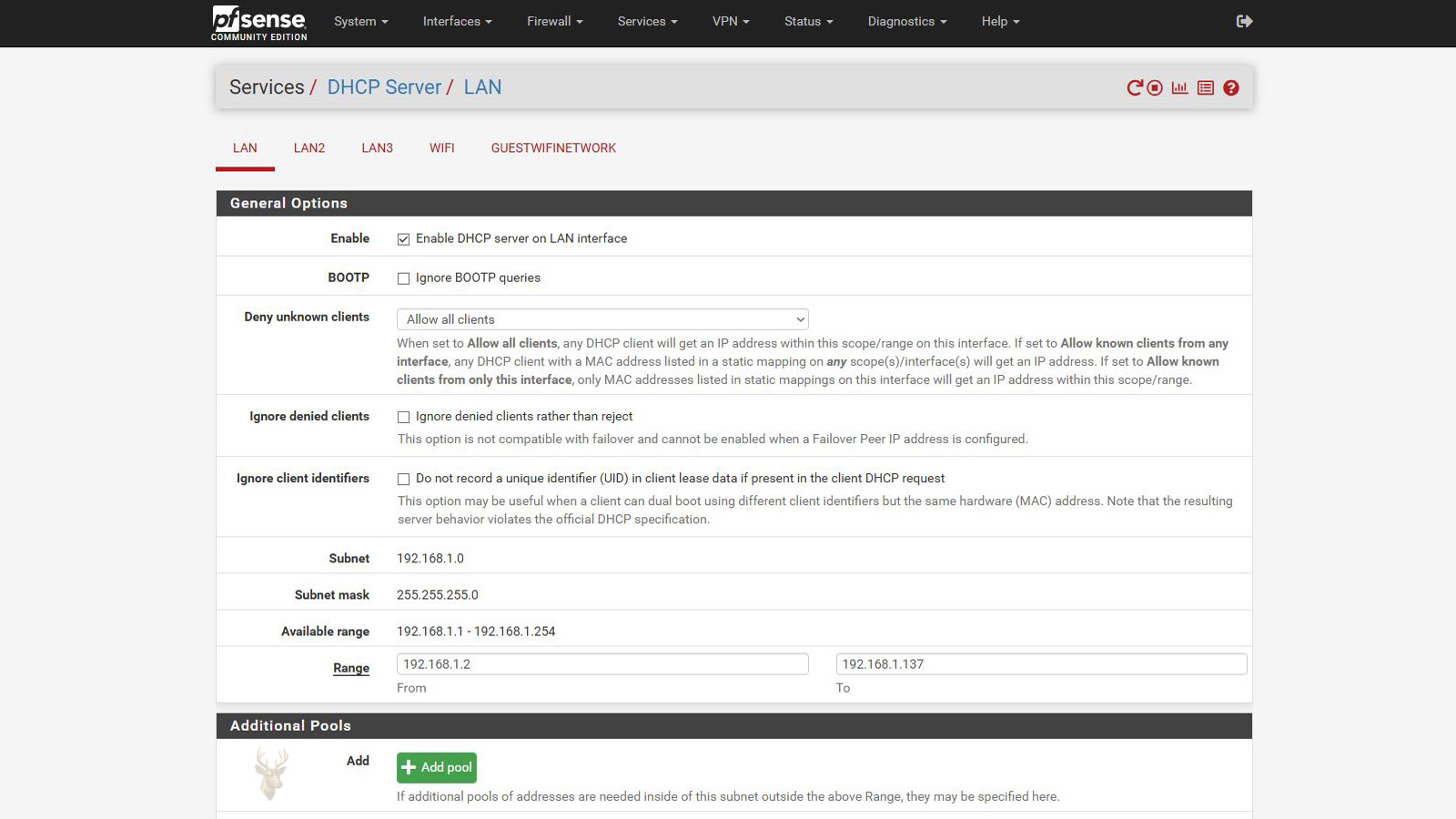
The DHCP scope is the range of addresses the server is permitted to distribute. A router using the 192.168.1.0 network might assign addresses from 192.168.1.100 through 192.168.1.200.
Addresses outside that range may be left available for routers, servers, switches, printers, cameras, access points, and other devices that require predictable addressing.
| Example Address Range | Possible Use |
|---|---|
| 192.168.1.1 | Router or firewall |
| 192.168.1.2–192.168.1.49 | Network infrastructure and servers |
| 192.168.1.50–192.168.1.99 | Printers, cameras, and reserved devices |
| 192.168.1.100–192.168.1.200 | General DHCP client pool |
| 192.168.1.201–192.168.1.254 | Future use or additional controlled assignments |
The exact ranges vary by network. The important requirement is that manually assigned addresses, reservations, exclusions, and dynamic leases are coordinated rather than configured independently.
A DHCP Lease Is Temporary Rather Than Permanent
A DHCP address is issued for a defined period called a lease. The client normally attempts to renew the lease before it expires. If the renewal succeeds, the device often continues using the same address.
If the device remains disconnected long enough for the lease to expire, the DHCP server may eventually offer that address to another client. When the original device returns, it should request a valid address again rather than assuming that the old address remains available.
- Short leases return unused addresses to the pool more quickly.
- Long leases reduce how often stable office devices must renew.
- A disconnected laptop does not own its leased address forever.
- A manually configured device does not participate in normal lease tracking.
- Restoring an old DHCP database can reintroduce outdated lease information.
Lease timing becomes important when troubleshooting conflicts that appear only after a device has been absent from the office for several days.
A Static IP Address Is Configured Directly on the Device
A static IP address is entered manually in the operating system, printer interface, camera configuration, server settings, or embedded device. The device continues attempting to use that address until someone changes the configuration.
Static addressing can be useful for systems that must remain reachable at a predictable location. However, the DHCP server may not know that an address was assigned manually unless that address is excluded from the dynamic pool.
A manually configured address can be valid for the device while still being unsafe for the network.
If a printer is manually assigned 192.168.1.125 while the DHCP server distributes addresses from 192.168.1.100 through 192.168.1.200, the server may later lease 192.168.1.125 to a laptop. Both devices then claim the same address.
A DHCP Reservation Keeps an Address Predictable Without Manual Configuration
A DHCP reservation instructs the server to provide a specific IP address whenever it receives a request from a particular network interface. The reservation is usually matched to the interface’s MAC address.
The device can remain configured for automatic addressing while receiving the same address consistently. This centralizes address management and reduces the chance that gateway, DNS, or subnet settings become inconsistent.
| Method | Address Set On | Central Visibility | Typical Risk |
|---|---|---|---|
| Dynamic DHCP lease | DHCP server | High | Address may change |
| DHCP reservation | DHCP server | High | Wrong MAC address or overlapping reservation |
| Manual static address | Individual device | Low unless documented | Overlap with DHCP pool or another static device |
| Automatic private address | Client assigns itself | Low | No communication with the DHCP server |
Reservations are often preferable for printers, scanners, access points, cameras, and management interfaces that need consistent addresses but can still communicate with DHCP.
A Reservation and a Static Address Are Not the Same Configuration
The distinction matters during troubleshooting. A device using a reservation normally remains set to obtain its address automatically. The DHCP server recognizes its MAC address and supplies the reserved address.
A device using a manual static address does not need to ask the DHCP server for that address. The server may have no record that the device is using it.
- A reservation is managed from the DHCP server.
- A static address is managed from the endpoint.
- A reservation can provide DNS and gateway updates automatically.
- A static address can continue using outdated network settings after a router change.
- Both methods can create conflicts when their address ranges overlap.
Documentation that describes every predictable address as static can hide whether the address is actually reserved or entered manually.
The MAC Address Connects a Reservation to a Specific Interface
A MAC address is assigned to a network interface. A computer with Ethernet and Wi-Fi normally has a different MAC address for each connection. A docking station or USB adapter may add another address.
A reservation created for the computer’s Wi-Fi interface will not automatically apply when the same computer connects through Ethernet. The DHCP server sees a different requesting interface.
| Device Connection | Reservation Consideration |
|---|---|
| Built-in Ethernet | Uses the Ethernet interface MAC address |
| Built-in Wi-Fi | Uses a separate wireless MAC address |
| USB Ethernet adapter | The reservation may follow the adapter rather than the computer |
| Docking station | May present the dock’s own network address |
| Virtual machine | May use an additional virtual MAC address |
A reservation assigned to the wrong interface can appear inactive even though the DHCP server is functioning correctly.
Randomized Wireless Addresses Can Complicate Reservations
Some operating systems can use a private or randomized MAC address for wireless networks. This feature improves privacy by reducing the ability to track one device across different networks.
On an office network, a randomized address can interfere with reservations, access controls, inventory records, and device identification if the address changes unexpectedly.
- The same laptop may appear as a new DHCP client.
- The intended reservation may no longer match.
- Access rules tied to the previous address may stop applying.
- Old lease entries may remain in the DHCP table.
- Administrators may mistake one device for several separate devices.
The behavior depends on the operating system and network settings. A private address may remain stable for one saved network rather than changing on every connection, but it should still be considered when a reservation does not behave as expected.
An Address Conflict Can Affect Both Devices Differently
Two devices sharing one address do not always fail at the same time or display the same symptom. One may continue working while the other appears offline. The result can change as each device sends traffic and updates network tables.
Users may believe the problem follows the printer, computer, or application when the actual behavior depends on which device most recently announced ownership of the duplicated address.
| Device A | Device B | Possible Result |
|---|---|---|
| Office printer | Employee laptop | Print jobs reach the wrong device or the printer becomes unreachable |
| File server | Security camera | Shared folders disconnect while camera management changes unpredictably |
| Desktop computer | Wireless phone | The computer loses internet access when the phone joins Wi-Fi |
| Network scanner | Guest device | Scanning software cannot locate the expected scanner |
| Access point | Manually configured workstation | Wireless management and workstation connectivity become unstable |
The device that appears more stable is not necessarily configured correctly. Both must be identified and assigned unique addresses.
ARP Determines Which Hardware Interface Receives Local Traffic
Address Resolution Protocol connects an IPv4 address to a MAC address on the local network. Computers, routers, and other devices maintain temporary ARP tables that record which hardware address currently corresponds to each IP address.
When two devices claim the same IP address, different computers may store different MAC associations. One workstation may send traffic to the printer while another sends traffic intended for that same address to a laptop.
- A computer needs to communicate with a local IP address.
- It checks whether the corresponding MAC address is already cached.
- If no entry exists, it broadcasts an ARP request.
- A device claiming the address replies with its MAC address.
- The computer stores the association temporarily.
- A later reply from the conflicting device may replace the previous entry.
This changing association explains why an address conflict may appear intermittent rather than causing a complete and permanent outage.
Gratuitous ARP Announcements Can Shift the Conflict
A device may announce its own address without waiting for another system to ask. These announcements help update neighboring devices after startup, address changes, failover, or interface activation.
In a conflict, the newest announcement may cause switches, routers, and computers to associate the duplicated IP address with a different MAC address. Connectivity can suddenly move from one device to the other.
An address conflict may appear to repair itself only because the network temporarily accepted the other device’s claim.
The conflict remains until the devices are assigned separate addresses and stale network information is allowed to refresh or is cleared where necessary.
Windows May Detect a Duplicate Address Before Normal Communication Begins
Before using an address, an operating system may check whether another device appears to be using it. If a duplicate is detected, Windows can display a warning or avoid using the address normally.
Not every embedded device performs the same checks or reports the result clearly. A printer, camera, access-control panel, or older network appliance may continue using the duplicated address without displaying a visible warning.
- Windows may report that another device is using the same address.
- The network adapter may show limited or unidentified connectivity.
- The device may assign itself a different address.
- An embedded device may remain silent while causing instability.
- The warning may disappear after one of the conflicting devices is powered off.
The absence of a warning does not eliminate the possibility of a duplicate address.
A 169.254 Address Usually Indicates DHCP Failure Rather Than a Conflict
When a Windows computer cannot obtain a usable DHCP lease, it may assign itself an Automatic Private IP Address in the 169.254.0.0 range. This allows limited local communication with other similarly configured devices but normally does not provide access to the office network or internet.
A 169.254 address is not automatically evidence that another device has stolen the intended address. It more commonly indicates that the DHCP request did not receive a usable response.
| Observed Address | General Interpretation |
|---|---|
| 192.168.x.x or 10.x.x.x within the expected scope | The client received or retained a local network address |
| 169.254.x.x | The client did not obtain normal DHCP configuration |
| Address from an unexpected subnet | A second DHCP server or retained static setting may be involved |
| Correct IP with wrong gateway | Manual settings or incorrect DHCP options may be present |
| Correct IP but intermittent access | Duplicate addressing, switching, DNS, or physical connectivity may require testing |
A DHCP failure and an IP conflict can coexist, but they are separate conditions and require different evidence.
Two DHCP Servers Can Distribute Conflicting Information
A small office should normally have one coordinated DHCP service for each network segment. An additional router, wireless extender, firewall, server, or improperly configured access point can begin distributing addresses independently.
The two DHCP servers may use overlapping address pools or provide different gateways and DNS servers. Devices can receive different configurations depending on which server answers first.
- Some computers receive one gateway while others receive another.
- Address ranges change between restarts.
- Internet access works through one part of the office but not another.
- A recently added router still has DHCP enabled.
- Devices receive valid-looking addresses from an unintended subnet.
A second DHCP server can create widespread inconsistency without producing a simple duplicate-address warning.
Consumer Routers Are a Frequent Source of Accidental DHCP Services
A consumer router added to extend wireless coverage may be connected to the office network through one of its LAN ports or its internet port. If it remains in router mode, it may create a second network or begin issuing addresses where none were intended.
The problem may appear after a reset because the device returns to factory settings with DHCP enabled. A unit that previously functioned as an access point can become a router again without obvious physical changes.
| Connection or Mode | Possible Effect |
|---|---|
| Access-point mode | Wireless clients normally use the main DHCP server |
| Router mode through WAN port | Creates a separate routed network |
| Router mode through LAN port | May introduce competing DHCP service on the existing network |
| Factory reset | Can restore default DHCP and addressing settings |
| Improper extender configuration | May bridge or route traffic differently than expected |
Every routing and wireless device should have a defined role rather than being connected according to convenience alone.
Static Devices Inside the DHCP Pool Create Delayed Conflicts
A manually assigned printer or server may work normally for months while using an address inside the DHCP pool. The conflict begins only when the DHCP server eventually offers that same address to another device.
This delay makes the network appear unreliable rather than misconfigured. Restarting the laptop or printer may temporarily change which device remains reachable.
- The printer has used the same address for years.
- A new employee laptop receives the duplicated address.
- The problem occurs only when both devices are online.
- Restarting the router changes the timing of the conflict.
- The DHCP lease table shows an address already used by a static device.
Moving the static device outside the pool or replacing its manual configuration with a reservation prevents the DHCP server from unknowingly reusing the address.
Exclusions Prevent Dynamic Assignment of Controlled Addresses
A DHCP exclusion marks part of the scope as unavailable for ordinary leases. Exclusions are useful when certain addresses are assigned manually to infrastructure that cannot use reservations.
The exclusion must cover every manually used address within the broader scope. An undocumented static device placed outside the exclusion remains vulnerable to conflict.
| DHCP Control | Purpose |
|---|---|
| Scope | Defines the overall range managed by DHCP |
| Dynamic pool | Contains addresses available for ordinary client leases |
| Exclusion | Prevents selected addresses from being leased dynamically |
| Reservation | Assigns one controlled address to a particular client identifier |
| Lease record | Tracks a temporary address assignment already issued |
An exclusion prevents automatic assignment but does not verify that two manually configured devices are not using the same excluded address.
Overlapping Reservations Can Reproduce the Same Conflict
Reservations are safer than undocumented static addresses only when they are unique. Two reservation entries should not assign the same IP address to different MAC addresses.
Some DHCP systems prevent this configuration. Others may contain duplicate records after migration, import, manual database editing, or restoration from backup.
- An old printer reservation remains after the printer is replaced.
- The same address is assigned to the replacement printer.
- A copied reservation contains the wrong MAC address.
- Two DHCP servers contain different reservations for the same address.
- An old configuration is restored over newer network records.
Reservation tables should be reviewed for duplicate addresses and obsolete hardware identifiers during troubleshooting.
Replacing a Network Adapter Can Break an Existing Reservation
A reservation follows the network interface identifier rather than the device name. Replacing a motherboard, wireless card, Ethernet adapter, docking station, or printer network board changes the MAC address presented to DHCP.
The repaired device may receive an ordinary dynamic address while the old reservation remains attached to hardware that no longer exists.
| Hardware Change | Reservation Effect |
|---|---|
| Motherboard replacement | Built-in Ethernet and Wi-Fi addresses may change |
| USB adapter replacement | The reservation may remain with the previous adapter |
| Docking station replacement | Wired address may change when the new dock is used |
| Printer network-board replacement | The printer may no longer match its reservation |
| Virtual machine recreation | A new virtual MAC address may be generated |
Updating the reservation is part of completing the hardware change when a predictable network address is required.
Renaming a Device Does Not Update Its Reservation Automatically
Reservations may include a descriptive name, but the name is normally not the value used to match the client. Changing a computer name or printer label does not necessarily alter the reservation relationship.
Outdated names can still create confusion. An administrator may believe a reservation belongs to an old computer when the MAC address now identifies a replacement device.
- Use names that identify the current device and location.
- Record the MAC address separately.
- Remove reservations for retired hardware.
- Update descriptions after equipment moves.
- Avoid relying on automatically detected hostnames alone.
Accurate labeling does not control DHCP technically, but it reduces mistakes during future changes.
Office Printers Commonly Require Predictable Addresses
Computers often connect to a network printer by its IP address. If that address changes, the printer may show as offline even though it remains connected to the network.
A reservation can keep the printer at a consistent address while allowing the DHCP server to manage its gateway, DNS, and subnet information.
- Confirm whether the printer is set to automatic or manual addressing.
- Record the active wired or wireless MAC address.
- Reserve an address outside the ordinary dynamic client range when practical.
- Update printer ports on computers if the address changes.
- Remove obsolete reservations for replaced printers.
A printer with both wired and wireless interfaces may present two different MAC addresses and can accidentally be connected through both interfaces.
Servers Need Stable Addressing and Clear Documentation
File servers, application servers, domain controllers, backup systems, and management appliances often require predictable addresses because other devices depend on them.
Some server roles use manual static addressing by design. Others can use reservations. The chosen method should be consistent with the operating environment and disaster-recovery plan.
| Server Consideration | Reason |
|---|---|
| Stable IP address | Clients and services must locate the server consistently |
| Correct DNS configuration | Name resolution may depend on specific internal servers |
| Documented gateway | Remote networks and internet services may require routing |
| Address excluded or reserved | Prevents DHCP from assigning the same address elsewhere |
| Recovery documentation | Allows the network configuration to be restored after failure |
A server address conflict can affect many users at once and may be mistaken for a storage, authentication, or permissions failure.
Security Cameras and Embedded Devices May Hide Their Address Settings
Cameras, door controllers, time clocks, phone systems, and building-management devices may be configured through proprietary utilities rather than standard operating-system controls.
These devices are frequently installed with default static addresses or changed to manual addresses during setup. The final settings may not be added to the office network documentation.
- The device may continue using an old subnet after a router change.
- Its static address may overlap with the current DHCP pool.
- The management software may remember the old address.
- A factory reset may restore a default address.
- The device may not display a duplicate-address warning.
Inventory records should include the device purpose, location, MAC address, IP address, and whether the address is static or reserved.
Networked Phone Systems Can Use Separate Addressing Rules
Voice-over-IP phones may use a dedicated network segment, DHCP options, or vendor provisioning service. A phone connected through the same wall jack as a computer can participate in more than one logical network.
An address conflict within the voice network can cause registration failures, one-way audio, dropped calls, or phones that repeatedly reboot while the attached computer continues working.
| Phone-Network Condition | Possible Symptom |
|---|---|
| Duplicate phone address | One or both phones lose registration |
| Wrong DHCP scope | The phone receives settings intended for computers |
| Missing vendor option | The phone cannot locate its provisioning server |
| Incorrect voice VLAN | Calls or management access may fail |
| Factory-reset phone | The device may return to automatic or default addressing |
Address planning should account for every network segment rather than treating the office as one undivided address pool.
Guest Networks Should Remain Separate From Office Reservations
A properly separated guest network normally uses its own subnet and DHCP scope. Guest devices should not receive addresses from the same pool used by printers, servers, and business workstations.
If guest and office networks are accidentally bridged, visitors may receive office addresses or interact with devices that were intended to remain private.
- Guest clients should use a distinct address range.
- Reservations for office equipment should remain on the business network.
- Access points should map wireless names to the correct network segments.
- Consumer extenders should not bypass intended isolation.
- Guest DHCP service should not answer requests from office devices.
A device receiving an address from the wrong network may appear to have an ordinary connectivity problem while the actual issue is incorrect network segmentation.
Virtual Machines Can Add Addresses That Are Easy to Overlook
Virtualization software creates virtual network interfaces for guest operating systems, host-only networks, bridged connections, and network address translation. A virtual machine using bridged networking can request its own DHCP lease from the office network.
A copied or restored virtual machine may reuse a manually configured address or cloned MAC address, creating a conflict when both versions are started.
- A cloned virtual machine may retain the original static address.
- A virtual MAC address may be duplicated after copying configuration files.
- Bridged guests appear as separate office network clients.
- NAT guests normally remain behind the host’s virtual network.
- Paused or archived virtual machines may contain outdated network settings.
Virtual systems should be included in address documentation when they provide business services or use predictable local addresses.
Backup Restorations Can Restore Outdated Static Addresses
Restoring a computer, server, appliance, or virtual machine from an older backup may also restore its previous network configuration. The address may now belong to another device.
The restored system can create an immediate conflict when it returns to the network. This is especially likely during disaster recovery, server replacement, or temporary testing of an older system image.
A restored system can bring back both the required data and the network settings that should no longer be used.
Network settings should be reviewed before restored systems are connected to the production network.
Router Replacements Can Change the Entire Address Plan
A replacement router may use a different default subnet, DHCP pool, lease duration, or reservation format. Devices with manual static addresses may remain configured for the previous network.
Copying only the wireless name and password does not reproduce the previous address plan. Printers, servers, cameras, and management devices may require additional changes.
| Router Change | Possible Consequence |
|---|---|
| Subnet changes from 192.168.1.x to 192.168.0.x | Static devices on the old subnet become unreachable |
| DHCP pool expands | Previously protected static addresses may enter the dynamic range |
| Reservations are not migrated | Printers and servers may receive different addresses |
| Lease database is cleared | Devices may receive new addresses after reconnecting |
| Old router remains connected | Competing DHCP servers may appear |
A router replacement should include an inventory of every device that depends on a predictable address.
The First Sign May Be a Printer That Randomly Goes Offline
Printers often reveal address conflicts because many computers repeatedly contact the same expected address. When another device begins using that address, print jobs fail even though the printer itself remains powered on.
The printer may become reachable again after the conflicting laptop disconnects or the network tables refresh. This temporary return can lead to repeated driver removal and printer reinstallation without correcting the addressing problem.
- The printer responds from some computers but not others.
- The printer webpage shows the expected address intermittently.
- Pinging the address returns different hardware identifiers over time.
- The problem begins when a particular employee arrives.
- Restarting the printer changes which device is reachable.
The printer port, DHCP table, and active address ownership should be checked before replacing drivers.
Shared Folders May Disconnect When a Server Address Is Duplicated
A file server that shares its address with another device may accept connections only intermittently. Users can receive path-not-found errors, credential prompts, slow browsing, or disconnected mapped drives.
The issue may be mistaken for permissions trouble because the server name still resolves to the expected IP address. The failure occurs after name resolution, when local traffic reaches the wrong MAC address.
| Observed File-Access Symptom | Possible Address-Conflict Relationship |
|---|---|
| Mapped drive disconnects unpredictably | Traffic may alternate between two devices |
| Server responds to ping but shares do not open | The responding device may not be the server |
| Only some workstations can connect | Their ARP tables may point to different MAC addresses |
| Access returns after clearing network caches | The correct address association may have been restored temporarily |
| Problem appears when another device starts | The second device may be claiming the server address |
Verifying the hardware address associated with the server IP can distinguish a duplicate address from a permissions or authentication problem.
Internet Loss on One Computer Can Result From a Local Address Conflict
A computer sharing an address with another device may lose internet access even though the router and internet connection remain functional for everyone else.
Packets returning from the router may reach the other device. The affected computer may show a connected network icon while websites, email, and cloud applications fail.
- Other office computers remain online.
- The affected computer has a normal-looking local address.
- Disconnecting another device restores access.
- Renewing the DHCP lease assigns a different working address.
- The conflict returns when the original address is used again.
A normal wireless signal does not guarantee that the computer has exclusive use of its assigned IP address.
Remote Management Can Connect to the Wrong Device
Administrators may connect to devices by IP address for browser management, remote desktop, terminal access, monitoring, or maintenance. A duplicated address can direct the session to the wrong endpoint.
The connection may fail because the unexpected device does not offer the same service. In a more confusing case, a login screen from another device may appear at the familiar address.
An expected IP address does not guarantee that the expected device currently owns it.
The device identity, hostname, certificate, and MAC address should be verified before making administrative changes during a suspected conflict.
Address Conflicts May Follow Employee Work Schedules
An office device with a static address may conflict only when a particular laptop, phone, or docking station is present. The problem can disappear during evenings, weekends, or employee travel.
This schedule-based pattern can make the fault difficult to reproduce during service if the conflicting device is absent.
- The printer fails only after one employee arrives.
- A server disconnects during a particular shift.
- The problem disappears when a conference room is unused.
- A docking station triggers the issue only when connected by Ethernet.
- A visitor device receives an address used by office equipment.
Comparing DHCP leases and device presence with the timing of the outage can reveal the second participant in the conflict.
Power Cycling Can Hide the Problem by Changing Lease Timing
Restarting the router clears or refreshes temporary information and forces many clients to request addresses again. The network may appear repaired because the DHCP server assigns the conflicting laptop a different address.
The underlying static overlap remains. The conflict can return when lease timing, device order, or network activity changes.
| Temporary Action | Reason the Problem May Disappear |
|---|---|
| Restart router | Clients renew leases and network tables are rebuilt |
| Restart printer | The printer announces its address again |
| Disconnect laptop | Only one device remains using the address |
| Disable and enable network adapter | The computer may request a different lease |
| Clear ARP cache | The next address resolution may reach the correct device temporarily |
Temporary recovery should be used to gather evidence rather than treated as proof that the network has been corrected.
The DHCP Client List Provides an Important Starting Point
The router or DHCP server normally displays active leases, client names, IP addresses, MAC addresses, and expiration times. This list can reveal duplicate reservations, unexpected devices, and clients using addresses near the reported conflict.
The list is not always complete. Manually configured devices may not appear because they never requested a lease. Offline devices and expired leases may also be shown differently depending on the DHCP platform.
- Compare the suspected IP address with active leases.
- Check whether the listed MAC address matches the intended device.
- Review reservations associated with the same address.
- Look for unexpected hostnames or duplicated device names.
- Remember that static devices may be absent from the list.
The DHCP table should be combined with direct device inspection rather than used as the only source of truth.
An ARP Table Can Show Which MAC Address Currently Owns an IP
A computer’s ARP table records the recent relationship between local IP addresses and MAC addresses. Checking the entry for a suspected address can show which device the computer is currently attempting to reach.
If the MAC address changes while the IP address remains the same, two devices may be competing for ownership. The manufacturer portion of the MAC address can sometimes help distinguish a printer, computer, camera, or network appliance.
- Record the MAC address currently associated with the suspected IP.
- Compare it with the intended device’s physical or configuration label.
- Disconnect or power off the intended device.
- Check whether another MAC address continues responding at the same IP.
- Reconnect devices individually and observe when the association changes.
ARP information is temporary and may differ between workstations, so results should be compared from more than one network location when necessary.
Pinging an Address Confirms a Response but Not the Correct Identity
A successful ping shows that something responded at the address. It does not prove that the response came from the expected printer, server, or computer.
During a conflict, ping replies may continue even while the intended device is disconnected because the second device still owns the duplicated address.
| Ping Result | What It Establishes | What It Does Not Establish |
|---|---|---|
| Reply received | A device responded at the address | The device is the intended endpoint |
| Timeout | No reply was received | The device is powered off or absent |
| Reply time changes | Network path or responding device may differ | A conflict is definitely present |
| Replies continue after intended device is unplugged | Another device may be using the address | The second device’s identity |
Ping should be combined with MAC-address verification and direct device identification.
Device Web Pages Can Reveal Unexpected Ownership
Printers, cameras, switches, access points, and other appliances often provide a browser-based management page. Opening the suspected address may reveal a device that does not match the expected equipment.
The page may change between attempts if ARP associations alternate. A printer page may appear once, followed later by a camera or router login screen at the same address.
- Verify the model and serial number shown by the management page.
- Check the displayed MAC address.
- Do not change settings until the device identity is confirmed.
- Document unexpected devices found at reserved addresses.
- Use secure management methods when available.
Unexpected management pages are strong evidence that the network address is not uniquely assigned.
Switch Tables Can Help Trace the Physical Location
Managed network switches maintain tables showing which MAC addresses were learned on each physical port. When the conflicting MAC address is known, the table can help locate the connected device.
The search may continue through additional switches if the MAC address appears on an uplink port rather than a direct device port.
- Identify the unexpected MAC address associated with the conflicting IP.
- Search the switch forwarding table for that MAC address.
- Determine whether the listed port connects directly to a device or another switch.
- Follow uplinks until the edge port is identified.
- Compare the port location with office cabling records.
- Inspect the connected computer, printer, dock, phone, or appliance.
Unmanaged switches do not provide this visibility, making accurate cabling labels and device inventory more important.
Wireless Controller Records Can Identify a Conflicting Client
Managed wireless systems often display the access point, signal level, MAC address, device name, assigned IP address, and connection time for each client.
This information can reveal that a laptop or phone received an address already used by a wired device. It can also show whether private wireless addressing changed the client identifier.
| Wireless Record | Diagnostic Value |
|---|---|
| Client MAC address | Can be compared with the DHCP lease and ARP entry |
| Connected access point | Helps locate the user or device |
| Connection time | Can be compared with the start of the outage |
| Assigned IP address | Shows whether the client received the conflicting address |
| Device or hostname | Provides a clue but may be inaccurate or generic |
Wireless records are especially useful when the conflict appears only during certain employee schedules or meetings.
A Controlled Disconnect Can Identify the Second Device
When two suspected devices are known, disconnecting one at a time can confirm whether the remaining device continues responding at the duplicated address.
The test should be planned carefully when servers, security systems, phones, or production equipment are involved. Abruptly disconnecting critical devices can interrupt business operations or damage active work.
- Record the current IP-to-MAC association.
- Stop active work on the device when possible.
- Disconnect one interface rather than powering down the entire system when appropriate.
- Clear or allow network caches to refresh.
- Check whether the address continues responding.
- Reconnect the device only after the result is documented.
A response that remains after the intended device is disconnected indicates that another endpoint is using the same address.
Renewing a DHCP Lease Can Provide a Temporary Diagnostic Change
A DHCP client can release its current lease and request a new configuration. If the server assigns a different address and the problem disappears, the original address may be duplicated or otherwise problematic.
This does not correct a static device occupying the old address. It moves the DHCP client away from the conflict while leaving the underlying network plan unchanged.
A new working lease can confirm that the previous address was involved without proving why it became unusable.
The original address should still be traced before it is returned to the DHCP pool.
Deleting a Lease Does Not Reconfigure a Static Device
Removing a lease from the DHCP server clears the server’s record of the assignment. It does not change a printer, server, or other device that was configured manually with the same address.
The DHCP server may later offer the cleared address again, recreating the conflict. The address plan must be corrected at the source.
- Delete obsolete lease entries only after identifying their devices.
- Change or reserve the address before returning it to the pool.
- Update manual settings on the static device when necessary.
- Verify that no second DHCP server still contains the old lease.
- Document the final assignment.
Lease cleanup supports the repair but does not replace unique address assignment.
A Reliable Address Plan Separates Dynamic and Controlled Devices
Small offices benefit from dividing the available subnet into logical ranges. General employee devices can use dynamic leases, while infrastructure and business equipment use reservations or documented static addresses.
The ranges do not need to be large or complex. They need to be clear enough that future installations do not reuse addresses accidentally.
| Device Group | Preferred Management Approach |
|---|---|
| Employee laptops and phones | Dynamic DHCP leases |
| Office printers and scanners | DHCP reservations |
| Servers and network infrastructure | Reservations or documented static addresses |
| Guest devices | Separate guest DHCP scope |
| Cameras and embedded systems | Reserved or documented addresses in a controlled range |
A clear plan reduces troubleshooting time because the expected role of an address can be identified immediately.
Documentation Should Record More Than the IP Address
An address list becomes outdated quickly when it contains only numbers. Useful documentation connects each address to the physical device, interface, location, configuration method, and business purpose.
- Device name and model
- Physical location
- IP address
- Subnet or network segment
- Wired or wireless MAC address
- Static, reserved, or dynamic assignment
- Reservation location and DHCP server
- Responsible user or department
- Date installed, replaced, or retired
This information makes it easier to remove obsolete reservations and identify conflicts after equipment changes.
Retired Devices Should Be Removed From Reservation Records
Old reservations accumulate when printers, computers, cameras, and adapters are replaced. Leaving them indefinitely can create confusion and consume useful addresses.
An obsolete reservation does not necessarily cause a conflict by itself, but it can lead an administrator to reuse the same address manually or assign a duplicate reservation later.
- Confirm that the old device has been permanently removed.
- Record any replacement hardware and new MAC address.
- Update dependent printer ports, applications, and monitoring tools.
- Remove the obsolete reservation.
- Decide whether the address should be reused or held temporarily.
- Update the network inventory.
Reservation maintenance should be included in equipment replacement rather than postponed until an address problem occurs.
Consistent Naming Helps Distinguish Similar Equipment
Small offices may have several printers, access points, cameras, or workstations with identical model names. Generic labels such as Printer, Camera, or Desktop do not identify which physical device owns a reservation.
Names that include location or function provide clearer records without replacing the need for MAC-address verification.
| Unclear Name | More Useful Name |
|---|---|
| Printer | FrontOffice-Printer |
| Camera01 | RearEntrance-Camera |
| Desktop | Accounting-Desk03 |
| AccessPoint | ConferenceRoom-AP |
| Server | Fileserver-Primary |
Names should remain stable enough to support documentation even when the device’s user or room changes.
DHCP Reservations Reduce Risk but Still Require Review
A reservation centralizes address control, but it does not prevent every network mistake. The reservation can reference the wrong interface, overlap with another DHCP server, remain assigned to retired hardware, or conflict with a manually configured device.
Periodic review should compare reservation records with active equipment and the current address plan.
- Confirm that every reservation has a current business purpose.
- Verify the MAC address against the actual interface.
- Check for duplicate IP addresses.
- Remove retired equipment.
- Review manual static devices that do not appear in DHCP.
- Confirm that additional routers are not distributing addresses.
Reservations are most effective when treated as part of ongoing network administration rather than a one-time setup step.
A Conflict Should Be Confirmed Before Addresses Are Changed
Intermittent network access can also result from weak Wi-Fi, failing switches, damaged cables, incorrect DNS settings, or a device entering sleep mode. Changing IP addresses without confirming the conflict may only move the symptom temporarily.
A stronger diagnosis combines the DHCP lease table, ARP information, direct device identification, and the timing of the failure.
- Record the IP address used by the affected device.
- Check the DHCP server for a matching lease or reservation.
- Compare the listed MAC address with the intended device.
- Verify whether another device responds when the intended device is disconnected.
- Review recent equipment changes and router replacements.
- Document the second device before assigning new addresses.
This process prevents a working printer, computer, or server from being reconfigured unnecessarily while the actual conflicting device remains unchanged.
The Conflicting Devices Must Receive Unique Addresses
Once both devices are identified, one of them must be assigned a different address. The correction should follow the office address plan rather than using the first unused number that appears available.
| Device Type | Possible Correction |
|---|---|
| Employee computer using DHCP | Renew the lease after the conflicting static address is corrected |
| Printer with manual address | Move it outside the dynamic pool or convert it to a reservation |
| Old reserved device | Remove or update the obsolete reservation |
| Second router | Disable unintended DHCP service or place it in the correct mode |
| Server using a static address | Preserve the server address and move the less critical device |
The address chosen for a replacement should not already appear in the DHCP lease table, reservation list, network documentation, or configuration of another static device.
Reservations Should Be Created From Verified Interface Information
A reservation should use the MAC address of the interface that will actually connect to the network. Recording the wireless MAC address for a printer that uses Ethernet will create an entry that never matches.
- Confirm whether the device is connected by Ethernet or Wi-Fi.
- Read the active MAC address from the device interface or configuration page.
- Choose an unused address within the controlled range.
- Create a clear reservation name and description.
- Return the device to automatic addressing when the reservation is intended to manage it.
- Renew the lease and confirm that the reserved address is received.
The device should then be restarted or its network interface renewed to verify that the reservation works repeatedly rather than only during the first test.
Manual Static Addresses Require Matching Network Settings
When a device must retain a manually configured address, the subnet mask, gateway, and DNS values must match the current network. Copying only the IP address from an older configuration can leave the device partly connected.
| Incorrect Setting | Possible Result |
|---|---|
| Wrong subnet mask | Local devices may appear unreachable |
| Old default gateway | Internet and remote-network access may fail |
| Wrong DNS server | Names fail even though direct IP access works |
| Address inside DHCP pool | A future dynamic lease may create another conflict |
| Duplicate static address | Two devices compete immediately |
The static address should also be documented and excluded from ordinary DHCP assignment when it falls within the broader scope.
Lease and ARP Information May Remain After the Correction
Even after the devices receive unique addresses, computers and routers may temporarily retain old address associations. A workstation can continue attempting to reach the wrong MAC address until its ARP entry expires or is refreshed.
DHCP lease records can also retain the previous assignment until the lease is released, deleted, or expires.
- Correct the address configuration on the affected devices.
- Renew DHCP leases where appropriate.
- Allow ARP tables to refresh or clear them on affected systems when necessary.
- Restart only the required network services or devices.
- Confirm that the intended MAC address remains associated with each IP address.
Refreshing temporary information should occur after the permanent address correction. Clearing caches before the conflict is resolved may provide only a brief improvement.
Printer Ports May Need to Be Updated After an Address Change
Changing a printer’s address does not automatically update every computer that sends jobs to it. Windows printer ports may continue pointing to the old address and report the printer as offline.
- Confirm the printer’s new address from its configuration page.
- Review the TCP/IP port assigned to the printer on each workstation or print server.
- Update monitoring or scanning software that stores the old address.
- Print a test page after the port is changed.
- Remove obsolete printer entries only after the working queue is confirmed.
A reservation helps prevent future port changes by keeping the printer at a predictable address.
Server and Application References Can Depend on the Previous Address
Servers, backup appliances, cameras, and management systems may be referenced directly by IP address in scripts, shortcuts, firewall rules, monitoring software, or application settings. Moving the device can therefore affect more than basic connectivity.
| Dependent Configuration | Possible Effect After Address Change |
|---|---|
| Mapped drive or shortcut | The path may stop opening |
| Backup job | The destination may appear unavailable |
| Firewall rule | Required traffic may be blocked |
| Monitoring system | The device may appear offline |
| Camera recorder | The video stream may disconnect |
When practical, critical systems should be accessed by stable hostnames supported by correct DNS records, but direct address dependencies still need to be identified before the change.
Multiple Network Interfaces Can Reintroduce the Same Device Twice
A printer, server, or laptop connected through both Ethernet and Wi-Fi may appear as two separate network clients. Each interface requires its own address and MAC record.
Using both interfaces unnecessarily can confuse management software and create inconsistent paths to the device.
- Disable the unused interface when only one connection is required.
- Create separate reservations only when both interfaces have a defined purpose.
- Do not assign the same IP address to both interfaces.
- Verify which interface applications and printer ports use.
- Document the preferred connection method.
A device name may remain the same across both interfaces, so the MAC address and connection type are necessary for accurate identification.
A Second DHCP Server Must Be Removed or Properly Segmented
When an unintended router or server is distributing addresses, correcting one duplicated device will not stabilize the rest of the office. The competing DHCP service must be disabled, isolated, or configured for a separate network segment.
- Identify every device capable of providing DHCP.
- Confirm which server is intended to manage the office subnet.
- Review routers, access points, extenders, firewalls, and servers.
- Disable DHCP on equipment functioning only as a bridge or access point.
- Renew client leases and confirm that all devices receive settings from the intended server.
- Check that the gateway, DNS servers, and subnet are now consistent.
The correction should be performed carefully because disabling the wrong DHCP server can prevent new devices from connecting.
Short-Term Address Changes Should Not Replace Documentation
Assigning a random unused address may restore service quickly, but undocumented changes create future conflicts. Another administrator may later reuse the same address because no record shows that it was taken.
An address is not safely assigned until the device, interface, purpose, and configuration method are recorded.
Even a small office benefits from a simple address inventory that is updated whenever equipment is installed, replaced, moved, or retired.
Verification Should Include Devices That Are Not Always Present
A conflict may disappear after the office printer or server is corrected but return when a traveling laptop, spare workstation, or conference-room device reconnects. Testing only the equipment currently present can miss the original second participant.
- Review recently expired DHCP leases.
- Check reservations for laptops and docking stations.
- Compare the outage times with employee schedules.
- Inspect devices used only during meetings or specific shifts.
- Review restored virtual machines and backup systems.
The address plan should account for active, occasional, and temporarily disconnected devices rather than only those visible during the repair.
Final Testing Should Confirm Stable Ownership of Each Address
After the corrections are complete, the important addresses should continue mapping to the intended hardware interfaces through restarts, lease renewals, and normal device connections.
| Verification Step | Expected Result |
|---|---|
| Restart printer or server | The same approved address returns |
| Reconnect employee laptops | Each receives a unique dynamic lease |
| Check ARP entries | The expected MAC address remains associated with each critical IP |
| Review DHCP leases | No duplicated or unexpected assignments appear |
| Test printing and shared folders | Services remain reachable from multiple computers |
A stable result should remain consistent after the network returns to ordinary office use, not only during the controlled repair period.
Routine Network Reviews Help Prevent Address Conflicts
Many address conflicts develop gradually rather than appearing after a single mistake. Printers are replaced, routers are upgraded, laptops are added, and older equipment remains documented with outdated information. Small reviews performed throughout the year can prevent larger network interruptions later.
- Review DHCP reservations after equipment replacements.
- Remove reservations assigned to retired hardware.
- Confirm that static addresses remain outside the dynamic pool.
- Verify that only one DHCP server manages each office subnet.
- Keep a current inventory of networked devices.
Preventive maintenance often identifies addressing problems before users begin reporting intermittent connectivity.
Office Growth Often Requires a Better Address Plan
A network that originally supported only a few desktop computers can eventually include printers, laptops, tablets, wireless access points, cameras, backup devices, smart televisions, conference equipment, and phones. Address planning that worked for five devices may become difficult to manage with fifty.
Expanding the address plan before the network becomes crowded makes future installations easier and reduces accidental duplication.
| Growing Network | Recommended Practice |
|---|---|
| Additional printers | Assign DHCP reservations and document locations |
| More employee laptops | Expand the DHCP client range if necessary |
| Security devices | Group them within a documented address range |
| New servers | Reserve or statically assign predictable addresses |
| Guest wireless | Keep guest addressing separate from business devices |
Planning ahead reduces the need for emergency address changes during business hours.
Changing Routers Should Include Address Planning
Replacing networking hardware is often viewed as a simple equipment upgrade, yet it can introduce new DHCP ranges, different reservation formats, or default address pools that overlap with existing static devices.
Before placing a replacement router into service, the previous addressing plan should be reviewed and recreated where appropriate.
- Record existing reservations.
- Document static addresses used by printers and servers.
- Verify the intended DHCP scope.
- Import or recreate required reservations.
- Reconnect infrastructure devices before employee computers.
- Confirm that each critical device receives the expected address.
Completing these steps before opening the network to everyday users reduces unexpected conflicts.
Replacing Equipment Should Include Updating Reservations
New computers, printers, docking stations, and network adapters frequently introduce new MAC addresses. If the reservation continues pointing to the old hardware, the replacement device may receive an unexpected address.
Updating reservations should be treated as part of the hardware replacement rather than a separate maintenance task.
- Confirm the replacement device’s MAC address.
- Update the reservation entry.
- Remove obsolete hardware records.
- Renew the DHCP lease.
- Verify that applications can still reach the device.
Completing these steps immediately helps prevent future confusion when older equipment is no longer available for comparison.
Documentation Makes Troubleshooting Faster
Even a simple spreadsheet containing device names, addresses, MAC identifiers, and locations can save considerable time during network troubleshooting. Instead of searching every office for a printer or camera, technicians can immediately identify the intended owner of a particular address.
| Documentation Item | Benefit |
|---|---|
| Device name | Identifies equipment quickly |
| Location | Helps locate the physical device |
| MAC address | Supports reservation verification |
| IP address | Confirms expected network assignment |
| Configuration method | Shows whether the device is static or DHCP reserved |
Accurate records reduce repeated investigation whenever equipment is replaced or relocated.
Small Changes Can Produce Large Network Problems
A printer reset to factory defaults, a consumer router connected after business hours, or a manually configured address copied from another device can interrupt several office systems at once. The original change may appear insignificant even though the resulting conflict affects many users.
Understanding how DHCP, reservations, and static addresses work together makes these situations much easier to diagnose.
Most recurring IP address conflicts are not caused by failed hardware. They are usually the result of overlapping network configuration.
Common Signs of an Address Conflict
Although every network behaves differently, several symptoms appear repeatedly when duplicate addresses exist.
- Printers randomly appear offline.
- Shared folders disconnect unexpectedly.
- One computer loses internet access while others continue working.
- The same device responds differently after each restart.
- Windows reports that another device is already using the address.
- Connectivity returns temporarily after renewing the DHCP lease.
- Problems occur only when a specific device is connected.
These observations should be combined with DHCP and ARP information rather than treated as proof by themselves.
When DHCP Reservations Are the Better Choice
For many small offices, DHCP reservations provide the balance between predictable addressing and centralized management. Devices remain configured for automatic networking while consistently receiving the same approved address from the DHCP server.
This approach reduces manual configuration, simplifies router replacements, and makes it easier to maintain accurate documentation.
| Device | Recommended Method |
|---|---|
| Office printer | DHCP reservation |
| Network scanner | DHCP reservation |
| Wireless access point | DHCP reservation or documented static address |
| Employee workstation | Dynamic DHCP |
| Infrastructure server | Documented static address or reservation based on network policy |
The appropriate method depends on the organization’s network design, but consistency is more important than mixing several undocumented approaches.
Reliable Address Management Improves Everyday Network Stability
Recurring IP address conflicts can interrupt printing, file sharing, internet access, remote management, and many other office activities. The symptoms often appear random because the conflicting devices are not always active at the same time.
A well-organized address plan, properly configured DHCP reservations, accurate documentation, and periodic review help prevent these interruptions from returning. Instead of reacting to repeated connectivity complaints, the network remains predictable as new computers and devices are added over time.
Whether the office contains only a few workstations or dozens of connected devices, ensuring that every system has one unique network address remains one of the most important foundations of a reliable business network.











