
The Encryption Layer That Protects Mac Data Before the Operating System Fully Starts
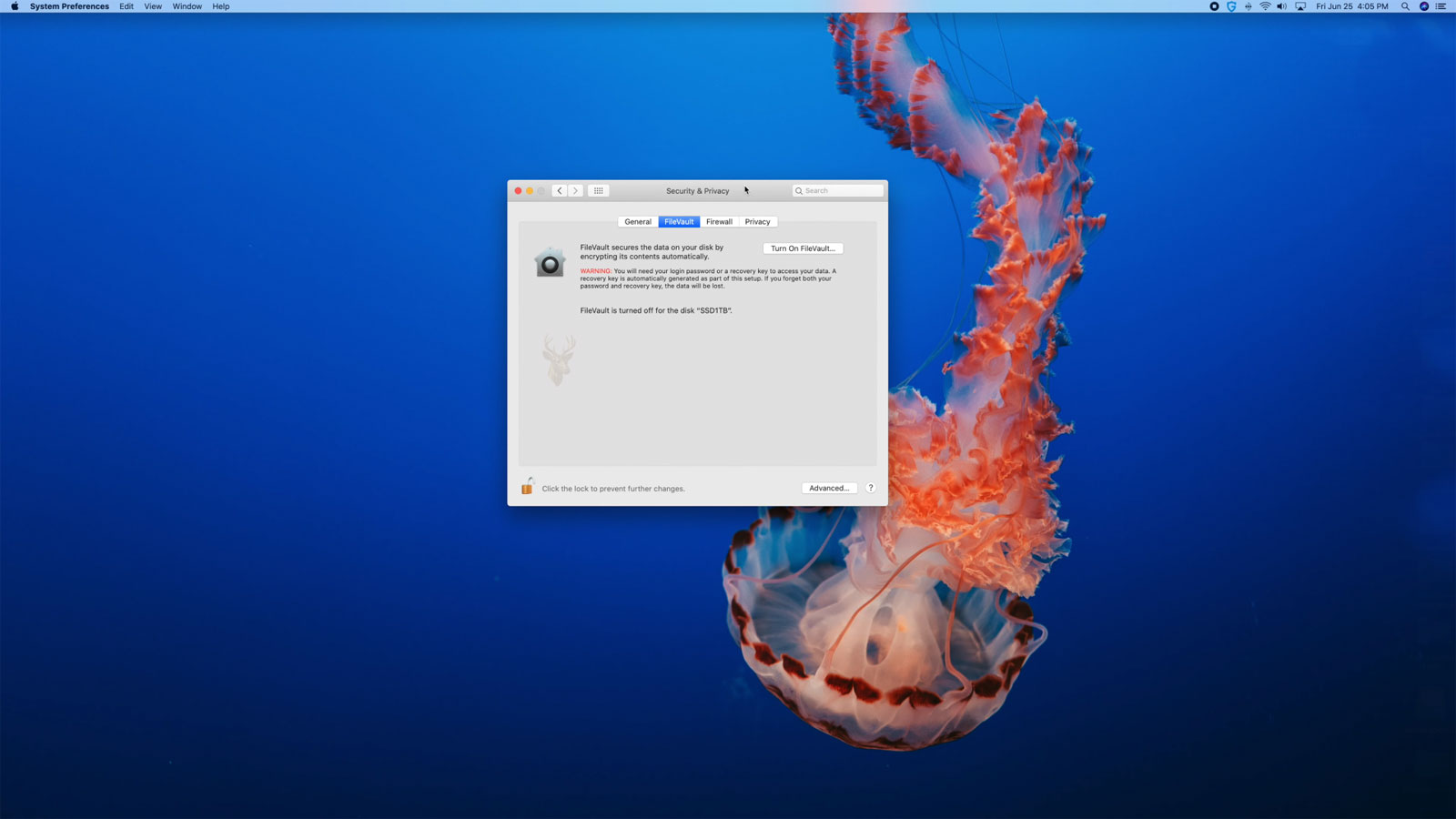
FileVault is the full-disk encryption system built into macOS. It protects information stored on a Mac by making the contents of the startup volume unreadable until an authorized user unlocks the disk. When FileVault works normally, the encryption process is largely invisible after the correct password is entered. When startup access fails, however, the Mac may reject a known password, request a recovery key, display only certain users, or refuse to unlock the volume even though the hardware still operates.
These symptoms can be confusing because the Mac login screen and the FileVault unlock screen may appear similar. Before macOS starts, the password is being used to unlock the encrypted storage volume. After the system loads, the password is used to sign in to the user account. In a normal configuration, the two steps are coordinated, but they are technically different operations.
Startup access problems can involve the account password, FileVault authorization records, recovery information, damaged disk structures, keyboard input, firmware settings, hardware replacement, or the secure components that protect encryption keys. The correct response depends on whether the Mac cannot accept the password, cannot unlock the volume, or cannot read the encrypted storage device reliably.
FileVault Protects the Startup Volume Rather Than Individual Files
FileVault encrypts the data stored on the Mac startup volume. Instead of protecting only selected documents, it applies encryption broadly to the operating system, user folders, applications, settings, temporary files, and other information contained within the protected volume.
The encrypted data cannot be interpreted correctly without the necessary unlocking information. Removing the drive and connecting it to another computer does not bypass FileVault. The storage may be detected physically while its contents remain unreadable.
| Protection Method | What It Generally Protects |
|---|---|
| FileVault | The Mac startup volume and the data stored within it |
| Encrypted disk image | Files placed inside a separately encrypted container |
| Password-protected document | One specific file or document type |
| Account password | Access to a macOS user account and, when authorized, the FileVault volume |
| Firmware or startup security | Changes to startup behavior and use of external boot devices |
These protections can exist together. A Mac may use FileVault for the entire startup volume while also containing individually encrypted files or applications with separate passwords.
Encryption Changes What Happens Before macOS Loads
On an unencrypted startup volume, the Mac can load much of the operating system before asking the user to sign in. With FileVault enabled, the storage must first be unlocked so macOS can read the protected system and user data.
This is why the first screen after startup may show a limited list of authorized users. Selecting one of those users and entering the correct password unlocks the disk. The Mac then continues loading macOS and completes the account login process.
- The Mac powers on and loads the preboot environment.
- The preboot screen displays users authorized to unlock FileVault.
- The entered password is used to release the encryption key.
- The startup volume becomes readable.
- macOS loads from the unlocked volume.
- The selected user account completes the sign-in process.
A failure at the first password screen can therefore prevent the operating system from loading at all, even when the user account itself still exists and the files remain intact.
The FileVault Unlock Screen Can Resemble the Normal Login Screen
The FileVault preboot screen often displays user icons and a password field that look similar to the regular macOS login screen. This similarity can make it difficult to determine whether the encrypted disk has already been unlocked.
At the preboot stage, only FileVault-enabled users may appear. Background services, accessibility options, network connections, and keyboard settings may also behave differently because the full operating system has not loaded.
| Screen Stage | Primary Purpose |
|---|---|
| FileVault preboot screen | Unlocks the encrypted startup volume |
| macOS login screen | Signs a user into the operating system |
| Password reset screen | Attempts to change account access using available recovery methods |
| Recovery environment | Provides disk, reinstall, terminal, and recovery utilities |
Knowing which screen is active is important because a password accepted at one stage may still fail at another if the account and FileVault records are no longer synchronized.
Only Authorized Users Can Unlock FileVault at Startup
A Mac can contain several user accounts, but not every account is automatically authorized to unlock FileVault. An account created after encryption is enabled may require separate approval before it appears on the startup unlock screen.
An unauthorized account may work normally after another user unlocks the Mac, yet remain absent before startup. This does not necessarily mean that the account has been deleted.
- An existing user may be enabled when FileVault is first configured.
- Additional users may require authorization later.
- Guest access may be restricted or behave differently under FileVault.
- Network accounts may not be able to unlock the local encrypted volume.
- Deleted or damaged authorization records can remove a user from the preboot list.
If one authorized user can unlock the Mac, other accounts may become available after macOS loads. If no authorized user can unlock the volume, recovery information may be required.
The Account Password and Encryption Key Are Linked but Not Identical
The user normally enters an account password, but that password does not directly decrypt every sector on the drive. It is used within a protected process that releases the encryption key needed to unlock the volume.
This distinction matters when a password is changed through an unusual method, restored from a backup, modified while the volume is mounted elsewhere, or reset without updating the FileVault authorization information. The account may accept the new password after startup while the preboot environment still expects the earlier credentials.
A password can be correct for the user account while no longer matching the information used to unlock the encrypted startup volume.
When the two records become unsynchronized, the Mac may reject the new password at startup or request the old one. The appropriate correction depends on whether another authorized account can still unlock the disk.
Password Changes Normally Update FileVault Authorization
When a password is changed through the standard macOS account settings, the system normally updates the information required for FileVault unlocking. The user continues entering the new password at startup without seeing a separate encryption prompt.
Problems are more likely when the password is reset rather than changed. A password change usually requires the current password, while a reset can replace the password without proving knowledge of the original one.
| Password Operation | General Effect |
|---|---|
| Standard password change | Usually updates account and FileVault access together |
| Password reset with another administrator | May change account access without updating all encryption records |
| Reset through recovery tools | May require additional FileVault authorization afterward |
| Directory or network password change | May not affect the local FileVault unlock password |
| Password restored from older system data | Can create mismatched records or keychain prompts |
A password reset can also separate the login password from the user’s keychain password. That issue affects saved credentials and application secrets, but it is separate from the ability to decrypt the startup volume.
The Previous Password May Still Unlock the Volume
When a recent password reset creates a mismatch, the previous password may still work at the FileVault screen. After the disk unlocks, macOS may accept the new account password or prompt for additional credential updates.
This does not mean that the reset failed completely. It indicates that the preboot authorization information may still be tied to the older password.
- Record whether the problem began immediately after a password change or reset.
- Test the previous password only when it is known and authorized.
- Confirm whether another FileVault-enabled user can unlock the Mac.
- Avoid repeated random password attempts that provide no diagnostic value.
- Do not erase the Mac solely because one password is rejected.
If the previous password unlocks the disk, the FileVault user record can often be updated from within macOS after access is restored.
A Recovery Key Provides an Alternate Unlock Method
When FileVault is enabled, a recovery method is established in case the authorized account password cannot unlock the volume. Depending on the macOS version and configuration, this may involve a personal recovery key, an institutional recovery key, an Apple account, or management through an organization.
A personal recovery key is a long code generated for the encrypted Mac. It should be stored separately from the computer. Anyone with access to a valid recovery key may be able to unlock the protected volume, so it must be treated as sensitive information.
| Recovery Method | General Use |
|---|---|
| Personal recovery key | Allows the owner to unlock FileVault when the user password is unavailable |
| Institutional recovery key | Allows an authorized organization to recover managed Macs |
| Apple account recovery | May support password or disk access recovery when previously configured |
| Another FileVault-enabled user | Can unlock the volume and permit access to additional accounts |
| Device-management escrow | Stores recovery information for managed business or school systems |
The availability of one method should not be assumed. Recovery options depend on how FileVault was originally configured and whether the associated records remain accessible.
A Recovery Key Cannot Be Reconstructed From the Encrypted Data
A lost personal recovery key cannot ordinarily be calculated from the contents of the encrypted drive. The encryption is specifically designed to prevent unauthorized access without valid unlocking information.
If no authorized password, valid recovery key, Apple account method, institutional key, or managed recovery record is available, the data may remain permanently inaccessible even when the storage hardware is healthy.
Encryption can preserve privacy even when the absence of recovery information prevents the rightful owner from accessing the data.
This is why recovery information should be verified before a password problem or hardware failure occurs. A recovery key that was never recorded, was copied incorrectly, or belongs to another Mac cannot provide access.
Recovery Keys Must Match the Specific Encrypted Volume
A person who owns several Macs may have several different FileVault recovery keys. The keys are not interchangeable. Each encrypted volume has its own recovery relationship.
Entering a valid-looking key from another Mac will not unlock the affected drive. Labels, serial numbers, asset records, or secure key inventories can help match each recovery key to the correct device.
- Record the Mac model or serial number with the recovery key.
- Store the key outside the encrypted Mac.
- Avoid placing the only copy inside the protected volume.
- Verify the characters carefully because similar symbols can be misread.
- Update organizational records when a Mac is reassigned or erased.
A recovery key should never be published, included in ordinary support notes, or shared with an unauthorized person.
Keyboard Input Problems Can Look Like Password Failure
The FileVault preboot environment may use a different keyboard layout or provide fewer input options than the fully loaded operating system. A password containing symbols, capitalization, or characters affected by keyboard layout can therefore be entered incorrectly even when the user remembers it accurately.
Wireless keyboards may also behave differently before macOS loads. A Bluetooth keyboard that normally works after login may not connect early enough for the FileVault screen, while a built-in or wired keyboard may work correctly.
| Input Symptom | Possible Cause |
|---|---|
| Password fails only at startup | Keyboard layout or FileVault credential mismatch |
| Some keys do not respond | Keyboard hardware, connection, or preboot support problem |
| Symbols appear incorrect | Different keyboard language or layout |
| External Bluetooth keyboard is unavailable | The keyboard may not pair before macOS loads |
| Caps Lock changes unexpectedly | Capitalization is altering the entered password |
Testing a known-compatible wired keyboard can separate an input problem from an encryption or account problem. Passwords should not be changed until basic keyboard behavior has been confirmed.
The Preboot User List Can Become Out of Date
The user icons displayed before FileVault unlock are generated from information stored in the preboot environment. In some cases, this information does not update correctly after an account is renamed, enabled, disabled, migrated, or restored.
A user may exist in macOS but fail to appear at startup. An old user name or icon may remain visible even though the account has changed.
- A newly authorized user does not appear before startup.
- A removed account remains visible on the unlock screen.
- The displayed account name differs from the current macOS name.
- The correct password works only through another authorized user.
- Preboot information fails to refresh after a system migration.
Updating the preboot records may correct the displayed user list, but this should be performed only after the encrypted volume has been unlocked and the actual account configuration has been verified.
Account Renaming Can Affect More Than the Visible Name
A macOS account has a visible full name, a short account name, a home-folder location, and internal identifiers. Changing only one of these values incorrectly can create login, permission, home-folder, or FileVault authorization problems.
The name displayed at the FileVault screen may not update immediately after an account rename. The password may still unlock the disk because the underlying authorization record remains connected to the same user identifier.
Renaming should not be used as a troubleshooting experiment when startup access is already uncertain. Incorrect changes can add account problems to an existing encryption issue.
A Password Hint Does Not Unlock the Encrypted Volume
A password hint may help the user remember an account password, but it is not an alternate credential and cannot decrypt the FileVault volume. It should also avoid revealing the password directly or exposing sensitive personal information.
On some systems, repeated failed attempts may display recovery options or a hint. The exact behavior depends on the macOS version, account configuration, and recovery method selected when FileVault was enabled.
If the hint does not help, continued guessing may create confusion without improving access. Available recovery keys, authorized users, and account records should be reviewed before more invasive actions are considered.
Repeated Password Attempts Do Not Repair FileVault Records
Entering the same rejected password repeatedly does not synchronize a damaged authorization record or repair an unreadable encrypted volume. The attempts are useful only when checking capitalization, keyboard layout, or a small number of known credentials.
If the Mac pauses for a long time after each attempt, the delay may reflect security controls, storage problems, or difficulty reading the volume. Continuing indefinitely can obscure the original symptoms.
- Confirm the keyboard is entering expected characters.
- Determine whether the screen is FileVault preboot or normal login.
- Try the current known password carefully.
- Consider the previous password when a recent reset occurred.
- Check for another authorized FileVault user.
- Locate the correct recovery key or managed recovery record.
- Stop and evaluate storage health if the Mac freezes, disconnects, or reports disk errors.
A structured approach reduces the risk of treating a hardware or disk-structure problem as a simple forgotten password.
Recovery Mode Can Confirm Whether the Encrypted Volume Is Detected
macOS Recovery provides access to disk utilities and recovery tools without requiring a normal startup. On a FileVault-enabled Mac, the encrypted startup volume may appear in Recovery while remaining locked.
If the physical storage device and its container are detected with the expected capacity, the problem may involve unlocking, file-system damage, or startup configuration rather than complete hardware disappearance. If the storage device is missing entirely, hardware or connection failure becomes a greater concern.
| Recovery Observation | Possible Direction |
|---|---|
| Internal drive appears with correct capacity | The storage hardware is at least being detected. |
| Encrypted volume appears but remains locked | A valid password or recovery method is still required. |
| Volume unlocks but will not mount | File-system or container damage may be involved. |
| Drive is absent | Hardware, controller, connection, or logic-board failure may be present. |
| Capacity is incorrect | Storage or controller-level instability may require further analysis. |
Recovery Mode can provide useful evidence, but it does not bypass FileVault. An encrypted volume must still be unlocked before its protected contents can be accessed.
Disk Utility May Show Several Layers of Encrypted Storage
Modern Macs commonly use APFS, which organizes storage through physical stores, containers, and volumes. Disk Utility may therefore display several related items rather than one simple partition.
The physical device contains an APFS container, and the container can hold several volumes for the operating system, user data, recovery functions, virtual memory, and preboot information. FileVault protection is applied within this layered structure.
- The physical storage device represents the hardware.
- The APFS container manages shared storage space.
- The system volume contains protected operating-system files.
- The data volume contains writable applications, settings, and user information.
- Preboot and recovery volumes support startup and repair functions.
Viewing only volumes can hide the physical device or container from the Disk Utility sidebar. Showing all devices provides a clearer picture of which layer is detected, locked, damaged, or missing.
APFS Volume Groups Separate System and User Data
Recent macOS versions divide the startup environment into related system and data volumes. The system volume contains protected operating-system components, while the data volume contains user accounts, applications, and writable information.
These volumes are linked as a volume group and normally appear to the user as one startup disk. If the relationship between them is damaged, the Mac may fail to start even though both volumes remain visible.
| APFS Component | General Role |
|---|---|
| System volume | Stores protected macOS system files |
| Data volume | Stores user data, applications, and writable settings |
| Preboot volume | Contains files needed before the encrypted system starts |
| Recovery volume | Provides recovery and repair utilities |
| VM volume | Supports swap and sleep-related storage |
Reinstalling macOS can repair the system volume in some cases, but it does not automatically correct damaged encryption metadata or guarantee access to the associated data volume.
An Unlocked Volume Can Still Fail to Mount
FileVault unlocking and file-system mounting are separate stages. A password or recovery key may successfully decrypt the volume while macOS still cannot mount it because the APFS structures are damaged.
In that condition, Disk Utility may show the volume as unlocked but unavailable. First Aid may report errors involving the container, volume group, object map, snapshots, or other APFS metadata.
- The password is accepted but startup does not continue.
- The volume changes from locked to unlocked without appearing in Finder.
- Disk Utility reports that the volume cannot be mounted.
- Recovery tools detect the user data but cannot access folders normally.
- APFS verification reports structural inconsistencies.
This distinction prevents a file-system problem from being mistaken for an incorrect password. The encryption layer may be functioning even though the logical storage structure is damaged.
First Aid Can Modify File-System Structures
Disk Utility First Aid checks and attempts to repair APFS or other file-system structures. It can correct some inconsistencies that prevent a volume from mounting or starting normally.
However, repair operations can change metadata. If the data is important and the storage device may be failing, preserving a copy before repeated repair attempts is safer than treating First Aid as a risk-free diagnostic command.
| Condition | Consideration Before First Aid |
|---|---|
| Volume is healthy but will not mount after improper shutdown | A repair may correct limited logical damage. |
| Drive disconnects or reports read errors | Imaging or hardware evaluation should take priority. |
| Important data has no backup | Preserve the source before repeated repairs when possible. |
| Encryption credentials are unavailable | First Aid cannot bypass FileVault. |
| APFS container is severely damaged | Specialized recovery may be required. |
A repair that makes the volume mountable may restore access, but it does not prove that every file remains intact.
Apple Silicon Macs Tie Encryption Closely to the Internal Hardware
On Apple silicon Macs, storage encryption is closely integrated with the secure hardware and startup process. The internal storage components are not designed to function as independently removable drives in the same way as many older computers.
Encryption keys are protected through the Secure Enclave and device-specific hardware. If the logic board fails, ordinary removal of storage chips does not provide straightforward access to readable files.
- The internal storage is integrated with the logic board.
- Device-specific security components protect encryption keys.
- A replacement logic board does not automatically unlock data from the original one.
- Removing storage components is not equivalent to removing a standard SSD.
- Data recovery may depend on restoring enough original hardware functionality to unlock the volume.
This architecture improves security but reduces the number of recovery paths available after severe logic-board damage.
The T2 Security Chip Also Affects Intel Mac Recovery
Some Intel-based Macs include Apple’s T2 Security Chip. These systems use integrated security and storage encryption features that make the internal drive dependent on the original logic board and security configuration.
Even when FileVault appears to be disabled at the user level, the internal storage may still use hardware-based encryption. FileVault adds user-controlled protection to the keys required for startup access.
| Mac Type | Recovery Characteristic |
|---|---|
| Older Intel Mac with removable drive | The storage device may be connected to another compatible system. |
| Intel Mac with T2 chip | Internal storage access is closely tied to the original security hardware. |
| Apple silicon Mac | Storage and encryption are integrated with the system-on-chip architecture. |
The exact recovery method depends on the Mac model. Procedures appropriate for an older removable SATA drive may be ineffective or unsafe on a T2 or Apple silicon system.
Logic-Board Replacement Can Make Original Data Unavailable
Replacing a failed logic board may restore the Mac to working condition, but it can separate the internal storage from the hardware that protected its encryption keys. On systems with integrated storage, the original data may remain tied to the damaged board.
A replacement board generally creates a different security identity. It does not inherit the original Secure Enclave, encryption keys, or FileVault authorization relationship.
Restoring the computer to operation and recovering the data from its original hardware may be two different objectives.
When files are important, the data-recovery implications should be considered before authorizing logic-board replacement or exchange service.
Target Disk Mode Has Different Limits on Encrypted Macs
Target Disk Mode allows certain Intel Macs to present their storage to another Mac through a supported connection. On a FileVault-protected system, the receiving Mac still requires valid unlocking credentials before it can access the encrypted volume.
If the source Mac has storage, firmware, or logic-board problems, Target Disk Mode may not initialize successfully. A detected volume may remain locked or fail to mount.
- The source Mac must support the required startup mode.
- The connection cable and interface must be compatible.
- The encrypted volume still requires authorization.
- File-system corruption can prevent mounting after unlock.
- Hardware failure may stop the source Mac from presenting the drive.
Target Disk Mode is an access method, not an encryption bypass or a repair for damaged storage.
Share Disk Replaces Target Disk Mode on Apple Silicon
Apple silicon Macs use a Recovery feature commonly called Share Disk to make an internal volume available to another Mac over a supported USB connection. The source Mac must start into Recovery and successfully identify the volume.
The encrypted volume must be unlocked before its files can be shared. If the Mac cannot reach Recovery, the storage is not detected, or valid credentials are unavailable, Share Disk cannot provide access.
| Access Method | Typical Platform | Main Requirement |
|---|---|---|
| Target Disk Mode | Supported Intel Macs | The Mac must present its storage through a supported interface. |
| Share Disk | Apple silicon Macs and some modern recovery environments | The Mac must enter Recovery and unlock the selected volume. |
| External drive connection | Older Macs with removable storage | The drive and adapter must be compatible, and FileVault credentials are still required. |
These methods can support file transfer when the normal operating system will not start, but neither method substitutes for valid decryption information.
Migration Assistant Cannot Read a Locked FileVault Volume
Migration Assistant can transfer accounts, applications, settings, and files from another Mac, backup, or startup disk. The source volume must be accessible before migration can begin.
If the source is protected by FileVault, it must first be unlocked with an authorized password or recovery method. Migration Assistant cannot extract user data from a volume that remains cryptographically locked.
- A recognized and unlocked source volume is required.
- File-system damage may interrupt or prevent migration.
- A user account can migrate while retaining old password-related records.
- Keychain passwords may differ after account-password resets.
- Migration does not replace a missing FileVault recovery key.
When the source volume is unstable, copying the most important files directly may be safer than attempting a complete migration immediately.
Time Machine Backups Have Their Own Encryption Status
FileVault protects the Mac’s startup volume, but it does not automatically guarantee that every external backup is encrypted. Time Machine backup encryption is configured separately.
An encrypted Time Machine backup requires its own password. That password may differ from the Mac login password and the FileVault recovery key.
| Credential | What It May Unlock |
|---|---|
| Mac account password | The user account and authorized FileVault startup access |
| FileVault recovery key | The encrypted startup volume |
| Time Machine encryption password | An encrypted backup disk or backup set |
| Apple account password | Account services and certain configured recovery options |
| Keychain password | Saved passwords and protected application credentials |
Confusing these credentials can lead to the mistaken conclusion that a valid password is being rejected. Each password should be matched to the system it was created to protect.
A Recent Backup Can Be More Useful Than Repairing the Original Volume
When the encrypted startup volume is damaged but a current backup exists, restoring the Mac from that backup may be safer and faster than attempting extensive repairs on the original storage.
The backup should be verified before the original Mac is erased. A listed backup date does not guarantee that every required file is present or that the backup can be unlocked.
- Confirm that the backup device is detected.
- Verify the backup password when encryption is enabled.
- Review the most recent successful backup date.
- Check whether important folders and accounts are included.
- Preserve the original Mac until the restored data has been reviewed.
A backup changes the recovery priority from preserving the only copy to confirming which version of the data is most complete.
Reinstalling macOS Does Not Remove FileVault Encryption
Reinstalling macOS over an existing startup volume is intended to replace system files while preserving compatible user data. The volume must still be detected and unlocked before installation can proceed normally.
A reinstall does not bypass a forgotten FileVault password or recovery key. It also cannot repair severe APFS damage simply by replacing operating-system files.
- The installer may request credentials to unlock the disk.
- The volume must mount successfully before installation.
- User data may remain encrypted throughout the process.
- A reinstall can correct damaged system files but not missing encryption keys.
- Erasing the disk removes the encrypted data rather than recovering access to it.
The distinction between reinstalling and erasing is critical. Reinstalling attempts to preserve existing data, while erasing destroys the current volume structure and creates a new one.
Erasing the Mac Restores Usability but Not the Encrypted Files
If no valid unlocking method exists, the Mac can often be erased and configured again. This returns the computer to service but permanently abandons the inaccessible encrypted data.
Erasure should be considered only after available passwords, recovery keys, Apple account options, managed records, backups, and hardware-recovery paths have been reviewed.
Erasing an encrypted Mac solves the access problem by removing the protected data, not by decrypting it.
When the files are replaceable and the computer is the priority, erasure may be practical. When the files are unique, the original state should be preserved until recovery options are exhausted.
Activation Lock and FileVault Are Separate Protections
Activation Lock is connected to Apple’s device-ownership and account-security systems. FileVault protects the contents of the startup volume. A Mac can encounter one protection without the other.
Unlocking FileVault does not remove Activation Lock, and satisfying Activation Lock does not decrypt the FileVault volume. Different credentials and recovery processes may be required.
| Protection | Primary Purpose |
|---|---|
| FileVault | Prevents unauthorized reading of stored data |
| Activation Lock | Discourages unauthorized reuse of the device |
| Login password | Controls access to a local user account |
| Startup Security settings | Controls permitted startup sources and security policies |
Correctly identifying the active protection prevents account-ownership issues from being confused with encrypted-storage failure.
Managed Macs May Store Recovery Keys With an Organization
Business and school Macs may be managed through device-management systems that escrow FileVault recovery keys. The user may never have received a personal copy because the organization retains the key for authorized recovery.
When a managed Mac cannot unlock, the asset record, device serial number, assigned user, and management status should be checked before the system is erased.
- The recovery key may be stored in a device-management platform.
- An institutional key may be maintained by authorized administrators.
- The Mac may need network or account verification after unlocking.
- Removing management does not automatically decrypt inaccessible data.
- Retired-device records may still contain the required recovery information.
Organizational recovery procedures should protect the key from unauthorized disclosure while allowing legitimate access when ownership is verified.
FileVault Status Should Be Verified Before Major Service
Before logic-board work, storage repair, account migration, operating-system replacement, or other major service, the Mac’s encryption status and recovery options should be documented.
A Mac that starts normally before service may become inaccessible afterward if the only known password was incorrect, the recovery key was never recorded, or hardware replacement separates the storage from its original security components.
- Confirm whether FileVault is enabled.
- Verify that at least one authorized user password works.
- Locate and validate the appropriate recovery method.
- Confirm that current backups can be accessed.
- Document the Mac model and hardware architecture.
- Consider data recovery before replacing security-dependent hardware.
These checks reduce the risk that a repairable computer problem becomes an unrecoverable data-access problem.
Safe Mode Does Not Bypass FileVault
Safe Mode starts macOS with a reduced set of extensions, background items, and system components. It can help identify software conflicts after the encrypted volume has been unlocked, but it does not provide an alternate path around FileVault.
The Mac must still accept an authorized password or recovery method before Safe Mode can load from the protected startup volume. A failure at the FileVault screen therefore occurs before the diagnostic benefits of Safe Mode become available.
- Safe Mode may help after the volume unlocks successfully.
- It can reduce interference from login items and third-party extensions.
- It cannot replace a missing recovery key.
- It cannot decrypt a volume with damaged or unavailable encryption metadata.
- It does not correct physical storage failure.
If the password is accepted and the Mac then freezes or restarts during startup, Safe Mode may help separate an operating-system problem from an encryption problem. If the password is rejected before the volume unlocks, Safe Mode is not yet part of the troubleshooting process.
Startup Security Settings Can Affect External Recovery Options
Some Macs restrict startup from external media or require authorized changes before alternate operating systems and recovery tools can be used. These controls are separate from FileVault but can affect how the encrypted Mac is examined.
A technician may have a valid external recovery drive, yet the Mac may refuse to start from it because external booting is disabled. Changing the startup security policy may itself require administrator or owner authorization.
| Startup Control | Possible Effect |
|---|---|
| External boot disabled | The Mac refuses to start from a USB or Thunderbolt recovery device. |
| Reduced security unavailable | Certain diagnostic or recovery environments may not load. |
| Firmware password present | Startup-device changes may require an additional password. |
| Owner authorization required | Security-policy changes may depend on a valid authorized account. |
These restrictions do not necessarily indicate storage failure. They define which recovery methods the Mac permits before the operating system loads.
A Firmware Password Is Not a FileVault Password
Older Intel Macs may use a firmware password to prevent unauthorized startup from alternate devices or entry into certain startup modes. This password is separate from the user password and FileVault recovery key.
A correct FileVault password may unlock the encrypted volume while a firmware password still prevents access to Recovery, Target Disk Mode, or another startup disk. The reverse can also occur: the firmware password may be known while the FileVault volume remains locked.
Knowing one startup-related password does not imply that the other security layers can also be unlocked.
Identifying which prompt is being displayed avoids unnecessary password resets and protects against erasing a Mac because the wrong security layer was being addressed.
Remote Assistance Has Limits Before FileVault Unlock
Remote-support software normally runs inside macOS. It cannot connect before the encrypted startup volume has been unlocked and the operating system has loaded sufficiently to start networking and background services.
A user who is stuck at the FileVault screen may receive verbal guidance remotely, but the technician cannot ordinarily take control of the screen through standard remote-access software.
- The network may not be fully available at the preboot stage.
- Remote-access applications have not started yet.
- Screen-sharing permissions are not active.
- The user must enter sensitive credentials locally.
- Hardware symptoms cannot always be evaluated accurately from a verbal description.
This limitation is intentional. FileVault protects the Mac before ordinary remote software and user-level services become active.
Repeated Restarts Can Indicate More Than an Incorrect Password
A Mac that accepts the password and then restarts may be unlocking FileVault successfully but failing during the next stage of startup. The cause could involve APFS damage, an incomplete update, failing storage, incompatible system software, or a problem with the system volume.
The timing of the restart is important. An immediate rejection at the password field points toward credentials or input. A restart after a progress bar begins suggests that the volume may have unlocked and that the failure occurs while macOS is loading.
| Observed Timing | Possible Interpretation |
|---|---|
| Password rejected immediately | Credential, keyboard, authorization, or preboot-record problem |
| Password accepted and progress bar appears | The encrypted volume may have unlocked successfully |
| Restart occurs partway through loading | System, file-system, update, or hardware problem may follow unlock |
| Long pause before rejection | Storage reading or security processing may be delayed |
| Mac powers off unexpectedly | Power, thermal, battery, or logic-board failure may be involved |
Separating the unlock stage from the operating-system startup stage prevents a later failure from being mistaken for a FileVault password problem.
An Interrupted macOS Update Can Damage Preboot Information
macOS updates can modify the system volume, snapshots, recovery environment, and preboot records. If the process is interrupted, the Mac may display outdated user information, fail to locate the correct startup system, or stop after FileVault unlock.
The encrypted user data may remain intact while the system components needed to complete startup are inconsistent. Recovery Mode may still detect and unlock the data volume even though normal startup fails.
- The FileVault screen appears different after the update.
- A user icon disappears or an older name returns.
- The password is accepted but startup never completes.
- The Mac repeatedly attempts to install the update.
- Recovery reports problems with the system volume or snapshot.
In this situation, reinstalling macOS may repair system components if the encrypted volume can be unlocked and mounted. Important files should still be protected before structural repairs are attempted.
APFS Snapshots Can Affect Startup Without Removing User Data
APFS snapshots preserve a point-in-time view of a volume and are used by modern macOS update and recovery processes. A damaged or inconsistent startup snapshot can prevent the Mac from loading the expected system state.
The data volume may remain accessible after FileVault unlock even when the selected system snapshot cannot start. This can create a condition where the Mac fails to boot but files can still be copied through Recovery or another supported access method.
Snapshot-related repair should not be confused with decrypting the volume. FileVault access is still required before the protected APFS structures can be examined.
A Damaged Preboot Volume Can Hide Valid FileVault Users
The APFS preboot volume stores information needed to present authorized users and begin unlocking the encrypted startup volume. If that information becomes damaged or outdated, valid users may be missing from the startup screen.
The main encrypted data volume may still contain the correct accounts and files. Once access is obtained through another authorized user or recovery method, the preboot information may be rebuilt or refreshed.
| Preboot Symptom | Possible Condition |
|---|---|
| One authorized user is missing | The preboot user record may not have updated. |
| Old account name remains visible | Cached preboot information may be outdated. |
| No normal users appear | Preboot data may be damaged or the volume may not be detected correctly. |
| User appears but password no longer works | Credential synchronization or keyboard input may be involved. |
Rebuilding preboot information should follow verification of the actual user accounts and encryption status. It should not be attempted blindly on an unstable storage device.
Keychain Errors Can Appear After FileVault Access Is Restored
After a password reset or account recovery, the Mac may successfully unlock FileVault and sign in while continuing to request an older password for the login keychain. The keychain stores saved website credentials, wireless passwords, certificates, and application secrets.
The keychain is protected separately from the FileVault volume. Resetting the account password without the previous password may leave the old keychain locked.
- FileVault may unlock with the updated account password.
- The login keychain may still require the previous password.
- Creating a new keychain restores future password storage but not old secrets.
- Deleting an inaccessible keychain does not decrypt its saved contents.
- Keychain prompts do not necessarily indicate that FileVault is still locked.
These post-login prompts should be handled separately from the original startup-access problem.
Multiple Failed Passwords Can Reflect an Incorrect Keyboard Layout
A password that contains punctuation, numbers, or special symbols can fail repeatedly when the preboot environment uses a different keyboard layout. The user may type the correct physical keys while different characters are being entered.
This is especially relevant after changing the preferred language, replacing the keyboard, migrating from another Mac, or using a keyboard designed for another region.
- Check the language or keyboard indicator when one is available.
- Verify Caps Lock status.
- Test the built-in keyboard when possible.
- Use a compatible wired keyboard if the built-in keyboard is damaged.
- Consider whether the password includes characters whose positions differ between layouts.
A keyboard test should occur before resetting passwords or assuming that the recovery key is invalid.
Battery and Power Problems Can Interrupt the Unlock Process
A Mac with an unstable battery, charging circuit, or power adapter may shut down while FileVault is unlocking or while macOS is loading. The resulting behavior can resemble an encryption failure because the system never reaches the desktop.
Power instability can also contribute to file-system damage if shutdowns occur while the volume is being updated. A known-good power source should be used during recovery, especially when the battery cannot maintain the computer independently.
| Power Symptom | Possible Concern |
|---|---|
| Mac shuts off during progress bar | Battery, adapter, charging, thermal, or logic-board problem |
| Mac works only with charger attached | Battery may not support startup load |
| Power cycles repeatedly | Hardware failure may be interrupting the unlock or startup process |
| Charging indicator changes unexpectedly | Adapter, cable, port, or power-management problem |
Encryption should not be blamed for symptoms caused by the computer losing power before startup completes.
Storage Failure Can Prevent Correct Credentials From Working Reliably
FileVault depends on the Mac being able to read encryption metadata, APFS structures, and protected key information from storage. If those areas contain read errors, a valid password may fail because the required data cannot be retrieved correctly.
An older Mac with a failing hard drive may become extremely slow at the unlock screen, freeze after the password is entered, or work intermittently. A solid-state drive can also fail electronically or develop unreadable regions.
- The password sometimes works and sometimes fails.
- The progress bar remains at the same position for an unusually long time.
- The storage device disappears from Recovery intermittently.
- Disk Utility reports input-output or hardware errors.
- The Mac becomes slower with each startup attempt.
When storage instability is suspected, repeated repair and password attempts should stop. Preserving readable data becomes more important than forcing a normal startup.
A Practical Sequence for Evaluating FileVault Startup Access
A structured evaluation separates input problems, credential problems, preboot issues, file-system damage, and hardware failure. The sequence should begin with observations that do not alter the encrypted volume.
- Identify the exact Mac model and whether it uses Apple silicon, a T2 chip, or older removable storage.
- Determine whether the screen is the FileVault preboot screen or the normal macOS login screen.
- Confirm that the keyboard enters expected characters and uses the correct layout.
- Try the known current password carefully.
- Consider the previous password if a recent reset or unusual change occurred.
- Check whether another FileVault-authorized user is available.
- Locate the correct personal, institutional, managed, or account-based recovery method.
- Start into Recovery and confirm whether the physical storage and APFS container are detected.
- Determine whether the volume is locked, unlocked but unmounted, or missing entirely.
- Evaluate storage stability before running repairs.
- Confirm whether a current and accessible backup exists.
- Preserve the original state before erasing, replacing the logic board, or modifying file-system structures.
This order avoids treating every startup prompt as a forgotten password and reduces the risk of destroying an accessible copy of encrypted data.
When Account Recovery Is the Primary Problem
Account recovery is the likely priority when the Mac detects the encrypted volume normally, the keyboard works correctly, the storage appears stable, and the main difficulty is identifying an authorized password or recovery method.
- The Mac reaches the FileVault screen consistently.
- The internal storage appears with the correct capacity in Recovery.
- No disk or hardware errors are reported.
- The problem began after a forgotten or reset password.
- Another authorized user or recovery key may still exist.
In this condition, preserving account records, recovery keys, managed-device information, and previous credentials is more important than running disk repairs.
When Storage Recovery Becomes the Primary Problem
Storage recovery takes priority when the drive is missing, intermittently detected, incorrectly sized, unable to mount after successful unlock, or reporting serious APFS and input-output errors.
A valid password cannot compensate for unreadable encryption metadata or failing hardware. The objective may need to shift from normal startup to preserving the encrypted volume and recovering files through controlled methods.
| Condition | Primary Direction |
|---|---|
| Password rejected but disk appears healthy | Review authorization, keyboard input, and recovery credentials. |
| Password accepted but volume will not mount | Evaluate APFS and file-system integrity. |
| Drive disappears or reports read errors | Prioritize hardware evaluation and data preservation. |
| Logic board has failed on an integrated-storage Mac | Preserve and repair original hardware when data is important. |
| Reliable backup exists | Verify the backup before deciding whether original-volume repair is necessary. |
When Erasure Is a Reasonable Final Option
Erasing the Mac can be reasonable when the encrypted data is replaceable, a verified backup exists, no valid unlocking method can be found, or the priority is returning the hardware to service rather than recovering the original files.
The decision should be made only after confirming that the correct passwords, recovery keys, Apple account options, managed records, and backups have been reviewed. Once the encrypted volume is erased, later discovery of the correct key will not restore the removed data.
Erasure is a decision to abandon the protected contents, not a method of unlocking them.
Preventing Future FileVault Access Problems
FileVault is most reliable when passwords, recovery information, backups, and hardware records are maintained before a failure occurs. The encryption itself may continue working exactly as designed even when poor recordkeeping makes legitimate access difficult.
- Store the recovery key securely outside the Mac.
- Label recovery records with the correct serial number or asset identifier.
- Verify that more than one authorized recovery path exists when appropriate.
- Maintain a current backup and confirm that its password is known.
- Use standard macOS tools when changing account passwords.
- Review FileVault authorization after adding or removing users.
- Document encryption status before logic-board replacement or major service.
- Test backup restoration before the original Mac becomes inaccessible.
For managed computers, recovery keys should be escrowed securely and matched to accurate device records. For personal Macs, the recovery key and backup password should not exist only inside the encrypted computer.
Understanding What FileVault Can and Cannot Protect
FileVault is designed to prevent unauthorized access to data stored on a Mac. It remains effective when the computer is lost, stolen, or its storage is connected to another system. That same protection means there may be no practical way to recover the files when all valid credentials and recovery information are lost.
A startup-access problem does not always mean the data is gone. The issue may involve a keyboard layout, an outdated preboot record, a recently reset password, a missing authorized user, a damaged APFS structure, or failing hardware. Careful diagnosis determines whether the next step should focus on credentials, file-system repair, hardware preservation, backup restoration, or erasure.
The safest approach is to identify the exact stage at which startup fails, avoid unnecessary changes to the encrypted volume, confirm all available recovery methods, and preserve the original hardware when the files cannot be replaced. FileVault provides strong protection, but successful recovery depends on maintaining both the encrypted storage and the information required to unlock it.











