
The Disk Structures That Tell a Computer Where Stored Volumes Begin and End
A storage drive can contain large amounts of intact data while appearing empty, unallocated, or inaccessible to the operating system. This can happen when the structures describing the drive’s partitions are damaged, deleted, or interpreted incorrectly. The files may still exist physically on the storage media even though the computer no longer knows where the volume begins, where it ends, or which file system should be used to read it.
Partition tables provide part of this organizational information. They divide a physical drive into defined regions and record details that allow the operating system to locate those regions. When the information is correct, the partitions can be recognized and mounted as usable volumes. When it is missing or inconsistent, a previously available drive letter or storage volume may disappear.
A missing partition is not always the same as a deleted partition, and neither condition automatically means that all files have been erased. Understanding the difference is important because the safest recovery approach depends on whether the problem involves partition metadata, file-system damage, hardware failure, or actual overwriting of stored data.
A Physical Drive and a Volume Are Not the Same Thing
A physical drive is the hardware device that stores information. A volume is a defined storage area that the operating system can format, name, mount, and present to the user. One physical drive may contain a single volume or several separate volumes.
For example, a one-terabyte drive can be organized as one large partition, or it can be divided into several smaller partitions for different operating systems, recovery tools, or data categories. The hardware remains one device even though the computer presents several distinct storage locations.
| Storage Term | General Meaning |
|---|---|
| Physical drive | The actual SSD, hard drive, flash device, or other storage hardware |
| Partition | A defined region of space on a physical drive |
| Volume | A storage area that can contain a file system and be mounted for use |
| File system | The structure that organizes folders, file names, allocation, and metadata |
| Drive letter | A Windows identifier assigned to a mounted volume |
These terms are related but not interchangeable. A drive letter can disappear while the partition remains intact, and a partition can remain defined while its file system becomes unreadable.
What a Partition Table Records
A partition table acts as a map of the defined regions on a drive. It records where partitions begin, how large they are, and certain information about their intended use. The operating system consults this map before attempting to read the file systems stored inside those regions.
- The starting location of each partition.
- The approximate size or ending location of each partition.
- The partition type or identifying code.
- Flags that may indicate boot or system use.
- References needed to locate additional partition information.
The partition table does not normally contain every file name or folder. Those details are stored inside the file system located within the partition. Damage to the partition map can therefore hide a volume without immediately destroying the file-system structures or file contents inside it.
Losing the map to a storage region is not necessarily the same as losing everything stored inside that region.
MBR and GPT Use Different Partitioning Structures
Two widely used partitioning formats are the Master Boot Record and the GUID Partition Table. They organize partition information differently and have different limitations, compatibility considerations, and recovery characteristics.
The Master Boot Record, commonly called MBR, stores primary partition information near the beginning of the drive. It was designed for older computer systems and remains in use on many legacy installations and removable devices.
The GUID Partition Table, commonly called GPT, is associated with modern UEFI-based systems. It supports larger drives, more partitions, and redundant copies of important partition information.
| Characteristic | MBR | GPT |
|---|---|---|
| General age | Older partitioning standard | Modern partitioning standard |
| Typical firmware association | Legacy BIOS | UEFI |
| Primary partition limit | Usually four without extended partition structures | Supports many partitions directly |
| Large-drive support | Limited compared with GPT | Designed for very large drives |
| Partition metadata redundancy | Limited | Includes primary and backup partition information |
The presence of backup GPT information can improve recovery possibilities in some cases, but it does not guarantee that a damaged drive can be repaired automatically. Both the primary and backup structures can be corrupted, overwritten, or made inconsistent.
A Missing Volume May Still Have an Intact Partition Entry
A volume can disappear from File Explorer even though its partition remains listed correctly. Windows normally assigns drive letters to accessible volumes, but that assignment can be removed, changed, or blocked.
In this condition, the partition may still appear in Disk Management with the expected size and file system. Restoring the correct drive letter may make it accessible again without modifying the underlying data.
- The drive letter may have been removed manually.
- Another device may already be using the previous letter.
- The volume may be intentionally hidden.
- A policy or mounting problem may prevent automatic assignment.
- The file system may require attention before Windows can mount it.
This is different from a partition that appears as unallocated space. Unallocated space indicates that the current partition map does not define that region as an active partition, although remnants of the previous structure may still exist.
Deleted Partitions Often Remove References Before File Content
Deleting a partition usually removes or changes the metadata that defines the storage region. It does not necessarily overwrite every sector that previously belonged to the partition.
Immediately after deletion, much of the file system and file content may remain physically present. Recovery software can sometimes locate the old boundaries, identify file-system signatures, and reconstruct the partition entry or extract files from the discovered region.
The likelihood of recovery decreases when new partitions are created, the space is formatted, or new data is written. These actions can overwrite the old file-system structures and file contents that recovery depends on.
| Action After Partition Loss | Potential Effect on Recovery |
|---|---|
| Stop using the drive | Preserves the remaining structures and data |
| Create a new partition | May overwrite old partition or file-system metadata |
| Format the space | Creates new file-system structures over the previous ones |
| Copy files onto the drive | Can overwrite recoverable file contents |
| Run repair tools without review | May alter structures that could have supported recovery |
Because the first actions taken after partition loss can affect the outcome, preservation is often more important than immediate repair.
Unallocated Space Does Not Describe the Physical Condition of the Data
Disk management tools use the term unallocated to describe space that is not currently assigned to a recognized partition. The term refers to the present logical map, not necessarily to whether the sectors contain old information.
An unallocated region may be completely unused, may contain remnants of a deleted partition, or may contain damaged structures from a volume that once occupied the space. The visual display alone cannot determine which condition exists.
- Previously unused space may contain no meaningful data.
- A recently deleted partition may remain largely recoverable.
- A failed partition operation may leave partial structures.
- A corrupted partition table may hide an otherwise intact volume.
- New writes may have replaced only portions of the original content.
Creating a new volume in unallocated space may seem like the obvious way to make the drive usable again, but it can damage evidence needed to restore the previous partition or recover its files.
Partition Loss Can Occur Without User Deletion
A missing partition is not always the result of someone selecting a delete command. Partition structures can become damaged by interrupted operations, failing storage hardware, software defects, malware, power loss, or incorrect disk-management actions.
A drive may work normally before shutdown and appear unallocated the next time the computer starts. In other cases, only one partition disappears while others on the same physical drive remain available.
- Power interruption during partition resizing.
- Storage errors in sectors containing partition metadata.
- Incorrect cloning or imaging operations.
- Installation of an operating system on the wrong drive.
- Conversion between MBR and GPT performed incorrectly.
- Malware or low-level disk utilities modifying the partition table.
- Failed RAID, enclosure, or controller translation.
Determining the cause helps establish whether the problem is purely logical or whether the drive itself may continue deteriorating.
Hardware Failure Can Resemble Partition Corruption
A failing drive may return incorrect data when the operating system reads the beginning or end of the disk. If the sectors containing partition information cannot be read reliably, the computer may report that the drive is uninitialized, unallocated, or incorrectly sized.
Repeatedly scanning a physically unstable drive can worsen the situation. A hard drive with damaged heads, unstable firmware, or rapidly increasing read errors may lose access to additional areas while recovery attempts continue.
| Observed Behavior | Possible Concern |
|---|---|
| Drive reports the correct capacity but no partitions | Partition metadata may be missing or unreadable |
| Drive reports an incorrect or zero capacity | Controller, firmware, enclosure, or hardware failure may be involved |
| Drive disconnects during scans | Hardware instability or connection failure is possible |
| Drive makes repeated mechanical noises | Internal hard-drive damage may require specialized recovery |
| Read speed falls dramatically in certain areas | Bad sectors or media degradation may be present |
Logical partition recovery assumes that the storage device can be read reliably. When the hardware is unstable, creating a controlled image of the drive may be safer than working directly on the original device.
Initialization Prompts Should Be Treated With Caution
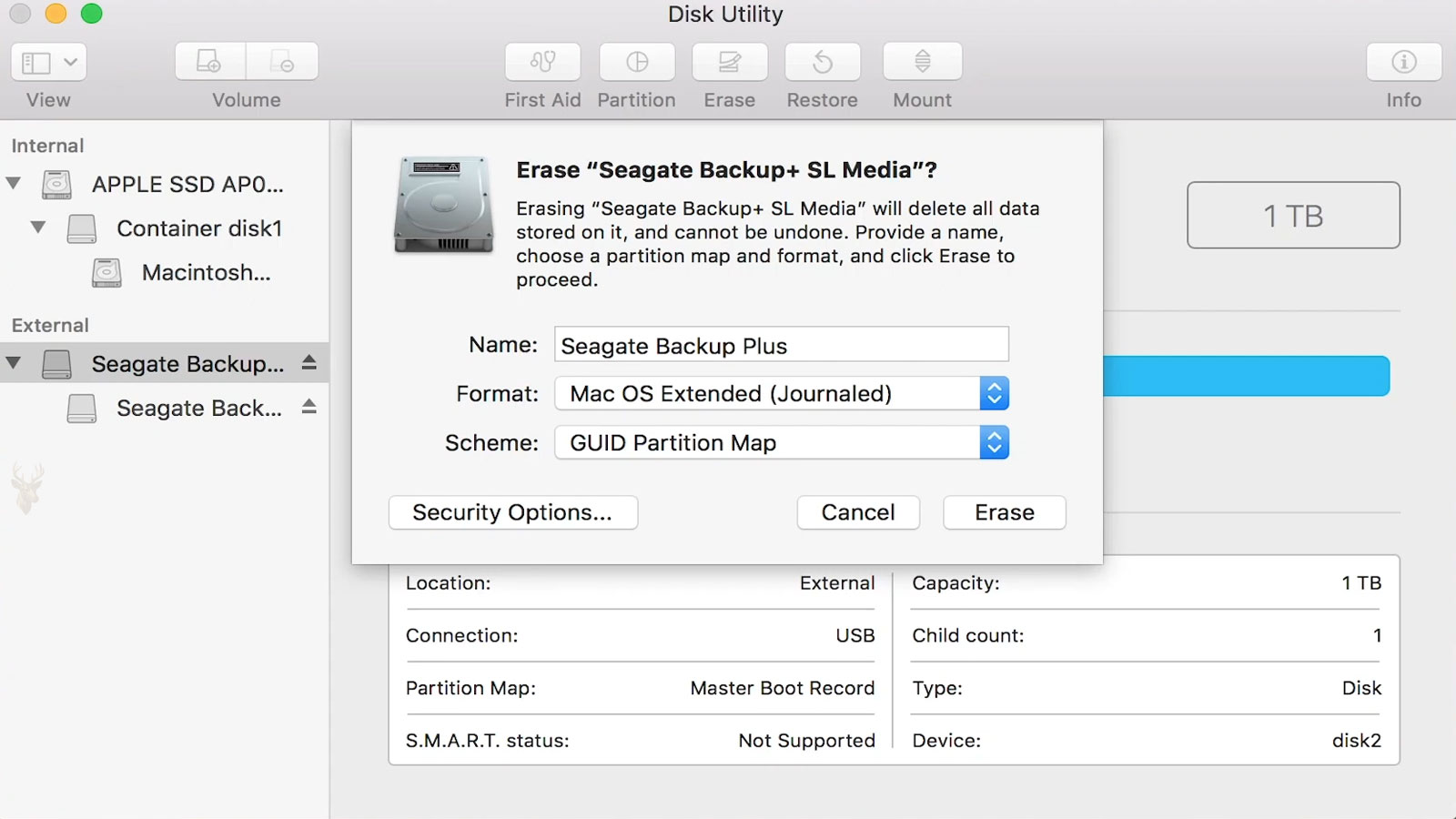
Windows may prompt the user to initialize a drive when it cannot find a partition structure it understands. The prompt may offer a choice between MBR and GPT. Accepting the prompt writes new partitioning information to the drive.
Initialization does not recover the missing volume. It prepares the disk to receive new partitions. If the drive previously contained important data, writing a new structure can complicate later recovery.
A request to initialize a previously used drive is a warning that its existing structure is not being recognized, not proof that the drive is empty.
Before accepting an initialization prompt, the user should confirm whether the drive is truly new, whether it previously contained data, and whether the connection or enclosure is presenting the device correctly.
Formatting and Partition Creation Are Not Diagnostic Tests
Formatting is sometimes attempted to determine whether a missing drive can be made accessible. Although a successful format may show that the device can accept some writes, it does not explain why the original partition disappeared and can overwrite important recovery information.
Creating a new partition has a similar risk. The operation writes new boundaries and identifiers into the partition table. A subsequent format writes new file-system structures inside those boundaries.
- Do not initialize a previously used drive solely because Windows requests it.
- Do not create a replacement partition before evaluating the old structure.
- Do not format the volume when the objective is to recover existing files.
- Do not run repair tools against an unstable physical drive without a preservation plan.
- Record the drive’s reported capacity and current partition layout before making changes.
The safest first response to unexpected partition loss is usually to stop writes, document the condition, and determine whether the device is physically stable enough for further analysis.
Disk Management Shows the Current Interpretation, Not the Full History
Windows Disk Management provides a useful overview of physical drives, recognized partitions, file systems, drive letters, and unallocated regions. However, it displays only the structures that Windows currently understands. It does not reveal every previous partition that may still be recoverable.
A region shown as unallocated may still contain an older file system, while a partition labeled RAW may retain substantial internal structure despite being unreadable to Windows. Disk Management can describe the present state, but it cannot by itself determine whether the original data remains intact.
| Disk Management Display | What It Usually Indicates |
|---|---|
| Healthy partition with a drive letter | The volume is recognized and mounted normally. |
| Healthy partition without a drive letter | The partition exists but is not currently mounted with a letter. |
| RAW file system | The partition is present, but Windows cannot interpret its file system correctly. |
| Unallocated space | No active partition entry currently defines that region. |
| Unknown or not initialized | The partitioning structure is missing, unreadable, or not recognized. |
| Incorrect total capacity | A hardware, enclosure, controller, or translation problem may be involved. |
The displayed labels should be treated as diagnostic clues rather than complete conclusions. A deeper scan may reveal structures that the standard disk-management interface does not show.
A RAW Volume Is Different From Unallocated Space
A RAW volume usually means that a partition entry still exists, but the operating system cannot recognize or mount the file system inside it. The volume may appear with the expected size while lacking a usable NTFS, exFAT, FAT32, or other recognized structure.
Unallocated space means the current partition table does not define an active partition in that region. The file system may still be present physically, but the operating system has no valid partition entry directing it to that location.
- A RAW volume usually retains known partition boundaries.
- Unallocated space may require discovery of the previous boundaries.
- RAW status can result from file-system corruption.
- Unallocated status can result from partition-table damage or deletion.
- Both conditions may still contain recoverable files.
The recovery approach differs because restoring a missing partition entry is not the same task as repairing or extracting data from a damaged file system.
A Missing Drive Letter Does Not Mean the Partition Is Gone
Windows uses drive letters as convenient labels for mounted volumes. The letter is not part of the file content and does not define the partition itself. A volume can remain intact while losing its assigned letter.
This can happen after connecting multiple external drives, restoring an image, changing storage hardware, or manually modifying mount settings. If the partition appears healthy with the expected file system and capacity, assigning an unused letter may restore ordinary access.
A letter should not be assigned automatically to every unfamiliar partition. Recovery, system, boot, and diagnostic partitions are often intentionally hidden. Mounting them unnecessarily can expose files that are not meant for routine use.
The absence of a drive letter describes a mounting condition, not necessarily a loss of partition data.
The Reported Partition Size Provides Important Evidence
The size of a missing or damaged partition can help determine whether the current structure matches the previous layout. If a volume that was formerly 500 gigabytes now appears as a much smaller partition, the boundaries may have been changed or replaced.
Recovery tools often search for file-system signatures and compare their positions with plausible partition boundaries. Correct starting and ending locations are important because a partition entry that is even slightly wrong can prevent the operating system from mounting an otherwise intact file system.
| Observed Size | Possible Meaning |
|---|---|
| Expected partition size | The boundaries may still be correct despite file-system damage. |
| Smaller than expected | The partition may have been resized, replaced, or partially overwritten. |
| Larger than expected | Incorrect boundaries or a different partition layout may be present. |
| Entire drive appears unallocated | The primary partition map may be missing or unreadable. |
| Drive capacity itself is incorrect | The issue may extend beyond ordinary partition metadata. |
Original records, screenshots, volume labels, and known partition sizes can be valuable when reconstructing a damaged layout.
Partition Labels and File-System Signatures Can Survive Deletion
Deleting a partition entry may leave many internal identifiers untouched. File-system boot sectors, backup records, volume labels, directory structures, and allocation metadata can remain in their original locations until overwritten.
Recovery software searches for these recognizable patterns. A valid NTFS boot sector, for example, may reveal the likely beginning of a former volume even when the partition table no longer references it.
- Volume labels may identify the purpose of a discovered partition.
- File-system signatures can indicate the format previously used.
- Backup boot records may help confirm partition boundaries.
- Directory metadata may reveal whether the structure remains coherent.
- File names and folder trees may survive even when the partition entry is missing.
The presence of a recognizable signature does not guarantee that the full volume is intact. A signature can remain while important directory or allocation records have been overwritten.
Quick Scans and Deep Scans Serve Different Purposes
Partition-recovery tools often provide a quick scan and a more extensive scan. A quick scan searches common locations and known structures for recently lost partitions. It can be effective when the partition entry was deleted but the file system remains largely intact.
A deep scan examines a much larger portion of the drive for file-system signatures and possible boundaries. It takes longer and may identify older, overlapping, or partially damaged partitions that are no longer represented in the current table.
| Scan Type | General Use | Limitation |
|---|---|---|
| Quick scan | Finds obvious or recently deleted partition structures. | May miss damaged or unusually located volumes. |
| Deep scan | Searches broadly for surviving file-system evidence. | Can produce multiple conflicting or outdated results. |
| File scan | Searches for files within a known or discovered region. | May not restore the original partition structure. |
| Signature carving | Finds file content based on recognizable formats. | Often loses original names, folders, and metadata. |
More scan results do not automatically mean better recovery. Deep scans may detect remnants of partitions that existed before the most recent layout, making careful interpretation necessary.
Overlapping Partition Results Require Careful Evaluation
A drive that has been repartitioned several times may contain traces of multiple historical layouts. Recovery software can identify several candidate partitions whose boundaries overlap one another.
Only one overlapping layout can usually be active at a time. Restoring the wrong candidate may hide the correct volume, create additional inconsistencies, or expose an older file system whose data has already been partially replaced.
- Compare candidate sizes with the known previous layout.
- Review volume labels and folder names.
- Check whether the file-system structures are internally consistent.
- Preview files before writing a reconstructed partition table.
- Avoid selecting every discovered result merely because it appears valid.
A read-only preview is safer than immediately writing changes to the original disk. It allows the suspected partition to be evaluated before the current structure is altered.
Restoring a Partition Entry and Recovering Files Are Different Operations
Partition restoration attempts to recreate the missing map entry so the operating system can access the original file system again. File recovery extracts readable files to another storage device without necessarily repairing the original partition.
Restoring the partition can be efficient when the boundaries and file system are clearly intact. However, writing a new entry to the partition table changes the source drive. If the reconstructed information is incorrect, access may become more difficult.
File extraction is generally more conservative because the source can remain unchanged. The recovered data is copied to another drive, allowing the original media to be preserved for additional attempts.
| Recovery Method | Primary Goal | Main Consideration |
|---|---|---|
| Restore partition entry | Make the original volume accessible again. | Writes structural changes to the source drive. |
| Extract files | Copy readable data to another device. | Requires separate storage for recovered files. |
| Create a disk image | Preserve a sector-level copy for analysis. | Needs storage at least as large as the source. |
| Reformat and reuse | Return the drive to service after data concerns are resolved. | Does not preserve the previous file system. |
When the data is more important than restoring the original volume exactly as it was, extraction to another device is often the safer priority.
Recovery Files Must Be Saved to a Different Physical Device
Recovered files should not be written back to the same drive from which they are being retrieved. Saving to the source can overwrite sectors that contain files not yet recovered.
A different partition on the same physical drive is also unsafe because both partitions share the same storage media. Writing to one region can replace recoverable data in another, especially when the original boundaries are uncertain.
- Prepare a separate destination drive with sufficient free space.
- Confirm that the destination is healthy and writable.
- Recover the most important files first when the source is unstable.
- Preserve the original folder structure when the software supports it.
- Verify recovered files before considering the process complete.
The destination drive should be clearly identified before recovery begins. Selecting the wrong disk can result in accidental formatting or overwriting of another storage device.
Cloning or Imaging Preserves the Original Evidence
A sector-by-sector clone or image creates a copy of the source drive’s readable content. Recovery work can then be performed on the copy rather than repeatedly scanning or modifying the original media.
This approach is especially valuable when the drive has read errors, disconnects unpredictably, or contains important data that may require more than one recovery attempt. It also preserves the original partition structures for comparison.
A recovery image separates the preservation stage from the analysis stage.
Ordinary file-copy tools are not the same as disk-imaging tools. A normal copy requires a mounted file system, while a sector-level image can preserve unallocated regions, damaged structures, deleted partitions, and other information that the operating system cannot access normally.
Read Errors Should Influence the Imaging Strategy
A healthy drive can usually be imaged in a straightforward sequence. A failing drive may require a tool that can skip unreadable areas, continue copying accessible sectors, and return to difficult regions later.
Repeatedly forcing the drive to read the same damaged area can waste time and place additional stress on unstable hardware. A controlled imaging strategy prioritizes the largest amount of readable data before spending time on problematic sectors.
| Drive Behavior | Imaging Consideration |
|---|---|
| Reads consistently at normal speed | A standard full image may be appropriate. |
| Slows dramatically in certain regions | Skip and retry methods may preserve more data. |
| Disconnects during access | Connection, power, enclosure, or hardware instability must be addressed. |
| Makes unusual mechanical sounds | Continued operation may increase physical damage. |
| Reports many unreadable sectors | Recovery priorities should focus on preservation rather than repair. |
A mechanically failing hard drive may require specialized equipment. Software scans cannot correct damaged heads, degraded media, or internal contamination.
External Enclosures Can Alter How a Drive Is Presented
A storage device connected through a USB enclosure, docking station, or adapter is not always presented to the computer in exactly the same way as it would be through a direct internal connection. The bridge controller may translate sector sizes, capacity, encryption, or addressing.
If the enclosure fails or uses unusual translation, the drive may appear uninitialized, incorrectly sized, or partitioned differently when connected through another adapter. This can resemble partition corruption even when the original structures remain intact.
- Test the enclosure and its power supply separately.
- Confirm whether the reported drive capacity is correct.
- Use the original enclosure when hardware encryption may be involved.
- Avoid initializing the drive after changing connection methods.
- Document how the drive was connected when it last worked.
Some external drives rely on the original controller board for transparent encryption or sector translation. Removing the disk and connecting it directly can make intact data appear unreadable.
Sector-Size Translation Can Shift Apparent Partition Boundaries
Storage devices may use logical sectors of different sizes, commonly 512 bytes or 4,096 bytes. Certain enclosures and controllers translate between these formats. If the same disk is later connected through hardware that reports a different logical sector size, partition boundaries can appear incorrect.
The partition information may still be valid relative to the original sector presentation, but the operating system interprets the starting locations incorrectly under the new connection method.
This condition is uncommon in ordinary internal drives but important in some external storage and RAID environments. Recreating partitions manually without understanding the translation can make the layout more difficult to recover.
RAID Members Cannot Always Be Interpreted as Independent Disks
A drive removed from a RAID set may not contain a complete standalone file system. Data can be striped, mirrored, or distributed across several members according to the array configuration.
When one RAID member is connected by itself, Windows may show unallocated space, unknown partitions, or unreadable data. This does not necessarily mean that the partition table was deleted. The volume may depend on the original controller, disk order, stripe size, parity arrangement, and metadata.
| RAID Situation | Recovery Concern |
|---|---|
| Single disk from a striped array | Only portions of files may be present on that member. |
| Single disk from a mirrored array | A complete copy may exist, depending on the configuration and condition. |
| Parity-based array | Disk order and parity rotation must be reconstructed correctly. |
| Failed controller | Original metadata or compatible replacement hardware may be needed. |
| Reinitialized array | New metadata may overwrite the previous configuration. |
Initializing, formatting, or rebuilding an uncertain RAID configuration can overwrite metadata needed to reconstruct the original volume.
Partition Resizing Can Fail Between the Beginning and End of the Operation
Resizing a partition can involve several coordinated changes. The partition boundary may be moved, the file system may be expanded or reduced, and stored data may need to be relocated.
If power is lost or the system crashes during the operation, one structure may be updated while another remains incomplete. The partition table may show a new size even though the file system still expects the old boundary, or the reverse may occur.
- The partition appears with an incorrect size.
- The file system is detected as RAW.
- Only part of the previous data is accessible.
- The volume mounts but reports errors near its new boundary.
- Adjacent partitions may overlap or disappear.
Repairing this condition requires determining which structure reflects the intended layout. Expanding or shrinking the partition again without analysis may overwrite data at the boundary.
File-System Repair Tools Can Change Recoverable Structures
Utilities that repair file systems attempt to restore internal consistency. They may modify allocation records, directory entries, indexes, and metadata. These changes can make a damaged volume mountable, but they can also remove or alter evidence that data-recovery software could have used.
A repair command should therefore not be the automatic first response when important files are inaccessible. The source should be preserved before repairs are attempted whenever the data cannot be replaced.
| Action | Possible Benefit | Possible Risk |
|---|---|---|
| File-system repair | May restore mountability and correct logical inconsistencies. | Can modify or discard damaged metadata. |
| Partition restoration | May return the original volume to normal access. | Writes new partition information to the source. |
| Read-only scan | Identifies structures without intentional modification. | Can still stress failing hardware through extensive reads. |
| Disk imaging | Preserves readable sectors for repeated analysis. | Requires time, destination capacity, and stable enough hardware. |
The correct sequence depends on whether the priority is restoring normal operation or preserving the maximum amount of recoverable data.
Encrypted Volumes Add Another Layer to Partition Recovery
A partition may be physically present and structurally recognizable while its contents remain inaccessible because the volume is encrypted. Encryption changes how stored sectors are interpreted and prevents ordinary recovery tools from reconstructing meaningful files without the required key, password, recovery information, or original controller.
Some encryption systems protect only selected files, while others encrypt the entire volume. Full-volume encryption can make an intact partition appear unreadable if the unlocking information is unavailable or if the encryption metadata has been damaged.
- The partition may appear with the expected size but no readable file system.
- A recovery tool may identify high-entropy data without recognizable files.
- The volume may require a password, recovery key, hardware module, or original operating system configuration.
- Damaged encryption headers can prevent access even when most encrypted data remains intact.
- Recovered sectors remain unusable unless they can be decrypted correctly.
Encryption does not necessarily reduce the physical amount of recoverable data, but it can prevent that data from being interpreted. Preserving recovery keys and original hardware information is therefore as important as preserving the storage device itself.
BitLocker Recovery Depends on More Than the Partition Entry
A BitLocker-protected Windows volume may remain locked after partition recovery. Restoring the missing partition boundary does not automatically restore access to the encrypted file system.
The recovery process may require the BitLocker recovery key, password, startup key, or access to the trusted platform module configuration originally associated with the computer. If the encryption metadata near the beginning of the volume is damaged, specialized analysis may be required before the volume can be unlocked.
| BitLocker Condition | Possible Result |
|---|---|
| Partition restored and key available | The volume may unlock normally if encryption metadata is intact. |
| Partition restored but key unavailable | The encrypted data remains inaccessible. |
| Encryption metadata damaged | The correct key may not be sufficient without additional recovery work. |
| Original system configuration changed | Automatic unlocking may fail and request recovery information. |
Because encrypted volumes depend on both storage structures and authentication information, recovery planning should include all available keys, account records, and original device details.
Solid-State Drives Can Reduce Recovery Time After Deletion
Deleted partitions on solid-state drives can be more time-sensitive than similar losses on traditional hard drives. SSD controllers manage flash memory internally and may erase unused blocks after receiving commands that indicate the data is no longer needed.
If a partition is deleted and the operating system sends discard or TRIM information for the affected space, the SSD may begin clearing the underlying blocks. Once those blocks have been erased internally, ordinary file recovery may no longer be possible even though the partition was deleted only recently.
- Stop using the SSD immediately after unexpected partition loss.
- Avoid creating new partitions or formatting the space.
- Disconnect the device when the data is important and the condition is uncertain.
- Do not assume that a recently deleted SSD partition remains intact.
- Recognize that controller behavior varies between devices and connection methods.
On some external connections or older systems, TRIM may not be transmitted. On others, internal garbage collection may continue even when the drive is not actively receiving new user data. The exact outcome depends on the SSD, controller, firmware, operating system, and elapsed time.
Traditional Hard Drives Usually Preserve Deleted Structures Until Overwritten
Magnetic hard drives generally do not erase sectors immediately when a partition is deleted. The old partition table entry may disappear, but the file system and file contents can remain until new information is written over them.
This can provide a larger recovery window than on an SSD, but continued use remains risky. Operating-system updates, temporary files, indexing, and background services can write to regions that appear available.
| Storage Type | General Behavior After Partition Deletion |
|---|---|
| Magnetic hard drive | Old sectors often remain unchanged until overwritten. |
| Solid-state drive | TRIM and internal cleanup may erase deleted blocks. |
| USB flash drive | Behavior varies by controller and may resemble either type. |
| Memory card | Data often remains until overwritten, but controller behavior varies. |
No storage type should be treated as safe for continued use after unexpected partition loss. The distinction affects the likely recovery window, not the need for preservation.
Boot Partitions and Data Partitions Require Different Priorities
A missing system partition can prevent Windows or another operating system from starting even when the main data partition remains intact. Conversely, the computer may start normally while a secondary data partition disappears.
System drives often contain several small partitions for boot files, recovery tools, firmware support, and encryption. These partitions may not have drive letters and can be mistaken for unnecessary space.
- EFI system partitions contain files required for UEFI startup.
- Recovery partitions contain repair or reset tools.
- Reserved partitions support operating-system storage management.
- Main operating-system partitions contain Windows and user data.
- Manufacturer partitions may contain diagnostic or restoration software.
Deleting a small system partition can make the computer unbootable without affecting the larger user-data partition. Repairing startup and recovering personal files are therefore separate tasks that should be evaluated independently.
A Boot Failure Does Not Prove That the Main Volume Is Lost
When a computer displays a boot-device error, it is easy to assume that the entire drive has failed. In some cases, only the boot partition, boot records, or firmware entry is missing while the operating-system volume and user files remain readable.
Testing the drive from another computer or recovery environment can reveal whether the main partition is still present. The system may require boot repair rather than full file recovery.
A computer that cannot start may still contain an intact and recoverable data volume.
The opposite is also possible. Startup files may remain intact while the main data partition is damaged. The visible error message should be treated as one symptom rather than a complete diagnosis.
Partition Conversion Can Rewrite Critical Structures
Converting a drive between MBR and GPT changes the way partition information is stored. Some tools perform the conversion while preserving existing volumes, while others require the drive to be erased first.
If conversion is interrupted or applied to the wrong disk, the original partition map may be replaced or made inconsistent. A partially converted drive can contain remnants of both layouts, creating conflicting scan results.
| Conversion Situation | Possible Outcome |
|---|---|
| Supported in-place conversion completes correctly | Existing partitions may remain accessible under the new layout. |
| Destructive conversion method is used | Previous partition entries and file-system structures may be overwritten. |
| Power fails during conversion | The drive may contain incomplete or conflicting metadata. |
| Wrong disk is selected | An unrelated drive may lose its partition structure. |
Before conversion, a complete backup should exist on another device. Conversion should never be used as an experimental fix for a drive that already contains missing or damaged partitions.
Cloning to a Smaller Destination Can Alter Partition Boundaries
Disk-cloning operations can create partition problems when the source and destination have different capacities. A direct sector copy from a larger drive to a smaller one may truncate the ending partitions or leave the backup GPT header outside the destination’s available range.
Cloning to a larger drive can also leave unused space at the end until the partitions are expanded. The resulting layout may be functional but not identical to the source.
- Confirm the actual sector count of both drives.
- Reduce file systems safely before cloning to a smaller destination.
- Use tools that understand GPT backup-header relocation.
- Verify partition boundaries after the clone completes.
- Do not reuse the source until the destination has been tested.
A clone that reports success may still contain structural inconsistencies. Boot testing, file-system verification, and data comparison should follow the copying process.
Recovery Results Must Be Verified at the File Level
A recovered partition can mount successfully while some files remain damaged. Directory names may appear normal even when portions of larger files were overwritten or unreadable.
Verification should include opening representative files, checking larger archives, reviewing images, testing documents, and comparing important records with known copies when available.
- Confirm that the expected folder structure is present.
- Open files from different folders and date ranges.
- Test several large files, not only small documents.
- Review file sizes for obvious inconsistencies.
- Check whether encrypted, compressed, or database files open correctly.
- Compare recovered totals with known backups or inventories.
Recovery software may label a file as recovered simply because it copied the available sectors. That status does not guarantee that every part of the file is complete or internally valid.
Recovered Folder Structures May Contain Duplicate or Historical Entries
Deep scans can identify several versions of directories and files from different stages of the drive’s history. The results may include deleted folders, renamed files, older partition contents, and duplicate records.
Some duplicates may be identical, while others may represent different versions. File dates, sizes, hashes, and content review can help determine which copy is most complete or current.
| Recovered Result | Possible Explanation |
|---|---|
| Same file name in several folders | Multiple historical directory records may have survived. |
| Duplicate names with different sizes | Different versions or partially recovered copies may exist. |
| Files with no original folder | Directory metadata may be damaged or unavailable. |
| Old volume label appears | The scan may have found a previous partition layout. |
Organizing recovered data can therefore require substantial review after the technical extraction is complete.
Partition Recovery Should Stop When the Source Becomes Less Stable
A drive that begins disconnecting, slowing dramatically, clicking, or reporting increasing read errors should not be subjected to repeated scans. These symptoms suggest that the problem may no longer be limited to partition metadata.
The priority should shift from analysis to preservation. Continuing to search the original device directly can reduce the amount of data that remains readable.
- Stop repeated scans when new hardware symptoms appear.
- Do not run repair commands on a deteriorating drive.
- Record the last successful read position when imaging tools provide it.
- Preserve the original device for specialized recovery when the files are important.
- Avoid repeated power cycles on a mechanically unstable hard drive.
A technically correct recovery method can still be unsafe when applied to failing hardware. The device’s physical condition determines how aggressively it can be read.
A Practical Sequence for Evaluating a Missing Partition
A careful recovery process separates observation, preservation, analysis, and restoration. Each stage should be completed with as few writes to the source as possible.
- Confirm the physical drive and its reported capacity.
- Record the current partition layout without changing it.
- Determine whether the device is stable enough for continued reading.
- Check whether the issue is only a missing drive letter.
- Identify whether the region appears RAW, unallocated, or not initialized.
- Review the original connection method, enclosure, RAID configuration, and encryption status.
- Create a sector-level image when the data is important or the device is unstable.
- Perform read-only scans against the image or clone.
- Compare discovered partitions with known sizes, labels, and folder structures.
- Extract important files to another physical device before writing repairs.
- Restore a partition entry only when the boundaries and file system are clearly understood.
- Verify recovered files before reusing or reformatting the original drive.
This sequence avoids treating every missing volume as the same problem. It also preserves more options when the initial diagnosis is incomplete.
When Partition Restoration Is Reasonably Appropriate
Restoring a missing partition entry can be appropriate when the storage device is physically stable, the previous boundaries are clear, the file-system structures are internally consistent, and a read-only preview shows the expected files.
The decision is stronger when a complete image or clone already exists. If the restored entry fails, the preserved copy allows another approach without relying on the modified source.
- The discovered volume matches the known size and location.
- The volume label and folder structure are correct.
- The file system can be previewed without serious errors.
- No competing overlapping partition appears more likely.
- The original device has been imaged or cloned.
When these conditions are not met, extracting files is usually safer than attempting to make the original volume mountable.
When File Extraction Is Safer Than Structural Repair
File extraction is preferable when partition boundaries are uncertain, several historical volumes overlap, the file system contains substantial corruption, or the source device is unstable.
Extraction allows readable files to be copied without committing to one reconstructed layout. It also prevents a mistaken repair from hiding or overwriting other recoverable structures.
| Condition | Safer Direction |
|---|---|
| Clear deleted partition with intact file system | Partition restoration may be practical after imaging. |
| Several overlapping candidate partitions | Extract files from the most credible candidates first. |
| Severe file-system corruption | Recover files to another device rather than repairing immediately. |
| Unstable physical drive | Image the source before extensive analysis. |
| Important encrypted data | Preserve the volume and all available keys before alteration. |
The correct objective is not always to restore the drive exactly as it appeared before. In many cases, preserving the files is more important than rebuilding the original partition structure.
Recognizing the Difference Between a Missing Map and Missing Data
A partition table tells the computer where a volume is located, but it does not contain the volume’s complete contents. When that map is deleted or damaged, the operating system may report unallocated space even though the former file system still occupies the same sectors.
The outcome depends on what happened afterward. If the drive remained unused and the hardware is healthy, much of the original structure may still be recoverable. If new partitions were created, the space was formatted, an SSD processed TRIM commands, or the hardware continued failing, important parts of the previous volume may already be gone.
The safest response is to avoid new writes, confirm the physical condition of the device, preserve a sector-level copy when possible, and determine whether the objective should be partition restoration or file extraction. By separating a missing partition entry from actual overwritten data, recovery decisions can be based on evidence rather than on the operating system’s current display alone.











