
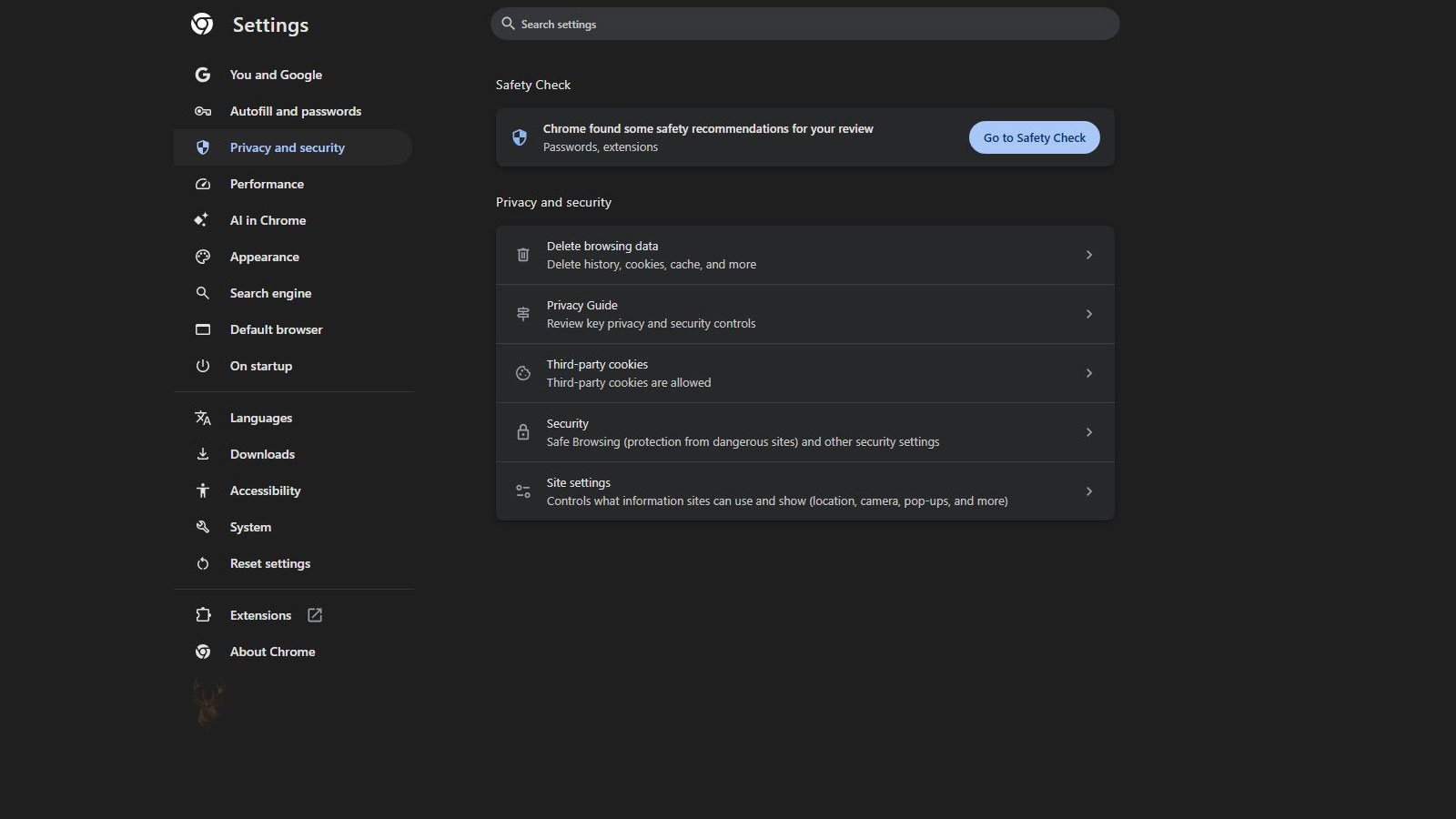
How Browsers Store Website Data to Improve Speed and Efficiency
Modern web browsers attempt to make websites load faster by storing copies of files that have already been downloaded. Instead of requesting every image, style sheet, script, font, and other resource each time a page is opened, the browser may reuse information that already exists on the local computer. This temporary storage is known as the browser cache.
Browser caching is one of the reasons familiar websites often load much more quickly during later visits than they did the first time. By reducing repeated downloads, caching conserves bandwidth, decreases page loading time, and lowers the amount of data transferred between the browser and the website.
Although caching improves performance in most situations, it can occasionally create confusion. A browser may continue displaying an older version of a webpage even after the website has been updated, leading users to believe that changes were never published or that the website itself is malfunctioning.
What Information Does the Browser Cache Store?
A webpage consists of far more than its visible text. Every page normally contains multiple supporting resources that work together to create the finished display. Rather than downloading each resource repeatedly, the browser stores many of them locally for future use.
- Images and graphics.
- Style sheets that control page appearance.
- JavaScript files that provide interactive features.
- Fonts downloaded from the website.
- Icons and interface elements.
- Certain multimedia resources.
- Other static files that change infrequently.
Not every item is stored permanently, and not every website uses the cache in exactly the same way. Website owners can specify how long particular resources should remain cached and when the browser should request updated copies.
Why Caching Improves Website Performance
Without caching, every visit to a familiar website would require downloading all of its resources from the beginning. Even relatively small websites often contain dozens of individual files. Larger websites may require hundreds of separate requests before the page appears completely.
By reusing files that have already been downloaded, the browser reduces the amount of work required for each subsequent visit. Only resources that have changed or that are no longer considered valid need to be requested again.
| Without Browser Cache | With Browser Cache |
|---|---|
| Every file must be downloaded again. | Previously stored files can often be reused. |
| More network requests are required. | Fewer requests reduce loading time. |
| Higher bandwidth usage. | Lower bandwidth consumption. |
| Slower repeat visits. | Faster repeat visits. |
This process benefits both the visitor and the website. Users experience shorter loading times, while website servers receive fewer unnecessary requests for files that have not changed.
The browser cache exists to avoid downloading the same information repeatedly when that information has not changed.
Why Old Website Content Sometimes Continues to Appear
A common source of confusion occurs after a website has been updated. The website owner may publish new images, revised text, or modified page layouts, yet some visitors continue seeing the previous version.
In many cases, the browser is displaying locally cached files instead of downloading the newest versions immediately. Because the browser believes those files are still valid, it continues using them until the cache expires or another event causes fresh copies to be requested.
This behavior does not necessarily indicate that the website update failed. Different visitors may see different versions of the same page temporarily, depending on their individual browser caches and when each browser decides to request updated resources.
Cached Files Are Usually Temporary
Although browser cache files are stored on the computer, they are generally intended for temporary use. Browsers automatically remove older cached items when storage limits are reached or when files are no longer considered useful.
The exact retention period depends on several factors, including browser behavior, available storage, website instructions, browsing activity, and whether the files continue to be accessed regularly.
Users rarely need to manage the cache manually during normal browsing. The browser continuously adds, removes, and replaces cached content as websites are visited.
Browser Cache Is Different From Browsing History
Browser cache and browsing history are often confused because both involve information stored by the browser. However, they serve very different purposes.
| Browser Cache | Browsing History |
|---|---|
| Stores website resources to improve loading speed. | Records which webpages have been visited. |
| Focuses on performance. | Focuses on navigation history. |
| Contains downloaded website files. | Contains lists of visited pages and timestamps. |
| May be cleared without removing browsing history. | May be cleared without deleting cached files. |
Because these functions are independent, deleting browsing history does not always remove cached website files, and clearing the cache does not necessarily erase the history of visited websites.
Browser Cookies and Browser Cache Are Also Different
Cookies represent another browser feature that is frequently confused with caching. While the cache stores copies of website resources, cookies typically store small pieces of information that help websites recognize returning visitors or remember user preferences.
- Cache stores website files.
- Cookies store small pieces of website-related information.
- Cache improves loading speed.
- Cookies help maintain sessions and preferences.
- The two systems operate independently.
For example, a browser cache may store a website’s logo image, while cookies remember that the user has already signed in or selected a preferred language. Although both are stored locally, they solve different problems.
Website Updates May Affect Only Certain Cached Files
Not every part of a webpage changes at the same time. A website update may modify only one image, a style sheet, or a script while leaving every other resource unchanged. As a result, visitors may see a mixture of new and older content until the browser refreshes the appropriate cached files.
This explains why a website might display updated text while still showing an older logo, outdated formatting, or interface elements that no longer match the current design. Different files may have different caching instructions and expiration times.
Understanding this behavior helps explain why browser caching occasionally becomes part of website troubleshooting, even when the website itself is operating correctly.
A Normal Refresh Does Not Always Replace Every Cached Resource
Clicking the browser’s refresh button requests the webpage again, but the browser may still reuse some locally stored resources. The main page content can be updated while images, scripts, or style sheets continue loading from the cache.
This is why a normal refresh may correct one part of a page while leaving another part unchanged. The browser decides which resources can still be reused based on the instructions it previously received and the status of each cached file.
A stronger refresh can instruct the browser to request more of the page directly from the website. The exact keyboard command varies by browser and operating system, but the purpose is generally to bypass or revalidate cached resources for the current page.
| Refresh Method | Typical Behavior |
|---|---|
| Normal refresh | Reloads the page while potentially reusing valid cached files. |
| Forced or hard refresh | Requests fresh copies of more resources for the current page. |
| Clear browser cache | Removes stored website resources across multiple sites or a selected time range. |
| Private browsing test | Uses a separate temporary browsing session with limited access to the normal cache. |
A forced refresh is usually a better first test than clearing the entire cache because it affects the current page without removing stored resources from every website.
Clearing the Cache Can Resolve Corrupted Local Files
Cached content can occasionally become incomplete or corrupted. A download may be interrupted, the browser may retain an outdated file after a website change, or a locally stored script may no longer match the rest of the page.
When the browser repeatedly reuses that damaged or incompatible file, the same display or functionality problem may return each time the website is opened. Removing the cached copy forces the browser to download a replacement from the website.
- Page formatting appears broken on one computer.
- Buttons or menus stop responding in one browser.
- An older image remains visible after repeated refreshes.
- A page loads partially and stops at the same point.
- A website works in another browser but not in the usual one.
These symptoms do not prove that the cache is responsible, but they make a cache test reasonable after the internet connection and website availability have been confirmed.
Clearing cached files helps only when the browser’s stored copies are contributing to the problem.
Clearing All Browser Data Can Remove More Than Intended
Browser settings often group cache, cookies, history, saved form information, and other stored data within the same deletion menu. Selecting every option without reviewing the choices can remove information unrelated to the original problem.
Deleting cookies may sign the user out of websites, reset preferences, and remove session information. Deleting saved passwords or form data can have more serious consequences if those records are not stored elsewhere.
| Data Type | Possible Effect When Removed |
|---|---|
| Cached files | Websites may load more slowly during the next visit. |
| Cookies | Users may be signed out and website preferences may reset. |
| Browsing history | The list of previously visited pages may disappear. |
| Saved passwords | Stored sign-in credentials may be lost. |
| Autofill data | Saved names, addresses, and form entries may be removed. |
When troubleshooting old website content, selecting only cached images and files is often sufficient. Other data should be removed only when there is a specific reason to do so.
Private Browsing Provides a Useful Comparison
A private or incognito window creates a separate browsing session. It generally does not use the normal session’s cookies in the same way, and it may provide a cleaner comparison when a website behaves differently in the regular browser window.
If a page displays correctly in a private window but incorrectly in the normal window, the difference may involve cached files, cookies, extensions, or stored website settings. The test narrows the investigation but does not identify the exact cause by itself.
- Open a private browsing window.
- Navigate directly to the same webpage.
- Compare the text, images, layout, and interactive features.
- Note whether sign-in status or account-specific content differs.
- Close the private session after testing.
Account-based personalization should be considered when comparing results. A website may intentionally display different information to signed-in and signed-out visitors.
Testing Another Browser Can Separate Browser-Specific Problems
Opening the same website in another browser provides another useful comparison. Each browser maintains its own cache, cookies, extensions, and settings, so a problem that appears in only one browser is less likely to originate entirely from the website.
If the updated page appears correctly in the second browser, the first browser may be retaining old resources or applying an extension or setting that changes the page. If both browsers show the same outdated content, the cause may be farther upstream.
| Comparison Result | Possible Direction |
|---|---|
| Only one browser shows old content | Inspect that browser’s cache, extensions, and stored site data. |
| All browsers on one computer show old content | Consider local network, DNS, security software, or system-level caching. |
| Several devices on one network show old content | Consider router, proxy, filtering, or upstream cache behavior. |
| Users on different networks show old content | The website or a content delivery system may still be serving the older version. |
Comparison testing is more useful when the same webpage address is entered directly and the devices are checked at approximately the same time.
Browser Extensions Can Change Page Content and Behavior
Not every browser-specific website problem is caused by cached files. Extensions can block scripts, replace page elements, modify advertisements, manage passwords, enforce privacy rules, or inject their own content into webpages.
An extension may continue applying an older rule after the website changes, creating symptoms that resemble a stale cache. Disabling extensions temporarily can help determine whether one of them is interfering with the page.
- Advertisement blockers may hide newly added page elements.
- Privacy extensions may prevent scripts from loading.
- Password managers may alter sign-in fields.
- Translation tools may replace visible text.
- Security extensions may block downloads or redirects.
Extensions should be tested selectively rather than removed all at once. Re-enabling them individually can identify which one changes the website’s behavior.
The Browser Cache Is Only One Layer of Website Caching
Web content may pass through several caching layers before it reaches the browser. The website itself may generate a cached page, the hosting server may store a completed copy, and a content delivery network may distribute cached resources from servers closer to visitors.
Because these systems operate independently, clearing the browser cache does not guarantee that the newest content will appear. The browser may request a fresh copy and receive an older version from another cache farther along the delivery path.
| Cache Layer | General Location | Purpose |
|---|---|---|
| Browser cache | Visitor’s computer | Reuses downloaded website resources. |
| Website application cache | Website software or database layer | Reduces repeated page generation. |
| Server cache | Web hosting system | Serves completed pages or files more quickly. |
| Content delivery network | Distributed external servers | Provides resources from locations closer to visitors. |
| Proxy cache | Organization or network provider | Reuses content requested by multiple users. |
Identifying which layer contains the old content is essential. Repeatedly clearing the browser will not correct a stale copy being delivered by the website’s server or distribution network.
Content Delivery Networks Can Serve Different Versions by Location
A content delivery network stores copies of website resources across multiple geographic locations. Visitors are usually directed to a nearby server so images, scripts, and other files can load more quickly.
After a website update, one delivery location may receive the new file before another. Visitors in different areas can therefore see different versions temporarily, even when they use the same browser and webpage address.
This type of delay cannot be corrected from the visitor’s computer. The website administrator may need to purge or invalidate the older content within the distribution system.
Page Caching and File Caching Can Produce Different Symptoms
A complete webpage and its supporting files may be cached separately. A page cache may retain old text and structure, while a file cache may retain an older image or style sheet. The visible result depends on which component has not yet been refreshed.
- Old text with current design may indicate an outdated page copy.
- Current text with old formatting may involve a cached style sheet.
- Current layout with an old image may involve a cached media file.
- Buttons that appear correctly but do not work may involve an outdated script.
- A completely old page may come from a full-page server cache.
Observing exactly which elements are outdated can help determine whether the browser is reusing one file or whether an entire cached page is being delivered.
File Names Influence Whether Browsers Recognize an Update
When a website replaces a file but keeps the same name and address, browsers may continue treating the locally stored copy as valid. For example, replacing an image named logo.png with a new image under the same address may not cause every browser to download it immediately.
Website developers often address this by changing the file name or adding a version value to the file address. The browser then sees the resource as new rather than as a continuation of the previously cached file.
This technique is sometimes called cache busting. It allows long caching periods for performance while still ensuring that visitors receive updated files when changes are published.
Caching Instructions Determine When Files Are Rechecked
Web servers send instructions that influence how browsers store and reuse resources. These instructions may specify an expiration time, require revalidation, or prevent caching for sensitive or frequently changing content.
A long caching period is useful for files that rarely change, such as a stable font or background image. Shorter periods are more appropriate for content that changes frequently. Incorrect instructions can either reduce performance or cause old content to remain visible longer than intended.
| Resource Type | Typical Caching Consideration |
|---|---|
| Logo or site icon | May be cached for a long period when versioned correctly. |
| Style sheet | Can be cached but should receive a new version after design changes. |
| JavaScript file | Often versioned so functional updates reach visitors promptly. |
| News or account page | May require frequent revalidation or limited caching. |
| Private financial or medical information | May require strict controls to prevent inappropriate local storage. |
The browser follows these instructions when deciding whether to reuse a file, check whether it has changed, or request a completely new copy.
Developer Tools Can Show Where a Resource Came From
Modern browsers include developer tools that can display the individual requests made while a page loads. These tools can indicate whether a resource was downloaded from the website, retrieved from memory, or loaded from the disk cache.
This information is especially useful when a normal refresh and a forced refresh produce different results. It can confirm that an old image or script is being reused locally rather than requested from the server.
- Network records can list every requested file.
- Status information can show whether a request succeeded.
- Transfer details may identify memory or disk cache use.
- Response headers may contain caching instructions.
- Disabling cache temporarily can support controlled testing.
Developer tools provide detailed evidence, but they should be used carefully. Changing settings or deleting storage without understanding the effect can complicate the original problem.
Cached Data Can Consume Significant Storage Over Time
Browser cache is designed to improve performance, but its contents can grow as more websites are visited. Images, scripts, fonts, videos, and other resources may accumulate across many browsing sessions until the browser reaches its storage limit or begins removing older files automatically.
On a computer with adequate free space, this process is usually managed without user involvement. On a system with very limited storage, however, several browsers and user profiles can collectively retain a substantial amount of cached data.
- Multiple browsers maintain separate caches.
- Each Windows or macOS user account may have its own browser data.
- Large media websites can store more data than simple text-based pages.
- Browsers may preserve separate caches for different profiles.
- Old browser installations can leave data behind after replacement or migration.
Clearing the cache can recover some storage, but it should not be treated as a permanent solution for a nearly full drive. The browser will begin storing new files again as websites are visited.
An Oversized Cache Does Not Always Make the Browser Faster
Caching improves loading speed when stored files remain valid and can be located efficiently. A very large cache does not necessarily produce better performance. Old, duplicated, or corrupted entries may provide little benefit, especially when frequently visited websites have already changed.
Browsers normally maintain indexes that track cached files. If those indexes become damaged, the browser may fail to locate stored resources correctly, repeatedly download the same files, or display inconsistent versions of a page.
| Cache Condition | Possible Effect |
|---|---|
| Healthy and current | Faster repeat visits and reduced data transfer |
| Old but still valid | Little visible effect until the website changes |
| Outdated after an update | Older images, formatting, or scripts may appear |
| Corrupted | Broken layout, incomplete loading, or repeated errors |
| Removed | The next visit may be slower while files are downloaded again |
When a browser has broad performance problems across many unrelated websites, clearing cached files may be one useful test. It should be considered alongside extensions, available memory, storage health, browser updates, and network performance.
Cache Problems May Be Limited to One Browser Profile
Many browsers support separate profiles for work, personal use, or different users. Each profile can maintain its own cache, cookies, extensions, bookmarks, and account settings.
A website may therefore work correctly in one profile and fail in another, even though both profiles use the same browser on the same computer. This comparison can help separate a profile-specific problem from a browser installation or network problem.
- Open the website in the affected profile.
- Test the same address in another existing profile.
- Compare extensions, sign-in status, and stored site data.
- Use a temporary test profile when no second profile exists.
- Avoid deleting the original profile until important data has been reviewed.
If a clean profile displays the page correctly, the original profile may contain stale cache entries, conflicting extensions, damaged preferences, or other stored information affecting the website.
Synchronization Does Not Usually Copy the Entire Browser Cache
Browser synchronization can copy bookmarks, passwords, history, open tabs, extensions, and selected preferences between devices. The temporary cache itself is generally maintained separately on each computer or mobile device.
As a result, one synchronized device may display an updated website while another continues showing old files. The devices can use the same browser account without sharing the exact same local cache.
Synchronization can still influence troubleshooting indirectly. An extension or setting that causes a problem may be copied to another device, creating similar symptoms even though the cached files are different.
Mobile Browsers Maintain Their Own Cached Website Data
Phones and tablets also cache website resources. Mobile browsers use caching to reduce data usage and improve performance, particularly when network connections are slow or inconsistent.
A website may look current on a desktop computer but outdated on a phone because each device has stored a different version. Mobile browsers may also display a simplified or responsive layout that uses separate images, styles, or scripts.
| Desktop and Mobile Difference | Possible Explanation |
|---|---|
| Old image appears only on the phone | The mobile browser may retain an earlier copy. |
| Layout differs substantially | The website may intentionally use responsive formatting. |
| Mobile page remains old after desktop updates | A separate mobile cache or website layer may be involved. |
| Problem occurs only inside an app | The app may use its own embedded browser and storage. |
Testing the same address in a mobile browser and on another network can help determine whether the issue belongs to the device, browser, account, network, or website.
Installed Web Applications Can Retain Additional Offline Data
Some websites can be installed or used like applications. These web applications may store files and data for offline access, faster startup, notifications, or background synchronization. Their storage can extend beyond the ordinary browser cache.
A service worker is one technology that allows a website to manage cached resources and continue functioning when the internet connection is unavailable. If its stored files or update process become inconsistent, the application may display old content even after the ordinary browser cache has been cleared.
- Offline pages may remain available without an internet connection.
- Application files may be updated separately from normal webpage resources.
- Stored data may persist after a routine refresh.
- Removing the installed web application may not remove every associated setting automatically.
- Application-specific storage may need to be reviewed during advanced troubleshooting.
This is one reason a website can behave differently when opened as an installed application than when opened in a standard browser tab.
Cache Controls Are Important for Private and Sensitive Pages
Caching is useful for public images and design files, but sensitive account information requires more careful handling. Banking, medical, administrative, and other private pages may send restrictive instructions to prevent confidential content from being stored or reused improperly.
The browser may still retain limited interface resources while avoiding storage of the private page itself. The exact behavior depends on the website’s instructions, browser implementation, and whether intermediate systems follow the same controls.
Performance caching and protection of private information must be balanced according to the type of content being delivered.
Shared or public computers require additional caution because cookies, downloads, saved passwords, and account sessions may present greater privacy risks than the cache alone.
Clearing the Cache Is Not a Universal Internet Repair
Cache clearing is frequently recommended for almost every browser problem, but it is only effective when stored website files are contributing to the symptoms. It will not repair a disconnected network, unavailable server, incorrect password, damaged browser installation, failed storage drive, or blocked website.
| Problem | Will Cache Clearing Usually Correct It? |
|---|---|
| Old image or outdated page formatting | Possibly, if the old file is stored locally |
| Internet connection is offline | No |
| Website server is unavailable | No |
| Incorrect account credentials | No |
| Corrupted cached script | Possibly |
| Browser extension blocks the page | No, unless the extension also uses affected stored data |
| Server or CDN delivers old content | No |
Using the cache as a targeted diagnostic step is more effective than deleting all browser data whenever a webpage behaves unexpectedly.
A Structured Test Can Identify the Source of Old Content
When a website appears outdated, a sequence of controlled comparisons can show whether the problem exists in the browser, computer, network, or website delivery system.
- Confirm that the exact webpage address is correct.
- Perform a normal refresh and observe which elements change.
- Use a forced refresh for the current page.
- Open the page in a private browsing window.
- Test the same page in another browser.
- Compare the page on another device.
- Use a different network when practical.
- Determine whether only one image, script, or style remains outdated.
- Clear only the affected browser cache when the evidence points to local storage.
- Investigate website or delivery caches when the old content appears broadly.
Each comparison removes possible causes. For example, a page that appears correctly in another browser but not in the original one points toward browser-specific data or settings. A page that appears old on every device and network is more likely to involve the website itself.
Routine Cache Clearing Is Usually Unnecessary
Browsers are designed to manage cached files automatically. Clearing the cache on a fixed daily or weekly schedule usually provides little benefit unless a specific environment has unusual storage, privacy, testing, or website-development requirements.
Frequent clearing can make commonly visited websites load more slowly because every resource must be downloaded again. It can also increase bandwidth consumption without addressing the underlying cause of browser slowness.
- Clear the cache when testing a suspected stale or corrupted file.
- Avoid deleting unrelated browser data without a reason.
- Use a forced refresh before clearing data for every website.
- Preserve passwords, cookies, and autofill information unless their removal is intentional.
- Investigate broader performance problems rather than assuming the cache is responsible.
A selective approach preserves the performance advantages of caching while still allowing problematic files to be replaced when necessary.
Understanding Which Copy of a Website Is Being Displayed
A webpage visible on the screen may contain resources from several locations. The browser may combine newly downloaded text with a locally stored image, a style sheet from a content delivery network, and a complete page produced by a server cache.
This layered delivery process explains why old content is not always corrected by a single refresh or cache deletion. The outdated copy may exist on the visitor’s computer, inside the website, on the hosting server, or within a distributed delivery system.
Browser cache remains an important performance feature rather than a defect. Most of the time, it reduces loading time and unnecessary data transfer without being noticed. When outdated or damaged files create a problem, controlled comparisons can identify the affected layer and allow the correct copy to be requested without removing more data than necessary.











