
Tracing the Connection Between a Running Computer and a Blank Monitor
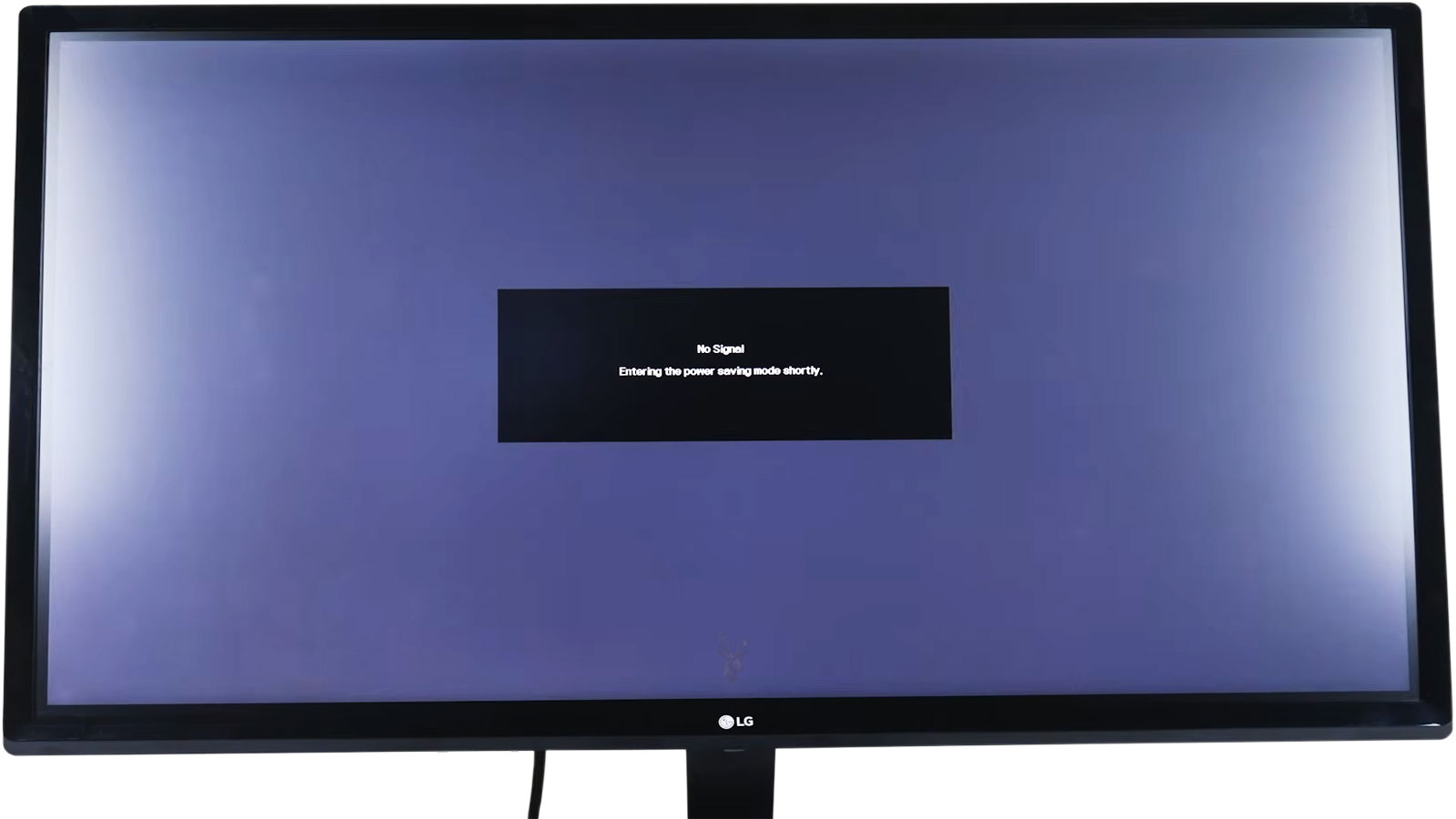
A monitor that displays a no-signal message does not always indicate that the computer has failed. The message usually means that the monitor is powered on but is not receiving a usable video signal through the input it is currently checking. The cause may be as simple as an incorrect input selection, but it can also involve a loose cable, an incompatible adapter, a disabled video output, or a hardware problem inside the computer.
This distinction is important because a no-signal message comes from the monitor rather than from Windows or another operating system. The monitor can display that message even when the computer is turned off, disconnected, frozen during startup, or sending video through a different port.
Effective troubleshooting begins by separating the monitor, cable, video connection, and computer into individual parts of the display path. Testing each part methodically is more reliable than repeatedly restarting the computer or changing several connections at once.
What a No-Signal Message Actually Indicates
A monitor normally waits for a video signal from the connected computer. When it detects a valid signal, it displays the image being produced by the computer. When no signal is detected, the monitor may display a message such as No Signal, Input Not Found, Cable Disconnected, or Check Video Cable before entering a low-power state.
The message confirms that the monitor can power on and produce its own on-screen information. It does not confirm that the display panel, input circuitry, cable, or computer is functioning correctly under normal operating conditions.
| Monitor Behavior | What It Commonly Suggests |
|---|---|
| No power light or on-screen menu | The monitor may lack power or have an internal fault. |
| No-signal message appears | The monitor is powered but does not detect video on the selected input. |
| Manufacturer logo appears, followed by a blank screen | The monitor starts normally but may lose the incoming signal. |
| Image appears briefly and then disappears | The signal, cable, resolution, backlight, or monitor electronics may be unstable. |
| On-screen menu works over a black background | The monitor can generate an image independently of the computer. |
Because these behaviors can look similar from a distance, observing the exact message and timing provides useful diagnostic information.
The Selected Input Must Match the Connected Port
Many monitors contain several video inputs. A single display may include HDMI, DisplayPort, DVI, VGA, or USB-C connections. Only one input may be active at a time, and the selected source must match the port carrying the computer’s video signal.
For example, a computer connected to HDMI 2 will not appear when the monitor is set to DisplayPort or HDMI 1. Some monitors detect active inputs automatically, while others remain on the previously selected source even after the cable has been moved.
- Identify the port being used on the back or side of the monitor.
- Open the monitor’s input or source menu.
- Select the input whose label matches the connected port.
- Allow several seconds for the monitor to detect the signal.
- Confirm that the cable has not been connected to a different input than expected.
Input labels can be easy to misread when several identical HDMI ports are positioned close together. Following the cable physically from the computer to the monitor can prevent selecting the wrong source.
A powered monitor can still show no signal when it is listening to the wrong video input.
Automatic Input Detection Is Not Always Reliable
Automatic source detection is intended to simplify setup, but it does not always respond correctly. A monitor may scan its inputs only when it is first powered on, remain locked to the last active connection, or take longer to recognize a signal after the computer wakes from sleep.
Adapters, docking stations, and display switches can make automatic detection less predictable because they may establish the connection in stages. The computer may begin sending video before the monitor finishes checking the correct input, or the monitor may enter sleep before the adapter becomes active.
Manually selecting the proper source removes one variable from the troubleshooting process. If the display works only after the input is selected manually, the computer and cable may be functioning normally even though the monitor’s automatic detection is inconsistent.
Cable Connections Can Appear Secure When They Are Not
A video cable does not need to fall out completely to interrupt the signal. HDMI and DisplayPort connectors can remain partly inserted while losing electrical contact. VGA and DVI connectors may loosen when their retaining screws are not tightened, and cable weight can place downward pressure on ports positioned near the edge of a desk.
The cable should be disconnected and reinserted at both ends rather than pressed inward from only one side. This confirms that the connector is fully seated and also removes minor oxidation or poor contact from the connection surfaces.
- Turn off the computer and monitor before reseating unfamiliar or difficult connections.
- Disconnect the cable from both the monitor and the computer.
- Inspect each connector for bending, cracking, looseness, or debris.
- Reconnect the cable firmly without forcing it.
- Tighten retaining screws where VGA or DVI connectors include them.
- Check whether cable movement causes the image to appear or disappear.
A connection that works only when the cable is held at a particular angle may indicate damage to the cable, the connector, or the port itself.
Different Video Cables Fail in Different Ways
Video cables carry high-frequency signals and can develop internal damage even when the outer covering looks normal. Repeated bending near the connector, tight routing behind furniture, crushing under equipment, or frequent removal can weaken conductors inside the cable.
| Connection Type | Relevant Characteristics | Possible Symptoms |
|---|---|---|
| HDMI | Carries digital video and often audio | No signal, intermittent picture, flashing, or resolution limits |
| DisplayPort | Uses a digital connection and may include a locking tab | Failed wake-up, no signal, or unstable detection |
| DVI | May carry digital or analog video depending on the connector | No image when the cable or adapter uses an incompatible format |
| VGA | Carries an analog signal | Color distortion, blur, shifting image, or no signal |
| USB-C | May carry video only when the port supports the required display mode | No signal despite a connector that fits physically |
Testing with another known-working cable is often more informative than inspecting the original cable visually. The replacement should support the same connection type and the resolution required by the monitor.
A Connector That Fits May Still Be Incompatible
Physical connection alone does not guarantee that two devices can exchange video. USB-C provides a common example because some USB-C ports support charging and data but do not provide video output. Others support display output only through a particular standard or docking device.
DVI connections can also create confusion. DVI-D carries digital video, DVI-A carries analog video, and DVI-I can support both depending on the equipment. An adapter that changes the connector shape may not convert the underlying signal.
Simple adapters generally work only when the source already provides a signal compatible with the destination. Converting between fundamentally different formats may require an active adapter containing electronic conversion circuitry.
Passive and Active Adapters Serve Different Purposes
A passive adapter rearranges compatible connections without actively converting the video signal. An active adapter processes one type of signal and produces another. Using the wrong adapter can result in a permanent no-signal message even though every connector appears to fit correctly.
| Connection Change | Possible Requirement |
|---|---|
| DisplayPort to HDMI | May work passively when the source supports the required output mode |
| HDMI to DisplayPort | Usually requires active conversion and may need separate power |
| Digital output to VGA | Requires active digital-to-analog conversion |
| DVI-D to VGA | Requires active conversion because DVI-D has no analog signal |
| USB-C to HDMI | Requires a USB-C port that supports video output and a compatible adapter |
Direction also matters. An adapter designed to send DisplayPort output into an HDMI monitor may not work in reverse when an HDMI computer is connected to a DisplayPort monitor.
Desktop Computers May Have More Than One Set of Video Ports
A desktop computer with a dedicated graphics card may also have video ports built into the motherboard. These two groups of connectors are not always active at the same time. When the graphics card is responsible for display output, connecting the monitor to a motherboard port may produce no signal.
The dedicated graphics card is usually installed horizontally in an expansion slot lower on the back of a tower. Motherboard video connections are generally located higher, near the USB, network, and audio ports.
- Check whether the computer contains a separate graphics card.
- Connect the monitor to the video ports on that card when it is the active display device.
- Avoid moving the cable between port groups without noting the original connection.
- Do not assume every visible video port is enabled.
If the monitor was recently disconnected for cleaning, relocation, or repair, reconnecting it to the wrong group of ports is a common reason for a new no-signal condition.
Confirming Whether the Computer Is Actually Starting
A no-signal message can originate anywhere along the display path, including inside the computer. Before assuming that the monitor or cable is responsible, it is useful to determine whether the computer is completing its normal startup process.
Fan movement and power lights confirm that electricity is reaching parts of the computer, but they do not prove that the processor, memory, graphics hardware, or operating system has started successfully. A system can power its fans while remaining unable to generate video.
- Listen for the normal startup sound or Windows sign-in notification.
- Check whether the keyboard lock lights respond after startup.
- Observe whether storage activity follows its usual pattern.
- Listen for beep codes or repeated restart attempts.
- Determine whether the computer can be reached over the network.
These observations help distinguish a display connection problem from a computer that is not completing startup. The distinction determines whether troubleshooting should continue with the monitor path or move toward internal hardware diagnostics.
Testing the Monitor Independently From the Computer
A reliable display test separates the monitor from the original computer. Connecting the monitor to another known-working system can help determine whether the display, input, and cable can produce a stable image under normal conditions.
The reverse test is equally useful. Connecting the original computer to another monitor or television can show whether the computer is generating video through the selected output. These cross-tests are often more informative than repeatedly changing settings on the same equipment.
| Test Result | Likely Direction of Troubleshooting |
|---|---|
| Original monitor works with another computer | Focus on the original computer, cable, adapter, or output port. |
| Original computer works with another monitor | Focus on the original monitor, selected input, or monitor-side connection. |
| Neither device works with replacement equipment | More than one problem may exist, or the test setup may be incompatible. |
| Image works only with a different cable | The original cable is likely damaged or unsuitable. |
When performing these tests, the replacement equipment should support the same signal type. A television may accept HDMI but may not help test DisplayPort directly unless a known-compatible adapter is used.
Monitor Menus Can Reveal Whether the Display Itself Is Responsive
The monitor’s built-in menu operates independently from the computer. If the brightness, contrast, input, and color menus appear normally, the panel and part of the monitor’s internal control system are functioning well enough to generate an image.
A working menu does not rule out every monitor fault. The display may still have a damaged input circuit, unstable power supply, failing backlight, or intermittent panel connection. It does, however, confirm that the screen is not completely inactive.
- Open the on-screen menu while the video cable is disconnected.
- Confirm that the menu remains visible and stable.
- Check whether all expected inputs appear in the source list.
- Restore default monitor settings if an unusual configuration is suspected.
- Observe whether the menu flickers, dims, or disappears unexpectedly.
If the menu does not appear despite a confirmed power connection, troubleshooting should focus more closely on the monitor and its power source.
Power Cycling Can Reset a Stalled Display Connection
Digital display connections exchange information when devices start, wake, or reconnect. The computer and monitor use this communication to identify supported resolutions, refresh rates, audio capabilities, and display status. Occasionally, that process becomes stalled.
A complete power cycle can force the devices to establish the connection again. This is different from turning the monitor off briefly with its front button because some internal circuits may remain powered in standby mode.
- Shut down the computer completely.
- Turn off the monitor and disconnect its power cable.
- Disconnect the video cable from both devices.
- Wait briefly for standby power to dissipate.
- Reconnect the video cable and monitor power.
- Turn on the monitor and select the correct input.
- Start the computer and allow the display connection to initialize.
This process may resolve a temporary detection problem, but repeated failures after sleep or restart usually indicate an underlying issue with a cable, adapter, driver, docking station, graphics output, or monitor input.
Sleep and Wake Problems Can Resemble a Complete Loss of Video
A monitor may work normally during startup but display no signal after the computer enters sleep. In this situation, the computer, graphics hardware, docking station, and monitor may not reestablish communication correctly when the system wakes.
The monitor may remain asleep even though the computer has resumed, or the computer may continue treating the display as disconnected. Moving the mouse repeatedly does not always correct the condition because the problem may involve display detection rather than user inactivity.
- Press a key and wait several seconds for the system to respond.
- Check whether the computer itself appears awake.
- Turn the monitor off and on without changing cables.
- Reselect the correct input manually.
- Disconnect and reconnect the video cable or docking connection.
- Restart the computer if the display does not return.
If the problem occurs only after sleep, later troubleshooting may include graphics drivers, power-management settings, monitor firmware, and the behavior of any adapter or docking station in the connection path.
Resolution and Refresh Rate Can Exceed the Monitor’s Capabilities
A monitor can show no signal or an out-of-range warning when the computer sends a resolution or refresh rate the display cannot process. This may occur after connecting a different monitor, changing graphics settings, updating drivers, or starting a game that uses its own display configuration.
Modern digital connections usually negotiate supported settings automatically, but incorrect values can still remain stored. Older monitors and adapters are more likely to encounter limitations, especially at high resolutions or refresh rates.
| Condition | Possible Display Response |
|---|---|
| Resolution exceeds monitor support | No signal, blank display, or out-of-range message |
| Refresh rate is too high | Blank image, unstable picture, or intermittent detection |
| Adapter lacks required bandwidth | Lower resolution works while higher settings fail |
| Cable does not support the requested mode | Flickering, image loss, or reduced available settings |
| Game uses a saved unsupported mode | Desktop works but the display disappears when the game starts |
Testing at a lower resolution and standard refresh rate can help determine whether the display path works under less demanding conditions. If the image returns only at reduced settings, bandwidth or compatibility should be investigated before assuming that the monitor has failed.
Windows May Send the Desktop to a Different Display
When several monitors, televisions, projectors, or docking stations have been used, Windows may remember a display arrangement that no longer matches the current setup. The main desktop can be assigned to a disconnected screen while the connected monitor remains blank or shows only an extended background.
Display modes typically include using only the primary screen, duplicating the image, extending the desktop, or using only the secondary display. Accidentally switching modes can make a working monitor appear inactive.
- PC screen only: Uses the computer’s designated internal or primary display.
- Duplicate: Shows the same image on more than one display.
- Extend: Spreads the desktop across separate screens.
- Second screen only: Sends the image to the external display while disabling the primary one.
On a laptop, switching to the wrong display mode may disable the built-in screen before the external monitor is detected correctly. Waiting for the mode to change and using the keyboard display shortcut carefully can restore the expected output.
A Graphics Driver Problem May Begin After Windows Loads
The computer may display its manufacturer logo or startup information and then lose video when Windows begins loading. This pattern suggests that the basic hardware can produce an image, but the problem appears when the graphics driver takes control.
A corrupted, unsuitable, or recently changed driver can select an unsupported display mode, fail to initialize the graphics hardware, or mishandle a particular monitor connection. The timing of the image loss is therefore important.
| Image Timing | Possible Meaning |
|---|---|
| No image from the moment the computer starts | The issue may involve startup hardware, the output port, cable, input, or monitor. |
| Startup logo appears, then the screen goes blank | The graphics driver or Windows display configuration may be involved. |
| Image appears only in Safe Mode | A driver, startup program, or unsupported display setting becomes more likely. |
| Image disappears when a specific application opens | The application may be changing resolution, refresh rate, or graphics mode. |
Driver troubleshooting should follow confirmation that the physical display path is secure. Reinstalling software will not correct a cable connected to the wrong port or a monitor set to the wrong input.
Docking Stations Add Another Layer to the Display Path
A docking station places additional hardware between the computer and monitor. The dock may convert USB-C or another connection into HDMI or DisplayPort, manage several monitors, and depend on its own power supply, firmware, or drivers.
When an external display fails through a dock, testing a direct connection can help isolate the problem. If the computer produces video when connected directly to the monitor, the dock, its cable, its power source, or its compatibility becomes more likely.
- Confirm that the docking station has power when required.
- Reseat the connection between the laptop and dock.
- Test another video output on the docking station.
- Connect the monitor directly to the computer when possible.
- Reduce the number of attached displays during testing.
- Verify that the dock supports the desired resolution and refresh rate.
A dock that supports one monitor at a high resolution may not support two monitors at the same settings. Bandwidth limits can produce no-signal conditions that appear only when additional displays are connected.
Laptops May Require a Specific Port or Display Shortcut
Laptops often contain several ports that appear capable of connecting a monitor, but their display capabilities may differ. One USB-C port may support video while another supports only data and charging. A proprietary dock port may require a matching docking station before external display outputs become available.
Some laptops also include a keyboard shortcut for switching displays. The shortcut may use a function key marked with a monitor symbol. Depending on the keyboard settings, it may require the Fn key.
Repeatedly pressing the shortcut too quickly can cycle past the desired mode. Each change should be given enough time for the monitor to detect the signal and for Windows to rearrange the desktop.
Internal Graphics Hardware Can Prevent All Video Output
If no monitor works on any compatible output and the computer does not appear to complete startup, the problem may be inside the system. Memory faults, graphics card problems, motherboard issues, power supply limitations, or failed startup configuration can prevent video generation.
A dedicated graphics card requires power, a secure connection to the motherboard, and proper communication with the rest of the system. A card that has shifted in its slot or lost an auxiliary power connection may allow the computer’s fans to run while producing no image.
- The graphics card fans spin, but no display output appears.
- The computer produces startup beep codes or warning lights.
- The system repeatedly restarts before reaching Windows.
- No video port works with known-good cables and monitors.
- The problem began after moving, cleaning, or opening the computer.
Internal inspection should be performed with the computer powered off and disconnected. When the cause remains uncertain, professional diagnostics can help avoid unnecessary replacement of the monitor, graphics card, or motherboard.
Integrated Graphics Can Help Isolate a Dedicated Card Problem
Some desktop processors and motherboards provide integrated graphics in addition to a dedicated graphics card. When the system supports this feature, the motherboard video output can sometimes be used as a diagnostic alternative.
This test is not available on every computer. Some processors contain no integrated graphics, and some systems disable the motherboard video ports automatically when a dedicated card is installed. Connecting a monitor to those ports will not produce an image unless the hardware and firmware support that configuration.
If integrated graphics are available and produce a stable image while the dedicated card does not, attention can shift toward the graphics card, its power connections, the expansion slot, or its driver configuration. If neither output works, the fault may involve a broader startup problem.
| Test Result | Possible Interpretation |
|---|---|
| Integrated graphics work normally | The dedicated graphics card or its connection may require attention. |
| Neither output produces video | Memory, motherboard, processor, power, or startup configuration may be involved. |
| Motherboard port has never worked | The processor may lack integrated graphics, or the port may be disabled. |
| Dedicated card works after reseating | The card may have developed poor contact in the expansion slot. |
A diagnostic connection should not be treated as proof that every other component is healthy. It simply narrows the display path and helps identify which hardware deserves further testing.
Memory Problems Can Prevent Video Before the Graphics System Starts
System memory is required early in the startup process. If the memory cannot be initialized, the computer may power its fans and lights without reaching the stage where video is produced. This can make a memory fault appear to be a monitor or graphics problem.
The condition may begin after the computer is moved, opened for cleaning, or upgraded. A memory module can become partially unseated, or a newly installed module may be incompatible with the motherboard or existing memory.
- The computer turns on but produces no startup logo.
- Diagnostic lights indicate a memory-related fault.
- Beep codes repeat immediately after power-on.
- The system starts only after a memory module is reseated or removed.
- The problem begins immediately after a memory upgrade.
Memory testing requires careful handling and protection from static electricity. Modules must be installed in the correct orientation and fully locked into their slots. Forcing a module or installing it unevenly can damage both the memory and the motherboard.
Graphics Cards May Require Separate Power Connections
Many dedicated graphics cards receive part of their power through the motherboard expansion slot and additional power through one or more cables from the power supply. If an auxiliary connector is loose or absent, the card may not initialize correctly.
Some cards display a warning light or produce an on-screen message when power is missing, but others simply provide no video. The computer may still appear to start because the processor, fans, storage, and lighting receive power independently.
| Power Condition | Possible Result |
|---|---|
| Auxiliary connector is disconnected | The graphics card may fail to start or provide video. |
| Connector is only partially seated | The system may operate intermittently or fail under load. |
| Power supply capacity is insufficient | Video may disappear during startup or demanding use. |
| Incorrect modular cable is used | Hardware damage may occur even when the connector fits. |
Modular power supply cables are not universally interchangeable. A cable from another power supply should never be used merely because its connector appears to fit. Internal wiring can differ between manufacturers and models.
Firmware Settings Can Change Which Display Output Becomes Active
Computer firmware may contain settings that determine whether integrated graphics, a dedicated graphics card, or an automatically detected device becomes the primary display output. A firmware reset, hardware change, or failed battery can alter those settings.
This can result in video being directed to a different group of ports than the ones previously used. A monitor connected to the dedicated card may show no signal while the startup image is being sent through the motherboard, or the reverse may occur.
Firmware changes should not be made randomly. Selecting an unsupported option can complicate troubleshooting, especially when the user cannot see the setup screen. The current cable positions and original settings should be documented before changes are attempted.
A Firmware Reset May Restore Defaults but Remove Custom Settings
Clearing firmware settings can sometimes correct a configuration that prevents normal video initialization. However, a reset affects more than the display output. It may also change storage modes, boot order, memory settings, fan controls, security options, and system date information.
A firmware reset should be treated as a configuration change, not as a harmless universal solution for every no-signal problem.
If a computer contains specialized settings or encrypted storage, changing firmware options without preparation can create additional startup problems. Basic cable, input, monitor, and hardware checks should generally be completed first.
Multiple Monitors Can Complicate Signal Detection
A computer using several displays must detect each monitor, assign a resolution, and determine how the desktop is arranged. A failed cable or incorrectly selected input on one monitor can affect the way the user interprets the entire setup.
During troubleshooting, reducing the system to one monitor can remove several variables. The remaining display should be connected directly to a known-working video output with a known-working cable whenever possible.
- Disconnect all secondary monitors and adapters.
- Connect one monitor directly to the primary video output.
- Select the matching input manually.
- Restart the computer and confirm whether startup video appears.
- Reconnect additional displays one at a time.
- Test the arrangement after each connection is added.
This process can reveal whether the failure begins only after a particular monitor, cable, adapter, or docking output is connected.
DisplayPort Connections May Remain Latched or Fail After Sleep
DisplayPort cables frequently include a locking mechanism that must be released before removal. Pulling on a locked connector can damage the cable, port, or retaining tab. Even without physical damage, DisplayPort connections can occasionally fail to reestablish correctly after sleep or power changes.
A full disconnection and power cycle may restore the connection temporarily. Repeated failures can involve cable quality, monitor behavior, graphics drivers, docking hardware, or firmware compatibility.
- Press the release tab before removing a locking connector.
- Avoid pulling the cable by its wire instead of the plug.
- Test another certified cable when the problem is intermittent.
- Check whether the failure occurs only after sleep.
- Compare behavior on another output or monitor input.
Replacing the cable is a useful test, but it should not be assumed to correct every DisplayPort wake problem. The entire connection path may need evaluation.
HDMI Handshake Problems Can Interrupt an Otherwise Working Connection
HDMI devices exchange information about resolution, audio, display capabilities, and content protection. This exchange is commonly described as a handshake. When it does not complete correctly, the monitor may remain blank even though the cable and devices are capable of working together.
Switches, receivers, capture devices, splitters, and adapters add more steps to this communication. A direct connection between the computer and monitor can help determine whether one of those intermediate devices is interfering with detection.
| Connection Path | Diagnostic Value |
|---|---|
| Computer directly to monitor | Provides the simplest test with the fewest variables. |
| Computer through an adapter | Tests the adapter’s conversion and compatibility. |
| Computer through a switch or receiver | Adds signal negotiation and possible bandwidth limits. |
| Computer through a dock and adapter | Introduces several possible points of failure. |
If the direct connection works, the monitor and computer may be functioning normally while an intermediate device causes the no-signal condition.
Intermittent Video Loss Requires Attention to Timing
A display that loses signal occasionally can be more difficult to diagnose than one that never works. The timing of the failure can reveal whether it relates to movement, temperature, power demand, sleep, software, or a particular application.
- Signal disappears when the desk or cable is moved.
- Video fails only after the computer becomes warm.
- The screen goes blank when a game or graphics application starts.
- The monitor loses signal after sleep but not after a full restart.
- Video disappears when another device is connected to the same dock.
- The failure occurs at one resolution or refresh rate but not another.
Recording these conditions prevents useful details from being lost. An intermittent cable problem requires a different repair approach than a graphics card that stops working only under heavy load.
A Logical Order for No-Signal Troubleshooting
No-signal problems are easier to diagnose when the simplest external causes are checked before internal hardware is disturbed. Changing several components at the same time can make it difficult to identify which action actually restored the display.
- Confirm that the monitor has power and can display its own menu.
- Verify that the selected input matches the connected port.
- Reseat the video cable at both ends.
- Test a known-working cable of the correct type.
- Remove unnecessary adapters, switches, docks, and secondary displays.
- Test the monitor with another computer or device.
- Test the computer with another compatible monitor.
- Confirm that a desktop monitor is connected to the active graphics ports.
- Observe whether startup video appears before Windows loads.
- Investigate internal hardware only after the external display path has been tested.
This order does not guarantee that every problem will be simple, but it reduces unnecessary disassembly and replacement. It also creates clear test results that can guide further diagnostics.
When the Monitor Is the Likely Source of the Problem
The monitor becomes more suspect when it fails with several known-working computers and cables, cannot maintain its own on-screen menu, loses power intermittently, or works only through one of several identical inputs.
Internal monitor faults can involve the power supply, input board, backlight, panel electronics, or control buttons. Some failures are economical to repair, while others justify replacement depending on the age, size, resolution, and value of the display.
- The monitor does not work with any known-good source.
- Its menu flickers or disappears without a computer connected.
- One input fails while another works with the same equipment.
- The monitor repeatedly turns off or restarts.
- The image appears only after a long warm-up period.
A failed monitor input does not necessarily mean the panel itself is defective. Another compatible input may continue working, although the underlying fault should still be documented.
When the Computer Requires Internal Diagnostics
Internal diagnostics become appropriate when multiple known-working monitors and cables receive no signal, the system does not complete startup, diagnostic indicators report a fault, or the problem began after internal hardware was moved or replaced.
The investigation may include memory testing, graphics card inspection, power supply evaluation, firmware review, motherboard diagnostics, and confirmation that the processor and cooling system initialize correctly.
Replacing parts without testing can be expensive and misleading. A graphics card may be blamed when the actual cause is memory, power, firmware configuration, or a damaged expansion slot. Structured testing helps avoid replacing functional hardware.
Separating a Display Path Problem From a Startup Failure
A no-signal message describes what the monitor is receiving, not why the signal is absent. The cause may be outside the computer, inside the computer, or somewhere between the two.
The most useful evidence comes from controlled substitutions and careful observation. A working monitor menu, a manually selected input, a known-good cable, a direct connection, and a second display can eliminate large parts of the troubleshooting path without opening the computer.
When those tests do not restore video, startup behavior and internal diagnostic indicators become more important. By separating the monitor, connection, graphics output, and computer startup process, a no-signal problem can be approached as a series of testable conditions rather than a single unexplained blank screen.











