
Building a Practical Maintenance Routine for Long-Term Reliability
Computers rarely fail without warning. In many situations, small changes begin appearing weeks or even months before a noticeable hardware or software problem develops. Cooling fans collect dust, storage fills gradually, batteries lose capacity, updates are postponed, and connectors experience normal wear from everyday use. Individually these changes may seem insignificant, but together they can affect reliability over time.
A preventive maintenance schedule helps identify developing issues before they interrupt daily work. Rather than waiting for a computer to stop functioning completely, maintenance focuses on keeping the system operating consistently through periodic inspection, cleaning, software review, and hardware evaluation.
Not every computer requires the same schedule. A desktop used occasionally at home experiences different conditions than a business workstation operating throughout the day or a gaming system that regularly runs demanding applications. The objective is not to perform maintenance as often as possible, but to establish a routine that matches how the computer is actually used.
Preventive Maintenance Is Different From Repair
Computer repair addresses problems that already exist. Preventive maintenance attempts to reduce the likelihood of those problems appearing in the first place. While maintenance cannot eliminate every failure, it can often identify conditions that deserve attention before they become more expensive or more disruptive.
For example, discovering a cooling system that has become heavily restricted by dust is very different from replacing components that have already been damaged by excessive heat. Likewise, replacing a battery that has gradually lost capacity is generally simpler than recovering work after an unexpected shutdown caused by a battery that no longer holds sufficient charge.
| Preventive Maintenance | Corrective Repair |
|---|---|
| Performed before major problems develop | Performed after a fault has occurred |
| Focuses on reducing future risk | Focuses on restoring operation |
| Usually scheduled in advance | Often performed unexpectedly |
| Can reduce downtime over time | Addresses existing failures |
Both approaches are valuable. Preventive maintenance simply shifts attention toward keeping systems dependable instead of responding only after something stops working.
Factors That Influence Maintenance Frequency
There is no universal maintenance interval that applies to every computer. Environmental conditions, workload, operating hours, and even the location of the system all influence how quickly components experience normal wear.
- Computers located near floors often collect dust more quickly than those placed on desks.
- Homes with pets may expose cooling systems to additional hair and airborne debris.
- Business computers that operate throughout the workday generally accumulate more operating hours than systems used occasionally at home.
- Gaming computers frequently generate higher internal temperatures because of sustained processor and graphics workloads.
- Laptops transported daily may experience more physical wear than systems that remain in one location.
Understanding these differences helps establish maintenance intervals that are practical rather than arbitrary. A lightly used family computer may require only periodic inspection, while a production workstation could benefit from more frequent attention.
An effective maintenance schedule reflects how a computer is used, not simply how much time has passed since it was purchased.
Routine Software Reviews Matter as Much as Hardware Checks
Preventive maintenance often brings to mind cleaning fans or inspecting physical components, but software deserves equal attention. Operating systems, applications, drivers, and security tools continue changing long after a computer leaves the manufacturer. Periodic review helps confirm that these components continue working together as expected.
Maintenance can include verifying that backups are completing successfully, checking available storage capacity, reviewing startup applications, confirming antivirus status, and looking for recurring errors that may indicate developing hardware problems. Addressing these issues early is often easier than troubleshooting a system that has become unstable after months of unnoticed warnings.
Creating a Maintenance Calendar
Instead of performing every task at the same time, many organizations divide maintenance into smaller activities that occur at different intervals. This approach keeps routine work manageable while ensuring that important checks are not overlooked.
| Interval | Examples of Routine Tasks |
|---|---|
| Monthly | Review available storage, verify backups, install routine software updates. |
| Quarterly | Inspect cooling vents, review startup applications, examine system health reports. |
| Every 6–12 Months | Perform a more thorough cleaning, inspect hardware condition, evaluate battery health and storage performance. |
These intervals are examples rather than fixed requirements. Some environments may justify shorter maintenance cycles, while others may operate reliably with less frequent inspections.
Monthly Checks That Prevent Small Problems From Growing
Monthly maintenance does not need to involve opening the computer or running advanced diagnostic tools. The most useful checks are often simple observations that reveal whether the system is beginning to behave differently from normal.
A computer that suddenly takes longer to start, loses more storage space than expected, runs its fans continuously, or produces repeated warning messages may be showing the early stages of a larger issue. Recording those changes while they are still minor can make later troubleshooting more accurate.
- Confirm that important backups completed successfully.
- Review the amount of free space on internal storage.
- Install routine operating system and application updates.
- Check for repeated security alerts or failed scans.
- Restart systems that are normally left running for long periods.
- Listen for new fan noise, clicking, buzzing, or vibration.
- Note any recurring freezes, restarts, or connection problems.
The purpose of these checks is not to search for faults that are not present. It is to establish familiarity with the computer’s normal behavior so that meaningful changes are easier to recognize.
Backup Verification Requires More Than Seeing a Green Check Mark
A backup system can appear active while failing to protect the files that matter most. Drives may disconnect, cloud accounts may stop synchronizing, backup schedules may be interrupted, or newly created folders may fall outside the selected backup locations.
Preventive maintenance should therefore include checking the date of the most recent successful backup and confirming that recent files are present. Periodically opening a small selection of backed-up documents, photos, or project files provides additional confidence that the data can actually be restored.
A backup is useful only when it contains current information and can be read when it is needed.
Business systems may require more formal verification because a failed backup can affect accounting records, customer information, shared documents, and operational data. In those environments, backup reviews should be assigned to a specific person rather than assumed to be occurring automatically.
Storage Capacity Should Be Reviewed Before It Becomes Critical
Operating systems and applications need working space for temporary files, updates, caches, virtual memory, and installation processes. When a drive becomes almost full, the computer may slow down, updates may fail, and programs may behave unpredictably.
Storage growth usually happens gradually. Downloads, email attachments, duplicate photos, old installers, temporary project folders, and unused applications can consume space without attracting attention. A monthly review helps identify this growth before the system reaches a critical level.
| Observation | Possible Maintenance Response |
|---|---|
| Free space is decreasing steadily | Identify large folders and remove unnecessary files |
| Temporary files occupy unusual amounts of space | Review application caches and cleanup options |
| Downloads folder contains old installers | Archive or remove files no longer needed |
| System drive is nearly full | Move appropriate data or consider a storage upgrade |
Cleanup should be deliberate. Randomly deleting unfamiliar folders can damage applications or remove information that appears unimportant but is still needed by the operating system.
Quarterly Inspection of Cooling and Airflow
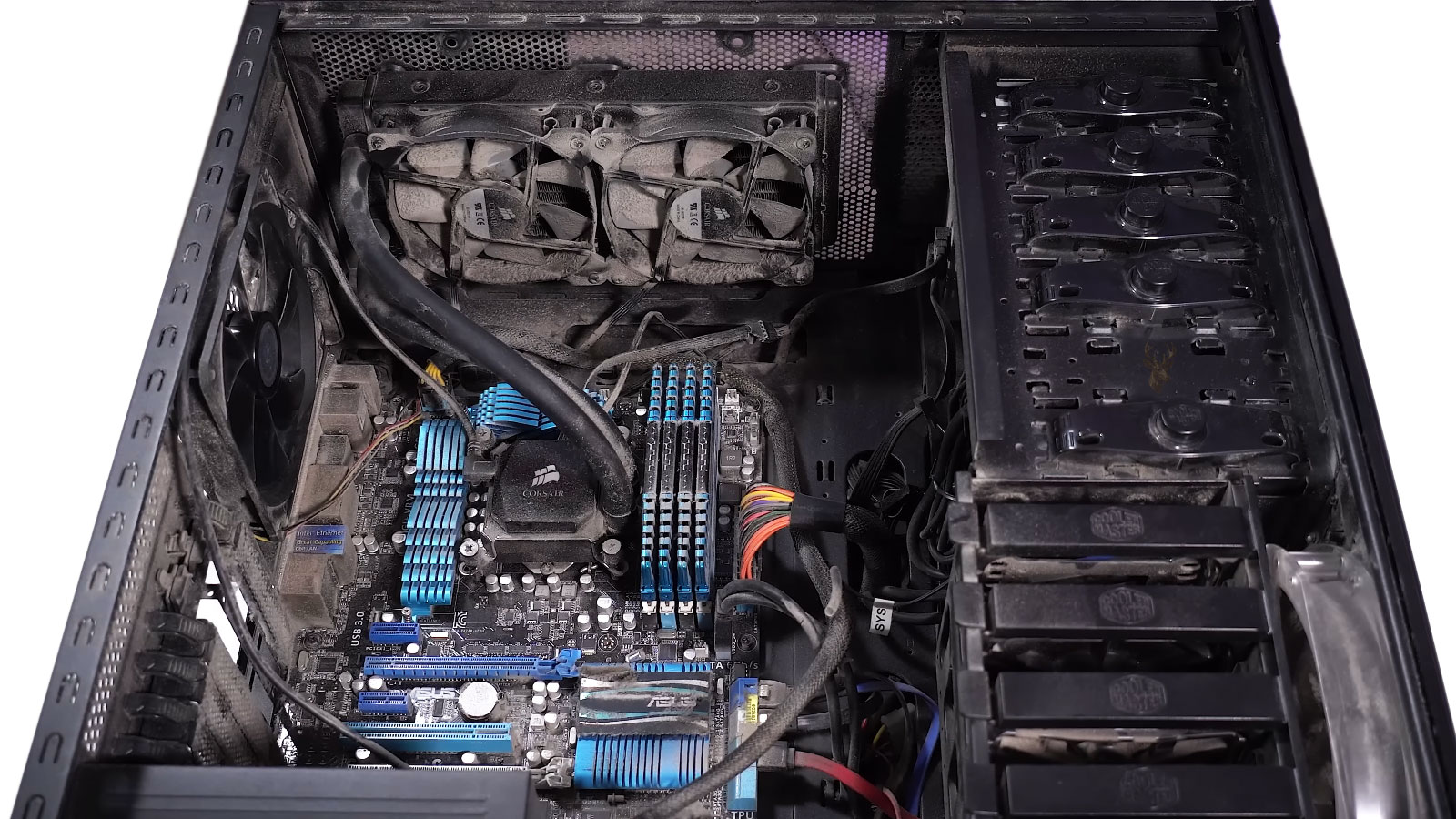
Cooling systems deserve periodic attention because heat affects nearly every major component inside a computer. Dust on intake vents, clogged filters, blocked exhaust areas, and weakened fans can all reduce airflow without immediately causing a shutdown.
An external inspection can reveal whether vents are becoming restricted. Desktop computers should have open space around intake and exhaust areas, while laptops should be used on firm surfaces that do not block their lower vents.
- Check whether vents are covered by dust or fabric.
- Confirm that the computer is not pressed tightly against a wall.
- Inspect removable dust filters where the case design includes them.
- Listen for fans that scrape, pulse, or fail to start consistently.
- Notice whether the outer case feels significantly hotter than usual.
External cleaning can often be performed safely, but opening a system requires more care. Improper use of compressed air can overspin fans, force debris deeper into the machine, or introduce moisture if the can is tilted. Internal cleaning should match the design of the computer and the experience of the person performing the work.
Startup Applications and Background Activity
Programs frequently add themselves to startup without making their long-term effect obvious. Over time, a computer may begin loading several update agents, synchronization tools, messaging applications, printer utilities, and manufacturer services whenever the user signs in.
Not every startup item is unnecessary. Security software, backup programs, accessibility tools, and device utilities may depend on background services. Maintenance should focus on identifying software that is no longer used or that starts automatically without providing a clear benefit.
Removing legitimate startup items without understanding their purpose can create new problems. A careful review is better than disabling everything in an attempt to make the computer start faster.
Semiannual Hardware Evaluation
Every six months, or at another interval appropriate for the system, a more detailed inspection can help identify wear that is not visible during ordinary use. This is especially useful for laptops, office computers, and systems that operate for long hours.
| Component | Condition to Review | Reason for Attention |
|---|---|---|
| Storage drive | Health indicators, unusual delays, error history | Developing faults can place data at risk |
| Battery | Capacity loss, swelling, unexpected shutdowns | Worn batteries can affect safety and reliability |
| Cooling system | Dust buildup, fan behavior, operating temperature | Restricted airflow can shorten component life |
| Ports and connectors | Loose fit, intermittent contact, physical damage | Wear can cause charging and device connection problems |
| Power equipment | Cable condition, surge protection, adapter heat | Electrical problems can damage multiple components |
This type of review does not require replacing parts according to age alone. A component should be evaluated according to its condition, performance, operating history, and the importance of the computer it supports.
Laptop Maintenance Includes Physical Wear
Laptops experience forms of wear that stationary desktops often avoid. Hinges open and close repeatedly, charging plugs are inserted at different angles, keyboards collect debris, and the computer may be carried while cables or accessories remain connected.
A preventive inspection should look for case separation, loose hinges, damaged charging ports, swelling around the touchpad or keyboard, and cables that no longer fit securely. Early attention is important because a small mechanical problem can place additional stress on internal wiring, display cables, or the motherboard.
- Open and close the display slowly while listening for cracking or clicking.
- Check whether the charger moves excessively inside the port.
- Inspect the bottom cover for gaps or bulging.
- Confirm that rubber feet are present and the laptop sits evenly.
- Look for fraying near the charger plug and adapter cable.
Battery swelling deserves immediate attention. A swollen battery can distort the case, interfere with the touchpad, and place pressure on nearby components. It should not be treated as ordinary cosmetic wear.
Business Maintenance Should Be Documented
Small offices often depend on several computers that appear similar but perform different roles. One may handle accounting, another may control a printer or scanner, and another may store shared files used by several employees. Maintenance becomes more effective when these systems are identified and their service history is recorded.
A basic record can include the computer name, assigned user, installation date, important software, backup method, maintenance dates, and any recurring concerns. This information helps distinguish isolated problems from patterns affecting several systems.
Documentation also prevents unnecessary repetition. A technician can see which checks were already completed, which parts were replaced, and whether a problem has returned after an earlier repair.
Maintenance Timing Should Change With the Computer
A schedule established when a computer is new may need adjustment as the system ages or its role changes. A laptop that was once used occasionally may later become a full-time work computer. A desktop may receive a more powerful graphics card, begin running demanding software, or move into a dustier location.
Maintenance intervals should respond to those changes. Increasing workload, new environmental conditions, aging batteries, and reduced cooling efficiency may justify more frequent inspection even when the computer has not yet shown a serious failure.
Warning Signs That Justify Earlier Maintenance
A maintenance calendar should provide structure, but it should not prevent action when a computer begins showing unusual behavior. A system that develops a new symptom should be checked when the symptom appears rather than waiting for the next scheduled review.
Changes in sound, temperature, startup behavior, battery life, storage performance, and network reliability can all indicate that normal maintenance intervals are no longer appropriate. Some symptoms are minor, while others may point to a developing hardware problem.
- Cooling fans run at high speed during light tasks.
- The computer becomes hotter than it did under the same workload.
- Startup or shutdown begins taking noticeably longer.
- Storage devices pause, disappear, or produce repeated errors.
- A laptop battery loses charge unusually quickly.
- Ports or charging connections work only when held at a certain angle.
- The computer freezes or restarts more often than before.
These signs do not automatically identify the cause, but they show that the computer’s behavior has changed. Early inspection can help determine whether the issue is related to maintenance, software, normal wear, or an actual component failure.
Tasks That Should Not Be Performed Automatically
A preventive schedule can become counterproductive when maintenance is performed without considering whether it is necessary. Some actions carry risk and should not be treated as routine simply because a certain amount of time has passed.
| Task | Reason for Caution |
|---|---|
| Updating firmware without a specific need | An interrupted or unsuitable update can create new hardware problems. |
| Replacing thermal paste on a properly cooled system | Disassembly can damage connectors, screws, or nearby components. |
| Running repeated storage benchmarks | Heavy testing adds unnecessary writes and may not reflect normal use. |
| Using aggressive registry-cleaning tools | Removing unfamiliar entries can damage software or system settings. |
| Disabling background services in bulk | Important security, backup, and device functions may stop working. |
Good maintenance is selective. The goal is to preserve reliability, not to alter a healthy computer simply to make the maintenance process appear more thorough.
Maintenance Records Improve Future Troubleshooting
Even a simple maintenance record can provide useful context when a problem develops later. Dates, symptoms, repairs, part replacements, and software changes can reveal patterns that are difficult to remember after several months.
For example, repeated overheating after several cleanings may indicate a weak fan rather than ordinary dust buildup. A battery that was recently replaced but continues losing power unexpectedly may point toward a charging or motherboard problem. Documentation helps separate recurring symptoms from unrelated events.
- Record the date of each inspection or service.
- Note any symptoms reported by the user.
- List the checks that were performed.
- Document parts or software that were changed.
- Include recommendations for the next review.
Detailed records are especially useful in small offices where several computers are maintained over many years. They can help with replacement planning, warranty decisions, budgeting, and the identification of systems that require repeated attention.
Planning Maintenance Around the Importance of the System
Not every computer carries the same level of operational risk. A family computer used occasionally for browsing may tolerate a longer maintenance interval than a workstation responsible for payroll, customer records, scheduling, or other daily business functions.
The consequences of downtime should influence the maintenance plan. Systems that are difficult to replace, contain specialized software, or support several employees often justify closer monitoring and more frequent backup verification.
The more important a computer is to daily activity, the less its maintenance should depend on memory or convenience.
Critical systems may also benefit from planned service during evenings, weekends, or other low-use periods. Scheduling maintenance outside normal work hours reduces interruption and allows enough time for testing before the computer returns to regular use.
Replacement Planning Is Part of Preventive Care
Preventive maintenance does not mean keeping every computer in service indefinitely. As systems age, replacement parts may become difficult to obtain, software support may end, and performance may no longer meet the needs of current applications.
Maintenance records can help identify when continued repair is no longer the most practical option. A computer that requires repeated service, depends on outdated software, or lacks suitable upgrade paths may be more expensive to keep than to replace.
| Condition | Possible Planning Response |
|---|---|
| Frequent hardware repairs | Compare future repair costs with replacement. |
| Unsupported operating system | Plan migration before security support ends. |
| Insufficient performance | Evaluate whether an upgrade or replacement is more practical. |
| Specialized software dependence | Confirm compatibility before changing systems. |
| Unreliable power or storage | Prioritize backup and replacement planning. |
Replacement planning is most effective when it begins before a failure. A rushed purchase made after a critical computer stops working may create compatibility problems, data-transfer pressure, and unnecessary expense.
A Practical Maintenance Routine
A useful routine combines observation, documentation, cleaning, backup verification, software review, and periodic hardware inspection. It should be detailed enough to catch developing problems without becoming so complicated that it is ignored.
- Review backups and available storage every month.
- Watch for changes in noise, heat, startup time, and reliability.
- Inspect vents, cables, ports, and external condition every few months.
- Perform more detailed hardware checks at intervals suited to the workload.
- Document maintenance and recurring symptoms.
- Adjust the schedule when the computer’s use or environment changes.
The schedule should remain flexible. A computer in a clean, climate-controlled office may need less frequent physical cleaning than one located near a workshop, kitchen, carpeted floor, or household pet. The same principle applies to workload, age, and daily operating hours.
Keeping Maintenance Proportionate and Useful
Preventive service is most valuable when it addresses real conditions rather than following a rigid checklist without judgment. A computer does not need to be disassembled repeatedly, and healthy parts do not need to be replaced simply because they have reached a particular age.
At the same time, ignoring gradual changes can allow avoidable problems to develop. Dust, low storage space, failed backups, aging batteries, loose connectors, and neglected updates rarely improve on their own.
A balanced maintenance plan gives each system the attention it needs while avoiding unnecessary work. By matching the schedule to the environment, workload, condition, and importance of the computer, preventive maintenance becomes a practical part of long-term reliability rather than an occasional reaction to failure.











