
A Driver Update Can Change How Working Hardware Behaves
Windows depends on device drivers to communicate with graphics adapters, network cards, sound hardware, printers, storage controllers, USB devices, touchpads, and many other components. When a driver changes, the physical hardware remains the same, but the instructions Windows uses to control it may be different.
Most driver updates install without creating noticeable problems. Others introduce compatibility conflicts, remove manufacturer-specific functions, change power management behavior, or fail during installation. A device that worked before an update may then disappear, operate incorrectly, or produce intermittent errors.
Windows includes a driver rollback function that can restore the previously installed version in certain situations. This can be a useful diagnostic step when a problem begins immediately after a driver change, but rollback is not available for every device or every type of update.
A newer driver is not automatically the best driver for every computer, operating system build, and hardware configuration.
A Device Driver Connects Windows to a Specific Hardware Component
A driver acts as an operating layer between Windows and the hardware. Programs send requests through Windows, and the driver converts those requests into commands the device can understand.
Different components require different drivers because a wireless adapter does not process commands in the same way as a graphics processor, sound controller, or storage device. Even two devices that perform the same general function may use different chipsets and require different software.
| Hardware category | What the driver helps control | Possible symptom after a driver problem |
|---|---|---|
| Graphics adapter | Display output, resolution, acceleration, and monitor support | Black screen, flickering, low resolution, or application crashes |
| Network adapter | Wi-Fi or Ethernet communication | No connection, slow speed, or repeated disconnects |
| Sound device | Playback, recording, audio ports, and enhancements | Missing sound, distortion, or unavailable microphone |
| USB controller | Communication with connected USB devices | Devices disconnect, fail to install, or stop responding |
| Touchpad | Pointer movement, gestures, buttons, and palm detection | Missing gestures, erratic movement, or complete loss of control |
When the driver does not match the hardware or operating system correctly, Windows may still detect the device while being unable to use all of its features.
Driver Updates Can Arrive From Several Sources
A driver can be installed manually, supplied by the computer manufacturer, included with a hardware device, delivered through Windows Update, or added by a hardware management utility.
These sources may provide different versions for the same component. A computer manufacturer may offer a customized driver designed for its specific cooling system, keyboard controls, display configuration, or power management features. The component manufacturer may offer a newer general-purpose version.
- Windows Update may install a driver automatically.
- The computer manufacturer’s support page may provide a system-specific version.
- The hardware manufacturer may offer a newer reference driver.
- A device installation package may contain the version available when the hardware was produced.
- Third-party driver utilities may install versions from less clearly documented sources.
The source matters because the highest version number does not confirm that the driver was tested with the exact computer model.
Automatic Driver Installation Can Occur Without a Separate Warning
Windows Update can include driver packages alongside security updates, system fixes, and feature changes. A user may restart the computer expecting only a routine Windows update and later discover that a graphics, sound, or network driver also changed.
This can make the cause difficult to identify. The hardware problem appears after the restart, but there may be no obvious message explaining that a device driver was replaced.
Reviewing Windows Update history and the driver information in Device Manager can help determine whether the timing matches the beginning of the failure.
The Timing of the Failure Is an Important Diagnostic Clue
A problem that begins immediately after a driver installation deserves different attention from one that developed gradually over several months. Sudden loss of function after a restart can point toward software configuration even when the symptom resembles hardware failure.
- Identify the last time the device worked normally.
- Determine whether Windows, a driver utility, or an installer ran before the failure.
- Check whether the computer restarted when the problem began.
- Review the current driver version and installation date.
- Compare the timing with Windows Update history.
Timing alone does not prove that the new driver caused the problem. A hardware component can fail during the same period, but the sequence helps establish which tests should be performed first.
Device Manager Shows the Driver Currently Assigned to the Hardware
Device Manager organizes hardware into categories and displays the driver Windows has assigned to each device. The properties window can show the provider, date, version, digital signature details, device status, and available driver controls.
The displayed driver date should be interpreted carefully. Some Microsoft drivers use older-looking dates intentionally so that manufacturer drivers can receive priority. The date alone should not be used to decide whether the driver is current or appropriate.
| Device Manager detail | What it can reveal |
|---|---|
| Driver provider | Whether the package came from Microsoft, the computer manufacturer, or the component manufacturer |
| Driver version | The exact installed release used for comparison |
| Driver date | A reference point that may help distinguish packages |
| Device status | Whether Windows reports a startup or resource error |
| Driver files | The system files associated with the device |
| Digital signer | The publisher that signed the driver package |
Recording these details before making changes provides a reference if the original configuration needs to be restored.
The Roll Back Driver Button Restores the Previous Package
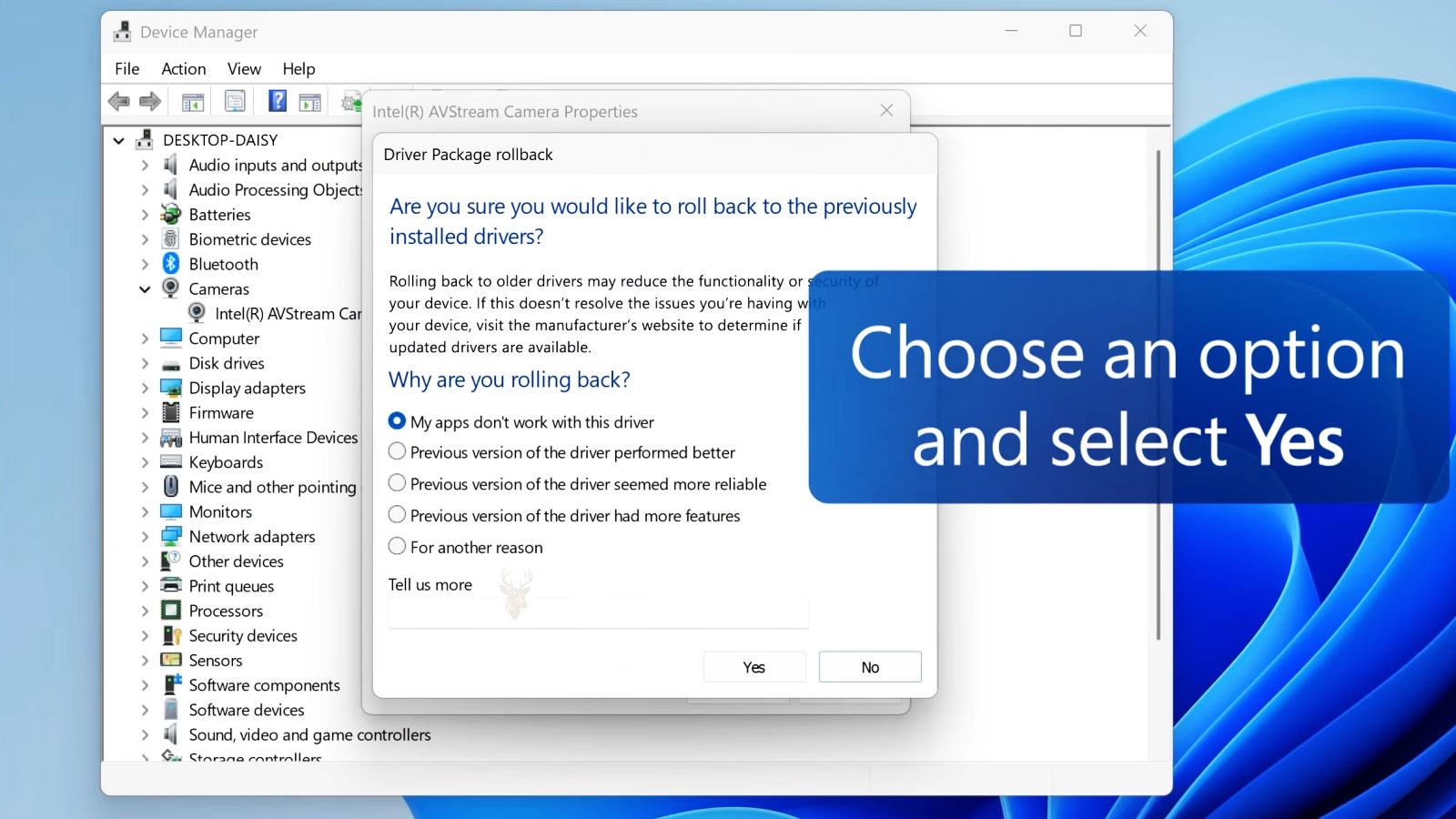
The Roll Back Driver option in Device Manager can return a device to the driver package that was installed before the current one. Windows retains the previous package in some update situations specifically to support this reversal.
Rollback normally changes the driver software assigned to the device. It does not restore personal files, reverse all Windows updates, or repair physical hardware.
Driver rollback is a targeted reversal for one device, not a complete rollback of the operating system.
If the earlier driver restores normal operation, the comparison provides useful evidence that the newer package was incompatible with the current system configuration.
Rollback Is Not Available When Windows Has No Previous Driver Stored
The Roll Back Driver button may be unavailable or appear gray. This usually means Windows does not have a previous driver package associated with that device that it can restore automatically.
| Reason rollback may be unavailable | Explanation |
|---|---|
| The device was installed for the first time | No earlier driver exists on the computer. |
| The previous package was removed | Windows no longer has the files required for rollback. |
| The current driver was installed after a clean Windows installation | There is no earlier system configuration for that device. |
| The driver was replaced through a method that did not preserve the old package | The rollback history may not have been created. |
| The device uses a basic built-in driver | Windows may have no separate earlier package to restore. |
When automatic rollback is unavailable, an older compatible driver may still be installed manually if it can be obtained from a trusted source.
Uninstalling a Device Is Different From Rolling Back Its Driver
Rolling back selects the previously retained driver package. Uninstalling removes the current device instance from Windows and may also offer an option to remove its driver package.
After an ordinary device uninstall, Windows often redetects the hardware during restart and reinstalls a suitable driver. If the problematic package remains in the driver store, Windows may reinstall the same version that caused the issue.
- Rollback attempts to restore the immediately previous driver.
- Uninstall removes the current device entry so Windows can detect it again.
- Removing the driver package can prevent the same version from reinstalling automatically.
- Manual installation allows a specific compatible package to be selected.
- Disabling a device stops Windows from using it without removing the driver.
These actions serve different purposes and should not be treated as interchangeable troubleshooting steps.
A Basic Microsoft Driver May Restore Limited Functionality
When a manufacturer driver is removed, Windows may assign a basic Microsoft driver. This can restore enough functionality to display an image, use a standard mouse, play basic audio, or connect through a supported network adapter.
The basic driver may not provide hardware acceleration, advanced gestures, audio enhancements, color controls, power-saving features, or manufacturer-specific functions.
| Device | Possible basic-driver behavior | Feature that may be missing |
|---|---|---|
| Graphics adapter | Produces a usable desktop image | Full resolution, acceleration, or multiple-display support |
| Sound device | Provides ordinary playback | Jack detection, microphone processing, or speaker tuning |
| Touchpad | Allows basic pointer movement | Multifinger gestures and palm rejection |
| Printer | Supports basic printing | Duplex controls, maintenance tools, or finishing options |
| Network adapter | Provides basic connectivity | Advanced roaming, power, or performance settings |
Restored basic operation can help confirm that the hardware is still responding even if the preferred driver remains unavailable.
Graphics Driver Problems Can Produce Severe Display Symptoms
A graphics driver controls resolution, refresh rate, hardware acceleration, external displays, video decoding, and communication with many visual applications. A failed or incompatible update can therefore affect more than picture quality.
- The screen may turn black after Windows begins loading.
- The computer may start in a low resolution.
- External monitors may stop being detected.
- Games or design programs may crash.
- The screen may flicker or briefly reset.
- Video playback may become slow or distorted.
A usable image during the manufacturer logo followed by failure when Windows loads can indicate that the display hardware works at a basic level and the problem begins when the full graphics driver starts.
Safe Mode Can Help When the Normal Driver Prevents Access
Safe Mode starts Windows with a reduced set of drivers and services. When a graphics, sound, or other nonessential driver causes instability during normal startup, Safe Mode may still allow access to Device Manager and recovery tools.
Successful Safe Mode operation does not identify the exact driver automatically. It shows that Windows can run under a reduced configuration and supports further comparison.
- Start Windows in Safe Mode.
- Open Device Manager and locate the affected hardware.
- Record the installed driver details.
- Use rollback when a previous package is available.
- Restart normally and test the device.
If normal startup continues to fail, the driver may need to be removed or replaced from Safe Mode before additional testing is possible.
Network Driver Failures Can Remove All Internet Access
An incompatible network driver can prevent a Wi-Fi or Ethernet adapter from connecting even though the router and internet service are working normally. The adapter may disappear, show an error symbol, or remain visible without finding networks.
This creates a practical problem because downloading a replacement driver may require the same internet connection that no longer works.
A replacement network driver should be obtained before removing the only working connection whenever possible.
The correct package can be downloaded on another computer and transferred through a USB drive. The computer model and operating system version should be confirmed before selecting the installer.
Audio Drivers Can Control More Than Speaker Output
A sound driver may manage built-in speakers, headphone detection, microphone input, digital audio, volume controls, and manufacturer-specific sound processing. Installing a generic package can restore sound while removing some of these functions.
After an update, Windows may also select a different playback device. Sound can appear to be missing when the driver is working but audio is being sent to an HDMI display, docking station, Bluetooth device, or digital output.
| Audio symptom | Possible driver-related explanation |
|---|---|
| No sound from internal speakers | The wrong output device or generic driver may be selected. |
| Headphones are not detected | Manufacturer jack-sensing features may be missing. |
| Microphone disappeared | The input component or associated driver may not have installed correctly. |
| Sound is distorted | An enhancement, format, or driver conflict may be involved. |
| HDMI audio is missing | The graphics or display-audio driver may be incomplete. |
Touchpad Driver Changes Can Remove Gestures and Buttons
A laptop touchpad may continue moving the pointer after a driver change while losing scrolling, tapping, physical-button behavior, sensitivity controls, or multifinger gestures.
These symptoms can occur when Windows replaces the computer manufacturer’s package with a general mouse-compatible driver. The hardware is still detected, but its advanced capabilities are not being exposed correctly.
Restoring the laptop manufacturer’s touchpad driver may return the missing controls, provided the package matches the Windows version and touchpad hardware.
Storage Controller Drivers Require Additional Caution
Storage controller drivers help Windows communicate with SATA, NVMe, RAID, and manufacturer-specific storage configurations. An incorrect change can make the system drive unavailable during startup.
Unlike a printer or sound driver, a storage driver may be required for Windows to reach the files needed to complete startup. Removing or replacing it without preparation can produce a startup error before Device Manager becomes accessible again.
- Confirm the current controller mode before making changes.
- Record the driver provider and version.
- Create a current backup of important files.
- Keep Windows recovery media available.
- Avoid using an unrelated storage driver merely because it has a newer version number.
Storage driver rollback should be performed only when the relationship between the controller, operating system, and startup configuration is understood.
A Driver Error Code Can Narrow the Investigation
Device Manager can display a status code when Windows cannot start or configure a device correctly. The code provides a starting point but does not always identify the final cause.
| General status | Possible direction |
|---|---|
| Device cannot start | The driver, firmware, resources, or hardware may be incompatible or unavailable. |
| Driver is missing | Windows has no suitable package assigned to the device. |
| Device is disabled | The hardware may have been disabled manually or by another configuration. |
| Windows stopped the device | The device or driver reported a serious problem. |
| No error shown | The driver can still be wrong even when Windows reports normal status. |
A normal status message confirms that Windows started the driver. It does not guarantee that every device feature works correctly.
The Exact Hardware ID Helps Identify the Correct Driver
Device names in Windows can be broad or incomplete. Hardware IDs provide more specific information about the manufacturer, device model, and sometimes the subsystem used by a particular computer maker.
These identifiers are useful when a device appears as unknown hardware or when several similar driver packages are available. The computer model alone may not reveal which wireless card, touchpad, or sound chip was installed at the factory.
- Open the device properties in Device Manager.
- Select the Details tab.
- Choose Hardware Ids from the property list.
- Record the most specific identifier.
- Compare it with the supported hardware listed for the driver package.
Matching the hardware ID reduces the risk of installing a package intended for a similar-looking but different device.
A Successful Rollback Should Be Followed by Controlled Testing
When the previous driver is restored, the device should be tested under the same conditions that exposed the problem. Brief detection is not enough to confirm that the earlier package resolved the failure.
- Restart the computer more than once.
- Test sleep and wake behavior.
- Use the affected device for an extended period.
- Check all manufacturer-specific features.
- Review Device Manager for renewed warnings.
- Confirm that Windows has not reinstalled the problematic driver.
If the hardware remains stable with the earlier driver, the result should be documented before additional Windows updates are installed.
Windows Update May Replace a Working Driver Automatically
One of the more confusing situations during troubleshooting occurs when a manually installed driver appears to solve the problem, only for Windows Update to replace it with a different version during a later update cycle. The computer may work correctly for several days before the symptoms unexpectedly return.
Windows attempts to provide compatible drivers automatically, but the version selected may not always be the one best suited for a particular computer model. Manufacturers sometimes customize drivers for thermal management, special keyboard functions, docking stations, hybrid graphics, biometric devices, or other hardware that differs from a reference design.
A driver that works well on one computer model may create problems on another system using similar hardware.
When troubleshooting repeated driver failures, it is often helpful to compare the installation dates shown in Device Manager with the Windows Update history. If the same driver repeatedly returns after being replaced manually, additional update management may be necessary until a corrected version becomes available.
Digital Signatures Help Windows Verify Driver Integrity
Modern versions of Windows expect most drivers to be digitally signed. A digital signature confirms that the package has not been modified after being released by its publisher and allows Windows to verify its authenticity during installation.
An unsigned or improperly signed driver may fail to install, generate warning messages, or require special startup options that temporarily relax signature enforcement. Those startup options are intended primarily for testing and development rather than everyday operation.
- Digital signatures help verify package integrity.
- Windows can identify the publisher of the driver.
- Modified or corrupted packages are more likely to be rejected.
- Signature verification reduces the risk of installing altered software.
- Business environments often rely on signed drivers for consistency and security.
Signature verification does not guarantee that a driver is free of bugs. It confirms only that the package matches the version released by the publisher.
Different Driver Branches May Exist for the Same Hardware
Some hardware manufacturers maintain multiple driver branches simultaneously. One branch may emphasize long-term stability while another introduces new features intended for recently released hardware.
Graphics hardware provides a common example. Professional workstation drivers often prioritize application certification and predictable behavior, while gaming-oriented releases may focus on performance improvements for newly released titles.
| Driver branch | Typical purpose | Primary emphasis |
|---|---|---|
| Long-term support | Stable business or enterprise environments | Reliability and compatibility |
| Consumer release | General desktop use | Balanced support and new hardware compatibility |
| Gaming release | Current PC games | Performance improvements and feature updates |
| Professional workstation | Engineering and creative software | Certified application stability |
Selecting the appropriate branch depends on how the computer is used rather than assuming every newer release is automatically preferable.
Firmware and Drivers Often Work Together
Many hardware components rely on both internal firmware and an operating system driver. Updating only one of these components can sometimes create compatibility issues if the two versions were designed to operate together.
This relationship is common with SSD controllers, Wi-Fi adapters, Thunderbolt hardware, docking stations, graphics adapters, and certain business-class security devices.
When release notes recommend a particular firmware version alongside a driver update, installing only one component may produce inconsistent behavior that is difficult to diagnose.
Chipset Drivers Influence More Than Individual Devices
Chipset drivers help Windows communicate with major motherboard resources such as PCI Express controllers, USB controllers, storage interfaces, power management features, and communication buses. They are different from the drivers assigned to individual devices like graphics cards or printers.
An outdated chipset package may contribute to problems that appear unrelated, including unreliable sleep behavior, USB instability, storage communication errors, or inconsistent PCI Express detection.
- Install the chipset package appropriate for the motherboard.
- Restart the computer after installation.
- Update individual device drivers afterward if necessary.
- Verify that Device Manager reports normal operation.
- Observe whether previously affected hardware behaves consistently.
Updating a chipset package does not automatically replace every individual device driver, but it can improve communication between Windows and the underlying platform.
Driver Packages May Include Supporting Software
Some driver installations include additional utilities that extend hardware functionality. These applications may provide firmware updates, configuration tools, diagnostics, battery management, audio enhancements, RGB lighting controls, or advanced networking features.
If only the driver is installed while the companion software is omitted, certain features may disappear even though the hardware itself functions normally.
| Device | Possible companion software | Function provided |
|---|---|---|
| Graphics adapter | Control panel application | Display configuration and graphics settings |
| Audio hardware | Audio console | Microphone processing and speaker adjustments |
| Touchpad | Gesture utility | Multifinger gesture customization |
| Gaming mouse | Configuration software | DPI adjustment and macro programming |
| Wireless adapter | Management utility | Connection diagnostics and advanced settings |
Driver Conflicts Can Occur After Hardware Upgrades
Replacing hardware without removing older drivers can occasionally create conflicts. A computer upgraded from one graphics adapter to another may retain services, background applications, registry entries, or monitoring tools that were designed only for the previous hardware.
Windows may continue operating correctly for basic tasks while instability appears during gaming, video editing, or other hardware-intensive workloads.
Removing unnecessary legacy software before installing replacement hardware can reduce compatibility problems and simplify future troubleshooting.
Multiple Devices Can Share Similar Driver Files
A single driver package sometimes supports numerous hardware models. During installation, Windows compares hardware identifiers and activates only the portions appropriate for the detected device.
This explains why one installer may list dozens of supported products even though the computer contains only one of them. The package itself contains instructions for multiple compatible models.
One driver installer does not necessarily represent one hardware model.
Power Management Settings Can Influence Driver Stability
Drivers frequently interact with Windows power management features. During sleep, hibernation, Modern Standby, and wake operations, devices transition between different power states.
If a driver does not handle those transitions correctly, users may experience disappearing Wi-Fi connections, missing USB devices, frozen touchpads, audio failures, or graphics resets after the computer resumes from sleep.
- Failures immediately after waking may indicate power-state communication problems.
- Restarting temporarily restores operation because the device initializes again.
- Updating the driver may improve power-state compatibility.
- Firmware updates can also affect power-management behavior.
- Business docking stations often require coordinated firmware and driver revisions.
Power-state transitions are a common source of intermittent problems because the device works normally while fully powered.
Virtual Devices Also Depend on Drivers
Not every driver controls physical hardware. Windows also installs drivers for virtual network adapters, VPN software, virtualization platforms, storage filters, and security products.
A malfunctioning virtual driver can interfere with internet access, storage operations, system startup, or communication between applications even when the physical hardware remains fully functional.
When troubleshooting driver problems, both physical and virtual devices should be considered because either can contribute to operating system instability.
Repeated Driver Failures May Indicate an Underlying Hardware Problem
If several different driver versions produce identical symptoms, the underlying hardware deserves closer examination. A graphics card with failing memory, an overheating network controller, damaged storage hardware, or an unstable motherboard can appear to have software-related problems because Windows repeatedly reports driver failures.
Software should not be blamed automatically when every available driver behaves the same way under similar operating conditions.
| Repeated symptom | Possible additional cause |
|---|---|
| Multiple graphics drivers crash | Graphics hardware instability or overheating |
| Several Wi-Fi drivers disconnect | Wireless adapter or antenna problem |
| Storage driver errors continue | Failing SSD, hard drive, or controller |
| USB devices disconnect with different drivers | Power delivery or motherboard issue |
| Sound distortion persists | Audio hardware fault or damaged circuitry |
Separating software causes from hardware defects often requires observing whether identical failures continue after multiple known-compatible driver versions have been tested.
System Restore Can Reverse More Than a Single Driver Change
System Restore provides a broader recovery option than the Roll Back Driver button. Instead of changing only one device package, it can return system files, registry settings, installed drivers, and certain application configurations to an earlier restore point.
This can be useful when several devices began failing after a larger Windows update or when it is unclear which driver caused the problem. Personal documents are normally left unchanged, but recently installed programs and drivers may be removed.
| Recovery method | Scope | Typical use |
|---|---|---|
| Driver rollback | One device driver | A single device stopped working after a known driver update |
| Device uninstall | One hardware entry and possibly its package | Windows needs to redetect the device |
| System Restore | Multiple system settings, drivers, and programs | Several problems began after a broader system change |
| Windows recovery | Major operating system repair | Windows cannot start or remains unstable after targeted repairs |
System Restore should not replace a current data backup. It is designed to reverse system changes, not to protect every personal file.
A Restore Point May Not Be Available
System Protection may be disabled, storage space for restore points may be limited, or older restore points may have been deleted automatically. A computer can therefore have a driver problem without offering a usable restore date.
When a restore point is available, its date should be compared with the first appearance of the hardware problem. Choosing a point that is too recent may leave the faulty driver installed, while choosing one that is much older may remove unrelated software and settings.
The most useful restore point is usually the nearest known-good configuration before the failure began.
Optional Driver Updates Should Be Reviewed Carefully
Windows may list some hardware drivers as optional updates rather than installing them automatically. These packages can be useful when a device has a known problem, but they should not be installed merely because they are available.
An optional driver may be older than the version supplied by the computer manufacturer, intended for a broad hardware family, or unnecessary for a system that is already operating correctly.
- Check the device model before selecting an optional driver.
- Compare the offered version with the installed version.
- Review the computer manufacturer’s support page.
- Create a restore point before making the change.
- Avoid changing several drivers at the same time.
Installing one package at a time makes it easier to identify which change caused an improvement or a new failure.
Manufacturer Support Pages May List Several Drivers for One Model
A laptop or desktop model may have been sold with different wireless adapters, touchpads, audio chips, graphics configurations, and storage controllers. The manufacturer’s support page may therefore list several packages under the same device category.
Installing every listed driver can create unnecessary conflicts. The exact hardware should be identified through Device Manager, the system serial number, service tag, original specifications, or hardware IDs.
| Identification method | What it helps confirm |
|---|---|
| Computer serial number | The factory configuration when manufacturer records are available |
| Hardware IDs | The exact chipset or device family detected by Windows |
| Device Manager name | The currently recognized hardware description |
| Original purchase specifications | The hardware selected when the computer was ordered |
| Physical inspection | The model printed on a removable card or component |
Driver Installation Order Can Matter After a Clean Windows Setup
After Windows is reinstalled, drivers are often loaded in stages. Installing chipset and platform-related packages before certain peripheral drivers can help Windows identify motherboard resources correctly.
The exact order varies by manufacturer, but a structured sequence can reduce unknown devices and incomplete installations.
- Install essential chipset and platform drivers.
- Install storage or controller drivers when required.
- Install graphics drivers.
- Install network drivers.
- Install audio, touchpad, camera, card reader, and other device packages.
- Install manufacturer utilities only when their functions are needed.
- Run Windows Update after the core hardware is operating correctly.
This order is not an absolute rule for every computer, but it provides a controlled starting point after a clean installation.
Driver Stores Can Retain Multiple Versions
Windows keeps approved driver packages in a protected area called the driver store. This allows the operating system to install or reassign drivers without requesting the original installation media each time.
Several versions of a driver may remain stored even though only one is active. This can support rollback, but it can also allow an unwanted package to return after a device is removed and detected again.
Removing packages from the driver store should be done carefully. Deleting the wrong package can leave another device without the software required to operate.
Third-Party Driver Utilities Can Create Additional Risk
Programs that promise to update every driver automatically may use broad hardware matching and may not account for manufacturer customizations. Some also bundle advertising, unnecessary background services, or software from unclear sources.
- A package may match the chipset but not the computer manufacturer’s implementation.
- Several drivers may be changed at once, making failures difficult to trace.
- The utility may install older or less appropriate versions.
- Recovery options may not be clearly documented.
- Unwanted software may be installed with the driver package.
Driver automation is most useful when the source, package history, and recovery method are known.
For most repairs, Windows Update and the official support pages of the computer or component manufacturer provide a more controlled path.
Antivirus and Security Software Can Interfere With Driver Installation
Security software monitors low-level system changes, and driver installation modifies protected areas of Windows. A security program may block, quarantine, or delay part of an installation if it considers the package suspicious.
This is more likely with older, unsigned, modified, or poorly packaged drivers. The correct response is not to disable security permanently. The package source and digital signature should be verified first.
| Installation symptom | Possible explanation |
|---|---|
| Installer closes unexpectedly | Security software or a damaged package may have interrupted it. |
| Driver files disappear after installation | They may have been quarantined or removed. |
| Access denied error | The installer may lack administrative permission. |
| Installation succeeds after restart | A pending system or security process may have released locked files. |
| Windows rejects the package | The signature, architecture, or compatibility requirements may not be met. |
Administrative Rights Are Often Required
Installing or removing a driver usually requires administrator permission because drivers operate at a low level within Windows. A standard user account may open Device Manager but remain unable to complete certain changes.
In a managed office environment, driver installation may also be restricted through company policies. The user may receive an access warning even when the package itself is valid.
Bypassing those controls without authorization can create security, support, and compliance problems. Business systems should follow the organization’s approved change process.
Driver Architecture Must Match the Installed Version of Windows
A driver package is built for a particular operating system architecture and supported Windows release. A 32-bit driver cannot normally be used on a 64-bit installation, and a package written for an older version of Windows may not load correctly on a newer release.
- Confirm whether Windows is 32-bit or 64-bit.
- Check the supported Windows edition and release.
- Verify whether the package supports the computer’s processor architecture.
- Avoid forcing installation through compatibility warnings without a recovery plan.
An installer that opens successfully is not proof that every included driver is compatible with the active operating system.
Older Hardware May Lose Support in Newer Windows Releases
Hardware manufacturers eventually stop producing new drivers for older devices. A computer may continue working with an existing package until a major Windows upgrade changes the driver requirements or removes support for an older interface.
The device may then operate only with reduced functionality, require an older Windows version, or become unsupported entirely. This situation is especially common with older printers, scanners, webcams, specialized expansion cards, and business equipment.
| Possible outcome | Meaning |
|---|---|
| Basic Windows driver works | Core operation remains available, but advanced features may be missing. |
| Older driver installs with warnings | Compatibility is uncertain and may be unstable. |
| Device is detected but unusable | Windows recognizes the hardware but has no suitable driver. |
| Device is not detected | The interface, firmware, connection, or hardware may also be involved. |
| Manufacturer lists no current support | Replacement hardware may be the most reliable long-term solution. |
A Driver Update Can Reset Device Settings
Installing a new driver may return device settings to their defaults. A printer can lose duplex preferences, a graphics adapter can change resolution or color settings, and a network card can reset advanced power options.
This can make the update appear defective when the driver is actually functioning but no longer uses the previous configuration.
- Check the selected audio playback and recording devices.
- Review monitor resolution and refresh rate.
- Confirm printer defaults and paper settings.
- Inspect network adapter power and speed options.
- Review touchpad gestures and sensitivity controls.
Testing should include the device’s settings as well as its basic detection status.
Some Driver Changes Require a Full Restart
Windows may complete part of a driver installation while postponing replacement of files that are currently in use. The device may behave unpredictably until the computer is restarted.
Signing out or placing the computer in sleep mode is not equivalent to a complete restart. Windows Fast Startup can also preserve part of the previous system state during shutdown.
A complete restart is one of the first verification steps after installing, removing, or rolling back a driver.
Fast Startup Can Make Driver Testing Inconsistent
Fast Startup combines elements of shutdown and hibernation to reduce startup time. Because some system state is preserved, a normal shutdown followed by power-on may not reload every driver in the same way as a restart.
When comparing driver behavior, a technician may use Restart or temporarily disable Fast Startup so each test begins from a more complete initialization.
This is particularly useful when a device works after Restart but fails after Shutdown, sleep, or hibernation.
Event Viewer Can Record Driver Loading Failures
Windows Event Viewer may contain warnings and errors related to device startup, driver loading, service failures, and unexpected resets. These records can help establish whether the problem occurs during startup, wake, heavy use, or device reconnection.
- Note the exact time the hardware problem occurs.
- Open Event Viewer and review nearby system events.
- Look for the device name, driver service, or hardware identifier.
- Compare repeated events across several failures.
- Avoid treating one isolated warning as definitive proof.
Many computers record routine warnings that do not affect operation. Repetition, timing, and matching symptoms provide more value than the presence of a single error entry.
Reliability Monitor Can Show When Hardware Problems Began
Reliability Monitor presents a timeline of application failures, Windows failures, updates, and driver-related events. It can make it easier to compare the first hardware failure with a driver installation or Windows update.
A sudden drop in the reliability score after a driver change can support the investigation, especially when the same device or application crashes repeatedly.
| Timeline event | Possible relevance |
|---|---|
| Driver installation | Establishes when the active package changed. |
| Hardware error | May indicate a device reset or low-level failure. |
| Application crash | Can show software affected by a graphics, audio, or device driver. |
| Windows failure | May indicate broader instability after the change. |
| Successful update | Helps compare system changes with the beginning of symptoms. |
A Clean Boot Can Reveal Conflicts With Supporting Software
Some driver problems are actually conflicts between the driver and a background utility, monitoring program, security product, or manufacturer control application. A clean boot starts Windows with a reduced set of non-Microsoft services and startup programs.
If the device works during a clean boot, the driver may be functional while another program interferes with it. Services can then be restored gradually to identify the conflict.
A clean boot is different from Safe Mode. Windows still uses the normal hardware drivers, but many optional startup programs and services are prevented from loading.
Driver Verifier Is an Advanced Diagnostic Tool
Windows Driver Verifier can place additional stress and validation checks on selected drivers to expose improper behavior. It is intended for advanced troubleshooting because it can deliberately cause a system crash when a driver violates expected rules.
Using Driver Verifier without understanding how to disable it can leave a computer in a repeated startup failure. Important files should be backed up, and recovery access should be confirmed before it is enabled.
Driver Verifier is designed to expose faults, not to improve normal computer performance.
It should not be enabled casually on every driver or used as a general maintenance tool.
Blue Screen Records May Identify a Suspected Driver
When Windows stops with a blue screen, it may create a memory dump containing information about the failure. Analysis can reveal a driver file that was active when the crash occurred.
The named driver is not always the true cause. It may be the component that detected damage created earlier by failing hardware, memory corruption, or another driver.
- Compare several crash records rather than relying on one event.
- Look for the same driver appearing repeatedly.
- Check whether the crashes began after a driver update.
- Test memory and hardware stability when results vary.
- Confirm that the named file belongs to the expected publisher.
Driver Problems Can Be Intermittent
A defective or incompatible driver may work during light use and fail only under specific conditions. The problem may appear during sleep, high network traffic, gaming, video playback, docking, or connection of a particular USB device.
This makes brief testing unreliable. A device that works for five minutes after rollback may still fail later when the original trigger returns.
| Trigger condition | Possible driver-related symptom |
|---|---|
| Wake from sleep | Wi-Fi, audio, or USB device disappears. |
| Heavy graphics load | Display driver resets or application crashes. |
| Large network transfer | Connection drops or adapter restarts. |
| Docking or undocking | External displays or ports fail to reconnect. |
| Connecting a specific peripheral | USB controller or device driver becomes unstable. |
Hardware Testing Is Necessary When Software Repairs Fail
If rollback, clean installation, manufacturer drivers, and Windows recovery do not change the behavior, the physical device and its connection should be tested. Repeated driver errors can be the operating system’s response to hardware that stops communicating correctly.
- Inspect removable hardware and internal connections.
- Check temperatures and power delivery.
- Test the device in another compatible system when practical.
- Test the computer with a known-good compatible device.
- Review whether the failure appears outside Windows.
- Compare behavior under light and heavy workloads.
A network adapter that disappears from firmware-level diagnostics or a graphics card that produces artifacts before Windows starts cannot be explained by the Windows driver alone.
Important Driver Packages Should Be Saved Before Major Changes
Before reinstalling Windows or replacing a storage drive, it can be useful to download essential network, chipset, storage, and graphics drivers in advance. This is especially important for computers that require a manufacturer-specific network package before internet access becomes available.
- Save the installer for the wired or wireless network adapter.
- Record the computer model and serial number.
- Save storage controller drivers when the system uses RAID or a specialized configuration.
- Keep the graphics and chipset packages from the official source.
- Store the files on a separate USB drive or external disk.
Preparation can prevent a repaired computer from becoming temporarily unusable because it cannot connect to download the remaining software.
A Stable Driver Does Not Always Need to Be Updated
Driver updates are valuable when they correct a known problem, add support for new software, improve security, or resolve compatibility issues. A computer that is stable and fully functional does not necessarily benefit from replacing every driver with the newest available version.
Unnecessary updates introduce change without a clear repair objective. This can be especially disruptive on business computers that depend on certified applications, specialized printers, older equipment, or carefully tested configurations.
The purpose of a driver update should be clear before a working configuration is changed.
A Practical Driver Recovery Process Reduces Guesswork
Driver troubleshooting is most reliable when each change is documented and tested separately. Installing several packages, changing firmware settings, removing devices, and running Windows repair tools at the same time can hide the original cause.
- Document the symptom and when it began.
- Record the current driver provider, version, and date.
- Review Windows Update and Reliability Monitor history.
- Create a backup and restore point when possible.
- Roll back the driver if a previous package is available.
- Test the device under the original failure conditions.
- Install a confirmed compatible manufacturer driver if rollback is unavailable.
- Check firmware, chipset support, and power management when necessary.
- Investigate hardware if multiple suitable drivers produce the same failure.
This sequence preserves useful evidence and reduces the chance of replacing a working component unnecessarily.
Driver Rollback Is Most Effective When the Change Is Identified Early
Windows driver rollback can restore hardware operation when a new package introduces incompatibility, removes manufacturer functions, or changes the way a device handles power and communication. Its usefulness depends on whether Windows retained the previous package and whether the failure truly began after the update.
When rollback is unavailable, the correct response is not to install random driver versions. The hardware identity, Windows architecture, computer model, firmware requirements, and official support information should be checked before another package is selected.
A successful repair should remain stable through restarts, sleep and wake cycles, normal workloads, and future Windows updates. When the same failure continues across several known-compatible drivers, the investigation should move beyond software and include the physical device, motherboard connection, power delivery, and thermal conditions.











