
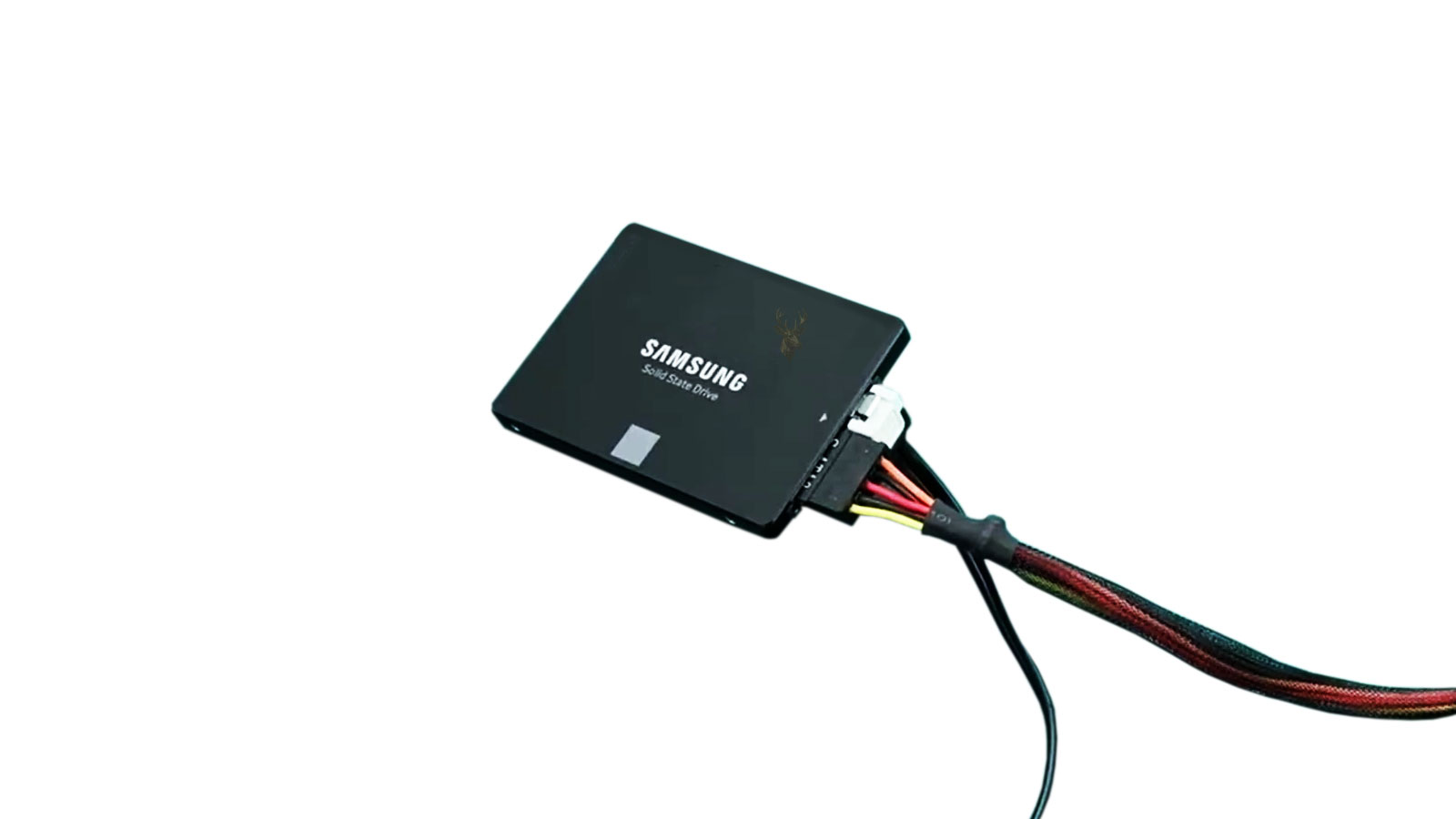
A Storage Drive Can Be Healthy While Its Connection Is Unreliable
When a desktop computer intermittently loses access to a hard drive or solid-state drive, the storage device itself is often blamed first. Drives can certainly fail, but the thin SATA data cable connecting the drive to the motherboard can create many of the same symptoms.
A weak data connection may allow the drive to appear normally during one startup and disappear during the next. The computer may freeze while opening a folder, report corrupted files, pause during startup, or display errors only when a large amount of data is transferred.
These problems occur because the drive needs two separate connections. One cable supplies electrical power, while the SATA data cable carries commands and file information between the storage device and the motherboard.
A drive can receive enough power to spin, warm up, or illuminate an activity indicator while still being unable to communicate reliably with the rest of the computer.
The SATA Data Cable Has a Different Job From the Power Cable
A standard SATA storage device usually has two adjacent connectors. The wider connector receives power from the computer’s power supply. The narrower connector carries data to a SATA port on the motherboard.
| Connection | Primary function | Possible symptoms when unstable |
|---|---|---|
| SATA data cable | Transfers commands and file data between the drive and motherboard | Drive disappears, transfers fail, startup pauses, or file access freezes |
| SATA power connector | Supplies operating power to the storage device | Drive does not spin, powers off unexpectedly, or repeatedly reconnects |
| Motherboard SATA port | Connects the storage channel to the motherboard controller | One port fails while the same drive works on another port |
| Drive interface connector | Provides the physical connection on the storage device | Movement causes detection changes or the connection feels unusually loose |
Because power and data are separate, hearing a mechanical drive spin does not confirm that the motherboard can communicate with it. Likewise, an SSD can receive power without appearing in the BIOS, Windows, or Disk Management.
Intermittent Detection Is a Common Cable-Related Symptom
A completely disconnected cable usually produces a clear result: the drive does not appear. A partially seated or internally damaged cable creates a more confusing problem because communication can work under some conditions and fail under others.
- The drive appears after a cold startup but disappears after a restart.
- Windows pauses when a folder on the drive is opened.
- A secondary drive vanishes and returns without being physically removed.
- Large file transfers fail while small files appear to work normally.
- The computer freezes when the drive is placed under sustained activity.
- The BIOS detects the drive during some startups but not others.
The inconsistency often leads users to suspect Windows, malware, drive formatting, or motherboard failure. The cable remains a basic but important part of the diagnostic process.
An intermittent storage connection can create more misleading symptoms than a connection that fails completely.
A Loose Connector May Move Only a Small Amount
SATA data connectors do not need to fall out completely to become unreliable. A plug that has backed away from the drive or motherboard by a small amount may maintain partial contact while losing communication during vibration, temperature changes, or cable movement.
Some SATA cables include metal locking clips that help secure the connection. Others rely primarily on friction. A worn connector, broken latch, or damaged plastic housing may allow the plug to loosen after the computer is moved or serviced.
The connection should sit straight and fully inserted. A cable that enters the port at an angle can place uneven pressure on the contacts and may gradually loosen again after it is reseated.
Cable Routing Can Place Continuous Stress on the Connector
Inside a compact desktop case, the SATA cable may be bent tightly around the drive cage, graphics card, side panel, or power supply. A cable routed under tension can pull against the drive or motherboard port continuously.
Closing the side panel may push the cable farther than expected. The drive can test normally while the case is open and begin disconnecting after the panel is installed.
| Routing problem | Possible effect |
|---|---|
| Sharp bend near the connector | Places stress on the plug and internal conductors |
| Cable trapped under the side panel | Movement of the panel can partially unseat the connection |
| Cable pulled tightly across the case | Maintains constant pressure on the drive or motherboard port |
| Cable resting against a fan | Creates vibration, wear, or direct damage |
| Excess cable folded into a narrow space | Can kink the cable and weaken internal conductors |
Good routing leaves enough slack for the connector to remain straight without allowing the cable to contact a cooling fan or interfere with airflow.
Internal Conductors Can Fail Without Visible Exterior Damage
A SATA cable can look normal while one or more internal conductors have become damaged. Repeated bending, pulling from the cable instead of the connector, or pinching the cable under case components can weaken the internal wiring.
The connection may work while the cable is positioned one way and fail when it is moved slightly. This behavior can be difficult to reproduce after the computer is placed on a workbench because the cable rests differently than it did in its usual location.
Visual inspection is still useful, but a cable should not be considered reliable solely because its outer insulation is intact.
The Motherboard SATA Port Can Also Be the Source
Replacing the cable does not correct a damaged or unstable motherboard port. A SATA port can develop bent contacts, cracked plastic, contamination, or an internal board-level connection problem.
Testing the same drive and cable on another available motherboard port can help separate a port problem from a cable or drive problem. The comparison should be performed with the computer powered down.
- Shut down the computer and disconnect electrical power.
- Record the original SATA port used by the drive.
- Inspect the port and connector for damage or debris.
- Connect the drive to another compatible SATA port.
- Start the computer and check whether detection remains stable.
- Compare behavior during startup and sustained file access.
If the problem follows the original port, motherboard inspection may be required. If it follows the cable or drive, the port becomes less likely to be the primary cause.
A Damaged Drive Connector Can Make Every Cable Feel Loose
The SATA connector on the drive includes a thin plastic section that supports the electrical contacts. This plastic can crack or break when the cable is pulled sideways, removed forcefully, or installed in a confined space.
Once the support is damaged, the cable may no longer align correctly. Replacing the cable can produce temporary improvement without creating a secure long-term connection.
A broken drive connector requires careful handling because additional movement can separate contacts or damage the drive’s circuit board. Important data should be protected before repeated reconnection attempts are made.
SATA Communication Errors May Appear in Health Records
Some drives maintain a SMART attribute associated with communication errors between the storage device and the controller. On many devices, this is commonly described as an UltraDMA CRC error count.
An increasing communication error count can support suspicion of a cable, connector, or port problem. It does not automatically prove which physical component is responsible.
| Observed pattern | Possible interpretation |
|---|---|
| Error count remains unchanged | The record may describe an older problem that is no longer active. |
| Error count increases during testing | A current communication problem may still be present. |
| Errors stop after cable replacement | The original cable or its seating likely contributed. |
| Errors continue on one motherboard port | The port or nearby motherboard circuitry may require attention. |
| Errors follow the drive to another computer | The drive connector or drive electronics may be involved. |
The raw value and naming can vary among drive manufacturers. The important observation is whether communication-related errors continue increasing after the connection is changed.
Communication Errors Are Different From Damaged Storage Sectors
A cable problem interferes with data traveling between the drive and motherboard. A damaged sector or failing flash memory affects the drive’s ability to read or store the information internally.
Both conditions can cause freezes, failed transfers, and file errors, but the repair direction is different. Replacing a SATA cable cannot restore damaged media, while replacing a healthy drive will not correct a loose motherboard connection.
The location of the failure matters. Data can be unreadable because the drive cannot retrieve it or because the connection cannot deliver it reliably.
Testing should therefore compare the drive, cable, power connection, and motherboard port instead of treating every disappearance as proof of drive failure.
Large Transfers Place More Demand on an Unstable Connection
A weak SATA connection may remain unnoticed during light activity. Opening a small document or viewing a few photographs requires only brief communication, while a backup or large file transfer keeps the connection active for a longer period.
During sustained activity, errors may accumulate until Windows pauses, retries the request, resets the storage channel, or temporarily removes the drive. The transfer can slow significantly before it fails completely.
This explains why a computer may seem normal during casual use but fail during system imaging, video editing, game installation, or movement of a large folder.
Startup Delays Can Occur While the Computer Waits for the Drive
During startup, the BIOS and operating system attempt to identify connected storage devices. An unstable drive connection can delay this process while the controller waits for a response or retries communication.
The computer may pause at the manufacturer logo, take longer to reach Windows, or display a boot-device error when the system drive is affected. If the unstable device is used only for secondary storage, Windows may start but freeze later when software attempts to access that drive.
Disconnecting the suspect secondary drive temporarily can reveal whether it is contributing to the startup delay. This test should not be used as a reason to ignore valuable data stored on the device.
Movement Can Trigger a Problem That Is Difficult to Reproduce
A computer may work correctly until the desk is bumped, the case is moved, or the system is transported to another location. Movement can shift a loose SATA connector or change the position of a damaged cable.
The same computer may then operate normally when placed flat on a service bench. This does not mean the original report was inaccurate. The change in position may temporarily restore contact.
- Note whether the failure began after the computer was moved.
- Check whether the side panel presses against the cable.
- Inspect locking clips and connector alignment.
- Observe whether light cable movement changes drive detection.
- Avoid repeatedly disturbing a drive that contains unprotected data.
Intermittent storage problems should be diagnosed under conditions that resemble the position and use associated with the original failure.
Important Files Should Be Protected Before Extended Testing
Even when a cable appears to be the likely cause, the drive may also contain developing media errors or file system damage from previous disconnections. Important data should be copied to a separate healthy destination as soon as stable access is available.
A connection that works after reseating may fail again without warning. Using the temporary improvement to preserve files is safer than assuming the issue has been permanently corrected.
After the data is protected, the drive can be tested more thoroughly with a replacement cable, another port, sustained transfers, and health monitoring without placing the only copy of important information at unnecessary risk.
Replacing the Cable Is Useful Only When the Test Is Controlled
Installing a different SATA data cable is one of the simplest ways to test an intermittent storage connection, but the comparison should change only one variable at a time. Replacing the cable, moving the drive to another motherboard port, and changing the power connector simultaneously can make the result difficult to interpret.
A controlled test begins by documenting the original connections. The replacement cable should be known to work correctly, should fit securely at both ends, and should be routed without sharp bends or continuous tension.
- Record the original motherboard port and power connection.
- Power down the computer and disconnect external power.
- Replace only the SATA data cable.
- Reconnect the drive to the same motherboard port.
- Start the computer and confirm whether the drive is detected.
- Test sustained file access and monitor for renewed disconnects.
If the problem stops, the original cable becomes a strong suspect. If the symptoms continue unchanged, the port, drive connector, power connection, or drive itself still requires evaluation.
A New Cable Can Still Be Defective or Poorly Matched
Replacing a cable does not guarantee that the new connection is reliable. A low-quality cable, damaged locking clip, loose connector housing, or manufacturing defect can create the same symptoms as the original cable.
Length and routing also matter. An unnecessarily long cable can be difficult to position inside a compact case and may be folded or pinched to fit. A very short cable can remain under tension and pull against the connectors.
| Replacement cable characteristic | Why it matters |
|---|---|
| Secure connector fit | Reduces movement at the drive and motherboard ports. |
| Working locking clips | Helps prevent the plug from backing out after installation. |
| Appropriate length | Allows clean routing without tension or excessive folding. |
| Undamaged insulation | Reduces the possibility of pinched or weakened conductors. |
| Known working history | Provides a more reliable comparison than an untested cable. |
When the replacement cable is untested, a continued failure does not immediately eliminate the cable from consideration.
SATA Speed Labels Do Not Always Explain the Failure
SATA revisions are commonly described by transfer rates such as 1.5, 3, or 6 gigabits per second. Most modern SATA data cables use the same basic connector and can operate across these generations when they are properly manufactured and undamaged.
A cable marketed with a higher speed label does not correct a loose port, broken connector, unstable power source, or failing drive. Likewise, an older but healthy cable may function correctly with a newer SATA device.
Connection quality matters more than the marketing label printed on a SATA cable.
When performance is lower than expected, negotiated link speed, controller mode, drive capability, and workload should be examined along with the cable.
Windows May Record Storage Resets and Communication Timeouts
An unstable SATA connection can generate warnings in Windows Event Viewer. The operating system may report that a disk disappeared, a storage request timed out, or a controller channel was reset after communication stopped responding.
These entries can support the investigation, but they do not always identify the cable directly. Similar events may occur with a failing drive, unstable power, controller faults, or serious file system problems.
| Recorded behavior | Possible meaning |
|---|---|
| Storage device reset | Windows lost reliable communication and attempted to restore the channel. |
| Request timed out | The drive or connection did not respond within the expected period. |
| Disk removed unexpectedly | The device stopped appearing without a normal shutdown or removal. |
| Repeated controller warnings | The motherboard port, cable, power, or storage device may be unstable. |
| No recorded event | The failure may have occurred before Windows loaded or too abruptly to be logged. |
The timing of the entries should be compared with freezes, failed transfers, and moments when the drive disappeared.
BIOS Detection Helps Separate Early and Late Failures
If the drive is missing from the BIOS or firmware storage list, the problem occurs before Windows attempts to use it. This points toward the physical connection, drive electronics, power delivery, motherboard controller, or firmware configuration.
If the BIOS detects the drive consistently but Windows loses it later, the connection can still be involved. Sustained activity, power management, controller drivers, or file system errors may expose a problem that is not visible during the brief firmware detection stage.
- Missing in both BIOS and Windows suggests an early detection problem.
- Present in BIOS but absent from Windows may involve partitions, drivers, or later communication loss.
- Detected only after reconnecting the cable suggests poor seating or connector movement.
- Detected on another SATA port may indicate a port-specific issue.
- Detected in another computer but not the original system may shift attention toward the motherboard or power supply.
Detection at one stage should not be treated as proof that the entire storage path remains reliable afterward.
The Power Connection Can Closely Imitate a Data Cable Failure
A drive that loses power can disappear from the computer in the same way as a drive that loses data communication. Mechanical drives may spin down and restart, while solid-state drives can vanish instantly and return after the power connection is restored.
Loose SATA power plugs, damaged power supply leads, overloaded splitters, and low-quality adapters can all create intermittent behavior. Some problems appear only when the drive begins sustained activity and its power demand changes.
Testing the data cable without considering power can lead to repeated cable replacements that never correct the actual fault.
Power Splitters and Adapters Add More Failure Points
Desktop systems are sometimes expanded with power splitters or adapters when the power supply does not have enough conveniently placed SATA connectors. These additions create extra contact points that can loosen, overheat, or provide inconsistent voltage.
An adapter may work during light use but become unstable when several drives operate simultaneously. Poorly made connectors can also fit loosely or place stress on the drive’s power socket.
| Power arrangement | Diagnostic concern |
|---|---|
| Direct power supply connector | Usually provides the simplest path with the fewest added contact points. |
| SATA power splitter | One weak connection can affect more than one drive. |
| Legacy power adapter | Connector quality and voltage contact may vary. |
| Shared modular power cable | Several devices may be affected if the cable or power supply socket is unstable. |
| Third-party modular cable | Incorrect wiring can damage drives even when the connector physically fits. |
Modular power supply cables should never be exchanged between power supply models unless compatibility is explicitly confirmed. Identical-looking connectors can use different internal wiring.
Multiple Drives Disappearing Together Suggest a Shared Cause
When two or more drives disappear at the same time, separate SATA data cables are less likely to fail simultaneously. A shared power cable, controller, motherboard setting, or power supply problem becomes more important.
The affected drives should be compared by connection path. Drives using the same power lead, nearby motherboard ports, or the same add-in controller may reveal a common point of failure.
- Identify whether the drives share one power cable.
- Check whether they use ports controlled by the same SATA controller.
- Note whether the failure occurs during heavy system load.
- Inspect any shared splitter or adapter.
- Compare whether unrelated USB or NVMe storage remains available.
A shared pattern can prevent unnecessary replacement of several healthy drives and cables.
Controller Mode Changes Can Make a Drive Appear Missing
Motherboard firmware can operate SATA controllers in modes such as AHCI, RAID, or compatibility settings. A change in controller mode may prevent Windows from starting correctly or alter how drives are presented to the operating system.
This situation differs from a loose cable because the physical drive may remain detected by the firmware while Windows lacks the expected controller configuration. The problem can begin after a BIOS reset, firmware update, battery replacement, or manual settings change.
Controller settings should be documented before they are changed. Switching modes without preparation can create additional startup problems and should not be used as a random test.
Hot-Plug Settings Can Affect How Reconnection Is Handled
Some motherboard ports support hot-plug behavior, allowing a SATA device to be connected or removed while the system is operating under appropriate conditions. Other ports are intended for devices that remain connected from startup to shutdown.
An unstable cable can make a fixed internal drive appear as though it was unexpectedly removed and reconnected. Depending on the controller and operating system settings, Windows may restore access, assign the device differently, or leave it unavailable until restart.
Hot-plug support does not make an unreliable connection safe. Unexpected removal during writes can still damage files or file system structures.
File System Errors May Remain After the Cable Is Replaced
Correcting the physical connection does not automatically reverse damage caused by earlier interruptions. If the drive disconnected while Windows was writing data, the file system may contain incomplete records, damaged folders, or files that no longer open correctly.
The drive may remain detected after repair while Windows continues to report scanning messages, access errors, or corrupted files. These symptoms should be evaluated separately from the original communication problem.
Repairing the connection prevents new interruptions, but it does not guarantee that earlier interrupted writes left every file intact.
Important data should be copied and verified before aggressive file system repair is attempted, especially when the drive has shown additional signs of physical failure.
Write Activity Makes Unexpected Disconnects More Dangerous
A drive that disconnects during reading may interrupt access to a file. A drive that disconnects during writing can leave the file, folder, or file system in an incomplete state.
Operating system updates, application installations, database activity, backups, and large file transfers can all produce sustained writes. An unstable system drive is particularly serious because Windows continually updates system files, logs, caches, and user data.
| Activity during disconnect | Possible consequence |
|---|---|
| Reading a document | The file may fail to open or the program may stop responding. |
| Saving a document | The new version may be incomplete or corrupted. |
| Installing software | The application may be only partially installed. |
| Updating Windows | System files or startup components may be left inconsistent. |
| Writing to a database | Records or indexes may become damaged. |
Repeated use should be limited until the connection remains stable under sustained activity.
Cloning an Unstable Drive Requires a Reliable Connection
A clone or image can protect data from a drive that may be failing, but an unstable cable can interrupt the process and produce misleading read errors. The recovery software may report failures caused by lost communication rather than damaged storage areas.
Before a long imaging operation begins, the drive should be connected through the most stable available path. A known-good cable, secure port, direct power connection, and minimal physical movement reduce avoidable interruptions.
If the drive has mechanical symptoms, severe instability, or highly valuable data, ordinary repeated imaging attempts may not be appropriate. The condition of the drive still determines how much testing is safe.
A Stable Transfer Is More Informative Than a Brief Detection Test
Seeing the drive listed after a restart confirms only that it responded during detection. A meaningful verification should include sustained reading, representative file access, and monitoring for renewed communication errors.
- Confirm detection in the BIOS and Windows.
- Open several folders from different areas of the drive.
- Copy a controlled group of files to another healthy device.
- Observe transfer speed and responsiveness.
- Recheck communication-related SMART values when available.
- Restart the computer and confirm that the drive remains detected.
A cable replacement should be considered successful only after the storage connection remains stable under conditions similar to those that previously triggered the failure.
Repeated Reseating Is Not a Permanent Repair
Disconnecting and reconnecting a SATA cable can temporarily restore contact, especially when oxidation, poor seating, or slight connector movement is involved. The improvement may last through several startups and then disappear again.
A cable that repeatedly needs to be reseated should not be considered reliable. The connector may be worn, the locking clip may be damaged, or the cable may be pulling against the port after the case is closed.
The repair should address the reason the connection loosens instead of depending on periodic reconnection. Replacing the cable, correcting the routing, and inspecting both ports provides a more dependable result.
A Cable Should Be Removed by the Connector Housing
Pulling directly on the cable places stress on the internal conductors and the attachment point inside the connector. The plug should be held by its plastic housing and removed in line with the port.
If the cable includes a metal locking clip, the clip must be pressed before removal. Pulling against a locked connector can damage the clip, motherboard port, or plastic support on the drive.
- Power down the computer before handling internal SATA connections.
- Release the locking clip before pulling the connector.
- Hold the plug rather than the cable insulation.
- Pull straight instead of twisting the connector sideways.
- Support the drive if the port is difficult to reach.
Careful removal protects both the cable and the much more expensive hardware connected to it.
Right-Angle and Straight Connectors Serve Different Case Layouts
SATA data cables are available with straight connectors, right-angle connectors, or one of each. The best design depends on the position of the drive, motherboard port, side panel, and nearby components.
A right-angle connector can reduce cable pressure in a narrow drive bay, but it may point in the wrong direction or block an adjacent port. A straight connector offers more routing flexibility but may interfere with a side panel when clearance is limited.
| Connector style | Potential advantage | Possible limitation |
|---|---|---|
| Straight connector | Flexible routing in open spaces | May extend too far from a rear-facing drive port |
| Right-angle connector | Reduces outward cable projection | Can block nearby connectors or point toward an obstruction |
| Locking connector | Helps resist accidental movement | May be difficult to release in a confined area |
| Nonlocking connector | Easier to remove where access is limited | May loosen more easily if routing places tension on it |
The correct cable should fit the case layout without forcing the drive or motherboard connection into an unnatural angle.
Cable Ties Should Support Routing Without Crushing the Cable
Cable management can improve airflow and prevent SATA cables from reaching fans, but ties should not be tightened aggressively. Excess pressure can flatten the cable, create sharp bends, or damage the conductors inside.
The cable should be held loosely enough to maintain its natural shape. Reusable hook-and-loop straps often allow easier adjustment than tightly pulled plastic ties.
Good cable management controls movement without turning the cable tie into another source of damage.
Routing should also leave enough slack for the connector to remain fully seated after the side panel is installed.
Dust and Debris Can Interfere With Connector Seating
Dust inside a computer usually affects cooling first, but debris can also collect around unused SATA ports and drive connectors. A small obstruction may prevent the plug from seating completely.
Ports should be inspected under good lighting before a cable is installed. Cleaning must be performed carefully because the internal contacts and plastic supports can be damaged by metal tools, excessive force, or improper use of compressed air.
Liquid residue, corrosion, or darkened contacts indicate a more serious condition than ordinary dust and may require board-level inspection.
Heat Can Change an Intermittent Connection
Materials inside the computer expand slightly as temperature rises. A marginal connector or cracked solder joint may work during a cold startup and fail after the system has been operating for a period of time.
The opposite can also occur. A drive may fail to appear when cold and begin working after the case warms. These patterns suggest that the physical connection or related electronics may be sensitive to temperature.
- Note whether the drive disappears only after extended use.
- Compare behavior during the first startup of the day and later restarts.
- Check whether cooling the system changes detection.
- Inspect nearby heat sources and cable routing.
- Monitor whether communication errors increase as temperature rises.
Temperature-related behavior should be documented because a brief room-temperature test may not reproduce the original failure.
Vibration Can Expose a Weak Connection
Mechanical hard drives, cooling fans, and case movement create small vibrations during operation. A secure SATA connection tolerates this activity, but a worn or partially seated connector may lose contact.
A failing fan can produce unusually strong vibration that affects nearby cables and drive cages. Loose drive mounting screws can also allow the storage device to move more than intended.
The solution should not involve moving cables while the computer is writing data. Instead, the system should be powered down and the drive mounting, cable seating, and fan condition should be inspected safely.
Drive Mounting Can Affect Connector Alignment
A drive that is installed loosely or positioned incorrectly can place sideways pressure on its connectors. Tool-free trays, adapters, and mounting brackets should hold the device securely without bending the cable.
This is especially important when a 2.5-inch SSD is installed in a larger desktop bay with an adapter. A poorly fitted bracket may leave the drive hanging from the power and data cables rather than supporting it mechanically.
| Mounting condition | Possible effect |
|---|---|
| Drive is not secured | Movement can loosen the data or power connector. |
| Bracket places the drive too close to the panel | The cable may be crushed when the case is closed. |
| Drive hangs from its cables | Continuous weight stresses both connectors. |
| Mounting screws are overtightened | The drive frame or adapter may become distorted. |
| Drive cage vibrates excessively | Intermittent connection problems may become more likely. |
A Secondary Drive Can Freeze Programs Installed on It
When the unstable drive is not the Windows startup drive, the computer may continue running while specific programs stop responding. Applications, games, media libraries, or project files stored on the secondary drive can freeze whenever the connection is lost.
The problem may appear to affect only one program even though the actual failure is the storage path serving that program. Windows itself may remain responsive because its system files are stored elsewhere.
Reviewing where the affected software and data are installed can reveal why the symptom is limited to certain tasks.
A System Drive Connection Failure Can Prevent Windows From Starting
When the unstable SATA connection belongs to the Windows system drive, the consequences are more severe. The computer may show a missing boot device message, enter automatic repair, restart repeatedly, or freeze during the loading screen.
The drive may reappear after the case is moved or the cable is reseated, making the startup problem seem resolved. However, another interruption during an update or system write can create additional operating system damage.
A system drive that returns after cable movement should be treated as unstable until the entire connection path has been corrected and tested.
RAID Configurations Require Additional Caution
In a RAID configuration, a temporary SATA communication failure can make a healthy drive appear to have failed. The controller may mark the member as missing, degraded, or offline after repeated communication errors.
Replacing or rebuilding the wrong drive can place the array at greater risk. The cable, port, power connection, and controller logs should be examined before assuming the storage media itself has failed.
- Record which array member is reported missing.
- Review controller warnings and communication errors.
- Inspect the physical connection without changing drive order.
- Preserve current configuration information.
- Confirm backups before beginning a rebuild.
- Verify that the connection remains stable under sustained activity.
Drive order and controller configuration should remain documented because reconnecting members incorrectly can complicate recovery.
Add-In SATA Controllers Create Another Diagnostic Layer
Some desktop computers use a PCI Express SATA controller to add more storage ports. In these systems, the drive depends on the SATA cable, add-in card, motherboard slot, controller driver, and card power requirements.
If several drives connected to the same add-in controller disappear together, the card or its connection to the motherboard becomes more important than the individual data cables.
Testing a drive on a built-in motherboard port can help compare the two controller paths, provided the operating system and storage configuration allow the change safely.
Verification Should Include More Than One Restart
An intermittent connection can pass a single test and fail later. Verification should include cold startups, restarts, sustained transfers, and operation after the computer reaches normal internal temperature.
| Verification step | What it helps confirm |
|---|---|
| Cold startup | The drive is detected after the system has been fully powered down. |
| Warm restart | The connection remains stable after components heat and expand. |
| Large file transfer | The storage path can sustain continuous communication. |
| Case panel installed | The final cable routing is not being compressed or pulled. |
| SMART and event review | Communication errors are no longer increasing. |
The repair is more convincing when the computer remains stable under the same conditions that previously caused the drive to disappear.
The Old Cable Should Not Be Returned to Service
When testing strongly indicates that a SATA cable caused intermittent detection, the cable should be removed from usable spare parts. A damaged cable can appear normal and may later create the same problem in another computer.
Labeling or discarding the suspect cable prevents it from being mistaken for a reliable replacement. The small cost of a new cable is minor compared with the time and data risk created by reusing an unstable one.
Stable Detection Does Not Eliminate the Need for Backups
Once the connection has been repaired, the drive may return to normal operation. That result does not protect the files from future hardware failure, accidental deletion, malware, or another electrical problem.
Any storage device that has experienced repeated unexpected disconnections should have its important contents verified and backed up. Files that were open during earlier failures may already contain damage even when the drive now appears stable.
A Reliable Storage Path Depends on Every Connection
A disappearing SATA drive cannot be diagnosed by examining the storage device alone. The data cable, power connector, drive interface, motherboard port, controller, case routing, and mounting all influence whether communication remains stable.
Replacing a questionable cable is often a practical repair, but the result should be verified through controlled testing rather than assumed after one successful startup. When the entire connection path remains stable and important files have been protected, the computer can return to service with much greater confidence.











